In a nutshell
Every resource you run on Google Cloud costs money, and something has to pay for it. That something is a Cloud Billing account — think of it as the corporate credit card kept at a serviced-office reception desk. Each project you create is like a room you rent in that building: the room can’t pay for itself, so it’s tied to the card on file. Resources are the equipment inside the room; they meter usage, and the card gets charged.
The rest of this lesson is about the tools that let you see and shape that charge. A budget is a smoke alarm, not a sprinkler: it screams when spend gets hot, but it does not cut the power — if you want spending to actually stop, you wire that yourself (a budget message → a small function that switches billing off). Labels are the stickers you slap on every piece of equipment so that, when the bill lands, you can see which team ran up the tab. Billing export to BigQuery is handing that itemised bill to a spreadsheet wizard who can answer any question you can phrase. And discounts are the building’s loyalty schemes: stay steadily and you get an automatic rebate (Sustained-Use Discounts); sign a 1- or 3-year lease for a bigger cut (Committed-Use Discounts); or take the “we may reclaim your desk at 30 seconds’ notice” cut-price hot-desks (Spot).
Hold those five pictures — card, rooms, smoke alarm, stickers, loyalty schemes — and every option below is just detail. The single most valuable sentence in the whole lesson: a budget only warns; a quota is the actual brake. If you remember one thing, remember that.
Level: Foundation (Junior) · Time: ~48 min · You will need: a Google Cloud account (the $300 free trial is perfect) and, ideally, Billing Account Viewer or higher on a billing account.
Every other lesson in this course teaches you how to build something on Google Cloud. This one teaches you how to pay for it — and, just as importantly, how to not pay for it by accident. The single most common way a newcomer gets hurt on any cloud is not a security breach; it is a surprise bill. A forgotten virtual machine, a SELECT * over a terabyte, a static IP address reserved and never released — each quietly accrues charges while you sleep. The defence is not luck or constant vigilance; it is understanding the money model end to end and wiring up the guardrails that Google gives you for free.
This lesson is deliberately exhaustive, because billing is the one part of the platform where a small gap in understanding maps directly to real money. We start from the top of the model — the Cloud Billing account, the object that actually holds your payment method and pays the bills — and the two flavours it comes in (self-serve and invoiced). We cover how a billing account connects to projects (the link that turns “I created a resource” into “I owe money”), the complete set of Cloud Billing IAM roles (who is allowed to see spend, set budgets, or move a project’s billing), and the sub-account / reseller model for partners and large organisations. Then we get practical: budgets and alerts (scope, thresholds, the difference between a warning and a hard stop, and Pub/Sub notifications that let you build automated cost control); Cloud Billing reports and the cost table (grouping spend by service, project and — crucially — label); billing export to BigQuery (the three export types, and the SQL that turns raw usage into answers). Finally we lay out the full discount landscape — committed-use discounts (spend-based vs resource-based), sustained-use discounts, Spot VMs, and the Free Tier — and the difference between a quota (a technical cap) and a budget (a financial alarm). By the end you should be able to set up billing for a new organisation, attribute every rupee or dollar of spend to the team that caused it, and sleep through the night.
This is a Foundation-level lesson, so every term is defined the first time it appears. But it is complete: a learner who reads it once should know every option Cloud Billing presents.
Learning objectives
By the end of this lesson you will be able to:
- Distinguish a Cloud Billing account from a project, explain the link between them, and choose between self-serve and invoiced billing.
- Apply the correct Cloud Billing IAM role to each person — Billing Account Administrator, User, Viewer, Costs Manager, Creator, and the project-side Project Billing Manager — and explain why billing permissions are deliberately separate from project permissions.
- Set up budgets with the right scope, thresholds and alert recipients, and explain why a budget is an alarm, not a brake — then build a real hard-stop using Pub/Sub and automation.
- Read the Cloud Billing reports and cost table, and use labels to attribute spend to teams, environments and cost centres.
- Configure billing export to BigQuery (standard usage, detailed usage, and pricing) and write SQL to answer “what did we spend, on what, and where”.
- Choose the right discount for a workload — CUDs (spend-based vs resource-based), SUDs, Spot, and the Free Tier — and quantify the trade-off of each.
- Tell a quota apart from a budget, and design a cost-attribution scheme that survives organisational growth.
Prerequisites & where this fits
You should already understand the resource hierarchy — Organization → Folders → Projects → Resources — and the idea that a project is the unit of isolation and that costs roll up per project. If any of that is shaky, read Google Cloud Fundamentals: Resource Hierarchy, IAM and Pricing first; this lesson goes far deeper on the billing half of that story without repeating the basics. You will also want a Google Cloud account with the $300 free trial or an existing billing account where you have at least Billing Account Viewer. This lesson sits in the Fundamentals module of the GCP Zero-to-Hero course, immediately after the CI/CD deep-dive and before the IAM deep-dive — billing is foundational knowledge every other domain assumes.
Core concepts: the four objects in the money model
Before any option makes sense, you need four mental models. Get these straight and everything else is detail.
1. The Cloud Billing account. This is the object that holds a payment instrument (a credit card, or an agreed invoice arrangement) and that actually pays for usage. It is not a project, and it is not a Google account — it is a separate, top-level object with its own ID (a string like 0X0X0X-0X0X0X-0X0X0X). You can have many of them. A billing account belongs to one Organization (or, for individuals, sits on its own) and is administered through the Billing section of the console, not through any single project.
2. The project. A project is the container that resources live in — VMs, buckets, databases. By itself a project cannot be charged: it has no payment method. To incur charges, a project must be linked to a billing account. The relationship is many-to-one: one billing account can pay for many projects, but each project is linked to exactly one billing account at a time. This link is the hinge of the whole model — resources cost money, projects contain resources, and the billing account pays for the projects linked to it.
3. The bill (charges and credits). As resources run, Google meters usage (vCPU-seconds, gigabyte-months, requests, egress bytes) and applies the published price to produce charges. Against those it applies credits — promotional credit (the $300 trial), committed-use discount credits, sustained-use discount credits, free-tier credits — to produce the net cost you actually pay. Understanding that the headline charge and the net cost are different numbers is the first step to reading any report.
4. The labels and the hierarchy that make spend legible. A bill is only useful if you can answer who spent it and on what. Spend naturally rolls up the resource hierarchy (resource → project → folder → organisation). To slice it any other way — by team, environment, cost centre, application — you attach labels (key/value tags) to resources and projects. Labels are the single most important habit in cloud cost management; we return to them repeatedly.
A few more terms you will meet:
- Invoice — the monthly document (for self-serve accounts, the statement; for invoiced accounts, a true invoice with payment terms).
- Cost vs usage — usage is the metered quantity (e.g. 730 vCPU-hours); cost is usage × price − credits.
- Pricing — Google’s published rates per SKU, before any discount.
- SKU — a Stock Keeping Unit: the finest-grained billable line item (e.g. “N2 Instance Core running in Mumbai”). Every charge maps to a SKU and a service (e.g. Compute Engine).
- Recommender / FinOps — the discipline and the tooling (Recommender, Active Assist) that suggest where to cut waste.
Billing accounts: self-serve vs invoiced, and the lifecycle
A Cloud Billing account comes in two types, and the type is fixed at creation — you cannot flip a self-serve account into an invoiced one; you migrate to a new account. Knowing the difference is a classic Cloud Digital Leader exam point.
| Aspect | Self-serve (online) | Invoiced (offline) |
|---|---|---|
| Payment method | Credit/debit card or, in some regions, direct debit/bank transfer | Monthly invoice with agreed payment terms (e.g. net 30) |
| Who it suits | Individuals, start-ups, small teams | Enterprises, government, anyone needing PO/invoice workflows |
| How you get it | Self-service sign-up — instant | Apply through Google Cloud sales; subject to credit check and minimum spend |
| Documents | Monthly statements, payment receipts | True invoices with billing contacts and tax details |
| Currency/tax | Set at creation, cannot change later | Negotiated; supports more billing arrangements |
| Cost | None to open | None to open; terms are contractual |
| Gotcha | Card failures can suspend resources; keep a backup card | Lead time to set up; not instant |
The lifecycle and its states. A billing account moves through a small set of states you should recognise:
- Open / active — paying for usage normally.
- Closed — you (an administrator) closed it; linked projects stop being able to use paid services and resources may be disabled then eventually deleted. Closing a billing account is destructive to the workloads it funds — detach or relink projects first.
- Suspended — Google suspended it, typically for payment failure (a declined card) or a policy/abuse issue. Resources are disabled until you fix payment. This is the state newcomers hit when a trial card expires.
- Pending — awaiting verification, e.g. during invoiced-account setup.
Account-level settings you can configure: the payment method (add/replace cards, set a backup card), billing contacts and notification language/preferences, the payments profile (legal name, address, tax IDs — shared across Google services and required for invoices), and payment user roles (who can manage the payment instrument). The currency and country of a billing account are chosen at creation and are immutable — a frequent surprise. If you need a different currency, you create a new billing account.
Payments profile vs billing account — don’t confuse them. The payments profile (Google Payments) holds your legal identity and tax info and can back many products and many billing accounts. A Cloud Billing account is the Cloud-specific object that links to projects. One payments profile, potentially several billing accounts.
Linking projects to billing accounts
This is the operation that turns infrastructure into expenditure, so it has its own permission and its own gotchas.
- One link at a time. A project is linked to exactly one billing account. You can change the link (move a project to a different billing account) or disable billing on a project entirely.
- Disabling billing on a project does not delete the project, but it stops paid services — your VMs stop, paid APIs return billing errors. Free-tier-only usage may continue. This is sometimes used as an emergency brake (more on that under budgets).
- The two-sided permission. To attach a project to a billing account you need power on both sides: permission to use the billing account (Billing Account User) and permission on the project (Project Billing Manager, or Owner). This deliberate split means a project owner cannot quietly start spending your organisation’s money, and a billing admin cannot reach into a project they have no rights to. This separation is a favourite interview question.
# See which billing account a project uses
gcloud billing projects describe my-project-id

# Link a project to a billing account (needs rights on BOTH sides)
gcloud billing projects link my-project-id \
  --billing-account=0X0X0X-0X0X0X-0X0X0X

# Disable billing on a project (emergency brake — stops paid services)
gcloud billing projects unlink my-project-id

# List every project paid for by a billing account
gcloud billing projects list --billing-account=0X0X0X-0X0X0X-0X0X0X
Cloud Billing IAM roles: every role and where it lives
Billing has its own set of IAM roles, granted at the billing-account level or the organisation level — separate from the roles you grant on projects. This separation exists so that “can spend money” and “can build things” are independent decisions. Learn this table; the exams test it and so do interviewers.
| Role | ID | Granted on | What it can do | Typical holder |
|---|---|---|---|---|
| Billing Account Creator | roles/billing.creator |
Organisation | Create new billing accounts | Org admin / finance lead |
| Billing Account Administrator | roles/billing.admin |
Billing account (or org) | Full control: manage payment, roles, budgets, link/unlink projects, close account | Billing owner |
| Billing Account User | roles/billing.user |
Billing account (or org) | Link projects to this billing account (the right half of the two-sided link) | Anyone who must start funded projects |
| Billing Account Viewer | roles/billing.viewer |
Billing account (or org) | Read cost information, reports, transactions — no changes | Auditors, FinOps analysts |
| Billing Account Costs Manager | roles/billing.costsManager |
Billing account (or org) | Manage budgets, exports and view cost data — but cannot manage payment or link projects | FinOps / cost owner |
| Project Billing Manager | roles/billing.projectManager |
Project (or folder/org) | Link/unlink this project to a billing account (the left half of the link); cannot see costs or change the account | Project owner who must attach billing |
Two subtleties worth internalising:
- Costs Manager vs Viewer. Viewer is read-only on costs. Costs Manager can additionally create and edit budgets and exports — the right role for a FinOps person who must set guardrails but should never touch the company card or move projects.
- The link needs two roles. As above, attaching a project requires Billing Account User and Project Billing Manager. Granting only one leaves the user stuck — a very common “why can’t I link my project?” support ticket.
# Grant a FinOps analyst read-only cost access on a billing account
gcloud billing accounts add-iam-policy-binding 0X0X0X-0X0X0X-0X0X0X \
  --member="user:analyst@example.com" \
  --role="roles/billing.viewer"

# Let a team lead create funded projects (the right half of the link)
gcloud billing accounts add-iam-policy-binding 0X0X0X-0X0X0X-0X0X0X \
  --member="group:platform-team@example.com" \
  --role="roles/billing.user"
Sub-accounts and the reseller / large-organisation model
For partners (resellers) and very large organisations that need to separate billing per customer or per business unit while still rolling everything up to a single master invoice, Cloud Billing offers sub-accounts.
- A sub-account is a Cloud Billing account whose charges are rolled up into a parent (master) billing account — the customer or business unit gets its own billing account (own budgets, own projects, own line items), but the parent pays Google and sees the consolidated total.
- This is the foundation of the reseller programme: a Google partner holds the master account and creates a sub-account per end customer, billing each customer separately while settling one invoice with Google.
- Sub-accounts require the invoiced billing model and are created via the Cloud Billing API (they are not a self-serve console click). Each sub-account behaves like a normal billing account for IAM, budgets and export purposes.
- For most internal teams you do not need sub-accounts — a single billing account with disciplined labels and per-project attribution is simpler. Reach for sub-accounts when you must produce separate invoices per tenant, or when a business unit needs a hard administrative boundary around its own spend.
Sub-account vs label vs separate billing account — choosing the boundary. Use labels when you need reporting slices within one account (cheapest, most flexible). Use a separate billing account when a unit needs full administrative independence but no consolidated invoice. Use a sub-account when a unit needs independence and its charges must roll up to one master invoice (resellers, holding companies).
Budgets & alerts: an alarm, not a brake
A budget watches spend against an amount and fires alerts at thresholds you choose. The single most important thing to understand — and the most common misconception — is this:
A budget does not stop spending. By default it only notifies. Google does not put a hard cap on your account because abruptly killing production at month-end would be more dangerous than a slightly larger bill. If you want an actual hard stop, you build one (see the Pub/Sub section below).
Every setting when you create a budget
When you create a budget (Billing → Budgets & alerts → Create budget), you configure four groups of options. Here is every one.
1. Scope — what the budget watches.
| Scope setting | Choices | What it means | When to use |
|---|---|---|---|
| Projects | Entire billing account, or a chosen subset of projects | Limit the budget to specific projects | Per-team or per-environment budgets |
| Services | All services, or specific ones (e.g. just BigQuery) | Watch spend on particular services | Catch a runaway BigQuery or GKE bill |
| Labels | Filter to resources with a given label key/value | Watch only labelled spend (e.g. env:prod) |
Cost-centre or environment budgets |
| Credits | Include or exclude discounts/promotions/CUD credits in the tracked amount | Decide whether the budget tracks gross or net spend | Track net cost to reflect what you actually pay |
| Subaccounts (reseller) | Include/exclude sub-account spend | Scope across the reseller hierarchy | Reseller budgeting |
2. Amount — the number to track against.
| Amount type | Behaviour | When to use |
|---|---|---|
| Specified amount | A fixed figure you type (e.g. ₹50,000 / $600 per month) | Most budgets — a known monthly target |
| Last month’s spend | Auto-tracks against whatever you spent last month | Catch month-on-month growth without re-editing |
| Time range | Monthly (default), quarterly, yearly, or a custom range | Match your finance cadence; yearly for annual commitments |
3. Thresholds — when to alert. You add one or more percentage thresholds of the amount. Each can be measured against:
- Actual spend — alert when what you have already spent crosses, say, 50%, 90%, 100%. (Default thresholds are 50/90/100%.)
- Forecasted spend — alert when Google’s projection of month-end spend is on track to cross a threshold. This is the powerful one: a forecast alert at 100% can warn you on the 12th that you are heading over budget, long before you actually do.
You can mix both — e.g. forecast ≥ 100% and actual ≥ 90% and actual ≥ 100%. There is no limit that matters in practice; add as many as are useful.
4. Actions — who/what is notified.
| Notification channel | What it does | Setup |
|---|---|---|
| Emails billing admins and users by default | On by default | |
| Monitoring channels | Email specific people (not just billing admins) via Cloud Monitoring notification channels | Tick the option, pick the channel |
| Pub/Sub topic | Publishes a structured JSON message to a topic on every threshold and data update — the hook for automation | Tick “Connect a Pub/Sub topic”, choose the topic |
# Create a budget on a billing account with default + forecast thresholds
gcloud billing budgets create \
  --billing-account=0X0X0X-0X0X0X-0X0X0X \
  --display-name="Prod monthly budget" \
  --budget-amount=50000INR \
  --filter-projects="projects/my-prod-project" \
  --threshold-rule=percent=0.5 \
  --threshold-rule=percent=0.9 \
  --threshold-rule=percent=1.0 \
  --threshold-rule=percent=1.0,basis=forecasted-spend \
  --notifications-rule-pubsub-topic="projects/my-project/topics/budget-alerts"
Programmatic cost control with Pub/Sub: building a real hard stop
The Pub/Sub option turns a passive budget into the trigger for automated action. When a threshold (or any data refresh) occurs, Cloud Billing publishes a JSON message to your topic. A subscriber — typically a Cloud Function — receives it and can do whatever you program: post to Slack, open a ticket, throttle a workload, or, in the strongest form, disable billing on the project to halt all paid services.
The message payload contains the fields you need to decide:
{
  "budgetDisplayName": "Prod monthly budget",
  "costAmount": 51230.55,
  "budgetAmount": 50000.0,
  "alertThresholdExceeded": 1.0,
  "currencyCode": "INR"
}
A minimal hard-stop function reads the message, and when cost exceeds budget, calls the Cloud Billing API to unlink the project (which stops paid services):
import base64, json
from googleapiclient import discovery

PROJECT = "projects/my-prod-project"

def stop_billing(event, context):
    data = json.loads(base64.b64decode(event["data"]).decode("utf-8"))
    if data["costAmount"] <= data["budgetAmount"]:
        return  # under budget, do nothing
    billing = discovery.build("cloudbilling", "v1")
    # Setting billingAccountName to "" disables billing on the project
    billing.projects().updateBillingInfo(
        name=PROJECT, body={"billingAccountName": ""}
    ).execute()
Use the hard stop with care. Disabling billing stops production. It is appropriate for sandboxes, training accounts, demo projects and personal experiments — exactly the places a newcomer overspends. For production, prefer graceful automation (scale workloads down, alert on-call) over a guillotine. Always test the function on a throwaway project first.
This pattern — budget → Pub/Sub → Cloud Function → action — is the canonical “programmatic budget” architecture and a common exam and interview scenario. It is also the honest answer to “how do I set a hard spending cap on GCP?”: you build it; Google does not provide one out of the box.
Cost reports & the cost table: reading the bill
The console gives you two main lenses on spend, both under Billing.
Cost reports (Billing → Reports) is an interactive, charted view. Its power is in Group by and Filter:
- Group by: Service (Compute Engine, BigQuery…), SKU (the finest line item), Project, Folder/Organisation, and — critically — Label key. Grouping by label is how you answer “what did the
team:paymentsresources cost this month?”. - Filter: by time range, project, service, SKU, location/region, and credit type.
- Credits: toggle to view gross cost, net cost (after discounts), or break out specific credit types — so you can see the value your CUDs and SUDs deliver.
- Forecast: the report projects month-end spend, the same engine behind forecast budget alerts.
The cost table (Billing → Cost table) is the detailed, exportable breakdown — closer to an itemised invoice — letting you drill from service down to SKU and project, and download to CSV. Use reports for exploration and the cost table for reconciliation.
There is also a Pricing view (the price list for your account, including any negotiated/contract prices) and a Commitments view (your active CUDs and their utilisation/coverage). For deep, ad-hoc analysis beyond what the console offers, you graduate to BigQuery export — next.
Why labels are the heart of cost management
You will hear this in every FinOps conversation: you cannot manage what you cannot attribute. Spend rolls up the hierarchy automatically, but the questions that matter to a business cut across it — by team, environment, application, cost centre, customer. Labels (key/value pairs on resources and projects) are how you make those slices possible.
- Agree a label taxonomy early and enforce it: e.g.
env(prod/staging/dev),team,app,cost-centre,owner. - Apply labels on resources and on projects (project labels flow to all resources within for many services).
- Enforce labels with Organisation Policy (require certain label keys) and catch gaps in reports (group by a label and look for the “unlabelled” bucket).
- Labels are lower-case key/value strings with limits (up to 64 labels per resource; specific character rules) — design short, consistent keys.
A note on terminology: GCP also has tags (a separate, hierarchy-bound construct used mainly for IAM conditions and policy, not billing) — do not confuse them with labels, which are the billing/reporting mechanism. For cost attribution, you want labels.
Billing export to BigQuery: the analyst’s superpower
The console reports are excellent for the common questions, but eventually you will want to ask something they cannot answer — “show me daily egress cost by region for the payments team over the last 90 days, excluding credits”. That is what billing export to BigQuery is for: Cloud Billing writes your usage and cost data into a BigQuery dataset where you can query it with SQL, join it to your own data, and build dashboards (Looker Studio, etc.).
You enable export from Billing → Billing export → BigQuery export, choosing a project and dataset to receive the data. There are three export types, and knowing the difference is exam-worthy:
| Export type | What it contains | Granularity | When to use | Cost |
|---|---|---|---|---|
| Standard usage cost | Daily cost per service, SKU, project, label — the everyday spend data | Day-level rows | Almost all cost analysis and dashboards | BigQuery storage + query cost only |
| Detailed usage cost | Everything in standard plus resource-level detail (cost per individual resource, e.g. per VM) | Resource-level rows (much larger) | When you must attribute cost to a specific resource | More storage (bigger tables) |
| Pricing | Your account’s price list (SKU prices, including negotiated/contract rates and tiered pricing) | Per-SKU price rows | Estimating cost before you spend; modelling what-ifs | Minimal |
Important properties:
- Export is not retroactive — it begins from the day you enable it. Turn it on now, even on a personal account, so the history exists when you need it.
- The data lands in tables named like
gcp_billing_export_v1_<BILLING_ACCOUNT_ID>(standard) andgcp_billing_export_resource_v1_<...>(detailed). - Querying the export costs BigQuery money (bytes scanned / your reservation) — partition-aware queries keep that trivial.
A first query — total net cost by service this month:
SELECT
  service.description AS service,
  ROUND(SUM(cost) + SUM(IFNULL((SELECT SUM(c.amount)
            FROM UNNEST(credits) c), 0)), 2) AS net_cost
FROM `my-project.billing_export.gcp_billing_export_v1_0X0X0X_0X0X0X_0X0X0X`
WHERE DATE(_PARTITIONTIME) >= DATE_TRUNC(CURRENT_DATE(), MONTH)
GROUP BY service
ORDER BY net_cost DESC;
Cost by a label (e.g. attribute spend to teams):
SELECT
  (SELECT value FROM UNNEST(labels) WHERE key = 'team') AS team,
  ROUND(SUM(cost), 2) AS gross_cost
FROM `my-project.billing_export.gcp_billing_export_v1_0X0X0X_0X0X0X_0X0X0X`
WHERE DATE(_PARTITIONTIME) >= DATE_SUB(CURRENT_DATE(), INTERVAL 30 DAY)
GROUP BY team
ORDER BY gross_cost DESC;
The cost column is the gross charge; credits (discounts, promotions, CUD/SUD) live in a repeated credits field you add back (as negative amounts) to get net cost — exactly the gross-vs-net distinction from the Core Concepts section, now in SQL.
Discounts: the full landscape
Google reduces your bill through several mechanisms. Some are automatic; some you opt into; one requires changing how you run workloads. Here is every one, with the trade-off.
| Discount | How you get it | Applies to | Typical saving | Commitment | The trade-off |
|---|---|---|---|---|---|
| Sustained-Use Discount (SUD) | Automatic — the more of a month a resource runs | Compute Engine (predefined N1/N2/N2D etc.), GKE nodes, sole-tenant | Up to ~20–30% (varies by family) | None | None — it just happens; you cannot “buy more” of it |
| Committed-Use Discount — spend-based | Opt in: commit to spend $X/hour for 1 or 3 years | Many services (Compute flexible, Cloud Run, Cloud SQL, GKE Autopilot, BigQuery editions, and more) | ~ up to 46% (varies) | 1 or 3 years | You pay the commitment even if you under-use it |
| Committed-Use Discount — resource-based | Opt in: commit to a specific amount of vCPU/RAM in a region for 1 or 3 years | Compute Engine (and a few others) | ~ up to 57% | 1 or 3 years | Locked to a machine family/region; idle commitment is wasted |
| Spot VMs (and Spot in GKE) | Choose “Spot” provisioning when creating the VM/node | Compute Engine, GKE | Up to ~60–91% off on-demand | None | Preemptible — Google can reclaim with ~30s notice; no SLA; only for fault-tolerant/batch work |
| Free Tier | Automatic within monthly limits | A list of services (small f1/e2-micro VM, GCS, Cloud Functions invocations, BigQuery 1 TB query + 10 GB storage, etc.) | The free allowance itself | None | Hard monthly caps; exceeding them is billed normally |
| $300 free trial credit | Automatic for new accounts | Almost everything, for 90 days | The $300 | None | Time- and amount-limited; converts to pay-as-you-go after |
A few clarifications newcomers need:
- SUD vs CUD. SUDs are automatic and free — you get them just by running steady workloads on the eligible (predefined N-family) machines. CUDs are a deal you sign for a bigger discount in exchange for a 1- or 3-year commitment. They can stack: a committed resource gets the CUD; on-demand usage above the commitment can still earn SUD.
- Spend-based vs resource-based CUDs. Spend-based commits to a dollar amount per hour and is flexible (it floats across machine families, regions, even multiple services for the flexible variant) — easier to use, slightly smaller discount. Resource-based commits to specific vCPU/RAM in a specific region — bigger discount but rigid; if you stop using that shape, the commitment is wasted. Choose spend-based when your usage is steady but its shape changes; resource-based when you know exactly what hardware you will run for years.
- Spot is not “cheap on-demand” — it is interruptible. Treat it as free compute that can vanish: perfect for batch processing, CI, rendering, fault-tolerant data jobs; never for a database or a single stateful service. (Spot replaced the older “preemptible VMs”; the key behavioural difference is Spot has no fixed 24-hour cap.)
- Free Tier ≠ free trial. The Free Tier is an always-on monthly allowance on specific services; the $300 trial is a one-off credit for new accounts. You can use both; once the trial ends, Free Tier continues.
The cost-attribution + commitment playbook. Label everything → measure steady-state usage from the BigQuery export → cover the predictable baseline with CUDs (spend-based for flexibility) → let SUDs cover the rest of steady N-family usage automatically → run bursty, fault-tolerant work on Spot → keep experiments inside the Free Tier and the trial. That sequence is the heart of GCP FinOps and exactly what the cost-optimisation lesson expands on.
Quotas vs budgets: two different safety mechanisms
Beginners often ask “I set a budget — why did my workload not stop?” The answer is that budgets and quotas are different tools with different jobs.
| Budget | Quota | |
|---|---|---|
| Purpose | Financial awareness and (with automation) control | A technical limit on how much of a resource you can use |
| What it caps | Nothing by default — it alerts; can trigger automation | Hard cap: e.g. “max 24 vCPUs of N2 in asia-south1”, “max API requests/min” |
| Stops spend? | No (unless you build it) | Indirectly — you literally cannot create more of the resource |
| Set where | Billing → Budgets & alerts | IAM & Admin → Quotas (per service, per region) |
| Two kinds | n/a | Rate quotas (requests per minute) and allocation quotas (concurrent resources) |
| Good for | Cost visibility, forecasting, FinOps | Hard guardrails, blast-radius limits, preventing abuse |
In practice you use both: quotas to put a hard ceiling on how many expensive resources can ever exist (a genuine brake on runaway creation), and budgets to watch the money and notify or automate when spend trends wrong. A well-run project lowers quotas to sensible limits and sets budgets — belt and braces.
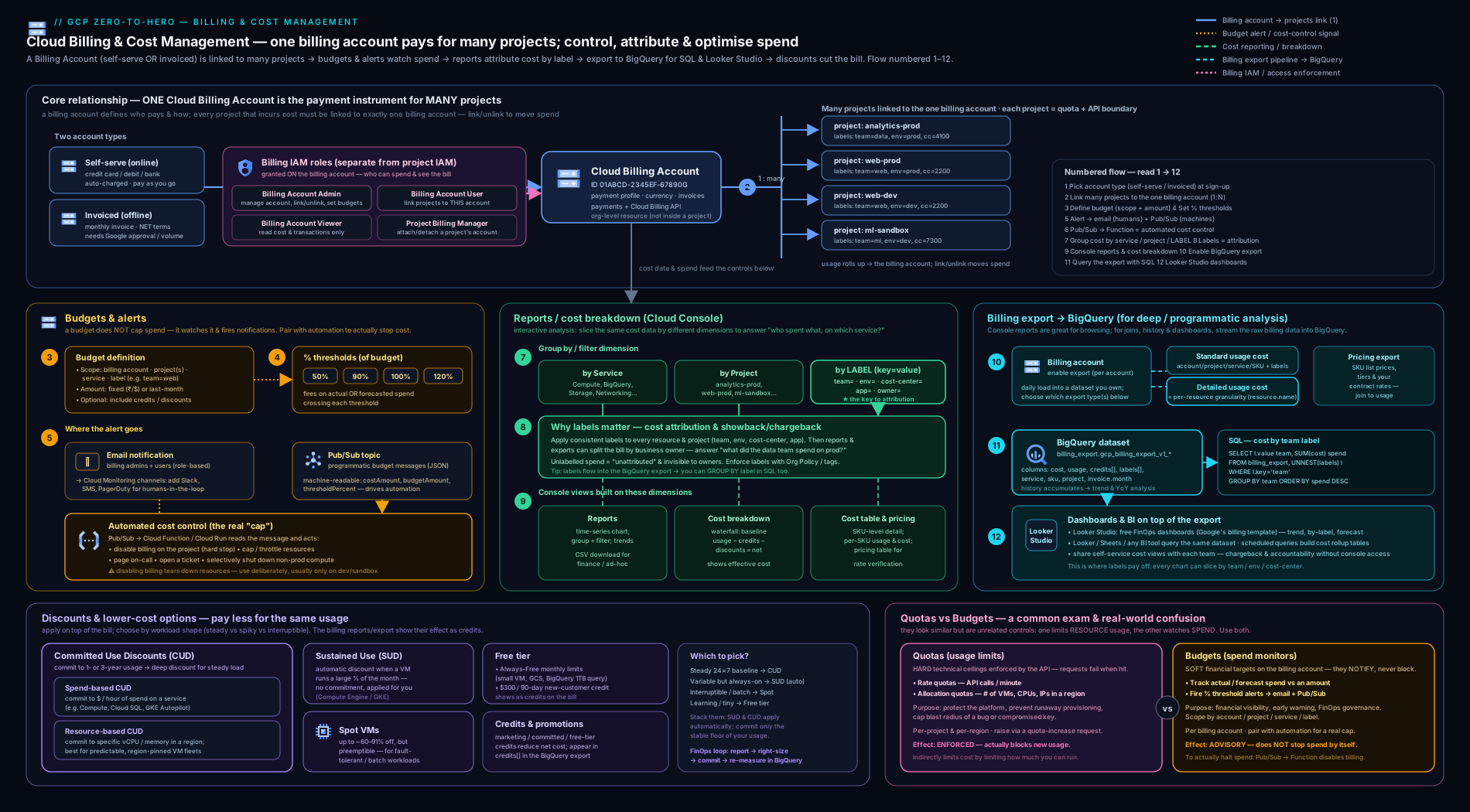
The diagram traces the whole money model: payment instruments feed a billing account, which links to many projects; IAM roles gate who can see or change spend; budgets watch cost and fan out to email, Monitoring and a Pub/Sub topic that drives automation (the only route to a real hard stop); export to BigQuery turns raw usage into answers; and discounts (CUD/SUD/Spot/Free Tier) reduce the net cost at the bottom.
Going deeper
Everything above is enough to run billing for a team. This section is for the engineer who owns cost at scale — the internals, the edge cases, and the infrastructure-as-code that turns “we set a budget once” into a governed, reproducible system.
The BigQuery export schema, and why it never quite matches the invoice
The standard export table (gcp_billing_export_v1_*) is one row per (day × project × SKU × label-set). The columns you will actually reach for:
cost— the gross charge for that row, in the billing account’s currency.credits[]— a repeated field of{name, amount, full_name, id, type}. Amounts are negative;typedistinguishesCOMMITTED_USAGE_DISCOUNT,SUSTAINED_USAGE_DISCOUNT,DISCOUNT,PROMOTION,FREE_TIER,SUBSCRIPTION_BENEFITand more. Net cost =cost+ Σcredits.amount.cost_type—regular,tax,adjustment, orrounding_error. Most rows areregular; taxes and Google-issued corrections arrive as their own rows. Filter tocost_type = 'regular'and you will under-count versus the invoice, which includes the tax and adjustment rows.invoice.month— aYYYYMMstring. This, notusage_start_time, is how a charge maps to an invoice. A late-arriving adjustment for June can post withinvoice.month = '202607'; grouping by usage date will never reconcile, grouping byinvoice.monthwill.adjustment_info— populated when a row is a correction (a Google-issued credit, a re-rating).
So the honest reconciliation query filters by invoice.month, keeps every cost_type, and adds credits back:
SELECT
  invoice.month AS invoice_month,
  ROUND(SUM(cost)
      + SUM(IFNULL((SELECT SUM(c.amount) FROM UNNEST(credits) c), 0)), 2)
    AS total_billed
FROM `my-project.billing_export.gcp_billing_export_v1_0X0X0X_0X0X0X_0X0X0X`
WHERE invoice.month = '202607'
GROUP BY invoice_month;
That total should match the invoice for that month to the cent. When it doesn’t, you almost always (a) grouped on usage date instead of invoice.month, (b) filtered out the tax/adjustment rows, or © forgot to add credits back.
Committed-use discounts under the hood: sharing, coverage and utilization
Three facts about CUDs that catch even experienced teams:
- Spend-based CUDs apply at the billing-account level automatically — there is no project to “attach” them to; matching spend anywhere under the account is discounted. Resource-based CUDs are purchased in one project and region, but with CUD sharing (on by default) their discount floats to matching usage across every project in the billing account. Turn sharing off and the commitment only discounts the owning project — a common cause of “I bought a commitment and utilization is terrible”.
- Coverage vs utilization are different numbers. Coverage = the fraction of your eligible usage that a commitment paid for (higher = you are leaving fewer on-demand dollars on the table). Utilization = the fraction of the commitment you actually consumed (below 100% = you are paying for a commitment you didn’t use — pure waste). You want high coverage and high utilization; the CUD Analysis report in the console charts both.
- Commitments can auto-renew, and the Recommender (Active Assist) proposes new commitments from your steady-state usage. Treat its suggestions as a starting point, not gospel — it recommends against recent history, so a workload you are about to retire can generate a bad recommendation.
One distinction people conflate: a reservation (Compute Engine capacity you hold so a VM can always start) is not a commitment (a billing discount). They are orthogonal — you can have either without the other — though a resource-based CUD can be applied to reserved capacity, so the two often travel together.
Budgets as code: the Budget API and Terraform
Clicking a budget into existence once is fine for a demo; a governed organisation defines budgets in code so every project is born with a guardrail and every change is reviewed. The Cloud Billing Budget API exposes exactly what the console does — budgetFilter (projects, services, labels, creditTypesTreatment), amount (specifiedAmount or lastPeriodAmount), thresholdRules (percent + CURRENT_SPEND/FORECASTED_SPEND basis), and allUpdatesRule (the Pub/Sub topic, Monitoring channels, and disableDefaultIamRecipients). In Terraform:
resource "google_billing_budget" "prod" {
  billing_account = "0X0X0X-0X0X0X-0X0X0X"
  display_name    = "Prod monthly budget"

  budget_filter {
    projects               = ["projects/my-prod-project"]
    credit_types_treatment = "EXCLUDE_ALL_CREDITS"   # track gross spend
    calendar_period        = "MONTH"
  }

  amount {
    specified_amount {
      currency_code = "INR"
      units         = "50000"
    }
  }

  threshold_rules { threshold_percent = 0.5 }
  threshold_rules { threshold_percent = 0.9 }
  threshold_rules { threshold_percent = 1.0 }
  threshold_rules {
    threshold_percent = 1.0
    spend_basis       = "FORECASTED_SPEND"
  }

  all_updates_rule {
    pubsub_topic                   = google_pubsub_topic.budget_alerts.id
    disable_default_iam_recipients = false
  }
}
Two nuances. credit_types_treatment decides whether the budget tracks gross (EXCLUDE_ALL_CREDITS) or net (INCLUDE_ALL_CREDITS) spend — pick deliberately, because a net budget silently rises as your discounts kick in. And budget_filter uses calendar_period (MONTH/QUARTER/YEAR) or a custom_period block, mirroring the console’s time-range control. Prefer many small budgets (one per project) over one giant account budget — small budgets localise the alert to the team that can actually act.
A vendor-neutral bill: the FOCUS export
If you run more than one cloud, the biggest FinOps headache is that every provider names its columns differently. FOCUS — the FinOps Open Cost & Usage Specification — is an open standard that normalises billing data across providers into one column vocabulary (BilledCost, EffectiveCost, ServiceName, ChargePeriodStart, …). Google Cloud offers a FOCUS-conformed BigQuery export alongside the classic standard/detailed/pricing exports. If one team owns cost across multiple clouds, exporting each in FOCUS format lets a single set of SQL and one dashboard cover them all — no per-cloud column mapping. For a GCP-only shop the classic detailed export is still the richest source; reach for FOCUS when portability across clouds is the goal.
Anatomy of the budget message — and why the hard stop must be idempotent
Cloud Billing publishes to your Pub/Sub topic on every data refresh, not only the moment a threshold is first crossed — several times a day once you are near the line. The message attributes carry billingAccountId, budgetId and schemaVersion; the JSON body carries budgetDisplayName, costAmount, budgetAmount, budgetAmountType, alertThresholdExceeded, costIntervalStart and currencyCode. Two consequences:
- Your subscriber will receive the same “over budget” news repeatedly. The hard-stop function must be idempotent — check the project’s current billing state and do nothing if billing is already disabled, or you will hammer the API on every refresh. The example function earlier is naturally idempotent (unlinking an already-unlinked project is a no-op), but any richer logic — post to Slack, open a ticket — needs a guard so you do not spam it every few hours.
- Re-enabling is manual by design. Disabling billing is a one-way switch as far as the automation is concerned; a human re-links the project (
gcloud billing projects link) once they have decided it is safe. Never build auto-re-enable — that defeats the guardrail.
Give the function a dedicated service account scoped as tightly as the operation allows (see the Security notes below), review its code as you would any kill switch, and restrict who may publish to the budget topic. A kill switch with broad rights is a bigger risk than the bill it guards against.
Measuring the discount you actually got
The detailed export (gcp_billing_export_resource_v1_*) adds a column the standard export lacks: cost_at_list — what the usage would have cost at public list price. The gap between cost_at_list and net cost is the real, blended discount you are receiving — the number to put in front of finance:
SELECT
  service.description AS service,
  ROUND(SUM(cost_at_list), 2) AS list_cost,
  ROUND(SUM(cost) + SUM(IFNULL((SELECT SUM(c.amount)
        FROM UNNEST(credits) c), 0)), 2) AS net_cost,
  ROUND(1 - SAFE_DIVIDE(
      SUM(cost) + SUM(IFNULL((SELECT SUM(c.amount) FROM UNNEST(credits) c), 0)),
      SUM(cost_at_list)), 3) AS effective_discount
FROM `my-project.billing_export.gcp_billing_export_resource_v1_0X0X0X_0X0X0X_0X0X0X`
WHERE DATE(_PARTITIONTIME) >= DATE_TRUNC(CURRENT_DATE(), MONTH)
GROUP BY service
ORDER BY net_cost DESC;
A service showing a large gap between list and net is one where your CUDs/SUDs are working; a service sitting at roughly 0% discount is a candidate for a commitment or a Spot migration.
Hands-on lab: link, label, budget, export and query — all free
In this lab you will set up the core billing guardrails on a project using Cloud Shell (free, browser-based, gcloud pre-installed). Every step is free — you create no chargeable resources.
Prerequisites: a billing account where you have Billing Account Administrator (or Costs Manager for the budget steps), and at least one project. Open Cloud Shell from the console.
Step 1 — Identify your billing account and project
gcloud billing accounts list
# Note the ACCOUNT_ID (looks like 0X0X0X-0X0X0X-0X0X0X)

export BILLING_ID="0X0X0X-0X0X0X-0X0X0X"   # paste yours
export PROJECT_ID="$(gcloud config get-value project)"
echo "Project: $PROJECT_ID  Billing: $BILLING_ID"
Step 2 — Confirm the project’s billing link
gcloud billing projects describe "$PROJECT_ID"
# billingEnabled: true  → linked and able to use paid services
If billingEnabled is false, link it (needs Billing Account User + Project Billing Manager):
gcloud billing projects link "$PROJECT_ID" --billing-account="$BILLING_ID"
Step 3 — Add a label for cost attribution
# Label the project so its spend can be sliced by team/env in reports
gcloud projects update "$PROJECT_ID" \
  --update-labels=env=lab,team=learning,cost-centre=training

# Verify
gcloud projects describe "$PROJECT_ID" --format="value(labels)"
Step 4 — Create a budget with actual and forecast alerts
gcloud billing budgets create \
  --billing-account="$BILLING_ID" \
  --display-name="Lab budget" \
  --budget-amount=200INR \
  --filter-projects="projects/$PROJECT_ID" \
  --threshold-rule=percent=0.5 \
  --threshold-rule=percent=0.9 \
  --threshold-rule=percent=1.0 \
  --threshold-rule=percent=1.0,basis=forecasted-spend

# List your budgets
gcloud billing budgets list --billing-account="$BILLING_ID"
(Adjust the amount/currency to your account. If your CLI rejects the currency suffix, set the amount in the console instead — Billing → Budgets & alerts.)
Step 5 — Enable BigQuery billing export
Export is a console action (there is no gcloud billing export enable command):
- Go to Billing → Billing export → BigQuery export.
- Under Standard usage cost, click Edit settings, choose your project and a dataset (create one named
billing_exportif needed), and Save. - Optionally enable Detailed usage cost and Pricing the same way.
Export starts now, not retroactively — that is exactly why we turn it on early. Data appears within a few hours to a day.
Step 6 — (After data lands) query your spend
Once the export table exists (give it a day on a low-usage account):
bq query --use_legacy_sql=false '
SELECT service.description AS service, ROUND(SUM(cost),2) AS gross_cost
FROM `'"$PROJECT_ID"'.billing_export.gcp_billing_export_v1_'"${BILLING_ID//-/_}"'`
WHERE DATE(_PARTITIONTIME) >= DATE_SUB(CURRENT_DATE(), INTERVAL 30 DAY)
GROUP BY service ORDER BY gross_cost DESC'
Validation
gcloud billing projects describe "$PROJECT_ID"showsbillingEnabled: true.gcloud projects describeshows your three labels.gcloud billing budgets listshows Lab budget.- The BigQuery export dataset shows a
gcp_billing_export_v1_*table (after data lands).
Cleanup
# Delete the lab budget (replace with the ID from `budgets list`)
gcloud billing budgets delete BUDGET_ID --billing-account="$BILLING_ID"

# Remove the lab labels (optional)
gcloud projects update "$PROJECT_ID" \
  --remove-labels=env,team,cost-centre
To stop BigQuery export, return to Billing → Billing export and disable it; delete the billing_export dataset if you created it solely for this lab.
Cost note: every step is free. Listing accounts, linking billing, labelling a project, creating a budget and enabling export incur no charge. The only thing that ever costs money here is querying the export table in BigQuery — and a single month of a low-usage account scans kilobytes, which falls inside the BigQuery free tier. You created no VMs, buckets or databases, so there is nothing left billing.
Practice challenges
Work these in order — they escalate from “read the link” to “codify the guardrail”. Each has a solution; try before you peek.
Challenge 1 (beginner) — Find who pays for your project
Determine which billing account funds your current project and confirm paid services are enabled.
<details> <summary>Solution</summary>
gcloud billing projects describe "$(gcloud config get-value project)"
# billingAccountName: billingAccounts/0X0X0X-0X0X0X-0X0X0X
# billingEnabled: true
Why: this single command exposes the project↔billing link — the hinge of the whole money model. billingEnabled: false means paid services are blocked.
</details>
Challenge 2 (beginner) — Measure a billing account’s blast radius
List every project a given billing account pays for, and count them.
<details> <summary>Solution</summary>
gcloud billing projects list --billing-account=0X0X0X-0X0X0X-0X0X0X

# count them:
gcloud billing projects list --billing-account=0X0X0X-0X0X0X-0X0X0X \
  --format="value(projectId)" | wc -l
Why: the link is many-to-one — one account can fund many projects, so this is the blast radius if that account is ever suspended or closed. </details>
Challenge 3 (intermediate) — Least-privilege for a budget owner
Give a FinOps analyst exactly enough access to create and edit budgets and exports — but not to touch the payment method or link projects. Name the role and grant it.
<details> <summary>Solution</summary>
gcloud billing accounts add-iam-policy-binding 0X0X0X-0X0X0X-0X0X0X \
  --member="user:finops@example.com" \
  --role="roles/billing.costsManager"
Why: Costs Manager is precisely budget/export management plus cost visibility, minus payment control and project linking — the textbook least-privilege choice over Administrator. </details>
Challenge 4 (intermediate) — A budget that warns early
Create a budget scoped to one project that alerts at 50/90/100% of actual spend and at 100% of forecast, publishing every update to a Pub/Sub topic.
<details> <summary>Solution</summary>
gcloud pubsub topics create budget-alerts

gcloud billing budgets create \
  --billing-account=0X0X0X-0X0X0X-0X0X0X \
  --display-name="Team budget" \
  --budget-amount=50000INR \
  --filter-projects="projects/my-project" \
  --threshold-rule=percent=0.5 \
  --threshold-rule=percent=0.9 \
  --threshold-rule=percent=1.0 \
  --threshold-rule=percent=1.0,basis=forecasted-spend \
  --notifications-rule-pubsub-topic="projects/my-project/topics/budget-alerts"
Why: the forecast rule is the one that warns you on the 12th that you are trending over — long before the actual-spend rules fire — and the Pub/Sub topic is the hook every automation hangs off. </details>
Challenge 5 (advanced) — Net cost by team, in SQL
Over the standard BigQuery export, return this month’s net cost per team label, correctly adding back credits.
<details> <summary>Solution</summary>
SELECT
  (SELECT value FROM UNNEST(labels) WHERE key = 'team') AS team,
  ROUND(SUM(cost)
      + SUM(IFNULL((SELECT SUM(c.amount) FROM UNNEST(credits) c), 0)), 2)
    AS net_cost
FROM `my-project.billing_export.gcp_billing_export_v1_0X0X0X_0X0X0X_0X0X0X`
WHERE DATE(_PARTITIONTIME) >= DATE_TRUNC(CURRENT_DATE(), MONTH)
GROUP BY team
ORDER BY net_cost DESC;
Why: cost is gross; credits live in a repeated field as negative numbers, so net cost = cost + Σcredits.amount. The UNNEST(labels) subquery is how you slice across the hierarchy by team.
</details>
Challenge 6 (advanced) — Codify the guardrail
Express the budget from Challenge 4 as Terraform (google_billing_budget), tracking gross spend, with the forecast threshold and the Pub/Sub wiring.
<details> <summary>Solution</summary>
resource "google_pubsub_topic" "budget_alerts" {
  name = "budget-alerts"
}

resource "google_billing_budget" "team" {
  billing_account = "0X0X0X-0X0X0X-0X0X0X"
  display_name    = "Team budget"

  budget_filter {
    projects               = ["projects/my-project"]
    credit_types_treatment = "EXCLUDE_ALL_CREDITS"   # gross
    calendar_period        = "MONTH"
  }

  amount {
    specified_amount {
      currency_code = "INR"
      units         = "50000"
    }
  }

  threshold_rules { threshold_percent = 0.5 }
  threshold_rules { threshold_percent = 0.9 }
  threshold_rules { threshold_percent = 1.0 }
  threshold_rules {
    threshold_percent = 1.0
    spend_basis       = "FORECASTED_SPEND"
  }

  all_updates_rule {
    pubsub_topic = google_pubsub_topic.budget_alerts.id
  }
}
Why: budgets are guardrails, and guardrails belong in version control — every project gets an identical, reviewed budget, and credit_types_treatment makes the gross-vs-net choice explicit instead of accidental.
</details>
Common beginner mistakes
These are misconceptions — wrong mental models — not the symptom→fix tickets in the troubleshooting table below. Fix the model and the symptom never appears.
“I set a budget, so I’m protected from a runaway bill.” The single most expensive misconception in this lesson. A budget emails; it does not cap. Someone who fat-fingers a 1,000-VM deployment will blow through a ₹50,000 budget in an hour and the only thing that happens is you get mail. The right model: a budget is a smoke alarm, a quota is the circuit breaker, and a Pub/Sub → function hard stop is the sprinkler you install yourself. For real protection, lower quotas and set budgets.
“Stopping a VM makes it free.” A stopped VM still bills for its attached persistent disks and any reserved static IP — you switched off the engine but you are still paying rent on the parking space. The right model: cost tracks resources that exist, not resources that run. To truly stop paying, delete the disk and release the IP, or delete the resource.
“The $300 free trial and the Free Tier are the same thing.” They are two different things that both say “free”. The trial is a one-off $300 credit that expires after 90 days; the Free Tier is an always-on monthly allowance on specific services (a small e2-micro VM, some Cloud Storage, 1 TB of BigQuery queries, …). The right model: the trial is a welcome gift with an expiry; the Free Tier is a standing discount that keeps working long after the trial ends.
“I’ll add labels later when I need the reports.” Labels are not retroactive — spend incurred before a resource was labelled stays in the “unlabelled” bucket forever. The right model: agree a label taxonomy (env, team, app, cost-centre, owner) before you build, and enforce it with Organisation Policy. You cannot manage what you cannot attribute, and you cannot attribute the past.
“Billing export will show me last year’s spend.” Export begins the day you enable it and never backfills. The right model: turn export on now, even on a personal account, so the history exists when finance asks in six months. (The console cost reports do cover history — but only the export gives you SQL.)
“To let a teammate create funded projects, I’ll make them Billing Account Administrator.” Over-granting the company card to solve a linking problem. Linking a project needs Billing Account User plus Project Billing Manager — two narrow roles — not Admin. The right model: Administrator is the person who can change the payment method and close the account; hand out the two-sided link roles instead, and keep the Admin list tiny.
“Spot VMs are just cheaper VMs.” They are 60–91% cheaper because Google can reclaim them with about 30 seconds’ notice and they carry no SLA. Put a database or a single stateful service on Spot and you will learn this at 3 a.m. The right model: Spot is free compute that can vanish — perfect for batch, CI, rendering and other restartable work; never for anything that cannot tolerate sudden death.
“My committed-use discount saves money automatically, whatever I run.” A resource-based CUD is a bill you pay whether or not you use the hardware, locked to a machine family and region. Buy one for a workload you then shrink or migrate and you keep paying for the empty commitment. The right model: commit only your predictable baseline, prefer spend-based (flexible) CUDs when the shape of usage changes, and watch utilization — below 100% is money set on fire.
Common mistakes & troubleshooting
| Symptom | Likely cause | Fix |
|---|---|---|
| “I set a budget but spend went over and nothing stopped” | A budget only alerts by default | Build a Pub/Sub → Cloud Function hard stop, or lower quotas for a real cap |
| “Can’t link my project — permission denied” | You have only one side of the link | Grant Billing Account User and Project Billing Manager |
| “Resources suddenly stopped / APIs return billing errors” | Billing account suspended (payment failure) or someone unlinked the project | Fix the payment method; relink the project (gcloud billing projects link) |
| “BigQuery export has no data for last month” | Export is not retroactive; it starts when enabled | Enable it now; you cannot recover history before enablement |
| “Reports don’t show cost by team” | Resources/projects are unlabelled | Apply a label taxonomy; enforce with Org Policy; re-group the report |
| “My discount didn’t apply” | Wrong mechanism for the workload — e.g. expecting SUD on a custom/E-series machine, or a CUD shape you no longer run | Check eligibility (SUD = predefined N-family; match CUD region/family); view Commitments for utilisation |
| “Can’t change my billing account’s currency” | Currency/country are immutable at creation | Create a new billing account in the desired currency and relink projects |
| “Closing the billing account deleted my work” | Closing a billing account disables and can delete funded resources | Relink projects to another account before closing; treat closure as destructive |
Best practices
- Set a budget on day one for every billing account and per major project — it is free and the single best habit.
- Add forecast-based alerts, not just actual — they warn you mid-month while you can still act.
- Enable BigQuery export immediately (standard at minimum) so the history exists when finance asks.
- Adopt a label taxonomy early (
env,team,app,cost-centre,owner) and enforce it with Organisation Policy; chase down the “unlabelled” bucket in reports. - Lower quotas to sensible ceilings as a hard brake against runaway creation, complementing budgets’ financial alerts.
- Separate billing IAM from project IAM — grant Viewer/Costs Manager to FinOps, keep Admin tight, and never hand out Admin when User or Costs Manager will do.
- Cover the predictable baseline with CUDs, let SUDs handle the rest automatically, run bursty fault-tolerant work on Spot, and keep experiments inside the Free Tier.
- Review the cost report weekly and the Commitments view monthly (CUD utilisation under ~100% is money wasted).
- Act on Recommender (Active Assist) idle-resource and CUD recommendations.
Security notes
Billing data is sensitive — it reveals architecture, scale and business activity — so treat access to it with the same care as any other privileged data.
- Least privilege on billing roles. Grant Billing Account Viewer for read-only insight and Costs Manager for budget/export management; reserve Billing Account Administrator (and Creator at the org) for a small, audited group. The payment instrument is reachable only by payment-capable roles — keep that list tiny.
- The two-sided link is a security control, not just a chore: it stops a project owner from unilaterally spending the organisation’s money and stops a billing admin from reaching into projects they have no rights to. Preserve that separation.
- Protect the Pub/Sub automation path. A function that can disable billing (i.e. take down production) is highly privileged — give it a dedicated service account with only
billing.resourceAssociations/updateBillingInforights on the target projects, restrict who can publish to the budget topic, and review its code as you would any kill-switch. - Lock down the export dataset. BigQuery billing export contains your entire cost picture — apply dataset-level IAM so only FinOps and finance can query it.
- Audit billing changes. Cloud Audit Logs record billing-account IAM changes, project link/unlink and budget edits — monitor them; an unexpected unlink or a new Admin binding is worth an alert.
Interview & exam questions
1. What is the difference between a Cloud Billing account and a project, and how do they relate? A billing account holds the payment method and pays the bills; a project contains resources. A project must be linked to exactly one billing account to incur charges; one billing account can pay for many projects (many-to-one). Resources cost money, projects contain resources, and the linked billing account pays.
2. Self-serve vs invoiced billing — when would you choose each? Self-serve uses a card and is instant — for individuals and small teams. Invoiced bills monthly with payment terms (net 30) and needs a sales process and credit check — for enterprises and anyone needing PO/invoice workflows. The type is fixed at creation.
3. Two people both have access, yet neither can link a project to the billing account. Why? Linking requires power on both sides: Billing Account User on the billing account and Project Billing Manager (or Owner) on the project. If each person holds only one of the two, the operation fails. Grant both.
4. Does a budget stop spending? How would you implement an actual hard cap? No — a budget only alerts by default. For a hard cap you connect the budget to a Pub/Sub topic, subscribe a Cloud Function, and have it disable billing on the project (or scale workloads down) when cost exceeds the amount. Quotas provide a complementary technical cap on resource creation.
5. Explain the difference between a budget and a quota. A budget is a financial alarm (and, with automation, control) — it watches money and notifies. A quota is a technical limit on how much of a resource you can use (vCPUs in a region, API requests/minute) and genuinely prevents creation beyond the cap. Use both together.
6. What are the three BigQuery billing export types and when do you use each? Standard usage cost — daily cost by service/SKU/project/label (most analysis). Detailed usage cost — adds per-resource rows (attribute cost to a specific VM) at the price of much larger tables. Pricing — your SKU price list (estimating before you spend). Export is not retroactive.
7. SUD vs CUD — what’s the difference, and can they combine? Sustained-Use Discounts are automatic and free for steady usage of predefined N-family machines. Committed-Use Discounts are a 1- or 3-year commitment for a larger discount. They can combine: committed usage gets the CUD; on-demand usage above the commitment can still earn SUD.
8. Spend-based vs resource-based CUDs? Spend-based commits to a dollar amount per hour and is flexible across families/regions (and services, for the flexible variant) — smaller discount, easier to use. Resource-based commits to specific vCPU/RAM in a specific region — bigger discount but rigid; idle commitment is wasted. Choose spend-based for steady-but-changing usage, resource-based when you know the exact hardware for years.
9. What are Spot VMs and when must you never use them? Spot VMs are deeply discounted (~60–91% off) but preemptible — Google can reclaim them with ~30 seconds’ notice and they carry no SLA. Use them for fault-tolerant, restartable work (batch, CI, rendering); never for databases or single stateful services that cannot tolerate sudden termination.
10. Why are labels described as the heart of cost management? Spend rolls up the hierarchy automatically, but business questions cut across it — by team, environment, app, cost centre. Labels make those slices possible in reports and in BigQuery export. Without them you cannot attribute spend, and you cannot manage what you cannot attribute.
11. What is a billing sub-account and who uses it? A sub-account is a billing account whose charges roll up to a parent (master) account — used by resellers (a sub-account per end customer, billed separately, settled as one invoice with Google) and large orgs needing per-unit billing under one master. It requires the invoiced model and is created via the Cloud Billing API.
12. The Billing Account Costs Manager role — what can it do that Viewer cannot, and what can it not do? Costs Manager can additionally create/edit budgets and exports (Viewer is read-only). It still cannot manage the payment instrument or link projects — those need Administrator and the project-side role respectively. It is the right role for a FinOps owner who sets guardrails but should not touch the company card.
Quick check
- Which object actually holds the payment method and pays the bill — a project or a billing account?
- True or false: a budget will automatically stop your spending when it reaches 100%.
- Which two IAM roles, together, are required to link a project to a billing account?
- Name the three BigQuery billing export types.
- Which discount is automatic for steady use of predefined N-family VMs and requires no commitment?
Answers
- The billing account holds the payment method and pays; the project just contains resources and must be linked to a billing account.
- False. A budget only alerts by default; a hard stop must be built (e.g. Pub/Sub → Cloud Function → disable billing) or approximated with quotas.
- Billing Account User (on the billing account) and Project Billing Manager (on the project) — the two-sided link.
- Standard usage cost, detailed usage cost, and pricing.
- The Sustained-Use Discount (SUD).
Exercise
On a personal or sandbox project, build an automated cost guardrail end to end and document it:
- Create a Pub/Sub topic
budget-alertsand a budget scoped to the project that publishes to it, with actual thresholds at 50/90/100% and a forecast alert at 100%. - Deploy a Cloud Function subscribed to the topic that, on a threshold message, posts the cost/budget figures somewhere visible (log, Slack, or email). (Optional, sandbox-only: extend it to disable billing above 100% and test that paid services stop.)
- Enable BigQuery standard export, wait for data, and write a query that returns net cost by service for the project this month (remember to add back the
creditsarray). - Add an
env/teamlabel to the project and a second query that breaks spend down by that label. - Write a short note answering: what is the difference between this guardrail and a quota, and which would you rely on to prevent a runaway $10,000 bill from someone fat-fingering a 1,000-VM deployment? (Answer: the quota — it caps creation; the budget/automation reacts after spend, with a delay.)
Certification mapping
- Cloud Digital Leader (CDL): Cost management is squarely examinable — the billing account model, self-serve vs invoiced, budgets and alerts, the value of labels for attribution, the discount types (SUD, CUD, Spot, Free Tier), and the Free Tier vs $300 trial distinction all appear in the Digital transformation and Infrastructure & application modernisation domains. This lesson covers the cost portions of CDL end to end.
- Associate Cloud Engineer (ACE): Setting up a cloud solution environment tests linking billing accounts to projects, the two-sided permission, creating budgets and alerts (including Pub/Sub programmatic notifications), managing billing IAM roles, and enabling/querying BigQuery export — all hands-on skills you practised in the lab.
Glossary
- Cloud Billing account — the top-level object that holds a payment method and pays for usage; linked to projects.
- Project — the container for resources; must be linked to one billing account to incur charges.
- Payments profile — the Google Payments object holding your legal identity and tax info; can back many billing accounts. Distinct from a Cloud Billing account.
- Self-serve account — card-paid, instant billing account for individuals/small teams.
- Invoiced account — monthly-invoice billing account with payment terms, for enterprises.
- Sub-account — a billing account whose charges roll up to a master account; used by resellers/large orgs.
- Link / billingEnabled — the connection between a project and its billing account; without it, paid services are blocked.
- Billing Account Administrator / User / Viewer / Costs Manager / Creator — the billing-account IAM roles (full control / link projects / read costs / manage budgets & exports / create accounts).
- Project Billing Manager — the project-side role needed (with Billing Account User) to link a project.
- Budget — a spend amount with threshold alerts; an alarm, not a brake by default.
- Threshold (actual / forecasted) — the percentage of the budget at which an alert fires, measured on spend so far or projected month-end spend.
- Pub/Sub budget notification — a JSON message published on threshold/data updates, used to drive automation.
- Cost report / cost table — the console views for exploring (grouped/filtered) and reconciling (itemised) spend.
- Label — a key/value tag on resources/projects, the primary mechanism for cost attribution.
- Billing export to BigQuery — writing usage/cost (standard, detailed) and pricing data to BigQuery for SQL analysis; not retroactive.
cost_type— an export field marking a row asregular,tax,adjustmentorrounding_error; needed to reconcile the export to an invoice.invoice.month— theYYYYMMexport field that maps a charge to a specific invoice — the correct key for reconciliation (not the usage date).cost_at_list— a detailed-export column giving the public list price of usage; used to compute the effective discount.- Effective discount —
1 − (net cost ÷ list cost); the real blended discount you are actually receiving. - SKU — the finest-grained billable line item; every charge maps to a SKU and a service.
- Gross vs net cost — charge before discounts (gross) vs after credits/discounts (net).
- Sustained-Use Discount (SUD) — automatic discount for steady use of predefined N-family compute.
- Committed-Use Discount (CUD) — 1- or 3-year commitment for a larger discount; spend-based (flexible $/hour) or resource-based (specific vCPU/RAM/region).
- CUD sharing — the default behaviour that lets a resource-based commitment’s discount float across all projects in a billing account.
- Coverage vs utilization (CUDs) — coverage = the share of eligible usage a commitment paid for; utilization = the share of the commitment you actually used (below 100% is waste).
- Reservation vs commitment — a reservation holds Compute Engine capacity so a VM can start; a commitment is a billing discount. Orthogonal, though a resource-based CUD can apply to a reservation.
- Spot VM — deeply discounted but preemptible compute with no SLA; for fault-tolerant work only.
- Free Tier — always-on monthly free allowance on specific services; distinct from the one-off $300 trial.
- Quota — a technical cap on resource usage (rate or allocation); a real brake on creation, complementing budgets.
- FOCUS — the FinOps Open Cost & Usage Specification; a vendor-neutral billing schema GCP can export to BigQuery for multi-cloud FinOps.
- Recommender / Active Assist — Google’s engine that surfaces cost recommendations (idle resources, right-sizing, CUD purchases) from your usage history.
Next steps
- Google Cloud IAM, In Depth: Role Types, Policy Structure, Conditions, Inheritance & Recommender (
gcp-iam-deep-dive-roles-policies-conditions-recommender) — the next lesson: now that you control who can spend, master who can do what across the whole platform, including the Recommender that also surfaces cost waste. - GCP Cost Optimisation: The Architect’s Playbook — take the levers from this lesson (CUDs, SUDs, Spot, labels, export) and apply them to drive a real, expensive workload down to a predictable bill.
- Google Cloud Fundamentals: Resource Hierarchy, IAM and Pricing — revisit the hierarchy and pricing foundations that this billing deep-dive builds on.