In a nutshell
A shell is not a language — it is a program that runs other programs, and it is itself just an ordinary process the operating system is running for you. When you type ls and press Enter, the shell doesn’t “know how to list files.” It finds the ls program on disk, makes a copy of itself, turns that copy into ls, waits for it to finish, and reads back a single number that says whether it worked. That five-step dance — find, copy, become, wait, read the result — is 90% of what a shell does, all day long.
Here’s the analogy to hold in your head. Picture the shell as a head chef at a station. You call out an order. For anything the chef can’t plate personally, they hire a temporary line cook (that’s fork — a copy of the chef), hand that cook a photocopy of only the recipe pages marked “shared” (that’s the exported environment), send them off to actually cook the dish (that’s exec), and wait by the pass until a ticket comes back marked done or burnt (that’s the exit code, $?). Crucial detail: anything the temp cook scribbles in their photocopy, or wherever they wander in the kitchen, is thrown in the bin the moment they clock off. That is exactly why cd /tmp inside a script doesn’t move your terminal — the script was a temp cook, and its wanderings left with it. A few small tasks the head chef does personally at their own station without hiring anyone — those are builtins like cd and export, and those really do change the chef’s own setup.
Get this one picture right and an astonishing number of “why does shell do that?!” mysteries simply evaporate: why a variable vanishes when you run a script, why cron can’t find your tool, why sourcing a file changes your prompt but running it doesn’t, why the same script works as you and breaks under sudo. They are all the same picture viewed from different angles.
Level: Beginner · Time: ~45 min (a theory-heavy first lesson — read it slowly and type the examples)
Prerequisites: You can open a terminal and run a command; you know what a file and a directory are. No scripting experience is assumed. If you have literally never used a terminal, run pwd, ls, and cd .. a few times first so the examples feel concrete.
After this lesson you will be able to:
- Explain what a shell is as an operating-system process, and predict what any command inherits from its parent.
- Choose the right shebang and explain why
#!/bin/shis not the same as#!/bin/bash. - Diagnose the single biggest class of shell bugs — “works in my terminal, breaks in cron / CI /
sudo.” - Put the right setting in the right dotfile so both interactive shells and cron jobs find your
PATH. - Decide when to source a file versus run it, and predict the effect on your current shell.
- Read the magic variables
$$,$?,$PPID,$-,$!and say exactly what each means. - Roll straight into the next lesson, Variables, quoting & IFS, which builds directly on this model.
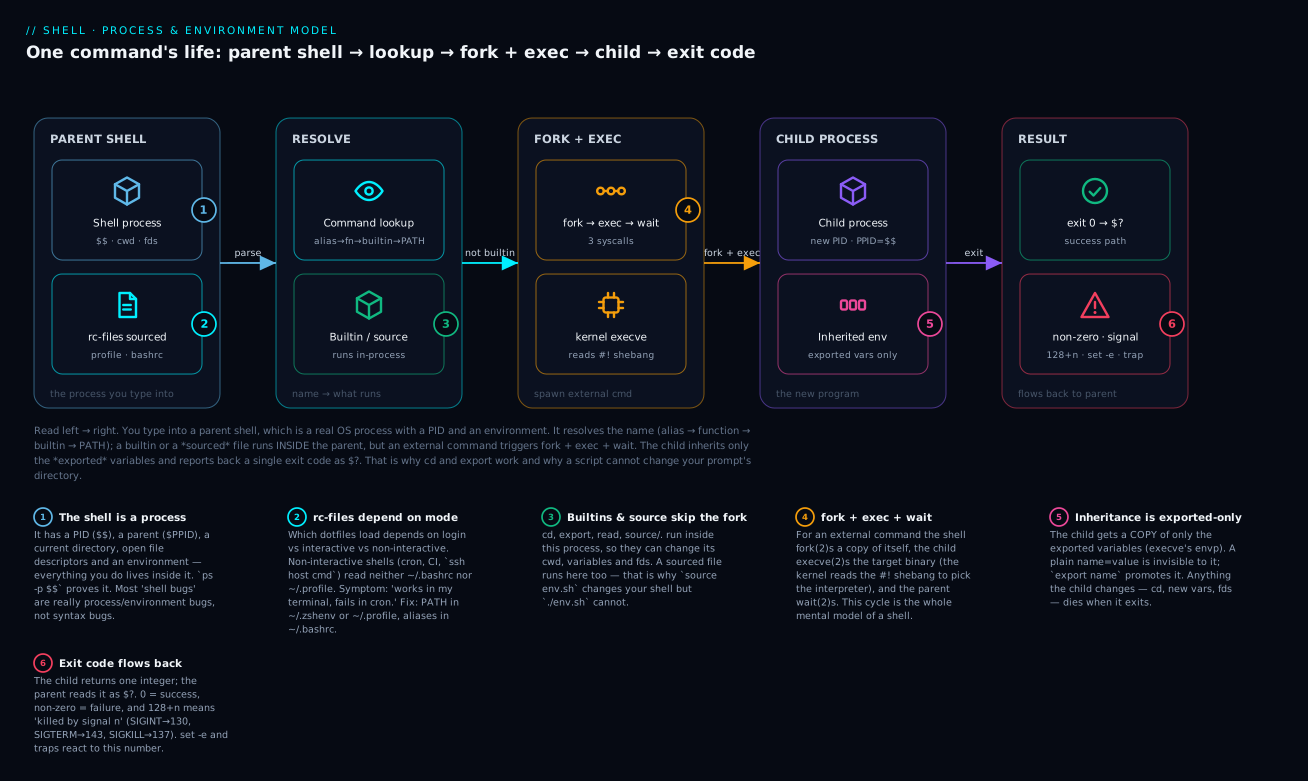
Read the diagram left to right: you type into a parent shell (a real process with a PID and an environment); it resolves the name in a fixed order (alias → function → builtin → PATH); a builtin or a sourced file runs inside that same process, but an external command is handed to a fork + exec + wait cycle whose child inherits only the exported variables and ultimately reports back one exit code as $?.
If you take only one thing away from this lesson, take this: the shell is a process, not a language, and most shell bugs are bugs of process and environment, not bugs of syntax.
Almost every confusing problem you’ll hit in a forty-year career — “why does my variable disappear when I run the script?”, “why does this work in my terminal but break in cron?”, “why is ~/.bashrc not being read?”, “why does sourcing the file change my prompt but executing it doesn’t?”, “why does the script work as my user but break under sudo?” — every one of these dissolves the moment you have a correct model of how the shell loads, what it inherits from its parent, and what it passes to its children.
This is why the very first lesson in this course is not “how to write a hello-world script.” It is “what is a shell, mechanically, in the operating system.” Get this right and the next forty lessons cost you a fraction of the effort. Get this wrong and you’ll spend the rest of your career writing shell that appears to work and quietly breaks in surprising places.
Read this lesson slowly. Type the examples. Skip nothing.
1. A shell is a process
When you open a terminal, your terminal emulator (iTerm2, Alacritty, GNOME Terminal, Windows Terminal) starts a child process — and that child process is your shell. On modern Linux and macOS, that’s typically /bin/bash, /bin/zsh, or /usr/bin/fish. On Alpine Linux containers it’s /bin/ash. On Debian’s /bin/sh symlink it’s /bin/dash. On a busy embedded device it’s /bin/busybox symlinked as /bin/sh.
You can see this for yourself. Open any terminal and type:
ps -p $$
You’ll get back something like:
  PID TTY           TIME CMD
36481 ttys001    0:00.05 -zsh
That $$ is a magic shell variable that contains the PID — the process ID — of the current shell process. The leading - in -zsh (the command column) is a convention that tells you this shell is a login shell (we’ll come back to that). The fact that there’s a ps entry at all is what matters here: the shell is a real, scheduled, kernel-tracked process, with a PID, a parent PID ($PPID), an environment, open file descriptors, a current working directory, a user/group identity, and a session.
Everything you do interactively or in a script lives inside that process — until it doesn’t. When the shell runs a command like ls, it does not execute the ls code inside itself. It does this:
- fork() — creates a copy of itself (a child process)
- exec() — replaces the child’s program with
/bin/ls - wait() — the parent waits for the child to finish
- The child exits with an integer exit code, which the parent reads as
$?
This fork + exec + wait cycle is the entire mental model of a shell. Almost every shell concept in this course is some refinement of “what does the shell do before, during, or after that fork+exec, and what gets inherited or not?”
A few non-obvious consequences immediately follow:
Consequence 1. Variables you set in the parent shell are not automatically visible inside the child unless you explicitly export them into the environment. We’ll see this constantly:
my_var=hello
ls            # ls cannot see my_var
export my_var=hello
ls            # ls sees my_var in its environment
Consequence 2. Anything the child does — cd-ing, setting variables, opening file descriptors — is local to the child. When the child exits, those changes vanish. This is why people are confused that cd /tmp inside a script doesn’t change the directory of the calling shell. The script is a child process; when it exits, its cwd change exits with it.
Consequence 3. Some commands, called builtins, are not run via fork+exec. They are implemented inside the shell process itself. cd, export, read, set, [, [[, eval, exec, source (and its alias .) — these are builtins. If they weren’t, none of them could affect the shell’s own state, because of consequence 2. cd /tmp inside a script can’t change the parent’s directory, but cd /tmp inside the parent shell does change its directory because cd is a builtin running inside that very process.
Consequence 4. Sourcing a file (source ./script.sh or . ./script.sh) is fundamentally different from executing it (./script.sh or bash script.sh). Sourcing reads the file into the current shell process; the file’s commands run as if you typed them at the prompt. Executing it forks a child shell, runs the file in the child, and returns. This single distinction explains 30% of all “why doesn’t this work?” questions about shell.
You should be able to predict the output of every line in this transcript before reading the explanation:
$ x=outer
$ echo "$x"          # prints: outer
$ bash -c 'echo "$x"' # prints empty line — child shell didn't inherit x
$ export x=outer
$ bash -c 'echo "$x"' # prints: outer — now exported, child sees it
$ bash -c 'x=changed' # child changes x, then child exits
$ echo "$x"          # prints: outer — parent's x untouched
$ source <(echo 'x=sourced')
$ echo "$x"          # prints: sourced — sourcing ran in *this* shell
This is the whole game. Walk this line-by-line in your own terminal until you can predict every output.
2. There are many shells, and they are not interchangeable
Newcomers often write “the shell” or “Bash” as if they were the same. They are not, and the differences matter operationally.
The shells you will actually encounter:
| Shell | Origin | Where you’ll find it | Notes |
|---|---|---|---|
| bash | Bourne Again SHell, GNU, 1989 | The default on most Linux distros, the non-default on macOS since 10.15 | Most feature-rich classical shell; the de facto target for “shell scripts” |
| zsh | Z Shell, 1990 | macOS default since 10.15 (Catalina); popular interactive choice | Largely bash-compatible but with significant divergences (parameter expansion, globbing, arrays) |
| dash | Debian Almquist SHell | /bin/sh on Debian and Ubuntu |
POSIX-strict, deliberately minimal, much faster startup than bash |
| ash | Almquist SHell | Embedded systems, Alpine Linux, BusyBox | Subset of POSIX; missing many features bash users assume |
| busybox sh | BusyBox project | Container base images, embedded Linux | Even more minimal than ash |
| ksh | Korn shell, 1983 | AIX default, some BSDs | Historically influential; many bash features come from ksh93 |
| fish | Friendly Interactive SHell | Personal interactive use | NOT POSIX-compatible. Never use as /bin/sh. |
The two practical groupings you should keep in mind:
- POSIX sh family:
dash,ash,busybox sh,bashwith--posixmode,kshwith certain options. These are the shells that can run scripts beginning with#!/bin/sh. They share a small, portable core. - Bash-specific:
bash(without--posix). This is a superset — it has features (arrays,[[ ]], process substitution<(),${var/pat/rep}) that POSIX sh shells do not have.
The single most common bug from this distinction:
#!/bin/sh
# A "shell script" — author tested with bash, deployed to Alpine.
arr=(a b c)            # FAILS in dash/ash — arrays are bash-specific
echo "${arr[1]}"       # FAILS — same reason
[[ -f /etc/foo ]]      # FAILS — [[ is bash-only
When deployed to an Alpine container where /bin/sh is ash, this script breaks immediately. The fix is one of:
- Use the right shebang:
#!/bin/bash— then/bin/bashmust exist on the target. On stripped-down containers, it might not. - Stay POSIX: use
[ -f /etc/foo ]instead of[[, use space-separated lists in for-loops instead of arrays, etc. - Stay POSIX and prove it: run
shellcheck --shell=sh script.sh—shellcheckwill flag every bash-ism.
We’ll cover this in detail in the Tier 4 portability lesson. For now, the point is: be deliberate about which shell your script targets, and write the shebang to match.
3. Login vs interactive vs non-interactive
Bash and zsh distinguish three orthogonal modes a shell can be in. Confusion about these modes is the second-largest source of “it works in my terminal but breaks in cron” bugs.
The modes:
- Login shell: a shell that’s the first one for a user session. Started by
login(1),sshd,su -,/bin/login, GUI session managers, or a terminal launched with the option “command should be a login shell.” On macOS, the default Terminal.app behaviour is to launch a login shell every time, which is unusual. - Interactive shell: a shell connected to a TTY — i.e., one you can type commands into. You can detect this with
[[ $- == *i* ]](theiflag in$-). - Non-interactive shell: anything else. Scripts launched by cron, systemd, CI runners, ssh remote-command (
ssh host 'cmd'), or invoked asbash script.share non-interactive.
These are orthogonal. A shell can be:
- Login + interactive (the typical “I just opened a terminal” case on macOS)
- Login + non-interactive (rare; happens with
bash --login script.sh) - Non-login + interactive (the typical “I opened a tmux pane” or “I ran
bashto enter a subshell” case) - Non-login + non-interactive (the typical “cron job” or “CI script” case)
Why does this matter? Because what files the shell sources at startup depends on which mode it’s in. Specifically (for bash):
| Mode | Files sourced (in order) |
|---|---|
| Login interactive | /etc/profile, ~/.bash_profile or ~/.bash_login or ~/.profile (first found), then nothing else automatic |
| Non-login interactive | /etc/bash.bashrc (Debian/Ubuntu only), ~/.bashrc |
| Non-interactive | None of the above. Bash sources whatever $BASH_ENV points at, if anything. |
Read that last row again: non-interactive shells do not source ~/.bashrc or ~/.bash_profile. This is why your aliases and functions defined in ~/.bashrc are invisible to scripts. This is why a cron job can’t find a CLI tool you installed via Homebrew — your interactive PATH extension lives in ~/.bashrc (or ~/.zshrc), and cron’s non-interactive shell never sources it.
For zsh the table is different and even more fragmented:
| Mode | Files sourced |
|---|---|
| Always (any zsh invocation) | /etc/zshenv, ~/.zshenv |
| Login only | /etc/zprofile, ~/.zprofile |
| Interactive only | /etc/zshrc, ~/.zshrc |
| Login (after zshrc) | /etc/zlogin, ~/.zlogin |
| Logout | ~/.zlogout, /etc/zlogout |
The ~/.zshenv is the only zsh dotfile guaranteed to be read by every zsh invocation, including non-interactive ones. This is where exported environment variables (PATH, EDITOR, etc.) belong if you want them visible to scripts run from cron or systemd. The mistake everyone makes: putting export PATH=… into ~/.zshrc or ~/.bashrc, then wondering why cron jobs can’t find kubectl.
A common pattern that side-steps this entirely: never rely on rc-file sourcing in production scripts. Set PATH explicitly at the top of the script, or use absolute paths to commands. This is part of the defensive-scripting playbook in Tier 3.
You can confirm what mode any shell is in:
# Inside a bash:
[[ $- == *i* ]] && echo "interactive" || echo "non-interactive"
shopt -q login_shell && echo "login shell" || echo "not login shell"
# Inside a zsh:
[[ -o interactive ]] && echo "interactive" || echo "non-interactive"
[[ -o login ]] && echo "login shell" || echo "not login shell"
If you cannot remember which dotfile to put what into, this is the rule of thumb that survives all four tables:
- Environment variables (
PATH,EDITOR,LANG) →~/.profile(POSIX) and~/.zshenv(zsh) — places that every shell sources. - Interactive niceties (aliases, prompt, key-bindings, completion) →
~/.bashrcand~/.zshrc— places only interactive shells source. - Login-only side-effects (printing MOTD, running a
tmuxattach, startingssh-agent) →~/.bash_profileand~/.zprofile— places only login shells source.
If you stick to those three buckets, you will never again have a “but it works in my terminal” bug.
4. The shebang line
The first two characters of an executable file, #!, are interpreted by the kernel (specifically by execve(2)) as a directive: “to run this file, exec the program named after these characters, passing the file’s path as an argument.” Everything you’ve ever seen at the top of a script — #!/bin/bash, #!/usr/bin/env python3, #!/usr/bin/perl -w — is consumed by the kernel, not by the shell.
This has practical consequences:
The shebang line determines which interpreter runs the script — not the file extension, not the calling shell. A file named foo.sh with #!/usr/bin/env python3 at the top, when executed (./foo.sh), runs as Python. A file named foo.py with #!/bin/bash runs as bash.
#!/bin/sh is not the same as #!/bin/bash. On Debian/Ubuntu, /bin/sh is dash. On Alpine, it’s ash. On RHEL, it’s bash but invoked in POSIX mode. If you write #!/bin/sh and use bash-isms, you’re playing roulette.
#!/usr/bin/env bash vs #!/bin/bash. The former asks the kernel to find bash via $PATH; the latter is a hardcoded absolute path. Use env if you expect users to have non-standard installs (Homebrew on macOS puts bash 5+ at /opt/homebrew/bin/bash, while /bin/bash on macOS is still bash 3.2 from 2007). Use the absolute path if you want to be explicit and you’re on a controlled fleet.
Scripts without a shebang are run by the calling shell, not by /bin/sh. So bash my_script runs my_script under bash regardless of any shebang; ./my_script (with no shebang) runs it under whatever your current shell is. This is fragile and you should never rely on it.
A common operational mistake worth highlighting: people write #!/bin/bash -e and expect set -e semantics. This works only when the script is invoked directly (./script); if invoked as bash script the -e is ignored. The portable fix is to put set -euo pipefail inside the script, on its own line. We’ll cover this in detail in Tier 3.
A subtler issue: the kernel only honours one argument in the shebang line on most Linux kernels (FreeBSD honours more). So #!/usr/bin/env python3 -u does not pass -u to Python; it passes the literal string python3 -u as the program name and fails. If you need flags, use set inside the script body instead.
5. The environment vs the shell’s variable space
A shell process has two spaces of named values:
- Shell variables: visible only inside this shell process. Set by
name=value(no space around=). - Environment variables: visible to this shell and to every child process forked from it. Promoted from shell variables by
export name, or set+exported in one line byexport name=value.
This is the same distinction as “local in the shell” vs “in the environment passed to fork+exec.” The kernel call execve(path, argv, envp) takes an envp (environment pointer) which is exactly the set of exported variables. Anything not exported lives only in the parent shell.
You can inspect either set:
# All shell variables (including unexported):
set | head -20
# Only environment variables (exported):
env | head -20
# Or:
printenv | head -20
You can also inspect another process’s environment:
cat /proc/$PID/environ | tr '\0' '\n' # Linux only; needs permission
This is occasionally useful for debugging “what does cron actually pass to my script?” — find the script’s PID while it’s running, then read its /proc/PID/environ.
The unset builtin removes a variable from both the shell and the environment. The export -n flag un-exports without unsetting (rare, but useful).
A surprising rule that catches people: when you export a variable, you’re exporting the name, not the value. The value at the moment of export is irrelevant; subsequent assignments propagate automatically.
foo=hello
export foo
foo=world
bash -c 'echo "$foo"'   # prints: world — the export marked foo as exported, then later writes to foo update the env automatically
This works because the shell internally maintains a flag per variable, “is this exported?” When the shell forks for bash -c …, it serialises every exported variable’s current value into the child’s env block.
6. The exec builtin: replacing a process with another
The exec builtin does the kernel exec() system call directly on the current shell. It replaces the shell process with the named program — no fork, no return.
exec /usr/bin/htop      # this shell becomes htop; when htop exits, the terminal disconnects
exec </dev/null         # redirect stdin of THIS shell to /dev/null
exec 2>>/var/log/x.log  # redirect stderr of THIS shell to a log file (used a lot in scripts)
The first form (exec PROGRAM) is rare in scripts but common in wrapper-style setups: a wrapper script does some setup (env vars, ulimits, file descriptors) and then execs the real binary, so the wrapper does not stay around as a parent process consuming resources. This pattern is everywhere in container entrypoint scripts:
#!/bin/sh
# entrypoint.sh
set -e
# do some setup
chown -R appuser /var/data
# replace this shell with the real app — pid 1 in the container becomes the app
exec gosu appuser /usr/local/bin/myapp "$@"
If you don’t exec and just write gosu appuser /usr/local/bin/myapp "$@", then the shell stays around as PID 1, the app is PID 2, signals from the container runtime go to the shell instead of the app, and docker stop becomes a 10-second wait followed by SIGKILL. The exec is what makes this work cleanly.
The forms exec <fd>>file, exec <fd><file, exec <fd>>>file (redirect a file descriptor on the current shell) are crucial in script logging, locking, and error-handling. We’ll see these constantly in the I/O-redirection lesson.
7. Source vs run: the distinction that explains 30% of all bugs
There are exactly four ways to run a shell script, and they have different semantics:
./myscript        # Run as a separate process, with the shebang choosing the interpreter
bash myscript     # Run in a child bash, ignoring any shebang
source myscript   # Read INTO the current shell — no fork
. myscript        # Same as source — POSIX form
The first two fork a child process. The third and fourth do not. They evaluate the file’s contents as if you typed them at the current prompt.
Operational consequences:
- A script run via
./cannot change the parent’scwd. A script sourced can. - A script run via
./cannot affect the parent’s variables unless it writes to a file that the parent reads. A script sourced can directly set them. - A script run via
./runs in the interpreter named by its shebang. A script sourced runs in the current shell — bash-isms in a script sourced from a dash shell will fail.
A very common pattern that depends on this:
# project_env.sh — meant to be sourced, not executed.
export PROJECT_ROOT=/opt/myapp
export PATH="$PROJECT_ROOT/bin:$PATH"
alias logs='journalctl -u myapp'
You source this file at the top of your interactive session (source ~/project_env.sh) and your shell now has the project env. If you executed it with ./project_env.sh, the exports would happen in the child, the child would exit, and your prompt would be unchanged.
A useful convention: name files meant to be sourced without an extension, or with .env, and never make them executable. Files meant to be executed should have a #! shebang and be marked +x. This makes the intended usage visible at a glance.
8. The magic variables
Every shell exposes a small set of single-character or short variables that contain runtime metadata. Memorise these:
| Variable | Meaning |
|---|---|
$0 |
Name of the script (or shell, in interactive use). Useful for usage() printing. |
$1, $2, …, $9, ${10} |
Positional arguments. Note the brace requirement past 9. |
$# |
Number of positional arguments. |
$@ |
All positional arguments, as a list, when quoted ("$@"). |
$* |
All positional arguments, concatenated into one string with $IFS[0] between them, when quoted. Almost always wrong. Use "$@". |
$$ |
PID of this shell. |
$! |
PID of the most recently backgrounded job. |
$? |
Exit code of the most recently completed foreground command. |
$- |
Current option flags (himBHs-style). Test with [[ $- == *i* ]]. |
$_ |
Last argument of the previous command (interactive use mostly). |
$PPID |
PID of this shell’s parent. |
$RANDOM |
A random integer 0–32767 (not cryptographic). |
$SECONDS |
Seconds since this shell started. |
$LINENO |
Current line number — useful in error traps. |
$BASH_SOURCE |
Array of source-file names (bash-specific; ${BASH_SOURCE[0]} is the file the script lives in). |
$FUNCNAME |
Array of currently-executing function names (bash-specific). |
$IFS |
Input Field Separator — the most dangerous variable in shell. We’ll cover it next lesson. |
A pattern you’ll see in every well-written script:
#!/usr/bin/env bash
set -euo pipefail
SCRIPT_DIR="$(cd "$(dirname "${BASH_SOURCE[0]}")" && pwd)"
SCRIPT_NAME="$(basename "${BASH_SOURCE[0]}")"
This canonicalises the script’s directory regardless of how it was invoked (./foo, /abs/path/foo, or cd /abs/path && ./foo). It’s how you safely reference sibling files (e.g. source "$SCRIPT_DIR/lib.sh") without depending on the user’s cwd.
9. The PATH and command lookup
When you type ls at the prompt, the shell does a search to find which file to fork+exec. The search rules, in order:
- Aliases (
alias ls='ls --color=auto') - Functions defined in the current shell
- Builtins (
cd,read,export, …) - Reserved words (
if,for, …) — handled by the parser, not lookup - Hashed commands — bash caches the resolved path of recently-used commands in a table; clear with
hash -r $PATHsearch — for each:-separated directory in$PATH, in order, look for an executable file namedls
The type builtin tells you which of these will be used:
$ type cd
cd is a shell builtin
$ type ls
ls is aliased to `ls --color=auto'
$ type ls    # in a sub-shell where the alias isn't set
ls is /bin/ls
$ type -a ls
ls is aliased to `ls --color=auto'
ls is /bin/ls
$ type -P ls   # only the path, even if it's an alias/function
/bin/ls
Why does this matter? Because:
- A function named
grepwill shadow/usr/bin/grepin your shell. Subtle bugs follow. - An alias
rm='rm -i'(interactive) silently changes the meaning ofrmeverywhere — including inside scripts yousource. - The
commandbuiltin bypasses functions and aliases (command grep …runs the binary even ifgrepis a function). - The
\escape (\grep) bypasses aliases only (not functions). PATHordering matters: if/usr/local/bin/fooexists and/usr/bin/fooexists, yourPATHorder decides which one runs.
Never put . (the current directory) at the start of your $PATH. It’s a classic security mistake — if an attacker can drop a file named ls in a directory you cd into, they can hijack any command you type. Even putting . at the end is risky in shared systems.
A defensive script pattern: at the top of any production script, do
PATH="/usr/local/sbin:/usr/local/bin:/usr/sbin:/usr/bin:/sbin:/bin"
export PATH
This pins PATH to a known-safe set regardless of what the calling environment provided. Cron and systemd timer scripts in particular benefit from this — the PATH they inherit is minimal and surprises people.
10. Shell options: set and shopt
Shells have two parallel option mechanisms:
set -o NAME/set +o NAME— POSIX-style options.set -o errexit,set -o nounset,set -o pipefail. The short forms (set -e,-u,-x,-v) are the same options.shopt -s NAME/shopt -u NAME— bash-specific options.shopt -s nullglob,shopt -s globstar.
You’ll see the canonical “strict mode” header in every well-written bash script:
#!/usr/bin/env bash
set -Eeuo pipefail
IFS=$'\n\t'
Reading right to left:
IFS=$'\n\t'— set Input Field Separator to newline+tab. We’ll cover this next lesson; for now know it makes word-splitting much safer.pipefail— a pipeline’s exit code is the first non-zero one (default: only the last command’s exit code matters).u(nounset) — fail loudly if you reference an unset variable.e(errexit) — exit immediately if any command fails (with caveats).o— long-form option syntax.E— makeERRtraps inherited by functions and subshells (covered in Tier 2).
We will spend an entire lesson on this header and why every flag matters in Tier 3 (“Defensive Scripting”). For now, when you see set -Eeuo pipefail, recognise it as the production-grade preamble.
11. The complete file-load timeline for a typical session
Let’s walk through what actually happens when you SSH into a Linux server with a default bash setup. Step by step:
sshdaccepts your connection, authenticates you, and forks a child for your session.- The child
execs/bin/login(or directly/bin/bash --loginfor non-interactivessh host 'cmd'). bashstarts as a login interactive shell.bashreads/etc/profile. This typically sources files in/etc/profile.d/*.sh(system-wide environment additions).bashlooks for~/.bash_profile. If it exists, sources it. Otherwise looks for~/.bash_login, then~/.profile.- By convention,
~/.bash_profileends with:[ -f ~/.bashrc ] && . ~/.bashrc— so that interactive shells also get the interactive niceties. - Your prompt appears.
- You type
bashto enter a sub-shell. This is non-login interactive. - The sub-bash reads
/etc/bash.bashrc(Debian/Ubuntu only; doesn’t exist on RHEL by default), then~/.bashrc. Your aliases and functions are reloaded. - You type a script invocation:
./myscript.sh(with#!/bin/bash). - The sub-bash forks, the child execs bash to run myscript.sh. This is non-login non-interactive.
- The child sources nothing automatic —
~/.bashrcis not read. If you’ve defined an alias or function in~/.bashrcand you used it in the script, the script will fail with “command not found.”
If you can trace this flow without notes, you have the foundation right. Almost every “works in terminal but fails elsewhere” question is somewhere on this path.
12. A worked example: writing your first hardened script
Now, putting all of the above together, here’s a small script that demonstrates the patterns you should be using from day one. We’ll dissect each line.
#!/usr/bin/env bash
# myscript.sh — example showing defensive shell skeleton.

set -Eeuo pipefail
IFS=$'\n\t'

readonly SCRIPT_DIR="$(cd "$(dirname "${BASH_SOURCE[0]}")" && pwd)"
readonly SCRIPT_NAME="$(basename "${BASH_SOURCE[0]}")"

readonly PATH="/usr/local/sbin:/usr/local/bin:/usr/sbin:/usr/bin:/sbin:/bin"
export PATH

usage() {
    cat <<USAGE
$SCRIPT_NAME — short description
Usage: $SCRIPT_NAME [-h] [-v] <input-file>
USAGE
}

main() {
    local input="${1:-}"
    [[ -z "$input" ]] && { usage; exit 64; }
    [[ -r "$input" ]] || { echo "ERROR: cannot read $input" >&2; exit 66; }

    echo "Running on $(hostname) as $(id -un); my PID is $$; parent is $PPID"
    echo "Script lives at $SCRIPT_DIR/$SCRIPT_NAME"
    echo "First line of input: $(head -n1 "$input")"
}

main "$@"
Walk through:
#!/usr/bin/env bash— find bash on$PATH, allowing Homebrew installs to win on macOS.set -Eeuo pipefailandIFS=$'\n\t'— production-grade strict mode. Tier 3 explains every flag.SCRIPT_DIRandSCRIPT_NAME— canonicalise location regardless of how the script is invoked.readonly PATH=…; export PATH— pinPATHto a known-safe value, then export it. Subprocesses see the samePATHand we don’t get cron-PATH surprises.usage()— every script that takes args should have this. Cheap insurance against angry future you.main()— wrap the script body in a function. Lets youreturnfrom anywhere (vsexit), avoids polluting the global scope, and makes the script easier to test.local input="${1:-}"—localmakesinputscoped tomain. The${1:-}says “use $1 if set, else empty string” — important becauseset -uwould otherwise blow up if no arg was passed.exit 64andexit 66— these are sysexits.h codes.EX_USAGE=64,EX_NOINPUT=66. Using sysexits codes makes wrapper scripts and orchestrators able to interpret failures.>&2— write the error message to stderr, not stdout. We’ll cover this in the I/O lesson.main "$@"— call main with all positional args, quoted as an array. Covered in detail in the variables lesson.
Save this, chmod +x myscript.sh, run ./myscript.sh /etc/hostname, and you have a script that follows every important convention. Every subsequent lesson in the foundation tier will refine some piece of this template.
Going deeper: internals, portability, and the edge cases that bite
Everything above is the model you need. This section is the model that separates someone who “writes shell” from someone who can debug shell nobody else can. Skim it now; come back after Tier 1 and it will click.
fork is cheap-ish, exec is the real cost
On Linux, fork(2) is copy-on-write (it’s actually clone(2) under the hood): the parent’s pages aren’t physically copied, they’re shared read-only and duplicated only when one side writes. The genuinely expensive part of running an external command is the exec — mapping a new binary, running the dynamic linker, then tearing the process down again. Repeat that per line of input and it dominates your runtime.
# SLOW: forks grep + cut once per line — thousands of processes on a big file
while read -r line; do
  echo "$line" | grep foo | cut -d, -f2
done < big.csv

# FAST: one awk process handles the whole file, no per-line fork
awk -F, '/foo/ { print $2 }' big.csv
“Leaving the shell” — spawning an external process where a builtin or a single awk/sed would do — is the number-one shell performance problem, and it gets its own lesson later in the course. Builtins ([[ ]], printf, parameter expansion like ${var%.*}) never fork, which is exactly why they’re fast.
$$ lies inside a subshell — use $BASHPID
A subshell ( … ) forks but does not exec: it runs the same shell code in a child process. Here’s the trap: $$ is defined as the PID of the main shell, so it does not change inside a subshell. Bash 4+ added $BASHPID for the true current PID, and $BASH_SUBSHELL for the nesting depth. $SHLVL increments each time a new shell program starts.
# representative (bash 5, Linux)
$ echo "$$ $BASHPID"        # 4021 4021
$ ( echo "$$ $BASHPID" )    # 4021 4022   <- $$ unchanged, BASHPID is the subshell
(macOS ships bash 3.2, which has no $BASHPID — one of many reasons the course targets bash 4+/5 on Linux.) The verified fact that $$ stays constant across a subshell is easy to reproduce even on bash 3.2 — only the $BASHPID half needs bash 4+.
Exit codes encode signals: 128 + n
The child returns exactly one byte of status. The shell gives that byte meaning:
$? |
Meaning |
|---|---|
0 |
success |
1–125 |
command-specific failure (e.g. grep returns 1 = “no match”) |
126 |
file found but not executable (bad permissions, or not a binary) |
127 |
command not found (bad PATH, typo, missing tool) |
128 |
invalid argument to exit |
128 + n |
process was killed by signal n |
130 |
128 + 2 → SIGINT (you pressed Ctrl-C) |
137 |
128 + 9 → SIGKILL (OOM-killer, kill -9, docker hard-kill) |
143 |
128 + 15 → SIGTERM (docker stop, systemctl stop) |
These are verified on this host: bash -c 'kill -TERM $$'; echo $? prints 143, -INT prints 130, -KILL prints 137. Memorise 130/137/143 — you will read them off production logs for the rest of your career. 137 in a Kubernetes kubectl describe pod almost always means the container was OOM-killed.
The shebang has a length limit and a one-argument rule
Two kernel-level facts that surprise people:
- On Linux the kernel copies only the first 127 bytes of the
#!line into its buffer (BINPRM_BUF_SIZEis 128, minus the newline). A deeply-nested interpreter path (common with Nix or long virtualenv paths) is silently truncated and you get a baffling “bad interpreter” error. - The kernel treats everything after the interpreter as a single argument.
#!/usr/bin/env python3 -upasses the literal stringpython3 -uas the program name and fails with “no such file.” GNU coreutils 8.30+ added a split-string flag so you can write#!/usr/bin/env -S bash -euo pipefail. The portable habit, though, is to put options in the body withsetrather than in the shebang.
bash invoked as sh changes its own behaviour
The same binary behaves differently depending on the name it was launched under (argv[0]). When /bin/sh is a symlink to bash (as on RHEL, Fedora, and macOS) and is invoked as sh, bash enters POSIX mode: it disables most bash-isms and, for an interactive shell, reads the file named by $ENV instead of ~/.bashrc. BusyBox takes this idea to the limit — a single binary implements sh, ls, sed, wget, and hundreds more, dispatching on argv[0]; that’s why /bin/ls in an Alpine image is often a symlink to /bin/busybox.
The only automatic hook for scripts: $BASH_ENV / $ENV
A non-interactive bash sources whatever $BASH_ENV points to (if set); a POSIX sh sources $ENV. These are the only startup files a script gets automatically — and they’re a security footgun: anyone who can set BASH_ENV in your environment runs code in every bash script you launch. Production scripts must never depend on them, and a hardened sudo/cron config strips them. See the portability deep-dive in POSIX vs bashisms.
Inspecting a process’s environment and lineage
The environment is a snapshot taken at exec time — changing the parent’s env afterwards does not reach an already-running child.
# Linux (/proc is a goldmine):
cat /proc/$PID/environ | tr '\0' '\n'   # the env the process was exec'd with
grep PPid /proc/$PID/status             # who its parent is
cat  /proc/$PID/cmdline | tr '\0' ' '   # exact argv
strace -f -e trace=clone,execve ./script.sh   # watch every fork + exec live

# macOS (no /proc):
ps -p "$PID" -O ppid          # parent PID
ps eww -p "$PID"              # environment
sudo dtruss -f ./script.sh    # the dtrace equivalent of strace
Environment size and “Argument list too long”
The environment and the argument list (argv) share one budget, ARG_MAX (often ~2 MB). A bloated environment, or rm * in a directory with a million files, blows past it and the kernel — not the shell — returns E2BIG, “Argument list too long.” The fix is to stream the list instead of expanding it all at once:
# fails on huge directories:
rm -- *
# streams the arguments in safe-sized batches:
find . -maxdepth 1 -type f -print0 | xargs -0 rm --
The environment is an attack surface
Because children inherit it, a handful of variables are genuinely dangerous and are the first thing a security review checks:
PATH— command hijacking; never put.(or any world-writable dir) at the front.IFS— word-splitting attacks (the topic of the next lesson and the security lesson).LD_PRELOAD/LD_LIBRARY_PATH— inject a shared library into a dynamically-linked program (the loader ignores them for set-uid binaries, which is why that mitigation exists).BASH_ENV/ENV/PS4— inject code into non-interactive shells andset -xtraces.
Run a command with a clean slate using env -i, or a curated one with env -i PATH=/usr/bin FOO=bar cmd. You can prove the cron bug this way: env -i /bin/sh -c 'mytool' fails with “command not found” (exit 127) precisely because the stripped environment has no useful PATH — the same reason cron can’t find your Homebrew tools.
Containers: PID 1, signals, and why entrypoints exec
Deepening §6: PID 1 is special. The kernel installs no default signal handlers for it and expects it to reap orphaned children. A shell running as PID 1 that doesn’t exec the real app therefore (a) never forwards SIGTERM, so docker stop waits its grace period and then SIGKILLs (you see exit 137, not 143), and (b) leaves zombie processes piling up. The fixes: exec the app so it becomes PID 1, or run a tiny init that handles signals and reaping for you — tini, dumb-init, or Docker’s built-in docker run --init.
Practice challenges
Work these top-to-bottom in a real terminal — they escalate from “prove the model to yourself” to “reproduce a production incident.” Try each before opening the solution.
Challenge 1 — Prove the shell is a process (beginner)
Print your current shell’s PID and its parent’s PID, then show what the parent actually is.
<details> <summary>Solution</summary>
echo "shell=$$  parent=$PPID"
ps -p "$PPID" -o comm=      # the parent's command name
Why: $$ is this shell’s PID and $PPID its parent’s; the parent is usually your terminal emulator, sshd, or login — concrete proof the shell is a scheduled process with a lineage.
</details>
Challenge 2 — Environment vs shell variable (beginner)
Set a variable without exporting it, prove a child process cannot see it, then export it and prove the child now can.
<details> <summary>Solution</summary>
a=1
bash -c 'echo "child sees: [${a:-unset}]"'   # child sees: [unset]
export a
bash -c 'echo "child sees: [${a:-unset}]"'   # child sees: [1]
Why: only exported variables are placed in execve’s envp, so an unexported a is invisible across the fork+exec boundary; export is what promotes it.
</details>
Challenge 3 — Source vs run (intermediate)
Write a one-line file that sets KV=42. Demonstrate that running it leaves your shell’s KV unchanged but sourcing it changes it.
<details> <summary>Solution</summary>
printf 'KV=42\n' > kv.sh
KV=0
bash kv.sh;  echo "after run:    $KV"   # after run:    0
. ./kv.sh;   echo "after source: $KV"   # after source: 42
Why: bash kv.sh forks a child whose KV dies with it; . ./kv.sh runs the file inside your current shell, so the assignment lands in your shell. This is the §7 distinction in five lines.
</details>
Challenge 4 — Dotfile detective (intermediate)
Without guessing, have your shell tell you whether it is interactive and whether it is a login shell.
<details> <summary>Solution</summary>
# bash:
[[ $- == *i* ]]        && echo "interactive"  || echo "non-interactive"
shopt -q login_shell   && echo "login"        || echo "not login"
# zsh equivalent:
# [[ -o interactive ]] && echo interactive; [[ -o login ]] && echo login
Why: the mode decides which rc-files ran (§3). Confirming the mode is the first diagnostic step for any “it works in my terminal but not in cron/CI” bug. </details>
Challenge 5 — Exit-code forensics (advanced)
Run a command that terminates because it received SIGKILL, capture the exit code, and explain the number without looking it up.
<details> <summary>Solution</summary>
bash -c 'kill -KILL $$'; echo "exit=$?" # exit=137
Why: a process killed by signal n reports 128 + n; SIGKILL is signal 9, so 128 + 9 = 137. That is the same 137 you see on an OOM-killed container — now you can read it on sight (SIGTERM → 143, SIGINT → 130).
</details>
Challenge 6 — Reproduce the classic “cron can’t find my tool” bug (advanced)
Create a tool in a non-standard directory, show it runs when that directory is on PATH, then reproduce the failure a cron/systemd job would hit, and fix it two different ways.
<details> <summary>Solution</summary>
mkdir -p /tmp/kvbin
printf '#!/bin/sh\necho hi-from-mytool\n' > /tmp/kvbin/mytool
chmod +x /tmp/kvbin/mytool

PATH="/tmp/kvbin:$PATH" sh -c 'mytool'      # hi-from-mytool  (found on PATH)
env -i /bin/sh -c 'mytool'                  # /bin/sh: mytool: command not found  (exit 127)

# Fix A — set PATH explicitly (do this at the top of the script):
env -i /bin/sh -c 'PATH=/tmp/kvbin:/usr/bin:/bin mytool'   # hi-from-mytool
# Fix B — call the tool by absolute path:
env -i /bin/sh -c '/tmp/kvbin/mytool'                      # hi-from-mytool
rm -rf /tmp/kvbin
Why: env -i simulates the minimal, non-interactive environment cron and systemd hand you — no rc-files are sourced, so your interactive PATH extension is gone and the tool “vanishes.” Pinning PATH in the script or using absolute paths is the durable fix (§3, §9).
</details>
Common beginner mistakes
These are misconceptions — wrong mental models — not just typos. Fixing the model fixes a whole family of bugs at once.
-
“
cdinside my script will change my terminal’s directory.” It cannot. The script is a child process; its working directory dies when it exits. Right model: if you want the directory change to stick, source the script, or have the script print a path and let the callercd "$(the-script)". -
“
~/.bashrcruns for every shell.” It runs only for non-login interactive bash. Scripts, cron, CI, andssh host 'cmd'never source it. Right model: the three-bucket rule — env vars in~/.profile/~/.zshenv, interactive niceties in~/.bashrc/~/.zshrc, login-only side-effects in~/.bash_profile/~/.zprofile. -
“
export FOO=$BARcopies the current value forever.”exportmarks the name as exported; children receive whatever the value is at exec time. Re-assigningFOOafterwards silently updates what children see. Right model: export is a flag on the name, not a snapshot of the value. -
“
#!/bin/shmeans bash.” On Debian/Ubuntu it’sdash; on Alpine it’s BusyBoxash; on RHEL it’s bash in POSIX mode. Bash-only syntax ([[ ]], arrays,<()) breaks under a realsh. Right model:#!/bin/shis a promise to stay POSIX — keep it, or switch the shebang to#!/usr/bin/env bash. -
“A variable I set inside
cmd | while read …sticks around after the loop.” In bash the right-hand side of a pipe runs in a subshell, so its variable changes evaporate. Right model: feed the loop with process substitutionwhile read …; do …; done < <(cmd), or enableshopt -s lastpipe(bash 4.2+, non-interactive). -
“
#!/bin/bash -egives meset -e.” The shebang’s-eis honoured only when the file is executed directly (./script); run it asbash scriptand the flag is ignored. Right model: putset -euo pipefailon its own line inside the script. -
“Adding
.toPATHis a harmless convenience.” It lets anyone who can drop a file namedls(orgit, ormake) into a directory you visit hijack that command. Right model: never put.onPATH; type./toolexplicitly when you really mean the local one. -
“
$$gives me the PID of my subshell.” Inside( … ),$$still reports the parent shell’s PID. Right model: use$BASHPID(bash 4+) for the actual current process ID.
Glossary
- Shell — a program that reads commands and runs other programs on your behalf; itself an ordinary OS process.
bash,zsh,dash,ash,ksh,fishare all shells. - Process — a running program the kernel schedules, with its own PID, memory, open files, working directory, user identity, and environment.
- PID / PPID — Process ID and Parent Process ID;
$$and$PPIDin the shell. - fork — the system call that creates a new process as a copy of the current one (copy-on-write on Linux). The first half of running an external command.
- exec / execve — the system call that replaces a process’s program with a new one, keeping the same PID. The second half of running an external command; also the
execbuiltin. - wait — the parent’s system call that blocks until a child finishes and collects its exit status.
- Environment — the set of exported name/value pairs (
envp) copied into every child at exec time. Inspect withenvorprintenv. - Environment variable — a variable that has been
exported, so children inherit it. Contrast with a plain shell variable, which is local to the current shell and is not inherited. - export — the builtin that marks a variable’s name for inclusion in the environment of future children.
- Builtin — a command implemented inside the shell itself (
cd,export,read,source,[,[[,exec), so it can change the shell’s own state and runs without a fork. - External command — a program on disk (
/bin/ls,/usr/bin/grep) run via fork + exec. - Shebang (
#!) — the first line of a script; the kernel uses it to choose the interpreter. Not read by the shell. - Login shell — the first shell of a user session (from
login,sshd,su -); sources the profile files. - Interactive shell — a shell attached to a terminal that you type into; has the
iflag in$-. - Non-interactive shell — a shell running a script (cron, CI,
bash script.sh); sources no rc-files automatically except$BASH_ENV/$ENV. - rc-file / dotfile — a startup script the shell sources on launch (
~/.bashrc,~/.zshenv,~/.profile,/etc/profile). - source /
.— the builtin that reads a file into the current shell (no fork), so its variables, functions,cd, and options affect this shell. - Subshell — a child shell created by
( … ), a pipeline stage, or$( … ); forks but does not exec, so changes inside it don’t affect the parent. - Exit code / status — the single integer a command returns;
$?holds the most recent one.0= success;128 + n= killed by signaln. - Signal — an asynchronous notification to a process (SIGINT = 2, SIGKILL = 9, SIGTERM = 15). A signal-terminated command reports
128 + signal. - PATH — the colon-separated list of directories the shell searches for external commands, in order.
- POSIX — the portability standard that defines the common
shcore; the subset that runs ondash,ash,busybox sh, and bash. - dash / ash / BusyBox sh — minimal POSIX shells common as
/bin/shand in containers; they lack bash extras like arrays and[[ ]]. - IFS — the Input Field Separator; controls how the shell splits unquoted expansions into words. The single most bug-prone variable in shell (next lesson).
- File descriptor (fd) — a small integer naming an open file/stream for a process;
0= stdin,1= stdout,2= stderr. Inherited across fork and manipulated withexec. - SHLVL — a counter the shell increments each time a new shell program starts, so you can tell how deeply nested you are.
- Strict mode — the defensive preamble
set -Eeuo pipefail(often withIFS=$'\n\t') that makes bash fail loudly instead of limping onward.
13. What to do next
This lesson was deliberately theory-heavy. The next five Tier 1 lessons are mechanically focused:
- L2 (variables, quoting, parameter expansion, IFS) — the single most important lesson in the course; quoting bugs are the #1 source of shell exploitation.
- L3 (conditionals, exit codes) —
[,[[,test,true,false, and how exit codes propagate. - L4 (loops, command substitution) —
for,while,until,case; the$(…)vs backtick distinction and why it matters. - L5 (functions, scope, return) —
local,returnvsexit, argument passing patterns. - L6 (arrays) — indexed and associative arrays,
mapfile/readarray, slicing, expansion.
By the end of Tier 1 you’ll be able to read and write any production shell script and understand exactly what it’s doing. Tier 2 then takes you into the I/O, pipeline, signal, and text-processing power tools that turn shell from “calculator with side effects” into “production glue language.”
Read this lesson again when you finish Tier 1. Almost every concept here will have re-surfaced at least once, and the second read will lock the model in for life.
Three diagnostic questions to test that you’ve internalised this lesson:
- You write a function
my_cd() { cd "$1"; }in~/.bashrc. You source~/.bashrc. Then you runbash -c 'my_cd /tmp; pwd'. What does it print, and why? - You set
export FOO=1in a parent shell. The parent runs a script that doesunset FOO; bash -c 'echo "${FOO:-empty}"'. What prints? Why? - A cron entry
0 * * * * my-script.shruns every hour. The script useskubectl, which is at/opt/homebrew/bin/kubectl. The script fails with “kubectl: command not found.” Why, and what’s the right fix?
If you can answer all three confidently, you’re ready for Lesson 2. If not, re-read the relevant section. The investment compounds.