In a nutshell
Think about how a museum swaps the notice in a glass display frame. It does not rub out the old text and rewrite it while visitors are reading — for a few seconds the sign would be half-erased and unreadable. Instead a fresh notice is printed at the back office, and then, in one quick motion, the old card is lifted out and the new one dropped in. Anyone glancing at the frame sees either the whole old notice or the whole new one, never a smudged half-and-half. That single motion — build the new copy off to the side, then swap it in atomically — is the heart of an atomic write, and on a Unix filesystem the “one quick motion” is a single rename(2) system call.
This lesson is about doing file work that survives the real world: gigabytes of data, directories with thousands of files, filenames containing spaces and newlines, transfers over flaky networks, and processes that might be killed half-way through. Three ideas carry most of the weight. Atomic writes swap a whole new file into place so a reader or a crash never catches a half-written one. rsync is a courier that only ships the pages that actually changed and can pick up exactly where it left off if the van breaks down — which is why it beats cp for anything big, remote, or repeated. And NUL-safe iteration (find -print0 piped to xargs -0) labels every file with a barcode the shell cannot mis-read, so a file called Q1 report (final).pdf is one item, not three words.
The reason atomic writes work comes down to one filesystem guarantee: renaming a file on the same filesystem is a single, indivisible step. The kernel swaps one directory entry to point at the new data; there is no in-between state where the name resolves to a half-written file. Miss the “same filesystem” part and the guarantee evaporates — a mv across two mounts quietly becomes copy-then-delete, which any crash can tear in half. By the end you will reach for mktemp + rename without thinking, drive rsync for 1 TB volumes and rolling snapshots, iterate over the ugliest filenames safely, and know exactly which of your tools are GNU-only so your scripts do not break the day they meet a Mac or a BusyBox container.
Level: Advanced · Time: ~40 min
Before this lesson you should be comfortable with quoting and word-splitting (IFS), basic find/xargs, and the difference between hard links and symlinks — see Variables, quoting & IFS and Filesystem semantics: hard links, symlinks & fsync. After this lesson you will be able to:
- Copy, mirror and snapshot trees of any size with
rsync—-aP,--delete,--exclude,--link-dest,--checksum,--dry-run— and know when adding-zhelps or hurts. - Write files atomically with
mktemp+mv, explain why a same-filesystemrename(2)is atomic, and addfsynconly where durability truly matters. - Iterate over filenames containing spaces, newlines and dashes without ever splitting or mis-parsing them, using
-print0/xargs -0/read -d ''. - Fan file operations out across cores safely, and spot the races that make naïve parallel writes corrupt data.
- Tell GNU from BSD at a glance (
find -printf,stat -cvs-f,rsyncversions,mapfile -d) and write copies that survive both.
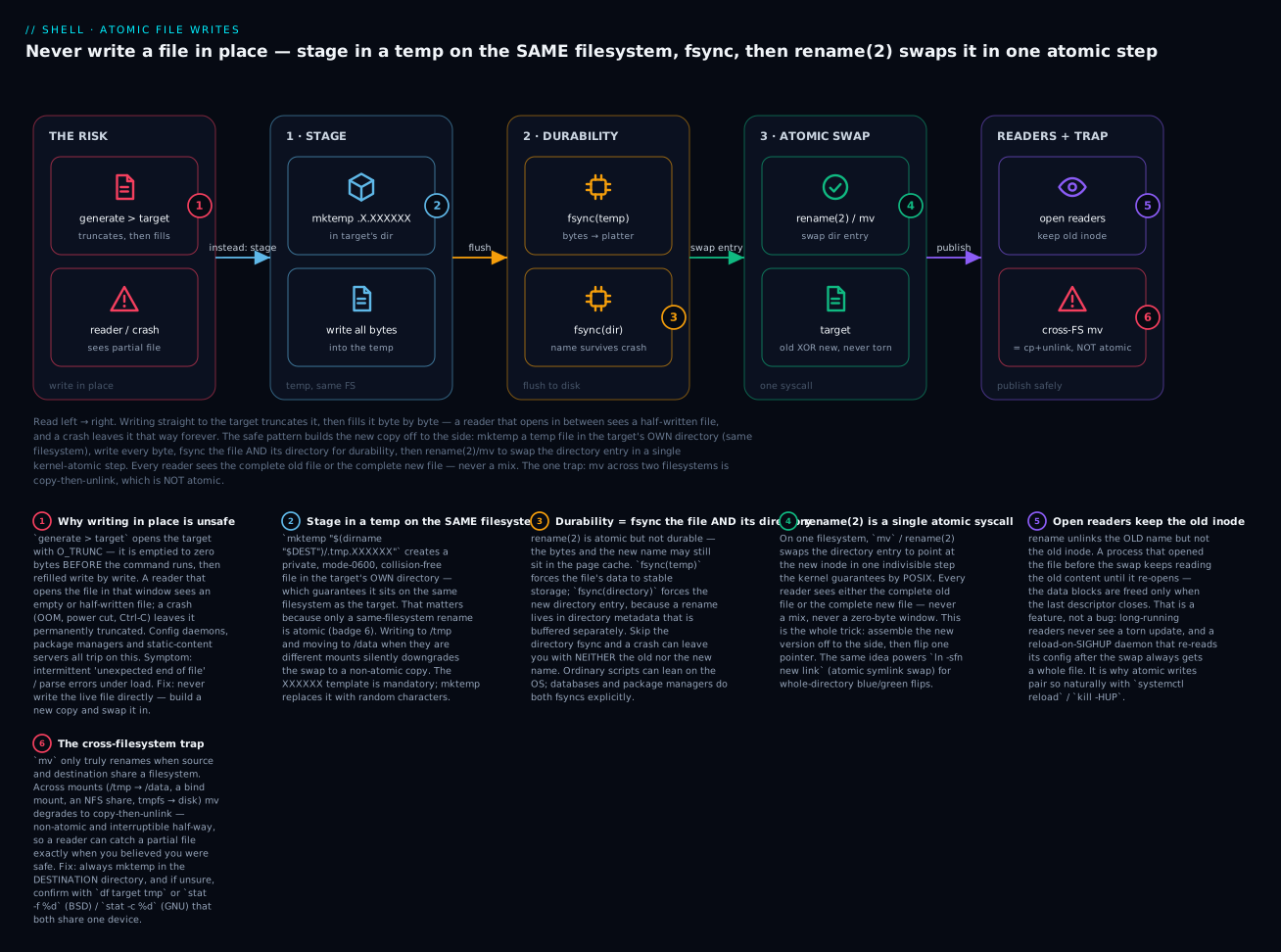
Read left → right: writing in place (red) truncates the target and can expose a half-written file, so instead you stage the new copy in a mktemp temp file on the same filesystem (blue), fsync the file and its directory for durability (amber), then rename(2)/mv swaps the directory entry in one atomic step (green) — readers with the file already open keep the old inode, and the one trap is a cross-filesystem mv, which is really copy-then-unlink and not atomic (red).
cp -r and for f in * work for tens of files. They break around the time you have:
- A directory with filenames containing spaces, newlines, or dashes (yes, that happens — Windows shares, user uploads).
- Thousands of files in one dir (
*expansion can blow the argv limit). - Gigabytes of data where a 5-minute interrupted copy means you have to start over.
- A process that needs to resume if killed mid-flight.
- Multiple machines you’re keeping in sync.
- A target where partial writes are unacceptable (atomic config swaps, container images).
This lesson covers the tools that handle all those cases:
rsync— the Swiss army knife of file copying. Resumable, incremental, network-aware, snapshot-friendly.find -print0/xargs -0/mapfile -d ''— filename-safe iteration (reviewed from Wave 1, with new patterns).- Atomic writes —
mktemp+mvto ensure readers never see a half-written file. - Parallel-safe operations — combining concurrency from L16 with file ops.
By the end you’ll handle 1TB volumes confidently and never lose data to “the script died half-way through.”
1. rsync — the Unix copy tool you should be using
rsync is “smart cp”: it figures out what’s changed since last time and only transfers the differences. For local copies it’s competitive with cp. For remote copies it’s typically 10-100x faster on incremental transfers.
The canonical local copy
rsync -aP /source/ /dest/
-a= archive (recursive, preserve permissions, times, symlinks, etc. — almost always what you want)-P=--partial --progress(show progress, keep partially-transferred files for resume)
The trailing / on source matters. rsync -a /src/ /dst/ copies the contents of /src into /dst. rsync -a /src /dst/ copies /src itself into /dst (creating /dst/src).
rsync -aP /src/ /dst/        # /src/foo → /dst/foo
rsync -aP /src  /dst/        # /src/foo → /dst/src/foo
This is the most common rsync mistake. Always think about whether you mean “copy contents” or “copy the dir itself.”
The canonical remote copy
rsync -azP /source/ user@host:/dest/
-z= compress during transfer (helpful for slow networks; harmful for fast ones)
For very fast LAN transfers, omit -z (CPU is the bottleneck, not bandwidth).
--delete — make destination match source
rsync -aP --delete /source/ /dest/
Files in /dest/ that aren’t in /source/ are deleted. Use carefully — you can wipe the target if you fat-finger arguments. Always test with --dry-run first:
rsync -aPn --delete /source/ /dest/ # -n = --dry-run; just print what would happen
Always do this on first run with --delete.
--exclude and --include
rsync -aP --exclude='*.log' --exclude='node_modules/' /src/ /dst/
Patterns are checked against the path relative to the source root. --exclude='*.log' matches any .log file at any depth. --exclude='/cache/' matches only top-level cache/.
For complex rule sets, use --exclude-from=FILE:
# .rsync-excludes
node_modules/
.git/
*.log
*.tmp
__pycache__/
rsync -aP --exclude-from=.rsync-excludes /src/ /dst/
--link-dest — incremental snapshots
This is rsync’s killer feature. Hard-link files unchanged from a previous backup, only copying changed ones. Result: each “snapshot” appears full but actually shares disk with the previous.
# Yesterday's snapshot is at /backups/2026-06-21/
# Today, build /backups/2026-06-22/ that hard-links to yesterday's unchanged files
rsync -aP --link-dest=/backups/2026-06-21/ /source/ /backups/2026-06-22/
Now /backups/2026-06-22/ is a complete tree, but identical files share inodes with yesterday. Disk usage is roughly the size of new + modified files, not the full source.
This is how Time Machine, BackupPC, rsnapshot, and most “rolling N-day backup” systems work. Trivial to implement.
--partial and --inplace
If a transfer is interrupted, by default rsync deletes the partial file and starts over. With --partial (-P includes this), it keeps the partial. Re-running rsync resumes from the partial.
--inplace writes directly to the destination file rather than to a temp + rename. Faster, but readers may see partial data. Use only when readers won’t trip over half-files.
--bwlimit — rate limiting
rsync -aP --bwlimit=10000 /src/ user@host:/dst/ # 10,000 KB/s = 10 MB/s
Use during business hours so the rsync doesn’t saturate the link.
Verbosity and dry-run
rsync -aPv  /src/ /dst/         # verbose: list every file copied
rsync -aPvv /src/ /dst/         # extra verbose
rsync -aPn  /src/ /dst/         # dry run; show what WOULD be transferred
Always -n first when using --delete or aggressive exclude patterns.
--checksum vs default
By default, rsync skips files where size and mtime match. With --checksum it also reads and hashes both sides. Slow but bulletproof when you suspect mtimes are lying.
rsync over SSH with custom config
rsync -aP -e 'ssh -i ~/.ssh/backup_key -p 2222' /src/ user@host:/dst/
-e overrides the remote-shell command. Use to specify alternate keys, ports, or even different transports.
Combined real-world example: nightly backup
#!/usr/bin/env bash
set -Eeuo pipefail

source "$(dirname "${BASH_SOURCE[0]}")/lib/log.sh"

readonly SOURCE=/var/www
readonly DEST=/backups
readonly TODAY=$(date -u +%Y-%m-%d)
readonly YESTERDAY=$(date -u -d 'yesterday' +%Y-%m-%d 2>/dev/null || date -u -v-1d +%Y-%m-%d)

readonly TODAY_DIR="$DEST/$TODAY"
readonly YEST_DIR="$DEST/$YESTERDAY"

mkdir -p "$DEST"

OPTS=( -aP --delete --exclude-from=/etc/backup/excludes )
if [[ -d "$YEST_DIR" ]]; then
  OPTS+=( --link-dest="$YEST_DIR" )
fi

info "starting backup" date=$TODAY
rsync "${OPTS[@]}" "$SOURCE/" "$TODAY_DIR/"

# Prune backups older than 30 days
find "$DEST" -maxdepth 1 -type d -name '????-??-??' -mtime +30 -print0 \
  | xargs -0r rm -rf
info "backup complete"
This is the foundation of every “rolling daily backup” script. Adapt for your data. (The date -u -d 'yesterday' … || date -u -v-1d … line is the standard GNU-then-BSD fallback for “yesterday” — GNU date uses -d, BSD/macOS date uses -v-1d. We drill this in the Date & time arithmetic lesson.)
2. Filename-safe iteration (recap + new patterns)
We covered this in L4 and L6. Recap:
# WRONG — breaks on spaces/newlines in filenames
for f in $(find . -name '*.log'); do …; done

# RIGHT — NUL-separated, mapfile collects safely
mapfile -d '' -t FILES < <(find . -name '*.log' -print0)
for f in "${FILES[@]}"; do …; done

# RIGHT — for direct piping
find . -name '*.log' -print0 | xargs -0 -n 1 process

# RIGHT — read loop with explicit IFS=
find . -name '*.log' -print0 | while IFS= read -r -d '' f; do
  process "$f"
done
The IFS= (empty) before read prevents word-splitting. -d '' makes the delimiter NUL.
Why NUL specifically? A Unix filename may legally contain any byte except two: the path separator / and the NUL byte \0 (which C uses to terminate strings, so the kernel can never store it inside a name). NUL is therefore the only separator guaranteed never to appear inside a filename — which is exactly why -print0 / -0 / read -d '' are bulletproof where newline- or space-separated lists are not.
Portability note:
mapfile/readarrayneeds bash 4.0+, and the-d(delimiter) option specifically needs bash 4.4+. macOS still ships bash 3.2, wheremapfiledoes not exist at all (mapfile: command not found). For scripts that must run there, prefer thewhile IFS= read -r -d ''loop above — it works all the way back to bash 2. The full GNU-vs-BSD / old-bash minefield is mapped in Going deeper.
find ... -exec ...
For simple ops, skip xargs entirely:
# Per-file: forks once per file (slow if many files)
find . -name '*.log' -exec gzip {} \;

# Batched: forks once per batch (fast)
find . -name '*.log' -exec gzip {} +
Always prefer + over \; when the command supports multiple args. We covered this in L11.
find -execdir
find . -name '*.tmp' -execdir rm -- {} \;
-execdir runs the command in the directory containing the file. Useful for git/svn operations that act on cwd.
When **/ (globstar) is enough
For in-shell iteration where you don’t need find’s full power:
shopt -s globstar nullglob
for f in **/*.log; do
  process "$f"
done
Quote "$f" even when the glob match is “safe” — it’s a habit you don’t want to break.
parallel over find
find . -name '*.log' -print0 | parallel -0 -j 8 gzip {}
parallel -0 reads NUL-separated input. Combine with -j 8 for 8-way parallelism. We covered this in L16.
3. Atomic writes — never leave a half-finished file
If a process is killed (Ctrl-C, OOM, kernel panic) while writing a file, readers may see truncated content. For configs, manifests, anything important, write atomically: write to a temp file, fsync, then rename.
The basic pattern
TMP=$(mktemp /var/lib/myapp/data.XXXXXX)
trap 'rm -f "$TMP"' EXIT
generate_data > "$TMP"
mv -- "$TMP" /var/lib/myapp/data.json
trap - EXIT
mv on the same filesystem is atomic at the kernel level — readers either see the old version or the new one, never partial.
Why rename(2) is atomic
When you run mv tmp target on one filesystem, mv calls the rename(2) system call, and POSIX requires that call to be atomic: it either completely replaces target with tmp or does nothing at all. There is no observable moment where target is empty, half-written, or missing.
The mechanism is simple once you picture a directory as a table mapping names to inode numbers (an inode is the kernel’s handle for a file’s actual data and metadata). Your temp file already has a complete inode full of finished data. rename just rewrites one row of that table — the target name — to point at the temp file’s inode, and drops the temp name, in a single locked update. The data blocks never move; only a pointer flips. That is why the cost is independent of file size (renaming a 1-byte file and a 1-TB file take the same time), and why no reader can catch a partial state: at every instant the target name resolves to a whole inode, either the old one or the new one.
This is also the difference between mv tmp target and cp tmp target. cp opens the existing target inode and overwrites it in place, byte by byte — the exact half-written window you’re trying to avoid. mv (same-FS) leaves the old inode untouched and swaps to a brand-new one. Always build in a temp and mv; never cp over a live file.
Why same filesystem?
mv across filesystems is cp + unlink — non-atomic. If the destination is on /data (separate FS from /tmp), you must:
TMP=$(mktemp -p "$(dirname "$DEST")" data.XXXXXX)
-p DIR puts the temp file in DIR — same filesystem as DEST.
Adding fsync
mv is atomic from the kernel’s view, but the data may still be in page cache. To guarantee durability, sync first:
TMP=$(mktemp -p "$(dirname "$DEST")" .data.XXXXXX)
generate_data > "$TMP"
sync                      # flush ALL pending writes (heavyweight)
# Or, more targeted:
# python3 -c "import os; f=open('$TMP'); os.fsync(f.fileno())"
mv -- "$TMP" "$DEST"
For most use cases, the implicit kernel flushing is fine. Add explicit sync only when crashes are a real concern (e.g. database snapshots).
The subtle part — full durability needs two fsyncs. fsync on the temp file guarantees its data reaches stable storage, but the rename itself lives in the directory’s metadata, which is buffered separately. For a bulletproof “the new file is definitely there after a power cut” guarantee, you must also fsync the directory that contains it, after the mv:
mv -- "$TMP" "$DEST"
# Flush the directory entry too — durability, not just atomicity:
python3 -c 'import os,sys; d=os.open(sys.argv[1], os.O_RDONLY); os.fsync(d); os.close(d)' "$(dirname "$DEST")"
Skip the directory fsync and a crash immediately after mv can leave you with neither the old nor the new name. This is exactly what databases and package managers do internally. Plain scripts rarely need it — but when someone asks “is this write crash-safe?”, the honest answer is “only if I fsync the file and its directory.”
Reusable helper
atomic_write() {
  local target=$1
  local tmpdir; tmpdir=$(dirname "$target")
  local tmp; tmp=$(mktemp -p "$tmpdir" ".$(basename "$target").XXXXXX")
  trap 'rm -f "$tmp"' EXIT
  cat > "$tmp"                    # read stdin → temp file
  mv -- "$tmp" "$target"
  trap - EXIT
}

# Use:
generate_config | atomic_write /etc/myapp/config.yaml
cat > "$tmp" reads stdin to the temp. The function is generic.
Atomic directory replace
For atomically replacing a directory (e.g. blue/green static content):
NEW=/var/www/site.new
LIVE=/var/www/site
OLD=/var/www/site.old

# Build the new tree
rsync -aP /source/ "$NEW/"

# Atomic flip via rename — actually two-step on most filesystems
mv -- "$LIVE" "$OLD"          # not atomic in the strict sense
mv -- "$NEW" "$LIVE"          # but very fast — sub-millisecond gap

# Cleanup
rm -rf "$OLD"
For truly atomic dir-swap, use a symlink:
# Build the new dir at /var/www/sites/v2/
rsync -aP /source/ /var/www/sites/v2/

# Atomic symlink swap (mv replaces atomically)
ln -sfn /var/www/sites/v2 /var/www/site
The ln -sfn updates an existing symlink atomically (single rename syscall). This is how most blue/green static-content deployments work.
4. Parallel-safe directory operations
When fanning out file ops across cores, watch for races and contention.
Per-file work in parallel
# Compress every .log file with 8 cores
find /var/log -type f -name '*.log' -print0 \
  | xargs -0 -P 8 -n 1 gzip
This is safe — each gzip operates on its own file. No coordination needed.
Aggregating from parallel jobs
# Counting words across many files in parallel — DON'T just append
mkdir -p /tmp/results
find . -name '*.txt' -print0 | xargs -0 -P 8 -I {} \
  bash -c 'wc -w "$1" > "/tmp/results/$(basename "$1").wc"' _ {}

# Aggregate after
cat /tmp/results/*.wc | awk '{ s += $1 } END { print s }'
Each worker writes to its own file. After wait, aggregate. We saw this pattern in L16; here it’s specialised for file ops.
Walking very large trees efficiently
For directories with millions of files, naive find reads the whole tree at once. Use -maxdepth:
# Process top-level dirs in parallel; each find within is shallow
find /data -mindepth 1 -maxdepth 1 -type d -print0 \
  | xargs -0 -P 4 -I {} bash -c 'find "$1" -name "*.log" | wc -l' _ {}
This breaks the tree into independent subtrees, processes each in parallel.
rsync from many sources to one dest
rsync doesn’t natively parallelise. Workaround: rsync each top-level subdir in parallel.
ls -1 /source | parallel -j 4 'rsync -a /source/{}/ /dest/{}/'
Be careful with --delete — it deletes anything in the dest dir not present in the source dir, but each parallel rsync only sees its own subdir. So --delete is safe here as long as the dest layout mirrors the source.
5. Common patterns
Disk-usage one-liners
# Top 20 largest files in a tree
find /var -type f -printf '%s %p\n' | sort -rn | head -n 20

# Top 20 largest directories (by their direct content)
du -sh /var/* 2>/dev/null | sort -hr | head -n 20

# Total size of files matching a pattern
find . -name '*.log' -printf '%s\n' | awk '{s+=$1} END {print s}'

# Files older than 7 days, total size
find . -mtime +7 -type f -printf '%s\n' | awk '{s+=$1} END {print s/1024/1024 " MB"}'
Heads-up: find -printf is GNU-only. On BSD/macOS find there is no -printf at all — use find … -exec stat -f '%z %N' {} + (BSD stat) or install GNU findutils (gfind). The full portability map is in Going deeper.
Safely deleting many files
# DON'T — argv overflow risk
rm /var/cache/*.tmp

# DO — find + xargs handles arbitrary file counts
find /var/cache -name '*.tmp' -print0 | xargs -0 rm --

# Or with -delete (no fork, but no pre-list)
find /var/cache -name '*.tmp' -delete
Mirroring with hard links (zero-copy “branching”)
# Make a snapshot that shares storage with the original
cp -al /source /snapshot         # -a archive; -l hard-link instead of copy

# OR with rsync
rsync -a --link-dest=/source /source/ /snapshot/
Both create /snapshot/ where every file is a hard link to /source/. Both directories now point to the same blocks; modifying one (via overwrite, not in-place edit) breaks the link.
This is how container layer snapshots work conceptually.
Find files NOT matching a pattern
find . -type f -not -name '*.tmp'
find . -type f \! -name '*.tmp'      # ! escaped for shell

# Multiple patterns
find . -type f -not \( -name '*.tmp' -o -name '*.bak' \)
Atomic config reload without restart
# Pattern: write atomically, then signal the daemon
atomic_write /etc/myapp/config.yaml < new-config.yaml
systemctl reload myapp.service     # or kill -HUP $(cat myapp.pid)
The daemon re-reads on SIGHUP. Atomic-write means the daemon never reads a partial config.
6. Common pitfalls
cp losing perms / xattrs
cp file dest                         # may not preserve perms, ownership, ACLs
cp -a file dest                      # archive mode (preserves)
cp -p file dest                      # preserve mode/owner/timestamps only
Use -a (or cp --preserve=all) when fidelity matters.
rm -rf with empty variable
The classic disaster:
DIR=""
rm -rf "$DIR/cache"          # if DIR is empty: rm -rf "/cache" — DELETES /cache !
Always validate:
[[ -n "$DIR" ]] || die "DIR is empty"
rm -rf -- "$DIR/cache"
The -- ends option processing — protects against $DIR accidentally starting with a dash.
mv across filesystems
mv /var/data/big.tar /tmp/ # if /tmp is a separate FS, this is cp + unlink
Cross-FS mv can leave the source partially deleted if interrupted. For huge files, prefer cp -av && rm -- $src so you control timing.
find -exec with ; vs +
find . -name '*.log' -exec gzip {} \;     # forks gzip per file — slow
find . -name '*.log' -exec gzip {} +      # batched — fast
Always use + unless your command really only takes one file.
cp -r dir1/ dir2/ vs cp -r dir1 dir2/
cp -r dir1/ dir2/        # copies CONTENTS of dir1 into dir2
cp -r dir1  dir2/        # copies dir1 ITSELF into dir2 (creates dir2/dir1)
Same trailing-slash rule as rsync. Memorise.
Filesystem quirks
- NFS: locking, atime, sometimes
mvnot atomic, definitely noflock. Use lockfile-create. - SMB/CIFS: case insensitivity (Windows-style);
mv FOO foomay be a no-op. - FAT/exFAT: no permissions, no symlinks. Operations may silently lose metadata.
- tmpfs (RAM): fast but bounded; large copies fail with “no space” sooner than you’d think.
du vs ls -l size
ls -l file              # logical size (what you'd read)
du -h file              # disk usage (rounded to block; sparse files lower)
For sparse files (VM disk images, database files), du can be much smaller than ls -l. For atomic-write planning (where blocks matter), use du.
7. The lib/files.sh framework
# lib/files.sh — file-operation helpers

atomic_write() {
  local target=$1
  local tmp
  tmp=$(mktemp -p "$(dirname "$target")" ".$(basename "$target").XXXXXX")
  trap 'rm -f "$tmp"' EXIT
  cat > "$tmp"
  mv -- "$tmp" "$target"
  trap - EXIT
}

mirror_safely() {
  local src=$1 dst=$2
  [[ -d "$src" ]] || die "source not found: $src"
  rsync -aP --delete --exclude-from='.rsync-excludes' "$src/" "$dst/"
}

snapshot_with_link_dest() {
  local src=$1 dest_root=$2
  local today
  today=$(date -u +%Y-%m-%d)
  local target="$dest_root/$today"
  local prev
  prev=$(ls -1 "$dest_root" 2>/dev/null | sort -r | grep -E '^[0-9]{4}-[0-9]{2}-[0-9]{2}$' | head -1)
  local opts=( -aP --delete )
  [[ -n "$prev" && -d "$dest_root/$prev" ]] && opts+=( --link-dest="$dest_root/$prev" )
  rsync "${opts[@]}" "$src/" "$target/"
}

count_files() {
  find "$1" -type f -print0 | tr -cd '\0' | wc -c
}

total_size_mb() {
  find "$1" -type f -printf '%s\n' 2>/dev/null | awk '{s+=$1} END {print s/1024/1024}'
}

prune_older_than_days() {
  local dir=$1 days=$2
  find "$dir" -mindepth 1 -maxdepth 1 -type d -mtime "+$days" -print0 \
    | xargs -0r rm -rf
}
Use:
source "$(dirname "${BASH_SOURCE[0]}")/lib/files.sh"

generate_config | atomic_write /etc/myapp/config.yaml
snapshot_with_link_dest /var/www /backups
prune_older_than_days /backups 30
Note two portability seams in this framework worth knowing: count_files uses the neat tr -cd '\0' | wc -c trick (count the NUL delimiters -print0 emits) precisely because it avoids counting lines in filenames that contain newlines; and total_size_mb leans on GNU find -printf, so on BSD you’d swap it for find "$1" -type f -exec stat -f '%z' {} + | awk ….
8. Twelve idioms for daily use
# 1. rsync local copy (idiomatic)
rsync -aP /src/ /dst/

# 2. rsync remote
rsync -azP /src/ user@host:/dst/

# 3. rsync with delete + dry-run first
rsync -aPn --delete /src/ /dst/        # confirm
rsync -aP --delete /src/ /dst/         # apply

# 4. rsync incremental snapshots
rsync -aP --link-dest=$LAST_BACKUP /src/ /backups/$TODAY/

# 5. NUL-safe iteration
mapfile -d '' -t FILES < <(find . -type f -print0)
for f in "${FILES[@]}"; do …; done

# 6. find + parallel
find . -name '*.log' -print0 | xargs -0 -P 8 -n 1 gzip

# 7. Atomic write
TMP=$(mktemp -p "$(dirname $TARGET)" ".$(basename $TARGET).XXXXXX")
generate > "$TMP" && mv "$TMP" "$TARGET"

# 8. Atomic dir-replace via symlink
rsync -aP /src/ /dest/v2/ && ln -sfn /dest/v2 /dest/live

# 9. find -delete
find /tmp -mindepth 1 -mmin +60 -delete

# 10. Top 20 largest files
find /var -type f -printf '%s %p\n' | sort -rn | head -n 20

# 11. Hard-link snapshot (zero-copy clone)
cp -al /source /snapshot

# 12. Check before destructive op
[[ -n "$DIR" ]] || die "DIR empty"; rm -rf -- "$DIR/cache"
9. What you must internalise before lesson 19
- What’s the difference between
rsync /src/ /dst/andrsync /src /dst/? (Trailing slash on source: copy contents vs copy directory itself.) - What’s
--link-destfor? (Hard-link unchanged files from a previous backup — incremental snapshots that look full.) - Why use
mv tmp targetinstead of writing directly to target? (Atomic: readers see old or new, never partial.) - Why must
tmpandtargetbe on the same filesystem for atomic mv? (Cross-FS mv is cp+unlink — not atomic.) - What’s
ln -sfn /new /linkfor? (Atomic symlink update — single rename syscall.) - What’s
find -exec cmd {} +? (Batched exec — single fork per batch instead of per file.) - What does
cp -aldo? (Archive copy with hard links — zero-copy clone of a directory tree.) - What’s the canonical NUL-safe pipeline? (
find ... -print0 | xargs -0 ....) - What’s the safest “rm -rf $X” pattern? (Validate
$Xis non-empty first, thenrm -rf -- "$X/subdir"with--.) - What’s
duvsls -lfor sparse files? (dushows actual disk usage;ls -lshows logical size — sparse files have logical >> actual.)
Going deeper
This is the section for the reader who already runs rsync -aP and mktemp in their sleep and wants the internals, the portability landmines, and the production edge cases.
How rsync’s delta algorithm actually saves the day
The thing that makes rsync “smart cp” is the rsync algorithm: when copying A over an existing B, the receiver splits its copy of B into fixed-size blocks and computes, for each block, a fast rolling checksum plus a strong hash (MD5 in modern rsync). It sends those to the sender, which rolls a window byte-by-byte over A looking for blocks that already exist on the receiver. Matches are sent as “reuse block N”; only the non-matching runs of bytes are transmitted literally. Change one line in the middle of a 1 GB file and rsync ships a few KB, not a gigabyte.
Two consequences worth knowing:
- The delta algorithm only runs for updates over a network. For a local copy (both paths on the same host) rsync defaults to
--whole-file: reading both sides and computing deltas would cost more disk I/O than just copying the changed files wholesale. So “rsync is faster than cp locally” is only true because rsync skips unchanged files entirely (size+mtime), not because of block deltas. - Default skip is size + mtime, and mtime lies. After a restore, a
touch, or a clock skew, two identical files can look “different” (or two different files look “same”).--checksum(-c) forces a full read+hash of every candidate on both sides — correct but slow.--size-onlygoes the other way (trust size alone) for sources where mtime is meaningless (e.g. some object-store mounts).
--inplace, --partial, --partial-dir and the atomicity trade-off
By default rsync writes each file to a hidden temp (.filename.XXXXXX) in the destination directory and renames it into place when complete — i.e. rsync already does the atomic-write pattern for you, per file. That is why an interrupted rsync never leaves a truncated destination file (only, at worst, a leftover temp).
--partialkeeps that temp on interruption so the next run resumes it (otherwise the temp is deleted).-P=--partial --progress.--partial-dir=.rsync-partialstashes partials in a subdir instead of littering the destination — the clean production choice.--inplacedisables the temp-and-rename and writes straight into the destination inode. It’s essential for gigantic files (no need for 2× space) and for things like VM images and append-mostly logs, but it forfeits atomicity — a reader can now see a half-updated file, and an interrupted transfer leaves the destination corrupt until the next successful run. Never combine--inplacewith a live consumer that can’t tolerate partial reads.--deletehas timing variants:--delete-during(default in modern rsync — delete as it goes),--delete-after(safer for renames, deletes only at the end),--delete-delay. And beware--delete-excluded, which deletes destination files matching your--excluderules — a classic way to nuke data you meant to protect.
mktemp internals, and why $$-based temp names are a bug
mktemp exists to close a TOCTOU (time-of-check/time-of-use) race. The naïve TMP=/tmp/myapp.$$ (PID-based) is predictable: an attacker on a shared box can pre-create /tmp/myapp.<pid> as a symlink to a file you own, and your script then writes through it or chmods it — a classic privilege-escalation and data-clobber vector in world-writable /tmp. mktemp instead atomically creates a file with random characters (via O_CREAT|O_EXCL, which fails if the name already exists) and mode 0600, so the name is unpredictable and you’re guaranteed to be the creator.
Rules that follow:
- The template must end in at least 6
Xs (data.XXXXXX);mktempreplaces the run of trailing X’s with random chars. No X’s → error on GNU, literal name on some BSDs. mktemp -dmakes a temp directory (mode0700) — the right home for a whole batch of scratch files plus a FIFO, cleaned up with onetrap 'rm -rf -- "$dir"' EXIT.mktemp -uprints a name without creating it — this re-introduces the exact racemktempexists to prevent. Avoid it.mktemphonours$TMPDIRfor the default location; pass an explicit template path (or GNU’s-p DIR/--tmpdir) to force the directory — which, for atomic writes, must be the target’s directory so the finalmvstays same-filesystem.
Durability, rename, and the ext4 “zero-length files” saga
Atomicity (readers see old-or-new) and durability (survives a crash) are different guarantees. rename gives atomicity for free; durability needs fsync — and, as covered in §3, an fsync of the directory to persist the new name. Historically this bit Linux users hard: in 2009, ext4’s delayed allocation meant that applications doing the write-temp-then-rename dance without fsync could, after a crash, find the renamed file zero bytes long — the rename metadata had hit disk but the data blocks hadn’t. The kernel added a heuristic (auto-flush on rename-over-existing and truncate) to paper over the most common cases, but the correct, portable rule never changed: if you need the data to survive a crash, fsync the file before the rename and fsync the directory after it. For a deeper treatment of inodes, link counts and fsync, see Filesystem semantics: hard links, symlinks & fsync.
Hard links, link counts, and how --link-dest snapshots really behave
A hard link is a second directory entry pointing at the same inode — not a copy. cp -al and rsync --link-dest build snapshots where unchanged files are hard links to the previous snapshot, so N daily snapshots of mostly-static data cost roughly size(1 snapshot) + N×(changed files), not N × full. Check it directly:
stat -c '%h %i %s %n' file      # GNU: link-count, inode, size, name
stat -f '%l %i %z %N' file      # BSD/macOS equivalent
Two things that trip people up: (1) a file with link count 3 shows its full size in every snapshot’s ls -l, but du counts the blocks only once — so du -sh snapshot/ on a link-dest tree can read far smaller than the sum of ls sizes, which is correct. (2) Editors matter: a tool that truncates-and-rewrites in place mutates the shared inode and silently changes every snapshot; a tool that writes-temp-then-renames (the atomic pattern!) breaks the link and leaves old snapshots intact. Backup snapshots therefore rely on their writers using rename semantics — which is exactly why atomic writes and hard-link snapshots are the same lesson.
ARG_MAX: why xargs exists at all
rm /var/cache/*.tmp can fail with Argument list too long because the glob expands to a command line longer than the kernel’s ARG_MAX limit (environment + argv bytes for a single execve).
getconf ARG_MAX # ~1048576 (1 MiB) on macOS; often 2 MiB on Linux
xargs reads the file list on stdin and batches it into as many execve calls as needed to stay under the limit — which is why find … -print0 | xargs -0 rm handles a million files where the glob dies. find … -exec cmd {} + does the same batching internally. The subtle payoff of -print0/-0 here is double: it’s both NUL-safe and the only way xargs can pack batches without mis-splitting a name that contains a space.
Copy-on-write reflinks: the modern zero-copy clone
On copy-on-write filesystems (Btrfs, XFS with reflink, ZFS, APFS) you can clone a file so the two names share data blocks until one is modified — a true instant clone, unlike a hard link the clone is fully independent for writes:
cp --reflink=auto src dst    # GNU coreutils on Btrfs/XFS: reflink if possible, else full copy
cp -c src dst                # macOS/APFS: clonefile()
--reflink=auto is the safe default in modern scripts on Linux: instant and space-free where the FS supports it, a normal copy where it doesn’t. It’s how snapshots, container layers, and “duplicate this 40 GB dataset for a test run” all become O(1).
GNU vs BSD: the portability map that actually bites
The build host for this course is Linux + GNU coreutils, but your scripts land on macOS laptops (BSD userland, bash 3.2), Alpine containers (BusyBox), and embedded boxes. These are the differences that break file-ops scripts in practice:
| Feature | GNU / Linux | BSD / macOS | Portable move |
|---|---|---|---|
find -printf '%s %p' |
yes | absent | find … -exec stat … {} +, or install findutils |
stat format |
stat -c '%s %n' |
stat -f '%z %N' |
branch on OS, or use find -printf (GNU) / wc -c |
du -b (exact bytes) |
yes | absent (has -h, -k) |
stat/find -printf, or du -k (KiB) |
date -d 'yesterday' |
yes | date -v-1d |
`date -d … 2>/dev/null |
readlink -f |
yes | modern macOS yes, old BSD no | realpath (now on both) |
sort -h (human sizes) |
yes | modern macOS yes | present on both current systems |
cp --reflink |
yes (CoW FS) | no (cp -c on APFS) |
cp --reflink=auto guards itself on Linux |
mapfile/readarray -d |
bash 4.0 / 4.4 | bash 3.2 lacks both | while IFS= read -r -d '' loop |
xargs -r (no-run-if-empty) |
yes | absent on macOS | guard input, or xargs + [ -s ] check |
rsync version |
3.x (Samba) | often openrsync / 2.6.9-compat | install rsync 3.x for --info=progress2, reliable --link-dest |
Two of these deserve emphasis. First, xargs -r (--no-run-if-empty, used in the framework’s xargs -0r rm -rf) is a GNU extension — on macOS BSD xargs, empty input still runs the command once, so prune_older_than_days on an empty dir would run a bare rm -rf. Guard with an explicit emptiness check on BSD. Second, recent macOS ships openrsync (advertising “rsync version 2.6.9 compatible”), which lacks --info=progress2 and has thinner --link-dest support than Samba rsync 3.x — for serious backup scripts, install rsync 3.x (Homebrew) and don’t assume the system binary. For a systematic approach to detecting and guarding these, see POSIX portability vs bashisms.
Security and safety nuances
- Redirection and temp files run with your privileges.
sudo cmd > /root/outopens/root/outas you (permission denied) beforesudoruns; write privileged files withcmd | sudo tee /root/out >/dev/null, ormktempas yourself andsudo install -m 0644 tmp /root/out. rm -rf+ an unset variable is a data-loss weapon.set -uturnsrm -rf "$DIR/cache"into an error instead ofrm -rf /cachewhen$DIRis empty; always add[[ -n "$DIR" ]] || dieand--before paths.- Predictable names in world-writable dirs invite symlink attacks. Always
mktemp/mktemp -d, never/tmp/app.$$, andtrap 'rm -rf -- "$tmp"' EXITso a crash doesn’t leak. --deleteis a loaded gun. One transposed argument (rsync -a --delete /dst/ /src/) mirrors the wrong direction and erases your source.--dry-runfirst, every time, and prefer--delete-after.
Common beginner mistakes
“mv is always atomic, so writing to a temp anywhere and moving it is safe.” Only a same-filesystem mv is atomic. Across filesystems (/tmp → /data, a bind mount, an NFS share, tmpfs → disk) mv silently becomes copy-then-unlink — non-atomic and interruptible, so a reader can catch a half-written destination. Right model: mktemp in the target’s own directory (mktemp "$(dirname "$DEST")/.tmp.XXXXXX") so the final mv never crosses a filesystem boundary. When unsure, compare device numbers: stat -f %d (BSD) / stat -c %d (GNU).
“for f in $(find . -name '*.log') is fine as long as I quote "$f" in the loop.” The damage is already done before the loop body runs: command substitution splits find’s output on $IFS (spaces, tabs, newlines), so Q1 report.log becomes two words Q1 and report.log. Quoting "$f" inside the loop cannot un-split it. Right model: never iterate command substitution over filenames — use find … -print0 | while IFS= read -r -d '' or xargs -0, because NUL is the one byte a filename can’t contain.
“rsync -a /src /dst/ and rsync -a /src/ /dst/ do the same thing.” The trailing slash on the source flips the meaning entirely. /src/ copies the contents of src into dst; /src (no slash) copies the directory src itself into dst, creating /dst/src/. Right model: trailing slash on source = “the contents of”; run it once with -n and read the paths before trusting it — this is the #1 rsync foot-gun.
“--delete just tidies up stray files, it’s harmless.” --delete removes anything in the destination that isn’t in the source — so a swapped src/dst, a typo’d path, or an empty $SRC variable can wipe the destination (or, reversed, your source). Right model: --delete is destructive by design; always --dry-run (-n) first, prefer --delete-after, and never let --delete-excluded near data you meant to protect.
“cp file dest copies the file faithfully.” Plain cp may drop permissions, ownership, ACLs, extended attributes and precise timestamps — you get the bytes, not the fidelity. Right model: use cp -a (archive) when metadata matters, cp -p to preserve just mode/owner/times, and remember mv preserves everything because (same-FS) it doesn’t copy at all.
“fsync-ing the file makes my atomic write crash-proof.” fsync on the file persists its data, but the rename that publishes it lives in the directory’s metadata, which is flushed separately — a crash right after mv can leave you with neither name. Right model: for true durability, fsync the file before the rename and fsync the directory after it. (For pure atomicity — readers never see a torn file — the bare temp-then-rename is already enough; durability is the extra mile.)
“rm /path/*.tmp is the obvious way to delete lots of files.” With enough matches the shell expands * past ARG_MAX and the command dies with Argument list too long — and if any filename starts with -, rm treats it as a flag. Right model: find /path -name '*.tmp' -print0 | xargs -0 rm -- (or find … -delete) streams the list past the argv limit, and -- stops option parsing.
Practice challenges
Set up a tiny sandbox, then work the challenges. Try each yourself before opening the solution.
mkdir -p /tmp/kv-lab && cd /tmp/kv-lab
mkdir -p src
printf 'hello\n'  > 'src/report final (v2).txt'   # note the spaces + parens
printf 'log one\n' > src/app.log
printf 'log two\n' > 'src/access log.log'          # a space in the name
1. (Beginner) List every .log file under src, one per line, safely — even the one with a space in its name. A for f in $(…) loop must not split access log.log into two.
<details> <summary>Solution</summary>
find src -name '*.log' -print0 | xargs -0 -n1 echo
# or, no xargs:
find src -name '*.log' -print0 | while IFS= read -r -d '' f; do printf '%s\n' "$f"; done
Why: -print0 separates names with NUL, the one byte a filename can’t contain, so xargs -0 / read -d '' treat access log.log as a single item. A $(find …) loop would split it on the space.
</details>
2. (Beginner) Atomically write src/app.conf containing two lines, so a concurrent reader can never see a half-written file. Use mktemp + mv, and put the temp in the same directory as the target.
<details> <summary>Solution</summary>
DEST=src/app.conf
TMP=$(mktemp "$(dirname "$DEST")/.app.conf.XXXXXX")
trap 'rm -f "$TMP"' EXIT
printf 'mode = prod\nworkers = 4\n' > "$TMP"
mv -- "$TMP" "$DEST"
trap - EXIT
cat "$DEST"
Why: the temp is written fully first, then mv (same filesystem, since it’s the same dir) swaps the directory entry in one atomic rename(2) — readers see the old file or the whole new one, never partial. The trap cleans up the temp if anything fails before the mv.
</details>
3. (Intermediate) Mirror src/ into dst/ so dst becomes an exact copy (extras removed) — but preview the deletions first. Never run --delete blind.
<details> <summary>Solution</summary>
mkdir -p dst && printf 'stale\n' > dst/old.txt   # something that should get deleted
rsync -aPn --delete src/ dst/                     # DRY RUN — read the "deleting old.txt" line
rsync -aP  --delete src/ dst/                     # apply
Why: -n (--dry-run) prints what would happen without touching anything, so you confirm --delete is only removing what you expect. The trailing slash on src/ copies its contents into dst.
</details>
4. (Intermediate) Build a second snapshot of src that hard-links unchanged files to the first, so identical files share disk. Then prove the sharing with link counts.
<details> <summary>Solution</summary>
rsync -aP src/ snap1/                              # first full snapshot
rsync -aP --link-dest="$PWD/snap1" src/ snap2/     # unchanged files hard-linked to snap1
# Prove it — same inode, link count >= 2:
stat -f '%i %l %N' snap1/app.log snap2/app.log     # BSD/macOS
# GNU: stat -c '%i %h %n' snap1/app.log snap2/app.log
Why: --link-dest hard-links files identical to the reference tree instead of copying them, so snap2/app.log and snap1/app.log share one inode (link count ≥ 2) and cost zero extra data blocks. --link-dest needs an absolute path. (On macOS, use rsync 3.x for reliable --link-dest.)
</details>
5. (Advanced) Write a portable atomic_write function that reads stdin, stages a temp in the target’s directory, cleans up on failure, and works in bash 3.2 (no mapfile, no GNU-only flags).
<details> <summary>Solution</summary>
atomic_write() {
  local target=$1 tmp
  tmp=$(mktemp "$(dirname "$target")/.$(basename "$target").XXXXXX") || return 1
  trap 'rm -f "$tmp"' RETURN            # clean up when the function returns
  cat > "$tmp"                          # slurp stdin into the temp
  mv -- "$tmp" "$target"                # atomic same-FS swap
}
printf 'k = v\n' | atomic_write src/generated.conf && cat src/generated.conf
Why: the temp lives in dirname target, guaranteeing a same-filesystem (atomic) mv; the template path form avoids GNU’s -p flag; trap … RETURN removes the temp if cat or mv fails. No bashism newer than 3.2 is used, so it runs on stock macOS too.
</details>
6. (Advanced) Demonstrate the cross-filesystem trap and fix it. On most systems /tmp and your project dir can be different filesystems. Show why staging in /tmp and moving to src/ can be non-atomic, then fix it — and verify with device numbers.
<details> <summary>Solution</summary>
# Device numbers of the two candidate temp locations vs the target dir:
stat -f '%d %N' /tmp src            # BSD/macOS  (GNU: stat -c '%d %N')
# If the two device numbers DIFFER, then:
#   TMP=$(mktemp /tmp/x.XXXXXX); mv "$TMP" src/x   # mv = cp+unlink  → NOT atomic
# Fix: stage in the TARGET's directory so device numbers match:
DEST=src/x
TMP=$(mktemp "$(dirname "$DEST")/.x.XXXXXX")
stat -f '%d %N' "$TMP" "$DEST" 2>/dev/null || true   # same device now
printf 'safe\n' > "$TMP" && mv -- "$TMP" "$DEST"
Why: rename(2) is only atomic within one filesystem. If stat -f %d (stat -c %d on GNU) reports different device numbers for the temp and the target, mv degrades to a copy-then-unlink and a reader can catch the partial file. Staging in dirname "$DEST" forces one device, restoring atomicity.
</details>
Glossary
- Atomic write — the pattern of writing a whole new file to a temp and
rename-ing it over the target, so readers and crashes only ever see the complete old file or the complete new one, never a torn middle. rename(2)— the system call behindmv; POSIX guarantees it is atomic within one filesystem — it swaps a directory entry to a new inode in one indivisible step. Cost is independent of file size.- Inode — the kernel’s handle for a file’s data blocks and metadata (size, owner, timestamps, link count). Names in directories point at inodes; multiple names (hard links) can share one inode.
- Directory entry — a
(name → inode number)row inside a directory. A rename rewrites one such row; a hard link adds another row pointing at an existing inode. - Hard link — a second directory entry for the same inode (
ln,cp -al). Not a copy: both names are the file. Deleting one name just drops the link count; blocks free only at count 0. - Symbolic link (symlink) — a tiny file whose contents are a path to another file (
ln -s).ln -sfn new linkre-points an existing symlink atomically — the trick behind blue/green directory swaps. - Link count — how many hard links point at an inode;
stat -c %h(GNU) /stat -f %l(BSD). A link-dest snapshot shows counts ≥ 2 for shared files. mktemp— safely creates a uniquely-named temp file (mode0600) or directory (-d,0700) usingO_CREAT|O_EXCL, closing the TOCTOU/symlink race that$$-based names leave open. Template must end inXXXXXX.- Template (
XXXXXX) — the trailing run ofXs in amktempargument that gets replaced with random characters. At least six are required. fsync— force a file’s buffered data from the page cache to stable storage. For a durable atomic write you fsync the file before the rename and the directory after it.sync— flush all pending writes system-wide; the heavyweight, whole-system cousin offsync.- Durability vs atomicity — atomicity means no reader sees a partial file (rename gives this free); durability means the change survives a crash (needs fsync of file + directory). Different guarantees, often confused.
- Page cache — the kernel’s in-RAM buffer of file data; a write “succeeds” into the cache long before it reaches disk, which is why durability needs an explicit flush.
rsync— incremental, resumable copy tool. Skips unchanged files (size+mtime) and, over a network, transmits only the changed blocks of changed files via its rolling-checksum delta algorithm.- Archive mode (
-a) — the everyday rsync/cp flag bundle: recursive, preserving permissions, timestamps, symlinks, ownership. “Copy it faithfully.” - Delta transfer — rsync’s rolling-checksum + strong-hash block matching that sends only the differing regions of a file over the network. Local copies default to
--whole-fileinstead. --link-dest— rsync option that hard-links files unchanged from a reference (previous) snapshot, so each rolling snapshot looks full but costs only new+changed data. The engine behind rsnapshot/Time Machine.--delete— make the destination match the source by removing extras. Destructive: always--dry-runfirst;--delete-afteris the safer timing;--delete-excludedcan erase protected files.--dry-run(-n) — show what a command would do without doing it. Mandatory before anyrsync --delete.--checksum(-c) — force rsync to hash both sides instead of trusting size+mtime; correct but slow, for when timestamps lie.--inplace— write straight into the destination inode instead of temp+rename; saves space on huge files but forfeits atomicity (readers can see partial data).--partial/-P— keep a partially-transferred file so an interrupted rsync resumes instead of restarting;-Palso adds--progress.- NUL /
-print0— the zero byte used as a separator between filenames; the only byte a filename can’t contain (besides/), which makes it the safe delimiter forfind -print0/xargs -0/read -d ''. xargs -0— read NUL-separated items from stdin and batch them into as few command invocations as fit underARG_MAX; the safe partner to-print0.ARG_MAX— the kernel limit on the bytes of argv+environment for oneexecve(getconf ARG_MAX; ~1 MiB on macOS). Blowing it is whyrm *.tmpfails andxargsexists.IFS— the shell’s internal field separator; word-splitting on$IFSis what mangles unquoted$(find …)output over filenames with spaces.- globstar (
**) —shopt -s globstarmakes**/*.logmatch at any depth; pair withnullglobso a no-match glob expands to nothing instead of the literal pattern. - Reflink / copy-on-write clone — an instant, space-free file clone that shares data blocks until one side is written (
cp --reflink=autoon Btrfs/XFS,cp -con APFS). Independent for writes, unlike a hard link. - TOCTOU — time-of-check to time-of-use race; the class of bug (predictable temp names, symlink swaps) that
mktempandO_EXCLare designed to prevent. - GNU coreutils vs BSD userland — Linux ships GNU tools (
find -printf,stat -c,du -b,date -d); macOS/BSD ship different ones (stat -f,date -v, no-printf). Portable scripts branch or use POSIX-only features. - openrsync — the BSD-licensed rsync recent macOS ships, advertising “rsync version 2.6.9 compatible”; lacks
--info=progress2and has thinner--link-destsupport than Samba rsync 3.x. mapfile/readarray— bash builtin that reads lines (or, with-d '', NUL-separated items) into an array. Needs bash 4.0+ (4.4+ for-d); absent in macOS’s bash 3.2 — use aread -d ''loop for portability.
What’s next
Lesson 19: Date & Time Arithmetic — ISO 8601, Time Zones, Locale Hazards & Reliable Cron-Time Math. Working with dates in shell is full of traps: date -d is GNU only; macOS BSD date uses different flags; the %N format isn’t portable; cron uses local time; UTC is mandatory in production. We cover the GNU/BSD difference comprehensively, the canonical ISO 8601 patterns, time-zone handling in scripts, computing yesterday/last-week/last-month dates, and the standard “cron-safe” date math. After L19 you’ll never have a “this script broke at DST” bug again — see Date & time arithmetic: ISO 8601 & time zones.
See you there.