In a nutshell
Think of a managed disk as renting a hard drive from Azure as a utility — you say how big and how fast, and Azure builds it, keeps three copies of it, and hands you a plug. The disk types are a ladder of courier services: Standard HDD is economy post (cheap, slow, best-effort), Standard SSD is a standard courier, Premium SSD is a guaranteed next-day service, and Ultra is a dedicated motorbike rider you can re-route mid-journey. You are not paying for the parcels you actually send — you are paying for the service level you reserved, whether or not you use it.
Two ideas trip up almost every beginner, so meet them now. Host caching is like keeping your most-used files on your desk instead of walking to the filing cabinet every time: brilliant for reads, but if you let writes pile up on the desk and the building loses power, unsaved work is gone — which is exactly why a database log must skip the desk and go straight to the cabinet. And the temporary disk (the D: / /mnt drive that appears for free) is a scratch notepad the cleaners throw out every night: fast, free, and never the place for anything you want to keep.
If you can create a VM and you know what a resource group and a region are, you are ready. Before you start: it helps to have met Azure Key Vault once (for the encryption part) — the full prerequisites and the “after this you can…” outcomes are spelled out in the two sections just below. You’ll walk away able to pick the right disk type for a workload, cache each disk correctly by its role, choose an encryption option with intent, and run the day-to-day operations (snapshot, resize, swap) from the CLI.
Level: Intermediate · Time: ~34 min · a genuine deep dive — skim the tables first, then read for the “why”.
Almost every interesting failure, cost surprise, and performance complaint on Azure IaaS eventually traces back to a disk. A SQL Server that “randomly” stalls under load is usually a Standard SSD pretending to be Premium. A surprise line on the bill is usually an Ultra Disk left attached to a deallocated VM, or a forgotten 4 TB Premium snapshot. A VM that won’t boot after a “harmless” caching change is a data disk that had write-back caching turned on while the application assumed durability. Disks are where the abstraction of “just a virtual machine” meets the very physical reality of IOPS, throughput, latency, replication, and money.
This is the deep dive that makes disks stop being a mystery. An Azure managed disk is a block-storage device that Azure provisions and manages for you as a first-class Azure Resource Manager (ARM) resource — you pick a type and a size, and Azure handles the underlying storage account, replication, and placement. You will leave this lesson knowing every disk type and when to choose it, how disk size maps to performance, what host caching actually does (and when it will corrupt your data if you get it wrong), every encryption option Azure offers and how they stack, and the operational toolkit — snapshots, images, shared disks, performance tiers, online resize, OS-disk swap, and ephemeral OS disks. We will cover the settings you choose when you create a disk and the ones you can (and cannot) change afterwards, with working az CLI and Bicep for each core operation.
Learning objectives
By the end of this lesson you will be able to:
- Choose the correct disk type (Standard HDD, Standard SSD, Premium SSD v1, Premium SSD v2, Ultra) for a given workload by reasoning about IOPS, throughput, latency, and cost.
- Explain how disk size tiers (P/E/S) map to provisioned performance, and how Premium SSD v2 and Ultra decouple size from performance.
- Configure host caching (None / ReadOnly / ReadWrite) correctly per disk role and explain why the wrong choice can corrupt data.
- Distinguish the OS disk, data disks, and the temporary disk, and know which one survives a deallocate.
- Apply Azure’s encryption options — server-side encryption with platform or customer-managed keys, encryption at host, Azure Disk Encryption, double encryption, and confidential disk encryption — and know when each is required.
- Operate disks day-to-day: incremental snapshots, images, shared disks for clustering, performance tiers, online resize, OS-disk swap, and ephemeral OS disks — with
azand Bicep.
Prerequisites & where this fits
You should be comfortable creating a virtual machine and reasoning about regions and resource groups; if VMs are new, read the Azure Virtual Machines deep dive first, since the Disks tab of VM creation is where most people first meet these options. You will get more out of the encryption section if you have seen Azure Key Vault before. This lesson sits in the Compute module of the Azure Zero-to-Hero course, immediately after the VM and VM-resilience lessons and immediately before networking — disks are the storage layer that every VM stands on, so we cover them while VMs are fresh and before we move the discussion to the network.
Core concepts
Managed vs unmanaged (the history that explains the model). In the original Azure model you created storage accounts yourself and dropped VM disks into them as page blobs (“unmanaged disks”). You had to spread VMs across many storage accounts to avoid hitting a per-account IOPS cap (20,000 IOPS), you managed your own naming and containers, and an availability-set deployment could silently put two VMs’ disks in the same storage scale unit and defeat the whole point of the availability set. Managed disks, now the default and the only type you should use, make the disk itself the ARM resource: Azure picks and manages the backing storage, enforces the per-disk performance you provisioned, automatically distributes disks of availability-set VMs across fault domains, and gives you role-based access control, resource locks, tags, and Azure Policy on the disk like any other resource. Unmanaged disks are deprecated and being retired — treat “disk” and “managed disk” as synonyms from here on.
The three roles a disk can play. Every VM has exactly one OS disk (a registered, bootable disk, max 4 TiB, mounted as C: on Windows or / on Linux, with ReadWrite caching on by default). A VM can have one or more data disks — empty block devices you attach for application data, databases, and logs; the number you can attach is capped by the VM size (a small VM might allow 4, a large one 64). And almost every VM size ships a temporary disk (the “temp disk”, D: on Windows, /dev/sdb//mnt on Linux): a local SSD physically attached to the host, not a managed disk, not persisted, and wiped on deallocate, host maintenance, or resize. The temp disk is free and fast and perfect for OS paging files, tempdb, and scratch — and catastrophic if you ever store anything you care about on it.
Provisioned performance is what you pay for. With the classic tiers (Standard HDD/SSD, Premium SSD v1), performance is a fixed function of the size you pick — choosing a bigger disk is how you buy more IOPS. With the newer types (Premium SSD v2 and Ultra), capacity and performance are decoupled: you provision GiB, IOPS, and MB/s independently and are billed for each. The mental model to carry: you pay for provisioned capacity and (on v2/Ultra) provisioned performance, not for what you actually use.
IOPS vs throughput vs latency. IOPS is operations per second (matters for small random I/O — databases, OLTP). Throughput is MB/s (matters for large sequential I/O — backups, analytics, media). Latency is the time per operation (matters for chatty, latency-sensitive apps). A disk can be IOPS-bound, throughput-bound, or latency-bound, and the VM size has its own disk IOPS/throughput ceiling — your effective performance is the minimum of the disk limits and the VM’s limits. A Premium disk on an undersized VM, or a VM with no Premium support, will never hit the disk’s rated numbers.
Disk types: the master comparison
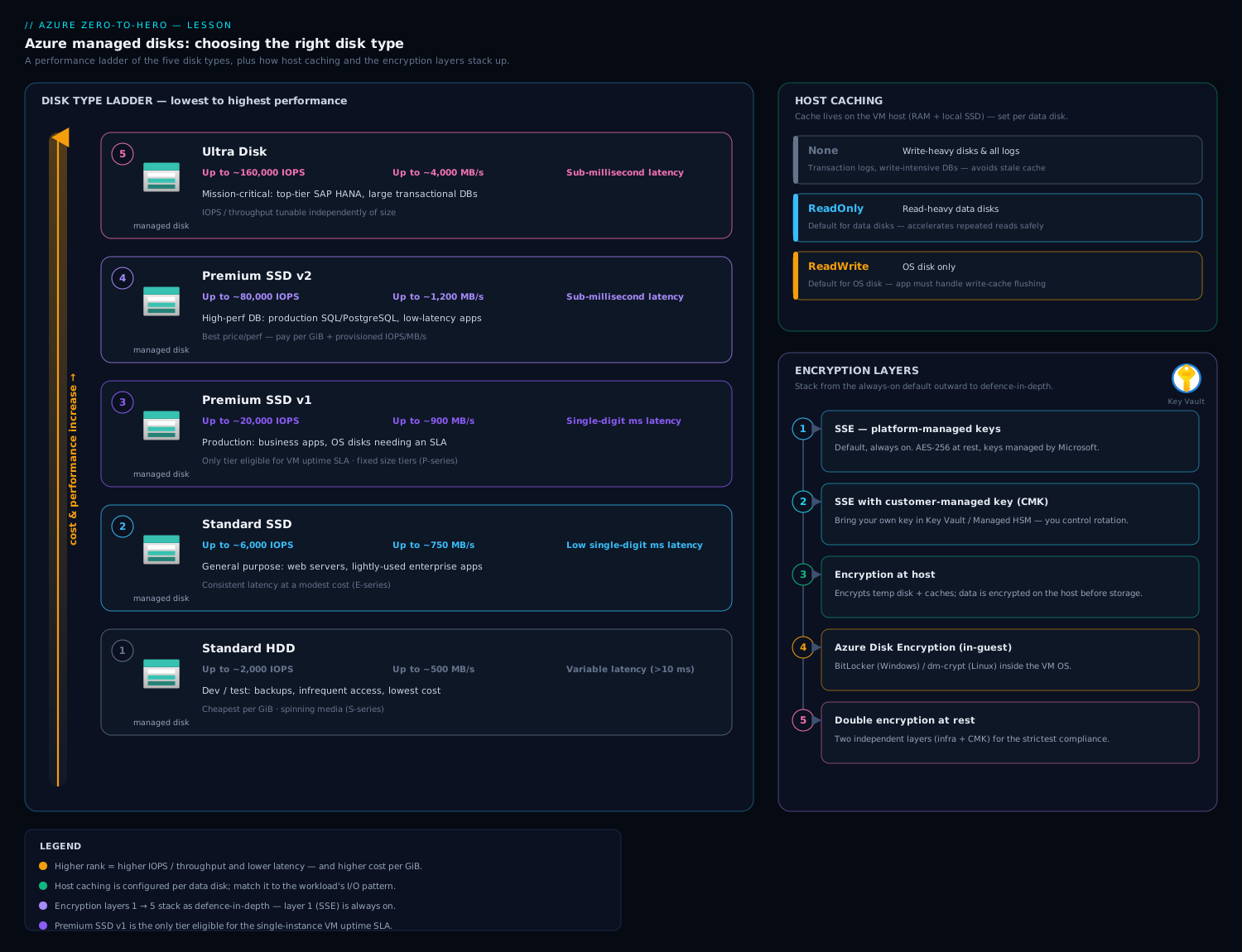
This is the single most important table in the lesson. The five managed-disk types, side by side:
| Disk type | Media | Max size | Max IOPS (per disk) | Max throughput | Typical latency | Performance model | Best for |
|---|---|---|---|---|---|---|---|
| Standard HDD | Magnetic | 32 TiB | ~2,000 (+ bursting) | ~500 MB/s | ms (10ms+), variable | Fixed by size tier (S) | Dev/test, backup, infrequent/cold, cost-first |
| Standard SSD | SSD | 32 TiB | ~6,000 (with bursting) | ~750 MB/s | single-digit ms | Fixed by size tier (E) | Web servers, light prod, dev/test that needs consistency |
| Premium SSD v1 | SSD | 32 TiB | 20,000 | 900 MB/s | low single-digit ms | Fixed by size tier (P) | Production, databases, latency-sensitive; required for SLA-backed single-VM |
| Premium SSD v2 | SSD | 64 TiB | 80,000 | 1,200 MB/s | sub-ms | Independently provisioned IOPS + MB/s | Most new production; best price/performance |
| Ultra Disk | NVMe-class | 64 TiB | 400,000 | 10,000 MB/s | sub-ms | Independently provisioned IOPS + MB/s, adjustable live | Top-tier OLTP, SAP HANA, high-end SQL, message queues |
Read that as a ladder of price and capability: Standard HDD is the cheapest and slowest; Ultra is the fastest and (for high performance) the priciest. A few load-bearing nuances behind the numbers:
- Premium SSD v1 unlocks the single-instance VM SLA. Microsoft’s 99.9% SLA for a single VM (no availability set/zone) requires all OS and data disks to be Premium SSD or Ultra. A single VM on Standard disks has no SLA. This is a classic exam point.
- Premium SSD v2 is usually the new default for production. It typically costs less than v1 for the same provisioned performance, has sub-millisecond latency, starts every disk with a free baseline (3,000 IOPS and 125 MB/s) regardless of size, and lets you dial IOPS and throughput up or down independently. Its main constraints: it cannot (yet) be an OS disk in most configurations, it does not support host caching, and zone/region availability is narrower than v1.
- Ultra is for the extreme tail. Up to 400,000 IOPS and 10,000 MB/s, sub-millisecond latency, and you can change provisioned IOPS/throughput without detaching or rebooting. It cannot be an OS disk, does not support host caching, does not support snapshots in the same simple way (incremental snapshot support arrived later and has constraints), and you must enable Ultra compatibility on the VM (
--ultra-ssd-enabled) in a supported zone.
Provisioned vs on-demand, and bursting
There are two different “elasticity” stories you must not conflate:
Provisioned vs on-demand performance (a property of the type):
- Standard HDD/SSD and Premium SSD v1: performance is provisioned by size — the tier you pick fixes baseline IOPS/throughput. You change performance by changing the size tier (or, for Premium v1, by setting a higher performance tier without growing the disk — see below).
- Premium SSD v2 and Ultra: performance is on-demand provisioned — you set IOPS and MB/s as independent dials, separate from capacity, and you are billed for the provisioned numbers. There is no “size tier” forcing your hand.
Bursting — two distinct models, both about handling short spikes above baseline:
| Bursting model | Applies to | How it works | Cost |
|---|---|---|---|
| Credit-based bursting | Premium SSD v1 (P30 and smaller), Standard SSD | Disk accrues burst credits while idle/below baseline; spends them to burst up to a fixed ceiling (e.g. 3,500 IOPS / 170 MB/s) for up to ~30 min. Free, automatic, on by default. | Free |
| On-demand bursting | Premium SSD v1 (P30 and larger) | Disk can burst up to a much higher ceiling (e.g. 30,000 IOPS / 1,000 MB/s) with no credit limit — burst as long as you need. Must be explicitly enabled; billed per transaction above baseline plus an enablement fee. | Paid |
Premium SSD v2 and Ultra don’t “burst” in this sense — you simply provision the IOPS/MB/s you want. The interview-grade summary: credit-based bursting is free, automatic, and capped by accrued credits and a low ceiling; on-demand bursting is paid, uncapped in duration, and only on larger Premium v1 disks.
OS disk vs data disk vs temp disk
Putting the three roles together with the operational facts you must remember:
| Aspect | OS disk | Data disk | Temporary disk |
|---|---|---|---|
| Count per VM | Exactly 1 | 0 to (VM-size limit, up to 64) | 0 or 1 (depends on size) |
| Persisted (managed)? | Yes | Yes | No — local to host |
| Survives deallocate? | Yes | Yes | No — wiped |
| Default caching | ReadWrite | ReadOnly (Premium) / None | n/a |
| Max size | 4 TiB | up to 64 TiB (type-dependent) | fixed by VM size |
| Typical use | Boot volume, OS | App data, DB files, logs | Page file, tempdb, scratch |
| Billed | Yes | Yes | Free (included in VM) |
Three rules that prevent most data-loss incidents: never put durable data on the temp disk; never store data you need on the OS disk if you can use a data disk (separating OS and data makes resize, swap, and backup cleaner); and remember that on Linux the temp disk device letter can change — mount data disks by UUID in /etc/fstab, not by /dev/sdX, or a reboot/resize can mount the wrong device.
Disk size tiers (P/E/S) and how size maps to performance
The classic types use lettered size tiers, and each tier is a fixed bundle of capacity + baseline performance:
- P-series = Premium SSD v1 (P1, P2, … P80). Example: P10 = 128 GiB / 500 IOPS / 100 MB/s; P30 = 1 TiB / 5,000 IOPS / 200 MB/s; P40 = 2 TiB / 7,500 IOPS / 250 MB/s; P80 = 32 TiB / 20,000 IOPS / 900 MB/s.
- E-series = Standard SSD (Economy SSD): E1…E80, same capacities as P but lower, less consistent performance and a different (cheaper) price.
- S-series = Standard HDD: S4…S80, magnetic, lowest cost, highest and most variable latency.
The pattern to internalise: on classic types, bigger = faster. If a P10 doesn’t give you enough IOPS, you don’t tune IOPS — you move to P15/P20/P30. This is also why people over-provision capacity just to buy IOPS, and exactly the pain that Premium SSD v2 removes.
| Need | Classic-type answer | v2/Ultra answer |
|---|---|---|
| More capacity | Pick a larger P/E/S tier | Increase provisioned GiB |
| More IOPS | Pick a larger tier (or set a higher performance tier on Premium v1) | Increase provisioned IOPS independently |
| More throughput | Pick a larger tier | Increase provisioned MB/s independently |
A subtle gotcha: a disk smaller than 4 GiB still rounds up to the next billing size (e.g. a P4/E4/S4 is billed at its tier capacity even if you only format part of it), so there’s rarely a reason to provision tiny disks.
Host caching: None / ReadOnly / ReadWrite
Host caching uses the VM host’s RAM and local SSD as a cache in front of a managed disk. It is one of the highest-impact and most dangerous settings, because the wrong choice silently trades durability for speed.
| Caching mode | What it caches | Effect | Use it for | Danger |
|---|---|---|---|---|
| None | Nothing | All reads/writes go straight to the disk | Write-heavy disks, log disks, any disk where every write must be durable immediately; required for Premium v2/Ultra (they don’t support caching) | None — safest |
| ReadOnly | Reads | Read hits served from host cache (fast, low-latency reads); writes go straight through to disk | Read-heavy data disks, database data files (read-mostly), boot performance | None for durability; cache can serve stale data only if another writer bypasses the host (rare) |
| ReadWrite | Reads and writes | Writes are acknowledged from the host cache (write-back) before hitting the disk | The OS disk (default), and only apps that manage their own write consistency / flushing | Data loss / corruption if the host fails before cached writes are flushed and the app assumed the write was durable |
The rules that matter in practice and in exams:
- OS disk → ReadWrite (the default). The OS handles its own flush semantics, and boot/read performance benefits.
- Database log files / write-heavy disks → None. A transaction log must be durable on every commit; write-back caching breaks that guarantee.
- Database data files (read-heavy) → ReadOnly. SQL Server and similar see a large read-latency win and write durability is preserved.
- Premium SSD v2 and Ultra → None only. They don’t support host caching at all; the portal will force None.
- Caching is per-disk and you can change it after creation (it triggers a brief detach/reattach for data disks, which on a live VM may need the disk offline momentarily — plan it).
The single sentence to memorise: ReadWrite caching is safe for the OS disk and dangerous for data you can’t afford to lose; logs get None; read-heavy data gets ReadOnly.
Encryption: every option and how they stack
Azure gives you several encryption mechanisms that operate at different layers. They are not mutually exclusive — some compose. Work through them as a stack.
| Mechanism | Where it runs | Key owner | Encrypts | When required / chosen |
|---|---|---|---|---|
| SSE with platform-managed keys (PMK) | Azure storage infrastructure | Microsoft | Data at rest on the disk (and snapshots) | Always on by default, free, transparent, no action needed |
| SSE with customer-managed keys (CMK) | Azure storage infrastructure | You (in Key Vault, via a Disk Encryption Set) | Data at rest | Compliance/regulatory key-control, key rotation, revocation |
| Encryption at host | The VM host (hypervisor) | Microsoft (PMK) or you (CMK) | OS disk, data disks, AND the temp disk + caches — end to end from the host | When you need the temp disk and host caches encrypted too; modern recommended default |
| Azure Disk Encryption (ADE) | Inside the guest OS (BitLocker on Windows, DM-Crypt on Linux) | You (Key Vault) | OS and data volumes from inside the guest | Legacy/compliance requiring in-guest, OS-level encryption keys |
| Double encryption at rest | Storage infra (two layers: platform + CMK) | Microsoft + you | Data at rest, twice with two different keys/algorithms | Highest at-rest assurance / specific compliance mandates |
| Confidential disk encryption | Confidential VM, key bound to a vTPM in the TEE | You/Microsoft, bound to the VM’s TEE | OS disk, with the key protected inside the confidential compute boundary | Confidential VMs (AMD SEV-SNP / Intel TDX) needing the OS disk key sealed to the TEE |
How to reason about them:
- SSE/PMK is the floor — every managed disk and snapshot is encrypted at rest with a Microsoft-managed key, always, at no cost. There is nothing to enable.
- SSE/CMK swaps the platform key for a key you hold in Azure Key Vault, referenced through a Disk Encryption Set (DES). You can rotate or revoke the key (revoking it makes the disk unreadable — your kill switch). Still transparent to the OS; still doesn’t cover the temp disk.
- Encryption at host is the modern recommendation when you want everything — OS, data, and the ephemeral temp disk and host caches — encrypted, with no performance hit and no in-guest agent. It must be enabled at the subscription feature level and then per-VM (
--encryption-at-host); the VM size must support it. - ADE is the older, in-guest approach (BitLocker/DM-Crypt). It encrypts inside the OS, needs a Key Vault, has VM-size and OS constraints, and is generally being superseded by encryption at host for new builds. You’ll still meet it in compliance estates and on the exam.
- Double encryption at rest layers a platform key and your CMK at the infrastructure level for defence-in-depth.
- Confidential disk encryption only applies to Confidential VMs and seals the OS-disk key to the hardware-based trusted execution environment.
These compose along their layers: you can run encryption at host with a CMK, and confidential disks build on the confidential-VM TEE. ADE and encryption-at-host are generally not combined. Exam reflex: PMK is automatic and free; CMK gives you key control via a Disk Encryption Set; encryption at host is the only one that also covers the temp disk; ADE is in-guest BitLocker/DM-Crypt.
Snapshots: full vs incremental
A snapshot is a read-only, point-in-time copy of a managed disk, stored as its own ARM resource. Two flavours:
| Full snapshot | Incremental snapshot | |
|---|---|---|
| What it stores | The entire disk every time | Only the changes since the previous snapshot of that disk |
| Cost | Billed for full disk size each time | Billed only for the delta (much cheaper for a snapshot chain) |
| Redundancy | LRS or ZRS | LRS or ZRS |
| Restore | Standalone | Each incremental is independently restorable (Azure stitches the chain) |
| Recommendation | Legacy | Use these — cheaper and the modern default |
Always prefer incremental snapshots (--incremental true). Despite the name, each incremental snapshot is independently restorable — Azure manages the chain, so deleting an old one doesn’t break newer ones. Snapshots are crash-consistent by default; for application-consistent backups (e.g. quiescing a database) use Azure Backup, which coordinates with the guest. Snapshots inherit encryption from the source and can themselves be PMK/CMK-encrypted. A common cost leak: orphaned full snapshots of large disks — audit and prefer incrementals.
Images vs snapshots
A managed image captures a generalized VM (one that has been run through sysprep on Windows or waagent -deprovision on Linux to strip machine-specific identity) so you can deploy many new VMs from it. A snapshot captures a single disk’s bytes as-is (specialized, not generalized) for backup or for cloning one disk. Rule of thumb: snapshot = back up or clone one disk; image = template for new VMs. For production image management at scale, use the Azure Compute Gallery (versioning, replication across regions, scaling) rather than standalone managed images — covered in the VMSS lesson.
Shared disks (clustering)
A shared disk is a managed disk attached to multiple VMs simultaneously (maxShares > 1), exposing shared block storage for clustered applications that bring their own cluster manager — Windows Server Failover Cluster with SCSI Persistent Reservations, SQL Server Failover Cluster Instances, Linux Pacemaker/SBD, scale-out file servers. Key facts and gotchas:
- Supported on Premium SSD v1, Premium SSD v2, and Ultra (not Standard HDD/SSD; Premium v1 data disks only, not OS disks).
maxSharesis set on the disk and capped by disk size; host caching must be None on a shared disk.- Azure does not arbitrate access — the application/cluster software must coordinate writes via SCSI PR, or you will corrupt the filesystem. A shared disk is raw shared block storage, not a clustered filesystem.
- This is for clustering, not general file sharing — for shared file access use Azure Files instead.
Performance tiers (Premium SSD v1)
For Premium SSD v1, a performance tier lets you temporarily provision the IOPS/throughput of a larger tier without changing the disk’s capacity. A P10 (128 GiB) can be set to run at P30 performance for a predictable busy period (a sale, a batch window), then dialled back — without resizing the disk or any downtime. You pay for the higher tier while it’s active. This is distinct from credit-based bursting (free, automatic, credit-limited) and on-demand bursting (paid, transaction-billed). On Premium SSD v2 and Ultra you don’t need performance tiers at all — you just change the provisioned IOPS/MB/s dials directly.
Resize without downtime (online expansion)
You can grow a managed disk’s capacity, and on supported configurations you can do it without deallocating the VM (“online resize”/live resize for the data disk path). The constraints:
- You can only ever grow a disk, never shrink it. To go smaller you must create a new smaller disk and copy data.
- Growing the managed disk only enlarges the device; you must then extend the filesystem/partition inside the guest (
resize2fs/xfs_growfson Linux, Disk Management orResize-Partitionon Windows) to actually use the new space. - For classic types, growing across a size-tier boundary also changes the provisioned performance and the price.
- Online (no-downtime) resize has VM-size and disk-type prerequisites; where unsupported, you stop/deallocate the VM, resize, then start.
Swap OS disk
You can replace a VM’s OS disk with a different managed disk (or one restored from a snapshot) while keeping the same VM resource — its name, NICs, IP, size, and data disks all stay. This is the standard recovery move when the OS disk is corrupted or you want to roll the VM back to a known-good snapshot: create a new disk from the snapshot, stop/deallocate the VM, point the VM at the new OS disk, start. The new and old OS disks must be the same OS type and (ideally) generation. We do this with one az vm update --os-disk command in the lab below.
Ephemeral OS disks
An ephemeral OS disk stores the OS disk on the VM host’s local storage (cache or temp disk) instead of in remote managed storage. The trade:
- Pros: the OS disk is free (no managed-disk charge), and read/write latency to it is very low (local). Reimage is fast. Ideal for stateless, identical, reimage-on-the-fly fleets — VMSS nodes, AKS node pools, stateless web tiers.
- Cons: the OS disk is not persisted — a deallocate, host failure, or reimage wipes it back to the image. You cannot snapshot or back it up, and you cannot use it where the OS must survive a stop. The image must fit in the host’s local cache/temp space, which constrains image and VM size.
Set it with --ephemeral-os-disk true (optionally --ephemeral-os-disk-placement CacheDisk|ResourceDisk). The mental model: ephemeral OS disk = cattle, not pets — fast and free, but the OS is disposable.
The disk landscape at a glance
The diagram below ties the pieces together: a VM with its single OS disk, multiple persistent data disks, and the non-persistent temp disk; how the size tier or provisioned dials set performance; where host caching sits between the VM host and the disk; and where the encryption layers and snapshots attach.
Use it as the map for the rest of this lesson — every term in the diagram has a section above explaining its choices, defaults, and trade-offs.
Creating and configuring disks: every setting
When you add a disk in the portal (VM creation Disks tab, or Disks → Create and attach a new disk), or via az/Bicep, these are the fields and the what/choices/default/when/trade-off treatment:
| Setting | Choices | Default | When / trade-off / gotcha |
|---|---|---|---|
| Disk SKU (type) | Standard HDD / Standard SSD / Premium SSD v1 / Premium SSD v2 / Ultra | Premium SSD (varies by VM size) | The master choice (see comparison table). v2/Ultra need VM support; v1 needed for single-VM SLA. |
| Size / capacity | Tier (P/E/S) or GiB (v2/Ultra) | — | Classic: size also sets performance. v2/Ultra: capacity is independent of performance. Round-up billing on tiny disks. |
| Provisioned IOPS | Number (v2/Ultra only) | 3,000 (v2 baseline) | Independent dial; billed. Capped by disk size and VM limits. |
| Provisioned throughput | MB/s (v2/Ultra only) | 125 MB/s (v2 baseline) | Independent dial; billed. |
| Host caching | None / ReadOnly / ReadWrite | OS=ReadWrite, data=ReadOnly | See caching section. v2/Ultra force None. |
| Encryption type | PMK (SSE) / CMK (SSE) / double / confidential | PMK | CMK needs a Disk Encryption Set + Key Vault. |
| Enable shared disk | Yes (maxShares) / No |
No | Premium v1/v2/Ultra only; caching must be None; cluster SW must coordinate. |
| Bursting | On-demand on/off (Premium v1 ≥P30) | Off (on-demand); credit-based auto-on | On-demand is paid; credit-based is free. |
| Network access | Public / private endpoint / deny | Public (with auth) | For disk export/import; lock down with private endpoints for sensitive estates. |
| Availability zone | None / 1 / 2 / 3 | Inherit VM | Zonal disks must match the VM’s zone. |
| LUN (data disk) | 0–63 | next free | The logical unit number the guest sees the disk on; keep stable for automation. |
az CLI — the core operations
# Variables
RG=rg-disks-lab
LOC=eastus
VM=vm-disklab

# Create a standalone Premium SSD v1 data disk (256 GiB)
az disk create -g $RG -n data-premium-256 \
  --size-gb 256 --sku Premium_LRS --location $LOC

# Create a Premium SSD v2 disk with independent performance dials
az disk create -g $RG -n data-v2 \
  --sku PremiumV2_LRS --size-gb 100 \
  --disk-iops-read-write 5000 --disk-mbps-read-write 200 \
  --location $LOC --zone 1

# Attach a new Premium data disk to a VM with ReadOnly caching, on LUN 0
az vm disk attach -g $RG --vm-name $VM \
  --name data-premium-256 --caching ReadOnly --lun 0

# Create an Ultra-enabled VM (Ultra must be enabled at create, supported zone)
az vm create -g $RG -n vm-ultra --image Ubuntu2204 --zone 1 \
  --size Standard_D4s_v5 --ultra-ssd-enabled true \
  --generate-ssh-keys

# Change caching on an attached data disk (detach/reattach under the hood)
az vm update -g $RG -n $VM \
  --set storageProfile.dataDisks[0].caching=None

# Resize (grow) a data disk to 512 GiB — never shrink
az disk update -g $RG -n data-premium-256 --size-gb 512

# Set a Premium v1 performance tier without growing capacity (P10 -> P30 perf)
az disk update -g $RG -n data-premium-256 --tier P30

# Enable encryption at host on a VM (feature must be registered first)
az feature register --namespace Microsoft.Compute --name EncryptionAtHost
az vm update -g $RG -n $VM --set securityProfile.encryptionAtHost=true
Bicep — a Premium SSD v2 data disk and a CMK disk
// Premium SSD v2 data disk with independent IOPS/throughput
resource dataV2 'Microsoft.Compute/disks@2024-03-02' = {
  name: 'data-v2'
  location: resourceGroup().location
  zones: ['1']
  sku: {
    name: 'PremiumV2_LRS'
  }
  properties: {
    creationData: { createOption: 'Empty' }
    diskSizeGB: 100
    diskIOPSReadWrite: 5000
    diskMBpsReadWrite: 200
    publicNetworkAccess: 'Disabled'
  }
}

// A disk encrypted with a customer-managed key via a Disk Encryption Set
resource cmkDisk 'Microsoft.Compute/disks@2024-03-02' = {
  name: 'data-cmk'
  location: resourceGroup().location
  sku: { name: 'Premium_LRS' }
  properties: {
    creationData: { createOption: 'Empty' }
    diskSizeGB: 128
    encryption: {
      type: 'EncryptionAtRestWithCustomerKey'
      diskEncryptionSetId: diskEncryptionSet.id
    }
  }
}
After creation: what you can (and can’t) change
| Operation | Possible after creation? | Notes |
|---|---|---|
| Grow capacity | Yes | Never shrink; extend the in-guest filesystem afterwards; online resize where supported. |
| Change disk SKU/type | Yes (most pairs) | e.g. Standard → Premium; usually requires the disk unattached or VM deallocated. Migrating to Premium v2/Ultra often means create-new + copy, not in-place. |
| Change host caching | Yes | Triggers detach/reattach; brief I/O interruption on a live data disk. |
| Change performance tier (Premium v1) | Yes | No capacity change, no downtime; billed at the higher tier while active. |
| Change provisioned IOPS/MB/s (v2/Ultra) | Yes | Ultra can change live without reboot; v2 supported with constraints. |
| Change encryption (PMK ↔ CMK) | Yes | Attach/detach or update via Disk Encryption Set. |
| Enable on-demand bursting (Premium v1 ≥P30) | Yes | Paid; can disable again (cooldown applies). |
Convert to/from shared (maxShares) |
Yes (supported types) | Disk must be detached from all VMs to change maxShares. |
| Detach / attach | Yes | Data disks hot-attach/detach on most VM sizes; OS disk requires VM stopped (swap). |
| Swap the OS disk | Yes | VM deallocated; same OS type/generation. |
| Move zones | No (not in place) | Zonal placement is fixed at create; to move, snapshot → create in new zone. |
The two hard "no"s to remember: you cannot shrink a disk, and you cannot move a disk to a different availability zone in place — both require create-new + copy/snapshot.
Hands-on lab
In this lab you attach a Premium data disk to a VM, set its caching, take an incremental snapshot, then clean everything up. Uses az CLI (Cloud Shell or local). The smallest disks/VM keep cost to a few rupees if you delete promptly.
0. Setup variables and a tiny VM.
RG=rg-disks-lab
LOC=eastus
VM=vm-disklab
az group create -n $RG -l $LOC
az vm create -g $RG -n $VM --image Ubuntu2204 \
  --size Standard_B1s --generate-ssh-keys --no-wait
az vm wait -g $RG -n $VM --created
1. Create and attach a Premium SSD data disk with ReadOnly caching.
az disk create -g $RG -n lab-data --size-gb 32 --sku Premium_LRS -l $LOC
az vm disk attach -g $RG --vm-name $VM --name lab-data \
  --caching ReadOnly --lun 0
Expected: the disk shows diskState: Attached and caching: ReadOnly.
2. Validate the attachment and caching.
az vm show -g $RG -n $VM \
  --query "storageProfile.dataDisks[].{name:name, lun:lun, caching:caching, gb:diskSizeGb}" -o table
Expected output:
Name      Lun    Caching    Gb
--------  -----  ---------  ----
lab-data  0      ReadOnly   32
3. Change caching to None (e.g. this will become a log disk).
az vm update -g $RG -n $VM --set storageProfile.dataDisks[0].caching=None
az vm show -g $RG -n $VM \
  --query "storageProfile.dataDisks[0].caching" -o tsv
Expected: None.
4. Take an incremental snapshot of the data disk.
DISK_ID=$(az disk show -g $RG -n lab-data --query id -o tsv)
az snapshot create -g $RG -n lab-data-snap \
  --source "$DISK_ID" --incremental true -l $LOC
az snapshot show -g $RG -n lab-data-snap \
  --query "{name:name, incremental:incremental, state:provisioningState}" -o table
Expected: incremental: true, provisioningState: Succeeded.
5. (Optional) Prove restore works — create a new disk from the snapshot.
SNAP_ID=$(az snapshot show -g $RG -n lab-data-snap --query id -o tsv)
az disk create -g $RG -n lab-data-restored \
  --source "$SNAP_ID" --sku Premium_LRS -l $LOC
6. Cleanup — delete everything.
az group delete -n $RG --yes --no-wait
Validation: az group exists -n $RG eventually returns false. If you only want to remove the disk artifacts: detach the disk (az vm disk detach -g $RG --vm-name $VM --name lab-data), then az disk delete/az snapshot delete.
Cost note (INR-aware): a 32 GiB Premium SSD (P4-class) is only a few hundred rupees per month if left running; for a lab measured in minutes the cost is a rupee or two. The two things that quietly cost money here are the incremental snapshot (cheap — only the delta — but real if you forget it) and the data disk staying provisioned after you stop the VM (a deallocated VM stops compute charges but disks keep billing). Deleting the resource group removes the VM, both disks, and the snapshot in one shot — always finish the lab with step 6.
Common mistakes & troubleshooting
| Symptom | Likely cause | Fix |
|---|---|---|
| VM not hitting the disk’s rated IOPS/throughput | VM size’s disk limit is below the disk’s, or VM doesn’t support Premium | Right-size the VM (Premium-capable, higher disk cap); check the VM-size disk limits, not just the disk. |
| Data corruption after a host failure on a data disk | ReadWrite (write-back) caching on a disk whose app assumed durable writes | Set caching to None (logs) or ReadOnly (read-heavy data); reserve ReadWrite for the OS disk. |
| “Disk size still old” after resize | Grew the managed disk but didn’t extend the in-guest filesystem | resize2fs/xfs_growfs (Linux) or Disk Management/Resize-Partition (Windows). |
| Can’t shrink a disk | Disks can only grow | Create a smaller disk and copy data; you cannot shrink in place. |
| Ultra/Premium v2 option greyed out | VM size/zone doesn’t support it, or Ultra not enabled at create | Use a supported size in a supported zone; set --ultra-ssd-enabled at VM create. |
| Surprise bill after deallocating VMs | Disks (and snapshots) bill even when the VM is stopped/deallocated | Delete unused disks/snapshots; deallocate stops compute, not storage. |
| Wrong device mounted after reboot/resize (Linux) | Mounted data disk by /dev/sdX, which can shift |
Mount by UUID in /etc/fstab. |
| Shared disk filesystem corrupted | Two VMs wrote without cluster coordination | Shared disks need SCSI PR / cluster manager; caching must be None; or use Azure Files for shared files. |
Common beginner mistakes
These are misconceptions about the model, distinct from the symptom-to-fix table above. Each pairs the wrong mental picture with the right one.
-
“A bigger disk just means more space.” On the classic tiers (P/E/S), size also buys IOPS and throughput — people routinely provision a disk far larger than their data just to reach a performance number. The right model: on classic types, capacity and performance are welded together (so size up for speed, or move to Premium SSD v2/Ultra where you dial performance independently of bytes).
-
“I deallocated the VM, so it stopped costing money.” Deallocating stops compute billing only. Managed disks and snapshots keep billing at full price while the VM is off. The right model: storage cost is tied to the disk’s existence, not the VM’s power state — to stop paying, delete the disk or snapshot.
-
“The
D://mntdrive is a free data disk, I’ll put my database there.” That is the temp disk, local to the host and wiped on deallocate, resize, or host maintenance. The right model: temp disk is scratch space only (page file,tempdb); durable data always goes on a managed data disk. -
“Caching makes everything faster, so I’ll set ReadWrite everywhere.” ReadWrite is write-back — it acknowledges writes from host RAM before they are durable, which can lose committed data on host failure. The right model: cache by role — OS disk ReadWrite, read-heavy data ReadOnly, logs and write-heavy disks
None. -
“I need to turn encryption on.” Encryption at rest with a platform key (SSE/PMK) is already on, always, for free on every disk and snapshot. The right model: you don’t enable encryption — you opt up from PMK to CMK (key control/revocation), encryption at host (temp-disk coverage), or confidential (TEE-sealed) when a requirement demands it.
-
“A shared disk lets several VMs use one filesystem, like a network share.” A shared disk is raw shared block storage with no arbitration; two VMs writing without a cluster manager and SCSI persistent reservations will corrupt it. The right model: shared disks are for clustered apps that coordinate access themselves — for ordinary shared files, use Azure Files instead.
-
“I chose Premium, so I’ll get its rated IOPS.” Effective performance is
min(disk limits, VM limits)and also depends on queue depth. The right model: the VM size’s cached/uncached ceilings are the real gate — right-size the VM to the disk, and keep the queue deep enough to reach the rating. See the Azure VM availability & resilience deep dive for how VM sizing and resilience interact. -
“Incremental snapshots form a chain, so I can’t delete the old ones.” Each incremental snapshot is independently restorable — Azure stitches the underlying blocks for you. The right model: prune old incrementals freely on a retention policy; deleting an older snapshot does not break a newer one.
Best practices
- Default to Premium SSD v2 for new production data disks — best price/performance, sub-ms latency, free baseline, independent IOPS/MB/s. Use Premium SSD v1 when you need the single-VM SLA, an OS disk, host caching, or a region where v2 isn’t available; reserve Ultra for the extreme tail.
- Separate OS and data. Keep application/database data on dedicated data disks (not the OS disk), so you can resize, swap, snapshot, and back up cleanly.
- Cache by role: OS disk ReadWrite, read-heavy data ReadOnly, logs/write-heavy None.
- Never store durable data on the temp disk — it’s wiped on deallocate/resize/maintenance. Use it only for page files,
tempdb, and scratch. - Use incremental snapshots and a retention policy; for application-consistent backups use Azure Backup, not raw snapshots.
- Right-size the VM to the disk — the VM-size disk cap is the real ceiling.
- Mount Linux data disks by UUID; stripe multiple disks (RAID0/LVM) when one disk can’t supply the IOPS you need.
- Tag disks with owner/app/environment and use Azure Policy to forbid unmanaged disks and enforce encryption/SKU standards.
Security notes
- Encryption at rest is always on (PMK) and free — but for regulated workloads move to CMK via a Disk Encryption Set so you control rotation and can revoke (your kill switch).
- Use encryption at host when you need the temp disk and host caches encrypted too — PMK/CMK doesn’t cover the temp disk; ADE or encryption-at-host does. Encryption at host has no agent and no measurable performance hit.
- Lock down disk network access — set
publicNetworkAccess: Disabledand use private endpoints for export/import in sensitive estates; SAS-based disk exports are a common exfiltration path if left open. - Snapshots inherit but also expose — a snapshot of a sensitive disk is a full copy; protect it with the same RBAC/encryption and don’t generate long-lived SAS download URLs.
- RBAC the disk resource — managed disks honour Azure RBAC and resource locks; restrict
Microsoft.Compute/disks/writeand snapshot/export rights, and putCanNotDeletelocks on disks holding production data. - For Confidential VMs, use confidential disk encryption so the OS-disk key is sealed to the hardware TEE.
Cost & sizing
The levers that move the disk bill, in order of impact:
- Disk type. Standard HDD is cheapest, Ultra most expensive for high performance. Right-typing (e.g. Standard SSD for a web server instead of Premium) is the biggest single saving.
- Provisioned capacity (all types) and provisioned performance (v2/Ultra). You pay for what you provision, not what you use — an over-provisioned 8 TB disk used at 5% still bills for 8 TB. On v2/Ultra, IOPS and MB/s above the free baseline are additional line items.
- Snapshots — full snapshots of large disks are a classic silent cost; prefer incremental and prune old chains.
- Disks on stopped VMs — deallocating a VM stops compute charges but disks keep billing. Delete disks you don’t need.
- On-demand bursting and performance tiers are paid — great for a known busy window, wasteful if left on permanently.
- Premium SSD v2 is usually cheaper than v1 for equivalent performance — migrating mature workloads to v2 is often a net saving and a performance gain.
- Redundancy: ZRS disks cost more than LRS; only pay for ZRS where you need zone-resilient storage for a zonal workload.
Sizing heuristic: estimate peak IOPS and MB/s and steady-state capacity; on classic types pick the smallest tier that meets both performance and capacity; on v2/Ultra provision capacity for data and dial IOPS/MB/s to peak (plus headroom). Then confirm the VM size can actually deliver those numbers.
Going deeper
Everything above tells you what to pick. This section is for the reader who has to explain why the numbers don’t add up in production — the internals, ceilings, and failure modes behind the tidy tables.
The two VM ceilings nobody reads: cached vs uncached limits
The single most common “my Premium disk is slow” ticket is not a disk problem — it is a VM problem. Every VM size publishes two separate disk-I/O ceilings, and your disk lives underneath both:
- Max uncached disk throughput — IOPS/MB/s for I/O that goes to the managed disk (cache misses, and all I/O on
None-cached disks). - Max cached and temp storage throughput — a separate budget for cache hits (ReadOnly/ReadWrite) and temp-disk I/O.
Your effective performance is min(disk limit, the relevant VM limit). The non-obvious payoff: because the two VM budgets are additive, turning on ReadOnly caching for a read-heavy disk gives you more aggregate read bandwidth than the uncached limit alone — cache hits are billed against the cache budget while misses still draw on the uncached budget. That is the real engineering reason “read-heavy data → ReadOnly” is a throughput lever, not just a latency trick. Conversely, a None-cached disk can only use the uncached budget, so a big Ultra disk on a small VM will pin the VM’s uncached ceiling long before it reaches the disk’s rating.
Queue depth: why a fast disk still delivers slow IOPS
Rated “max IOPS” assume you keep the disk busy with many outstanding I/Os. By Little’s Law, IOPS ≈ queue depth ÷ latency. A single-threaded workload issuing one I/O at a time (queue depth 1) against a 1 ms disk tops out near 1,000 IOPS — no matter that the disk is rated for 20,000. To actually reach a disk’s rating you need parallelism: more threads, async I/O, a deeper queue. When a benchmark disappoints, check queue depth before you blame the SKU; when a database is latency-bound rather than IOPS-bound, a faster SKU (Premium v2/Ultra sub-ms) helps where more IOPS would not.
Striping: aggregating past the single-disk cap
When one disk can’t supply the IOPS/throughput you need, combine several with RAID 0 / LVM striping inside the guest. Aggregate performance is roughly the sum of the member disks — still bounded by the VM’s uncached ceiling, which is the true wall. Two subtleties: pick a stripe size (commonly 64–256 KiB) that matches your I/O pattern; and remember RAID 0 here is purely for performance — each managed disk is already triple-replicated by Azure for durability, so you are not adding redundancy, only bandwidth (losing one member still loses the stripe set’s filesystem). Striping is how you break past a P80’s 20,000 IOPS or a per-disk v2 cap without moving to Ultra.
Premium SSD v2 and Ultra: the fine print
Both decouple capacity from performance, but they carry constraints the comparison table glosses:
- v2 disks are zonal. You must create them in a specific availability zone and attach them to a VM in that same zone; there is no non-zonal v2 disk. They default to LRS, with ZRS available in supported regions.
- Per-GiB ceilings still apply. You can’t dial a tiny disk to enormous IOPS — provisioned IOPS is capped by a ratio to capacity, and provisioned throughput is in turn capped by provisioned IOPS. Size for performance headroom, not just bytes.
- Neither supports host caching — the VM’s uncached budget is your only ceiling, which makes VM sizing even more important for v2/Ultra.
- Ultra can be tuned live. You can raise or lower Ultra IOPS/throughput without detaching or rebooting — useful for scheduled peaks. v2 supports online performance changes with a cooldown between adjustments.
Bursting internals: disk credits and VM bursting compound
Two independent bursting systems stack:
- Disk-level bursting. Credit-based (free, automatic) applies to smaller Premium v1 disks and Standard SSD: the disk banks credits whenever it runs below baseline and spends them to burst to a fixed ceiling for a limited window. On-demand (paid, no time limit) applies to larger Premium v1 disks and is billed per transaction above baseline. They are mutually exclusive on a given disk.
- VM-level bursting. Several VM series (for example the Ebsv5/Ebdsv5 families) can burst their cached/uncached VM limits themselves. To hit the highest transient numbers you often need both the disk and the VM bursting at once — a disk bursting under a VM whose own ceiling isn’t bursting will still be throttled at the VM wall.
Disk Encryption Set internals and the revocation kill switch
CMK doesn’t point a disk at a Key Vault key directly — it goes through a Disk Encryption Set (DES), and the mechanics matter:
- The DES has a managed identity that must be granted Key Vault
Get,WrapKey, andUnwrapKey(access-policy) or the Key Vault Crypto Service Encryption User role (RBAC). Miss this and disk creation fails. - The DES and the disks it protects must be in the same region; a DES protects a bounded number of disks/snapshots/images (on the order of a thousand).
- Key rotation is either manual (repoint the DES at a new key version) or automatic (
rotationToLatestKeyVersionEnabled/--auto-key-rotation). - Revocation is your kill switch. Disable or delete the key, or remove the DES identity’s access, and every disk bound to it becomes unreadable — running VMs lose I/O and won’t reboot. That is the intended emergency control for a compromised estate; it is also a foot-gun if someone rotates a Key Vault by deleting the old key while VMs still reference it.
Trusted Launch and confidential OS-disk state
Modern Gen2 VMs default to Trusted Launch (secure boot + vTPM). The vTPM and secure-boot state live in a small VM Guest State (VMGS) area associated with the OS disk. Confidential VMs go further and encrypt the OS disk (and its state) with a key that can be sealed to the VM’s hardware TEE. The operational consequence for the OS-disk swap you learned above: the replacement disk must carry the same security type — you cannot swap a Trusted Launch or Confidential OS disk for a plain Standard one, and a snapshot restore must preserve the security type and generation.
Failure modes and the exact metrics to watch
When a disk “randomly stalls,” it is almost always throttling, and Azure Monitor tells you precisely which ceiling you hit. Watch these platform metrics on the VM/disk:
Data Disk IOPS Consumed PercentageandData Disk Bandwidth Consumed Percentage— the disk’s own limits.VM Cached IOPS Consumed Percentage/VM Uncached IOPS Consumed Percentage(and the bandwidth equivalents) — the VM’s two budgets.Data Disk Queue Depth— high and climbing means the workload is deeper than the disk can drain.
If a disk metric pins at 100 %, size the disk up (bigger tier, or more provisioned IOPS/MB/s, or stripe). If a VM metric pins at 100 % while the disk still has headroom, the fix is a bigger/Premium-capable VM, not a bigger disk. This one distinction resolves the majority of “we bought Ultra and it’s still slow” incidents. For durability, remember each managed disk is synchronously replicated three ways within its stamp (LRS) or across three zones (ZRS) — a single drive or rack failure is invisible; a whole-zone outage is survived only by ZRS disks or by application-level replication across zonal VMs.
Provider and API caveats
- Unmanaged disks are gone. They reached end of life in 2025 — there is no supported path to create new ones; every disk is a managed disk now.
- Terraform (
azurerm). Usestorage_account_type("PremiumV2_LRS","UltraSSD_LRS","Premium_ZRS", …); setdisk_iops_read_write/disk_mbps_read_writefor v2/Ultra;on_demand_bursting_enabledfor large Premium v1;disk_encryption_set_idfor CMK. Notezoneis a single string (not a list) onazurerm_managed_disk, and enabling encryption-at-host is a VM-level (encryption_at_host_enabled) plus subscription-feature step, not a disk property. - ARM/Bicep API version. The lesson’s
Microsoft.Compute/disks@2024-03-02is current; pin an explicit version so a newer default can’t silently change schema. Encryption-at-host must be registered as a subscription feature (Microsoft.Compute/EncryptionAtHost) before any VM can set it.
Practice challenges
Work these in order — they escalate from beginner to advanced. Try each before opening the solution. IDs and names are placeholders; nothing here is run live.
Challenge 1 (beginner) — Cache a log disk correctly. You are attaching a fresh data disk that will hold a database transaction log. Create a 128 GiB Premium SSD data disk and attach it with the caching mode a log disk demands.
<details> <summary>Solution</summary>
az disk create -g $RG -n log-disk --size-gb 128 --sku Premium_LRS -l $LOC
az vm disk attach -g $RG --vm-name $VM --name log-disk --caching None --lun 1
Why: a transaction log must be durable on every commit, so it uses None — ReadWrite/write-back caching could lose acknowledged writes if the host fails before flush.
</details>
Challenge 2 (beginner) — Earn the single-VM SLA. A stakeholder wants a 99.9 % SLA on one VM with no availability set or zone. State the disk requirement and why Standard disks disqualify it.
<details> <summary>Solution</summary>
Every OS and data disk on that VM must be Premium SSD or Ultra. A single VM with any Standard (HDD/SSD) disk has no SLA at all.
Why: the single-instance 99.9 % SLA is contractually conditioned on all-Premium/Ultra storage — one Standard disk voids it entirely. </details>
Challenge 3 (intermediate) — Buy IOPS for a batch window without resizing. A P10 (128 GiB) data disk needs roughly its P30 performance for a two-hour nightly batch, then can go back. Do it with no capacity change and no downtime, and note what to do afterwards.
<details> <summary>Solution</summary>
az disk update -g $RG -n data-premium-256 --tier P30   # run before the window
az disk update -g $RG -n data-premium-256 --tier P10   # revert after the window
Why: a Premium v1 performance tier rents a larger tier’s IOPS/throughput without changing capacity or rebooting — you pay the higher tier only while it’s set, so revert to stop the charge. </details>
Challenge 4 (intermediate) — Provision a Premium SSD v2 with explicit performance. Create a 200 GiB Premium SSD v2 data disk in zone 2 provisioned for 8,000 IOPS and 300 MB/s, and state the one caching value it will accept.
<details> <summary>Solution</summary>
az disk create -g $RG -n data-v2-8k \
  --sku PremiumV2_LRS --size-gb 200 \
  --disk-iops-read-write 8000 --disk-mbps-read-write 300 \
  --location $LOC --zone 2
# attach with caching None (v2 supports no host caching)
az vm disk attach -g $RG --vm-name $VM --name data-v2-8k --caching None --lun 2
Why: v2 decouples IOPS/MB/s from capacity (you dial them independently), is a zonal resource that must match the VM’s zone, and forces None caching.
</details>
Challenge 5 (advanced) — Break past the single-disk IOPS cap. A SQL workload needs ~200,000 IOPS. No single disk SKU on your VM supplies that, but the VM size does support it. Describe the design and the real ceiling to check.
<details> <summary>Solution</summary>
Attach several disks (e.g. multiple Premium SSD v2 or Ultra disks) and stripe them with RAID 0 / LVM inside the guest; aggregate IOPS is roughly the sum of the members. Then verify the VM’s uncached IOPS ceiling is ≥ 200,000 — that VM budget, not the disks, is the true wall.
Why: striping aggregates per-disk performance, but effective throughput is still min(sum of disks, VM uncached limit); a stripe under an undersized VM just pins the VM ceiling.
</details>
Challenge 6 (advanced) — Kill switch plus temp-disk coverage. Security needs (a) the ability to instantly render a disk’s data unreadable, and (b) the temporary disk and host caches encrypted too. Name the two mechanisms and how each requirement is met.
<details> <summary>Solution</summary>
Use SSE with a customer-managed key via a Disk Encryption Set for (a): disabling/deleting the key (or revoking the DES identity’s Key Vault access) makes every bound disk unreadable — the kill switch. Use encryption at host for (b): it is the only option that also encrypts the temp disk and host caches, agentlessly.
Why: PMK is always-on but Microsoft-held (no kill switch); CMK gives you revocation; and neither SSE layer covers the ephemeral temp disk — only encryption at host does. </details>
Interview & exam questions
1. What’s the difference between a managed disk and an unmanaged disk, and why did managed win? Unmanaged disks are page blobs you place in storage accounts you manage yourself, with per-account IOPS caps and manual placement; managed disks are first-class ARM resources where Azure manages the backing storage, enforces provisioned performance, spreads availability-set disks across fault domains automatically, and supports RBAC/locks/Policy/tags. Managed is the default; unmanaged is deprecated.
2. Walk me through the five disk types and when you’d pick each. Standard HDD (cheapest, dev/test/backup, magnetic), Standard SSD (light prod/web, consistent-ish), Premium SSD v1 (production/DB, low ms latency, required for the single-VM SLA), Premium SSD v2 (best price/performance, sub-ms, independent IOPS/MB/s — the new default for most production), Ultra (extreme: up to 400k IOPS/10 GB/s, live-tunable, SAP HANA/top-tier SQL).
3. A single VM with no availability set or zone — what disks does it need for an SLA, and what’s the SLA? All OS and data disks must be Premium SSD or Ultra to get the 99.9% single-instance VM SLA. On Standard disks a single VM has no SLA.
4. Explain host caching modes and when each is correct. None (no cache, all I/O straight through — logs/write-heavy, and forced on v2/Ultra), ReadOnly (cache reads, write-through — read-heavy DB data files), ReadWrite (write-back — the OS disk default; dangerous for data because the host can fail before cached writes flush). OS=ReadWrite, data-read-heavy=ReadOnly, logs=None.
5. Why can ReadWrite caching cause data loss? ReadWrite is write-back: the write is acknowledged from the host cache before reaching the durable disk. If the host fails before the cache flushes and the application believed the write was committed (e.g. a DB log), that data is lost — so logs must use None.
6. Difference between credit-based and on-demand bursting? Credit-based: free, automatic, accrues credits while idle and spends them to burst to a low ceiling (e.g. 3,500 IOPS) for a limited time — on Premium v1 (small) and Standard SSD. On-demand: paid, no duration limit, much higher ceiling, only on larger Premium v1 disks, billed per transaction above baseline.
7. How does disk size relate to performance, and how do Premium SSD v2/Ultra change that? On classic types (P/E/S), performance is fixed by the size tier — bigger disk = more IOPS/throughput. Premium SSD v2 and Ultra decouple capacity from performance: you provision GiB, IOPS, and MB/s independently and pay for each.
8. What is the temp disk and what’s the number-one rule about it?
A local SSD on the host (D://mnt), free and fast, used for page files/tempdb/scratch — not persisted: it’s wiped on deallocate, resize, or host maintenance. Rule: never store durable data on it.
9. Full vs incremental snapshot — which and why? Incremental: stores only the delta since the last snapshot (cheaper), each is independently restorable, Azure manages the chain. Prefer incremental; use full only for legacy. For app-consistent backups use Azure Backup, not raw snapshots.
10. Name the encryption options and which one also encrypts the temp disk. SSE/PMK (default, free), SSE/CMK (your key via a Disk Encryption Set), encryption at host (the one that also covers the temp disk and host caches), Azure Disk Encryption (in-guest BitLocker/DM-Crypt), double encryption at rest, and confidential disk encryption (key sealed to the VM’s TEE).
11. What’s an ephemeral OS disk and its trade-off? The OS disk lives on the host’s local storage — free and very low latency — but not persisted: a deallocate/host failure/reimage wipes it, and you can’t snapshot or back it up. Ideal for stateless, reimage-on-the-fly fleets (VMSS/AKS); wrong for stateful single VMs.
12. How do you roll a corrupted VM back to a known-good OS state without rebuilding the VM?
Create a new managed disk from a known-good OS snapshot, deallocate the VM, swap the OS disk (az vm update --os-disk), and start — the VM keeps its name, NICs, IP, size, and data disks.
Quick check
- Which disk type is required on all disks for a single VM (no AS/zone) to have an SLA, and what is that SLA?
- What host caching mode belongs on a database transaction log disk, and why?
- True/false: you can shrink a managed disk in place.
- Which encryption option also encrypts the temporary disk?
- You deallocate a VM to save money but the bill barely drops. Why?
Answers
- Premium SSD (or Ultra) on all OS and data disks → 99.9% single-instance SLA. Standard disks give no SLA.
- None — a transaction log must be durable on every commit, and ReadWrite/write-back caching could lose acknowledged writes if the host fails before flush.
- False — disks can only grow; to shrink you create a smaller disk and copy data.
- Encryption at host (SSE PMK/CMK don’t cover the temp disk; ADE/in-guest also can, but encryption at host is the agentless platform answer).
- Deallocating stops compute charges, but managed disks (and snapshots) keep billing regardless of VM power state — you must delete unused disks to stop their cost.
Exercise
Take a workload you actually run (or invent a small e-commerce app: a web tier, a SQL Server, and a nightly analytics job). For each VM, produce a one-page disk plan that states, per disk: (a) the role (OS/data/temp), (b) the disk type and why, © the size and — for v2/Ultra — the provisioned IOPS and MB/s, (d) the host caching mode and the justification, (e) the encryption choice, and (f) the snapshot/backup cadence. Then write the az disk create / az vm disk attach commands that would build it, and estimate the monthly INR cost of the disks alone (capacity + any provisioned performance + snapshots). Bonus: identify one disk where Premium SSD v2 would be cheaper and faster than v1.
Certification mapping
AZ-104 (Azure Administrator):
- Deploy and manage Azure compute resources — create/configure disks, attach/detach data disks, resize disks, change disk SKU, configure host caching, ephemeral OS disks, and encryption at host; create VMs with the correct disk choices.
- Implement and manage storage — disk snapshots (incremental), creating disks/VMs from snapshots and images, shared disks, and disk encryption with PMK/CMK.
AZ-305 (Azure Solutions Architect Expert):
- Design data storage solutions — select the right managed-disk type for performance/cost/SLA, design encryption (CMK via Disk Encryption Set, encryption at host, confidential), and plan capacity/IOPS/throughput.
- Design business continuity — snapshot and Azure Backup strategy for disks, OS-disk swap for recovery, and zone-resilient (ZRS) disks within a resilience design.
Glossary
- Managed disk — a block-storage device provisioned and managed by Azure as a first-class ARM resource.
- OS disk / data disk / temp disk — the boot volume / attached persistent volumes / non-persistent local host volume.
- IOPS / throughput / latency — operations per second / MB per second / time per operation.
- Provisioned performance — the IOPS/MB/s you reserve and pay for (set by size on classic types; independent dials on v2/Ultra).
- Bursting (credit-based / on-demand) — short spikes above baseline; credit-based is free and credit-limited, on-demand is paid and uncapped in duration.
- Host caching (None/ReadOnly/ReadWrite) — using host RAM/SSD to cache disk I/O; write-back (ReadWrite) trades durability for speed.
- SSE PMK / CMK — server-side encryption with a platform-managed or customer-managed key (CMK via a Disk Encryption Set).
- Encryption at host — host-level encryption that also covers the temp disk and caches, agentless.
- Azure Disk Encryption (ADE) — in-guest encryption (BitLocker / DM-Crypt).
- Disk Encryption Set (DES) — the resource that binds a Key Vault key to disks for CMK.
- Snapshot (full / incremental) — point-in-time read-only copy of a disk; incremental stores only the delta.
- Image — a generalized template for deploying many VMs (vs a snapshot, which clones one disk).
- Shared disk (
maxShares) — a disk attached to multiple VMs for clustering; the cluster software must coordinate writes. - Performance tier — temporarily running a Premium SSD v1 disk at a larger tier’s performance without changing capacity.
- Ephemeral OS disk — an OS disk stored on host-local storage: free, fast, non-persistent.
- Cached vs uncached VM limits — the two separate disk-I/O budgets a VM size publishes; cache hits and temp-disk I/O draw on the cached budget, disk I/O on the uncached one, and your effective performance is the minimum of disk and VM limits.
- Queue depth — the number of I/O operations outstanding at once; rated max IOPS require a deep queue, so single-threaded (queue-depth-1) workloads see far less than the disk’s rating.
- Disk striping (RAID 0 / LVM) — combining several data disks in the guest so their IOPS/throughput add up, bounded by the VM’s uncached ceiling; here it is for performance only, since each managed disk is already replicated for durability.
- LRS vs ZRS disk — locally-redundant storage keeps three copies within one datacentre stamp; zone-redundant storage replicates synchronously across three zones, surviving a zone outage at higher cost and slightly higher write latency.
- VM-level bursting — the ability of certain VM series to burst their own cached/uncached disk limits, which must burst alongside disk-level bursting to reach the highest transient numbers.
- Disk Encryption Set (DES) identity & revocation — the DES’s managed identity holds Key Vault wrap/unwrap rights; disabling the key or revoking that access renders every bound disk unreadable — the CMK kill switch.
- Trusted Launch / VMGS — the secure-boot + vTPM security type on Gen2 VMs, whose state lives in a VM Guest State area tied to the OS disk; a swapped or restored OS disk must keep the same security type.
- IOPS-per-GiB ceiling — the rule on Premium SSD v2/Ultra that caps provisioned IOPS relative to disk capacity (and throughput relative to IOPS), so a tiny disk cannot be dialed to huge performance.
- Throttling metrics — the Azure Monitor “…Consumed Percentage” counters (disk IOPS/bandwidth, VM cached/uncached, queue depth) that reveal exactly which ceiling a stalled workload is hitting.
Next steps
- Continue the course with the Azure Virtual Networks deep dive: every setting from subnets to peering — disks store the VM’s bytes; the VNet connects it to the world.
- Revisit where disks are chosen during VM creation in the Azure Virtual Machines deep dive.
- See how disk durability concepts (snapshots, lifecycle, immutability, soft delete) apply to object storage in Azure Blob Storage: lifecycle, immutability & soft delete.