In a nutshell
Think of Azure like a bank you can reach four ways: you can walk into the branch and talk to a teller (the Portal), phone the call centre and read out instructions (the Azure CLI and Azure PowerShell), or use the always-logged-in lobby ATM that already knows who you are (Cloud Shell). It feels like four different services — but there is only one ledger behind the glass. Deposit through the ATM and the teller sees the same balance instantly; a withdrawal limit set on your account applies at every channel; and every transaction lands in one statement. That single ledger is Azure Resource Manager (ARM). The four tools are just channels into it.
That one idea explains almost everything a beginner finds confusing. A resource you make in the CLI is the same object you see in the Portal — there is no “CLI version.” If your permissions block you in one tool, they block you in all of them (no “let me just try the Portal instead” escape hatch). And because every write goes through the same ledger, there is a single audit trail for “who changed this?” Learn the ledger once and each new tool is just a different way of talking to it.
Level: Beginner · Time: ~55 min
You’ll need first: a Microsoft account with access to an Azure subscription (the free account is perfect), and the vocabulary from the previous lesson — that resources live in resource groups inside a subscription. No installs: the whole lesson runs in the browser via Cloud Shell. The full prerequisites and where this lesson sits are spelled out two sections down.
After this you’ll be able to: pick the right tool for a task on instinct; sign in and — critically — confirm which subscription you’re pointed at before you create anything; reshape noisy JSON into exactly the value you want with --query; explain why re-running a well-written command is safe; and recognise the four or five errors that eat a beginner’s first week, each by the one command that proves the cause. Everything below is written so a first-timer can follow it and an engineer arriving from AWS/GCP still picks up something new near the end.
Every action you take in Azure — clicking Create in the web portal, running an az command, executing a PowerShell cmdlet, or pasting a Bicep deployment — ends up as the same HTTPS call to the same API. Once that clicks, the four tools in this lesson stop feeling like four separate products and start feeling like four steering wheels bolted to one engine. The engine is Azure Resource Manager (ARM); the wheels differ only in ergonomics, not in power. Pick whichever suits the moment, and your skills carry across all of them.
In this lesson you’ll learn what the Portal, Azure CLI, Azure PowerShell, and Cloud Shell each are, when to reach for which, and the small set of skills — signing in, setting your subscription context, reading and reshaping JSON output, understanding idempotency — that make you fast and confident in every one. Because this is a reference you’ll come back to, the options, output formats, error codes, install paths and a symptom→cause→confirm→fix playbook are all laid out as scannable tables. Read the prose once; keep the tables open while you work.
By the end you’ll prove it in a hands-on lab using only your browser: no installs, nothing to configure on your laptop. You’ll create a tagged resource group, query it three different ways, deliberately trigger and fix the most common beginner error, and tear it all down with a single command — and you’ll understand exactly what ARM did underneath each step.
What problem this solves
Beginners lose their first week to a handful of avoidable, demoralising failures: a resource that “vanishes” the moment it’s created, an (AuthorizationFailed) wall that nobody explains, a script that errors the second time you run it, and JSON output so noisy you copy values out by hand. None of these are hard once you understand the model — but without the model they feel random, and “random” is what makes people give up on the CLI and retreat to clicking, which then doesn’t scale.
What breaks without this knowledge is repeatability. If the only way you know to create a virtual network is to click through eleven blades, then doing it across three environments means thirty-three chances to fumble a setting, and a teammate reproducing your work will get something subtly different. The Portal is wonderful for learning and one-offs; it is a liability as a deployment mechanism. The fix is to learn the one control plane everything routes through, the one way to authenticate and pick context, and the one output language (--query/JMESPath) that turns the CLI from a wall of text into a precise instrument.
Who hits this: everyone new to Azure, plus experienced engineers arriving from AWS or GCP who must remap muscle memory. It bites hardest on people with multiple subscriptions (the “wrong subscription” trap), anyone scripting on a headless/remote box (the az login browser problem), and first-time automation authors who reach for their personal login instead of a service principal or managed identity. Get the four-tools-one-engine model right and the whole platform becomes legible.
To frame the field before the deep dive, here is every tool this lesson covers, the failure it most commonly causes a beginner, and the one place to look first:
| Tool | What it is | Most common beginner failure | First thing to check |
|---|---|---|---|
| Portal | Web GUI at portal.azure.com |
Created in the wrong subscription/region; can’t reproduce later | Subscription/Directory switcher (top-right) |
Azure CLI (az) |
Cross-platform command line | “command not found”, wrong subscription, noisy JSON | az account show; az version |
Azure PowerShell (Az) |
PowerShell cmdlets | Forgot Connect-AzAccount; mixing with old AzureRM |
Get-AzContext |
| Cloud Shell | Browser shell, tools pre-installed | Session timeout; storage prompt confusion | The {}/>_ toolbar icon |
| ARM (under all of them) | The single management API | “Why did it land there?” — context confusion | az account show + Activity log |
Learning objectives
By the end of this lesson you can:
- Explain the four ways to interact with Azure and choose the right one for a given task.
- Describe how the Portal, CLI, PowerShell, Bicep and SDKs all call the same Azure Resource Manager (ARM) API, and why that makes results and permissions uniform.
- Sign in with
az login(including--use-device-codeand--service-principal) and set the correct subscription context withaz account set. - Explain idempotency and why it makes scripted, declarative Azure commands safe to re-run.
- Shape command output with
--query(JMESPath) and pick the right-o(output) format for eyes, variables, or tooling. - Diagnose and fix the canonical beginner errors — wrong subscription,
AuthorizationFailed, unregistered resource provider, headlessaz login— using the exact confirming command. - Create, tag, query, and delete a resource group entirely from Azure Cloud Shell with nothing installed locally.
Prerequisites & where this fits
You need a Microsoft account with access to an Azure subscription — a billing-and-isolation boundary that holds your resources. The free account from What Is Azure? Accounts, Subscriptions, Regions & Resource Groups is perfect. If “subscription” and “resource group” are new words, read that lesson first; this one assumes you know that resources live inside resource groups inside a subscription, and that a subscription sits under a management group in a tenant. A little comfort with a command line and HTTP basics (a request, a status code, JSON) helps but isn’t required — Cloud Shell removes every install hurdle.
This is Lesson 2 of the Fundamentals module of the Azure Zero-to-Hero course, and it is the tooling spine of everything after it: the Microsoft Entra ID fundamentals lesson explains the identity these tools authenticate against; Azure Policy as Code and Infrastructure as Code 101 with Terraform build on the same ARM control plane you meet here. The deeper context — IaaS/PaaS/SaaS and why a managed control plane exists at all — is in Cloud Computing Fundamentals: IaaS, PaaS, SaaS.
Here is where each tool sits relative to the others, so you reach for the right one by default:
| Layer | Tool(s) here | Speaks | Best at | Hands off to |
|---|---|---|---|---|
| Human exploration | Portal | Clicks → REST | Learning, dashboards, one-offs | “Export template” → IaC |
| Imperative scripting | Azure CLI, PowerShell | Commands → REST | Day-to-day ops, CI/CD glue | Bicep/Terraform for full stacks |
| Declarative IaC | Bicep, ARM JSON, Terraform | Files → REST | Reproducible environments | ARM to deploy |
| Programmatic | Azure SDKs (Python/.NET/Go/JS) | Code → REST | Apps that manage resources | ARM to deploy |
| Control plane | ARM | REST (management.azure.com) |
Auth, RBAC, Policy, orchestration | Resource providers |
Four steering wheels, one engine
Azure gives you four front doors. They differ in ergonomics, not in power — almost anything you can do in one, you can do in the others, because they all funnel into ARM. The art is matching the tool to the task.
| Tool | What it is | Best for | Trade-off | Lives where |
|---|---|---|---|---|
| Portal | The web GUI at portal.azure.com |
Learning, exploring, one-off changes, dashboards, reading metrics | Manual; not repeatable; easy to forget what you clicked | Browser |
Azure CLI (az) |
Cross-platform command-line tool (Python-based) | Scripting, automation, CI/CD, day-to-day operations on any OS | You must learn command names; text in, text out | Local shell / Cloud Shell |
Azure PowerShell (Az module) |
A set of PowerShell cmdlets | Windows-centric shops; scripts passing rich objects between commands | Best inside PowerShell; verbose for quick one-liners | PowerShell / Cloud Shell |
| Cloud Shell | A browser-based shell with az, Az, Bicep, Terraform pre-installed |
Anything, from any device, with nothing installed | Needs internet; idle session is recycled | Browser (portal.azure.com, shell.azure.com) |
A useful rule of thumb: the Portal is for understanding; the CLI/PowerShell/IaC are for repeating. Do something once, click it. Do it twice — or want a teammate to do it identically — script it. The Portal even helps you make the jump: many blades have a “Download a template for automation” link on the final Review + create step that hands you the equivalent ARM/Bicep.
When you’re unsure which wheel to grab, this decision table settles it:
| If your task is… | Reach for | Why |
|---|---|---|
| “What does this blade even do?” | Portal | Discoverability; inline help and validation |
| Read one metric / eyeball status | Portal or az ... -o table |
Fast visual scan |
| The same change across 3 subscriptions | CLI/PowerShell loop | Identical, scriptable, auditable |
| Stand up a whole environment reproducibly | Bicep/Terraform | Declarative, version-controlled, idempotent |
| A quick fix from your phone / a locked-down laptop | Cloud Shell | Nothing to install; already signed in |
| Pass structured results between steps in PowerShell | PowerShell (Az) |
Object pipeline, not text parsing |
| Capture a value into a shell variable in bash | CLI (--query ... -o tsv) |
Clean, unquoted scalar |
| An app that creates resources on a schedule | SDK + managed identity | No human, least privilege |
They all call the same API: Azure Resource Manager
Here’s the idea that ties the whole lesson together. Azure Resource Manager (ARM) is the single control plane — the management API and orchestration engine — in front of every Azure resource, reachable at https://management.azure.com. When you click Create in the Portal, the Portal sends an HTTPS request to ARM. When you run az group create, the CLI sends the same kind of request. PowerShell’s New-AzResourceGroup does too, as does a bicep/terraform apply. ARM authenticates you (via a Microsoft Entra ID token), checks your RBAC permissions, evaluates any Azure Policy rules and resource locks, then routes the change to the right resource provider (Microsoft.Compute, Microsoft.Network, Microsoft.Storage, …) and records the operation in the Activity log.
Three consequences fall out of this, and they matter every day. Consistency: a resource group created in the Portal is byte-for-byte the same object as one created by the CLI — there is no “CLI version” of a resource. Uniform permissions: if RBAC says you can’t delete a VM, you can’t delete it from any tool; locks and policies apply everywhere. Transferable skills: learn the ARM mental model — resources, resource groups, subscriptions, providers — once, and every tool becomes a different syntax over the same concepts.
Here is the same request, expressed in all four tools plus raw REST, so you can see they’re the same call wearing different clothes:
| Tool | “Create resource group rg-demo in eastus” |
|---|---|
| Portal | Resource groups → Create → fill name/region → Review + create |
| Azure CLI | az group create --name rg-demo --location eastus |
| PowerShell | New-AzResourceGroup -Name rg-demo -Location eastus |
| Bicep / ARM | a targetScope='subscription' deployment creating a Microsoft.Resources/resourceGroups |
| Raw REST | PUT /subscriptions/{sub}/resourcegroups/rg-demo?api-version=2021-04-01 |
And the verbs map cleanly across the CRUD lifecycle — once you know the pattern in one tool you can guess it in the others:
| Operation | Portal | Azure CLI | PowerShell | ARM verb |
|---|---|---|---|---|
| Create / update | Create blade | az ... create / update |
New-Az... / Set-Az... |
PUT |
| Read one | Open the resource | az ... show |
Get-Az... |
GET |
| List many | Browse a list blade | az ... list |
Get-Az... (no -Name) |
GET (collection) |
| Delete | Delete button | az ... delete |
Remove-Az... |
DELETE |
| Invoke action | A button (e.g. Restart) | az ... <verb> |
<Verb>-Az... |
POST |
ARM is not one thing but a small set of moving parts, and every error in this lesson lands on one of them. Here is the control plane decomposed, with the beginner symptom each part produces when it says no:
| ARM component | What it does | Beginner symptom when it blocks you |
|---|---|---|
| Entra token check | Verifies who you are | “Please run az login” / InvalidAuthenticationToken |
| Subscription resolver | Decides which sub the call targets | Resource lands in the “wrong” place |
| RBAC engine | Authorizes the action at the scope | (AuthorizationFailed) |
| Policy engine | Allows / denies / mutates per rules | RequestDisallowedByPolicy |
| Resource lock check | Blocks delete/modify if locked | ScopeLocked / cannot delete |
| Provider router | Routes to Microsoft.* provider |
MissingSubscriptionRegistration |
| Async operation tracker | Tracks long-running PUT/DELETE | Long create; --no-wait returns early |
| Activity log writer | Records the operation | (no error — this is your audit trail) |
Those three consequences — consistency, uniform permissions, transferable skills — are not abstractions; they change what you do day to day:
| Consequence | What it means in practice | What it saves you |
|---|---|---|
| Consistency | Portal-made and CLI-made resources are the same object | No “which tool made this?” archaeology |
| Uniform permissions | A block in one tool is a block in all tools | No false hope that “the CLI will let me” |
| Policy everywhere | A deny rule catches Portal and pipeline | Governance you can’t accidentally bypass |
| Locks everywhere | CanNotDelete protects against every tool |
One safety net, not one per interface |
| Transferable skills | Learn resources/RGs/subs once | Every new service is “the same, new type” |
| One audit trail | Every write is attributable in Activity log | Single place to answer “who changed this?” |
The ARM resource ID is the spine of all of this. Every resource has a single canonical ID of the shape /subscriptions/{subId}/resourceGroups/{rg}/providers/{provider}/{type}/{name} — and every tool uses it. Knowing how to read an ID tells you exactly where a resource lives:
| ID segment | Example value | What it tells you |
|---|---|---|
subscriptions/{subId} |
0000…-0000 |
Which billing/isolation boundary |
resourceGroups/{rg} |
rg-demo |
Which container (and its region as a default) |
providers/{provider} |
Microsoft.Network |
Which resource provider owns it |
{resourceType} |
virtualNetworks |
The kind of resource |
{name} |
vnet-core |
The instance’s name (unique within type+RG) |
Signing in and choosing your subscription
Before any tool can talk to ARM on your behalf, it must know who you are (authentication) and which subscription you mean (context). In Microsoft Entra ID — Azure’s identity service, formerly Azure AD — your sign-in produces a short-lived OAuth bearer token that ARM checks permissions against on every call.
With the CLI you authenticate once per session with az login. In Cloud Shell you’re already signed in, so you can usually skip it. After signing in, confirm your context — make this a reflex:
# Who am I, and which subscription am I pointed at right now?
az account show -o table

# The full picture: identity + tenant + active subscription
az account show --query "{user:user.name, tenant:tenantId, sub:name, subId:id}" -o yaml
There are several ways to authenticate, and picking the right one matters — especially on remote machines and in automation, where the interactive browser flow doesn’t work:
| Login method | Command | When to use | Gotcha |
|---|---|---|---|
| Interactive (browser) | az login |
Your own laptop with a browser | Opens a browser; fails on headless boxes |
| Device code | az login --use-device-code |
SSH/remote box, no local browser | You enter a code at microsoft.com/devicelogin on another device |
| Service principal (secret) | az login --service-principal -u <appId> -p <secret> --tenant <tid> |
CI/CD, scripts | Secret in a vault, never in source; rotate it |
| Service principal (cert) | az login --service-principal -u <appId> -p <cert.pem> --tenant <tid> |
Higher-assurance automation | Manage the cert lifecycle |
| Managed identity | az login --identity |
Code running on an Azure VM/App Service | Only works on an Azure resource with MI enabled |
| Specific tenant | az login --tenant <tenantId> |
Guest in multiple tenants | Pick the tenant before the subscription |
Authorization in ARM is scope-based: a role assignment applies at a level and is inherited downward. Knowing the four scopes — and that they cascade — explains both why a grant at the subscription works for every group inside it and why least-privilege means granting at the smallest scope that unblocks you:
| Scope | Granularity | Example assignment | Inherited by |
|---|---|---|---|
| Management group | Many subscriptions | Org-wide “Reader” for auditors | All child subs + RGs + resources |
| Subscription | One billing boundary | “Contributor” for a team’s sandbox | All RGs + resources in it |
| Resource group | One container | “Contributor” on rg-dev only |
All resources in that RG |
| Resource | A single object | “Reader” on one storage account | Nothing below (leaf) |
The built-in roles you’ll meet first, and exactly what each lets you do — pick the tightest one that unblocks the task:
| Built-in role | Can do | Cannot do | Reach for it when |
|---|---|---|---|
| Owner | Everything, including grant access | (nothing withheld) | Rarely — subscription admins only |
| Contributor | Create/update/delete resources | Grant RBAC to others | Day-to-day building |
| Reader | View everything | Change anything | Read-only/audit access |
| User Access Administrator | Manage role assignments | Touch the resources themselves | Delegating access without data access |
| Resource-specific (e.g. Storage Blob Data Contributor) | Data-plane on one service | Other services | Least-privilege data access |
Many people can see more than one subscription (a personal sandbox and a work subscription, say). Commands act on whichever subscription is active, so always check before you create or delete anything:
# List every subscription you can see; the active one is marked IsDefault = True
az account list --query "[].{Name:name, State:state, Default:isDefault}" -o table

# Switch the active subscription (use the name or the GUID)
az account set --subscription "My Sandbox Subscription"

# Or scope a single command without changing the default:
az group list --subscription "My Sandbox Subscription" -o table
Forgetting to set the subscription is the single most common beginner mistake — you create a resource, then “can’t find it” because it landed in a different subscription. Make
az account showa reflex before every create or delete.
The same context commands map across the three imperative tools:
| Intent | Azure CLI | Azure PowerShell |
|---|---|---|
| Sign in | az login |
Connect-AzAccount |
| Sign in (device code) | az login --use-device-code |
Connect-AzAccount -UseDeviceAuthentication |
| Show current context | az account show |
Get-AzContext |
| List subscriptions | az account list |
Get-AzSubscription |
| Set active subscription | az account set -s "<name>" |
Set-AzContext -Subscription "<name>" |
| Sign out | az logout |
Disconnect-AzAccount |
| Clear cached accounts | az account clear |
Clear-AzContext |
Reading the output: JSON, tables, and --query
By default the Azure CLI returns JSON — structured and machine-readable, perfect for scripts but noisy for humans. The CLI gives you two levers: -o (or --output) to change the format, and --query to filter and reshape the data using JMESPath, a small query language for JSON.
The -o formats, and exactly when each earns its place:
| Format | Output shape | When to use | Pitfall |
|---|---|---|---|
json |
Full JSON (default) | Feeding another tool; you want every field | Verbose for eyeballing |
jsonc |
Colourised JSON | Reading JSON in a terminal | Colour codes break piping |
yaml |
YAML | Human-readable full output | Indentation-sensitive if re-parsed |
table |
ASCII table (selected fields) | Quick visual scan | Drops fields not in the projection |
tsv |
Tab-separated, no header/quotes | Capturing a scalar into a variable | No header means you must know column order |
none |
Nothing | You only care about exit code/side effect | You see no result at all |
--query is where the CLI gets powerful. JMESPath lets you pluck one field, select several into a tidy shape, filter a list, or sort it:
# Pull a single value (great with -o tsv to drop it straight into a variable)
SUB_ID=$(az account show --query id -o tsv)
echo "Active subscription: $SUB_ID"

# Reshape a list: pick name + location for every resource group, as a table
az group list --query "[].{Name:name, Location:location}" -o table

# Filter: only resource groups whose location is eastus
az group list --query "[?location=='eastus'].name" -o tsv

# Sort and take the first; count a collection
az group list --query "sort_by([], &name)[0].name" -o tsv
az group list --query "length(@)" -o tsv
Read those as: [] means “for each item in the list”, {Name:name, …} builds a new object with the fields you want, [?…] keeps only items matching a condition, and @ is “the current result”. You don’t need to memorise JMESPath today — just know it exists, because once you do, you stop copying values out of JSON by hand. Here is the cheat-sheet you’ll actually use:
| You want… | JMESPath | Example |
|---|---|---|
| One field of one object | field |
--query name |
| A nested field | a.b.c |
--query properties.provisioningState |
| Each item’s chosen fields | [].{X:a, Y:b} |
[].{Name:name, Loc:location} |
| Filter a list | [?cond] |
[?location=='eastus'] |
| Filter then project | [?cond].field |
[?location=='eastus'].name |
| Sort ascending | sort_by([], &field) |
sort_by([], &name) |
| First / last / slice | [0], [-1], [0:5] |
[0].id |
| Count | length(@) |
length([?state=='Enabled']) |
| Contains substring | [?contains(name,'prod')] |
filter by name pattern |
| Starts/ends with | [?starts_with(name,'rg-')] |
prefix/suffix filter |
| Multiple conditions | [?a && b], [?a || b] |
[?location=='eastus' && tags.env=='dev'] |
| Negate / not-equal | [?field!='x'] |
exclude a value |
| Rename in projection | {Alias: path} |
{Region: location} |
| Pipe expressions | expr | expr |
[].name | sort(@) |
Two reshaping flags pair with --query and save real time:
| Flag | What it does | Use when |
|---|---|---|
--output tsv |
Strips quotes/braces/headers | Assigning a scalar to a shell variable |
--query "[].x" + -o tsv |
One value per line | Looping in bash (for x in $(...)) |
--all (some commands) |
Cross-subscription listing | You forget which sub a thing is in |
--only-show-errors |
Suppresses warnings | Clean output in CI logs |
Azure PowerShell reaches the same destination with object pipelines instead of a text query language — pick whichever your team lives in:
# Same "name + location of every resource group", PowerShell-style
Get-AzResourceGroup | Select-Object ResourceGroupName, Location

# Filter, then capture a single value into a variable
$subId = (Get-AzContext).Subscription.Id
Get-AzResourceGroup | Where-Object Location -eq 'eastus' | Select-Object -Expand ResourceGroupName
| Concern | CLI (text + JMESPath) | PowerShell (objects) |
|---|---|---|
| Filtering | --query "[?…]" |
Where-Object |
| Selecting fields | --query "[].{…}" |
Select-Object |
| One scalar out | --query x -o tsv |
(... ).x / -Expand |
| Sorting | sort_by(...) |
Sort-Object |
| Looping | bash for over tsv |
ForEach-Object |
| Strength | Cross-platform one-liners | Rich typed objects in a pipeline |
Installing and keeping the tools current
Cloud Shell needs nothing, but on your own machine you install the CLI or the Az module once and then keep them current — stale versions are a real source of “the docs say X but my command fails.” The install path differs by OS:
| Platform | Install Azure CLI | Notes |
|---|---|---|
| Windows | MSI installer, or winget install Microsoft.AzureCLI |
Restart the shell after install |
| macOS | brew install azure-cli |
Homebrew handles upgrades |
| Ubuntu/Debian | curl -sL https://aka.ms/InstallAzureCLIDeb | sudo bash |
Adds the Microsoft apt repo |
| RHEL/Fedora | dnf install azure-cli (after adding the repo) |
Microsoft yum repo |
| Any (Docker) | docker run -it mcr.microsoft.com/azure-cli |
Throwaway, always current |
| Cloud Shell | Pre-installed | Nothing to do |
Keeping current and extending the CLI:
| Task | Command | When |
|---|---|---|
| Check CLI version | az version |
Before trusting a doc example |
| Upgrade the CLI | az upgrade |
Monthly, or when a command misbehaves |
| List installed extensions | az extension list -o table |
Audit what’s added |
| Add an extension | az extension add --name <ext> |
A command says “install the extension” |
| Update extensions | az extension update --name <ext> |
Extension behaves oddly |
| Find a command | az find "create storage account" |
You don’t know the syntax |
| Built-in help | az group create --help |
Always — every command self-documents |
| Set a default value | az config set defaults.group=rg-dev |
Stop repeating -g every command |
| List configured defaults | az config get |
Audit what defaults are set |
| Change default output | az config set core.output=table |
Prefer tables globally |
| Run the interactive shell | az interactive |
Guided, autocomplete-driven exploration |
For PowerShell, the equivalents are module operations:
| Task | PowerShell |
|---|---|
| Install the Az module | Install-Module -Name Az -Scope CurrentUser |
| Update it | Update-Module -Name Az |
| Check version | Get-InstalledModule -Name Az |
| Remove legacy AzureRM | Uninstall-Module -Name AzureRM (don’t mix the two) |
| Find a cmdlet | Get-Command -Module Az.* -Noun *ResourceGroup* |
The az command tree is grouped by service, and the verbs (create/show/list/delete/update) repeat across every group — so once you know the shape, you can guess most commands. The families you’ll touch earliest:
az group |
Manages | A first command |
|---|---|---|
az account |
Subscriptions & context | az account show |
az group |
Resource groups | az group list -o table |
az resource |
Any resource generically | az resource list -g <rg> -o table |
az role |
RBAC assignments | az role assignment list |
az provider |
Resource providers | az provider list -o table |
az vm |
Virtual machines | az vm list -o table |
az storage account |
Storage accounts | az storage account list |
az network vnet |
Virtual networks | az network vnet list |
az keyvault |
Key Vaults | az keyvault list |
az webapp |
App Service web apps | az webapp list -o table |
az aks |
Kubernetes clusters | az aks list -o table |
az deployment |
ARM/Bicep deployments | az deployment sub list |
az monitor |
Metrics, logs, alerts | az monitor activity-log list |
az tag |
Resource tags | az tag list |
A handful of global flags work on nearly every az command — learn these once and they pay off everywhere:
| Global flag | Effect | Typical use |
|---|---|---|
--output / -o |
Set output format | -o table / -o tsv |
--query |
JMESPath filter/projection | --query "[].name" |
--subscription |
Target a sub for one command | Avoid switching the default |
--output none |
Suppress output | Care only about side effect |
--only-show-errors |
Hide warnings | Clean CI logs |
--verbose / --debug |
More / full diagnostics | Troubleshooting a failing call |
--help / -h |
Self-documentation | Every unfamiliar command |
--no-wait |
Return without waiting | Long create/delete in background |
Cloud Shell is the zero-install option, but it has concrete limits worth knowing so a session timeout or storage prompt doesn’t surprise you mid-lab:
| Cloud Shell property | Value / behaviour | Why it matters |
|---|---|---|
| Pre-installed tools | az, Az, Bicep, Terraform, kubectl, git |
Nothing to install |
| Shells offered | Bash and PowerShell | Switch from the toolbar |
| Idle timeout | ~20 minutes of inactivity | Session recycles; just reconnect |
| Persistent storage | Optional 5 GB Azure Files share | Saves your $HOME; small monthly cost |
| Ephemeral mode | “No storage account required” | Free, but files vanish at session end |
| Compute cost | Free | You pay only for resources you create |
| Authentication | Already signed in as you | az login usually unnecessary |
| Network | Outbound internet from Microsoft’s network | Works from any device with a browser |
Idempotency: why re-running is safe
Idempotency means an operation produces the same end state no matter how many times you run it. Many Azure operations are declarative: you describe the state you want, and ARM makes reality match. Run az group create --name rg-demo --location eastus once and it creates the group; run it again and ARM sees the group already exists in that state and simply reports success — it does not create a second group or throw an error.
This is what makes scripts trustworthy. A deployment that half-failed can be re-run from the top without fear of duplicates, and infrastructure-as-code tools (Bicep, ARM templates, Terraform) lean entirely on this property. But not every command is idempotent — and knowing which is which prevents a class of “works the first time, breaks the second” bugs:
| Operation | Idempotent? | What a re-run does |
|---|---|---|
az group create (same name/region) |
Yes | Reports success, no duplicate |
az ... create / update (declarative) |
Usually | Converges to the desired state |
bicep/terraform apply |
Yes (by design) | No change if state already matches |
az group delete on a missing group |
No (errors) | “ResourceGroupNotFound” |
az ad sp create-for-rbac |
No (creative) | Creates a new SP each time |
az storage account create (name taken) |
No | Fails — names are globally unique |
az ... restart / start (an action) |
Effect-idempotent | Restarts again; side effect repeats |
| Generating a key/secret | No (creative) | New value each time, by design |
When you write automation, prefer the idempotent, declarative path so reruns are boring. For the genuinely creative operations (globally-unique names, new secrets), add a guard — check existence first, or append a deterministic suffix:
# Make a "create only if absent" pattern explicit and safe to re-run
if [ "$(az group exists --name rg-demo)" = "false" ]; then
  az group create --name rg-demo --location eastus
fi

# Globally-unique name? derive a stable suffix instead of a random one each run
STG="st$(echo -n "$SUB_ID-rg-demo" | md5sum | cut -c1-12)"
echo "Deterministic storage name: $STG"
The same declarative idea in Bicep — the entire file is idempotent; deploy it ten times, get one resource group:
// scope: subscription. Deploy with:
//   az deployment sub create --location eastus --template-file rg.bicep
targetScope = 'subscription'

param rgName string = 'rg-demo'
param location string = 'eastus'

resource rg 'Microsoft.Resources/resourceGroups@2021-04-01' = {
  name: rgName
  location: location
  tags: {
    course: 'azure-zero-to-hero'
    lesson: 'L2'
  }
}
Architecture at a glance
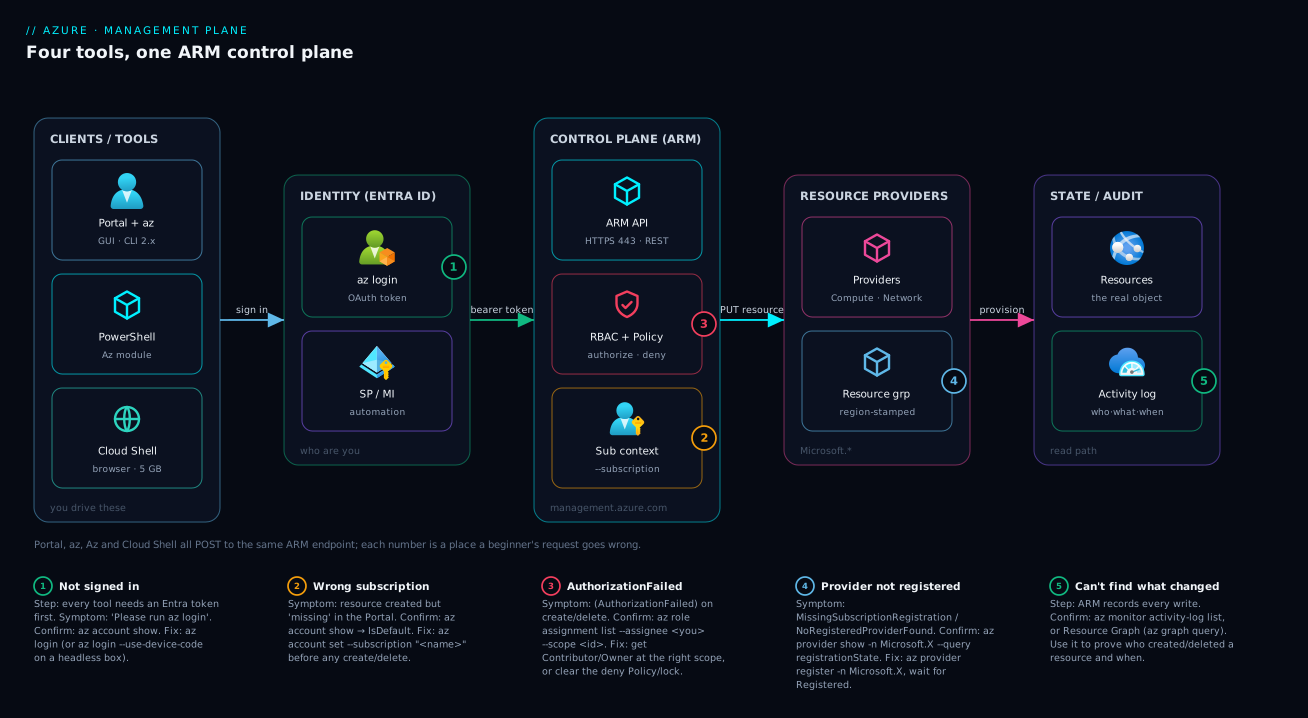
Picture the management plane as a left-to-right pipeline rather than four separate products. On the left are the clients/tools you actually touch — the Portal and az CLI, Azure PowerShell’s Az module, and Cloud Shell in the browser. Whatever you drive, your request first hits Microsoft Entra ID, which turns your sign-in (or a service principal / managed identity for automation) into a short-lived bearer token. That token rides along to the control plane, ARM, at management.azure.com over HTTPS 443. ARM is where the real decisions happen: it checks your RBAC role and any Azure Policy deny rules or resource locks, and it resolves which subscription you meant. Only then does it hand the work to the right resource provider (Microsoft.Compute, Microsoft.Network, …), which stamps the actual resource into a region-scoped resource group — and records the whole thing in the Activity log you can read back later.
Follow the four numbered failure points and you have a beginner’s entire troubleshooting map. (1) No token yet → “Please run az login”. (2) Token fine but the wrong subscription is active → the resource is created, just “somewhere else”. (3) RBAC/Policy refuses → (AuthorizationFailed). (4) The provider was never registered in this subscription → MissingSubscriptionRegistration. The fifth marker is the read path: when something changed and you don’t know who or when, ARM’s Activity log (and Resource Graph) is the source of truth. Read the diagram as the life of a single request — sign in, get authorized, get routed, get provisioned, get audited — and every error in the lab below maps to exactly one hop on it.
Going deeper
Everything above is the mental model a beginner needs. This section is for the reader who wants to know what actually happens under the four steering wheels — the nuance that separates “I can run az commands” from “I understand what ARM did.” Skip it on a first pass; come back when a command surprises you.
“They all call the same API” — with four asterisks
The one-control-plane story is true and worth internalising, but a precise engineer should know it is a simplification. Your tools actually talk to as many as four distinct API planes, and confusing them is behind a whole category of “my role looks right but it still fails” puzzles. The management plane (ARM) is the one this lesson is about; the others show up the moment you touch data, identity objects, or very old resources.
| Plane | Endpoint | Example command | Governed by | Beginner tell |
|---|---|---|---|---|
| Management (ARM) | management.azure.com |
az group create, New-AzResourceGroup |
Azure RBAC role assignments | Most of this lesson |
| Data | Per service, e.g. <acct>.blob.core.windows.net, <vault>.vault.azure.net, <db>.database.windows.net |
az storage blob upload, az keyvault secret set |
Data-plane RBAC (e.g. Storage Blob Data Contributor, Key Vault Secrets User) or a service ACL | “I’m Contributor but still get 403 reading a blob” |
| Microsoft Graph | graph.microsoft.com |
az ad user/group/sp/app, az ad sp create-for-rbac |
Entra directory roles / Graph app permissions | “Insufficient privileges to create the app” — an Entra limit, not ARM |
| Classic (ASM, legacy) | management.core.windows.net |
very old “classic” resources | Co-admins (pre-RBAC) | Deprecated; only ancient subscriptions still carry it |
The two that trip people up daily are the data plane and Graph. Being Contributor on a storage account (a management-plane role) lets you create, configure, and delete the account — but it does not by itself let you read a blob inside it; that is a data-plane action needing a role like Storage Blob Data Reader. Likewise, az ad sp create-for-rbac fails with “insufficient privileges” not because your Azure RBAC is wrong but because creating an app registration is a Microsoft Graph / Entra action your account may not be allowed to perform. When a permission error doesn’t match the role you know you have, ask first: which plane is this command really hitting?
Declarative vs imperative — and what idempotency really rests on
The lesson framed idempotency as “re-running lands the same state.” Underneath, that property is a direct consequence of HTTP verbs. ARM maps the CRUD lifecycle onto REST, and the verb decides the guarantee:
- Create/update is
PUT— andPUTis idempotent by definition: it says “make the resource at this ID look exactly like this body.” Send it once or ten times, the end state is identical. This is whyaz group createandterraform applyare safe to repeat: they are declarativePUTs that describe desired state and let ARM converge to it. - Actions are
POST— restart, regenerate-key, invoke — andPOSTcarries no idempotency promise. Restart twice and the machine restarts twice. These are the “creative” or “effectful” commands the lesson warned about.
Two production nuances follow. First, ARM’s PUT is generally last-writer-wins, whole-resource: it replaces the resource’s properties with what you sent, so an incomplete body can remove settings you didn’t include — declarative tools send the full desired state precisely to avoid this. Many resource types support optimistic concurrency via ETag + an If-Match header, so two writers racing on the same object get a 412 Precondition Failed instead of silently clobbering each other. Second, the honest way to make imperative work idempotent is a preview: run the change as a dry-run before you apply it. That is exactly what what-if and plan are for:
# Preview an ARM/Bicep deployment WITHOUT changing anything (dry-run)
az deployment sub what-if \
  --location eastus \
  --template-file rg.bicep

# Terraform's equivalent preview
terraform plan
what-if returns a colour-coded diff — Create / Modify / Delete / NoChange — so you see the blast radius before committing. Treat “declarative + previewed” as the default for anything that must be reproducible; the deeper mechanics of preview, deployment stacks, and CI gating are covered in Bicep deployment stacks, what-if & CI.
Authentication precedence: which credential actually wins
The login table earlier listed ways to authenticate. In real environments several are configured at once — an interactive az login, environment variables in a pipeline, a managed identity on the VM — and the question becomes which one does a tool pick? Two different precedence chains matter.
For the Azure CLI itself, az login writes tokens into a per-user MSAL token cache (under ~/.azure), and later az calls reuse that cached token until it expires (access tokens live ~60–90 minutes; a longer-lived, revocable refresh token silently renews them). Subscription context has its own precedence: an explicit --subscription on a single command overrides the session default set by az account set, which overrides whatever was active at login. You can inspect the live token with az account get-access-token (treat its output like a password).
For application code and IaC using the Azure SDKs, the workhorse is DefaultAzureCredential, which tries a chain of sources in order and uses the first that yields a token — roughly:
| Order | Credential source | Where it fires |
|---|---|---|
| 1 | Environment variables (AZURE_CLIENT_ID/SECRET/TENANT_ID) |
CI/CD, containers |
| 2 | Workload identity (federated token) | AKS pods with workload identity |
| 3 | Managed identity (IMDS at 169.254.169.254) |
Code running on Azure |
| 4 | Azure CLI / Azure PowerShell session | A developer’s laptop |
| 5 | Interactive browser | Off by default |
The practical trap: a script that “works on my laptop” (falling through to your CLI session at step 4) may pick a different identity in the pipeline (the service principal at step 1 or the managed identity at step 3) — with different RBAC, hence a different result. The exact chain and its order vary by SDK and version, so for anything production-grade, pin the credential explicitly (e.g. ManagedIdentityCredential) rather than relying on the default order, and log which identity actually authenticated. When RBAC seems inconsistent between environments, the cause is usually “a different link in this chain won.”
The life of one ARM request
Put it together and a single az ... create is a short pipeline, each hop a place it can be refused. This is the same journey the architecture diagram draws, now with the internals named — and it is worth knowing the order, because the error you get tells you exactly how far the request travelled before it was stopped:
| # | Hop | What it decides | Refusal you’d see |
|---|---|---|---|
| 1 | Client builds request | Adds bearer token + api-version (every ARM REST call requires one) |
InvalidApiVersionParameter if stale |
| 2 | ARM front door | Validates the Entra token (signature, expiry, audience) | InvalidAuthenticationToken / “run az login” |
| 3 | RBAC evaluation | Deny assignments first, then role assignments, at the target scope | (AuthorizationFailed) |
| 4 | Azure Policy | Deny blocks; Modify/Append mutate the request; *IfNotExists act later |
RequestDisallowedByPolicy |
| 5 | Lock check | CanNotDelete / ReadOnly locks on the scope |
ScopeLocked |
| 6 | Provider routing | Is the Microsoft.* provider registered here? |
MissingSubscriptionRegistration |
| 7 | Async operation | Long PUT/DELETE returns 202 + a polling URL; provisioningState tracks it |
--no-wait returns before it finishes |
| 8 | Activity log write | Records who/what/when (no gate) | none — this is your audit trail |
Three details reward attention. Deny assignments beat role assignments (hop 3): a deny assignment — created by Azure-managed apps, or by managed resource groups — will block you even if you are Owner, which is why “I’m Owner and still can’t” is a real thing. Policy runs after RBAC (hop 4) and can change your request, not just refuse it — an Append policy silently adding a required tag is the same machinery as a Deny refusing an untagged resource. And hop 7 is why --no-wait exists: a big PUT is asynchronous, so ARM hands you a 202 Accepted and a Azure-AsyncOperation/Location URL to poll, and provisioningState walks Creating → Succeeded/Failed. Read an error, name the hop, and you’ve already halved the debugging. The finer points of deny assignments, PIM elevation, and custom roles live in Entra RBAC & governance deep dive; once the tooling is second nature, a first beginner build is a good place to exercise it.
Real-world scenario
Meridian Analytics, a 30-person data consultancy in Pune, onboarded four new graduate engineers in the same week and handed each an Azure account, a sandbox subscription, and the instruction “spin up a dev resource group and a storage account, here’s the wiki page.” By Friday the team lead, Anita, had a backlog of confused Slack messages and a small mess in the billing portal. The post-mortem is a perfect tour of everything this lesson covers — every failure was a tooling/context failure, not a real Azure limitation.
Engineer one created her resource group in the Portal, then “lost” it. She had two subscriptions visible — her personal MSDN benefit and the company sandbox — and the Portal’s top-right switcher was on the personal one. The group existed; it was just billing to the wrong place. Confirm was one line: az account show showed Name: Visual Studio Enterprise instead of Meridian-Sandbox. Fix: az account set --subscription "Meridian-Sandbox", delete the stray group on the personal sub, recreate on the right one. Anita made az account show step zero of the wiki.
Engineer two hit (AuthorizationFailed) the instant he ran az storage account create. He’d been granted Reader on the sandbox, not Contributor — fine for looking, useless for building. az role assignment list --assignee $(az ad signed-in-user show --query id -o tsv) --scope /subscriptions/<sub> showed a single Reader assignment. Anita raised it to Contributor scoped to his dev resource group only (least privilege), and he was unblocked in two minutes.
Engineer three, working over SSH on a jump box with no browser, ran az login and watched it hang trying to open a browser that didn’t exist. The fix — az login --use-device-code, then entering the code at microsoft.com/devicelogin on his laptop — is a five-second change that the wiki had never mentioned because nobody had onboarded a headless user before.
Engineer four’s script worked Monday and failed Tuesday with MissingSubscriptionRegistration for Microsoft.Storage. The brand-new sandbox subscription had never created a storage account, so the resource provider wasn’t registered. az provider show -n Microsoft.Storage --query registrationState returned NotRegistered; az provider register -n Microsoft.Storage (then a two-minute wait to Registered) fixed it permanently.
Anita’s response was the real lesson. She replaced the click-by-click wiki with a single idempotent Bicep file plus a five-line az deployment wrapper, fronted by a mandatory az account show check and a comment block explaining device-code login and provider registration. Onboarding week five took the next two hires twenty minutes each, not a day. The numbers tell the story — and notice every “cause” is on the diagram’s request path, not in the resources themselves:
| Engineer | Symptom | Real cause | Confirm | Fix | Time lost (before/after) |
|---|---|---|---|---|---|
| 1 | RG “missing” | Wrong active subscription | az account show |
az account set -s … |
3 h → 1 min |
| 2 | AuthorizationFailed |
Reader, not Contributor | az role assignment list |
Grant Contributor (scoped) | 2 h → 2 min |
| 3 | az login hangs |
Headless box, no browser | tried in SSH session | az login --use-device-code |
1 h → 5 s |
| 4 | MissingSubscriptionRegistration |
Provider not registered | az provider show … registrationState |
az provider register -n … |
90 min → 2 min |
Advantages and disadvantages
The “one control plane, four tools” model is mostly a gift, but it has sharp edges worth naming so you don’t get cut:
| Advantages (why this model helps you) | Disadvantages (why it bites) |
|---|---|
| Skills transfer: learn ARM once, every tool is a syntax over it | Four tools means four sets of command names/quirks to half-remember |
| Identical results and permissions regardless of tool | The same uniformity means a permission/Policy block hits you everywhere — no “just use the CLI” escape |
| Declarative create/update is idempotent — safe re-runs | Not everything is idempotent (creative commands, unique names) — silent footguns |
| Cloud Shell removes all install/version friction | Cloud Shell needs internet, recycles when idle, and its file persistence costs a few rupees/month |
| The Portal is superb for learning and discovery | The Portal is a poor deployment mechanism — unrepeatable, click-fatigue, drift |
--query/JMESPath turns JSON into precise output |
JMESPath is a small new language; list-vs-object mistakes return confusing null |
| Activity log audits every write across all tools | “It worked but where?” confusion is common until context discipline is a habit |
When does each tool genuinely win? The Portal wins for learning a service you’ve never used and for reading (dashboards, metrics, a quick status glance) — its discoverability and inline validation are unmatched. The CLI wins for cross-platform scripting and CI/CD glue — leaner than PowerShell for one-liners and bash pipelines. PowerShell wins inside Windows-centric automation where passing rich typed objects between cmdlets beats parsing text. Cloud Shell wins when you’re on someone else’s machine, a locked-down laptop, or your phone. And Bicep/Terraform win the moment a thing must be reproducible — which, in production, is almost always.
Hands-on lab
You’ll create a tagged resource group, query it three ways, deliberately trigger and fix the classic “wrong subscription” confusion, then delete everything — using Azure Cloud Shell, so there’s nothing to install. A resource group is just a logical container, so this whole lab is free.
1. Open Cloud Shell
Go to portal.azure.com, sign in, and click the Cloud Shell icon (>_) in the top toolbar. If it’s your first time, choose Bash when prompted. Cloud Shell may ask to create a small storage account to persist files — pick No storage account required (ephemeral) if offered, or accept the default; either works for this lab.
2. Confirm who and where you are
az account show -o table
Expected output (your values will differ):
Name                     CloudName    SubscriptionId                        State    IsDefault
-----------------------  -----------  ------------------------------------  -------  -----------
My Sandbox Subscription  AzureCloud   00000000-0000-0000-0000-000000000000  Enabled  True
If IsDefault isn’t the subscription you want, list them and switch:
az account list --query "[].{Name:name, Default:isDefault}" -o table
az account set --subscription "<the right name>"
3. Create a tagged resource group
Set a couple of variables so the commands read cleanly and re-run safely:
RG="rg-tooling-lab"
LOC="eastus"

az group create \
  --name "$RG" \
  --location "$LOC" \
  --tags course=azure-zero-to-hero lesson=L2 owner=learner
Expected output (trimmed):
{
  "id": "/subscriptions/0000.../resourceGroups/rg-tooling-lab",
  "location": "eastus",
  "name": "rg-tooling-lab",
  "properties": { "provisioningState": "Succeeded" },
  "tags": { "course": "azure-zero-to-hero", "lesson": "L2", "owner": "learner" }
}
See idempotency for yourself: run the exact same az group create again. It succeeds with identical output — no duplicate, no error.
4. Validate three ways with --query
# (a) Is it there, and did it provision cleanly? — reshape into a tidy table
az group show --name "$RG" \
  --query "{Name:name, State:properties.provisioningState, Region:location}" -o table

# (b) Read the tags as JSON
az group show --name "$RG" --query "tags" -o json

# (c) Capture the resource ID into a variable (note -o tsv)
RG_ID=$(az group show --name "$RG" --query id -o tsv)
echo "Resource ID: $RG_ID"
Expected from (a):
Name            State      Region
--------------  ---------  --------
rg-tooling-lab  Succeeded  eastus
You just did the Portal-equivalent of opening the resource-group blade — but in one repeatable line. To also see it in the GUI, search rg-tooling-lab in the Portal search bar; remember, it’s the same ARM object.
5. Reproduce and fix the #1 beginner trap (optional, if you have 2+ subscriptions)
# Look at what you'd be acting on if you switched — DON'T leave it switched
az account list --query "[].name" -o tsv

# Scope a single command to a DIFFERENT sub without changing your default:
az group list --subscription "<some other sub>" -o table
# ^ Your rg-tooling-lab won't appear here — proof that context decides "where".

# Always confirm you're back where you intend:
az account show --query name -o tsv
This is the exact confusion behind “my resource vanished”: the resource is fine; you were looking at a different subscription.
6. Cleanup
Deleting a group deletes everything inside it — the one-command lab teardown:
az group delete --name "$RG" --yes --no-wait
--yes skips the confirmation prompt; --no-wait returns immediately while Azure deletes in the background. Verify it’s gone (the value flips to false):
az group exists --name "$RG"
Cost note: an empty resource group is free, and Cloud Shell’s compute is free — this lab costs nothing. The optional Cloud Shell storage account (if you created one) costs a few rupees a month for the small file share; delete that storage account too if you won’t use Cloud Shell again.
Lab checkpoints — what “correct” looks like at each step
| After step | Command | Expected state | If it differs |
|---|---|---|---|
| 2 | az account show --query name -o tsv |
Your intended subscription name | az account set -s "<name>" |
| 3 | az group show -n "$RG" --query properties.provisioningState -o tsv |
Succeeded |
Re-run create; check the error string |
| 3 (idempotency) | re-run az group create |
Same output, exit code 0 | A non-zero exit means a real error, not a duplicate |
| 4 | echo $RG_ID |
A full /subscriptions/.../rg-tooling-lab ID |
Empty → check --query id -o tsv |
| 6 | az group exists -n "$RG" |
false (after a moment) |
Still true → delete is async; wait and re-check |
Practice challenges
Six exercises that climb from “confirm you’re in the right place” to “script a governance check.” Do them in Cloud Shell (nothing to install), reveal the solution only after you’ve attempted it, and remember every ID here is a placeholder. The commands are illustrative — read them for the pattern, not as a script to paste blindly.
1. (Beginner) Prove which subscription you’re about to act on. Print your active subscription as a table, then list every subscription you can see with the default one flagged.
<details> <summary>Solution</summary>
az account show -o table
az account list --query "[].{Name:name, State:state, Default:isDefault}" -o table
Why: the wrong-active-subscription mix-up is the single most common beginner mistake — making this your reflex before any create/delete costs one second and saves hours. </details>
2. (Beginner) Create a tagged resource group, safely re-runnably. Make rg-practice in eastus with an owner tag, but only if it doesn’t already exist — then run your whole snippet twice and confirm the second run is a no-op.
<details> <summary>Solution</summary>
RG="rg-practice"; LOC="eastus"
if [ "$(az group exists --name "$RG")" = "false" ]; then
  az group create --name "$RG" --location "$LOC" --tags owner=learner course=azure-zero-to-hero
fi
Why: az group create is already idempotent, but the explicit az group exists guard is the pattern you’ll reuse for the non-idempotent “creative” commands (unique names, new secrets) where a blind re-run isn’t safe.
</details>
3. (Intermediate) Filter and capture with JMESPath. Using a single command each: list the names of all resource groups in eastus, then capture rg-practice’s resource ID into a shell variable with no quotes or braces.
<details> <summary>Solution</summary>
az group list --query "[?location=='eastus'].name" -o tsv
RG_ID=$(az group show --name rg-practice --query id -o tsv)
echo "$RG_ID"
Why: [?...] filters server-side output and -o tsv strips JSON decoration, so values drop straight into variables and loops — this is how you stop copying fields out of JSON by hand.
</details>
4. (Intermediate) Preview before you apply. You have a rg.bicep that creates a resource group. Show what a deployment would change without actually deploying it.
<details> <summary>Solution</summary>
az deployment sub what-if --location eastus --template-file rg.bicep
Why: what-if (like terraform plan) returns a Create/Modify/Delete/NoChange diff so you see the blast radius before committing — the safe default for anything declarative.
</details>
5. (Advanced) Make provider registration self-healing. Write a snippet that checks whether Microsoft.Storage is registered in the current subscription and registers it only if it isn’t — without erroring when it’s already registered.
<details> <summary>Solution</summary>
state=$(az provider show -n Microsoft.Storage --query registrationState -o tsv)
if [ "$state" != "Registered" ]; then
  az provider register -n Microsoft.Storage
  echo "Registering Microsoft.Storage (can take 1–3 min)…"
fi
Why: brand-new subscriptions ship with many providers NotRegistered, causing MissingSubscriptionRegistration on first use; guarding on registrationState makes onboarding scripts idempotent instead of fragile.
</details>
6. (Advanced) Turn the CLI into a governance instrument. Set the CLI to default to table output, then write a one-liner that lists every resource group in the current subscription that is missing an owner tag.
<details> <summary>Solution</summary>
az config set core.output=table
az group list --query "[?tags.owner == null].name" -o tsv
Why: az config sets sticky defaults so you stop repeating flags, and the tags.owner == null JMESPath filter is a real audit pattern — the same query shape underpins scripted cost-allocation and cleanup checks.
</details>
Common beginner mistakes
These are mental-model errors, not symptoms — the wrong idea that produces the symptom. The troubleshooting playbook below tells you how to fix a failure; this list stops you from believing the thing that caused it in the first place.
“The Portal and the CLI are separate systems.” The misconception is that a resource “made in the CLI” is somehow different from one “made in the Portal,” so you go hunting for a tool-specific version. Right model: there is exactly one object, living in ARM, identified by one resource ID. The tool is just the channel you used to write it; the Portal, az, PowerShell and Bicep all render and edit the same record.
“If one tool won’t let me, another will.” Beginners hit (AuthorizationFailed) in the CLI and reach for the Portal expecting it to work — or vice versa. Right model: authentication, RBAC, Policy and locks are enforced at ARM, below every tool. A block is a block everywhere; there is no escape hatch. The fix is a permission change at the right scope, never a different steering wheel.
“Re-running my create command will make a duplicate.” So people avoid re-running a half-finished script and end up in a messier state. Right model: declarative create/update is idempotent — a second az group create with the same inputs converges to the same state and reports success, no duplicate. The genuine exceptions are creative commands (globally-unique names, az ad sp create-for-rbac, secret generation); guard those explicitly, but stop fearing the declarative ones.
“az login logs me into a subscription.” New users treat sign-in and subscription choice as one act, then can’t understand why their resource “went somewhere else.” Right model: login proves identity (an Entra token); a separate step chooses context (az account set). One identity can see many subscriptions across many tenants, and only the active one receives your commands — which is why az account show before a create is non-negotiable.
“More access means fewer problems — just give me Owner.” The instinct is to request the biggest role to avoid ever being blocked. Right model: least privilege. Owner carries the whole blast radius (including handing out access); Contributor at the smallest scope that unblocks the task — a resource group, not the subscription — is almost always right. Broad roles don’t prevent mistakes, they amplify them.
“Cloud Shell is a sandbox with its own powers.” Because it’s “Microsoft’s shell,” beginners assume it can do more (or less) than they can. Right model: Cloud Shell authenticates as you and inherits exactly your RBAC — it is a convenience, not a privilege boundary. It can do nothing your account can’t, and everything it does is attributed to you in the same Activity log.
Common mistakes & troubleshooting
This is the playbook — the part to bookmark. First as a scannable table, then the worst offenders expanded with the exact confirming command:
| # | Symptom | Root cause | Confirm (exact cmd / path) | Fix |
|---|---|---|---|---|
| 1 | Resource created but “missing” in Portal | Wrong active subscription | az account show (check IsDefault/name) |
az account set --subscription "<name>", recreate on the right sub |
| 2 | (AuthorizationFailed) on create/delete |
Your identity lacks the RBAC role at that scope | az role assignment list --assignee <id> --scope <scope> |
Get Contributor/Owner at the right scope (least privilege) |
| 3 | az: command not found (local) |
CLI not installed / not on PATH | which az / az version |
Use Cloud Shell, or install the CLI; restart the shell |
| 4 | az login opens no browser / hangs |
Headless/remote box, no local browser | You’re in an SSH session | az login --use-device-code, enter code on another device |
| 5 | MissingSubscriptionRegistration / NoRegisteredProviderFound |
Resource provider not registered in this sub | az provider show -n Microsoft.X --query registrationState |
az provider register -n Microsoft.X; wait for Registered |
| 6 | --query returns null / nothing |
Wrong JMESPath, or list-vs-object mismatch | Re-run with -o json to see the real shape |
Rebuild the query against the actual structure |
| 7 | Script errors on second run (“already exists”) | Non-idempotent command or name collision | Read the error; check the command type | Use create/update; guard with az ... exists; add a stable suffix |
| 8 | StorageAccountAlreadyTaken / name rejected |
Globally-unique name already used | az storage account check-name --name <n> |
Pick a unique name; derive a deterministic suffix |
| 9 | “Insufficient privileges” creating a service principal | You can’t register apps in the tenant | az ad signed-in-user show (then ask admin) |
Ask an Entra admin to create the SP / grant the role |
| 10 | Region/SKU “not available” on create | Quota or capacity restriction for that combo | az vm list-skus -l <region> -o table (for VMs) |
Choose another region/SKU; request a quota increase |
| 11 | Cloud Shell “session ended” mid-task | Idle timeout (~20 min) recycles the session | Just reconnect | Reconnect; persist files in the Cloud Shell storage share |
| 12 | PowerShell cmdlet behaves oddly / not found | Old AzureRM mixed with Az, or stale module | Get-InstalledModule -Name Az* |
Remove AzureRM; Update-Module Az; use Az only |
Beyond symptoms, it helps to recognise the exact ARM error strings by sight — the error code tells you which part of the control plane refused you, which tells you what to do. Keep this decoder next to the playbook:
| Error code / string | Which ARM component | Means | First move |
|---|---|---|---|
Please run 'az login' / InvalidAuthenticationToken |
Entra token check | No / expired token | az login (or --use-device-code) |
(AuthorizationFailed) |
RBAC engine | Your identity lacks the role at that scope | az role assignment list --assignee … --scope … |
RequestDisallowedByPolicy |
Policy engine | A deny policy blocked it | Read the policy; adjust request or scope |
ScopeLocked / cannot be deleted because … lock |
Lock check | A resource lock protects it | az lock list; remove if appropriate |
MissingSubscriptionRegistration |
Provider router | Provider not registered in this sub | az provider register -n Microsoft.X |
NoRegisteredProviderFound |
Provider router | Bad provider/API version | Register provider; check API version |
SubscriptionNotFound |
Subscription resolver | Wrong/inaccessible sub in context | az account set -s "<valid name>" |
ResourceGroupNotFound |
Provider router | RG doesn’t exist (or wrong sub) | Confirm sub, then az group create |
StorageAccountAlreadyTaken |
Provider (validation) | Global name collision | Pick a unique name |
ReadOnlyDisabledSubscription |
Subscription resolver | Sub is disabled/expired | Check subscription state/billing |
InvalidApiVersionParameter |
Provider router | Stale API version | az upgrade; use current version |
QuotaExceeded / ... not available in location |
Provider (capacity) | Region/SKU quota or capacity | Change region/SKU or request quota |
The four that bite hardest, expanded:
1. Resource created but “missing” in the Portal.
Root cause: the wrong subscription is active — you created the resource in subscription A while looking at subscription B in the Portal.
Confirm: az account show and read Name/IsDefault; compare to the subscription selected in the Portal’s top-right switcher.
Fix: az account set --subscription "<the intended one>", delete the stray resource, recreate on the correct subscription. Make az account show your reflex before every create/delete.
2. (AuthorizationFailed) the moment you try to build.
Root cause: your identity has read but not write at that scope — typically Reader instead of Contributor, or no assignment at all at the resource-group/subscription you’re targeting.
Confirm: az role assignment list --assignee $(az ad signed-in-user show --query id -o tsv) --scope /subscriptions/<sub> (add --all to see inherited assignments).
Fix: have an Owner grant you Contributor (or a tighter built-in role) at the smallest scope that unblocks you — the resource group, not the whole subscription. Also rule out a deny Azure Policy or a resource lock (az lock list), which produce the same wall even when your role is fine.
4. az login hangs or opens no browser on a remote box.
Root cause: the interactive flow tries to launch a local browser that doesn’t exist on an SSH/headless machine.
Confirm: you’re in an SSH session or a container with no GUI.
Fix: az login --use-device-code, then open https://microsoft.com/devicelogin on any device with a browser and enter the displayed code. For unattended automation, switch to a service principal or managed identity instead of any interactive flow.
5. MissingSubscriptionRegistration for a provider.
Root cause: the resource provider (e.g. Microsoft.Storage, Microsoft.ContainerService) was never registered in this subscription — common on brand-new sandbox subscriptions that have never created that resource type.
Confirm: az provider show -n Microsoft.Storage --query registrationState -o tsv returns NotRegistered.
Fix: az provider register -n Microsoft.Storage, then poll until it reads Registered (usually 1–3 minutes). List everything with az provider list --query "[?registrationState=='NotRegistered'].namespace" -o table.
Best practices
- Default to the right tool: Portal to learn and inspect, CLI/PowerShell/IaC to repeat and automate. Don’t hand-click anything you’ll do more than once.
- Make
az account showa reflex. Confirm identity and subscription before every create or delete — it’s the cheapest insurance against the most common mistake. - Tag as you create.
owner,env,cost-center,lessonmake cleanup and billing sane later. Apply tags at creation, not as an afterthought. - Group lab and project work in a dedicated resource group so cleanup is a single
az group delete. - Use variables (
RG=,LOC=) in scripts so commands are readable and you change a value in one place. - Pick output deliberately:
-o tablefor eyes,-o tsvfor variables,-o json/yamlfor tools and full detail. - Prefer the idempotent, declarative path (create/update, Bicep/Terraform) so reruns are boring; guard creative commands with existence checks.
- Keep the tooling current (
az upgrade,Update-Module Az) so command examples and new resource types behave as documented. - Never mix
AzureRMandAzin PowerShell — uninstall the legacy module and standardise onAz. - Use device-code or service-principal login on remote/headless machines and in pipelines — never wedge an interactive browser flow into automation.
- Read the error string, then run the one confirming command. Every error in the playbook above maps to a single
az ... show/listthat proves the cause before you change anything. - Learn just enough JMESPath to stop copying values out of JSON by hand —
[].{…},[?…], and-o tsvcover 90% of daily use.
Security notes
- Cloud Shell is convenient and safe by default — it authenticates as you, so it can only do what your RBAC roles allow. It is not a backdoor around permissions.
- Use least privilege. Grant the smallest role at the smallest scope (a resource group, not the subscription); prefer specific built-in roles over Owner. For automation, a scoped service principal or managed identity, never your personal login.
- Never paste secrets into commands that land in shell history. Pull secrets from Azure Key Vault at runtime — see Azure Key Vault: Secret Rotation with Managed Identity — instead of hard-coding them.
- Treat
az logindevice codes like passwords: only enter a code you initiated yourself, on a sign-in page you opened. - Sign out of shared machines with
az logout/Disconnect-AzAccount, and clear cached context (az account clear). - Remember the audit trail. The Portal and CLI share the same identity and the same Activity log — every create/delete is attributable. That’s a safety net, not a reason to be casual.
- Rotate and vault service-principal secrets, prefer certificate or federated credentials over long-lived client secrets, and scope each principal to exactly what it automates.
The identity options ranked by how you should reach for them:
| Identity for the task | Use it for | Avoid it for | Why |
|---|---|---|---|
| Your interactive login | Hands-on work, learning, one-offs | Anything unattended | Tied to a human; MFA; not for servers |
| Service principal (cert/federated) | CI/CD, scheduled automation | Daily manual work | Scoped, rotatable, no human |
| Managed identity | Code running on Azure | Off-Azure callers | No secret to manage at all |
| Owner role | Almost never day-to-day | Routine create/delete | Excessive blast radius |
Cost & sizing
The good news: the tools themselves are free. There is no charge for the Portal, the CLI, the Az module, ARM API calls, or Cloud Shell’s compute. What you pay for is the resources you create with them, plus one small, easily-missed item. Here’s the full picture:
| Item | Cost | Notes |
|---|---|---|
| Azure Portal | Free | No charge to use the GUI |
| Azure CLI / PowerShell | Free | Open-source clients |
| ARM control-plane calls | Free | Management-plane requests aren’t billed |
| Cloud Shell compute | Free | Ephemeral container, recycled when idle |
| Cloud Shell file storage | ~₹15–40/month | A small Azure Files share (5 GB) if you opt in |
| Empty resource group | Free | A logical container holds no cost |
| The resources you create | Varies | This is the actual bill — size per workload |
Two sizing notes specific to the tooling. First, Cloud Shell persistence: the optional storage account is the only line item this lesson can incur — a few rupees a month; delete it if you won’t reuse Cloud Shell. Second, cost visibility starts with the tags you apply here: tagging owner/env/cost-center at creation is what makes a meaningful cost breakdown possible later. For the full discipline of right-sizing and discounts, see Azure Cost: Reservations, Savings Plans & Hybrid Benefit. The CLI itself is a cost tool — az consumption usage list and Resource Graph queries let you script the same numbers the Cost Management blade shows.
Interview & exam questions
1. How do the Portal, Azure CLI, and PowerShell relate to each other? They’re four interfaces over one control plane — Azure Resource Manager. Each sends HTTPS requests to ARM, which enforces authentication (via an Entra token), RBAC, and Policy, then routes to the resource provider. So results are consistent and permissions uniform regardless of tool.
2. When would you choose the CLI over the Portal? For anything repeatable: automation, CI/CD, scripts, bulk or cross-subscription changes, or work that must be identical across environments. The Portal is for learning, exploration, dashboards, and genuine one-offs.
3. What is idempotency and why does it matter in cloud automation? An idempotent operation yields the same end state however many times it runs. It makes declarative deployments and retries safe — a failed run can be re-applied without creating duplicates — which is foundational to infrastructure-as-code. Note that creative commands (new secrets, globally-unique names) are not idempotent.
4. What does --query do, and what language does it use? It filters and reshapes the CLI’s JSON output using JMESPath, letting you pull single values, project specific fields, filter and sort lists — so you script against output instead of parsing it by hand. Pair it with -o tsv to capture a scalar into a shell variable.
5. A colleague says a resource “isn’t there” after their script ran successfully. How do you triage? Check the active subscription (az account show) and the scope/region the script targeted — the resource almost certainly exists, just in a different subscription or resource group than they’re looking in. The Activity log confirms what was created and where.
6. You’re on a headless Linux box and az login hangs. What’s wrong and how do you fix it? The interactive flow tries to open a local browser that doesn’t exist. Use az login --use-device-code and enter the code at microsoft.com/devicelogin on another device — or, for automation, authenticate with a service principal or managed identity instead.
7. A brand-new subscription throws MissingSubscriptionRegistration when you create a storage account. Why? The Microsoft.Storage resource provider hasn’t been registered in that subscription yet. Confirm with az provider show -n Microsoft.Storage --query registrationState; fix with az provider register -n Microsoft.Storage and wait for Registered.
8. CLI vs PowerShell — is there a wrong choice? Rarely. Use whichever fits the team and task: PowerShell shines when you pass rich typed objects between cmdlets or work in a Windows-centric shop; the CLI is leaner for cross-platform one-liners and bash pipelines. Both hit the same ARM API.
9. How do you authenticate automation that runs without a human? With a service principal (certificate or federated credential preferred over a client secret) or, if the code runs on Azure, a managed identity — each scoped to least privilege. Never embed an interactive login or a personal account in a pipeline.
10. What is an ARM resource ID and why is it useful? The single canonical path identifying a resource: /subscriptions/{sub}/resourceGroups/{rg}/providers/{provider}/{type}/{name}. Every tool uses it, and reading it tells you exactly which subscription, resource group, and provider a resource belongs to — invaluable for scripting and troubleshooting.
11. You get (AuthorizationFailed) even though you think you have access. What two things do you check beyond your role? A deny Azure Policy assignment and a resource lock (CanNotDelete/ReadOnly) — both block actions regardless of your RBAC role. Check az role assignment list, then az lock list and the Policy assignments at that scope.
12. Why is -o tsv the right output format for capturing a value into a variable? It returns the raw value with no quotes, no JSON braces, and no header row, so it drops cleanly into VAR=$(... --query x -o tsv) without extra parsing.
These map to AZ-900 (Azure Fundamentals) — describe Azure management and governance tools (Portal, CLI, PowerShell, Cloud Shell, ARM) — and AZ-104 (Azure Administrator Associate) — manage Azure identities and governance and general administration via the CLI/PowerShell against ARM. A compact cert mapping:
| Question theme | Primary cert | Objective area |
|---|---|---|
| Four tools, ARM as the unifier | AZ-900 | Management & governance tools |
| Idempotency, declarative ops, IaC link | AZ-900 / AZ-104 | Tools; deploy & manage resources |
| Subscription context, account set | AZ-104 | Manage subscriptions & governance |
| RBAC AuthorizationFailed, scopes | AZ-104 / AZ-500 | Manage access; secure resources |
| Service principal / managed identity login | AZ-104 / AZ-204 | Identities for automation |
--query/JMESPath, output formats |
AZ-104 | Administer via CLI |
Quick check
- You need to do the same setup across three subscriptions, identically. Portal or CLI — and why?
- True or false: a resource group created with
az group createbehaves differently from one created in the Portal. - Your
az group createsucceeded but you can’t see the group in the Portal. What’s the first thing to check? - What does idempotency mean, and why does it make scripts safe to re-run? Name one operation that is not idempotent.
- Which
-oformat would you use to capture a single subscription ID into a shell variable, and why?
Answers
- CLI (or PowerShell). It’s repeatable and identical every time — loop over the three subscriptions, or run the same script with a different
az account set. The Portal would be three rounds of manual clicking, easy to get subtly wrong. - False. Both tools call the same ARM API and produce the same resource — there’s no per-tool variant.
- Your active subscription (
az account show). The group most likely landed in a different subscription than the one open in the Portal. - Idempotency means re-running an operation lands you in the same end state — no duplicates, no “already exists” errors. It lets you safely re-run a half-finished script from the top. A non-idempotent example:
az ad sp create-for-rbac(creates a new principal each run), or creating a globally-unique-named storage account. -o tsv. It returns the raw value with no quotes, no JSON braces, and no header row, so it drops cleanly intoVAR=$(... -o tsv).
Exercise
In Cloud Shell, create a resource group named rg-tooling-exercise in a region of your choice, tagged purpose=practice. Then, using a single az command with --query, list all your resource groups showing only name and location as a table. Next, use --query with -o tsv to capture that group’s resource ID into a variable and echo it. Finally, clean up with az group delete. Bonus 1: write the create command using variables for name and location, and run it twice to confirm it’s idempotent. Bonus 2: check whether Microsoft.Storage is registered in your subscription with az provider show -n Microsoft.Storage --query registrationState -o tsv, and register it if it isn’t.
Glossary
-
Azure Resource Manager (ARM) — the single control-plane API and orchestration engine (
management.azure.com) that every Azure tool calls to create, read, update, and delete resources. -
Azure CLI (
az) — cross-platform, Python-based command-line tool for managing Azure from any shell. -
Azure PowerShell (
Azmodule) — Azure management as PowerShell cmdlets, built around passing typed objects through a pipeline. -
Cloud Shell — a browser-based shell with
az,Az, Bicep and Terraform pre-installed and you already signed in; nothing to install locally. -
Subscription — a billing-and-isolation boundary that contains resource groups and resources; the “active” one is what commands target.
-
Subscription context — which subscription your tool is currently pointed at (
az account show/az account set). -
Management group — a container above subscriptions used to apply governance (RBAC, Policy) across many subscriptions at once.
-
Resource group — a logical, region-stamped container that holds related resources and shares their lifecycle.
-
Resource provider — the service namespace (e.g.
Microsoft.Compute,Microsoft.Storage) that actually fulfils a resource type; must be registered in a subscription before use. -
ARM resource ID — the canonical path
/subscriptions/{sub}/resourceGroups/{rg}/providers/{provider}/{type}/{name}that uniquely identifies any resource. -
Idempotency — the property that re-running an operation produces the same end state, with no duplicates or errors.
-
Declarative — describing the desired state and letting ARM converge reality to it (the basis of Bicep/Terraform), as opposed to imperative step-by-step commands.
-
JMESPath — the JSON query language behind the CLI’s
--queryflag, used to filter, project, and reshape output. -
RBAC (role-based access control) — Azure’s permission system that determines what your identity can do at a given scope, enforced by ARM across every tool.
-
Service principal — a non-human identity (an app registration’s credentials) used by automation to authenticate to Azure.
-
Managed identity — an Azure-managed, secretless identity attached to an Azure resource so its code can call ARM without storing credentials.
-
Bearer token — the short-lived OAuth credential Entra ID issues at sign-in and that every ARM call carries to prove who you are.
-
Activity log — ARM’s record of every control-plane write (who did what, when), readable from any tool, for audit and troubleshooting.
-
Tag — a key/value label on a resource (e.g.
owner=learner) used for organisation, cost tracking, and cleanup. -
Microsoft Entra ID — Azure’s cloud identity service (formerly Azure Active Directory / Azure AD); it authenticates you and issues the bearer token every ARM call carries.
-
Management plane vs data plane — the management plane (ARM,
management.azure.com) creates and configures resources; the data plane is each service’s own endpoint (e.g.*.blob.core.windows.net) for using the data inside, and it has separate RBAC. -
Microsoft Graph — the API (
graph.microsoft.com) for Entra directory objects — users, groups, app registrations, service principals;az ad ...commands hit this, not ARM, which is why they need Entra rather than Azure permissions. -
Imperative — describing the steps to reach a result (run this command, then that one), as opposed to declarative, which describes the desired end state and lets ARM converge to it.
-
what-if / dry-run — a preview mode (
az deployment ... what-if,terraform plan) that shows the Create/Modify/Delete diff a deployment would make, without changing anything. -
ETag / optimistic concurrency — a version stamp on a resource; sending it back in an
If-Matchheader makes a write fail (412) if someone else changed the resource first, preventing silent clobbering. -
provisioningState — the property (
Creating,Succeeded,Failed, …) that reports where a resource is in its lifecycle; how you tell a long async create actually finished. -
Async operation (202 Accepted) — for long writes, ARM returns immediately with a polling URL instead of blocking;
--no-waitopts into this explicitly so your shell returns at once. -
Deny assignment — an RBAC rule that blocks actions and takes precedence over role assignments — so it can stop even an Owner (used by Azure-managed apps and managed resource groups).
-
DefaultAzureCredential — the Azure SDK helper that tries a chain of identities (environment variables → managed identity → CLI session → …) and uses the first that works; the source order varies by SDK version.
-
Device code flow — a browserless sign-in (
az login --use-device-code) where you type a code atmicrosoft.com/deviceloginon another device; the fix foraz loginon a headless/SSH box. -
api-version — the dated version string every ARM REST call must include (e.g.
2021-04-01) so the request targets a known shape of a resource type; a stale one yieldsInvalidApiVersionParameter. -
Scope (RBAC) — the level a role assignment applies at — management group, subscription, resource group, or a single resource — with permissions inherited downward to everything beneath it.
Next steps
Now that you can drive Azure from any tool and recover from the classic beginner errors, build outward:
- Next: Microsoft Entra ID Fundamentals: Tenants, Users, Groups & RBAC — who gets to do what; the identity and permissions these tools authenticate against.
- Related: Azure Virtual Network Basics: Subnets, NSGs & Peering — your first real multi-resource build using the CLI you just learned.
- Related: Infrastructure as Code 101: Your First Terraform on Azure — graduate from imperative commands to declarative, idempotent stacks.
- Related: Azure Policy as Code: A Governance Pipeline — the deny rules that, alongside RBAC, decide whether your ARM calls succeed.
- Related: Azure Cost: Reservations, Savings Plans & Hybrid Benefit — turn the tags you applied here into real cost visibility and savings.