There is exactly one way the shell decides whether to take a branch, retry a command, exit early, run the next pipe stage, or trigger set -e: it looks at the exit status of the most recently executed command. Zero means success. Non-zero means failure. Everything else — every if, every while, every &&, every ||, every test in [ ] or [[ ]] — is a thin syntactic wrapper over that single primitive.
Most beginners write shell as if if and while were like the same constructs in Python or C. They are not. They are command-runners that branch on exit codes, and once you internalise that, every weird shell-conditional behaviour you’ve ever encountered makes complete sense.
This lesson covers the exit-code contract, the three test commands and when to use each, the precise difference between && / || chaining and if blocks (and why this difference matters for set -e), and the conditional idioms you’ll write thousands of times.
In a nutshell
Level: Beginner · Time: ~40 min
Imagine every command you run is a relay runner who, the instant they finish, hands the shell a single slip of paper with one number on it. The shell doesn’t watch the race or read the runner’s face — it reads only that slip. If the number is 0, the shell treats it as “done, all good.” If it’s anything else, it treats it as “that failed.” That number is the command’s exit status, and the whole of shell control flow — every if, while, &&, ||, and set -e — is just the shell reacting to slips of paper. It never looks at the text a command printed to decide what to do next; it looks at the status.
This is the single biggest thing that separates people who “get” shell from people who fight it. In Python or JavaScript, if (x) asks “is this value truthy?” In shell, if grep ...; then means “run grep, and if its slip says 0, take the branch.” The thing after if is a command that gets executed, not an expression that gets evaluated. Once that clicks, the three lookalike test tools (test, [, [[) stop being mysterious: they’re just commands whose entire job is to hand back a 0-or-1 slip.
There are only a few moving parts, and this whole lesson is the detail behind them. A command produces a status (0 = success). The special variable $? holds the last status — but only the last, and it’s overwritten by the very next command, so grab it fast if you need it. The deciders (if, while, &&, ||, !) read that status to branch. The guards (set -e, trap ERR) watch for non-zero statuses to abort or report — with a few deliberate blind spots you must know about.
If you keep only three sentences: zero means success and everything else means failure; if COMMAND runs the command and branches on its exit status, so any command can be a condition; and $? holds only the most recent status, so capture it with rc=$? the moment you need it. Everything below is the detail behind those three sentences.
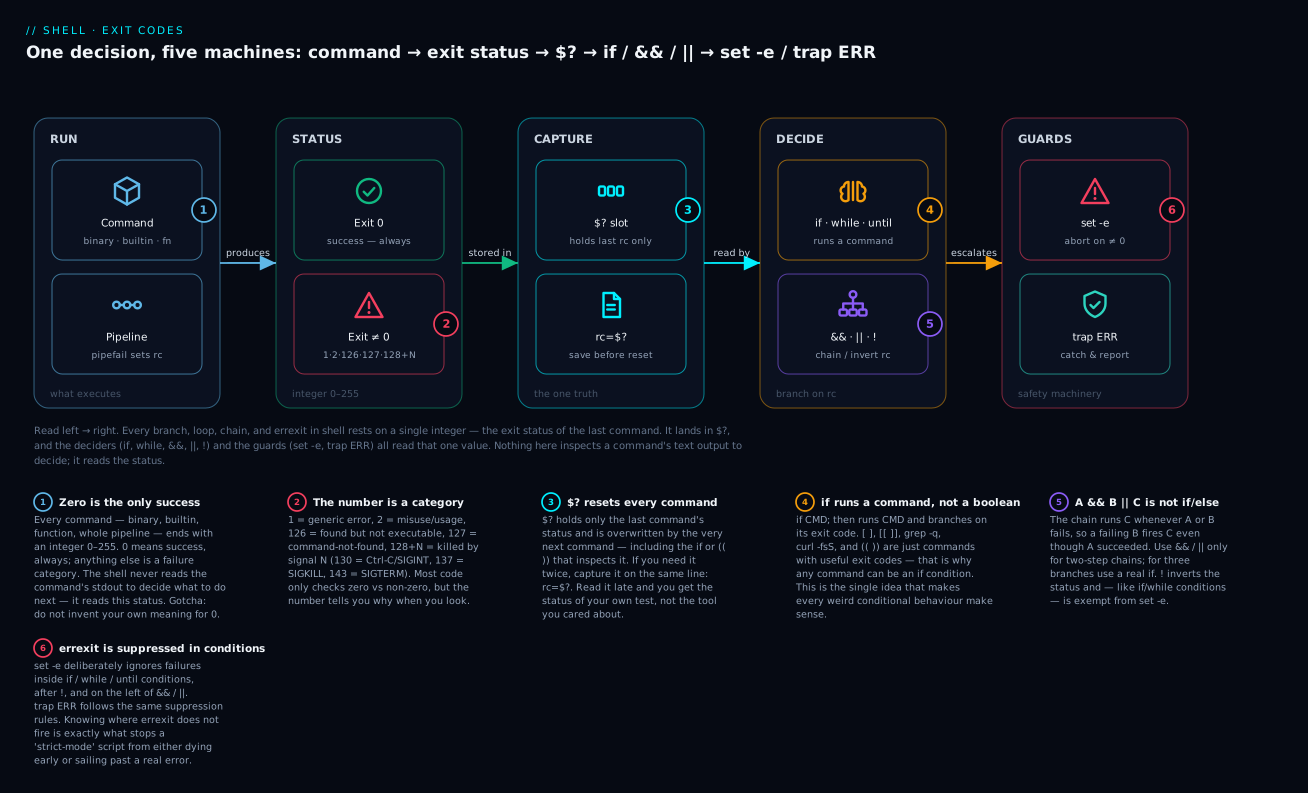
Read the diagram left to right as the life of a single decision: a command runs and produces a status; the status lands in $? (capture it before the next command overwrites it); the deciders (if, while, &&, ||, !) read it to choose a branch; and the guards (set -e, trap ERR) escalate on failure — except in the conditional contexts where errexit is deliberately suppressed. The six badges are the six things beginners get wrong; every section below expands one of them.
Prerequisites & what you’ll be able to do
You should already be comfortable running commands at a prompt, setting and reading shell variables, and — importantly — quoting variables ("$VAR" vs $VAR), because unquoted expansion is the source of half the conditional bugs in this lesson. If quoting and word-splitting are still fuzzy, read Variables, quoting & parameter expansion first. A mental model of what a command actually is — a process the shell forks and waits on, which returns a status when it exits — makes the exit-code contract obvious; that lives in Shell anatomy & the process model.
After working through this lesson you will be able to:
- Read and predict exit codes — know why
falsegives 1, a missing command gives 127, and aCtrl+Cgives 130, and capture any of them with$?before it resets. - Choose the right conditional tool every time —
[[ ]]for bash logic,(( ))for numbers,[ ]/testfor POSIX portability — and explain why each is the right call. - Write quoting-safe tests that don’t blow up when a variable is empty or contains spaces.
- Match strings with globs and regexes inside
[[ ]], including capturing sub-matches withBASH_REMATCH. - Chain commands with
&&/||safely and know exactly when to reach for a realifinstead — including the notoriousA && B || Ctrap. - Give your scripts meaningful exit codes and reason precisely about how
set -e,!, andtrap ERRinteract with conditional contexts.
1. The exit code is the only truth
Every command — every binary, every shell built-in, every function, every pipeline — terminates with an integer exit code in the range 0–255. Conventionally:
- 0 means success. Always. Always. Always.
- non-zero means failure. The specific number sometimes encodes a category (1 = generic error, 2 = misuse, 126 = found-but-not-executable, 127 = command-not-found, 128+N = killed by signal N, 130 = killed by SIGINT (Ctrl+C), 137 = SIGKILL, 143 = SIGTERM), but the vast majority of code only cares about zero vs non-zero.
You can see the exit code of the last command with the special variable $?:
ls /tmp
echo "$?"          # 0 — ls succeeded

ls /nonexistent
echo "$?"          # 2 — ls failed with "no such file or directory"

false
echo "$?"          # 1 — false always exits 1

true
echo "$?"          # 0 — true always exits 0
true and false are real, executable commands (or shell built-ins, depending on the shell) whose only purpose is to provide guaranteed exit codes. They are useful in conditionals, infinite loops, and tests:
while true; do
  echo "Running..."
  sleep 1
done
Note: $? is reset by every command. If you need to use it more than once, capture it immediately:
my-tool
RC=$?
if (( RC != 0 )); then
  echo "Failed with code $RC" >&2
  exit "$RC"
fi
If you wrote if ((... != 0)) first and then tried to use $?, the if itself would have reset $?.
The exit-code map (keep this handy)
Because “the number is a category” trips people up, here is the full conventional map in one place. You will not memorise all of it, but you will recognise these when they appear:
| Code | Meaning | Where it comes from |
|---|---|---|
0 |
success | the command finished cleanly |
1 |
generic/unspecified error | most tools’ catch-all failure |
2 |
misuse of a builtin / usage error | shell builtins, many CLIs on bad args |
126 |
found but not executable | permission denied, or it’s a directory |
127 |
command not found | typo, or not on PATH |
128 |
invalid argument to exit |
e.g. exit 3.5 or exit foo |
128+N |
killed by signal N | the process was terminated by a signal |
130 |
128 + 2 → killed by SIGINT |
you pressed Ctrl+C |
137 |
128 + 9 → killed by SIGKILL |
OOM-killer, or kill -9 |
143 |
128 + 15 → killed by SIGTERM |
a graceful kill, systemd stop |
255 |
out of range / “don’t know” | exit -1 wraps to 255; also SSH’s own errors |
Two practical consequences. First, 127 and 126 are the shell telling you it couldn’t run the thing at all — before your program’s own logic ever executed — so treat them as “wrong path / wrong permissions,” not “my program failed.” Second, exit codes are stored in 8 bits: exit 256 becomes 0 (success!) and exit -1 becomes 255. Always exit a value in 0–255.
The colon command
There’s a built-in command called : (colon). It does nothing and always returns 0. It’s used as a no-op:
if [ -f /tmp/foo ]; then
  :          # do nothing if the file exists
else
  touch /tmp/foo
fi
You’ll also see it as a portable way to expand variables for their side effects (e.g. with ${VAR:?error}):
: "${REQUIRED_VAR:?REQUIRED_VAR must be set}"
That single line, at the top of a script, is a clean way to fail-fast on missing required variables without polluting output.
2. if is a command-runner, not a boolean expression
This is the central concept. In C or Python, if (expr) evaluates expr to a Boolean and branches. In shell:
if COMMAND; then
  THEN_BRANCH
else
  ELSE_BRANCH
fi
if runs COMMAND, looks at its exit code, and if zero it runs the then branch, otherwise the else. COMMAND is a real, executable command. It can be grep, curl, [, [[, a function call, a pipeline, anything.
if grep -q "ERROR" /var/log/app.log; then
  alert-pager
fi
That works because grep -q exits 0 if it found a match and 1 if it didn’t. The -q flag tells grep to be quiet (no output) and just return the exit code.
if curl -fsS https://api.example.com/health >/dev/null; then
  echo "API is up"
else
  echo "API is DOWN"
  exit 1
fi
That works because curl -f exits non-zero on HTTP error responses (4xx/5xx). The -s is silent (no progress bar), -S shows errors even when silent (so set -e can pick them up). This is the canonical curl-in-script flag set: -fsS for “fail silently but show errors and exit non-zero on HTTP failure.”
The body of if can be a pipeline. The exit status of a pipeline is normally the exit status of the last command (we covered set -o pipefail in lesson 2):
if grep -E '^ERROR' /var/log/app.log | grep -q 'database'; then
  echo "Database errors found"
fi
You can also chain multiple commands with ; or &&:
if cd /app && [ -f config.toml ]; then
  ./run.sh
fi
cd /app && [ -f config.toml ] succeeds only if both cd and the file test succeed. If cd fails, the && short-circuits and the whole condition is the failure code from cd.
The if-elif-else chain
if [[ "$1" == "start" ]]; then
  start_service
elif [[ "$1" == "stop" ]]; then
  stop_service
elif [[ "$1" == "restart" ]]; then
  stop_service
  start_service
else
  echo "Usage: $0 {start|stop|restart}" >&2
  exit 2
fi
Mechanically identical to nested if blocks. For more than two or three branches, prefer case (section 7).
3. The three test commands: test, [, and [[
This is the area that confuses beginners most. There are three commands that look like conditional expressions. They are not the same. They have different syntax, different operators, and very different behaviour around quoting and word splitting.
test EXPR — the original POSIX form
if test -f /etc/hostname; then
  echo "exists"
fi
test is a real command (built into bash, but also a separate binary at /usr/bin/test). It evaluates the expression and exits 0 (true) or 1 (false). It’s POSIX-compliant — works in dash, ash, busybox sh, every shell ever.
[ EXPR ] — exactly the same as test, but uglier and prettier
if [ -f /etc/hostname ]; then
  echo "exists"
fi
The [ is also a real command. It’s a binary at /bin/[ (or a shell built-in) whose name is literally [. It expects its last argument to be ]. The brackets are not syntax — they’re command-name and argument. That’s why you must have spaces around them:
[ -f /etc/hostname ]    # CORRECT — '[' is the command, '-f' '/etc/hostname' ']' are arguments
[-f /etc/hostname ]     # WRONG — bash looks for a command called "[-f"
[ -f /etc/hostname]     # WRONG — the last argument is "/etc/hostname]" not "]"
For all practical purposes, [ EXPR ] and test EXPR are interchangeable. POSIX-compliant. Works everywhere.
The classic gotcha with [:
NAME=""
if [ $NAME = "alice" ]; then     # expands to: if [ = alice ]; — syntax error, "test" gets confused
  echo "hi alice"
fi
When NAME is empty, the unquoted $NAME expands to nothing (zero tokens), and [ = alice ] is a malformed test expression. The fix: always quote variables in [:
if [ "$NAME" = "alice" ]; then   # expands to: if [ "" = alice ]; — works
  echo "hi alice"
fi
This is one of many reasons to prefer [[, which we’ll cover next.
[[ EXPR ]] — bash’s superior form
if [[ -f /etc/hostname ]]; then
  echo "exists"
fi
[[ is a shell keyword, not a command. It’s part of bash’s grammar. This is a fundamental difference: because it’s grammar, bash parses it specially and the rules inside are different.
Inside [[ ]]:
- Word splitting does not happen on variables.
[[ $NAME = "alice" ]]works correctly even whenNAMEis empty. - Pathname expansion does not happen.
[[ $FOO = *.txt ]]does pattern matching, not glob expansion. - The
&&and||operators work —[[ A && B ]]is “A AND B”. - The regex operator
=~works. <and>do lexicographic string comparison (no need to escape them).
Inside [ ]:
- Variables get word-split unless quoted.
&&and||don’t work — you’d have to write[ A ] && [ B ].- No regex match.
<and>would be interpreted as redirections by bash and need escaping (\<).
So which one should you use?
Use [[ ]] in bash scripts. Use [ ] (or test) only in POSIX-portable scripts — scripts whose shebang is #!/bin/sh and need to run on dash, ash, or busybox.
In this course, every example uses [[ ]] unless we’re explicitly discussing portability (lesson 31).
Which conditional command? A decision table
Four constructs, one job (produce a 0/1 exit status), different strengths. Pick with this table:
| Construct | Kind | Use it for | Portable? | Quoting-safe? | Notes |
|---|---|---|---|---|---|
test EXPR / [ EXPR ] |
external-style command / builtin | POSIX #!/bin/sh scripts; simple file & string checks |
✅ POSIX | ❌ must quote every $var |
&&/` |
[[ EXPR ]] |
bash keyword | default for bash string/file logic | ❌ bashism | ✅ no word-split, no glob on $var |
supports =~, &&, ` |
(( EXPR )) |
bash keyword | any numeric comparison or arithmetic | ❌ bashism (ksh/zsh too) | ✅ (arithmetic context) | C-style; returns 1 when the expression is 0 |
$(( EXPR )) |
arithmetic expansion | computing a number to use as text | ✅ POSIX | n/a | expands to a value; does not set a useful exit status by itself |
The trap in row four is worth underlining now and again in section 3-plus: (( )) is a command that returns success (0) when the arithmetic result is non-zero, and failure (1) when it’s zero — the opposite of what a C programmer expects from a bare expression. $(( )) is a different animal entirely: it’s expansion, it produces text, and you use it like total=$(( a + b )). Same double-paren look, completely different roles.
Operator reference
Here are the operators you’ll use most. They work in all three forms unless noted.
File tests (all forms):
| Operator | Meaning |
|---|---|
-e PATH |
exists (any type) |
-f PATH |
is a regular file |
-d PATH |
is a directory |
-L PATH |
is a symlink |
-r PATH |
readable |
-w PATH |
writable |
-x PATH |
executable |
-s PATH |
exists and is non-empty (size > 0) |
-p PATH |
is a named pipe (FIFO) |
-S PATH |
is a socket |
-N PATH |
modified since last read |
A -nt B |
file A is newer than B |
A -ot B |
file A is older than B |
A -ef B |
same file (same device + inode, follows links) |
if [[ -f /etc/passwd ]]; then echo "exists"; fi
if [[ -d /var/log ]]; then echo "is directory"; fi
if [[ -x /usr/bin/jq ]]; then echo "jq available"; fi
if [[ /etc/passwd -nt /etc/passwd.bak ]]; then echo "passwd has changed since backup"; fi
String tests:
| Operator | Meaning |
|---|---|
-z STR |
string is empty (length zero) |
-n STR |
string is non-empty |
STR1 = STR2 |
strings are equal (POSIX) |
STR1 == STR2 |
strings are equal (bash; in [[ ]], RHS is glob) |
STR1 != STR2 |
strings differ |
STR1 < STR2 |
lexicographically less than (only [[ ]]) |
STR1 > STR2 |
lexicographically greater than (only [[ ]]) |
NAME="alice"
if [[ -z "$NAME" ]]; then echo "name is empty"; fi
if [[ "$NAME" == "alice" ]]; then echo "exact match"; fi
if [[ "$NAME" == a* ]]; then echo "starts with a"; fi    # glob match (no quotes on RHS!)
if [[ "$NAME" == "a*" ]]; then echo "literal a*"; fi     # literal (RHS quoted = glob disabled)
The unquoted right-hand side of == inside [[ ]] is a glob pattern. This is enormously useful — you can do prefix and suffix matching without invoking grep. But beware: if you want a literal match against a string that might contain * or ?, quote the RHS.
Numeric tests:
| Operator | Meaning |
|---|---|
N1 -eq N2 |
equal |
N1 -ne N2 |
not equal |
N1 -lt N2 |
less than |
N1 -le N2 |
less than or equal |
N1 -gt N2 |
greater than |
N1 -ge N2 |
greater than or equal |
COUNT=5
if [[ "$COUNT" -gt 3 ]]; then echo "more than 3"; fi
if [[ "$COUNT" -eq 5 ]]; then echo "exactly 5"; fi
The -eq/-ne/-lt/-le/-gt/-ge operators work in [ ] and [[ ]]. They are integer-only. For floating-point comparison you need awk or bc.
Never mix them up.
-eqcompares numbers,==compares strings.[[ "08" -eq 8 ]]is true (both are the number eight) but[[ "08" == 8 ]]is false (different text). And[[ 10 > 9 ]]is false — inside[[ ]],>is lexicographic, and the character"1"sorts before"9". For “10 is greater than 9” you must use a numeric test:(( 10 > 9 ))or[[ 10 -gt 9 ]].
An alternative for numbers: the (( )) arithmetic command:
if (( COUNT > 3 )); then echo "more than 3"; fi
if (( COUNT == 5 )); then echo "exactly 5"; fi
(( )) is the arithmetic command — separate from $(( )) which is arithmetic expansion. It evaluates the C-style expression and returns 0 (success) if the result is non-zero, 1 (failure) if zero. It’s the cleanest way to do numeric comparisons in bash.
i=0
while (( i < 10 )); do
  echo "$i"
  (( i++ ))
done
Inside (( )), you don’t prefix variables with $ — i works like in C. You can use +, -, *, /, %, **, ==, !=, <, >, <=, >=, &&, ||, !, bitwise operators, ++, --, ternary ? :. Use (( )) for numeric tests in bash. Use [[ ... -eq ... ]] for POSIX-only constraints.
Logical operators inside [[ ]]
if [[ -f "$FILE" && -r "$FILE" ]]; then
  echo "file exists and is readable"
fi

if [[ "$NAME" == "alice" || "$NAME" == "bob" ]]; then
  echo "alice or bob"
fi

if [[ ! -f "$FILE" ]]; then
  echo "file does not exist"
fi
In [ ] you’d have to write [ -f "$FILE" ] && [ -r "$FILE" ] — two separate command invocations chained at the shell level. In [[ ]] it’s one expression. Cleaner, faster.
4. The =~ operator: regex matching in bash
[[ STRING =~ REGEX ]] performs ERE (Extended Regular Expression) matching. This is one of the most powerful shell features and most beginners don’t know it exists.
EMAIL="alice@example.com"
if [[ "$EMAIL" =~ ^[A-Za-z0-9._%+-]+@[A-Za-z0-9.-]+\.[A-Za-z]{2,}$ ]]; then
  echo "looks like an email"
fi

VERSION="v1.2.3"
if [[ "$VERSION" =~ ^v([0-9]+)\.([0-9]+)\.([0-9]+)$ ]]; then
  MAJOR="${BASH_REMATCH[1]}"
  MINOR="${BASH_REMATCH[2]}"
  PATCH="${BASH_REMATCH[3]}"
  echo "Major: $MAJOR, Minor: $MINOR, Patch: $PATCH"
fi
BASH_REMATCH is a special array set by =~ after a successful match. Index 0 is the full match; indices 1, 2, 3 are the capture groups. This is enormously useful for parsing structured strings.
The single critical rule: the regex on the RHS must NOT be quoted. If you quote it, it becomes a literal string match:
if [[ "$VERSION" =~ "^v[0-9]" ]]; then ... fi    # literal — matches strings containing "^v[0-9]"
if [[ "$VERSION" =~ ^v[0-9] ]]; then ... fi      # regex — matches strings starting with "v" then digit
If you need a literal character class (e.g. . to match a literal dot), put it in a variable and use the variable unquoted:
PATTERN='^v[0-9]+\.[0-9]+\.[0-9]+$'
if [[ "$VERSION" =~ $PATTERN ]]; then echo "version-like"; fi
This pattern (capture into variable, expand unquoted) is the safest way to write complex regexes — it sidesteps every quoting subtlety inside [[ ]].
5. && and || chaining vs if blocks — a critical distinction
Bash gives you two ways to express “do B if A succeeds”:
A && B
vs.
if A; then B; fi
These are almost equivalent. The exit code is the same. The behaviour is the same in most cases. But there is one critical difference, and it interacts with set -e.
With set -e:
- Inside the condition of
if A; then ..., a failure ofAis expected and does not triggerset -e. Bash deliberately suppresseserrexitin conditional contexts. - In
A && B, a failure ofAdoes not triggerset -eeither, as long as the chain continues toB. But ifBfails, that does triggerset -e(in most bash versions).
This means the following two snippets behave differently under set -e:
set -e

# snippet 1: chain
my-tool && echo "ok" || echo "fail"

# snippet 2: if
if my-tool; then echo "ok"; else echo "fail"; fi
The chain form has a notorious gotcha: A && B || C does not mean “if A then B else C” the way it would in C. It means “if A succeeds and B succeeds, you’re done; if either A or B fails, run C.” So if B fails, C runs even though A succeeded. This is rarely what you want.
The rule: use && and || only for two-step chains. For three branches or anything more complex, use if.
The cleanest uses of chaining:
mkdir -p /tmp/cache && cd /tmp/cache    # cd only if mkdir succeeded
command -v jq >/dev/null || { echo "jq not installed" >&2; exit 1; }   # die if missing
These are short, single-purpose, and unambiguous. Anything more complex deserves a real if.
command -v is the right “is this binary installed?” check
You’ll see scripts that check for a binary like this:
which jq         # WRONG-ISH — `which` is non-standard, output varies by distro, exit code unreliable
type jq          # works but verbose output
hash jq          # works but unintuitive
command -v jq    # correct, POSIX, returns 0 if found
Use command -v jq >/dev/null as the canonical “is it installed and on PATH?” test.
6. The case statement — pattern matching done right
For three or more branches based on a single value, case is dramatically cleaner than nested if-elif-else:
case "$1" in
  start)
    start_service
    ;;
  stop)
    stop_service
    ;;
  restart|reload)
    stop_service
    start_service
    ;;
  status)
    status_service
    ;;
  *)
    echo "Usage: $0 {start|stop|restart|status}" >&2
    exit 2
    ;;
esac
The patterns on the left of each branch are globs — same syntax as *.txt, [Yy]es, etc. They’re not regexes. The | separates alternatives. The terminating ;; means “stop here, don’t fall through to the next pattern.”
Glob patterns let you do prefix/suffix matching without regex:
case "$FILE" in
  *.tar.gz|*.tgz)
    tar -xzf "$FILE"
    ;;
  *.tar.bz2|*.tbz2)
    tar -xjf "$FILE"
    ;;
  *.zip)
    unzip "$FILE"
    ;;
  *)
    echo "Unknown archive type: $FILE" >&2
    exit 1
    ;;
esac
In bash 4+, you can also use ;& (fall through to next branch) and ;;& (continue evaluating subsequent patterns):
case "$INPUT" in
  [yY]es)
    echo "Got yes"
    ;;&        # also evaluate the next pattern
  [yY]*)
    echo "Starts with y"
    ;;
esac
# If INPUT is "yes", you'd see both messages.
Use these sparingly — falls-through cases are confusing. The default ;; is almost always what you want.
Use case for argument dispatch
The classic shell pattern is parsing a CLI argument:
case "${1:-}" in
  -h|--help)
    show_help
    exit 0
    ;;
  -v|--version)
    echo "1.0.0"
    exit 0
    ;;
  --verbose)
    VERBOSE=1
    ;;
  *)
    echo "Unknown option: $1" >&2
    exit 2
    ;;
esac
Lesson 17 (argument parsing) covers getopts and full long-option support; for now case "${1:-}" is the lightweight pattern.
7. Status propagation: how to make scripts return meaningful exit codes
A script’s exit code is the exit code of its last command, unless you call exit N explicitly. Best practice: make every script’s exit code meaningful.
#!/usr/bin/env bash
set -euo pipefail

main() {
  if ! curl -fsS https://api.example.com/health >/dev/null; then
    echo "Health check failed" >&2
    return 1
  fi
  if ! check_disk_space; then
    echo "Low disk space" >&2
    return 2
  fi
  echo "All OK"
  return 0
}

main "$@"
exit $?
The exit $? at the end is explicit — it says “exit with whatever code main returned.” Without it, the script would still exit with main’s code (because main was the last command), but the explicit form documents intent.
Convention for shell-script exit codes:
0— success1— generic failure2— usage error (wrong arguments)3–125— application-defined; pick a code per failure mode and document it126— file found but not executable127— command not found128+N— killed by signal N (130 = Ctrl+C, 137 = SIGKILL, 143 = SIGTERM)255— out of range; reserve for “we don’t know”
Avoid using codes 126, 127, and 128+ for your own application errors — those slots are reserved by the shell.
Inverting an exit code
If you want to negate an exit code (treat success as failure and vice versa):
if ! grep -q ERROR /var/log/app.log; then
  echo "no errors found"
fi
The leading ! inverts the exit code. This is the cleanest “if NOT” form. Note that ! does not trigger set -e even if the underlying command fails — ! is documented as a context where errexit is suppressed. So this is safe:
set -e
if ! my-tool; then
  recover
fi
If my-tool fails, ! inverts to 0, the if takes the then branch, and set -e does not fire.
8. trap ERR — catching errors anywhere in a script
Lesson 10 covers signal handling and trap in depth, but for conditionals it’s worth knowing now: bash supports a pseudo-signal called ERR that fires whenever a command exits non-zero (subject to the same suppression rules as set -e).
#!/usr/bin/env bash
set -euo pipefail

on_error() {
  local lineno="$1"
  local code="$2"
  echo "ERROR at line ${lineno} with exit code ${code}" >&2
}

trap 'on_error ${LINENO} $?' ERR

# ... rest of script ...
This gives you a stack-trace-like behaviour. ${LINENO} is automatically set to the line number of the failing command. $? is the exit code. We’ll combine this with EXIT traps for cleanup in lesson 10.
9. Ten conditional idioms to memorise
# 1. File existence
[[ -f "$FILE" ]] && echo "exists"

# 2. Variable empty / non-empty
[[ -z "$VAR" ]] && echo "empty"
[[ -n "$VAR" ]] && echo "not empty"

# 3. String equality (exact)
[[ "$NAME" == "alice" ]]

# 4. String prefix / suffix (glob)
[[ "$FILE" == *.log ]]
[[ "$URL" == https://* ]]

# 5. Numeric comparison
(( COUNT > 3 ))

# 6. Regex match with capture
[[ "$VERSION" =~ ^v([0-9]+)\.([0-9]+) ]] && MAJOR="${BASH_REMATCH[1]}"

# 7. Command available?
command -v jq >/dev/null || { echo "jq required" >&2; exit 1; }

# 8. Run only if previous succeeded
make build && make deploy

# 9. Run only if previous failed
my-tool || retry

# 10. Default-or-die for required input
: "${DATABASE_URL:?DATABASE_URL must be set}"
These ten patterns cover 95% of every conditional you’ll write. Keep them in your fingers.
10. A complete, idiomatic example
#!/usr/bin/env bash
# verify-deployment.sh
# Smoke-tests a freshly-deployed service. Returns:
#   0 — all checks pass
#   1 — health check failed
#   2 — required env missing
#   3 — required tool missing
set -euo pipefail
IFS=$'\n\t'

# 1. Required tools
for tool in curl jq; do
  command -v "$tool" >/dev/null || { echo "Missing: $tool" >&2; exit 3; }
done

# 2. Required environment
: "${SERVICE_URL:?SERVICE_URL must be set}"
: "${EXPECTED_VERSION:?EXPECTED_VERSION must be set}"

# 3. Health check
echo "Checking ${SERVICE_URL}/health..."
if ! curl -fsS "${SERVICE_URL}/health" >/dev/null; then
  echo "Health check failed" >&2
  exit 1
fi

# 4. Version check
VERSION="$(curl -fsS "${SERVICE_URL}/version" | jq -r '.version')"
if [[ "$VERSION" != "$EXPECTED_VERSION" ]]; then
  echo "Version mismatch: got ${VERSION}, expected ${EXPECTED_VERSION}" >&2
  exit 1
fi

# 5. Pattern check on response
ENVELOPE="$(curl -fsS "${SERVICE_URL}/api/info")"
if ! [[ "$ENVELOPE" =~ \"status\":[[:space:]]*\"ok\" ]]; then
  echo "Bad info response" >&2
  exit 1
fi

# 6. Optional latency check
LATENCY_MS="$(curl -fsS -o /dev/null -w '%{time_total}' "${SERVICE_URL}/health" | awk '{print int($1 * 1000)}')"
if (( LATENCY_MS > 500 )); then
  echo "Warning: latency ${LATENCY_MS}ms exceeds 500ms threshold" >&2
fi

echo "All checks passed (version=${VERSION}, latency=${LATENCY_MS}ms)"
exit 0
Things to notice:
- Strict mode and IFS hardening at the top.
- Required tools checked with
command -vand a deliberate exit code. - Required env checked with
: "${VAR:?...}". - All variable expansions quoted.
curl -fsSfor fail-loud HTTP.[[ ... =~ ... ]]for pattern check on the response body.(( ))for the numeric latency comparison.- Distinct exit codes per failure mode.
- A success message before
exit 0.
This is what production-grade shell looks like. Every shell script you ship should be roughly this shape.
11. What you must internalise before lesson 4
Before moving on, make sure all of these are in your reflexes:
- What’s the difference between exit code 0 and non-zero? (0 = success, anything else = failure.)
- What does
if COMMAND; thenactually do? (RunsCOMMAND, looks at its exit code, branches on zero vs non-zero.) - When do you use
[,[[,(( )), andtest? ([[/((for bash;[/testfor POSIX portability;((for numeric.) - Why is
[[ $VAR == *.txt ]]glob and[[ $VAR == "*.txt" ]]literal? (Unquoted RHS of==inside[[ ]]is a glob; quoting disables glob.) - How do you do regex with capture groups? (
[[ STR =~ REGEX ]]then readBASH_REMATCH[1]etc.) - What’s the difference between
A && B || Candif A; then B; else C; fi? (The chain form runs C if either A or B fails; the if form runs C only if A fails.) - How do you check if a binary is installed? (
command -v BINARY >/dev/null.) - What’s the canonical fail-fast for a missing required env var? (
: "${VAR:?VAR must be set}".) - Why does
!not triggerset -e? (Bash explicitly suppresses errexit when the command is preceded by!or is the condition ofif/while/until.) - What’s a sensible exit-code policy for your scripts? (0 success; 1 generic; 2 usage; 3-125 application-defined; avoid 126, 127, 128+.)
If any of those felt fuzzy, re-read the relevant section. Lesson 4 (loops and substitution) is where conditionals start composing into real iteration patterns — and where set -e’s subtle exceptions inside while and until will come up again.
Going deeper
You now have the working model. This section is the internals, edge cases, and production nuances that separate a script that “works on my machine” from one that behaves correctly under strict mode, on other shells, and with hostile input.
Where set -e deliberately does nothing
set -e (errexit) is the most misunderstood option in bash, precisely because it has a long list of contexts where it does not fire. A command’s non-zero status is ignored by set -e when the command is:
- the condition of
if,while, oruntil(if failing_cmd; then …); - preceded by
!(! failing_cmd); - any command in an
&&or||list except the last (a && b && c— onlyc’s failure can trip errexit); - part of a command whose result is being tested this way at any nesting level.
This is by design: those are exactly the places where “failure” is a normal, expected answer you’re branching on. The practical upshot is that strict mode does not turn every non-zero into an abort — it aborts only on unhandled failures. Two consequences bite people:
First, a function called in a condition loses errexit inside it, not just for its own return. if my_func; then … runs the entire body of my_func with errexit effectively suspended, so a failing command halfway through my_func will not stop it. If you want a function to abort internally, don’t call it as an if condition — call it plainly and check afterwards, or re-assert behaviour explicitly.
Second, the local/declare masking trap. This one silently defeats set -e:
set -e
foo() {
  local result="$(command_that_fails)"   # exit status is LOCAL's (0), not the command's!
  echo "$result"
}
local result="$(…)" is really two things: declaring result, and running the command substitution. The exit status of the whole line is the status of local (which succeeds), so the failure of command_that_fails is thrown away and set -e never sees it. The fix is to split the declaration from the assignment:
set -e
foo() {
  local result
  result="$(command_that_fails)"   # now the assignment carries the substitution's status
  echo "$result"
}
Because of quirks like these, seasoned scripters treat set -e as one safety layer, not the whole strategy — they pair it with explicit checks and trap ERR. The deep dive on strict mode and static analysis is in Defensive scripting: set -euo pipefail & ShellCheck.
The (( )) “returns 1 when zero” trap
(( expr )) returns exit status 1 when the expression evaluates to 0, and 0 otherwise. That’s correct and useful for while (( n )) style loops — but it turns a handful of innocent-looking lines into landmines under set -e:
count=0
(( count++ ))      # post-increment YIELDS the OLD value (0) → the command returns 1
count++ is post-increment: the expression’s value is the value before incrementing, i.e. 0, so (( count++ )) returns 1. count does become 1, but the command reported failure. Under strict mode on Linux (bash 4+/5), that failure can abort the script; as the last statement of a function it makes the function “return failure.” (Older bash like macOS’s stock 3.2 has looser errexit here, which is exactly why you should not rely on any one host’s behaviour — write code that is safe on the strictest target.) ShellCheck flags this as SC2219. The safe forms:
(( ++count ))        # pre-increment yields the NEW value (1) → returns 0. Safe.
count=$(( count+1 )) # plain assignment; the assignment always succeeds. Safest & POSIX.
(( count++ )) || true # explicitly swallow the status when you truly want post-increment
Rule of thumb: use (( )) freely inside an if/while condition (where its status is the whole point), but when you want it purely for its side effect (incrementing a counter), prefer count=$(( count+1 )) or ((++count)) so a zero result can’t masquerade as an error.
Pipeline status and PIPESTATUS
By default a pipeline’s exit status is the status of its last command only:
grep pattern huge.log | head -1 # if grep fails but head succeeds, status is 0
set -o pipefail changes this so the pipeline fails if any stage fails (it reports the rightmost non-zero status). But even without pipefail, bash records every stage’s status in the PIPESTATUS array:
false | true | false
echo "${PIPESTATUS[@]}"    # 1 0 1   — status of each stage, left to right
PIPESTATUS is volatile like $? — it reflects the most recent pipeline and is overwritten by the next command, so read it immediately. This is how you tell “the producer died” from “the consumer died” in a cmd | filter pair. The full treatment of pipefail and SIGPIPE is in Pipes, pipelines, pipefail & SIGPIPE.
Performance: keywords don’t fork
[[ ]], (( )), [ ] (as a builtin), and case all run in-process — no fork/exec, no new process. The external /usr/bin/test and /usr/bin/[ binaries exist for POSIX shells that lack the builtin, but modern bash uses its builtins, so a [[ ]] test costs essentially nothing. This matters when you’re testing inside a tight loop over thousands of items: a case "$x" in *.log) … or [[ $x == *.log ]] runs at memory speed, whereas shelling out to echo "$x" | grep -q '\.log$' forks two processes per iteration. The idiomatic rule — stay in the shell for simple string/number decisions, reach for grep/awk/sed only when the matching genuinely needs them — is as much a performance rule as a style one, and it’s covered end-to-end in the performance & profiling lesson (fork, exec, and leaving the shell).
Security: quoting, regex metacharacters, and untrusted input
Conditionals are a classic injection surface. Two rules:
-
Always quote the left-hand operand, even in
[[ ]]where word-splitting is off — because for=~and==an unquoted expansion can still surprise you, and quoting is a habit you never want to break in[ ]. In old-style[ ], an unquoted$USER_INPUTcontaining-for=or!can turn a data value into a test operator — a genuine logic-injection bug.[ "$x" = "$y" ](quoted) is safe;[ $x = $y ](unquoted) is not. -
Never interpolate untrusted text into the regex position of
=~. The right side is code, not data. If a user controls the pattern, they control the match — and a pathological pattern against a large string can cause catastrophic backtracking (a ReDoS-style stall). When the pattern comes from outside, treat the input as a literal instead: compare with==using a quoted RHS, or fixed-stringgrep -F. Put trusted patterns in a variable and expand it unquoted ([[ $x =~ $KNOWN_PATTERN ]]); keep user strings on the left, as data. Input validation and quoting attacks get their own lesson on shell security: injection, quoting, IFS attacks, and input validation.
Portability: what breaks under #!/bin/sh
If your shebang is #!/bin/sh (dash, ash, busybox), these bash features are gone and will error or misbehave: [[ ]], (( )) and $(( ))-as-a-command, =~, BASH_REMATCH, the </> string operators, ;&/;;& in case, and -nt/-ot/-ef are not guaranteed. The POSIX-portable substitutions:
| Bash-ism | POSIX-portable equivalent |
|---|---|
[[ "$a" == "$b" ]] |
[ "$a" = "$b" ] (single =) |
[[ -n "$x" && -f "$f" ]] |
[ -n "$x" ] && [ -f "$f" ] |
(( a > b )) |
[ "$a" -gt "$b" ] |
[[ "$s" =~ $re ]] |
echo "$s" | grep -Eq "$re" |
[[ "$f" == *.log ]] |
case "$f" in *.log) … ;; esac |
Note that case globbing is fully POSIX — which is why case is the portable workhorse for pattern branching. Detecting the running shell and gating bashisms gets its own lesson on POSIX portability versus bashisms.
trap ERR, set -E, and reporting
trap '…' ERR fires on the same non-zero events that set -e would act on (and obeys the same suppression list). But an ERR trap is not inherited by shell functions, command substitutions, or subshells unless you also set set -E (errtrace). If you want your on_error handler to fire for a failure inside a function, use set -Eeuo pipefail. Capture $? and ${LINENO} as the trap’s first actions, because any command inside the handler overwrites $?:
set -Eeuo pipefail
trap 'rc=$?; echo "failed at line ${LINENO} (exit ${rc})" >&2' ERR
Common beginner mistakes
These are misconceptions, not just typos — each is a wrong mental model, followed by the right one.
- “
ifevaluates a condition.” No —ifruns a command and branches on its exit status.if [ "$x" = 1 ]is running the command[with arguments"$x",=,1,]. Once you see[as a command, the spacing rules and quoting rules stop being arbitrary. - “The brackets are part of the
ifsyntax.” They aren’t.[is a command name and]is its required last argument, so[$x]and[ $x ]and[ $x]are all different (and the first two are usually broken).[[is special syntax (a keyword) — which is exactly why it doesn’t have these pitfalls. - “
-eqand==are the same.”-eqcompares numbers (08 -eq 8is true);==/=compares strings ("08" == "8"is false). Using-eqon non-numbers errors; using==on numbers gives wrong answers for anything but exact text. - “
[[ 10 > 2 ]]is true.” It’s false — inside[[ ]],>is lexicographic, so"1…"sorts before"2". For numeric greater-than use(( 10 > 2 ))or[[ 10 -gt 2 ]]. - “I can quote the regex to be safe.” Quoting the RHS of
=~turns it into a literal string match, silently breaking your regex. The regex must be unquoted (or in an unquoted variable). This is the reverse of the usual “always quote” advice, and it catches everyone once. - “
A && B || Cis an if/else.” It runsCwheneverAorBfails. IfBcan fail,Cfires even on the “success” path. Use a realif/then/elsefor anything with three outcomes. - “
$?still holds my command’s status.” It holds the status of the last command — including theecho,[[ ]], orifyou just ran. Capture it on the same line (rc=$?) the instant the command you care about finishes. - “
set -ewill catch every error.” It won’t. It’s suppressed in conditions, after!, and mid-&&/||chain, and it’s silently defeated bylocal x=$(cmd). Treat it as one layer, not a guarantee. - “An empty variable in
[ ]is fine.”[ $EMPTY = x ]becomes[ = x ]— a syntax error — when$EMPTYis empty and unquoted. Always quote:[ "$EMPTY" = x ], or use[[ ]]. - “
exit 300reports 300.” Exit codes are 8-bit:300 & 255 = 44, andexit 256becomes0(a success!). Keep everyexitvalue in0–255.
Practice challenges
Work these in order — they escalate from “read a status” to “reason about strict-mode propagation.” Try each in a real shell before expanding the solution. (This host is macOS/bash 3.2; the answers target Linux bash 4+/5, the course standard — where they differ it’s noted.)
1. (Beginner) Read the slip of paper. Run three commands — one that succeeds, one that fails normally, and one that doesn’t exist — and print each one’s exit status. Predict the three numbers before you run it.
<details> <summary>Solution</summary>
true;            echo "true -> $?"        # 0
ls /nope 2>/dev/null; echo "ls   -> $?"   # 1 or 2 (GNU ls uses 2 for a missing path)
no_such_cmd_xyz 2>/dev/null; echo "cmd  -> $?"  # 127 — command not found
Why: true is guaranteed 0, a tool that ran-but-failed reports its own code, and 127 specifically means the shell never found a program to run — a category, not a program error.
</details>
2. (Beginner) Make it empty-safe. The test [ $NAME = admin ] crashes when NAME is empty. Fix it two different ways.
<details> <summary>Solution</summary>
NAME=""
[ "$NAME" = admin ] && echo yes    # fix 1: quote the operand → [ "" = admin ]
[[ $NAME == admin ]] && echo yes   # fix 2: [[ ]] never word-splits, so quoting is optional here
Why: unquoted $NAME expands to nothing, leaving [ = admin ] (malformed). Quoting keeps it as one empty argument; [[ ]] sidesteps word-splitting entirely.
</details>
3. (Intermediate) Dispatch on file type with case. Given a filename in $f, print gzip, bzip2, zip, or unknown based on its extension — no if chain, no grep.
<details> <summary>Solution</summary>
case "$f" in
  *.tar.gz|*.tgz)   echo gzip  ;;
  *.tar.bz2|*.tbz2) echo bzip2 ;;
  *.zip)            echo zip   ;;
  *)                echo unknown ;;
esac
Why: case patterns are globs (POSIX, in-process, no fork), and | gives you alternatives — the cleanest and most portable multi-way branch on a single value.
</details>
4. (Intermediate) Parse a version with capture groups. From TAG="release-2.11.4", extract major/minor/patch into three variables using one [[ =~ ]] match.
<details> <summary>Solution</summary>
TAG="release-2.11.4"
if [[ "$TAG" =~ ([0-9]+)\.([0-9]+)\.([0-9]+) ]]; then
  major="${BASH_REMATCH[1]}"; minor="${BASH_REMATCH[2]}"; patch="${BASH_REMATCH[3]}"
  echo "$major $minor $patch"     # 2 11 4
fi
Why: =~ runs an ERE and fills BASH_REMATCH — index 0 is the whole match, 1/2/3 are the capture groups. The regex is unquoted; quoting it would make it a literal string match and fail.
</details>
5. (Advanced) Defuse the A && B || C trap. This “if/else” wrongly prints both lines when the deploy step fails after a successful build. Explain why, then rewrite it so rollback runs only when build fails.
build && deploy || rollback
<details> <summary>Solution</summary>
The chain runs rollback whenever either build or deploy fails — so a failed deploy (after a good build) still triggers rollback, and worse, if you added an echo ok it could run alongside the error path. Use a real if:
if build; then
  deploy
else
  rollback
fi
Why: &&/|| chains have no notion of “else” — || C fires on any preceding non-zero. Three outcomes (build-ok+deploy, build-fail+rollback) need an if/then/else.
</details>
6. (Advanced) Find the strict-mode landmine. This function is meant to abort the script if the download fails, but under set -e it sails on with an empty data. Identify the bug and give the one-line fix.
set -euo pipefail
fetch() {
  local data="$(curl -fsS "$1")"   # <-- bug
  printf '%s' "$data"
}
<details> <summary>Solution</summary>
local data="$(…)" runs two things: the local builtin (which succeeds) and the command substitution. The line’s exit status is local’s success, so curl’s failure is discarded and set -e never fires. Split the declaration from the assignment:
fetch() {
  local data
  data="$(curl -fsS "$1")"   # now the assignment carries curl's status → set -e can fire
  printf '%s' "$data"
}
Why: an assignment’s status is the status of its command substitution, but a local/declare declaration’s status is the builtin’s — which masks the failure. (Bonus trap: (( count++ )) from 0 returns 1 for the same “status you didn’t expect” reason — prefer ((++count)) or count=$((count+1)).)
</details>
Glossary
- Exit status (exit code, return code) — The integer 0–255 a command hands back when it finishes.
0= success, non-zero = failure. $?— Special variable holding the exit status of the most recently completed command. Overwritten by the next command; capture withrc=$?.true/false— Commands (and builtins) whose only job is to return0and1respectively; used for guaranteed statuses and infinite loops.:(colon) — The null command: does nothing, always returns0. Useful as a no-op and for triggering parameter-expansion side effects like: "${VAR:?msg}".test/[— POSIX conditional commands that evaluate an expression and return0/1.[requires a closing]argument. Need every variable quoted.[[ … ]]— A bash keyword for conditionals: no word-splitting on variables, glob matching on the RHS of==, logical&&/||, string</>, and the=~regex operator.(( … ))— The arithmetic command: evaluates a C-style expression and returns0when the result is non-zero,1when it’s zero. Use for numeric tests.$(( … ))— Arithmetic expansion: computes a number and substitutes it as text (e.g.n=$(( a + b ))). Different from(( ))despite the look.=~— Bash operator for ERE regex matching inside[[ ]]. The pattern must be unquoted to act as a regex.BASH_REMATCH— Array set after a successful=~: index 0 is the whole match, 1+ are the capture groups.- ERE (Extended Regular Expression) — The regex dialect used by
=~andgrep -E(+,?,|,(),{n,m}without backslashes). - Glob (pattern) — Shell wildcard matching (
*,?,[…]) used bycase, filename expansion, and the unquoted RHS of[[ == ]]. Not a regex. case … esac— Multi-way branch matching a value against glob patterns; the portable, fork-free way to dispatch on one value.&&/||— Short-circuit chaining:A && BrunsBonly ifAsucceeded;A || BrunsBonly ifAfailed.- Short-circuit — Stopping evaluation of a chain as soon as the result is determined (
false && xnever runsx). !(negation) — Inverts a command’s exit status (0↔non-zero). Exempt fromset -e.set -e(errexit) — Shell option that aborts the script on an unhandled non-zero status. Suppressed inside conditions, after!, and mid-&&/||chain.errexitsuppression context — Any place bash deliberately ignores a failure:if/while/untilconditions, after!, and all but the last command of an&&/||list.pipefail—set -o pipefail; makes a pipeline’s status the rightmost non-zero stage rather than only the last stage.PIPESTATUS— Array holding each stage’s exit status from the last pipeline (${PIPESTATUS[@]}).trap … ERR— A handler that fires on the same non-zero eventsset -eacts on; useset -E(errtrace) to make it fire inside functions/subshells too.command -v— POSIX way to test whether a name is a runnable command onPATH(returns0if found); the correct replacement forwhich.127/126— “Command not found” / “found but not executable” — the shell couldn’t run the thing, before your program’s logic ran.128+N— Exit status of a process killed by signalN(e.g.130= Ctrl+C/SIGINT,137= SIGKILL,143= SIGTERM).- Strict mode — The conventional hardening header
set -euo pipefail(errexit, nounset, pipefail), often withIFS=$'\n\t'.
What’s next
Lesson 4 covers for, while, until, case, break, continue, the C-style for ((i=0;i<10;i++)) form, the mapfile/readarray idioms for line-by-line iteration without word-splitting bugs, and the most common iteration anti-pattern in shell (for f in $(ls)) and how to replace it. Bring everything from lessons 1–3.