Loops are where good shell scripts grow up and bad shell scripts destroy production. Almost every notorious shell-script disaster you’ve ever read about — files deleted by accident, partial deployments left in inconsistent states, log-rotation jobs that ate the wrong directory — boils down to one of three categories of loop bug:
- Word-splitting bugs: iterating over
$(ls)or unquoted variables and getting wrong filenames when names contain spaces, tabs, newlines, or globs. - Subshell bugs:
cmd | while read line; do COUNT=$((COUNT+1)); done— the loop body runs in a subshell, soCOUNTdoesn’t update in the parent, and after the loop your counter is still zero. - Empty-glob bugs:
for f in *.logwhen no.logfiles exist — bash leaves the literal*.logas the iterator value, so you process a “file” called*.log.
Every one of these is a specific corollary of the lessons we covered in L2 (quoting and IFS) and L3 (exit codes). This lesson shows you the loop forms themselves, and shows you which iteration patterns are correct and which are landmines.
Read this carefully. Type the examples. Run them with weird filenames (spaces, newlines, leading dashes) and watch them break — then fix them with the patterns below.
In a nutshell
A loop is the shell’s way of saying “for each of these, do that.” The mental picture that never lets you down is a worker at a conveyor belt: the belt carries items past one at a time, and for every item that arrives the worker performs the same fixed task — stamp it, weigh it, box it. A shell loop is exactly this. You hand it a list of items (filenames, lines from a file, numbers, command-line arguments) and a body of commands, and it runs the body once for every item on the list.
Everything that makes shell loops dangerous comes down to one question the belt operator never has to think about but you do: who decides where one item ends and the next begins? Hand the shell a tidy list of real items and it behaves perfectly. Hand it a blob of text — the output of ls, an unquoted variable — and the shell chops that blob into “items” using its own whitespace rules, so a single file called my report.pdf silently becomes two items, my and report.pdf. That one misunderstanding is behind the majority of “the script deleted the wrong file” horror stories.
So this lesson teaches two things at once. First, the loop shapes bash gives you — for-in (walk a list), C-style for ((;;)) (count), while (repeat while a test passes), and until (repeat until it passes) — plus case for branching per item. Second, and more importantly, where the items come from: which sources are byte-exact and safe (globs, arrays, "$@", find -print0) and which quietly mangle your data ($(ls), unquoted $var, a pipe | while read that throws your results away). Get the source right and loops are boring and reliable; get it wrong and they are a production incident waiting for an unusual filename.
If you are brand new, read top to bottom and type every example — especially the ones that break. If you are experienced, skim to Going deeper for the subshell / set -e / stdin-eating internals, but still do the practice challenges, because at least one of them will surprise you.
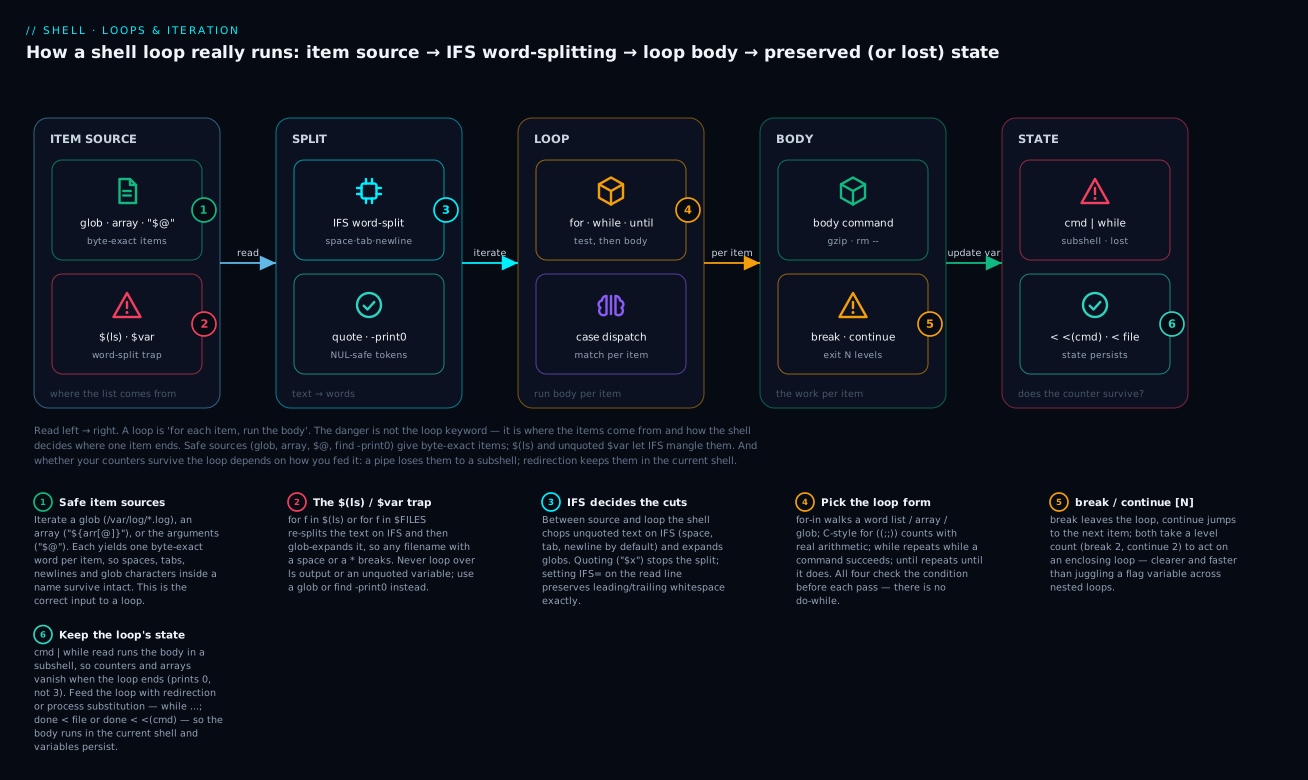
Read the diagram left to right: a source of items (a safe glob/array/"$@", or the unsafe $(ls)) is chopped into words by IFS, the loop construct runs its body once per word, and — the part everyone trips on — whether your counters survive depends on how you fed the loop, because a pipe hands the body to a subshell that throws its variables away while redirection keeps them in the current shell.
Level: Beginner → Intermediate · Time: ~45 min
Prerequisites & what you’ll be able to do
Know this first. This is lesson 4 of the Shell Scripting Zero-to-Hero course, and every loop bug in it is really a bug from an earlier lesson wearing a loop costume:
- Variables, quoting & IFS — the single most important prerequisite. Word splitting,
IFS, and why"$var"beats$varare the whole ballgame here. - Conditionals, test & exit codes —
whileanduntilare just exit-code testers, andcaseis a multi-branch conditional you already met there. - I/O redirection, FDs & process substitution — the
done < fileanddone < <(cmd)forms that turn a broken loop into a correct one.
Arrays get their own deep treatment in Arrays: indexed, associative & mapfile; this lesson uses them but doesn’t assume mastery.
After this lesson you can:
- Choose the right loop form for a task —
for-infor lists,for ((;;))for counters,while/untilfor conditions and line-by-line input — and explain why there’s nodo-while. - Iterate over files safely, four different correct ways (glob,
find -print0,mapfile,xargs -0), and say which to reach for when. - Read a file or command output line-by-line with
while IFS= read -r lineand know exactly what each piece buys you. - Diagnose and fix the subshell pitfall (
cmd | while readlosing your variables) in two different ways. - Use
break,continue, and their level numbers to control nested loops without flag variables. - Spot the command-substitution and empty-glob gotchas before they hit production, and harden a real log-rotation script against every hostile filename.
1. The four loop forms in bash
Bash has four loop constructs. Three you’ll use constantly; one (select) you’ll see rarely.
for VAR in LIST; do BODY; done
for (( init; condition; update )); do BODY; done
while CONDITION; do BODY; done
until CONDITION; do BODY; done
The for-in form iterates over a list of words. The C-style for (( )) is bash-specific and gives you C-like loops. while runs the body as long as CONDITION exits zero (success). until is the inverse — runs the body until CONDITION exits zero. Both while and until evaluate CONDITION before each iteration.
There is no do-while form; the closest you can get is to put the work at the start of the body and break when done.
Which form, when — a quick decision table you can commit to memory:
| You want to… | Reach for | Why |
|---|---|---|
Walk a fixed list, an array, a glob, or "$@" |
for VAR in LIST |
It iterates over words — one body run per item, no counter needed. |
Count with real arithmetic (step, descending, i += 5) |
for (( i=0; i<n; i++ )) |
Full C arithmetic, no subprocess, no $ on the variables inside (( )). |
| Repeat while a command keeps succeeding | while CMD |
Runs the body as long as CMD exits 0; the natural fit for “read the next line” and “poll until ready”. |
| Repeat until a command finally succeeds | until CMD |
Just while ! CMD; use it only when “until X” reads more naturally. |
| Offer an interactive numbered menu | select (section: Going deeper) |
Rare; builds a prompt loop from a word list. |
The golden rule that decides most real choices: if the items already exist as a list (files, arguments, array elements), use for-in; if you are generating a sequence of numbers or repeating until a condition flips, use for ((;;)) or while.
2. The for-in loop and the four ways to use it correctly
The for-in loop iterates over a list of words. The fundamental thing to remember: bash splits the list on IFS (whitespace by default) and processes glob patterns. You almost never want this for arbitrary input.
Form 1: explicit list of words
for fruit in apple banana cherry; do
  echo "$fruit"
done
Output:
apple
banana
cherry
This works because the words are literal — no variables, no globs, no IFS surprises. The list can also span multiple lines:
for service in \
  postgres \
  redis \
  nginx; do
  systemctl restart "$service"
done
The trailing backslashes continue the line. This is a perfectly fine pattern for short, fixed lists.
Form 2: glob expansion (the right way to iterate over files)
for log in /var/log/*.log; do
  [ -e "$log" ] || continue              # handle the no-match case
  echo "Processing $log"
  gzip "$log"
done
Bash expands /var/log/*.log to a list of matching paths. This is the correct way to iterate over files. Unlike for f in $(ls), glob expansion is byte-exact — filenames with spaces, tabs, newlines, glob characters in their names, all of them work correctly.
The [ -e "$log" ] || continue line handles the empty-glob case: when no files match, bash by default leaves the pattern as the literal value. So for log in /var/log/*.log with no logs would set log="/var/log/*.log" for one iteration, which is almost never what you want.
There are two ways to handle this:
Option A (per-loop) — check existence at the top of the body:
for log in /var/log/*.log; do
  [ -e "$log" ] || continue
  process "$log"
done
Option B (script-wide) — enable nullglob:
shopt -s nullglob          # bash-only; non-matching globs expand to nothing
for log in /var/log/*.log; do
  process "$log"
done
shopt -u nullglob          # restore default if needed
nullglob is bash-only. POSIX shells don’t have it. If you’re writing portable shell, use option A. We’ll cover nullglob, dotglob, globstar, and the glob options in detail in lesson 11.
Form 3: iterate over an array (the safe way to iterate over collected data)
LOGS=(
  /var/log/app.log
  "/var/log/with space.log"
  /var/log/another.log
)

for log in "${LOGS[@]}"; do
  echo "Processing: $log"
done
The "${LOGS[@]}" form expands to one quoted token per array element — preserving spaces, newlines, every byte exactly. This is the right way to iterate over a list of names you’ve collected from somewhere. Lesson 6 covers arrays in depth.
Form 4: iterate over $@ — the script’s positional parameters
for arg in "$@"; do
  echo "Got argument: $arg"
done
This is the canonical way to iterate over command-line arguments. The double-quotes are essential — for arg in $@ (unquoted) splits arguments on IFS again, breaking arguments that contain spaces. We covered this in L2. Always "$@".
You can also write for arg do ... done — bash treats a for with no in as iterating over "$@" automatically. Useful shorthand:
for arg do
  echo "Got: $arg"
done
The four wrong ways to iterate
These are the common mistakes. Each one breaks under specific inputs:
for f in $(ls /var/log)            # WRONG — splits on whitespace, breaks on filenames with spaces
for f in `ls /var/log`              # WRONG — same as above, with deprecated syntax
for f in $FILES                     # WRONG — splits on $IFS, breaks if FILES has weird chars
cat list.txt | while read f         # SUBTLE BUG — body runs in subshell; variables don't propagate (section 5)
Memorise: never iterate over the output of ls, never iterate over an unquoted variable expansion, never use a pipe to feed while read if you need to capture state. The right replacements are: globs, find -print0 + xargs -0, mapfile/readarray, and while read fed by input redirection not a pipe (section 5).
3. The C-style for (( )) loop
When you need a numeric counter, the C-style for is far cleaner than seq-and-for-in:
for (( i = 0; i < 10; i++ )); do
  echo "Iteration $i"
done
Inside (( )) you have full C arithmetic — increment (i++), decrement (i--), compound assignment (i += 5), bitwise, etc. No $ prefix on variables.
The three sections (init, condition, update) are all optional — for ((;;)) is a forever-loop, like while true:
for ((;;)); do
  echo "Press Ctrl+C to stop"
  sleep 1
done
Compared to the older POSIX-portable seq form:
# Portable but slower (forks seq)
for i in $(seq 0 9); do
  echo "Iteration $i"
done

# Bash-only, faster (no fork)
for ((i = 0; i < 10; i++)); do
  echo "Iteration $i"
done
The C-style form is faster (no seq subprocess), more flexible (custom step, descending counts), and more readable when you’re doing real arithmetic.
If you need to iterate by a non-default step:
for ((i = 100; i > 0; i -= 5)); do
  echo "Countdown: $i"
done
Or with bash’s brace expansion (lesson 11), for fixed ranges:
for i in {0..9}; do
  echo "$i"
done

for i in {0..100..5}; do        # step of 5; bash 4+
  echo "$i"
done
Brace expansion is faster than seq and doesn’t fork, but it’s expanded eagerly — {0..1000000} builds the entire list in memory before the loop starts. For very large counts, use for ((;;)).
One trap worth flagging now (we return to it in Going deeper): brace expansion happens before variables are substituted, so for i in {1..$n} does not count to $n — it iterates once over the literal string {1..3}. For a variable upper bound use the C-style form (for ((i=1;i<=n;i++))) or seq.
4. while and until
while and until are command-runners just like if. They run a command, look at its exit code, and decide whether to enter (or re-enter) the body.
COUNT=0
while (( COUNT < 5 )); do
  echo "Count: $COUNT"
  (( COUNT++ ))
done
i=0
until (( i >= 5 )); do
  echo "i: $i"
  (( i++ ))
done
while CONDITION; do BODY; done is read “while CONDITION is true (zero exit), run BODY.” until CONDITION; do BODY; done is “until CONDITION becomes true, run BODY.” Mechanically until X is exactly while ! X. Use while 99% of the time; until only when “until X happens” reads more naturally.
Infinite loops
while true; do
  echo "Forever"
  sleep 1
done

while :; do                # the colon command — minimal overhead, equivalent to true
  echo "Forever"
  sleep 1
done
while : is a tiny bit faster than while true (: is a built-in always; true is a built-in in bash but a separate binary in some shells). Rare to matter, but a common idiom.
Reading input line-by-line (the right way)
This is the most important while pattern in shell. To process a file (or any input) one line at a time:
while IFS= read -r line; do
  echo "Got line: $line"
done < input.txt
Three critical pieces:
IFS=— clears IFS for this command only, so leading and trailing whitespace are preserved exactly.read -r— raw mode; do not interpret backslash escapes. Without-r, a literal\followed by a newline is interpreted as a line continuation. Almost always wrong for arbitrary data.done < input.txt— input redirection (lesson 7). The file is piped to the loop’sstdin, so each call toreadconsumes one line.
This pattern is byte-exact: it preserves every character of the input, including spaces, tabs, leading dashes, embedded glob characters, embedded backslashes — everything.
read’s exit status and the missing-final-newline trap
Here’s a subtlety that silently eats data. read returns a non-zero exit status when it hits end-of-file — and that’s exactly how while IFS= read -r line knows to stop. But there’s a catch: if the very last line of a file has no trailing newline, read still stores it in line and then returns non-zero because it also saw EOF. The while sees the non-zero and never runs the body for that last line. It’s gone.
Verified on bash:
printf 'a\nb\nno-newline-last' | while IFS= read -r line; do
  echo "[$line]"
done
# [a]
# [b]                     ← "no-newline-last" is silently dropped
The fix is a one-token guard — run the body if read succeeded or if it still left a non-empty line:
printf 'a\nb\nno-newline-last' | while IFS= read -r line || [[ -n "$line" ]]; do
  echo "[$line]"
done
# [a]
# [b]
# [no-newline-last]       ← now captured
Files that don’t end in a newline are common (config generated by editors that trim, printf without \n, some API responses). Make || [[ -n "$line" ]] a reflex whenever the last line matters.
Parsing structured input with read
read can split a line into multiple variables:
echo "alice 30 engineer" | while read -r name age role; do
  echo "Name: $name, Age: $age, Role: $role"
done
If you give read more variables than fields, the extras are empty. If you give read fewer variables than fields, the last variable gets everything that’s left over (including IFS-separated fields, joined back with spaces). This behaviour is sometimes useful, sometimes surprising.
For CSV-like input, set IFS for the read:
while IFS=',' read -r name age role; do
  echo "$name | $age | $role"
done < users.csv
For tab-separated files:
while IFS=$'\t' read -r col1 col2 col3; do
  echo "$col1 | $col2 | $col3"
done < data.tsv
The IFS=',' or IFS=$'\t' is set only for the read invocation — bash’s prefix-environment-variable syntax (lesson 1). The rest of the script’s IFS is unaffected.
5. The subshell trap: pipes and while read
This is one of the most subtle, surprising bugs in bash. Watch closely.
COUNT=0
echo "line1
line2
line3" | while read -r line; do
  COUNT=$((COUNT + 1))
done
echo "Count: $COUNT"
What does this print? You might expect 3. It actually prints 0.
The reason: in bash (and POSIX shells generally), each stage of a pipeline runs in its own subshell. The while loop on the right side of | is a subshell with its own copy of COUNT. When the loop ends, the subshell exits, and the parent’s COUNT is unchanged.
This is the most common shell bug in production scripts. It silently produces wrong results.
The fix: use input redirection instead of a pipe. Input redirection runs the body in the current shell, so variables persist:
COUNT=0
while read -r line; do
  COUNT=$((COUNT + 1))
done < <(echo "line1
line2
line3")
echo "Count: $COUNT"          # 3 — correct
The < <(echo ...) is process substitution (lesson 7) — <(cmd) produces a filename that bash makes readable as input. The outer < redirects that file into the loop’s stdin. Same effect as a pipe, but the while runs in the parent shell.
Or read from a real file:
COUNT=0
while read -r line; do
  (( COUNT++ ))
done < input.txt
echo "Count: $COUNT"          # works
Or use mapfile to read the whole file into an array first:
mapfile -t LINES < input.txt
COUNT="${#LINES[@]}"
echo "Count: $COUNT"
mapfile is bash 4+. The -t flag strips trailing newlines from each line. Lesson 6 covers mapfile and arrays in depth.
There are bash settings that change this behaviour:
shopt -s lastpipe            # bash-only; when in non-interactive mode,
                             # the last pipe stage runs in the current shell
With lastpipe enabled, cmd | while read line; do COUNT=...; done works as expected. But it’s a non-default setting and only works in scripts (not interactive shells), and only if job control is off. The portable, explicit fix is process substitution or input redirection.
The rule: never use cmd | while read if the loop body needs to update variables. Use < <(cmd) instead.
A real-world example: counting matches
# WRONG — the count is always 0
COUNT=0
grep -E '^ERROR' /var/log/app.log | while read -r line; do
  (( COUNT++ ))
done
echo "Errors: $COUNT"

# RIGHT — process substitution preserves variable scope
COUNT=0
while read -r line; do
  (( COUNT++ ))
done < <(grep -E '^ERROR' /var/log/app.log)
echo "Errors: $COUNT"

# BEST — let grep do the counting
COUNT="$(grep -cE '^ERROR' /var/log/app.log)"
echo "Errors: $COUNT"
The third form is fastest and clearest. Whenever you find yourself counting in a shell loop, ask whether grep -c, wc -l, or awk could do it for you. Shell loops over many lines are slow; built-in tools are fast.
6. break and continue
break exits the innermost loop. continue skips to the next iteration. Both can take an integer to operate on outer loops:
for i in 1 2 3; do
  for j in a b c; do
    if [[ "$j" == "b" ]]; then
      break        # exits the inner loop
    fi
    echo "$i $j"
  done
done
# Output:
# 1 a
# 2 a
# 3 a
for i in 1 2 3; do
  for j in a b c; do
    if [[ "$j" == "b" ]]; then
      break 2      # exits BOTH loops
    fi
    echo "$i $j"
  done
done
# Output:
# 1 a
for i in 1 2 3; do
  for j in a b c; do
    if [[ "$j" == "b" ]]; then
      continue    # skip this j, move to next j
    fi
    echo "$i $j"
  done
done
# Output:
# 1 a
# 1 c
# 2 a
# 2 c
# 3 a
# 3 c
break N and continue N work on N levels of nesting. Use break 2 instead of flag variables — it’s clearer and faster.
7. The case statement inside loops
case was introduced in lesson 3 as a multi-branch conditional. Inside a loop, it’s the cleanest way to dispatch on per-item values:
for arg in "$@"; do
  case "$arg" in
    -v|--verbose)
      VERBOSE=1
      ;;
    -q|--quiet)
      QUIET=1
      ;;
    -h|--help)
      show_help
      exit 0
      ;;
    --)
      shift
      break        # rest are positional args
      ;;
    -*)
      echo "Unknown option: $arg" >&2
      exit 2
      ;;
    *)
      POSITIONAL+=("$arg")
      ;;
  esac
done
This is a hand-rolled argument parser. getopts (lesson 17) does this more rigorously, but the hand-rolled form is often clearer and supports long options without extra work.
Inside a case arm, ;; ends the arm. ;& falls through to the next arm. ;;& continues evaluating subsequent patterns. We covered these in lesson 3.
8. Command substitution gotchas
Lesson 2 covered the basics of $(cmd). Inside a loop, the gotchas multiply.
Trailing newlines are stripped
NAME=$(echo "hello")
printf '%q\n' "$NAME"           # 'hello' — no trailing newline
$(...) strips all trailing newlines from the command’s output. This is usually what you want. But if the trailing newlines are significant (rare, but possible — e.g., a file’s exact byte content), you need to preserve them with a sentinel:
CONTENT=$(cat file.txt; printf x)
CONTENT="${CONTENT%x}"          # remove the sentinel
The trailing printf x adds a non-newline byte that isn’t stripped; then we remove it with parameter expansion. Niche but occasionally critical.
Output that contains globs
FILES_OUTPUT=$(ls /tmp)
for f in $FILES_OUTPUT; do      # WRONG: word-split on IFS, glob-expand
  echo "$f"
done
If /tmp has a file named *, the unquoted $FILES_OUTPUT will glob-expand and you’ll iterate over every file in your current directory instead. Never iterate over $(ls)-style output unquoted. This is the exact same word-splitting-plus-globbing mechanism from section 2 — command substitution just hides it one level deeper, which is what makes it so easy to write by accident.
Multi-line output and IFS
TEXT=$(printf 'line1\nline2\nline3\n')
for line in $TEXT; do           # works ONLY because IFS includes \n by default
  echo "$line"
done
This works under default IFS (space tab newline), but if you’ve set IFS=$'\n\t' in strict mode, the lines split on newlines correctly — but if any line contains a tab, it splits there too. The robust replacement:
mapfile -t LINES < <(printf 'line1\nline2\nline3\n')
for line in "${LINES[@]}"; do
  echo "$line"
done
mapfile -t reads input line-by-line into an array, splitting only on newlines. It’s the modern, correct replacement for for line in $(cmd).
9. Iterating over files: the canonical patterns
This is the section everyone needs, copied from real production shell scripts.
Pattern A: glob (when files are on disk in a known location)
shopt -s nullglob              # optional but recommended
for f in /path/to/*.log; do
  process "$f"
done
shopt -u nullglob
Or, without nullglob:
for f in /path/to/*.log; do
  [ -e "$f" ] || continue
  process "$f"
done
Pattern B: find -print0 + while read -d ''
For deeply nested directories or filtered traversal:
while IFS= read -r -d '' f; do
  process "$f"
done < <(find /path -type f -name '*.log' -print0)
find -print0 separates filenames with NUL bytes (\0), which is the only character that can’t appear in a filename. read -d '' (empty delimiter = NUL) parses NUL-separated input. This is the only completely robust way to handle arbitrary filenames in a shell pipeline.
Pattern C: mapfile for line-oriented input
mapfile -t FILES < <(find /path -type f -name '*.log')
for f in "${FILES[@]}"; do
  process "$f"
done
Simpler than the find -print0 form, but breaks on filenames containing newlines. Acceptable for trusted inputs (your own deployment artifacts), risky for user-supplied data.
Pattern D: xargs for parallel processing
find /path -type f -name '*.log' -print0 | xargs -0 -P 4 -I {} process "{}"
xargs -0 parses NUL-separated input. -P 4 runs 4 in parallel. -I {} substitutes the filename for {}. This is the right pattern for “process N files concurrently.” Lesson 14 covers xargs and parallelism in depth.
Choosing between them
- Pattern A (glob): when files are in one or two known directories. Fastest, simplest.
- Pattern B (
find -print0): when traversal is deep or filtered, or when filenames may be hostile. - Pattern C (
mapfile): when you want all the names in memory and need to access them by index. - Pattern D (
xargs -0 -P): when each file is independent and parallelism wins.
10. Real-world example: archive and compress old logs
#!/usr/bin/env bash
# rotate-logs.sh — compress logs older than N days, then delete after M days
set -euo pipefail
IFS=$'\n\t'

LOG_DIR="${LOG_DIR:-/var/log/myapp}"
COMPRESS_AFTER_DAYS="${COMPRESS_AFTER_DAYS:-7}"
DELETE_AFTER_DAYS="${DELETE_AFTER_DAYS:-30}"

# 1. Compress logs older than N days, but not already compressed
COMPRESSED_COUNT=0
while IFS= read -r -d '' f; do
  echo "Compressing: $f"
  if gzip -- "$f"; then
    (( COMPRESSED_COUNT++ ))
  else
    echo "Failed to compress: $f" >&2
  fi
done < <(find "$LOG_DIR" -type f -name '*.log' -mtime "+${COMPRESS_AFTER_DAYS}" -print0)

echo "Compressed ${COMPRESSED_COUNT} files."

# 2. Delete compressed logs older than M days
DELETED_COUNT=0
while IFS= read -r -d '' f; do
  echo "Deleting: $f"
  if rm -- "$f"; then
    (( DELETED_COUNT++ ))
  else
    echo "Failed to delete: $f" >&2
  fi
done < <(find "$LOG_DIR" -type f -name '*.log.gz' -mtime "+${DELETE_AFTER_DAYS}" -print0)

echo "Deleted ${DELETED_COUNT} files."
Things to notice:
- Strict mode and IFS hardening.
- Defaults via
${VAR:-default}for everything tunable. find -print0+while IFS= read -r -d '' f— the bulletproof iteration pattern. Handles every possible filename, including ones with newlines, spaces, glob chars, leading dashes.rm --andgzip --use--as end-of-options to handle filenames that start with-. You should always do this when passing variable filenames to commands that take options.- Counting is done in the parent shell (process substitution, not pipes), so the counters update correctly.
- Error handling: each operation that can fail has an explicit non-fatal error path that logs to stderr and continues.
This is the production-grade form. The naive form using for f in $(ls *.log) would have broken in three different ways on this filesystem: spaces, leading-dash filenames, and the no-match case.
One subtlety hidden in that script, which we unpack in Going deeper: (( COMPRESSED_COUNT++ )) returns a non-zero exit status on the first increment (when the counter is still 0), and under set -e that can be a footgun. It’s safe here because it isn’t the last command in the body — but the moment you make (( count++ )) the final statement of a function or &&-chain, know exactly what it returns.
11. The ten loop idioms you should have in muscle memory
# 1. Iterate over files in a directory (with empty-glob protection)
for f in /path/*.log; do
  [ -e "$f" ] || continue
  process "$f"
done

# 2. Iterate over command-line arguments
for arg in "$@"; do
  echo "$arg"
done

# 3. C-style numeric loop
for ((i=0; i<10; i++)); do
  echo "$i"
done

# 4. Read a file line by line
while IFS= read -r line; do
  echo "Got: $line"
done < file.txt

# 5. Read CSV
while IFS=',' read -r col1 col2 col3; do
  echo "$col1 | $col2 | $col3"
done < data.csv

# 6. Iterate over the output of a command (variables persist)
while IFS= read -r line; do
  (( COUNT++ ))
done < <(my-command)

# 7. Find with NUL-safe iteration
while IFS= read -r -d '' f; do
  process "$f"
done < <(find . -type f -print0)

# 8. mapfile into array
mapfile -t LINES < file.txt
for line in "${LINES[@]}"; do
  echo "$line"
done

# 9. Retry loop with exponential backoff
for ((i=1; i<=5; i++)); do
  if my-command; then
    break
  fi
  sleep $((2 ** i))
done

# 10. Forever loop with controlled exit
while :; do
  if [[ -f /tmp/stop ]]; then break; fi
  do_one_iteration
  sleep 5
done
Internalise these and 90% of your loop-writing time disappears.
Going deeper
You can write correct loops all day with sections 1–11. This section is for the reader who wants to know why the rules are the rules — the internals that turn a mysterious bug into an obvious one.
The list is built once, before the first iteration
for VAR in LIST fully expands LIST — globs, variables, brace expansion, command substitution — before the loop body runs even once. The loop then walks that fixed, already-computed list. Two consequences follow:
- Modifying the directory mid-loop doesn’t change the iteration.
for f in *.log; do mv "$f" done/; doneiterates over the names that matched at the start; files you create during the loop are not picked up, and files you delete are still in the list (you just get a stale name). - A huge range is fully materialised in memory first.
for i in {1..10000000}builds a ten-million-element list before iterating — that’s real memory. The C-stylefor ((i=1;i<=10000000;i++))computes each value on the fly and uses none. This is the reason to preferfor ((;;))for large counts.
And the trap from section 3, now explained: brace expansion runs before parameter expansion, so in for i in {1..$n} the {1..$n} is examined while $n is still literal text — it isn’t a valid numeric range, so bash leaves it untouched and then substitutes $n, yielding the single literal word {1..3}. Verified:
n=3
for i in {1..$n}; do printf '[%s]' "$i"; done; echo
# [{1..3}]          ← one iteration over a literal string, NOT 1 2 3
Use for ((i=1;i<=n;i++)) or for i in $(seq 1 "$n") when the bound is a variable.
(( expr )) returns a falsey exit status when the value is zero — the set -e footgun
An arithmetic command (( expr )) (and its let cousin) returns exit status 0 when the expression evaluates to non-zero, and exit status 1 when it evaluates to zero. This is deliberate — it’s what lets while (( n-- )) count down and stop at zero. But it bites in a place nobody expects: post-increment.
i=0; (( i++ )); echo "$?"     # 1   ← i++ yields the OLD value, 0, so the command is "false"
i=0; (( ++i )); echo "$?"     # 0   ← pre-increment yields 1
Verified on bash. The value of i++ is the value before incrementing (0), so the command reports “false” even though i did become 1. On its own this is harmless. Combined with set -e it is a genuine, much-reported footgun: a bare (( count++ )) used as the last command in a function or an && chain can abort the script (the exact interaction is bash-version-dependent — older bash 3.2 doesn’t always act on it, later builds do, which is precisely why you should never rely on it either way). Defensive habits:
count=$((count + 1))          # plain assignment — always exit 0
(( count++ )) || true         # swallow the status explicitly
(( ++count ))                 # pre-increment — non-zero result, exit 0 (only safe when the new value can't be 0)
Related: set -e is deliberately suspended inside the condition of while, until, and if, and inside &&/|| chains and negated (!) commands. So a failing command in while CMD; do ...; done’s test stops the loop rather than killing the script — but a failing command in the loop body still triggers set -e. Knowing exactly where errexit is and isn’t active is what separates “my loop mysteriously exits” from “of course it did.”
The subshell boundary, precisely
A subshell is a forked copy of the shell; it inherits variables but its changes don’t flow back to the parent. Bash creates one for each of these, and every one of them is a place where COUNT=... silently fails to persist:
- each stage of a pipeline —
a | b | crunsa,b, and (by default)cin subshells. This is the section-5 bug. - command substitution
$(...)and backticks. - explicit grouping
( ... )(as opposed to{ ...; }, which does not subshell). - backgrounded commands
cmd &.
Input redirection (done < file) and process substitution (done < <(cmd)) are the escape hatch precisely because they don’t put the loop on the far side of a pipe — the while runs in the current shell, so its variables are your variables. shopt -s lastpipe (bash 4.2+, non-interactive, job control off) makes the last pipeline stage run in the current shell too, which is why cmd | while read sometimes “works” on Linux scripts and then breaks when someone runs it interactively or on macOS’s bash 3.2 (where lastpipe and mapfile don’t exist at all). Teach the redirection form; it’s correct everywhere.
The stdin-eating bug: commands inside while read that swallow the loop’s input
This one burns everybody who loops over a host list and runs ssh per host. The loop reads its lines from a file descriptor; if a command in the body also reads from stdin, it reads the same descriptor and drains the rest of your input. Verified:
# BROKEN — a command in the body drains the loop's stdin; only host1 runs
while IFS= read -r h; do
  echo "connecting: $h"
  cat >/dev/null          # stand-in for ssh/ffmpeg/mysql — it reads stdin to EOF
done < hosts.txt
# connecting: host1        ← host2, host3 never happen

# FIXED — give the inner command its own (empty) stdin
while IFS= read -r h; do
  echo "connecting: $h"
  cat </dev/null >/dev/null
done < hosts.txt
# connecting: host1 / host2 / host3
The real-world fixes, in order of preference: ssh -n host cmd (ssh’s built-in “read from /dev/null”), append < /dev/null to the offending command, or — the fully general technique — read the loop from a dedicated file descriptor so the body’s stdin is never the loop’s:
while IFS= read -r -u 3 h; do
  ssh "$h" 'uptime'         # free to use stdin; the loop reads from FD 3, not stdin
done 3< hosts.txt
Performance: a shell loop forks; a filter doesn’t
Every external command in a loop body is a fork+exec. A while read over 100,000 lines that calls grep/sed/cut per line spawns 100,000 processes — seconds to minutes of pure overhead. The same transformation as a single awk, grep, or sed invocation streams the data in one process and finishes in milliseconds. The rule of thumb: the shell is the orchestrator, not the data plane. Loop to launch a handful of commands; don’t loop to touch every byte. When you catch yourself writing while read line; do echo "$line" | cut -d, -f2; done, that’s cut -d, -f2 < file or an awk one-liner trying to get out. (Representative scale: a per-line shell loop is commonly 100–1000× slower than the equivalent single-process filter — the exact ratio depends on the machine, but the order of magnitude is the point.)
Portability: what’s a bashism and what’s POSIX
The course targets Linux + bash 4/5, but you’ll ship scripts to dash (/bin/sh on Debian/Ubuntu), BusyBox (Alpine, containers), and macOS’s ancient bash 3.2. These loop features are bash-only — a #!/bin/sh script must avoid them or guard on them:
| Feature | Bash | POSIX sh alternative |
|---|---|---|
for ((i=0;i<n;i++)) |
yes | i=0; while [ "$i" -lt "$n" ]; do ...; i=$((i+1)); done |
(( expr )) / let |
yes | [ "$((expr))" -ne 0 ] / : $((expr)) |
{1..10} brace ranges |
yes | seq 1 10 (external) |
mapfile / readarray |
bash 4+ | while IFS= read -r x; do arr="$arr $x"; done (no real arrays in POSIX) |
shopt -s nullglob/globstar/lastpipe |
yes | none — check [ -e "$f" ]; no ** recursion |
[[ ... ]], <<< here-strings, process sub <(...) |
yes | [ ... ]; printf ... | cmd; a temp file or FIFO |
The genuinely portable loop primitives are for VAR in LIST, for VAR do (no in, iterates "$@"), while/until with [ ... ], break/continue without a level number in strict POSIX (the numeric argument is widely supported but not guaranteed), and case. When in doubt, printf ... | while IFS= read -r plus arithmetic via $(( )) covers most needs across every shell.
The fifth loop: select
Bash’s fourth-and-rarely-seen construct builds an interactive numbered menu from a word list:
select choice in start stop restart quit; do
  case "$choice" in
    start)   echo "starting…" ;;
    stop)    echo "stopping…" ;;
    restart) echo "restarting…" ;;
    quit)    break ;;
    *)       echo "invalid choice" ;;
  esac
done
select prints the numbered list, shows the PS3 prompt, reads a number into REPLY, sets choice to the matching word, and loops forever until you break. It’s a bashism, useless in non-interactive scripts, and mostly a curiosity — but now you won’t be surprised when you meet it.
Common beginner mistakes
- “
for f in $(ls)iterates over files.” It iterates over the words ofls’s output after IFS-splitting and glob expansion — soa b.txtbecomes two items and a file literally named*explodes into your whole directory. Right model: files are matched by globs (for f in *.txt) or produced byfind -print0, never parsed out ofls. - “
readalone reads a line.” Plainread linestrips leading/trailing whitespace (IFS) and eats backslashes. Right model: the line-reading idiom iswhile IFS= read -r line—IFS=preserves whitespace,-rpreserves backslashes. Type it as one unit; it is almost never correct without both. - “My
cmd | while readloop updated the counter.” It updated a counter in a subshell that then evaporated; the parent’s variable is unchanged (prints0). Right model: feed the loop withdone < <(cmd)ordone < fileso the body runs in the current shell. - “
"$@"and$@are the same.” Unquoted$@re-splits every argument on IFS, so an argument"two words"becomes two items. Right model: always quote —for arg in "$@"and"${array[@]}"— to get one item per real element. - “An empty glob just skips the loop.” By default a glob that matches nothing is left as its literal pattern, so
for f in *.logruns once withf='*.log'— and thenrm "$f"errors or, worse, matches something. Right model: guard with[ -e "$f" ] || continue, orshopt -s nullglob. - “
for i in {1..$n}counts to$n.” Brace expansion happens before$nis substituted, so you loop once over the literal{1..3}. Right model:for ((i=1;i<=n;i++))orseqfor a variable bound. - “The loop only ran once — must be a logic bug.” When a command in the body (
ssh,ffmpeg,mysql, evencat) reads stdin, it drains the loop’s input and you process only the first line. Right model:ssh -n,cmd </dev/null, or read the loop from a dedicated FD (read -u 3 … 3< file). - “
(( i++ ))is just an increment.” It’s also a command whose exit status is1when the pre-increment value was0— which underset -ecan abort the script. Right model: preferi=$((i+1)), or(( i++ )) || truewhen you must use it.
Practice challenges
Work these in order — each leans on the one before. Try to answer before opening the solution.
1 — Beginner: predict the output. Without running it, say how many lines this prints and what they are:
files="report final.pdf"
for f in $files; do
  echo "handling: $f"
done
<details> <summary>Solution</summary>
Three lines — but not the ones you might want:
handling: report
handling: final.pdf
Wait — that’s two. The trap is that $files is unquoted, so IFS-splitting turns the single value report final.pdf into two words (report, final.pdf). If you meant two files, fine; if report final.pdf was one filename with a space, you just corrupted it. Why: unquoted expansion is word-split on IFS. To iterate over a real list, use an array — files=("report final.pdf"); for f in "${files[@]}" — which prints one line, handling: report final.pdf.
</details>
2 — Beginner: the correct line reader. Write a loop that prints every line of notes.txt with a > prefix, preserving leading indentation and any backslashes exactly, and that does not drop a final line lacking a trailing newline.
<details> <summary>Solution</summary>
while IFS= read -r line || [[ -n "$line" ]]; do
  printf '> %s\n' "$line"
done < notes.txt
Why: IFS= preserves leading/trailing whitespace, -r preserves backslashes, < notes.txt is redirection (not a pipe, so no subshell), and || [[ -n "$line" ]] runs the body for a final unterminated line that read returns non-zero on. printf is used instead of echo because echo can mangle a line that looks like -n or contains backslashes.
</details>
3 — Intermediate: de-ls this loop. Rewrite so it is correct for filenames containing spaces, and does nothing when there are no matches:
for f in $(ls /var/log/*.log); do
  gzip "$f"
done
<details> <summary>Solution</summary>
shopt -s nullglob
for f in /var/log/*.log; do
  gzip -- "$f"
done
shopt -u nullglob
or, without relying on a bash option:
for f in /var/log/*.log; do
  [ -e "$f" ] || continue
  gzip -- "$f"
done
Why: the glob expands byte-exactly (no IFS split, no ls parsing), nullglob (or the [ -e ] guard) handles the no-match case so you never run gzip on the literal *.log, and -- protects filenames that begin with -.
</details>
4 — Intermediate: fix the vanishing counter. This always prints Total: 0. Explain why, then fix it two different ways:
total=0
grep -c . *.txt | while IFS=: read -r file n; do
  total=$((total + n))
done
echo "Total: $total"
<details> <summary>Solution</summary>
The while is the last stage of a pipeline, so it runs in a subshell; total is updated there and discarded when the subshell exits. Two fixes:
# Fix A: process substitution — the loop runs in the current shell
total=0
while IFS=: read -r file n; do
  total=$((total + n))
done < <(grep -c . *.txt)
echo "Total: $total"

# Fix B: skip the loop entirely — let awk sum it in one process
total=$(grep -c . *.txt | awk -F: '{s+=$2} END{print s}')
echo "Total: $total"
Why: Fix A moves the pipe out of the way (done < <(...)), so variable updates persist. Fix B is faster and simpler — summing numbers is exactly what awk is for, and it sidesteps the subshell question altogether.
</details>
5 — Advanced: bulletproof file iteration. Write a loop that runs sha256sum on every regular file under /data — including files with spaces, newlines, or leading dashes in their names — and counts how many it processed, with the count available after the loop.
<details> <summary>Solution</summary>
count=0
while IFS= read -r -d '' f; do
  sha256sum -- "$f"
  (( count++ )) || true
done < <(find /data -type f -print0)
echo "Hashed $count files."
Why: find -print0 delimits names with NUL — the one byte that cannot appear in a filename — so even a name containing a newline survives; read -d '' parses NUL-delimited input; < <(...) keeps the loop in the current shell so count persists; -- guards leading-dash names; and || true neutralises the (( count++ )) exit-status-1 footgun. This is the only fully robust pattern for hostile filenames.
</details>
6 — Advanced: the loop that only does the first host. This is supposed to gzip a remote log on each host but only ever touches web1. Diagnose it and give the two-character-per-line fix:
while IFS= read -r host; do
  ssh "$host" 'gzip -f /var/log/app.log'
done < hosts.txt
<details> <summary>Solution</summary>
ssh reads from stdin, which here is the loop’s input (hosts.txt). On the first iteration ssh drains the rest of the file, so read sees EOF and the loop ends after web1. The minimal fix is ssh -n (ssh redirects its stdin from /dev/null):
while IFS= read -r host; do
  ssh -n "$host" 'gzip -f /var/log/app.log'
done < hosts.txt
Equivalent alternatives: append </dev/null to the ssh line, or read the loop from a dedicated descriptor so the body’s stdin is never the loop’s:
while IFS= read -r -u 3 host; do
  ssh "$host" 'gzip -f /var/log/app.log'
done 3< hosts.txt
Why: any body command that consumes stdin (ssh, ffmpeg, mysql, cat) will eat the loop’s input unless you give it its own. ssh -n/-u 3 is the idiomatic guard.
</details>
12. What you must internalise before lesson 5
- Why is
for f in $(ls)always wrong? (Word splitting on IFS plus globbing breaks any filename with spaces, tabs, newlines, or glob chars.) - What are the four correct ways to iterate over files? (Glob with empty-glob protection;
find -print0+while read -d '';mapfile;xargs -0.) - Why does
cmd | while read line; do COUNT=...; donenot updateCOUNTin the parent? (Each pipe stage runs in a subshell; subshell variables don’t propagate back.) - What’s the fix? (Process substitution:
done < <(cmd). Ormapfile -t arr < <(cmd)then iterate the array.) - What’s the difference between
read lineandIFS= read -r line? (IFS=preserves leading/trailing whitespace;-rdisables backslash interpretation. Almost always you want both.) - When do you use the C-style
for ((;;))vsfor-in? (C-style for numeric loops with arithmetic;for-infor word lists, arrays, and globs.) - What does
break 2do? (Breaks out of two levels of nested loops.) - What’s the difference between
until Xandwhile ! X? (Mechanically identical; pick whichever reads more naturally.) - What’s
nullglob? (A bash option that makes non-matching globs expand to nothing instead of leaving the literal pattern.) - Why use
--when calling commands with variable filenames? (--is end-of-options; protects against filenames that start with-.)
If any felt fuzzy, re-read. Lesson 5 (functions, scope, return) builds on all of this — every function is an exit-code-returning thing that often contains loops.
Glossary
- loop — a construct that runs a block of commands (the body) repeatedly, once per item or until a condition changes.
- iteration — one pass through the loop body; “the third iteration” is the third time the body ran.
for-inloop —for VAR in LIST; do …; done; runs the body once for each word inLIST(a fixed list, a glob, an array, or"$@").- C-style
for—for (( init; cond; update )); do …; done; a numeric loop with real arithmetic. A bashism (not POSIX). whileloop — repeats the body while a command keeps exiting0(success).untilloop — repeats the body until a command exits0; exactlywhile !.case— a multi-branch conditional that matches a value against glob-style patterns; the clean way to dispatch per item inside a loop.- body — the commands between
doanddonethat run on each iteration. - IFS (Internal Field Separator) — the characters bash uses to split unquoted text into words; defaults to space, tab, newline. Setting
IFS=on areadline preserves whitespace. - word splitting — the shell’s act of cutting an unquoted expansion into multiple words on IFS; the root cause of most loop bugs.
- glob — a filename pattern (
*,?,[…]) that the shell expands to matching paths; the correct, byte-exact way to iterate over files. - empty glob — a glob that matches nothing; by default bash leaves the literal pattern, so the loop runs once with a bogus value.
nullglobmakes it expand to nothing instead. nullglob/dotglob/globstar—shoptoptions controlling glob behaviour (no-match → empty, match dotfiles,**recursion). All bash-only.- command substitution —
$(cmd)(or backticks); replaces the expression with the command’s stdout, stripping trailing newlines. - process substitution —
<(cmd)/>(cmd); presents a command’s stream as a filename, sodone < <(cmd)feeds a loop without a pipe. A bashism. - subshell — a forked copy of the shell; inherits variables but its changes don’t return to the parent. Each pipeline stage,
$(…),( … ), andcmd &runs in one. - pipeline — commands joined by
|; each stage runs in a subshell (unlesslastpipeis set), which is whycmd | while readloses variable updates. read— the builtin that reads one line (up to a delimiter) into variables; returns non-zero at EOF. Use-r(raw),-d ''(NUL delimiter),-u N(read from FD N).mapfile/readarray— bash 4+ builtins that read a whole stream into an array, one line per element (-tstrips newlines). Absent on macOS’s bash 3.2.- here-string —
cmd <<< "text"; feeds a string to a command’s stdin in the current shell (no subshell). -print0/ NUL-delimited —find -print0separates names with the NUL byte (\0), the only byte forbidden in a filename; paired withread -d ''/xargs -0for hostile-name-safe iteration.break/continue[N] — leave the loop / skip to the next item; an optional levelNacts on an enclosing loop.--(end of options) — tells a command “no more flags follow”, so a filename beginning with-is treated as data, not an option.- positional parameters — the script/function arguments
$1,$2, … collectively"$@"; iterate them withfor arg in "$@". set -e(errexit) — abort the script on a command that exits non-zero; suspended insidewhile/until/ifconditions and&&/||/!chains, which is why a bare(( i++ ))needs care.
What’s next
Lesson 5 covers functions, local scope, the difference between return and exit, argument passing ($1, $@, $*), positional-parameter manipulation with shift, recursive functions, and the function-style for organising larger scripts (the main "$@" pattern). Bring everything from lessons 1–4.