In a nutshell
Think of a scheduled job as an alarm clock for your server — you set a time, and something runs. But there are three very different kinds of alarm clock, and picking the wrong one is where most of the trouble starts.
- cron is a plain wind-up alarm: it rings at exactly the time you set — if the machine is awake to hear it. If the server was rebooting at 03:00, the alarm simply didn’t ring, and nobody tells you. It also rings again tomorrow even if yesterday’s job is somehow still running.
- systemd timers are a smart assistant with a logbook: they ring on schedule, keep a per-job journal of every single ring (“here’s exactly what the 03:00 job printed last Tuesday”), can be told “don’t start the report until the backup has finished”, and — crucially — if the machine was off when the alarm should have rung, they greet you on the next boot with “you missed the 03:00 job, running it now.”
- anacron is a sticky note that says “water the plants every 3 days.” It doesn’t care what time it is — it just checks, whenever the machine happens to be on, “has it been 3 days since I last did this?” That’s exactly what a laptop or an office VM that’s switched off overnight needs.
Here’s the mental model to hold onto for the whole lesson: choosing the schedule is the easy 10%. The clock is trivial. The other 90% — the part that decides whether you can actually trust the job — is everything that happens around the clock. What if it runs late? What if it’s started twice and two copies fight over the same file? What if the machine was off? What if cron’s stripped-down PATH can’t find node? What if it hangs forever? A scheduled job you can leave alone for a year is one that is idempotent (running it twice does no harm), locked (only one copy at a time), pinned (its own PATH/TZ, never trusting the scheduler’s), logged, time-bounded, and honest about its exit code. The scheduler picks when; that discipline is what earns your trust. This lesson teaches both halves.
Level: Advanced · Time: ~45 min
Prerequisites: This lesson assumes you’re fluent with strict mode and exit codes from Defensive scripting: set -Eeuo pipefail, and that you’ve already met flock, lock files and idempotent cleanup in Signal handling: trap & cleanup. The two properties every scheduled job lives or dies by — idempotency & state files and structured logging to journald — each have their own lesson; we lean on both here.
After this lesson you will be able to:
- Read and write any of cron’s five time fields plus the
@-strings — and avoid the OR-trap that fires a job on either the day-of-month or the day-of-week when you meant both. - Diagnose the classic “runs fine in my shell, fails under cron” bug and pin
PATH/TZ/LC_ALLso a job behaves identically by hand and on schedule. - Write a systemd
.timer+.servicepair usingOnCalendar=/OnUnitActiveSec=,Persistent=truecatch-up,RandomizedDelaySec=jitter, sandboxing, and per-unitjournalctllogs. - Choose correctly between cron, systemd timers and anacron for a given host — and reach for anacron (or
launchdon macOS) when uptime is unreliable. - Make any scheduled job trustworthy: idempotent,
flock-locked against double-runs, time-bounded, and correct about its exit code. - Capture output, rotate logs, and add a dead-man’s-switch heartbeat so a failure at 03:00 is still findable — and alertable — at 09:00.
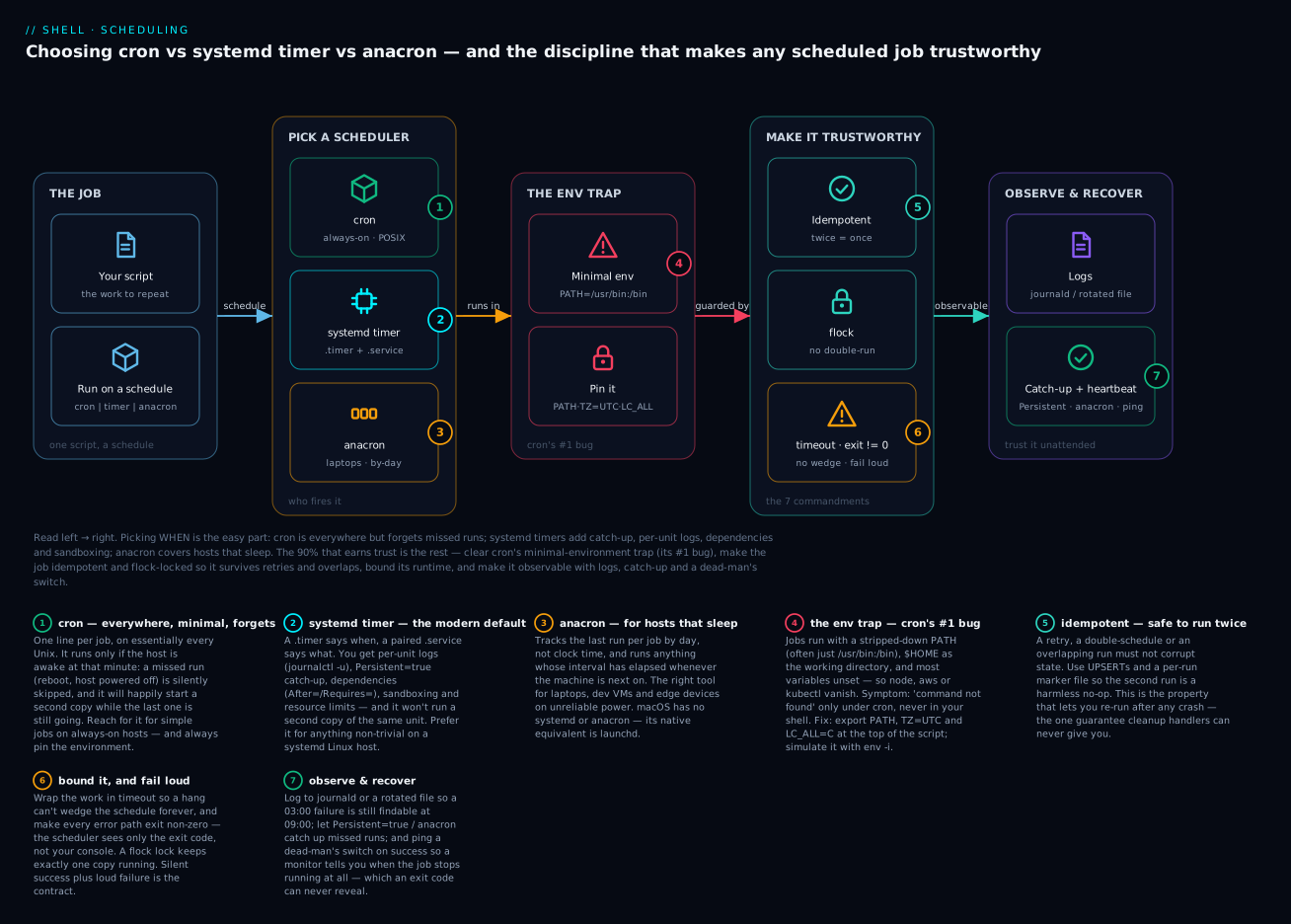
Read the diagram left → right: your one job can be handed to cron (everywhere, but it forgets missed runs), a systemd timer (catch-up, journald logs, dependencies, sandboxing), or anacron (for hosts that sleep) — but whichever you pick, the job only becomes trustworthy once you clear cron’s minimal-environment trap and wrap the work in the discipline every scheduled job needs: idempotency, a flock lock, a timeout, honest exit codes, and observable logs with catch-up.
Every team’s first scheduled job goes into cron. Eventually one of these things happens:
- The job runs at 03:00 daily, but the server reboots overnight and the job is silently skipped — nobody notices for weeks.
- A deployment causes the job to take 90 minutes instead of 5; cron starts a second copy at 03:00 the next day, and the two trample each other.
- A laptop or developer VM that’s only on during work hours keeps “missing” its weekly task.
- The script writes to a file, the user it runs as has different
PATHthan yours, and you spend an afternoon figuring out whynodeisn’t found. - The cron job logs to
/var/log/syslog, which gets rotated, and now you can’t find when the job last failed. - You move from VMs to systemd-managed instances, and want first-class status, restart, and dependency tracking.
This lesson covers the three production-grade schedulers in Linux:
cron— the classic, everywhere, simple, but minimal.systemdtimers — modern, integrated with the service manager, far more capable.anacron— for machines that aren’t always on (laptops, dev VMs, edge devices).
Plus the non-negotiable patterns every scheduled job must follow: idempotency, concurrency locks, explicit PATH/TZ, output capture.
By the end, you’ll know which scheduler to choose, how to write jobs that don’t double-run, and how to operate them without surprises.
1. The three schedulers — a 30-second overview
cron |
systemd timer |
anacron |
|
|---|---|---|---|
| When to use | Simple, must-run-now jobs on always-on hosts | Anything serious on systemd-managed hosts | Daily/weekly jobs on intermittent hosts (laptops, edge) |
| Granularity | Minute | Microsecond (effectively second) | Day |
| Catch up after downtime? | No | Yes (Persistent=true) |
Yes |
| Logs to | Inherits stdout/stderr (often mailed) | journald, queryable per-unit | A log file (/var/log/anacron.log) |
| Dependencies on other services | No | Yes (After=, Requires=) | No |
| Resource limits / sandboxing | No | Yes (cgroups, NoNewPrivileges, etc.) | No |
| Available everywhere? | Almost (POSIX) | Linux + systemd only | Linux, often pre-installed |
| Config style | One line per job | Two unit files (.service + .timer) |
One line per job |
Rule of thumb: on a modern systemd-based Linux server, prefer systemd timers for anything non-trivial. Use cron for legacy compatibility, simple short jobs, or where systemd isn’t available. Use anacron if uptime is unreliable.
2. cron — the everywhere scheduler
2.1 Crontab syntax
*  *  *  *  *  command-to-run
│  │  │  │  │
│  │  │  │  └─── day of week (0-7, Sun=0 or 7)
│  │  │  └────── month (1-12)
│  │  └───────── day of month (1-31)
│  └──────────── hour (0-23)
└─────────────── minute (0-59)
Common patterns
# Every minute
* * * * * /usr/local/bin/heartbeat

# Every 5 minutes
*/5 * * * * /usr/local/bin/poll

# Every hour at :15
15 * * * * /usr/local/bin/sync-feeds

# Every day at 03:00
0 3 * * * /usr/local/bin/nightly-backup

# Every Monday at 04:30
30 4 * * 1 /usr/local/bin/weekly-report

# 1st of every month at midnight
0 0 1 * * /usr/local/bin/monthly-rollup

# Every weekday at 09:00 (Mon-Fri)
0 9 * * 1-5 /usr/local/bin/biz-hour-task

# Every 15 minutes between 08:00 and 18:00
*/15 8-18 * * * /usr/local/bin/intraday
Special strings (most cron implementations)
@reboot   /usr/local/bin/on-startup
@hourly   /usr/local/bin/hourly        # = 0 * * * *
@daily    /usr/local/bin/daily         # = 0 0 * * *
@weekly   /usr/local/bin/weekly        # = 0 0 * * 0
@monthly  /usr/local/bin/monthly       # = 0 0 1 * *
@yearly   /usr/local/bin/yearly        # = 0 0 1 1 *
Field-value shorthands worth knowing. Inside any field:
*= every value;a-b= an inclusive range (1-5);a,b,c= a list (0,15,30,45);*/n= a step (*/5= every 5th value from the start of the range); and steps combine with ranges (0-30/10= 0,10,20,30). Months and weekdays also accept three-letter names (jan,mon) in most implementations, though numbers are more portable. Weekday numbering is the classic gotcha:0and7both mean Sunday, so0-6and1-7are not the same set —1-7is Mon–Sun (i.e. everything),0-6is Sun–Sat (also everything), butmon-sunwritten as1-0is a broken range. Stick to0-6or names.
2.2 Where cron jobs live
Three places, increasing in scope:
crontab -e                              # Per-user crontab. ${USER}'s view.
crontab -l                              # List current user's crontab.
sudo crontab -e -u alice                # Edit alice's crontab as root.

# System-wide:
/etc/crontab                            # Has an extra "user" field
/etc/cron.d/*                           # Drop-in files, same format as /etc/crontab
/etc/cron.{hourly,daily,weekly,monthly}/*  # Scripts run by run-parts
The /etc/cron.d/* drop-in is the right place for system jobs. Each file looks like:
# /etc/cron.d/myapp-backup
SHELL=/bin/bash
PATH=/usr/local/sbin:/usr/local/bin:/usr/sbin:/usr/bin:/sbin:/bin
MAILTO=ops@example.com

0 2 * * *  myapp  /usr/local/bin/myapp-backup
Note the 6-field format in /etc/cron.d and /etc/crontab: minute hour DoM month DoW user command. Per-user crontabs (from crontab -e) don’t have the user field.
The
/etc/cron.dailyfilename trap. Scripts dropped into/etc/cron.{hourly,daily,weekly,monthly}/are executed byrun-parts, which — by default — only runs files whose names consist of letters, digits, underscores and hyphens. A script namedbackup.shis silently skipped because of the dot in the extension; rename it tobackup(no extension) andchmod +xit. Preview exactly what would run withrun-parts --test /etc/cron.daily— it lists the filenames it accepts without executing them. This one catches everybody once.
2.3 The cron environment — the #1 source of “works on my machine” bugs
Cron runs jobs in a minimal environment:
HOME,LOGNAME,SHELLare set.PATHis set, but to a minimal value (often/usr/bin:/bin).- Most other variables are not inherited.
- The working directory is
$HOME.
This is why node or aws or kubectl runs fine for you in an ssh shell but errors with “command not found” in cron — the binaries are installed somewhere not in cron’s PATH.
The reason your interactive shell “just works” is that your login shell sources /etc/profile, ~/.bashrc, ~/.profile and friends, which is where all your PATH additions, nvm, pyenv, rbenv, aliases and exported variables come from. cron sources none of that. A cron job is closer to running your script under env -i (an empty environment) than to running it in your terminal — so anything your terminal set up for you is simply absent.
The fix: set environment explicitly at the top of the cron file or inside the script.
# At the top of /etc/cron.d/myapp:
SHELL=/bin/bash
PATH=/usr/local/sbin:/usr/local/bin:/usr/sbin:/usr/bin:/sbin:/bin
TZ=UTC
LC_ALL=C

0 3 * * * myapp /usr/local/bin/myapp-job
Or — and this is the more robust pattern — set them in the script itself. The script should not depend on the cron environment.
#!/usr/bin/env bash
set -Eeuo pipefail
export PATH=/usr/local/sbin:/usr/local/bin:/usr/sbin:/usr/bin:/sbin:/bin
export TZ=UTC LC_ALL=C
# ... rest of script
That way, the script runs the same when you invoke it manually for testing as it does from cron.
2.4 Output and MAILTO
cron captures stdout and stderr from each job and mails it to the user (or to MAILTO=) on every run that produces output. If no MTA is configured, that mail vanishes — and so does any error message your script printed.
Two approaches:
-
Suppress all output (silent success, mail-on-error only):
0 3 * * * myuser /usr/local/bin/job >/dev/null 2>&1Bad — you’ve thrown away all errors. Don’t do this without logging inside the script.
-
Redirect to a log file (recommended):
0 3 * * * myuser /usr/local/bin/job >> /var/log/myapp/job.log 2>&1Now you have a file to grep. Pair this with
logrotate(covered later in this lesson). -
Use
MAILTO=for actual alerts:MAILTO=ops@example.com 0 3 * * * myuser /usr/local/bin/jobOutput → email. If your script runs cleanly with no output, no email. Print on errors and you get notified. Requires a working local MTA (
postfix,ssmtp, etc.).
The best pattern is all of them: log to file inside the script (so you have an authoritative record), keep stderr quiet on success, and use MAILTO= for the rare error that escapes. (Set MAILTO="" — empty string — to disable cron mail entirely for a job that does its own alerting.)
2.5 cron operators by location
# View running cron service:
systemctl status cron       # Debian/Ubuntu
systemctl status crond      # Red Hat / CentOS / Rocky / Alma

# Logs (where cron itself logs):
journalctl -u cron -f       # Live tail
grep CRON /var/log/syslog   # Debian
grep CRON /var/log/cron     # Red Hat
cron’s own logs tell you when jobs started and ended, but not what they did. Always combine with a per-job log file inside the script.
3. systemd timers — the modern alternative
systemd timers are far more powerful than cron. The trade-off is two unit files instead of one cron line, but you get logs, dependencies, sandboxing, and recovery for free.
3.1 The two-file pattern
A timer needs a .service (what to run) and a .timer (when to run).
# /etc/systemd/system/myapp-backup.service
[Unit]
Description=Daily backup of myapp data
Wants=network-online.target
After=network-online.target

[Service]
Type=oneshot
User=myapp
ExecStart=/usr/local/bin/myapp-backup
StandardOutput=journal
StandardError=journal
Environment=TZ=UTC LC_ALL=C
# /etc/systemd/system/myapp-backup.timer
[Unit]
Description=Run myapp-backup daily at 03:00 UTC

[Timer]
OnCalendar=*-*-* 03:00:00 UTC
Persistent=true
RandomizedDelaySec=300

[Install]
WantedBy=timers.target
Enable + start the timer (not the service — the timer will trigger the service):
sudo systemctl daemon-reload
sudo systemctl enable --now myapp-backup.timer
The .timer and .service share a base name (myapp-backup), which is how systemd pairs them automatically. If you want a timer to trigger a differently named service, add Unit=other.service under [Timer].
3.2 The key timer directives
OnCalendar= — calendar-based scheduling
OnCalendar=*-*-* 03:00:00 UTC          # Daily at 03:00 UTC
OnCalendar=Mon..Fri 09:00 UTC          # Weekdays at 09:00
OnCalendar=*-*-01 00:00 UTC            # 1st of every month
OnCalendar=hourly                       # Every hour at :00
OnCalendar=*:0/15                       # Every 15 minutes
OnCalendar=Mon *-*-* 04:30 UTC          # Every Monday at 04:30
OnCalendar=*-*-* *:00:30                # 30 seconds past every minute
The grammar is WEEKDAY YEAR-MONTH-DAY HOUR:MINUTE:SECOND TZ. * is a wildcard. Test syntax with:
systemd-analyze calendar 'Mon..Fri 09:00 UTC'
# Original form: Mon..Fri 09:00 UTC
# Normalized form: Mon..Fri *-*-* 09:00:00 UTC
# Next elapse: Mon 2024-03-11 09:00:00 UTC
# (in UTC): Mon 2024-03-11 09:00:00 UTC
# From now: 18h left
systemd-analyze calendar is invaluable when learning the syntax — it tells you exactly when a given expression will next fire. Add --iterations=5 to see the next five firings, which makes “is this really every 15 minutes?” a one-command check instead of a guess.
OnBootSec= / OnUnitActiveSec= — relative scheduling
OnBootSec=15min                         # 15 min after boot
OnUnitActiveSec=1h                      # 1 hour after last activation
Useful for periodic-but-not-clock-aligned tasks (cleanup loops, telemetry pings).
Persistent=true — catch up missed runs
[Timer]
OnCalendar=daily
Persistent=true
If the machine was off when the timer should have fired, it fires immediately on next boot. This is the killer feature vs cron, which just silently skips missed runs.
A caveat worth pinning down precisely: Persistent= defaults to false in systemd — it is not implied by OnCalendar=daily, hourly, or any other shortcut. The reason people assume it’s automatic is that the periodic *.timer units distributions ship (logrotate.timer, apt-daily.timer, man-db.timer, …) set Persistent=true themselves. For your own timers, always set it explicitly when you want missed runs to catch up — never rely on a default. (systemd stores the last-trigger timestamp under /var/lib/systemd/timers/; see Going deeper.)
RandomizedDelaySec= — avoid the thundering herd
[Timer]
OnCalendar=*-*-* 03:00 UTC
RandomizedDelaySec=300
The job will fire at a random time within 300 seconds of 03:00. If you have 100 hosts that all back up to the same S3 bucket, this prevents all of them from hitting the bucket at exactly the same instant.
3.3 The service unit — what to run
[Service]
Type=oneshot                            # One-shot job (vs Type=simple for daemons)
User=myapp                              # Run as this user (no need for sudo crontab)
Group=myapp
ExecStart=/usr/local/bin/myapp-backup
WorkingDirectory=/opt/myapp
Environment=TZ=UTC LC_ALL=C
EnvironmentFile=/etc/myapp/env

# Logging:
StandardOutput=journal                  # → journalctl -u myapp-backup.service
StandardError=journal

# Resource limits:
MemoryMax=2G
CPUQuota=50%
TimeoutStartSec=30min                   # Kill if it runs longer than this

# Sandboxing:
NoNewPrivileges=true
PrivateTmp=true
ProtectSystem=strict
ReadWritePaths=/var/lib/myapp /var/log/myapp
Type=oneshot is the right type for scheduled scripts: systemd considers the unit “active” only while the script is running, then the unit goes “inactive” again. It’s exactly the model for one-off scheduled work.
3.4 Operating systemd timers
# List all active timers, sorted by next run:
systemctl list-timers

# List all timers including inactive ones:
systemctl list-timers --all

# Status of one timer:
systemctl status myapp-backup.timer
systemctl status myapp-backup.service   # Last run results

# Force a run now:
systemctl start myapp-backup.service

# Disable / enable:
systemctl disable --now myapp-backup.timer
systemctl enable --now myapp-backup.timer

# Logs (last 100 lines):
journalctl -u myapp-backup.service -n 100

# Logs since last hour:
journalctl -u myapp-backup.service --since '1 hour ago'

# Follow live:
journalctl -u myapp-backup.service -f
Compare with cron, where there’s no equivalent of list-timers (you have to read crontabs from multiple locations) and no equivalent of journalctl -u (logs are interleaved in syslog).
The list-timers output has two time columns that trip people up at first: NEXT/LEFT is when the timer fires next and how long until then; LAST/PASSED is when it last fired and how long ago. If LAST is n/a on a timer you expected to have run, it hasn’t fired since boot — a strong hint that the schedule (or the enable) is wrong.
3.5 User timers
You can run timers as a non-root user without root privileges:
# As your user:
mkdir -p ~/.config/systemd/user
$EDITOR ~/.config/systemd/user/personal-backup.service
$EDITOR ~/.config/systemd/user/personal-backup.timer

systemctl --user daemon-reload
systemctl --user enable --now personal-backup.timer
systemctl --user list-timers
User timers run only while the user is logged in, unless you enable lingering:
sudo loginctl enable-linger $USER # User services start at boot, run forever.
Useful for personal cron-style tasks without needing root.
3.6 cron syntax → systemd timer cheat sheet
| Cron | Timer (OnCalendar=) |
|---|---|
* * * * * |
*:*:00 |
*/5 * * * * |
*:0/5 |
0 * * * * |
*:00 (or hourly shortcut) |
0 3 * * * |
*-*-* 03:00 UTC |
30 4 * * 1 |
Mon *-*-* 04:30 UTC |
0 0 1 * * |
*-*-01 00:00 UTC |
0 9 * * 1-5 |
Mon..Fri *-*-* 09:00 UTC |
*/15 8-18 * * * |
*-*-* 08..18:0/15 UTC |
@reboot |
OnBootSec=1min (or use a .service with WantedBy=multi-user.target) |
4. anacron — for machines that aren’t always on
Cron and systemd timers (without Persistent=true) assume the machine is up when the schedule fires. For laptops, edge devices, or developer VMs, this assumption breaks.
anacron solves this by tracking when each job last ran, in /var/spool/anacron/<jobname>, and running any job whose interval has elapsed when anacron itself runs.
4.1 The anacrontab format
# /etc/anacrontab
SHELL=/bin/bash
PATH=/usr/local/sbin:/usr/local/bin:/usr/sbin:/usr/bin:/sbin:/bin

# period (days)  delay (min)  job-id          command
1               5             daily.backup    /usr/local/bin/daily-backup
7               25            weekly.report   /usr/local/bin/weekly-report
30              45            monthly.rollup  /usr/local/bin/monthly-rollup
- period — how often (in days).
1= daily,7= weekly. - delay — wait this many minutes after anacron starts before running, to avoid load spike.
- job-id — unique name; the timestamp file
/var/spool/anacron/job-idtracks last run. - command — what to run.
4.2 How anacron is triggered
anacron is not a daemon. It runs once and exits. It needs to be triggered:
- Most distros wire it via cron:
/etc/cron.daily/anacrontriggersanacron -s. - Or via systemd:
anacron.timeris shipped on many distros and fires hourly.
The flow:
- Machine boots up.
anacronruns (via cron-launched script or its own systemd timer).- For each job in
/etc/anacrontab:- Check
/var/spool/anacron/<job-id>— is it older thanperioddays? - If yes, sleep
delayminutes, then run. - If no, skip.
- Check
- Update timestamp on success.
So your laptop powered off for 4 days will, on next boot, run all daily and weekly jobs — once each.
4.3 When anacron is the right choice
- Developer VMs that are off overnight.
- Laptops that may be closed during scheduled times.
- Edge devices on intermittent power.
- Systems where you can’t predict uptime.
For 24/7 servers, prefer systemd timers with Persistent=true — anacron’s day-granularity is too coarse for most server workloads.
5. The non-negotiable patterns for scheduled jobs
Whichever scheduler you pick, every scheduled job must satisfy these properties:
5.1 Idempotency — running twice ≡ running once
If a job is interrupted, retried, or accidentally double-scheduled, its second run must not break things. Concrete examples:
Bad (not idempotent — accumulates duplicates):
psql -c "INSERT INTO daily_summary (date, total) VALUES (CURRENT_DATE, $total)"
Good (idempotent — UPSERT):
psql -c "INSERT INTO daily_summary (date, total) VALUES (CURRENT_DATE, $total)
         ON CONFLICT (date) DO UPDATE SET total = EXCLUDED.total"
Bad (not idempotent — appends to file):
echo "$DATE: $count records" >> /var/log/daily.log
Good — appending is fine if duplication is harmless, but for accounting/billing data, you need a way to detect “already processed”:
marker="/var/lib/myapp/processed/$DATE"
if [[ -f $marker ]]; then
  log_info "Already processed $DATE — skipping"
  exit 0
fi
process_data
touch "$marker"
The marker pattern is universal: at the start of any job, check whether this iteration has already completed. If yes, skip.
5.2 Concurrency control — two copies must not run simultaneously
The classic failure: a job that normally takes 5 minutes today takes 2 hours. Cron starts a second instance an hour into the first. Now you have two scripts both writing to the same database / files / S3 keys.
The fix is flock (covered in detail in L16). One-line invocation:
0 3 * * * myuser /usr/bin/flock -n /var/run/myjob.lock /usr/local/bin/myjob
Or inside the script (more flexible, lets you log “skipped”):
#!/usr/bin/env bash
set -Eeuo pipefail

LOCK=/var/run/myjob.lock
exec 9>"$LOCK"
if ! flock -n 9; then
  echo "Another instance is running, exiting." >&2
  exit 0
fi

# ... real work ...
flock -n = non-blocking; if locked, exit immediately. Use flock -w 60 to wait up to 60 seconds for the lock instead.
In systemd, you can declare a service Restart=no with Type=oneshot and let RemainAfterExit=no handle the “this unit is currently running” status — but flock is still the safer belt-and-braces approach if the same script can be invoked manually.
5.3 Explicit environment — PATH, TZ, LC_ALL
Every scheduled job script should start with:
#!/usr/bin/env bash
set -Eeuo pipefail
export PATH=/usr/local/sbin:/usr/local/bin:/usr/sbin:/usr/bin:/sbin:/bin
export TZ=UTC
export LC_ALL=C
Don’t trust the scheduler’s environment. Don’t trust which version of node or python is in PATH. Use absolute paths for any binary not in the standard locations:
/opt/node/bin/node /opt/myapp/index.js
/usr/local/bin/aws s3 cp file s3://bucket/file
5.4 Log everything — to a file the script controls
LOG=/var/log/myapp/job-$(date -u +%Y-%m-%dT%H:%M:%SZ).log
exec >>"$LOG" 2>&1
echo "=== run $(date -u +%FT%TZ) ==="
exec >>"$LOG" 2>&1 redirects all subsequent stdout/stderr to the log file. Now even if the scheduler eats the output, you have it.
For systemd, StandardOutput=journal goes to journald, queryable per-unit — usually you don’t need an extra log file. For cron, you almost always do.
5.5 Exit code discipline
Cron and systemd both interpret the exit code:
0= success (silent in cron, “active (exited)” in systemd).- non-zero = failure (cron emails it; systemd marks the unit failed).
Every error path in your script should exit 1 (or another non-zero value). The set -e from strict mode handles many cases, but:
if ! curl -fsS "$URL" -o "$file"; then
  echo "Failed to fetch $URL" >&2
  exit 1
fi
Don’t print “ERROR: …” and continue. The scheduler can’t see your console; it only sees the exit code.
5.6 Timeouts — don’t wedge forever
A job that hangs forever will block the next scheduled run (with flock) or pile up parallel instances (without). Add an outer timeout:
# In the script:
timeout --signal=TERM --kill-after=30s 1h /usr/local/bin/inner-task

# Or systemd:
[Service]
TimeoutStartSec=1h
After the timeout, the job is killed. Combined with retries (next section), this turns “infinite hang” into “logged failure, retry next run.”
6. Drift-free patterns
6.1 The “drift” problem
Suppose you run a job hourly that takes ~6 minutes and posts to https://api/events:
- Hour 1: starts at 12:00:00, ends at 12:06:00.
- Hour 2: starts at 13:00:00, ends at 13:06:00.
That’s fine. But consider a job that runs every 6 minutes (*/6 * * * *) and itself takes 7 minutes occasionally:
- 12:00 starts, ends 12:07.
- 12:06 wants to start, but
flockblocks → skipped. - 12:12 starts.
You missed an iteration. With OnUnitActiveSec=6min in systemd, the timer is rearmed after the previous run finishes, not on a fixed schedule, so you never overlap or drift.
[Timer]
OnBootSec=1min                          # First run, 1 min after boot
OnUnitActiveSec=6min                    # Then 6 min after each finish
This pattern is rarely available in cron (you’d have to fake it with a self-rescheduling script). For “every N minutes after the previous one finished”, use systemd timers.
6.2 Calendar drift on long-running tasks
If your “daily 03:00” job takes 90 minutes, today it starts at 03:00 and ends at 04:30. Tomorrow, it starts at 03:00 again — fine. But what if you wanted to chain it with another job (“the report runs after the backup”)?
In cron: hard-coded delay (0 5 * * *), hope the backup is done. Brittle.
In systemd: dependency:
# myapp-report.service
[Unit]
Description=Daily report
After=myapp-backup.service
Requires=myapp-backup.service          # Pull in backup if it isn't running

[Service]
Type=oneshot
ExecStart=/usr/local/bin/myapp-report
# myapp-report.timer
[Timer]
OnCalendar=*-*-* 03:30 UTC             # Schedule report at 03:30
Persistent=true
After=myapp-backup.service makes systemd wait for the backup unit to finish before starting the report. No hard-coded delay; works correctly even if the backup runs long.
Note: this only works if the backup is also a systemd unit (e.g. triggered by its own timer, or by the report’s Requires=). cron jobs aren’t visible to systemd dependency tracking.
6.3 Retries with exponential backoff
A job that needs to fetch from a flaky API should retry. This is inside the script, not at the scheduler level:
fetch_with_retry() {
  local url=$1 out=$2
  local attempt=0 max=5 delay=10
  while (( attempt < max )); do
    if curl -fsS --max-time 60 "$url" -o "$out"; then
      return 0
    fi
    attempt=$((attempt + 1))
    if (( attempt < max )); then
      log_warn "Fetch failed, retry $attempt/$max in ${delay}s"
      sleep "$delay"
      delay=$((delay * 2))
    fi
  done
  log_error "Failed after $max attempts: $url"
  return 1
}
set -e will then propagate the non-zero exit and the scheduler will alert.
6.4 Jitter on multi-host fleets
If 100 hosts run 0 3 * * * against a shared service, all 100 hit at exactly 03:00:00. Spread the load:
In cron — randomise the delay:
# At start of script:
JITTER=$(( RANDOM % 300 ))             # 0..299 seconds
sleep "$JITTER"
In systemd — RandomizedDelaySec=:
[Timer]
OnCalendar=*-*-* 03:00 UTC
RandomizedDelaySec=300
By default RandomizedDelaySec= re-rolls the offset on every elapse. Add FixedRandomDelay=true (systemd v247+) and the offset becomes stable per host — derived from the machine ID and the unit name — so it doesn’t change between runs on the same host but is still spread across the fleet. That’s better than sleep $((RANDOM % N)), which re-randomises on every run. (Either way, the spread only helps if all hosts share the same OnCalendar= and clock.)
7. Logging and rotation
7.1 Logrotate for cron-managed log files
If your script writes to /var/log/myapp/job.log daily, you need to rotate it or it grows forever.
# /etc/logrotate.d/myapp
/var/log/myapp/*.log {
    daily
    rotate 14
    compress
    delaycompress
    missingok
    notifempty
    create 0640 myapp myapp
    sharedscripts
    postrotate
        # If the app holds the file open, signal it to reopen.
        # For a per-cron-run script, this is usually empty.
    endscript
}
logrotate itself runs daily via a cron job (/etc/cron.daily/logrotate). The settings:
daily— rotate every day.rotate 14— keep 14 old versions, then delete.compress— gzip old versions.delaycompress— don’t compress yesterday’s (so it’s still grep-able).missingok— don’t error if the log doesn’t exist yet.notifempty— don’t rotate empty files.create 0640 myapp myapp— create new log file with these perms.
7.2 systemd journald — usually no rotation needed
journald has built-in retention based on size and age, configured in /etc/systemd/journald.conf:
[Journal]
SystemMaxUse=2G
SystemMaxFileSize=200M
MaxRetentionSec=2week
For systemd-timer-managed jobs that log to journal, you don’t need logrotate.
7.3 Structured queries via journalctl
# All logs for one timer's service:
journalctl -u myapp-backup.service

# Last 7 days:
journalctl -u myapp-backup.service --since '7 days ago'

# Just errors:
journalctl -u myapp-backup.service -p err

# JSON output (for piping into jq):
journalctl -u myapp-backup.service -o json | jq 'select(.PRIORITY <= "3")'
Far more queryable than grepping files. This is one of the strongest arguments for systemd timers.
8. Choosing between cron, systemd timer, and anacron
A decision tree:
Is the host always-on (server)?
├── No → anacron (laptops, intermittent hosts)
└── Yes
    ├── Is it a systemd-managed Linux?
    │   ├── No → cron (BSD, alpine without OpenRC-systemd, busybox)
    │   └── Yes
    │       ├── Is the job trivial (1 line, no deps, no monitoring needs)?
    │       │   ├── Yes → cron (faster to set up)
    │       │   └── No → systemd timer (better in every other dimension)
Specific cases that lean systemd:
- Need to chain jobs (
After=/Requires=). - Need resource limits (
MemoryMax=,CPUQuota=). - Need sandboxing (
PrivateTmp=,NoNewPrivileges=). - Need queryable per-job logs (
journalctl -u). - Need to catch up missed runs (
Persistent=true). - Need fine-grained intervals or “after previous finishes” semantics.
Specific cases that lean cron:
- Single-line, well-known job on a system where everyone knows where to look.
- Container with no systemd (alpine, distroless).
- BSD or Solaris.
- Trivially short job that has no operational complexity.
Specific cases that mandate anacron:
- Laptops and developer VMs.
- IoT/edge devices on unreliable power.
8.1 Heterogeneous fleets
If you have a mix of systemd hosts and non-systemd containers, don’t try to use systemd timers on the containers — write the job for cron, run it identically across all hosts. Operational consistency > scheduler features.
9. End-to-end example: nightly backup with both schedulers
The same script (/usr/local/bin/nightly-backup) — written once, scheduled differently:
#!/usr/bin/env bash
# /usr/local/bin/nightly-backup
# Idempotent, locked, UTC-only nightly backup.

set -Eeuo pipefail
export PATH=/usr/local/sbin:/usr/local/bin:/usr/sbin:/usr/bin:/sbin:/bin
export TZ=UTC LC_ALL=C

SCRIPT_DIR=$(cd -- "$(dirname -- "${BASH_SOURCE[0]}")" && pwd)
source /usr/local/lib/myapp/lib/log.sh
source /usr/local/lib/myapp/lib/time.sh

LOCK=/var/run/nightly-backup.lock
exec 9>"$LOCK"
if ! flock -n 9; then
  log_warn "Another instance running, exiting."
  exit 0
fi

DATE=$(today_utc)
DEST="/srv/backups/$DATE"
MARKER="$DEST/.complete"

if [[ -f $MARKER ]]; then
  log_info "Backup for $DATE already complete — skipping"
  exit 0
fi

log_info "Starting backup → $DEST"
mkdir -p "$DEST"

# ... actual backup work ...
rsync -aP /data/ "$DEST/data/"

touch "$MARKER"
log_info "Backup for $DATE complete"
Schedule it via cron:
# /etc/cron.d/nightly-backup
SHELL=/bin/bash
PATH=/usr/local/sbin:/usr/local/bin:/usr/sbin:/usr/bin:/sbin:/bin
MAILTO=ops@example.com

5 3 * * *  myapp  /usr/local/bin/nightly-backup >> /var/log/myapp/backup.log 2>&1
Or schedule it via systemd:
# /etc/systemd/system/nightly-backup.service
[Unit]
Description=Nightly backup of /data
Wants=network-online.target
After=network-online.target

[Service]
Type=oneshot
User=myapp
Group=myapp
ExecStart=/usr/local/bin/nightly-backup
StandardOutput=journal
StandardError=journal
Environment=TZ=UTC LC_ALL=C
TimeoutStartSec=2h

# Sandboxing:
NoNewPrivileges=true
PrivateTmp=true
ProtectSystem=strict
ReadWritePaths=/srv/backups /var/log/myapp /var/run
# /etc/systemd/system/nightly-backup.timer
[Unit]
Description=Run nightly backup at 03:05 UTC

[Timer]
OnCalendar=*-*-* 03:05:00 UTC
Persistent=true
RandomizedDelaySec=300

[Install]
WantedBy=timers.target
sudo systemctl daemon-reload
sudo systemctl enable --now nightly-backup.timer
The script is identical. Idempotent (marker file). Locked (flock). UTC. Strict mode. Logs to its own log via the cron approach, or to journald via the systemd approach. Either way, the operational behaviour is the same.
Going deeper
You now have the working patterns. This section is the internals, edge cases and portability traps that separate “it ran once on my box” from “it behaves correctly across a fleet, through DST, on hosts that sleep, for years.”
cron’s most surprising rule: day-of-month and day-of-week are OR, not AND
This one has caught operators for four decades. If you restrict both the day-of-month field and the day-of-week field (i.e. neither is *), Vixie/ISC cron runs the job when either matches — not both. So:
0 0 13 * 5 # NOT "Friday the 13th". Runs on the 13th of every month, AND every Friday.
The crontab(5) manual states it plainly: when both day fields are restricted, the command runs when either field matches. To actually get “Friday the 13th only”, restrict just one field and guard the other in the script:
0 0 13 * *   root  [ "$(date +\%u)" = 5 ] && /usr/local/bin/friday-13th-job
#      ^ fire on every 13th, then the test gates it to Fridays (%u: 1=Mon … 7=Sun)
systemd does the opposite — its calendar fields are ANDed. OnCalendar=Fri *-*-13 fires only when it is Friday and the 13th, which is usually what you meant. This cron-OR versus systemd-AND difference is one of the most practical reasons to prefer timers for date-and-weekday schedules.
The % sign will silently truncate your cron command
Inside a crontab command, an unescaped % is turned into a newline, and everything after the first % is fed to the command as standard input. So this line does not do what it looks like:
0 3 * * * root /usr/local/bin/report --date=$(date +%Y-%m-%d) # BROKEN
cron truncates the command at the first %, so report runs with no --date and Y-%m-%d becomes stdin. Escape each percent as \%:
0 3 * * * root /usr/local/bin/report --date=$(date +\%Y-\%m-\%d) # works
The robust fix, as always, is to keep the crontab line trivial and move all logic (including the date call) into the script, where % behaves normally.
systemd: AccuracySec, the timezone story, and where the stamp lives
- Timers are not exact by default.
AccuracySec=defaults to 1 minute, so systemd is free to fire your03:00:00timer anywhere in the following minute to coalesce wake-ups and save power. For genuinely on-the-second firing, setAccuracySec=1us. Check the effective value withsystemctl show myapp-backup.timer -p AccuracySec. OnCalendaruses the system-local timezone unless you say otherwise. A bareOnCalendar=*-*-* 02:30in a timezone that observes DST can run twice (on the autumn fall-back day 02:30 happens twice) or zero times (on the spring forward day 02:30 doesn’t exist). SuffixUTC— as every example in this lesson does — and the problem disappears. systemd (v235+) also accepts a named timezone suffix likeAsia/Kolkata.- Catch-up state lives in
/var/lib/systemd/timers/stamp-<unit>.timer(system) or~/.local/share/systemd/timers/(user). Deleting a stamp makes aPersistent=truetimer treat the next boot as “never run” and fire once. That is occasionally a useful reset, and a good thing to know exists when debugging a timer that “keeps firing on boot.”
Overlap protection you get for free with systemd
Because a normal (non-templated) systemd unit can only be active once at a time, if the timer elapses while its .service is still running, systemd will not start a second copy — the elapsed trigger is effectively swallowed until the current run finishes. That is basic overlap protection cron never had: with cron, the schedule fires regardless of whether the previous run is done. It’s not a full substitute for flock (which also protects against manual invocations and cross-unit collisions), but for a purely timer-driven job it means the “job took longer than its interval and now two are running” failure simply can’t happen.
Least privilege: sandbox the job and score it
Scheduled jobs often run as root and touch sensitive paths, which makes them a juicy target. systemd’s sandbox directives let you shrink the blast radius with no code changes:
[Service]
DynamicUser=true            # ephemeral, allocated UID/GID — no persistent user to manage
ProtectSystem=strict        # entire filesystem read-only except ReadWritePaths=
ProtectHome=true            # /home, /root, /run/user hidden
PrivateTmp=true             # private /tmp, wiped after the run
NoNewPrivileges=true        # no setuid escalation
ProtectKernelTunables=true
RestrictAddressFamilies=AF_INET AF_INET6   # no unix/netlink sockets it doesn't need
SystemCallFilter=@system-service           # deny exotic syscalls
ReadWritePaths=/var/lib/myapp
Then score the exposure with a single command:
systemd-analyze security myapp-backup.service
# → an "Overall exposure" number from 0.0 (locked down) to 10.0 (wide open),
#   with a line-by-line list of each protection and whether it's on.
cron and anacron have no equivalent — the sandbox is a genuine systemd-only advantage for anything security-sensitive.
Portability: macOS launchd, containers, and BSD
The shell note for this course is worth repeating: systemd is Linux-only. Where you land off Linux:
-
macOS uses
launchd, not cron or systemd. cron still technically exists on macOS but is deprecated and limited, andflock(1)is absent (it’s part of Linux’s util-linux). The native tool is launchd: a property-list file in~/Library/LaunchAgents(per-user) or/Library/LaunchDaemons(system), withStartCalendarInterval(a cron-like dictionary) orStartInterval(seconds), loaded withlaunchctl bootstrap. Like anacron andPersistent=, launchd runs a missedStartCalendarIntervaljob when the Mac next wakes — so it also solves the sleeping-host problem.<!-- ~/Library/LaunchAgents/com.example.backup.plist : daily at 03:00 --> <dict> <key>Label</key><string>com.example.backup</string> <key>ProgramArguments</key><array><string>/usr/local/bin/backup</string></array> <key>StartCalendarInterval</key> <dict><key>Hour</key><integer>3</integer><key>Minute</key><integer>0</integer></dict> </dict> -
Containers usually have no init at all. distroless and alpine images ship neither systemd nor a cron daemon, and running a full cron inside a container fights PID 1. Schedule from outside: a Kubernetes
CronJob, the host’s systemd timer runningdocker run/podman run, or a small purpose-built runner like supercronic (a cron that logs to stdout and behaves as PID 1) baked in as the container’s command. Don’t bolt a system cron daemon into an image. -
BSD and Solaris: cron only — no systemd, no anacron. Write for cron and keep it POSIX.
Observability’s hardest case: alerting on the absence of a run
Exit-code alerting tells you when a job ran and failed. It cannot tell you when a job never ran at all — because someone wiped the crontab, disabled the timer, the host was retired, or the schedule silently drifted. That silent-death failure mode is the one that bites hardest, because everything looks fine.
The fix is a dead-man’s switch (heartbeat): the job pings a monitor on success, and the monitor alerts if the expected ping doesn’t arrive within a grace window. Append one line to the end of the job:
# Only reached if everything above succeeded (set -e aborts earlier on failure):
curl -fsS --retry 3 --max-time 15 "https://hc-ping.com/<your-uuid>" >/dev/null
Now “the 03:00 backup didn’t run” becomes an alert, not a discovery three weeks later. Hosted options (Healthchecks.io, Cronitor, Dead Man’s Snitch) and self-hosted ones all speak the same “ping-a-URL-on-success” protocol. This is the single most important monitoring pattern for scheduled work, and neither cron nor systemd provides it on their own.
Practice challenges
Work these in order — they climb from “translate a schedule” to “assemble a fleet-safe, self-monitoring job.” Try each before opening the solution. Where a snippet targets GNU/Linux (flock, systemd), the portability caveat is noted.
Challenge 1 — Translate English into cron (beginner)
Write the crontab lines for: (a) every 10 minutes; (b) every day at 06:30; © every weekday at 18:00; (d) the 1st of every month at 00:15.
<details> <summary>Solution</summary>
*/10 *  *  *  *    /usr/local/bin/a     # (a) every 10 minutes
30   6  *  *  *    /usr/local/bin/b     # (b) 06:30 daily
0    18 *  *  1-5  /usr/local/bin/c     # (c) 18:00 Mon–Fri
15   0  1  *  *    /usr/local/bin/d     # (d) 00:15 on the 1st
Why: the five fields are minute, hour, day-of-month, month, day-of-week; */10 is a step, 1-5 is a weekday range (Mon–Fri). Reading left→right and naming each field out loud prevents the classic “swapped hour and day-of-month” mistake.
</details>
Challenge 2 — Reproduce (then fix) the environment trap (beginner)
Without touching cron, demonstrate why aws/node/kubectl “vanishes” under cron, then show the fix. Use env -i to simulate cron’s stripped environment.
<details> <summary>Solution</summary>
# Simulate cron's minimal environment — most of your PATH is gone:
$ env -i /bin/sh -c 'echo "PATH=[$PATH]"; command -v aws || echo "aws: not found"'
PATH=[/usr/bin:/bin]            # representative — far shorter than your login PATH
aws: not found

# The fix: pin PATH inside the job, exactly as the script preamble does:
$ env -i /bin/sh -c 'export PATH=/usr/local/bin:/usr/bin:/bin; command -v aws && echo ok'
/usr/local/bin/aws
ok
Why: cron does not source your ~/.bashrc//etc/profile, so the PATH your terminal built up (nvm, Homebrew, /usr/local/bin, …) is absent — env -i reproduces that. Exporting an explicit PATH at the top of the script makes it behave identically by hand and on schedule.
</details>
Challenge 3 — Stop a slow job from double-running (intermediate)
Add a single-instance guard so that if the job is still running when the next tick fires, the second copy exits cleanly instead of trampling the first. Prove it by launching two copies.
<details> <summary>Solution</summary>
#!/usr/bin/env bash
set -Eeuo pipefail
LOCK=/var/run/myjob.lock
exec 9>"$LOCK"
if ! flock -n 9; then
  echo "another instance holds the lock — exiting" >&2
  exit 0
fi
echo "got the lock (PID $$); working…"; sleep 30
Run it in two terminals: the second prints “another instance holds the lock” and exits 0. Why: flock -n on fd 9 is an atomic kernel advisory lock that is released automatically when the process dies — no stale-lock cleanup, no check-then-act race. (flock is util-linux/Linux; on macOS/BSD it’s absent — fall back to an atomic mkdir "$LOCK.d" as the single-winner test.)
</details>
Challenge 4 — A catch-up, jittered systemd timer (intermediate)
Write the .service + .timer for “run /usr/local/bin/report every day at 02:00 UTC, catch up if the host was off, spread within 5 minutes across the fleet, and log to the journal.”
<details> <summary>Solution</summary>
# /etc/systemd/system/report.service
[Service]
Type=oneshot
ExecStart=/usr/local/bin/report
StandardOutput=journal
StandardError=journal
Environment=TZ=UTC LC_ALL=C
# /etc/systemd/system/report.timer
[Timer]
OnCalendar=*-*-* 02:00:00 UTC
Persistent=true
RandomizedDelaySec=300

[Install]
WantedBy=timers.target
Enable with systemctl daemon-reload && systemctl enable --now report.timer. Why: Persistent=true fires a missed run on next boot (it defaults to false, so it must be explicit); RandomizedDelaySec=300 de-synchronises the fleet; Type=oneshot + StandardOutput=journal gives per-unit logs via journalctl -u report.service.
</details>
Challenge 5 — Convert a cron schedule and verify it (advanced)
Convert */15 8-18 * * 1-5 (every 15 minutes, 08:00–18:00, weekdays) to a systemd OnCalendar= expression, and give the command that prints the next three firings so you don’t have to trust your translation.
<details> <summary>Solution</summary>
OnCalendar=Mon..Fri *-*-* 08..18:0/15
$ systemd-analyze calendar --iterations=3 'Mon..Fri *-*-* 08..18:0/15'
  Normalized form: Mon..Fri *-*-* 08..18:00/15:00
   Next elapse: Mon 2026-07-20 08:00:00 UTC          # representative
      Iteration: Mon 2026-07-20 08:15:00 UTC
      Iteration: Mon 2026-07-20 08:30:00 UTC
Why: 08..18 is an hour range, 0/15 steps minutes by 15 from 0, and Mon..Fri restricts the weekday. systemd-analyze calendar --iterations=N prints the actual next firings, turning “I think this is right” into “I can see it’s right” — always verify calendar expressions this way.
</details>
Challenge 6 — Make a job idempotent and self-monitoring (advanced)
You inherit a nightly job that runs INSERT INTO daily_summary … and appends a line to a log. Rewrite it so (a) re-running the same day is harmless, and (b) a monitor is alerted if the job ever stops running at all — not just when it errors.
<details> <summary>Solution</summary>
#!/usr/bin/env bash
set -Eeuo pipefail
export PATH=/usr/local/sbin:/usr/local/bin:/usr/sbin:/usr/bin:/sbin:/bin
export TZ=UTC LC_ALL=C

DATE=$(date -u +%F)
MARKER="/var/lib/myapp/processed/$DATE"
[[ -f $MARKER ]] && { echo "already done for $DATE"; exit 0; }   # (a) idempotent guard

# (a) UPSERT instead of blind INSERT, so a retry updates rather than duplicates:
psql -qc "INSERT INTO daily_summary(date,total) VALUES ('$DATE', $total)
          ON CONFLICT (date) DO UPDATE SET total = EXCLUDED.total"

touch "$MARKER"

# (b) dead-man's switch: only reached on full success (set -e aborts earlier on failure)
curl -fsS --retry 3 --max-time 15 "https://hc-ping.com/<uuid>" >/dev/null
Why: the marker file plus ON CONFLICT … DO UPDATE make a second run a no-op / an overwrite instead of a duplicate — safe to retry after any crash. The trailing heartbeat ping fires only if everything above succeeded, so the monitor alerts on the absence of a run (wiped crontab, disabled timer, dead host) — the one failure mode an exit code can never reveal.
</details>
Common beginner mistakes
These are conceptual traps — wrong mental models — distinct from the symptom→fix operational notes above.
“cron will catch up a job it missed while the box was down.” No — plain cron silently skips any run whose scheduled minute passed while the host was off, and never tells you. Only systemd Persistent=true, anacron, or macOS launchd catch up. The right model: if catch-up matters, choose a scheduler that does it — don’t assume the missed run will happen later.
“It runs fine when I run the script by hand, so cron will run it fine too.” Your interactive shell sourced your profile, built up a rich PATH, and set dozens of variables; cron sources none of that and starts from a minimal PATH with $HOME as the working directory. The right model: the script must pin its own environment, and you test it with env -i (or sudo -u theuser env -i), not from your comfy login shell.
“Setting both a day-of-month and a weekday means it runs only when both match.” In cron it’s OR, not AND: 0 0 13 * 5 fires on the 13th and on every Friday. The right model: restrict only one day field and guard the other inside the script — or use a systemd timer, whose fields are ANDed.
“>/dev/null 2>&1 is good hygiene.” It throws away every error message the job ever prints, so when it breaks you have nothing. The right model: log inside the script (to a file or journald), and only silence cron’s mail after you have your own authoritative record; use MAILTO= for the errors that should page someone.
“A job that takes longer than its interval just delays the next one.” Under cron it does not — the next tick starts a second copy regardless, and now two runs corrupt shared state. The right model: put a flock guard on every recurring job (or use a systemd timer, which won’t start a second copy of the same unit).
“My OnCalendar=03:00:00 timer fires exactly at 03:00:00.” Not by default — AccuracySec= defaults to 1 minute, so systemd may fire anywhere in that minute to coalesce wake-ups. The right model: accept the minute of slack (it’s usually fine), or set AccuracySec=1us when you genuinely need on-the-second timing.
“A zero exit code means the job did its work.” It only means the last command returned 0 — a job that no-op’d, took an early exit 0, or was never scheduled at all also “succeeds” by never failing. The right model: assert success with a heartbeat/dead-man’s switch; never infer that work happened from the mere absence of an error.
“%Y-%m-%d in my crontab line is fine.” An unescaped % in a crontab command becomes a newline, and everything after the first % is sent to the command as stdin — silently truncating your command. The right model: escape each as \%, or (better) keep the crontab line trivial and put the date call inside the script.
“kill in a job means SIGKILL, so I can’t clean up.” timeout and orchestrators send SIGTERM first and wait a grace period before SIGKILL — your job gets a chance to flush and exit. The right model: handle TERM, finish the in-flight write, and design so that even an eventual SIGKILL leaves a safe-to-retry state (idempotency + atomic writes).
Glossary
- cron — the classic Unix time-based scheduler daemon (
cron/crond); reads crontabs and runs each job’s command at the matching minute. Everywhere, minimal, forgets missed runs. - crontab — both the file format (five time fields + a command) and the
crontabcommand that edits a user’s table (-eedit,-llist,-utarget another user). - The five fields — minute (0–59), hour (0–23), day-of-month (1–31), month (1–12), day-of-week (0–7, Sun = 0 or 7), in that order, followed by the command.
/etc/cron.d— drop-in directory for system cron jobs; files use the 6-field format with an extra user column between the schedule and the command.run-parts— the helper that executes every (suitably named, executable) script in/etc/cron.{hourly,daily,weekly,monthly}/; it silently skips filenames containing dots or other punctuation.- Special strings —
@reboot,@hourly,@daily,@weekly,@monthly,@yearly: readable aliases for common schedules (@daily=0 0 * * *). MAILTO— crontab variable naming who receives a job’s stdout/stderr by email; empty (MAILTO="") disables mail for that crontab.- Minimal environment — the stripped-down environment cron gives a job: a short
PATH,$HOMEas cwd, no profile sourced, most variables unset. Source of the “command not found” bug. - systemd — the init system and service manager on most modern Linux distributions; provides timers as its native scheduler.
- Unit — systemd’s name for a managed object described by a config file; the relevant types here are
.service(what to run) and.timer(when to run). .timer/.servicepair — a timer unit triggers a same-named service unit; enable the timer, not the service.OnCalendar=— the timer directive for wall-clock schedules (WEEKDAY YEAR-MONTH-DAY HH:MM:SS TZ); fields are ANDed (unlike cron’s day fields).OnBootSec=/OnUnitActiveSec=— relative schedules: run N after boot, or N after the previous run finished (the drift-free “every N after the last one ended” pattern).Persistent=— iftrue, a missedOnCalendar=run fires on next boot. Defaults tofalse— set it explicitly for catch-up.RandomizedDelaySec=/FixedRandomDelay=— spread the fire time by a random offset (fleet jitter);FixedRandomDelay=truemakes that offset stable per host instead of re-rolling each run.AccuracySec=— how much slack systemd may take when firing a timer; defaults to 1 minute for power-coalescing. Set1usfor exact timing.Type=oneshot— the service type for a run-to-completion script: the unit is “active” only while it runs, then goes inactive.- journald /
journalctl— systemd’s logging service and its query tool;journalctl -u name.servicegives per-unit, filterable, structured logs. - User timer / lingering — a timer run under
systemctl --user(no root);loginctl enable-linger $USERlets it run at boot without an active login session. - anacron — a scheduler that runs jobs by elapsed days rather than clock time, catching up whenever the host is next on; for laptops and intermittently-powered hosts.
- anacrontab — anacron’s config (
/etc/anacrontab):period(days) delay(min) job-id command, with last-run timestamps in/var/spool/anacron/. - launchd — macOS’s native init and scheduler (no cron/systemd); uses plist files with
StartCalendarInterval/StartIntervaland, like anacron, catches up missed runs on wake. flock— util-linux command / syscall for an advisory lock on a file descriptor; the lock releases automatically when the process dies. Absent on macOS/BSD.- Advisory lock — a lock only honoured by processes that also call
flock; the kernel doesn’t otherwise forbid access. The basis of single-instance guards. - Idempotent — safe to run more than once with the same net effect as running once; the property that makes retries and double-schedules harmless.
- Marker / state file — a small file (
touched on completion) a job checks at start to skip already-done work — the simplest idempotency mechanism. - UPSERT — an insert-or-update (
INSERT … ON CONFLICT DO UPDATE) that makes writing a row idempotent instead of duplicating on a retry. - Thundering herd / jitter — when many hosts fire the same schedule at the same instant and swamp a shared resource; jitter (random delay) spreads them out.
- Drift — the schedule slipping when a job runs longer than its interval;
OnUnitActiveSec=(fire N after each finish) avoids it. timeout(1)— wraps a command with a maximum runtime, sending SIGTERM (then SIGKILL after--kill-after) so a hang becomes a bounded, logged failure.- Exit code — the job’s success signal:
0= success, non-zero = failure. The only thing the scheduler sees; make every error path non-zero. logrotate— the tool that caps log-file growth by rotating, compressing and pruning old logs; runs daily via cron. Not needed for journald-logged jobs.- Dead-man’s switch / heartbeat — a monitor that alerts when an expected success ping fails to arrive, catching “the job never ran” — which exit-code alerting cannot.
TZ/ UTC — the timezone a job assumes; pinningTZ=UTCavoids DST double-runs and gaps and makes logs comparable across regions.
10. Quick reference card
cron — the must-knows
*  *  *  *  *  command      # min hour day month dow
@daily, @hourly, @reboot     # special strings

# Top of crontab/cron.d:
SHELL=/bin/bash
PATH=/usr/local/bin:/usr/local/sbin:/usr/sbin:/usr/bin:/sbin:/bin
TZ=UTC
MAILTO=ops@example.com
crontab -l                   # List
crontab -e                   # Edit
sudo crontab -e -u alice     # Edit alice's
systemctl status cron        # Service health
journalctl -u cron           # Cron daemon logs
systemd timers — the must-knows
systemctl list-timers              # All active
systemctl list-timers --all        # Including stopped
systemctl status myjob.timer       # Timer status
systemctl status myjob.service     # Last run
systemctl start myjob.service      # Run now
journalctl -u myjob.service -f     # Live logs
systemd-analyze calendar 'Mon..Fri 09:00 UTC'   # Test cron expr
# .timer
[Timer]
OnCalendar=*-*-* 03:00 UTC
Persistent=true
RandomizedDelaySec=300

[Install]
WantedBy=timers.target
Every scheduled script’s mandatory preamble
#!/usr/bin/env bash
set -Eeuo pipefail
export PATH=/usr/local/sbin:/usr/local/bin:/usr/sbin:/usr/bin:/sbin:/bin
export TZ=UTC LC_ALL=C

LOCK=/var/run/$(basename "$0").lock
exec 9>"$LOCK"
flock -n 9 || { echo "Already running"; exit 0; }
The 7 commandments of scheduled jobs
- Idempotent: running twice is identical to running once.
- Locked: only one instance at a time (
flock). - Pinned environment:
PATH,TZ=UTC,LC_ALL=Cset explicitly. - Logged: to a file or journald — never relying on cron’s mail.
- Bounded runtime: outer timeout so a hang doesn’t block forever.
- Exit-coded: every error path sets a non-zero exit.
- Jittered:
RandomizedDelaySec=orsleep $((RANDOM % N))on fleets.
11. Wrap-up
Cron has been the default scheduler for 40 years; it’s still fine for simple cases. But for production workloads on systemd-managed Linux, systemd timers are a clear upgrade: catch-up after downtime, journal-integrated logs, dependency tracking, sandboxing, resource limits, and fleet-friendly jitter — all without needing extra glue.
For laptops and intermittent hosts, anacron fills the gap that neither cron nor non-persistent systemd timers cover.
Whichever scheduler you pick, the seven commandments are non-negotiable: idempotency, locking, explicit environment, logging, timeouts, exit codes, jitter. Those discipline a job into something you can leave running and trust to behave.
Next: L21 — testing shell scripts with bats-core / shunit2. We’ll cover how to test the very functions we’ve been building (logging, retries, atomic writes, time helpers, scheduler-friendly wrappers), how to mock external commands, and how to wire test runs into CI so you find regressions before production does.