A CSV lands in Blob Storage every night — an export from a partner, a dump from an old system, a file someone drops in a folder — and somebody needs it inside a database table so a report can run against it. The hand-rolled answer is a script on a VM with a cron job, a connection string in a config file, and a pager when it silently stops. The managed answer is Azure Data Factory (ADF) — Azure’s cloud ETL/ELT (extract-transform-load) and data-integration service — and its single most important building block, the Copy activity, which moves data with no servers for you to run. This article builds exactly that: a pipeline that copies a CSV from Azure Blob Storage into a table in Azure SQL Database, the “hello world” of data engineering on Azure.
We build it three ways, so you understand what each piece is, not just where to click. First in the Azure portal (the ADF Studio visual canvas), because seeing the boxes connect makes the model concrete. Then with the az CLI to script it. Then as Bicep so the whole thing — factory, linked services, datasets, pipeline — is infrastructure-as-code you commit and redeploy. Along the way you meet the four nouns every ADF pipeline is made of: a linked service (a connection to a store), a dataset (a named pointer at data inside it), the Copy activity (the verb that moves bytes), and the integration runtime (the compute that does the copying). Get these four right once and every future pipeline is a variation on the theme.
By the end you will have a working pipeline you can trigger on demand or on a schedule, know how to confirm a run succeeded and read its rows-copied count, and be able to debug the four failures that bite every beginner: a firewall blocking the copy, a wrong-credential auth error, a CSV-to-table schema mismatch, and a malformed source file. Get the first copy right and the mapping data flows, parameterised pipelines and triggers all follow.
What problem this solves
Moving data between stores sounds trivial until you do it in production. The script-on-a-VM approach breaks in slow, expensive ways: the VM reboots mid-copy, the connection string sits in plain text, there is no retry on a transient blip, no record of what ran when, no alert when last night’s load silently produced zero rows, and somebody must keep the VM alive forever. Multiply that by a dozen partner feeds and you have a fragile cottage industry of cron jobs nobody fully understands.
Data Factory replaces all of it with a managed, serverless service. You declare what to copy and where; Azure runs it on compute it manages (the integration runtime), retries transient failures, records every run with row counts and durations, alerts on failure, and keeps credentials in managed identity or Key Vault. You pay per activity run and per data-movement-hour, not for an idle VM. The same Copy activity spans 90+ connectors — Blob, ADLS Gen2, SQL, Cosmos DB, Oracle, S3, Snowflake, SFTP, REST — so the pattern generalises to almost any source-to-sink.
Who hits this: every data engineer, every analytics team, every “we just need this file in the warehouse” request. CSV-to-SQL is the most common starting point because it is the most common real need — a flat file becoming rows in a relational table before anything downstream can use it. Learn this one shape and you have the skeleton for ingestion across the platform.
Learning objectives
By the end of this article you can:
- Explain the four core ADF building blocks — linked service, dataset, Copy activity, integration runtime — and how they fit.
- Author a Copy pipeline moving a CSV from Blob Storage into an Azure SQL table in the portal, the
azCLI, and Bicep. - Choose the right authentication for each linked service (managed identity vs key vs SQL auth) and grant least privilege.
- Configure the source and sink datasets: delimited-text settings, first-row-as-header, and table mapping.
- Run the pipeline with Debug and a trigger, then confirm success and read the rows-read / rows-copied metrics from the monitoring view and CLI.
- Diagnose the four beginner failures — firewall block, auth failure, schema/type mismatch, malformed source — using the exact error string and precise fix.
- Add a schedule trigger, understand what each option costs, and tear the lab down so it stops billing.
Prerequisites & where this fits
You need an Azure subscription with rights to create resources (Contributor on a resource group), the az CLI or Cloud Shell, and a SQL client for verification — sqlcmd, Azure Data Studio, or the portal’s Query editor. Basic comfort with a CSV (rows, a header, comma-separated values) and a relational table (columns with types) is assumed. You do not need to know ADF already — that is the point.
This sits at the start of the Data engineering track. Upstream are the two stores it connects: Azure Storage Account Fundamentals: Blobs, Files, Queues and Tables for the source, and Your First Azure SQL Database: Create, Configure Firewall Rules and Connect Securely for the sink — read those first if either is unfamiliar, because half the beginner failures here are really storage or SQL firewall problems in an ADF costume. Downstream, this Copy pipeline is the foundation for mapping data flows, parameterised pipelines, and event/schedule triggers. For sizing the target later, Azure SQL Database Purchasing Models: DTU vs vCore and How to Pick Without Overpaying covers it. Everything you build — factory, linked services, datasets, pipeline — lives inside the Data Factory in your resource group; the two stores it connects (the Blob container and the SQL table) live in their own services and are usually owned by the source-system and DBA teams respectively.
Core concepts
Four nouns and one verb make up every ADF pipeline. Internalise these and the rest is detail.
A linked service is a connection string with a name. It tells ADF how to reach a store — the storage account or SQL server, plus the credential — and you reuse it across many datasets. The credential can be a managed identity (the factory’s own Azure AD identity — the key-free default), an account key or SAS (Blob), or SQL authentication (username/password, SQL). This is the single most common place auth and firewall problems surface.
A dataset is a named pointer at data inside a linked service. Where the linked service says “this storage account,” the dataset says “this container, this file, comma-delimited with a header row”; for SQL it says “this table.” It references exactly one linked service. You create two: a source (the CSV in Blob) and a sink (the table in SQL).
The Copy activity is the verb that moves bytes from a source dataset to a sink dataset. It reads the source, optionally maps columns, writes the sink, and is where you set column mapping, write behaviour (append vs upsert), batching and fault tolerance. It lives inside a pipeline (an ordered collection of activities — here, just the one Copy). The vast majority of ingestion is “a Copy activity from A to B.”
The integration runtime (IR) is the compute that performs the copy. For cloud-to-cloud you rarely create one — the AutoResolveIntegrationRuntime (Azure-managed, serverless) handles Blob-to-SQL automatically. You only need a Self-Hosted Integration Runtime (SHIR) when a source sits on-premises or in a private network ADF cannot reach over the internet. The IR burns the data-movement compute you pay for.
A trigger is what starts a pipeline run. Run on demand (Debug or a manual trigger), on a schedule (nightly at 02:00), on a tumbling window (fixed contiguous slices — good for backfills), or on an event (a blob is created). You run yours manually first, then add a schedule trigger.
The four building blocks side by side
Pin the vocabulary down as a grid before the build:
| Building block | Definition | References | Example | Why it matters |
|---|---|---|---|---|
| Linked service | A connection + credential to a store | (the root) | ls_blob_source, ls_sql_sink |
Where auth/firewall errors live |
| Dataset | A named pointer at data in a store | One linked service | ds_csv_orders, ds_sql_orders |
Where schema/format settings live |
| Copy activity | Moves data source → sink | Two datasets | CopyOrdersCsvToSql |
The verb; mapping lives here |
| Pipeline | Ordered set of activities | The activities | pl_copy_orders |
The unit you run and schedule |
| Integration runtime | Compute that runs activities | (used by activities) | AutoResolveIntegrationRuntime |
What you pay for; default is fine |
| Trigger | What starts a run | The pipeline | manual, then trg_daily_2am |
On-demand vs scheduled vs event |
How a Copy activity actually runs
Knowing the order of a run lets you place a failure on the right step. The trigger creates a pipeline run; the IR connects and authenticates to the source (reading the CSV) and the sink (writing rows), then reports rows read/copied, volume and duration. The takeaway: every failure is at the source (cannot reach Blob, file missing, malformed row) or the sink (firewall, auth, type mismatch) — the error names which side — and the IR needs network and credential access to both stores, so the classic mistake is fixing one side and forgetting the other. The phases, what fails in each, and where you confirm:
| Phase | What happens | Can fail because | Where you see it |
|---|---|---|---|
| Trigger | Run created with a run ID | Trigger disabled / bad schedule | Monitor → Trigger runs |
| Source connect | IR authenticates to Blob | Wrong key/SAS; network rule blocks IR | Activity error: source side |
| Source read | CSV parsed row by row | File missing, bad delimiter, malformed row | Activity error: DelimitedText |
| Sink connect | IR authenticates to SQL | Firewall blocks IR; bad credential | SqlFailedToConnect |
| Sink write | Rows inserted in batches | Type mismatch, table missing, not-null | SqlOperationFailed |
| Complete | Metrics reported | (success) | Monitor → activity output |
Choosing authentication for each linked service
Auth is where most first pipelines stall, so decide it deliberately. For Blob: an account key, a SAS token, or managed identity. For SQL: SQL authentication or managed identity mapped to a database user. The secure default is managed identity on both sides — no secrets — needing two grants (Storage Blob Data Reader on the account, a contained DB user in SQL). Key/SQL-auth is faster for a first lab; this article shows that path, and the managed-identity grants in Security notes. The options and when to pick which:
| Store | Auth option | Secret? | Effort | When to use |
|---|---|---|---|---|
| Blob | Account key | Yes | Lowest | Quick labs |
| Blob | SAS token | Yes (expires) | Low | Scoped, time-bound access |
| Blob | Managed identity | No | Medium | Production default |
| SQL | SQL authentication | Yes | Lowest | Quick labs; legacy apps |
| SQL | Managed identity | No | Medium | Production default |
| Either | Key Vault-backed | In vault | Medium | Centralised secret governance |
The single rule: never paste a key-bearing connection string into pipeline JSON that lands in git. Use managed identity or reference Key Vault. The lab keeps the key inside the linked service (ADF stores it encrypted); the Bicep references the storage key via listKeys() at deploy time rather than hardcoding it.
The source and sink datasets in detail
The two datasets carry the format and schema decisions, and two settings cause the most confusing beginner failures.
Source (CSV) dataset (type DelimitedText): the column delimiter (comma default), the quote character ("), the encoding (UTF-8 default; Windows exports are often UTF-8-BOM or Latin-1), and crucially First row as header — if the first line is column names this must be checked, or ADF treats the header as a data row and types every column as text. Point a dataset at a folder and ADF copies every file in it.
Sink (SQL) dataset (type AzureSqlTable, one table): the table name (schema-qualified, dbo.Orders), whether to auto-create the table (convenient, but it infers nvarchar(max), usually unwanted), and the column mapping — matching names auto-map, differing names you map by hand. The settings most likely to cause a silent wrong result or a hard error:
| Setting | Lives on | Default | When to change | Gotcha if wrong |
|---|---|---|---|---|
| First row as header | Source | off | CSV has a header line | Header copied as data; columns all text |
| Column delimiter | Source | , |
TSV / pipe / semicolon files | Whole row in one column |
| Quote character | Source | " |
Non-standard quoting | Fields with commas split wrong |
| Encoding | Source | UTF-8 | Latin-1 / UTF-8-BOM | Garbled accents; BOM in first column |
| Table name | Sink | (you set it) | Always set | Wrong/missing → SqlOperationFailed |
| Auto create table | Copy sink | off | Quick load of a new table | Types inferred nvarchar(max) |
| Write behaviour | Copy sink | Insert | Upsert / overwrite needed | Duplicate rows on re-run |
Architecture at a glance
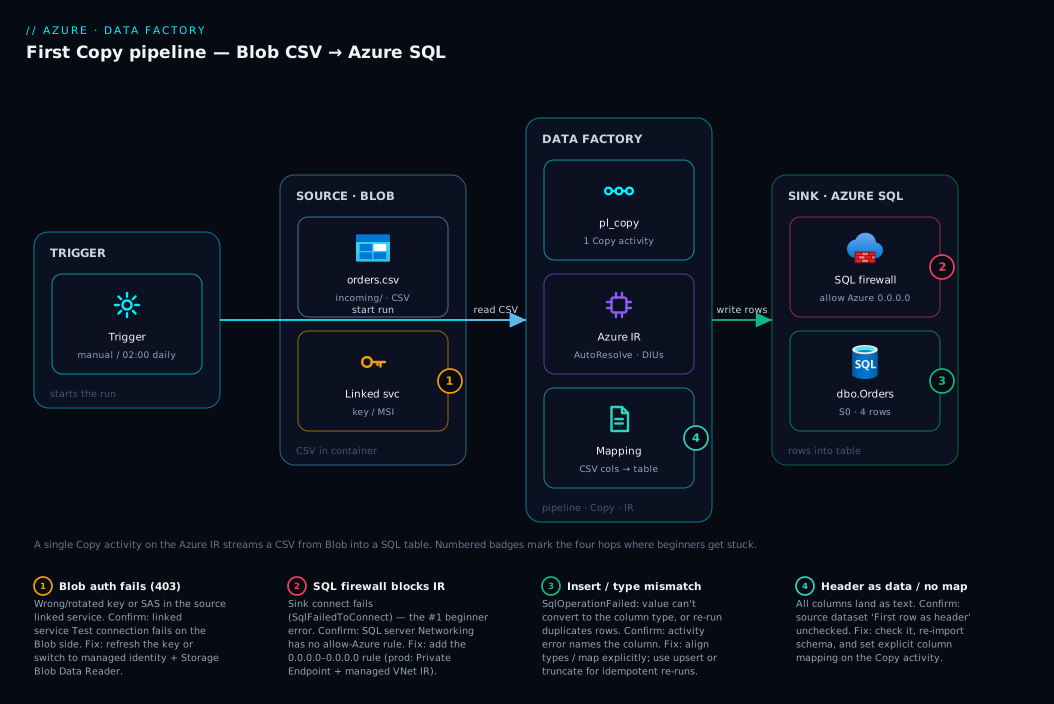
The pipeline is a short left-to-right path. On the left, the source zone: a Blob Storage container holding orders.csv, reached through a linked service and read through a DelimitedText dataset. In the middle, the Data Factory: a pipeline with a single Copy activity on the AutoResolveIntegrationRuntime, the serverless compute that streams rows source to sink. On the right, the sink zone: an Azure SQL Database with the dbo.Orders table, reached through its own linked service and written through an AzureSqlTable dataset.
Follow the flow: a trigger starts a run; the Copy activity, on the Azure IR, authenticates to Blob and streams the CSV in (parsing it with the delimited-text settings); it simultaneously authenticates to SQL — where the SQL firewall must allow Azure services or the IR’s IP, the number-one beginner failure — and writes the rows in batches, finishing with rows-read and rows-copied metrics. The IR holds two independent connections, one per store, each needing its own network path and credential. The numbered badges mark the four hops where beginners get stuck — Blob auth, the SQL firewall, the SQL insert/type mapping, and the header/column mapping — and the legend says how to confirm and fix each.
Real-world scenario
Brightleaf Logistics is a freight broker in Pune with a four-person analytics team. Every night their largest carrier drops a shipments export — shipments_YYYYMMDD.csv, around 180,000 rows / 40 MB — into an SFTP folder, and a finance dashboard on Azure SQL needs those rows by 06:00 for the morning margin report. For two years this ran as a Python script on a B2s VM: paramiko to pull, pandas to read, pyodbc to insert. It worked until it didn’t.
The failures were the classic VM-script failures. The VM rebooted for patching at 02:30 one Tuesday and the load simply did not run; nobody noticed until the 09:00 standup when the margin numbers were a day stale. A month later the carrier added a column and the pandas-to-SQL insert started throwing on a column-count mismatch — no error handling, so it crash-looped and filled the disk with stack traces. And the database password sat in plain text in /etc/shipments/config.ini, flagged in a security review. The team spent more time nursing the script than analysing freight.
They rebuilt it in Data Factory in an afternoon. No Self-Hosted IR was needed — the carrier agreed to drop the file into a Blob container via SAS instead of SFTP (one connector change). The pipeline became a single Copy activity from a DelimitedText source to an AzureSqlTable sink, authenticated with the factory’s managed identity on both sides — no password anywhere. A schedule trigger fired it at 02:00, fault tolerance skipped and logged incompatible rows rather than failing the load, and an alert on the pipeline-failed metric paged the on-call. The VM was decommissioned.
The payoff was immediate. The patch-reboot failure vanished — there was no VM to reboot. When the carrier added another column three months later, the Copy activity’s explicit mapping ignored it cleanly instead of crash-looping, and the engineer added it in five minutes. Cost dropped from a continuously-running B2s VM (~₹3,200/month) to ADF’s per-run pricing — roughly 30 activity runs/month plus ~0.2 data-movement hours per run, near ₹350/month — an order of magnitude cheaper, with retries, logging, alerting and no secrets. The lesson on the wall: “The copy was never the hard part. The VM, the password and the silence on failure were — and ADF deletes all three.”
Advantages and disadvantages
The managed Copy activity is the right default for ingestion, but not free of trade-offs:
| Advantages | Disadvantages |
|---|---|
| Serverless — no VM to patch, scale or babysit | Learning curve (linked service vs dataset vs IR confuses beginners) |
| 90+ connectors; one Copy pattern moves almost anything | Per-run + per-DIU-hour pricing can surprise on high-frequency tiny copies |
| Built-in retries, logging, row counts and failure alerting | Row-level transformation needs mapping data flows (Spark, more cost) |
| Managed identity / Key Vault keep secrets out of config | On-prem / private sources need a Self-Hosted IR you maintain |
| Runs are recorded and auditable (run ID, duration, rows) | Debugging means reading ADF error codes, not your own logs |
| IaC-friendly (ARM/Bicep/Terraform); fits CI/CD | The generated JSON is verbose in a diff if hand-edited |
The model wins decisively for scheduled, recurring movement between supported stores where you want operational simplicity and auditability over a hand-built script. It is a weaker fit for heavy in-flight transformation (reach for mapping data flows or Databricks), extreme cadence (thousands of tiny copies a minute — batch them), or a source unreachable from Azure without a Self-Hosted IR. For the CSV-to-SQL shape here, ADF is almost always the right answer.
Hands-on lab
This is the centerpiece. You build the full pipeline three ways — portal, az CLI, and Bicep — copying a CSV from Blob into Azure SQL, validating, and tearing it down. Everything here costs a few rupees. Do the portal walkthrough first to see the model, then the CLI/Bicep to script it. Run CLI steps in Cloud Shell (Bash).
Part 0 — Shared setup (storage, SQL, and the sample CSV)
You need a storage account with a CSV and a SQL database with a target table. Set up both first; the portal/CLI/Bicep parts reuse them.
Step 1 — Variables and resource group.
RG=rg-adf-lab
LOC=centralindia
SA=stadflab$RANDOM                 # storage account, globally unique, lowercase
SQLSRV=sql-adf-lab-$RANDOM         # SQL logical server, globally unique
SQLDB=db-orders
SQLADMIN=adflabadmin
SQLPASS='P@ssw0rd-Change-Me-2026!' # use a strong unique password
ADF=adf-lab-$RANDOM               # data factory, globally unique
az group create -n $RG -l $LOC -o table
Step 2 — Create the storage account and container.
az storage account create -n $SA -g $RG -l $LOC --sku Standard_LRS --kind StorageV2 -o table
KEY=$(az storage account keys list -n $SA -g $RG --query "[0].value" -o tsv)
az storage container create -n incoming --account-name $SA --account-key "$KEY" -o table
Expected: the account row with sku.name = Standard_LRS, then "created": true for the container.
Step 3 — Create the sample CSV and upload it as orders.csv:
cat > orders.csv <<'CSV'
OrderId,Customer,Amount,OrderDate
1001,Acme Corp,1499.50,2026-06-01
1002,Globex,250.00,2026-06-02
1003,Initech,9999.99,2026-06-03
1004,Umbrella,42.00,2026-06-04
CSV
az storage blob upload --account-name $SA --account-key "$KEY" \
  --container-name incoming --name orders.csv --file orders.csv --overwrite -o table
Expected: an upload result with the blob name and a lastModified timestamp (four data rows plus a header).
Step 4 — Create the Azure SQL logical server and database.
az sql server create -n $SQLSRV -g $RG -l $LOC \
  --admin-user $SQLADMIN --admin-password "$SQLPASS" -o table
az sql db create -s $SQLSRV -g $RG -n $SQLDB \
  --service-objective S0 --backup-storage-redundancy Local -o table
Expected: the server row, then the database row with currentServiceObjectiveName = S0 (a cheap DTU tier, fine for a lab).
Step 5 — Open the SQL firewall for Azure services AND your client. The most important step — without it the IR cannot connect (the number-one beginner error). The rule 0.0.0.0–0.0.0.0 means “allow Azure services” (including the ADF IR):
# Allow Azure services (the ADF integration runtime) to reach the server
az sql server firewall-rule create -s $SQLSRV -g $RG \
  -n AllowAzureServices --start-ip-address 0.0.0.0 --end-ip-address 0.0.0.0 -o table

# Allow YOUR current public IP so you can run sqlcmd to verify
MYIP=$(curl -s https://api.ipify.org)
az sql server firewall-rule create -s $SQLSRV -g $RG \
  -n AllowMyClient --start-ip-address $MYIP --end-ip-address $MYIP -o table
Expected: two firewall-rule rows. The AllowAzureServices rule with 0.0.0.0/0.0.0.0 is the one that lets the Copy activity connect.
Step 6 — Create the target table via the portal Query editor (log in with $SQLADMIN/$SQLPASS) or sqlcmd:
CREATE TABLE dbo.Orders (
  OrderId     INT          NOT NULL PRIMARY KEY,
  Customer    NVARCHAR(100) NOT NULL,
  Amount      DECIMAL(10,2) NOT NULL,
  OrderDate   DATE          NOT NULL
);
Expected: “Commands completed successfully.” Column names match the CSV header exactly, so ADF auto-maps.
Part A — Build it in the Azure portal (ADF Studio)
Step A1 — Create the Data Factory. Portal → Create a resource → search Data Factory → Create. Pick rg-adf-lab, a globally-unique name, Central India, V2. Leave Git config disabled for the lab. Review + create, then Open Azure Data Factory Studio.
Step A2 — Create the Blob source linked service. In Studio: Manage → Linked services → + New → Azure Blob Storage → Continue. Name it ls_blob_source. Authentication Account key, select your subscription and the stadflab… account. Test connection → Connection successful → Create.
Step A3 — Create the SQL sink linked service. + New → Azure SQL Database → Continue. Name ls_sql_sink, server sql-adf-lab-…, database db-orders. Authentication SQL authentication, user adflabadmin, password as set. Test connection → Connection successful → Create. (If it fails, the Step 5 firewall rule is missing — see troubleshooting.)
Step A4 — Create the source dataset (the CSV). Author → Datasets → + → New dataset → Azure Blob Storage → DelimitedText → Continue. Name ds_csv_orders, linked service ls_blob_source, File path container incoming / file orders.csv. Check “First row as header.” Import schema From connection/store. OK.
Step A5 — Create the sink dataset (the table). + → New dataset → Azure SQL Database → Continue. Name ds_sql_orders, linked service ls_sql_sink, table dbo.Orders, OK.
Step A6 — Build the pipeline with a Copy activity. Pipelines → + → Pipeline, name pl_copy_orders. From Activities → Move and transform → drag Copy data onto the canvas; name it CopyOrdersCsvToSql.
- Source tab: dataset
ds_csv_orders. - Sink tab: dataset
ds_sql_orders; leave write behaviour at the default (Insert/append). - Mapping tab: click Import schemas — shared names mean all four columns auto-map. Verify
Amountmaps to a decimal andOrderDateto a date.
Step A7 — Validate, Debug, and read the result. Click Validate (no errors expected), then Debug to run. Watch the Output tab: the activity goes Queued → In progress → Succeeded. Click the activity’s details (glasses) icon and read Rows read: 4, Rows written: 4, Data read, Throughput, Duration.
Step A8 — Publish and add a schedule trigger. Click Publish all to save everything to the factory. Then Add trigger → New/Edit → + New → type Schedule, recurrence Every 1 Day at 02:00, your time zone → OK → Publish. The pipeline now runs nightly. (For the lab, leave it disabled or delete it in teardown.)
You built, in order: two linked services (A2/A3 — the firewall step gated A3), two datasets (A4/A5), a pipeline + Copy activity (A6), a run (A7 — 4 read, 4 written), and a schedule trigger (A8).
Part B — Build it with the az CLI
The CLI defines each object from a small JSON file with az datafactory, reusing Part 0’s storage, SQL and table. (Install the extension once: az extension add --name datafactory.)
Step B1 — Create the factory.
az extension add --name datafactory 2>/dev/null
az datafactory create --resource-group $RG --factory-name $ADF --location $LOC -o table
Expected: the factory row with provisioningState = Succeeded.
Step B2 — Create the Blob linked service (JSON references the storage key):
cat > ls_blob.json <<JSON
{ "type": "AzureBlobStorage",
  "typeProperties": {
    "connectionString": "DefaultEndpointsProtocol=https;AccountName=$SA;AccountKey=$KEY;EndpointSuffix=core.windows.net"
  } }
JSON
az datafactory linked-service create --resource-group $RG --factory-name $ADF \
  --linked-service-name ls_blob_source --properties @ls_blob.json -o table
Step B3 — Create the SQL linked service.
cat > ls_sql.json <<JSON
{ "type": "AzureSqlDatabase",
  "typeProperties": {
    "connectionString": "Server=tcp:$SQLSRV.database.windows.net,1433;Database=$SQLDB;User ID=$SQLADMIN;Password=$SQLPASS;Encrypt=true;TrustServerCertificate=false;Connection Timeout=30;"
  } }
JSON
az datafactory linked-service create --resource-group $RG --factory-name $ADF \
  --linked-service-name ls_sql_sink --properties @ls_sql.json -o table
Step B4 — Create the source and sink datasets.
cat > ds_csv.json <<'JSON'
{ "type": "DelimitedText",
  "linkedServiceName": { "referenceName": "ls_blob_source", "type": "LinkedServiceReference" },
  "typeProperties": {
    "location": { "type": "AzureBlobStorageLocation", "container": "incoming", "fileName": "orders.csv" },
    "columnDelimiter": ",", "firstRowAsHeader": true, "quoteChar": "\"" } }
JSON
az datafactory dataset create --resource-group $RG --factory-name $ADF \
  --dataset-name ds_csv_orders --properties @ds_csv.json -o table

cat > ds_sql.json <<'JSON'
{ "type": "AzureSqlTable",
  "linkedServiceName": { "referenceName": "ls_sql_sink", "type": "LinkedServiceReference" },
  "schema": [], "typeProperties": { "schema": "dbo", "table": "Orders" } }
JSON
az datafactory dataset create --resource-group $RG --factory-name $ADF \
  --dataset-name ds_sql_orders --properties @ds_sql.json -o table
Step B5 — Create the pipeline with the Copy activity.
cat > pl_copy.json <<'JSON'
{ "activities": [ {
    "name": "CopyOrdersCsvToSql", "type": "Copy",
    "inputs":  [ { "referenceName": "ds_csv_orders", "type": "DatasetReference" } ],
    "outputs": [ { "referenceName": "ds_sql_orders", "type": "DatasetReference" } ],
    "typeProperties": {
      "source": { "type": "DelimitedTextSource" },
      "sink":   { "type": "AzureSqlSink", "writeBehavior": "insert" },
      "enableStaging": false } } ] }
JSON
az datafactory pipeline create --resource-group $RG --factory-name $ADF \
  --name pl_copy_orders --pipeline @pl_copy.json -o table
Step B6 — Run it on demand and read the result.
RUN_ID=$(az datafactory pipeline create-run --resource-group $RG --factory-name $ADF \
  --name pl_copy_orders --query runId -o tsv)
echo "Run: $RUN_ID"

# Poll the run status until it leaves InProgress/Queued
az datafactory pipeline-run show --resource-group $RG --factory-name $ADF \
  --run-id $RUN_ID --query "{status:status, start:runStart, durationMs:durationInMs}" -o table
Expected: status moves to Succeeded (re-run the show command until it does). For rows copied, query the activity run:
# Activity-level output includes rowsRead / rowsCopied
az datafactory activity-run query-by-pipeline-run --resource-group $RG --factory-name $ADF \
  --run-id $RUN_ID \
  --last-updated-after $(date -u -d '-1 hour' +%Y-%m-%dT%H:%M:%SZ 2>/dev/null || date -u -v-1H +%Y-%m-%dT%H:%M:%SZ) \
  --last-updated-before $(date -u -d '+1 hour' +%Y-%m-%dT%H:%M:%SZ 2>/dev/null || date -u -v+1H +%Y-%m-%dT%H:%M:%SZ) \
  --query "value[0].output.{read:rowsRead, copied:rowsCopied, dataRead:dataRead}" -o table
Expected: read = 4, copied = 4; verify with SELECT COUNT(*) FROM dbo.Orders; → 4. Same six objects as the portal, now scriptable: create, linked-service create ×2, dataset create ×2, pipeline create, then pipeline create-run.
Part C — Build it as Bicep (infrastructure-as-code)
The same objects declared declaratively, so the whole factory is reviewable and redeployable. This assumes the storage account, SQL server/database and table exist (from Part 0); it pulls the storage key at deploy time with listKeys() and takes the SQL password as a secure parameter.
@description('Existing storage account name (source).')
param storageAccountName string
@description('Existing SQL logical server name (sink).')
param sqlServerName string
param sqlDatabaseName string = 'db-orders'
param sqlAdminUser string = 'adflabadmin'
@secure()
param sqlAdminPassword string
param location string = resourceGroup().location
param factoryName string = 'adf-lab-${uniqueString(resourceGroup().id)}'

// Reference the existing storage account to read its key at deploy time
resource sa 'Microsoft.Storage/storageAccounts@2023-05-01' existing = {
  name: storageAccountName
}

resource adf 'Microsoft.DataFactory/factories@2018-06-01' = {
  name: factoryName
  location: location
  identity: { type: 'SystemAssigned' } // enable for later managed-identity hardening
}

resource lsBlob 'Microsoft.DataFactory/factories/linkedservices@2018-06-01' = {
  parent: adf
  name: 'ls_blob_source'
  properties: {
    type: 'AzureBlobStorage'
    typeProperties: {
      connectionString: 'DefaultEndpointsProtocol=https;AccountName=${storageAccountName};AccountKey=${sa.listKeys().keys[0].value};EndpointSuffix=${environment().suffixes.storage}'
    }
  }
}

resource lsSql 'Microsoft.DataFactory/factories/linkedservices@2018-06-01' = {
  parent: adf
  name: 'ls_sql_sink'
  properties: {
    type: 'AzureSqlDatabase'
    typeProperties: {
      connectionString: 'Server=tcp:${sqlServerName}${environment().suffixes.sqlServerHostname},1433;Database=${sqlDatabaseName};User ID=${sqlAdminUser};Password=${sqlAdminPassword};Encrypt=true;TrustServerCertificate=false;Connection Timeout=30;'
    }
  }
}

resource dsCsv 'Microsoft.DataFactory/factories/datasets@2018-06-01' = {
  parent: adf
  name: 'ds_csv_orders'
  properties: {
    type: 'DelimitedText'
    linkedServiceName: { referenceName: lsBlob.name, type: 'LinkedServiceReference' }
    typeProperties: {
      location: { type: 'AzureBlobStorageLocation', container: 'incoming', fileName: 'orders.csv' }
      columnDelimiter: ','
      firstRowAsHeader: true
      quoteChar: '"'
    }
  }
}

resource dsSql 'Microsoft.DataFactory/factories/datasets@2018-06-01' = {
  parent: adf
  name: 'ds_sql_orders'
  properties: {
    type: 'AzureSqlTable'
    linkedServiceName: { referenceName: lsSql.name, type: 'LinkedServiceReference' }
    typeProperties: { schema: 'dbo', table: 'Orders' }
  }
}

resource pl 'Microsoft.DataFactory/factories/pipelines@2018-06-01' = {
  parent: adf
  name: 'pl_copy_orders'
  properties: {
    activities: [
      {
        name: 'CopyOrdersCsvToSql'
        type: 'Copy'
        inputs:  [ { referenceName: dsCsv.name, type: 'DatasetReference' } ]
        outputs: [ { referenceName: dsSql.name, type: 'DatasetReference' } ]
        typeProperties: {
          source: { type: 'DelimitedTextSource' }
          sink:   { type: 'AzureSqlSink', writeBehavior: 'insert' }
          enableStaging: false
        }
      }
    ]
  }
}

output factory string = adf.name
output principalId string = adf.identity.principalId // grant this Storage Blob Data Reader to go key-free
Deploy, then trigger a run:
az deployment group create -g $RG --template-file adf.bicep \
  --parameters storageAccountName=$SA sqlServerName=$SQLSRV sqlAdminPassword="$SQLPASS" -o table

# Then run it exactly as in Part B, step B6 (create-run + poll + read rows)
Expected: a successful deployment, then a run that copies 4 rows. The principalId output is the factory’s managed identity — grant it Storage Blob Data Reader and create a contained SQL user for it to drop the keys entirely (see Security notes).
Validation checklist and teardown
Validate the whole thing end to end:
# 1) The run reported success and copied 4 rows (Part B/C step 6 output)
# 2) The rows are actually in SQL — run in Query editor or sqlcmd:
#    SELECT COUNT(*) FROM dbo.Orders;   -> 4
#    SELECT * FROM dbo.Orders ORDER BY OrderId;  -> the four orders
| What to check | How | Expected |
|---|---|---|
| Run succeeded | Monitor / pipeline-run show |
status = Succeeded |
| Rows copied | activity output rowsCopied |
4 |
| Rows in SQL | SELECT COUNT(*) FROM dbo.Orders |
4 |
| Types correct | SELECT * FROM dbo.Orders |
Amount decimal, OrderDate a date |
| Trigger created | Monitor → Trigger runs | the schedule trigger listed |
Teardown — stop all billing. Delete the whole resource group when done:
az group delete -n $RG --yes --no-wait
This removes the factory, storage, SQL server/database and any trigger in one shot. ADF has no idle charge, but the SQL S0 database and stored CSV bill while they exist, so delete the group. Helper files (*.json, adf.bicep, orders.csv) you rm separately.
Common mistakes & troubleshooting
These four (plus a few) account for nearly every failed first pipeline. Scan the table, then read the detail for your row — each gives the exact error string and the precise fix.
| # | Symptom / error | Root cause | Confirm | Fix |
|---|---|---|---|---|
| 1 | SqlFailedToConnect / network error to SQL |
SQL firewall blocks the ADF IR | SQL server → Networking; no 0.0.0.0 allow-Azure rule |
az sql server firewall-rule create … --start-ip 0.0.0.0 --end-ip 0.0.0.0 |
| 2 | Login failed for user / Blob 403 |
Wrong credential in the linked service | Linked service → Test connection names the side | Re-enter password / refresh key; or managed identity |
| 3 | … cannot be converted to type Decimal / SqlOperationFailed |
Type mismatch (CSV text doesn’t fit the column) | Activity error names the column + target type | Fix column type or value; map explicitly on Mapping tab |
| 4 | All columns text / header is a data row | First row as header unchecked | Source dataset → Connection → checkbox off | Check it; re-import schema; re-run |
| 5 | Column count mismatch / extra-or-missing cols |
CSV columns ≠ table columns after a source change | Compare CSV header to table; Mapping tab | Add/remove the column; enable explicit mapping |
| 6 | BlobNotFound / blob does not exist |
Wrong container/file path, or not uploaded | Dataset path vs az storage blob list |
Fix container/fileName; upload the file |
| 7 | Garbled accents / ? or BOM in first column |
Wrong encoding on the source dataset | Check the CSV’s encoding | Set dataset encoding (UTF-8 / UTF-8-BOM / Latin-1) |
| 8 | Duplicate rows after re-running | Write behaviour is insert (append) | Row count doubled in SQL | Upsert (set keys) or truncate via pre-copy script |
| 9 | RequestSizeExceeded / throttling on a big file |
Batch size / DTU mismatch | Activity duration; SQL DTU pinned | Tune writeBatchSize; raise SQL tier; enable staging |
Two of these deserve the reasoning the table can’t carry:
The firewall block (SqlFailedToConnect, number-one failure). The IR connects from Azure’s IP space, so unless “Allow Azure services and resources to access this server” is on (the 0.0.0.0–0.0.0.0 rule), every Copy to SQL fails at sink-connect. Confirm in SQL server → Networking; fix with az sql server firewall-rule create … --start-ip-address 0.0.0.0 --end-ip-address 0.0.0.0. For production prefer a Private Endpoint + managed VNet IR over opening to all Azure services — see Azure Private Endpoint vs Service Endpoint: Secure PaaS Access.
Header copied as data (everything is text). First row as header is unchecked on the source dataset, so ADF reads the column-name line as data and types every column as string. Confirm on the dataset’s Connection tab (the preview shows OrderId/Customer/... as a data row); check the box, re-import the schema, re-run. This one-checkbox bug accounts for a surprising share of “why is my data all wrong” tickets.
Best practices
- Use managed identity, not keys, for both linked services beyond a quick lab — no secrets to store, rotate or leak.
- Set “First row as header” deliberately on every DelimitedText dataset; it is the most common silent-wrong-result bug.
- Define explicit column mappings rather than relying on name-matching, so a new source column does not silently break or pollute the load.
- Prefer a real, typed target table over “auto-create table” — auto-create infers
nvarchar(max)and you lose type safety. - Make re-runs idempotent: upsert with a key, or truncate/overwrite, so re-running never duplicates rows.
- Turn on fault tolerance (skip + log incompatible rows) for messy external files, so one bad row doesn’t fail a 180k-row load.
- Parameterise file path, table and container once you have more than one feed, so one pipeline serves many files.
- Keep the factory in Git so changes are reviewed and the published JSON is versioned — never author against Live mode in production.
- Co-locate the IR with your stores to cut data-movement cost and latency, and alert on pipeline failure (
PipelineFailedRuns) so a silent zero-row night pages you instead of surfacing at standup.
Security notes
The secure target is zero secrets in the pipeline and least-privilege access to each store. Three moves.
Use the factory’s managed identity for both stores. Enable a system-assigned identity (the Bicep does this), then grant the minimum role: Storage Blob Data Reader on the account (read-only), and a contained database user in SQL with just db_datawriter. The grants:
# Grant the factory's identity read on the storage account (least privilege)
ADF_PRINCIPAL=$(az datafactory show -g $RG -n $ADF --query identity.principalId -o tsv)
SA_ID=$(az storage account show -n $SA -g $RG --query id -o tsv)
az role assignment create --assignee $ADF_PRINCIPAL \
  --role "Storage Blob Data Reader" --scope $SA_ID
-- In the target DB: create a user for the factory's identity and grant only write
CREATE USER [adf-lab-xxxx] FROM EXTERNAL PROVIDER;   -- use the factory name
ALTER ROLE db_datawriter ADD MEMBER [adf-lab-xxxx];
Prefer Key Vault for any credential you cannot avoid. If a connector only supports a key/secret, store it in Azure Key Vault and reference it from the linked service, so the secret lives in the vault (audited, rotatable), never in the JSON. See Azure Key Vault: Secrets, Keys and Certificates Done Right.
Lock the network down for production. The lab’s 0.0.0.0 allow-Azure SQL rule is broad — it admits any Azure tenant’s services. For production, put SQL and storage behind Private Endpoints and run the copy on a managed VNet IR, then remove the rule. Azure Private Link and Private DNS: Keeping PaaS Off the Public Internet covers the pattern. The posture, lab to production:
| Control | Lab default | Production target |
|---|---|---|
| Blob auth | Account key | Managed identity + Storage Blob Data Reader |
| SQL auth | SQL username/password | Managed identity + contained DB user (least role) |
| SQL network | 0.0.0.0 allow-Azure rule |
Private Endpoint + managed VNet IR; rule removed |
| Secret storage | Encrypted in the factory | Key Vault-referenced where unavoidable |
| Audit | Run history | Run history + Monitor alerts + diagnostic logs |
Cost & sizing
ADF Copy pricing has two components, both small here: per activity run (pennies per 1,000) and per data-integration unit hour (DIU-hour) of movement (IR compute time). A DIU measures the IR’s CPU/memory/network; the Azure IR auto-allocates them (~4 to start) and you pay time × DIUs. A small CSV copy costs a fraction of a rupee; the nightly 180k-row scenario job ran near ₹350/month. There is no idle charge — a factory that runs nothing costs nothing.
The two stores cost more than the pipeline. Azure SQL at S0 (10 DTU) is ~₹1,200–1,300/month if left running; scale to Basic (~₹350) for a lab, or delete. Blob for a few small CSVs is a few rupees. The dominant lab cost is the SQL database — which is why teardown deletes the resource group. The drivers and how to control each:
| Cost driver | What you pay for | Rough INR / month | How to control it |
|---|---|---|---|
| ADF activity runs | Per pipeline/activity run | a few ₹ | Batch files per run; avoid tiny frequent runs |
| Data movement (DIU-hours) | IR time × DIUs during copy | ₹50–400 | Co-locate regions; right DIU |
| Azure SQL sink | The S0/Basic database | ~₹350 (Basic) – ₹1,300 (S0) | Scale down or delete when idle |
| Blob storage | CSV bytes + transactions | a few ₹ | Lifecycle-tier or delete old files |
| Self-Hosted IR (if used) | The VM you run it on | VM cost (not needed) | Only for private/on-prem sources |
For the SQL target, a nightly batch into a small reporting table is comfortable on Basic/S0; heavier or concurrent loads want more DTUs or a vCore tier — Azure SQL Database Purchasing Models: DTU vs vCore and How to Pick Without Overpaying covers choosing without overspending.
Interview & exam questions
1. The four core building blocks of an ADF pipeline? A linked service (connection + credential to a store), a dataset (pointer at data inside a linked service, carrying format/schema), the Copy activity (the verb moving data source → sink), and the integration runtime (compute that runs activities). A pipeline groups activities; a trigger starts a run.
2. Difference between a linked service and a dataset? A linked service says how to reach a store; a dataset says which data and in what shape (this file, comma-delimited with a header; or this table). A dataset references exactly one linked service, and many can share one.
3. When do you need a Self-Hosted IR instead of the default Azure IR? When a source/sink is on-premises or in a private network the Azure-managed IR cannot reach over the internet. The default AutoResolveIntegrationRuntime handles cloud-to-cloud copies (Blob-to-Azure-SQL); a SHIR is one you install on a machine with line-of-sight to the private store.
4. A Copy to Azure SQL fails with a connection error. Most likely cause for a first pipeline? The SQL firewall is not allowing the ADF IR, which connects from Azure’s IP space. Fix: enable “Allow Azure services” (the 0.0.0.0–0.0.0.0 rule), or use a Private Endpoint with a managed VNet IR in production.
5. Your data has the header in the first data row and every column typed as text. What is wrong? First row as header is unchecked on the source dataset, so ADF reads the header as data and types all columns as strings. Check it, re-import the schema, re-run.
6. What does write behaviour control, and why does re-running duplicate rows? It determines how rows land — insert/append (the default) just adds rows, so re-running appends them again. Use upsert (with keys) or truncate/overwrite for idempotent re-runs.
7. How is ADF Copy priced, and does an idle factory cost money? Per activity run and per DIU-hour of data-movement compute (IR time × DIUs). An idle factory has no standing charge — you pay only when pipelines run.
8. How do you avoid storing any secret in the pipeline? Use the factory’s managed identity for both linked services — Storage Blob Data Reader on the account and a least-privilege contained DB user in SQL. For connectors needing a key, store it in Key Vault and reference it rather than embedding it.
9. A nightly load of a large CSV throttles the SQL database. What can you tune? Lower the write batch size, temporarily raise the SQL tier for the load window, enable staging (PolyBase/COPY for bulk where supported), and keep the IR in the same region as the database. The mismatch is copy throughput vs the database’s DTU/vCore headroom.
10. Which trigger types does ADF support and when do you use each? Schedule (fixed times — nightly batches), tumbling window (contiguous non-overlapping slices — backfills/dependencies), event (blob created/deleted — file-arrival ingestion), and manual/on-demand (Debug or a manual trigger).
11. Difference between Debug and triggering a published pipeline? Debug runs the in-progress, unpublished version from the canvas for quick iteration (with activity breakpoints); triggering runs the published pipeline — the version scheduled/automated runs use. Debug to develop, publish to make it real, then trigger.
These map to DP-203 (Azure Data Engineer Associate) — ingest and transform data, orchestration, and integration runtimes — and the data-movement portions of DP-900 (Azure Data Fundamentals). A compact cert mapping for revision:
| Question theme | Primary cert | Objective area |
|---|---|---|
| Building blocks, linked service vs dataset | DP-900 / DP-203 | Core data integration concepts |
| Integration runtimes (Azure vs SHIR) | DP-203 | Design & implement data processing |
| Copy activity, write behaviour, mapping | DP-203 | Ingest and transform data |
| Triggers (schedule/tumbling/event) | DP-203 | Orchestrate data processing |
| Security (managed identity, Key Vault, firewall) | DP-203 / AZ-500 | Secure data; manage identities |
| Cost (DIU, activity runs, no idle charge) | DP-203 | Optimize and manage data solutions |
Quick check
- Name the four core building blocks of an ADF pipeline and what each one is for.
- Your Copy to Azure SQL fails to connect even though the credentials are correct. What is the single most likely cause, and the one-line fix?
- After a copy, every column is text and the header is in the first row. Which one setting fixes it?
- Do you need a Self-Hosted Integration Runtime to copy from Blob Storage into Azure SQL? Why or why not?
- You re-ran your pipeline and now have duplicate rows in the table. Why, and what write behaviour avoids it?
Answers
- Linked service (connection + credential), dataset (pointer at data, with format/schema), Copy activity (the verb moving data source → sink), and integration runtime (the compute). A pipeline groups activities; a trigger starts a run.
- The SQL firewall is blocking the ADF IR. Enable “Allow Azure services” —
az sql server firewall-rule create … --start-ip-address 0.0.0.0 --end-ip-address 0.0.0.0(or a Private Endpoint + managed VNet IR in production). - First row as header is unchecked on the source dataset, so ADF reads the header as data and types everything as text. Check it and re-import the schema.
- No. The default AutoResolveIntegrationRuntime handles cloud-to-cloud copies like Blob-to-Azure-SQL. You only need a Self-Hosted IR for on-premises/private-network stores the Azure IR cannot reach.
- Write behaviour is insert/append (the default), so re-running adds the rows again. Use upsert (with keys) or truncate/overwrite before the copy for idempotent re-runs.
Glossary
- Azure Data Factory (ADF) — Azure’s managed, serverless ETL/ELT and data-integration service for moving data between stores.
- Linked service — a named connection and credential to a store (a storage account or SQL database); reused across datasets.
- Dataset — a named pointer at data inside a linked service, carrying format and schema (a delimited file with a header, or a SQL table).
- Copy activity — the activity that moves data source dataset → sink dataset, with optional column mapping and write behaviour.
- Integration runtime (IR) — the compute that runs activities; the AutoResolveIntegrationRuntime is the Azure-managed, serverless default.
- Self-Hosted Integration Runtime (SHIR) — an IR you install on a machine to reach on-premises or private-network stores.
- DelimitedText — the dataset type for CSV/TSV flat files; carries delimiter, quote, encoding and header settings.
- AzureSqlTable — the dataset type pointing at a single table in an Azure SQL Database.
- DIU (Data Integration Unit) — a measure of the Azure IR’s power applied to a copy; you pay DIUs × time.
- Write behaviour — how the Copy activity lands rows: insert/append, upsert (with keys), or overwrite.
- Trigger — what starts a run: schedule, tumbling window, event (blob created), or manual/on-demand.
- Managed identity — the factory’s own Azure AD identity, used to authenticate without storing a secret.
- Fault tolerance — a Copy option to skip and log incompatible/duplicate rows instead of failing the activity.
- “Allow Azure services” rule — the SQL firewall
0.0.0.0–0.0.0.0rule that lets Azure services (including the ADF IR) connect.
Next steps
You can now build, run, secure and schedule a Blob-to-SQL Copy pipeline. Build outward:
- Next: Your First Azure SQL Database: Create, Configure Firewall Rules and Connect Securely — go deeper on the sink: firewall, auth and secure connection.
- Related: Azure Storage Account Fundamentals: Blobs, Files, Queues and Tables — the source store, containers, access tiers and SAS.
- Related: Azure SQL Database Purchasing Models: DTU vs vCore and How to Pick Without Overpaying — right-size the target so a nightly load doesn’t overpay or throttle.
- Related: Azure Key Vault: Secrets, Keys and Certificates Done Right — store any unavoidable connector secret safely and reference it from linked services.
- Related: Azure Private Endpoint vs Service Endpoint: Secure PaaS Access — lock the copy’s network path down for production instead of the broad allow-Azure rule.