A development team judged application health by one number: server CPU. The CPUs sat at 12%, every dashboard was green, and users were timing out at the checkout. There was no request telemetry, no distributed trace, no way to see that a downstream payment API — not their own compute — was the bottleneck. They were watching the one signal that happened to be fine. Observability is the discipline of being able to ask any question about your running system after the fact, without shipping new code to answer it; and the reason that team was blind is that they had collected exactly one signal and called it monitoring.
This is the field guide to doing it properly on Azure. Azure Monitor is the platform umbrella — it ingests metrics (numeric time-series: CPU, request rate, latency) and logs (timestamped events: exceptions, traces, audit records) from every Azure resource. Log Analytics is the store and query engine underneath it: a columnar log store you interrogate with KQL (Kusto Query Language). Application Insights is the application-performance layer that sits on top of a Log Analytics workspace and adds request, dependency, exception and distributed-tracing telemetry, plus the Failures, Performance and Live Metrics experiences that tell you what a user actually experienced. Metrics tell you that something is wrong; logs tell you why; traces tell you where in a chain of services; Application Insights ties the three to a real user transaction. You need all of them, wired together, before the incident — not during it.
By the end of this article you will stop guessing during incidents. You will know which signal answers which question, how telemetry physically flows from an SDK call to an alert on someone’s phone, where it gets sampled, dropped or made expensive, and the exact az, Bicep and KQL to confirm and fix each failure. Because this is a reference you will return to mid-incident, the data-collection options, table tiers, sampling settings, KQL patterns, alert types and cost drivers are all laid out as scannable tables — read the prose once, then keep the tables open.
What problem this solves
Cloud applications are distributed by default — a single user click can fan out across a web app, three internal APIs, a database, a cache, a queue and a third-party payment provider. When that click is slow or fails, the failure surfaces somewhere, but the cause is usually one or two hops away from where you first look. Without a unified observability stack you debug by guessing: you SSH into a box, tail a log, restart something, and hope. The mean-time-to-resolution is measured in hours and the lesson learned is wrong.
What breaks without it is specific and expensive. You alert on infrastructure metrics (CPU, memory) that look fine while users suffer, because the bottleneck is a downstream dependency your CPU never sees. You cannot answer “which of our nine services made this request slow?” because you have no correlated trace. You discover a regression from a customer tweet rather than a chart. And when you finally do instrument, you either collect nothing useful (default sampling silently dropped the one request you needed) or everything (and the ingestion bill quietly triples). Observability done badly is worse than none, because it gives false confidence.
Who hits this: every team running anything non-trivial on Azure — but it bites hardest on microservice and multi-tier apps (no single log has the whole story), high-traffic apps (where sampling and ingestion cost become load-bearing decisions), PaaS-heavy estates (App Service, Functions, AKS, where you don’t own the host and can’t just tail a file), and on-call teams drowning in noisy alerts that fire on symptoms nobody can act on. The fix is not “more dashboards.” It is the right three signals, collected deliberately, correlated by design, and alerted on the things a user would actually notice.
To frame the whole field before the deep dive, here is the question each signal answers, where it lives, and the first place to look:
| Signal | The question it answers | Where it lives on Azure | First place to look | The classic trap |
|---|---|---|---|---|
| Metrics | Is something wrong, and when did it start? | Azure Monitor Metrics (+ custom in Log Analytics) | Metrics Explorer; a metric alert | Alerting on infra metrics that look fine while users suffer |
| Logs | Why did it break — what was the error/event? | Log Analytics workspace (KQL) | App Insights Failures; exceptions/traces |
Logging everything → cost spike; or nothing useful |
| Traces (distributed) | Where in the chain of services? | Application Insights (requests/dependencies) |
Transaction search; Application Map | No correlation → can’t follow one request across services |
| User experience | What did the user actually see? | Application Insights (browser SDK, availability) | Users/Sessions; availability tests | Watching server health, not real-user outcomes |
Learning objectives
By the end of this article you can:
- Distinguish metrics, logs and distributed traces, name the question each answers, and pick the right one (and the right Azure surface) for a given diagnostic question instead of staring at CPU.
- Stand up the full pipeline: instrument an app with the Application Insights SDK/auto-instrumentation via its connection string, route platform telemetry with diagnostic settings and Data Collection Rules (DCRs), and land it all in a Log Analytics workspace.
- Read and write the KQL you actually need in an incident — the
requests,dependencies,exceptionsandtracesqueries that find the failing operation, the slow dependency and the noisy exception. - Configure adaptive and ingestion sampling deliberately so you keep the telemetry that matters and pay for it on purpose, and explain exactly what
itemCountmeans when you read sampled data. - Build metric, log and dynamic-threshold alert rules against user-facing SLIs and route them through action groups to email, ITSM, webhooks, Functions and runbooks — without creating pager fatigue.
- Choose table plans (Analytics / Basic / Auxiliary), retention and a daily cap to control the ingestion bill, and right-size a workspace topology for a multi-team estate.
- Diagnose the common observability failures — no telemetry arriving, telemetry silently sampled away, an ingestion-cost blowout, a slow or empty KQL query, and silent or noisy alerts — with the exact command/portal path to confirm and the fix.
Prerequisites & where this fits
You should be comfortable with the Azure basics: a resource group, an Azure subscription, and running az in Cloud Shell reading JSON output. You should know what an App Service, Function or AKS workload is at a high level, since those are the things you’ll instrument, and understand HTTP request/response and the idea of a dependency call (your app calling a database or another API). Familiarity with at least one application stack (.NET, Java, Node, Python) helps, because instrumentation differs by language, but the concepts are identical across them.
This sits at the centre of the Observability & Operations track and is the tool every other operational article leans on. It is the layer beneath incident response: the Troubleshooting Azure App Service: 502/503, Cold Starts & Restart Loops playbook is half KQL against the very telemetry this article wires up, and the same is true for Troubleshooting Azure SQL: Connectivity, Timeouts, Throttling & Blocking. If you want to go deeper specifically on the collection plumbing — DCRs, transformations, action groups end to end — that is Azure Monitor Data Collection Rules, Workbooks, Alerting & Action Groups. On the cost side it pairs with Azure FinOps: Cost Management at Scale, because ingestion is one of the sneakier line items in an Azure bill.
A quick map of the four layers of an observability stack and who owns each, so you know which team to pull into an incident:
| Layer | What it does | Azure surface | Who usually owns it |
|---|---|---|---|
| Instrumentation | Emits the telemetry from code/host | App Insights SDK, AMA agent, diag settings | App / dev team |
| Collection & shaping | Routes, filters, samples, transforms | DCR / DCE, sampling config | Platform / SRE |
| Store & query | Holds telemetry; answers KQL | Log Analytics workspace, Metrics store | Platform team |
| Insight & action | Visualizes, alerts, responds | Workbooks, Grafana, alerts, action groups | SRE + on-call |
Core concepts
Five mental models make every later decision obvious.
Metrics, logs and traces are three different shapes of data, not three brands. A metric is a number at a point in time, pre-aggregated and cheap — request count per minute, p95 latency, CPU percent. A log is a structured event with a timestamp and arbitrary fields — an exception with a stack trace, an audit record, a custom event. A trace (distributed trace) is a tree of spans describing one logical operation as it crosses service boundaries, stitched together by a shared operation ID. Metrics are for “is it healthy and trending”; logs are for “what exactly happened”; traces are for “which hop in the chain is to blame.” Application Insights stores requests and dependencies as logs that carry trace correlation, which is why you can pivot from a metric spike to the exact failing operation to its full transaction in three clicks.
Azure Monitor is the umbrella; Log Analytics is the store; Application Insights is a lens. “Azure Monitor” is the product family — it owns the Metrics store, the alerting engine, and the collection pipeline. Log Analytics is the actual log database (a Kusto cluster) where almost all logs land; you query it with KQL. Application Insights is not a separate database — a modern (workspace-based) Application Insights resource writes into a Log Analytics workspace and gives you application-shaped tables (requests, dependencies, exceptions, pageViews) plus the APM experiences. So the same workspace can hold your VM logs, your platform diagnostics and your app telemetry, all queryable together. That unification is the whole point.
Telemetry has a physical pipeline, and things happen at each stage. Telemetry is emitted (SDK or agent), collected and shaped (sampling, a Data Collection Rule’s filter/transform), stored (Log Analytics table at some retention and table-plan), queried (KQL, Workbooks, the App Insights blades) and acted on (an alert rule fires an action group). Each stage is a place where signal can be lost (sampling), made expensive (ingesting a noisy log at full price), or rendered useless (a query that scans the wrong range). Knowing the pipeline tells you exactly where to look when something is wrong with the observability itself.
Sampling is a deliberate trade of fidelity for cost — understand it or it lies to you. High-traffic apps generate more telemetry than you want to pay to store. Adaptive sampling (the App Insights SDK default) keeps a representative fraction and drops the rest, but it is consistent — it keeps or drops an entire transaction together, so traces stay intact — and it records an itemCount multiplier on each retained item so metrics are still statistically correct. The trap: if you forget sampling is on, you’ll search for one specific request, not find it, and conclude the request never happened. It happened; it was sampled out. You must reason about sampling whenever you query individual records.
Identity, network and cost are first-class design decisions, not afterthoughts. Telemetry crosses the network (the SDK calls an ingestion endpoint on 443; a private estate needs a Private Link / AMPLS path). The workspace is an access-control boundary (who can read which logs is RBAC). And ingestion is metered per gigabyte, so what you collect and at which table plan is a recurring cost decision. Treating observability as “just turn it on” is how you get either a blind spot or a surprise invoice.
The vocabulary in one table
Before the deep sections, pin down every moving part. The glossary at the end repeats these for lookup; this table is the mental model side by side:
| Concept | One-line definition | Where it lives | Why it matters |
|---|---|---|---|
| Azure Monitor | The platform umbrella for metrics, logs, alerts | Platform service | The brand that owns the pipeline + alerting |
| Log Analytics workspace | The Kusto log store you query with KQL | Resource group | Where (almost) all logs land; the cost boundary |
| Application Insights | APM lens over a workspace (requests/deps/traces) | Backed by a workspace | What the user experienced; distributed tracing |
| Metric | A pre-aggregated number over time | Metrics store / custom in LAW | “Is it healthy / trending”; cheap alerts |
| Log | A timestamped structured event | Log Analytics table | “What exactly happened”; rich but billed per GB |
| Distributed trace | A tree of spans for one operation | App Insights (requests/dependencies) |
“Which hop is to blame”; needs correlation |
| KQL | Kusto Query Language | Log Analytics / App Insights | The language you debug in |
| Connection string | Where the SDK sends telemetry (+ keys) | App config / env var | If unset/wrong → no telemetry at all |
| DCR (Data Collection Rule) | Declarative collect/filter/transform | Azure Monitor | Routes + shapes agent/platform telemetry |
| Diagnostic setting | Sends a resource’s platform logs/metrics out | Per Azure resource | How a resource’s logs reach the workspace |
| Sampling | Keep a representative fraction of telemetry | SDK / ingestion | Cuts cost; can hide individual records |
| Table plan (tier) | Analytics / Basic / Auxiliary | Per Log Analytics table | Trades query power for ingestion price |
| Alert rule | A condition over metrics/logs that fires | Azure Monitor | Turns signal into a page |
| Action group | The fan-out of notifications/automation | Azure Monitor | Email/SMS/ITSM/webhook/Function/runbook |
The three signals: metrics, logs and traces in depth
Everything starts with choosing the right shape of data for the question. Get this wrong and you collect the expensive thing to answer a question the cheap thing already answers — or worse, you answer with the signal you happen to have rather than the one that’s correct. Here is the full comparison, end to end:
| Dimension | Metrics | Logs | Distributed traces |
|---|---|---|---|
| Shape | Numeric time-series, pre-aggregated | Structured timestamped events | Tree of spans (one operation) |
| Answers | That / when it’s wrong | Why it happened | Where in the service chain |
| Granularity | 1-minute (platform) down to PT1M custom | Per-event (every record) | Per-span / per-hop |
| Cost model | Cheap (platform metrics largely free) | Per-GB ingested + retention | Per-GB (stored as correlated logs) |
| Query surface | Metrics Explorer; metric alerts | KQL over Log Analytics | App Insights Transaction search / Map |
| Retention default | ~93 days (platform metrics) | 30 days free, up to 730 days | Same as the workspace (App Insights) |
| Alert latency | Seconds–1 min (near-real-time) | 1–5+ min (log query interval) | n/a (you trace after an alert) |
| Cardinality limit | Bounded (dimensions cost) | High (any field) | High |
| Best for | SLO dashboards, fast alerts | Forensics, audit, errors | Cross-service root cause |
| Worst for | Root cause (no detail) | Cheap high-frequency counters | Aggregate trend |
Metrics — cheap, fast, and the right thing to alert on first
Platform metrics are emitted automatically by every Azure resource at roughly 1-minute resolution and are largely free to query and alert on. They’re pre-aggregated, so a metric alert can fire in under a minute — which is why the first line of defence is almost always a metric alert (HTTP 5xx rate, response time, CPU, queue depth), not a log query. Custom metrics (emitted by the App Insights SDK, e.g. a business counter) land alongside, and you can also emit metrics into Log Analytics. The discipline: alert on metrics that map to user experience (5xx rate, p95 latency, availability) rather than only infrastructure (CPU), because the infra can look perfect while the user suffers — exactly the trap in the opening story.
The metric properties that matter when you build a chart or an alert:
| Metric property | What it controls | Typical value | Why it matters |
|---|---|---|---|
| Aggregation | How samples combine (Avg/Sum/Min/Max/Count) | Avg for latency, Sum for counts | Wrong aggregation hides the spike (Avg masks a tail) |
| Granularity / time grain | Bucket size | 1 min (platform) | Finer grain = faster detection, more points |
| Dimensions / splitting | Break a metric by a property | by instance, by resultCode |
Find the one bad instance/route; each dimension costs |
| Namespace | Which resource type the metric belongs to | Microsoft.Web/sites |
Determines which metrics exist |
| Retention | How long it’s queryable | ~93 days (platform) | Long-term trend needs export to a workspace |
| Time aggregation window | Period the alert evaluates | 5 min | Too short = flaps; too long = slow alert |
# List the metric definitions a resource actually exposes (don't guess names)
az monitor metrics list-definitions \
  --resource $(az webapp show -n app-shop-prod -g rg-shop-prod --query id -o tsv) \
  --query "[].{metric:name.value, unit:unit}" -o table

# Pull HTTP 5xx for the last hour, 1-minute grain
az monitor metrics list \
  --resource $(az webapp show -n app-shop-prod -g rg-shop-prod --query id -o tsv) \
  --metric Http5xx --interval PT1M --aggregation Total -o table
Logs — the forensic record, billed per gigabyte
A log is the detailed event you read after a metric tells you something is wrong. Exceptions, request records, dependency calls, platform diagnostics, audit events — all land as rows in Log Analytics tables (exceptions, requests, AzureDiagnostics, AppServiceHTTPLogs, …) and you query them with KQL. Logs are where root cause actually lives, but they are billed per GB ingested plus retention, so the engineering decision is which logs at what fidelity. The most common mistakes are equal and opposite: enabling every diagnostic category “just in case” (a cost blowout), or enabling none (flying blind). The right answer is deliberate — the high-value categories at full price, the high-volume-low-value ones at a cheaper table plan or not at all.
The log tables you’ll actually open, by source:
| Table | Source | What it holds | You query it for |
|---|---|---|---|
requests |
App Insights | Incoming HTTP requests + result code | Failing/slow operations |
dependencies |
App Insights | Outbound calls (DB, HTTP, queue) | The slow/failing downstream |
exceptions |
App Insights | Server + client exceptions | What’s throwing and where |
traces |
App Insights | App log lines (ILogger/console) | Correlated app logs for an operation |
customEvents / customMetrics |
App Insights | Business events / counters | Funnel/business telemetry |
pageViews / browserTimings |
App Insights (browser) | Real-user front-end timing | Client-side experience |
AzureDiagnostics |
Diagnostic settings | Many resources’ platform logs | Resource-level operations/errors |
AppServiceHTTPLogs |
App Service diag | Web server access logs | Status codes, latency at the edge |
AzureActivity |
Activity log | Control-plane operations | “Who changed/restarted what” |
Heartbeat |
AMA agent | Agent liveness | Is the VM/agent reporting at all |
Distributed traces — following one request across the whole estate
The signal that the opening team lacked. A distributed trace stitches a single user operation across every service it touches using a propagated operation ID (Azure adopts the W3C Trace Context traceparent header). In Application Insights, an incoming request becomes a requests row and every outbound call it makes becomes a dependencies row carrying the same operation_Id — so Transaction search can reconstruct the full waterfall, and the Application Map draws the live topology with per-edge latency and failure rates. This is what lets you say “the checkout was slow because the payment dependency took 4.2 s, not our code” in seconds. The prerequisite is that every service is instrumented and propagates the context; a single un-instrumented hop breaks the chain.
The trace correlation fields and what each is for:
| Field | Meaning | Used for |
|---|---|---|
operation_Id |
The whole end-to-end trace ID | Group every span of one transaction |
operation_ParentId |
The parent span’s ID | Build the call tree / waterfall |
id |
This span’s own ID | Identify a single hop |
operation_Name |
Logical operation (e.g. POST /checkout) |
Aggregate by route |
cloud_RoleName |
The service/app name | Which service in the Application Map |
cloud_RoleInstance |
The specific instance | Is one instance worse than the rest |
success |
Did the request/dependency succeed | Filter to failures |
resultCode |
Status/result | 500 vs 200; SQL error number |
// Reconstruct one transaction end-to-end from any operation_Id
let opId = "0HM...EXAMPLE";
union requests, dependencies, exceptions, traces
| where operation_Id == opId
| project timestamp, itemType, name, target, resultCode, duration, success
| order by timestamp asc
Application Insights end to end: instrument, correlate, explore
Application Insights is the single most useful tool in this whole stack — it is where you’ll spend the incident. Getting it wired correctly (and modern) matters more than any dashboard.
The connection string — the one setting that decides whether anything arrives
Modern Application Insights is configured with a connection string, not the legacy bare instrumentation key (iKey). The connection string carries the iKey and the regional ingestion endpoint (and Live Metrics endpoint), which is why the legacy iKey-only path is deprecated — it hard-codes the global endpoint and breaks in sovereign/regional clouds and Private Link setups. If telemetry isn’t arriving, this is the first thing to check: is APPLICATIONINSIGHTS_CONNECTION_STRING set, and is it the connection string (not just a GUID)?
# Set the connection string on an App Service (the modern, correct way)
az webapp config appsettings set -n app-shop-prod -g rg-shop-prod \
  --settings APPLICATIONINSIGHTS_CONNECTION_STRING="$(az monitor app-insights component show \
    -a ai-shop-prod -g rg-shop-prod --query connectionString -o tsv)"
// Workspace-based App Insights + wire its connection string into the web app
resource ai 'Microsoft.Insights/components@2020-02-02' = {
  name: 'ai-shop-prod'
  location: location
  kind: 'web'
  properties: {
    Application_Type: 'web'
    WorkspaceResourceId: law.id          // workspace-based (classic is retired)
  }
}
resource appSettings 'Microsoft.Web/sites/config@2023-12-01' = {
  parent: site
  name: 'appsettings'
  properties: {
    APPLICATIONINSIGHTS_CONNECTION_STRING: ai.properties.ConnectionString
    ApplicationInsightsAgent_EXTENSION_VERSION: '~3'   // codeless auto-instrumentation
  }
}
The connection-string and instrumentation choices, compared:
| Approach | How it works | Pros | Cons / when not |
|---|---|---|---|
| Connection string (current) | iKey + ingestion + live endpoints in one string | Works in all clouds + Private Link; future-proof | None — this is the standard |
| Instrumentation key only (legacy) | Bare GUID, global endpoint assumed | Simplest historically | Deprecated; breaks regional/PL routing |
| Codeless / auto-instrumentation | Platform agent injects the SDK | No code change; fast | Less control; not every stack/feature |
| SDK (manual) | Add the package, configure in code | Full control, custom telemetry | You own upgrades and config |
| OpenTelemetry + Azure Monitor exporter | Vendor-neutral OTel → App Insights | Portable instrumentation | Newer; feature parity still maturing |
The instrumentation surface: what gets captured
Once wired, the SDK/agent captures a standard set of telemetry types automatically, and you can add custom ones. Knowing the type tells you which table it lands in and how it’s billed:
| Telemetry type | Captured automatically? | Lands in table | Notes |
|---|---|---|---|
| Request | Yes (server SDK/agent) | requests |
One per incoming HTTP request |
| Dependency | Yes (HTTP/SQL/queue auto-collected) | dependencies |
One per outbound call |
| Exception | Yes (unhandled) + manual | exceptions |
TrackException for handled ones |
| Trace (log) | Via ILogger / console capture | traces |
App log lines, severity-filtered |
| Custom event | Manual (TrackEvent) |
customEvents |
Business funnels |
| Custom metric | Manual (TrackMetric/GetMetric) |
customMetrics |
Pre-aggregate hot counters |
| Page view / browser | Browser (JS) SDK | pageViews |
Real-user front-end |
| Availability | Availability tests | availabilityResults |
Synthetic uptime probes |
The experiences you live in during an incident
The portal blades are not decoration — each maps to a question. Failures groups failed requests/dependencies/exceptions by type and shows the exact failing operation and stack. Performance ranks operations by duration so you find the slow one. Live Metrics streams request/failure rate, CPU and live exceptions in real time with sub-second latency (and is not sampled) — invaluable while an incident is unfolding. Transaction search reconstructs one operation’s full waterfall. The Application Map draws the topology with per-edge health.
| Experience | Question it answers | Sampled? | When to reach for it |
|---|---|---|---|
| Failures | What’s failing and why? | Yes (respects sampling) | Triage a spike in errors |
| Performance | What’s slow, and which operation? | Yes | Latency regression |
| Live Metrics | What’s happening right now? | No (live stream) | During an active incident |
| Transaction search | What did this one request do? | Yes | Follow a specific failed transaction |
| Application Map | What’s the topology + per-hop health? | Aggregated | Find the unhealthy service/edge |
| Users / Sessions / Funnels | Real-user behaviour & impact | Yes | Blast radius, business impact |
| Availability | Is it up from the outside? | n/a | Synthetic uptime / SLA |
// Top failing operations in the last hour with their result code
requests
| where timestamp > ago(1h) and success == false
| summarize failures = sum(itemCount) by operation_Name, resultCode
| order by failures desc
Log Analytics and KQL: the query layer you debug in
All of the above lands in a Log Analytics workspace, and KQL is how you ask it questions. You don’t need to be a Kusto wizard — a dozen patterns cover ninety percent of incidents. The structure is always the same: pick a table, filter by time first (this bounds the scan and the cost), filter by condition, then summarize or project.
The KQL operators you’ll actually use
| Operator | What it does | Example fragment |
|---|---|---|
where |
Filter rows (put time first) | where timestamp > ago(30m) |
summarize |
Aggregate (count, avg, percentile) | summarize count() by operation_Name |
project / extend |
Select / compute columns | project name, duration |
join |
Correlate two tables | join kind=inner (exceptions) on operation_Id |
bin() |
Bucket time for trends | summarize count() by bin(timestamp, 5m) |
percentile() |
Latency tails (p95/p99) | summarize percentile(duration, 95) |
top / order by |
Rank | top 10 by failures desc |
parse / extract |
Pull fields from strings | parse message with ... |
union |
Combine tables | union requests, dependencies |
make-series |
Dense time-series for charts/anomaly | make-series ... default=0 |
materialize() |
Cache a subquery reused multiple times | let x = materialize(...) |
The queries you reach for in an incident
One query per question — keep these bookmarked:
| Question | Table | One-liner |
|---|---|---|
| Which requests are failing and where? | requests |
where success==false | summarize sum(itemCount) by resultCode, operation_Name |
| What’s actually throwing? | exceptions |
summarize count() by problemId, outerMessage |
| Which dependency is failing/slow under load? | dependencies |
where success==false | summarize count() by target, type |
| Is one instance worse than the rest? | requests |
summarize count() by cloud_RoleInstance |
| Are requests slow (cold start / timeout)? | requests |
summarize percentile(duration,95) by bin(timestamp,1m) |
| What did this one transaction do? | union |
where operation_Id == "<id>" | order by timestamp asc |
| How much am I ingesting, by source? | Usage |
summarize sum(Quantity)/1000 by DataType |
| Did sampling drop my record? | requests |
summarize keptRepresenting = sum(itemCount), rows = count() |
// Slow dependencies in the last hour, ranked — the "which downstream?" query
dependencies
| where timestamp > ago(1h)
| summarize calls = sum(itemCount), p95 = percentile(duration, 95) by target, type
| where p95 > 1000   // ms
| order by p95 desc
// Exception rate trend, 5-minute buckets — feeds a chart or a log alert
exceptions
| where timestamp > ago(6h)
| summarize errors = sum(itemCount) by bin(timestamp, 5m), cloud_RoleName
| render timechart
A note on itemCount: when sampling is on, each retained row represents itemCount original items, so you sum(itemCount) (not count()) to get true volumes. Forgetting this undercounts everything by the sampling factor — a real source of “the numbers don’t match the load balancer.”
Data collection: diagnostic settings, DCRs and agents
Telemetry doesn’t collect itself. Three mechanisms feed the workspace, and choosing the right one — and shaping the data on the way in — is where you control both coverage and cost.
Diagnostic settings — the per-resource firehose
Every Azure resource can have diagnostic settings that send its platform logs (categories like AuditLogs, AppServiceHTTPLogs, SQLSecurityAuditEvents) and platform metrics to a destination — a Log Analytics workspace, a storage account (cheap archive), or an Event Hub (stream out). The decision per resource is which categories (each has a volume/value profile) and which destination. Sending high-volume categories to Log Analytics at full price is the classic bill-inflater; route those to storage or a cheaper table plan instead.
| Destination | Use it for | Cost profile | Query story |
|---|---|---|---|
| Log Analytics workspace | Interactive query + alerting | Per-GB ingest + retention | Full KQL |
| Storage account | Long-term cheap archive / compliance | Cheapest per-GB | No KQL (export/parse) |
| Event Hub | Stream to SIEM / third-party | Throughput-based | External consumer |
| Partner / Marketplace | Datadog, etc. | Vendor billing | Vendor tooling |
# Send App Service HTTP + console logs and all metrics to the workspace
az monitor diagnostic-settings create \
  --name diag-to-law \
  --resource $(az webapp show -n app-shop-prod -g rg-shop-prod --query id -o tsv) \
  --workspace $(az monitor log-analytics workspace show -g rg-obs -n law-shared --query id -o tsv) \
  --logs    '[{"category":"AppServiceHTTPLogs","enabled":true},{"category":"AppServiceConsoleLogs","enabled":true}]' \
  --metrics '[{"category":"AllMetrics","enabled":true}]'
Data Collection Rules (DCRs) — collect, filter and transform on the way in
For agent-based and many resource-log paths, the modern control plane is the Data Collection Rule (DCR): a declarative object that says what to collect (perf counters, syslog, Windows events, custom logs), where to send it, and — crucially — an optional KQL transformation that filters or reshapes rows before ingestion. That transform is a cost lever and a privacy lever: drop debug-level noise, strip a PII column, or down-sample chatty events before you pay to store them. A Data Collection Endpoint (DCE) is the network ingress the DCR uses (and the anchor for Private Link). DCRs are covered in depth in Azure Monitor Data Collection Rules, Workbooks, Alerting & Action Groups; here is the shape and the knobs.
| DCR element | What it controls | Why it matters |
|---|---|---|
| Data sources | Counters / syslog / events / custom | Defines what is collected |
| Destinations | Which workspace(s) | Routing / multi-home |
| Transform (KQL) | Filter/reshape pre-ingestion | Cut volume + cost; drop/mask fields |
| Streams | Named schema of the data | Binds a source to a transform/destination |
| DCE | Network ingestion endpoint | Private Link anchor; regional ingress |
| Association | Which resources the DCR applies to | One rule, many machines |
// DCR that collects perf + syslog and DROPS debug-level syslog before ingestion
resource dcr 'Microsoft.Insights/dataCollectionRules@2022-06-01' = {
  name: 'dcr-linux-prod'
  location: location
  properties: {
    dataSources: {
      syslog: [ { name: 'sys', facilityNames: ['auth','daemon'], logLevels: ['Warning','Error','Critical'], streams: ['Microsoft-Syslog'] } ]
    }
    destinations: { logAnalytics: [ { name: 'law', workspaceResourceId: law.id } ] }
    dataFlows: [ {
      streams: ['Microsoft-Syslog']
      destinations: ['law']
      transformKql: 'source | where SeverityLevel != "Debug"'   // cost control at ingestion
    } ]
  }
}
Agents — what runs inside a VM/AKS to collect host telemetry
For VMs and Kubernetes you need an in-host collector. The current one is the Azure Monitor Agent (AMA), configured by DCRs — it replaced the legacy Log Analytics agent (MMA/OMS), which is retired. The distinction matters because old docs and old templates still reference MMA; on a greenfield estate you use AMA + DCRs exclusively.
| Agent | Status | Configured by | Use it when |
|---|---|---|---|
| Azure Monitor Agent (AMA) | Current | DCRs | Everything new (VMs, Arc, AKS host) |
| Log Analytics agent (MMA/OMS) | Retired | Workspace config | Migrate off it |
| Diagnostics extension (WAD/LAD) | Legacy, niche | Extension config | Specific legacy guest-metric paths |
| Container Insights ( AKS) | Current | DCR (managed) | AKS cluster/node/pod telemetry |
| Dependency agent | Add-on | With AMA | Service Map / VM dependency view |
Sampling and ingestion control: keeping the right data at the right price
High-traffic apps force a choice: store everything (expensive) or sample (cheaper, but you must understand what you keep). This section is where observability stops being “turn it on” and becomes engineering.
How sampling works, and the three kinds
Adaptive sampling is the App Insights SDK default for server telemetry: it dynamically keeps a target rate (e.g. ~5 items/second per instance) and drops the rest, consistently (a whole transaction is kept or dropped together, so traces stay intact) and with itemCount so aggregate metrics remain correct. Fixed-rate sampling keeps a constant percentage (good when you want predictable volume and to coordinate client+server). Ingestion sampling happens at the service after data leaves the SDK (a blunt fallback when you can’t change code). The cardinal rule: never let sampling silently drop the telemetry you most need — exclude critical types (e.g. all exceptions, or a specific high-value operation) from sampling.
| Sampling type | Where it runs | Keeps | Pros | Cons |
|---|---|---|---|---|
| Adaptive (default) | SDK, per instance | Target items/sec, consistent | Auto-tunes to load; traces intact | Rate varies; must reason about itemCount |
| Fixed-rate | SDK (client + server) | Constant % | Predictable; coordinate end-to-end | Doesn’t adapt to spikes |
| Ingestion sampling | App Insights service | Constant % post-SDK | No code change | Blunt; you already paid to send it |
| No sampling | — | Everything | Full fidelity | Highest cost; high-volume apps can’t |
// ASP.NET Core: adaptive sampling but NEVER sample exceptions (you always want those)
// appsettings.json fragment expressed as guidance:
//   "ApplicationInsights": {
//     "EnableAdaptiveSampling": true,
//     "SamplingSettings": { "MaxTelemetryItemsPerSecond": 5,
//        "ExcludedTypes": "Exception" }
//   }
Ingestion cost levers: table plans, retention, and the daily cap
Two settings move the bill more than anything else. First, the table plan (tier): Analytics (full KQL, alerting, dashboards), Basic (cheaper ingestion, query-only with limits, short interactive retention — for high-volume, occasionally-queried logs like verbose app logs), and Auxiliary (cheapest, for rarely-queried archival/audit data). Second, retention: 30 days is included; beyond that you pay, up to 730 days interactive, with cheaper long-term archive beyond. And the daily cap is the seatbelt: it stops ingestion (or warns) when you hit a GB ceiling, so a runaway log can’t produce a runaway invoice — but set it carefully, because a cap that’s too low drops the telemetry you need during the very incident that spiked it.
| Table plan | Ingestion cost | Query | Interactive retention | Best for |
|---|---|---|---|---|
| Analytics | Standard (highest) | Full KQL, alerts, dashboards | up to 730 days | Security/ops logs you query + alert on |
| Basic | Lower | Query-only, limited operators | 30 days (then archive) | High-volume verbose logs, occasional query |
| Auxiliary | Lowest | Limited, batch | Long (archive-first) | Rarely-queried audit/compliance |
| Cost lever | What it does | Range / default | Watch-out |
|---|---|---|---|
| Daily cap (GB/day) | Stops/warns ingestion at a ceiling | off by default | Too low → drops data mid-incident |
| Commitment tier | Discounted reserved GB/day | 100/200/…/5000 GB | Under-commit wastes; over-commit unused |
| Retention (interactive) | Days queryable with full KQL | 30 free → 730 | Long retention multiplies storage cost |
| Archive | Cheap cold retention | beyond interactive | Restore/search has latency + cost |
| Per-table retention | Override workspace default per table | per table | Keep audit long, telemetry short |
| Basic/Aux tier move | Re-tier a noisy high-volume table | per table | Lose alerting on Basic tables |
# Set a daily cap and a sane default retention on the workspace
az monitor log-analytics workspace update -g rg-obs -n law-shared \
  --retention-time 90
az monitor log-analytics workspace update -g rg-obs -n law-shared \
  --workspace-capping-daily-quota-gb 50
// Where is the volume actually going? Run this before you optimize anything.
Usage
| where TimeGenerated > ago(7d) and IsBillable == true
| summarize GB = sum(Quantity)/1000 by DataType
| order by GB desc
Alerts and action groups: turning signal into the right page
Telemetry you don’t alert on is a forensic luxury; telemetry you over-alert on is pager fatigue that trains people to ignore the page. The art is alerting on symptoms a user would notice, at thresholds that mean “act now,” routed to the right responder.
Alert rule types
| Alert type | Evaluates | Latency | Cost | Best for |
|---|---|---|---|---|
| Metric alert | A metric vs threshold (static/dynamic) | Near-real-time (≈1 min) | Cheap (per rule) | 5xx rate, latency, CPU, queue depth |
| Log (scheduled query) alert | A KQL query result on an interval | Minutes (query interval) | Per evaluation | Anything only logs can express |
| Activity log alert | Control-plane events | Minutes | Free | “Someone deleted/restarted X” |
| Resource health alert | Azure-reported resource health | Minutes | Free | Platform-side outages |
| Smart Detection (App Insights) | ML over your telemetry | Auto | Included | Anomaly/failure-rate surprises |
Static vs dynamic thresholds, and severity
A static threshold is a fixed number (5xx > 1%). A dynamic threshold learns the metric’s normal pattern (including daily/weekly seasonality) and alerts on deviation — better for metrics with no obvious fixed line (traffic, latency that varies by time of day). Severity (Sev0 critical → Sev4 verbose) should map to response expectation, and you should tune evaluation frequency and aggregation window to avoid flapping.
| Threshold / setting | What it does | When to use |
|---|---|---|
| Static threshold | Fixed value comparison | You know the SLO line (e.g. p95 < 800 ms) |
| Dynamic threshold | ML-learned normal band | Seasonal/variable metrics (traffic, latency) |
| Severity Sev0–Sev4 | Criticality → response expectation | Sev0 = wake someone; Sev3/4 = ticket |
| Aggregation window | Period evaluated | Smooth out 1-minute spikes |
| Evaluation frequency | How often it’s checked | Balance speed vs flapping/cost |
| Auto-mitigate | Resolve when condition clears | Reduce stale alerts |
| Suppression / action rules | Mute during maintenance; dedupe | Stop storms; respect change windows |
Action groups — the fan-out
An action group is the reusable list of what happens when an alert fires: notify (email, SMS, push, voice), integrate (webhook, ITSM/ServiceNow, Logic App), or automate (Azure Function, Automation runbook). One well-built action group is referenced by many alerts. Test it before you rely on it — an untested action group is the reason a real alert pages nobody.
| Action group action | Channel | Use for |
|---|---|---|
| Email / SMS / Push / Voice | Azure Mobile App, phone | Human notification, tiered by severity |
| Webhook / Secure webhook | HTTP callback | Custom integrations, ChatOps |
| ITSM / ServiceNow | Connector | Auto-create incidents/tickets |
| Logic App | Workflow | Enrich, route, multi-step response |
| Azure Function | Code | Auto-remediation logic |
| Automation runbook | PowerShell/Python | Restart/scale/heal actions |
# Create an action group, then a metric alert that uses it
az monitor action-group create -g rg-obs -n ag-oncall \
  --short-name oncall \
  --email-receiver name=sre email=sre@kloudvin.example

az monitor metrics alert create -g rg-obs -n alert-5xx \
  --scopes $(az webapp show -n app-shop-prod -g rg-shop-prod --query id -o tsv) \
  --condition "total Http5xx > 10" \
  --window-size 5m --evaluation-frequency 1m \
  --severity 1 --action ag-oncall \
  --description "HTTP 5xx spike on shop-prod"
// A log (scheduled query) alert on the exception rate, wired to the action group
resource logAlert 'Microsoft.Insights/scheduledQueryRules@2023-03-15-preview' = {
  name: 'alert-exception-rate'
  location: location
  properties: {
    severity: 2
    enabled: true
    scopes: [ ai.id ]
    evaluationFrequency: 'PT5M'
    windowSize: 'PT5M'
    criteria: { allOf: [ {
      query: 'exceptions | summarize errors = sum(itemCount) by bin(timestamp, 5m)'
      timeAggregation: 'Total'
      metricMeasureColumn: 'errors'
      operator: 'GreaterThan'
      threshold: 50
    } ] }
    actions: { actionGroups: [ actionGroup.id ] }
  }
}
Workspace topology, identity and network
How you arrange workspaces and lock them down is an architecture decision that’s painful to change later.
One workspace or many?
The pull is between centralization (one workspace = cross-resource KQL joins, one place to query, simpler) and isolation (separate workspaces for RBAC boundaries, data residency, or per-team cost attribution). The pragmatic answer for most estates: a small number of workspaces — often one per environment (prod/non-prod) or per region — not one-per-app (which fragments your queries) and not literally one-for-everything (which muddies access and cost). For Application Insights specifically, workspace-based resources let many app components share a workspace while staying logically separate.
| Topology | Pros | Cons | Fits |
|---|---|---|---|
| Single workspace | Easiest cross-query; one cost view | Coarse RBAC; residency limits; blast radius | Small/single-team estates |
| Per-environment (prod/non-prod) | Clean prod isolation; sane cost split | Two places to look | Most teams (recommended default) |
| Per-team / per-BU | Cost attribution; access boundaries | Cross-team queries need union/Lighthouse | Large multi-team orgs |
| Per-region | Data residency; latency | Global view needs cross-workspace | Regulated / global apps |
| Per-app (anti-pattern) | Tight isolation | Fragments queries; sprawl | Rarely justified |
Access control and the secure ingestion path
Reading logs is RBAC: Log Analytics Reader to query, Log Analytics Contributor to manage, and table-level RBAC to scope sensitive tables. There’s also a workspace access-control mode governing whether resource-level permissions or only workspace permissions apply. On the network side, a private estate uses Private Link via Azure Monitor Private Link Scope (AMPLS) so telemetry and queries never traverse the public internet, with a DCE as the private ingress.
| Control | Mechanism | Secures |
|---|---|---|
| Who can query | Log Analytics Reader role |
Read access to logs |
| Who can manage | Log Analytics Contributor |
Workspace/DCR management |
| Per-table access | Table-level RBAC | Sensitive tables (e.g. security) |
| Resource-vs-workspace scope | Access control mode | Whether resource perms grant log read |
| Private ingestion/query | AMPLS + Private Link + DCE | No public-internet telemetry path |
| Managed-identity ingestion | MI on agents/exporters | No keys in config |
| Customer-managed keys | CMK on the workspace | Encryption key ownership |
Architecture at a glance
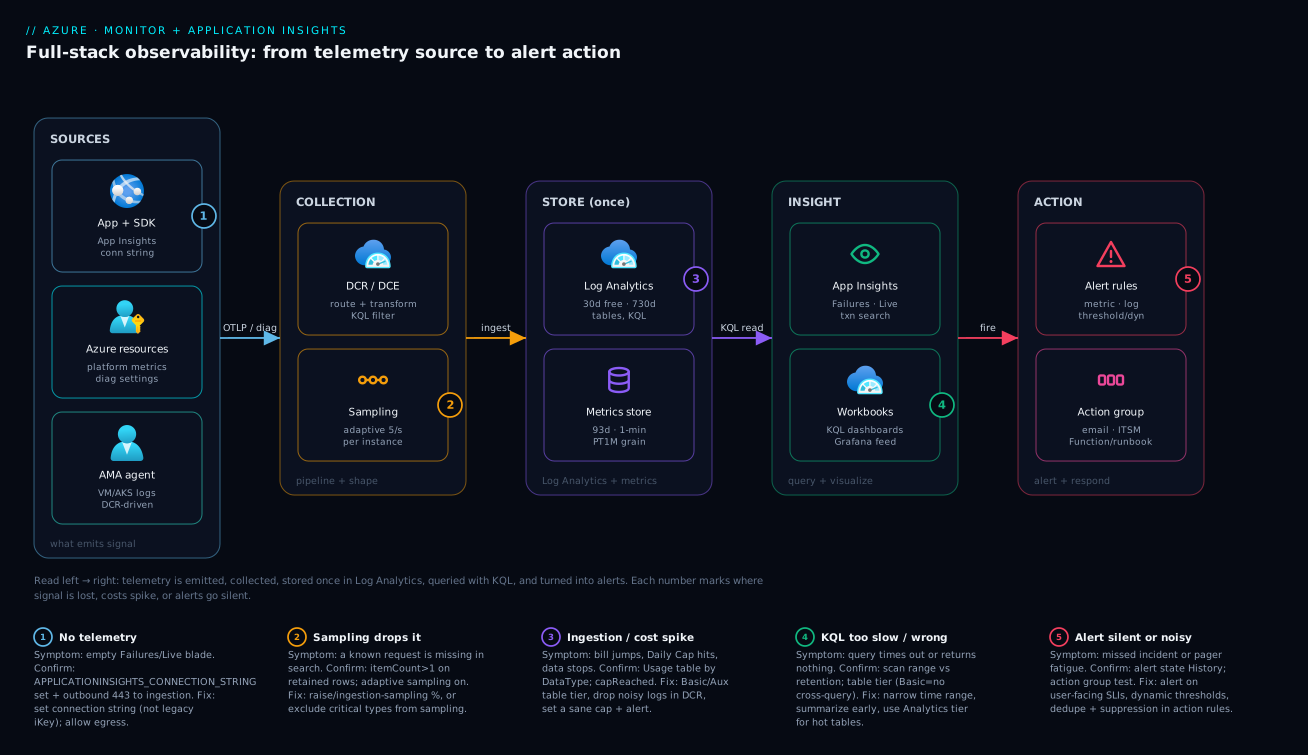
The diagram traces telemetry exactly as it flows in production, left to right, and marks the five places it most often goes wrong. Start at SOURCES: your application emits request, dependency and exception telemetry through the Application Insights SDK (configured by a connection string); Azure resources emit platform metrics and diagnostic logs via diagnostic settings; and VMs/AKS emit host telemetry through the Azure Monitor Agent, driven by DCRs. All three feed COLLECTION, where a Data Collection Rule can filter and transform rows before they cost anything, and sampling keeps a representative fraction of high-volume app telemetry. Everything then lands once in the STORE — a Log Analytics workspace for logs (30-day free, up to 730-day retention, queried with KQL) alongside the metrics store (≈93-day, 1-minute grain). From there, INSIGHT reads it back: Application Insights (Failures, Live Metrics, Transaction search) and Workbooks (KQL dashboards, also feeding Grafana). Finally ACTION: alert rules evaluate metrics and log queries, and a fired alert fans out through an action group to email, ITSM, a Function or a runbook.
Read the numbered badges as the failure map that overlays this path. (1) No telemetry at the source — the connection string is unset or egress to 443 is blocked, so the Failures and Live blades are simply empty. (2) Sampling silently drops the one record you’re searching for — the row exists but represents others via itemCount. (3) Ingestion and cost spike at the store — a noisy log blows the daily cap and data stops. (4) A KQL query times out or returns nothing because it scans the wrong range or hits a Basic-tier table. (5) An alert is silent (missed incident) or noisy (pager fatigue) because it watches the wrong signal or has no dynamic threshold. The whole method is in that overlay: localise the problem to a stage, run the named confirm, apply the fix.
Real-world scenario
Cartwheel Commerce runs a mid-size e-commerce platform on Azure: a customer-facing web app and nine internal services (catalog, cart, checkout, pricing, inventory, payments-gateway, notifications, search, recommendations) across App Service and AKS in Central India, fronted by Application Gateway. Traffic averages 600 requests/second with a 9pm spike to ~2,200 rps during sales. The SRE team is five engineers; before this project, “monitoring” was a Grafana board of CPU and memory per node, and a single Sev-everything email alias.
The triggering incident was a checkout slowdown during a Tuesday-night sale. Conversion dropped 18% in ninety minutes. The CPU/memory board was entirely green — every node comfortable. The on-call engineer did what the tooling allowed: restarted the checkout pods (no change), scaled the AKS node pool (no change), and escalated. Two hours in, with real revenue lost, someone manually grepped the payments-gateway logs on one pod and found 4-second waits calling the third-party processor. The root cause had been one un-instrumented hop away the entire time, invisible to a stack that only watched infrastructure.
The rebuild was deliberate and followed the pipeline in this article. Instrumentation: every service got the Application Insights SDK wired by connection string (not the legacy iKey), all sharing one workspace-based Application Insights backed by a single prod Log Analytics workspace, with W3C trace context propagated end to end so a checkout could be followed across all nine services. Collection & shaping: App Service and AKS diagnostic settings routed platform logs to the workspace; a DCR transform dropped debug-level syslog before ingestion, and verbose request logs were moved to a Basic table plan. Sampling was set to adaptive at 5 items/sec per instance — but with exceptions excluded from sampling, so no error could ever be sampled away. Insight: a Workbook became the live reliability board (p95 by operation, 5xx rate, top failing dependencies), and the Application Map drew the real topology with per-edge latency. Action: metric alerts on user-facing SLIs — checkout p95, overall 5xx rate, availability — with dynamic thresholds to handle the nightly traffic curve, routed through a tiered action group (Sev1 → on-call phone, Sev3 → a ticket).
The next sale told the story. Checkout latency crept up again at 9:05pm; this time a dynamic-threshold alert fired in 90 seconds, the responder opened Application Insights → Failures, and the Application Map lit the payments-gateway → external processor edge red with a 3.9 s p95. They flipped checkout to the backup processor in four minutes; conversion never moved. The KQL that confirmed it was one line — dependencies | where target contains "processor" | summarize percentile(duration,95) by bin(timestamp,1m). MTTR fell from ~2 hours to under 8 minutes. The cost surprised them in the right direction: deliberate sampling and the Basic-tier move halved ingestion versus their first “collect everything” draft, landing the whole observability bill near ₹22,000/month for the estate. The lesson on the wall: “Watch what the user feels, follow the trace to the hop, and never let sampling eat your exceptions.”
The incident, before and after, as a contrast table:
| Aspect | Before (infra-only) | After (full-stack observability) |
|---|---|---|
| What was watched | CPU/memory per node | User-facing SLIs (checkout p95, 5xx, availability) |
| Time to detect | Customer/conversion drop (~30 min) | Dynamic-threshold alert (~90 s) |
| Time to root cause | ~2 h (manual log grep) | ~4 min (Failures + App Map) |
| Cross-service view | None | Distributed trace + Application Map |
| Error capture | Best-effort | Exceptions excluded from sampling (always kept) |
| Alerting | One Sev-everything email | Tiered action group, dynamic thresholds |
| Ingestion cost | ~₹44k (collect-everything draft) | ~₹22k (sampling + Basic tier) |
| MTTR | ~2 h | < 8 min |
Advantages and disadvantages
The unified Azure-native stack both removes the blind spots that hurt Cartwheel and introduces decisions you must make on purpose. Weigh it honestly:
| Advantages (why this model helps you) | Disadvantages (why it bites) |
|---|---|
| One workspace holds platform, infra and app telemetry — cross-resource KQL joins in one place | Ingestion is billed per GB; “collect everything” quietly inflates the bill |
| Application Insights gives end-to-end distributed tracing and the exact failing operation in clicks | A single un-instrumented hop breaks the trace chain and hides the cause |
| KQL is expressive and fast at scale; one language across logs, traces and security data | KQL is a learning curve; a badly-scoped query is slow and can return nothing |
| Native, deeply integrated with every Azure resource (diag settings, DCRs, alerts) | Multi-cloud / third-party sources need extra plumbing (Event Hub, agents, OTel) |
| Built-in correlation (operation IDs, W3C trace context) — no custom stitching | You must propagate context everywhere or correlation silently fails |
| Sampling + table tiers let you tune fidelity vs cost precisely | Sampling can hide individual records if you don’t reason about itemCount |
| Alerts → action groups automate response (Functions, runbooks, ITSM) | Poorly-tuned alerts create pager fatigue that trains people to ignore pages |
| Defaults get you telemetry fast (auto-instrumentation, adaptive sampling) | Defaults are not free or complete — connection string, sampling and cost need tuning |
The model is the right default for any Azure-centric estate where you want native integration and one query language across infrastructure, application and security telemetry. It’s less of a slam-dunk when you’re heavily multi-cloud (you’ll bridge other sources in, or run a vendor-neutral OTel pipeline), or when a specialised APM/SIEM is mandated. The disadvantages are all manageable — they’re decisions (what to collect, how to sample, what to alert on), not flaws — which is exactly why this article enumerates the knobs.
Hands-on lab
Stand up a real observability slice end to end — workspace, Application Insights, an instrumented App Service, a KQL query, and an alert — all free-tier-friendly (we use B1 + the included telemetry allowance; delete at the end). Run in Cloud Shell (Bash).
Step 1 — Variables and resource group.
RG=rg-obs-lab
LOC=centralindia
LAW=law-obs-lab
AI=ai-obs-lab
PLAN=plan-obs-lab
APP=app-obs-$RANDOM
az group create -n $RG -l $LOC -o table
Step 2 — Create the Log Analytics workspace.
az monitor log-analytics workspace create -g $RG -n $LAW -l $LOC -o table
LAW_ID=$(az monitor log-analytics workspace show -g $RG -n $LAW --query id -o tsv)
Expected: a workspace row; note the id.
Step 3 — Create a workspace-based Application Insights resource.
az extension add -n application-insights 2>/dev/null
az monitor app-insights component create -g $RG -a $AI -l $LOC \
  --workspace "$LAW_ID" --application-type web -o table
AI_CONN=$(az monitor app-insights component show -g $RG -a $AI --query connectionString -o tsv)
Expected: a component row; AI_CONN is a full connection string (contains InstrumentationKey= and IngestionEndpoint=), not a bare GUID.
Step 4 — Create a B1 Linux App Service and wire the connection string + codeless agent.
az appservice plan create -n $PLAN -g $RG --is-linux --sku B1 -o table
az webapp create -n $APP -g $RG -p $PLAN --runtime "DOTNETCORE:8.0" -o table
az webapp config appsettings set -n $APP -g $RG --settings \
  APPLICATIONINSIGHTS_CONNECTION_STRING="$AI_CONN" \
  ApplicationInsightsAgent_EXTENSION_VERSION="~3"
Step 5 — Generate traffic, then confirm telemetry arrived. Hit the site a few times so there’s something to see:
for i in $(seq 1 20); do curl -s -o /dev/null "https://$APP.azurewebsites.net/"; done
Wait 2–3 minutes (ingestion latency), then query the workspace via App Insights:
az monitor app-insights query -g $RG -a $AI \
  --analytics-query "requests | summarize count() by resultCode | order by count_ desc"
Expected: at least one row (e.g. 200). If empty after 5 minutes, re-check the connection string is the full string and the app restarted.
Step 6 — Create an action group and a metric alert on HTTP 5xx.
az monitor action-group create -g $RG -n ag-lab --short-name lab \
  --email-receiver name=me email=h.vinod@gmail.com
az monitor metrics alert create -g $RG -n alert-5xx-lab \
  --scopes $(az webapp show -n $APP -g $RG --query id -o tsv) \
  --condition "total Http5xx > 0" \
  --window-size 5m --evaluation-frequency 1m \
  --severity 2 --action ag-lab \
  --description "Any 5xx on the lab app"
Expected: an alert-rule row; the action group is referenced by id.
Validation checklist. You created a workspace, a workspace-based Application Insights, an instrumented app sending real requests telemetry, confirmed it with KQL, and wired a metric alert through an action group — the entire pipeline in miniature. The steps mapped to what each proves:
| Step | What you did | What it proves |
|---|---|---|
| 2–3 | Workspace + workspace-based App Insights | Telemetry lands once, in a shared store |
| 4 | Connection string + codeless agent | The one setting that makes telemetry flow |
| 5 | Traffic → KQL query returns rows | The data path works end to end |
| 6 | Action group + metric alert | Signal can become a page |
Cleanup (avoid lingering charges).
az group delete -n $RG --yes --no-wait
Cost note. A B1 plan is a few rupees per hour and the lab’s telemetry is well within the included allowance; an hour of this lab is under ₹50, and deleting the resource group stops everything.
Common mistakes & troubleshooting
This is the playbook — the part you bookmark for when the observability itself misbehaves. First as a scannable table, then the entries that bite hardest expanded with the exact confirm step.
| # | Symptom | Root cause | Confirm (exact cmd / portal path) | Fix |
|---|---|---|---|---|
| 1 | Failures/Live Metrics blades empty; no requests rows |
Connection string unset/wrong (or legacy iKey) | az webapp config appsettings list --query "[?name=='APPLICATIONINSIGHTS_CONNECTION_STRING']" |
Set the full connection string; restart; verify outbound 443 |
| 2 | A known request is missing from search | Adaptive sampling dropped that transaction | requests | summarize rows=count(), represented=sum(itemCount) (represented ≫ rows) |
Exclude critical types from sampling; raise sampling % |
| 3 | Aggregate counts are lower than the load balancer’s | Counting rows, not itemCount, under sampling |
Compare count() vs sum(itemCount) |
Always sum(itemCount) for true volumes |
| 4 | Ingestion bill spikes; data suddenly stops mid-day | Noisy log + daily cap reached | Usage | summarize sum(Quantity)/1000 by DataType; capReached banner |
Tier the noisy table to Basic; DCR-drop debug; raise/right-size cap |
| 5 | KQL query times out or returns nothing | Scans too wide a range, or table is Basic tier | Check time filter; .tables plan; error text |
Put where timestamp > ago(...) first; summarize early; use Analytics tier |
| 6 | Distributed trace breaks at one service | That hop isn’t instrumented / doesn’t propagate context | Application Map shows a gap; missing operation_Id link |
Instrument the hop; propagate W3C traceparent |
| 7 | Alert never fired during a real incident | Watching infra metric, not user SLI; or wrong threshold/window | Alert rule History = no fire; scope/condition review | Alert on 5xx/latency/availability; dynamic threshold |
| 8 | Pager storm / alert fatigue | Too many low-value alerts; no dedupe/suppression | Alerts list volume; action-rule config | Consolidate to SLIs; add action rules (dedupe, maintenance suppression) |
| 9 | Action group never notified anyone | Untested/misconfigured receiver | Action group → Test; check receiver | Fix/verify receiver; test before relying on it |
| 10 | Logs missing for a VM/AKS node | No DCR association or AMA not installed | Heartbeat | where Computer == "<name>" empty; DCR associations |
Install AMA; associate the DCR |
| 11 | A resource’s platform logs aren’t in the workspace | No diagnostic setting on that resource | az monitor diagnostic-settings list --resource <id> empty |
Create a diagnostic setting → workspace |
| 12 | Two App Insights resources, split data | App reporting to the wrong/duplicate component | Compare connection strings across slots/services | Consolidate to one connection string per component |
| 13 | Browser/real-user data absent | JS (browser) SDK not added | No pageViews rows |
Add the JavaScript SDK snippet to the front-end |
| 14 | Query works in App Insights, not in Log Analytics (or vice-versa) | Querying the wrong scope/table name | Confirm workspace-based; table availability | Query the workspace (workspace-based AI surfaces both) |
The expanded form for the entries that cost the most time:
1. Failures and Live Metrics are empty; no telemetry at all.
Root cause: The connection string is unset, wrong, or you’re still using a bare legacy instrumentation key; or outbound 443 to the ingestion endpoint is blocked (firewall/NSG/no Private Link path).
Confirm: az webapp config appsettings list -n <app> -g <rg> --query "[?name=='APPLICATIONINSIGHTS_CONNECTION_STRING']" — is it present and a full string (with IngestionEndpoint=)? Then confirm egress to 443.
Fix: Set the full connection string (from az monitor app-insights component show --query connectionString), restart the app, and ensure outbound 443 (or an AMPLS path) is open. This is the number-one “no data” cause.
2. A specific request you know happened isn’t in search.
Root cause: Adaptive sampling consistently dropped that whole transaction — it’s working as designed, you just didn’t account for it.
Confirm: requests | where timestamp > ago(1h) | summarize rows = count(), represented = sum(itemCount) — if represented is much larger than rows, sampling is active.
Fix: Exclude critical telemetry types from sampling (always keep Exception; consider keeping a high-value operation), or raise the sampling rate / disable it for that app. Never search for a single record without remembering sampling exists.
4. Ingestion cost spikes and data stops mid-day.
Root cause: A newly-noisy log source flooded the workspace and hit the daily cap, which then stopped ingestion — so you lose data during the very window you care about.
Confirm: Usage | where TimeGenerated > ago(1d) and IsBillable | summarize sum(Quantity)/1000 by DataType shows the culprit; the workspace shows a “daily cap reached” banner.
Fix: Move the noisy high-volume table to the Basic plan, add a DCR transform to drop low-value rows pre-ingestion, and right-size (don’t just remove) the cap with an alert before the cap, not at it.
5. A KQL query times out or returns nothing.
Root cause: The query scans too much (no/late time filter), or it targets a Basic-tier table whose querying is limited (no cross-table joins, restricted operators).
Confirm: Is where timestamp > ago(...) the first operation? Is the table on the Analytics or Basic plan? Read the error text — it usually names the limit.
Fix: Filter by time first to bound the scan, summarize as early as possible, and keep tables you query interactively on the Analytics plan.
6. The distributed trace breaks at one service.
Root cause: One hop in the chain isn’t instrumented, or doesn’t propagate the W3C traceparent header, so its spans don’t share the operation_Id.
Confirm: The Application Map shows a gap/dead-end at that service; a transaction’s spans stop before that hop.
Fix: Instrument that service and ensure context propagation (modern SDKs do W3C by default; custom HTTP clients may need it added). One blind hop hides everything beyond it.
7. The alert that should have caught the incident never fired. Root cause: It watched an infrastructure metric (CPU) that was fine while users suffered, or the threshold/window was wrong (too high, too long). Confirm: The alert rule’s History shows no fire during the incident window; review its scope and condition. Fix: Alert on user-facing SLIs (5xx rate, p95 latency, availability), use dynamic thresholds for variable metrics, and tune the aggregation window so a real breach actually trips it.
Best practices
- Collect all three signals, deliberately. Metrics for fast alerts, logs for forensics, distributed traces for cross-service root cause — and decide what you collect on purpose, not “everything just in case.”
- Configure Application Insights with the connection string, never the legacy iKey. Verify it’s set and is the full string after every deploy; it’s the single point of “no telemetry.”
- Centralize into a small number of workspaces. Per-environment (prod/non-prod) is the sane default — not one-per-app (fragments queries) and not literally-one (muddies RBAC and cost).
- Propagate trace context everywhere. One un-instrumented hop breaks correlation and blinds you past it; ensure W3C
traceparentflows through every service and custom client. - Sample on purpose, and never sample away your exceptions. Use adaptive sampling for cost, but exclude
Exception(and any must-keep operation) from sampling, and alwayssum(itemCount)for true volumes. - Tier and cap your ingestion. Put high-volume/low-query logs on the Basic plan, drop debug noise in a DCR transform before it’s billed, and set a daily cap with an alert before the cap.
- Alert on user-facing SLIs, not infrastructure. 5xx rate, p95/p99 latency, availability — the things a user notices. CPU/memory are supporting evidence, not the page.
- Use dynamic thresholds for variable metrics. Traffic and latency have daily/weekly seasonality; a static line either flaps or misses. Reserve static thresholds for hard SLO lines.
- Build and test action groups. Tier them by severity (Sev1 → phone, Sev3 → ticket), reuse one across many alerts, and test before you rely on them.
- Right-size retention per table. Keep audit/security logs long, app telemetry short; 30 days is free, 730 is the ceiling, archive is for cold compliance data.
- Treat dashboards as decision tools. A Workbook of SLIs and top failing dependencies beats fifty CPU charts. Observability is faster, better decisions — not more graphs.
- Wire it before you need it. The whole point is to ask questions after the fact without shipping code; instrument on day one, not during the first incident.
The leading-indicator alerts worth wiring before the next incident — symptoms a user feels, not lagging “it’s down”:
| Alert on | Signal | Threshold (starting point) | Why it’s the right one |
|---|---|---|---|
| Server errors | HTTP 5xx rate | > 1% of requests, 5 min | Direct user-facing failure |
| Latency tail | request duration p95 |
> your SLO (e.g. 800 ms), 5 min | Slowness users actually feel |
| Availability | availability test success | < 100% from 2+ regions | Outside-in “is it up” |
| Dependency failures | failed dependencies |
spike vs dynamic baseline | The downstream that’s breaking you |
| Exception surge | exceptions rate |
dynamic threshold | New error class / regression |
| Ingestion runaway | Usage GB/day |
> 80% of daily cap | Catch a cost blowout before the cap drops data |
Security notes
- Least-privilege on log access. Reading logs is RBAC — grant Log Analytics Reader to query and Contributor only to those who manage the workspace/DCRs. Use table-level RBAC to fence off sensitive tables (e.g. security/audit) from general viewers.
- Don’t leak secrets or PII into telemetry. App logs and custom events can accidentally capture tokens, connection strings or personal data; scrub at the source (telemetry processors) or strip with a DCR transform before ingestion. Logs are queryable by everyone with reader access.
- Private ingestion and query paths. For a locked-down estate, use Azure Monitor Private Link Scope (AMPLS) with a Data Collection Endpoint so telemetry and KQL never traverse the public internet — and so the connection string’s ingestion endpoint resolves privately.
- Managed identity over keys. Where agents/exporters support it, authenticate ingestion with managed identity rather than instrumentation keys or shared keys; rotate and avoid embedding secrets in app settings.
- Protect the alerting path. Action groups can trigger Functions and runbooks that take real action (restart, scale, heal) — secure those endpoints (secure webhooks, scoped identities) so an alert can’t be spoofed into running automation.
- Encryption and residency. Workspace data is encrypted at rest; use customer-managed keys where key ownership is mandated, and choose workspace region to satisfy data-residency requirements (a driver for a per-region topology).
- Audit the observability plane itself. The control-plane operations on workspaces, DCRs and alerts are in
AzureActivity— monitor changes to your monitoring (someone disabling a critical alert or a diagnostic setting is itself an event worth alerting on).
The security knobs that also improve the observability — secure and useful pull the same way here:
| Control | Mechanism | Secures against | Also improves |
|---|---|---|---|
| Table-level RBAC | Per-table role assignment | Over-broad log access | Cleaner, scoped queries per team |
| DCR transform (scrub/drop) | transformKql pre-ingestion |
PII/secret leakage into logs | Lower ingestion cost |
| AMPLS + Private Link + DCE | Private telemetry path | Public-internet exposure | Reliable regional ingestion |
| Managed-identity ingestion | MI on agents/exporters | Leaked keys | Fewer secrets to rotate/break |
| Customer-managed keys | CMK on workspace | Key-ownership gaps | Compliance posture |
| Activity-log alerting | Alert on monitoring changes | Silent disabling of alerts/diag | Catches drift in coverage |
Cost & sizing
The bill drivers and how they interact with the design choices:
- Log Analytics ingestion (per GB) dominates. You pay primarily for data ingested, then for retention beyond the free 30 days. The biggest lever is what you collect and at which table plan — moving a verbose, rarely-queried table from Analytics to Basic can cut its ingestion cost substantially, and a DCR transform that drops debug rows pre-ingestion saves the full per-GB price on what it removes.
- Application Insights telemetry is billed through its workspace on the same per-GB basis, which is why sampling is a cost decision as much as a fidelity one — adaptive sampling on a high-traffic app can cut telemetry volume dramatically while keeping metrics correct (via
itemCount) and traces intact. - Metrics are largely free. Platform metrics and their alerting cost little; this is why metric alerts are the cheap first line of defence and you should push as much alerting as possible onto them.
- Retention is a multiplier. 30 days is included; every extra day of interactive retention multiplies stored-data cost, so set per-table retention (audit long, telemetry short) and use cheap archive for cold compliance data.
- The daily cap is a seatbelt, not a budget. It prevents a runaway invoice but, set too low, drops data mid-incident — pair it with an alert before the cap. A commitment tier (reserved GB/day) discounts predictable high volume.
A rough monthly picture for a small-to-mid production estate (a dozen services, moderate traffic): Log Analytics ingestion in the ₹12,000–30,000 range depending on collection discipline, App Insights telemetry folded into that via the workspace, plus negligible metric-alert cost. Cartwheel landed near ₹22,000 after applying sampling and the Basic-tier move — roughly half their naive “collect everything” first draft — proving the bill is a design outcome, not a fixed cost. The drivers and what each buys you:
| Cost driver | What you pay for | Rough INR / month | What it buys | Watch-out |
|---|---|---|---|---|
| Log Analytics ingestion (Analytics) | Per-GB of full-tier logs | bulk of the bill | Full KQL + alerting | Noisy categories inflate it fast |
| Basic-tier tables | Per-GB, cheaper | fraction of Analytics | Cheap high-volume logs | No alerting; limited query |
| Retention beyond 30 days | Stored-GB-days | scales with days × GB | Longer forensics/compliance | 730-day on everything is wasteful |
| Application Insights telemetry | Per-GB via workspace | folded into ingestion | App traces/Failures/Live | Tune with sampling |
| Metric alerts | Per rule (cheap) | ~₹0–small | Near-real-time alerting | Effectively free — use them |
| Log (query) alerts | Per evaluation | small | Log-expressible conditions | Frequent eval × many rules adds up |
| Commitment tier | Reserved GB/day, discounted | depends on volume | Lower effective per-GB | Under/over-commit both waste |
Interview & exam questions
1. What is the difference between metrics, logs and traces, and which answers which question? Metrics are pre-aggregated numbers over time and answer is something wrong and when (cheap, fast alerts). Logs are timestamped structured events and answer why it happened (forensics, billed per GB). Distributed traces are trees of spans for one operation and answer where in a chain of services the problem is (cross-service root cause). You need all three, and the classic failure is alerting on infra metrics while the cause lives in a downstream dependency only a trace would reveal.
2. How are Azure Monitor, Log Analytics and Application Insights related? Azure Monitor is the umbrella product family (metrics store, alerting engine, collection pipeline). Log Analytics is the underlying log database you query with KQL. Application Insights is an APM lens that, in its modern workspace-based form, writes into a Log Analytics workspace and adds application-shaped tables (requests, dependencies, exceptions) plus Failures/Performance/Live Metrics. They’re layers, not competitors — one workspace can hold platform, infra and app telemetry together.
3. What does the Application Insights connection string contain, and why is the bare instrumentation key deprecated? The connection string carries the instrumentation key and the regional ingestion (and Live Metrics) endpoints. The legacy bare iKey assumed the global public endpoint, so it breaks in sovereign/regional clouds and Private Link setups. Always configure the connection string; an unset or wrong one is the number-one “no telemetry arriving” cause.
4. What is adaptive sampling and what is the trap when reading sampled data? Adaptive sampling keeps a representative fraction of telemetry (target items/sec per instance), dropping the rest consistently (a whole transaction together, so traces stay intact) and recording an itemCount multiplier so aggregate metrics remain correct. The trap: searching for one specific record, not finding it, and concluding it never happened — it was sampled out. Also, you must sum(itemCount), not count(), to get true volumes, and you should exclude critical types (exceptions) from sampling.
5. You need to follow a single user’s checkout across nine services. What makes that possible, and what breaks it? A distributed trace correlated by a shared operation_Id propagated via the W3C trace context (traceparent) header — Application Insights stores each incoming request and outbound dependency with that ID, so Transaction search rebuilds the waterfall and the Application Map shows per-edge health. It breaks if any hop isn’t instrumented or doesn’t propagate the header, which hides everything beyond that hop.
6. What is a Data Collection Rule and why is its transform important? A DCR declaratively defines what telemetry to collect (counters, syslog, events, custom logs), where to send it, and an optional KQL transformation applied before ingestion. The transform is both a cost lever (drop debug-level/low-value rows so you don’t pay to store them) and a privacy lever (strip a PII/secret column before it lands). DCRs also drive the Azure Monitor Agent (AMA), which replaced the retired Log Analytics agent.
7. Compare the Analytics, Basic and Auxiliary table plans. Analytics is full-price, full-KQL, alertable, up to 730-day retention — for logs you query and alert on. Basic is cheaper ingestion with query-only, limited operators and short interactive retention — for high-volume, occasionally-queried logs (no alerting). Auxiliary is cheapest, for rarely-queried archival/audit data. Choosing the right plan per table is a primary cost lever.
8. How do you control Log Analytics cost without going blind? Collect deliberately (only valuable categories), shape with a DCR transform to drop noise pre-ingestion, move high-volume/low-query tables to the Basic plan, set per-table retention (audit long, telemetry short), enable adaptive sampling for app telemetry, and set a daily cap with an alert before the cap (since the cap itself stops ingestion). A commitment tier discounts predictable volume.
9. When do you use a metric alert versus a log (scheduled query) alert? Use a metric alert for anything expressible as a metric vs threshold — it’s near-real-time (≈1 min), cheap, and ideal for 5xx rate, latency, CPU, queue depth. Use a log alert when only a KQL query can express the condition (correlated/derived conditions over event detail); it runs on an interval (minutes) and costs per evaluation. Push as much as possible onto metric alerts for speed and cost.
10. What is an action group and why test it? An action group is the reusable fan-out of what happens when an alert fires — email/SMS/push/voice, webhook, ITSM/ServiceNow, Logic App, Azure Function, or Automation runbook — referenced by many alerts. You test it because an untested/misconfigured receiver is a leading reason a real alert pages nobody; the alert “fired” but nothing reached a human or the automation never ran.
11. Static vs dynamic alert thresholds — when each? A static threshold is a fixed number, right when you have a hard SLO line (p95 < 800 ms, 5xx > 1%). A dynamic threshold learns the metric’s normal pattern including daily/weekly seasonality and alerts on deviation — right for variable metrics like traffic or time-of-day-dependent latency, where a fixed line either flaps or misses the real anomaly.
12. How should you design alerts to avoid pager fatigue? Alert on user-facing SLIs (5xx, latency, availability), not every infra metric; tier severity to response expectation (Sev0 wakes someone, Sev3/4 file a ticket); use dynamic thresholds and sane aggregation windows to avoid flapping; and apply action rules for deduplication and maintenance-window suppression so a known event doesn’t storm the pager. Fewer, higher-signal alerts beat many noisy ones.
These map primarily to AZ-204 (Developer Associate) — instrument an app with Application Insights, monitor and troubleshoot — and AZ-104 (Administrator) — monitor resources with Azure Monitor, configure Log Analytics, alerts and action groups. The design-level topology, cost and security choices touch AZ-305 (Solutions Architect), and the security-logging angle (table RBAC, scrubbing, AMPLS) touches AZ-500. A compact cert mapping for revision:
| Question theme | Primary cert | Objective area |
|---|---|---|
| App Insights instrumentation, connection string, traces | AZ-204 | Instrument, monitor & troubleshoot solutions |
| KQL, Log Analytics, Failures/Live Metrics | AZ-204 | Troubleshoot solutions |
| Workspaces, alerts, action groups, DCRs | AZ-104 | Monitor & maintain Azure resources |
| Sampling, table tiers, retention, cost | AZ-104 / AZ-305 | Cost & monitoring design |
| Workspace topology, residency, HA | AZ-305 | Design monitoring & governance |
| Table RBAC, scrubbing, AMPLS, CMK | AZ-500 | Secure logging & data |
Quick check
- You’re staring at a green CPU dashboard while users report timeouts at checkout. Which signal are you missing, and what’s the first place to look?
- You search Application Insights for a specific failed request you know occurred and it isn’t there. What is the most likely reason, and what should you
sum()to get true volumes? - Telemetry stopped arriving in Application Insights entirely after a redeploy. Name the single setting to check first.
- You want to cut Log Analytics ingestion cost on a verbose, rarely-queried log without losing it. Name two levers.
- An alert on CPU never fired during a real user-facing outage. What should the alert have watched instead, and what threshold style suits a metric that varies by time of day?
Answers
- You’re missing distributed traces (and request/dependency telemetry) — the CPU metric can’t see a slow downstream dependency. First place to look: Application Insights → Failures / Performance, then the Application Map to find the unhealthy hop (the payment/dependency edge).
- Adaptive sampling consistently dropped that whole transaction — it happened, it just wasn’t retained. Confirm with
requests | summarize rows=count(), represented=sum(itemCount)(represented ≫ rows means sampling is active). Usesum(itemCount)— notcount()— for true volumes, and exclude exceptions/critical types from sampling. - The Application Insights connection string (
APPLICATIONINSIGHTS_CONNECTION_STRING) — verify it’s set, is the full string (not a bare legacy iKey/GUID), and that the app restarted; then confirm outbound 443 to the ingestion endpoint isn’t blocked. - (a) Move the table to the Basic table plan (cheaper ingestion); (b) add a DCR transform (
transformKql) that drops the low-value rows before ingestion so you don’t pay the per-GB price on them. (Also: shorter per-table retention.) - It should have watched a user-facing SLI — HTTP 5xx rate, request p95 latency, or availability — not infrastructure CPU. For a metric that varies by time of day (traffic, latency), use a dynamic threshold that learns the seasonal baseline rather than a fixed static line.
Glossary
- Observability — the ability to ask any question about a running system after the fact, without shipping new code to answer it; achieved by collecting metrics, logs and traces.
- Azure Monitor — the platform umbrella for metrics, logs, alerting and the collection pipeline across all Azure resources.
- Log Analytics workspace — the Kusto-based log store where (almost) all logs land; queried with KQL; the unit of cost and access control.
- Application Insights — the application-performance lens over a workspace, adding
requests/dependencies/exceptionstelemetry, distributed tracing and the Failures/Performance/Live Metrics experiences. - Metric — a pre-aggregated numeric time-series (CPU, request rate, latency); cheap, fast to alert on.
- Log — a timestamped structured event (exception, audit record, custom event); rich detail, billed per GB.
- Distributed trace — a tree of spans describing one logical operation across services, correlated by a shared operation ID.
- KQL (Kusto Query Language) — the query language for Log Analytics and Application Insights.
- Connection string — the modern Application Insights config carrying the instrumentation key plus regional ingestion/Live Metrics endpoints; replaces the deprecated bare instrumentation key.
- Instrumentation key (iKey) — the legacy GUID-only identifier for an App Insights resource; deprecated in favour of the connection string.
- Operation ID / W3C trace context — the correlation identifier (propagated via the
traceparentheader) that stitches a transaction’s spans together. itemCount— the multiplier on a sampled telemetry row indicating how many original items it represents;sum(itemCount)gives true volumes.- Adaptive sampling — the SDK default that keeps a representative, consistent fraction of telemetry (target items/sec) and records
itemCount. - Diagnostic setting — per-resource config that sends platform logs/metrics to a workspace, storage or Event Hub.
- Data Collection Rule (DCR) — declarative object defining what telemetry to collect, where to send it, and an optional pre-ingestion KQL transform.
- Data Collection Endpoint (DCE) — the network ingress a DCR uses; the anchor for Private Link ingestion.
- Azure Monitor Agent (AMA) — the current in-host telemetry collector (configured by DCRs); replaced the retired Log Analytics agent (MMA/OMS).
- Table plan (tier) — Analytics (full KQL/alerting), Basic (cheap, query-limited), or Auxiliary (cheapest, archival) per Log Analytics table.
- Daily cap — a GB/day ceiling that stops or warns ingestion to prevent a runaway bill (but can drop data if set too low).
- Alert rule — a condition over metrics or a KQL query that fires when breached (metric, log, activity-log, resource-health).
- Action group — the reusable fan-out of notifications and automation (email/SMS/webhook/ITSM/Function/runbook) an alert triggers.
- Dynamic threshold — an ML-learned normal band for a metric (handles seasonality), versus a fixed static threshold.
- AMPLS (Azure Monitor Private Link Scope) — the construct that keeps telemetry ingestion and queries on a private network path.
- Workbook — an interactive KQL-backed report/dashboard in Azure Monitor; can also feed Grafana.
Next steps
You can now wire the full pipeline and ask any question of your running system. Build outward:
- Next: Azure Monitor Data Collection Rules, Workbooks, Alerting & Action Groups — go deep on the collection plumbing, transforms and dashboards behind this article.
- Related: Troubleshooting Azure App Service: 502/503, Cold Starts & Restart Loops — half this playbook is KQL against the telemetry you just set up.
- Related: Troubleshooting Azure SQL: Connectivity, Timeouts, Throttling & Blocking — apply the same metrics/logs/traces method to the data tier.
- Related: Azure FinOps: Cost Management at Scale — keep ingestion (one of the sneakier Azure line items) under control.
- Related: Azure Functions: Serverless Patterns — instrument event-driven workloads where cold starts and dependencies need the same tracing.