Zero Trust is not a product you switch on. It is a posture — verify explicitly, use least-privilege access, assume breach — and on Microsoft Entra ID that posture is built out of two engines: Conditional Access (CA), which evaluates every sign-in and decides whether and how to let it through, and Privileged Identity Management (PIM), which makes administrative power temporary instead of standing. Most teams already have a few CA policies and “MFA for admins” switched on. That is not Zero Trust; that is a speed bump. The gap between a speed bump and a defensible identity perimeter is design — knowing every signal CA can read, every control it can apply, how policies combine, where authentication strength replaces the word “MFA”, how Identity Protection feeds real-time risk into the grant decision, and how PIM removes the last permanent path an attacker would exploit.
This article is the hands-on Entra implementation that sits underneath the broader Zero Trust Architecture Blueprint: Identity, Network, and Data Pillars. The blueprint tells you what the pillars are; this tells you how to wire the identity pillar with real policies, real Graph calls, and real PIM role settings. We build a persona-based, layered policy set — not one mega-policy that nobody dares touch, but a stack of narrow, single-purpose policies you can reason about, test in report-only, validate with What-If, and enforce with confidence. We replace coarse “require MFA” with authentication strength so phishable factors stop counting where they must not. We attach sign-in risk and user risk from Identity Protection so a token-replay or impossible-travel sign-in gets challenged or blocked in the moment. And we drive standing Global Administrators to zero with PIM eligibility, activation gates, and approval — while keeping a tamper-evident break-glass path that the approval gate can never strand at 02:00.
By the end you will be able to design a CA estate that a CISO can audit and an on-call engineer can survive: every policy’s purpose written down, every exclusion justified, every privileged role just-in-time, every grant logged, and a What-If/report-only discipline that means you never again lock yourself out of your own tenant. The commands are real Microsoft Graph PowerShell and Terraform, the SKUs and limits are real (Entra ID P1 vs P2, the 195-policy ceiling, the 2–10 day activation window), and the failure modes are the ones that actually page you.
What problem this solves
The default Entra tenant trusts too much. A user with a leaked password and no MFA signs in from anywhere on any device and gets a token that is good for hours. A help-desk engineer is a permanent Global Administrator “because it was easier”. Legacy authentication protocols that cannot present an MFA challenge are wide open. There is no notion of device health, session lifetime, or risk in the grant decision — it is binary, username-and-password, and an attacker who phishes one credential is inside. This is the breach pattern in the overwhelming majority of cloud identity incidents: not a kernel exploit, but a valid sign-in the directory had no reason to question.
What breaks without a real CA + PIM design is subtle, because the tenant looks fine until it doesn’t. “We have MFA” turns out to mean MFA for some apps, bypassed by legacy auth on others, and not enforced for the very admins who matter most. “We use PIM” turns out to mean three people are eligible and eleven are still permanently active. A single over-broad policy with state = enabled and no break-glass exclusion takes the entire company offline the moment someone fat-fingers a condition — and the people who could fix it are locked out by the same policy. Conversely, a timid estate of report-only policies that nobody ever enforced gives auditors a green checkmark and attackers a free pass.
Who hits this: every organisation on Entra ID past the smallest startup. It bites hardest on teams that grew their CA estate organically — a policy here for a compliance finding, a policy there after an incident — until they have twenty overlapping policies, no one knows which does what, and changing any of them is terrifying. It bites teams whose privileged access never got cleaned up after a migration, leaving standing Owners and Global Admins as the fattest target in the tenant. And it bites anyone who confused having MFA with operationalising Zero Trust — the difference this article is about.
To frame the whole field before the deep dive, here is the identity-pillar control plane: each Zero Trust principle, the Entra mechanism that enforces it, the licence it needs, and the single most common gap.
| Zero Trust principle | Entra mechanism | Minimum licence | Most common real-world gap |
|---|---|---|---|
| Verify explicitly | Conditional Access grant controls (MFA, compliant device, auth strength) | Entra ID P1 | Legacy auth bypasses it; admins exempted “temporarily” |
| Verify explicitly (real-time risk) | Identity Protection sign-in & user risk → CA | Entra ID P2 | Risk policies left in report-only forever |
| Least-privilege access | PIM eligible assignments + activation | Entra ID P2 | Standing Global Admins never removed |
| Least-privilege (recertification) | Access Reviews on roles, groups, guests | Entra ID P2 | Eligibility granted once, never reviewed |
| Assume breach (session) | CA session controls: sign-in frequency, persistence, CAE | Entra ID P1 | Default 90-day token lifetime never tightened |
| Assume breach (recovery) | Break-glass accounts excluded from CA + monitored | Entra ID P1 | Break-glass put behind the PIM approval gate |
Learning objectives
By the end of this article you can:
- Read every signal Conditional Access evaluates (identity, device, location, application, client, risk, insider-risk) and every control it can apply (block, grant controls, session controls), and explain how they combine into a single allow/deny.
- Design a persona-based, layered policy set — global baselines plus per-persona policies for admins, internals, guests, and workload identities — instead of one fragile mega-policy.
- Replace coarse “require MFA” with authentication strength, choosing the right built-in or custom strength (including phishing-resistant) per persona and per resource via authentication context.
- Wire Identity Protection sign-in risk and user risk into CA grant decisions, tune detections, and know exactly what High / Medium / Low risk should each trigger.
- Roll out any policy safely through report-only → What-If → enforce, read the Insights and reporting workbook, and never lock yourself out.
- Configure PIM to make privileged Entra roles eligible (not active) with activation MFA, justification, ticketing, approval, and a bounded maximum duration — driving standing admins to zero.
- Stand up Access Reviews so eligibility, group membership, and guest access recertify on a schedule instead of rotting.
- Engineer break-glass accounts that survive a misconfigured policy and a sleeping approver, with tamper-evident alerting.
Prerequisites & where this fits
You should already understand Entra ID basics: that a tenant is your directory, that users, groups, and service principals are the principals, that MFA challenges a second factor, and that roles like Global Administrator grant directory power. You should be comfortable in the Entra admin center (Protection → Conditional Access, Identity Governance → PIM), able to run Microsoft Graph PowerShell, and aware that some features need Entra ID P1 (Conditional Access, named locations) versus Entra ID P2 (Identity Protection risk, PIM, Access Reviews). Familiarity with OAuth/OIDC sign-in helps, as does knowing what a compliant device means in Intune.
This is the hands-on, Entra-specific companion to the conceptual Zero Trust Architecture Blueprint: Identity, Network, and Data Pillars — read that for the pillar model and the network and data sides. For the scale problem — hundreds of apps, dozens of personas, authentication context and filters for cloud apps — graduate to Designing Conditional Access at Scale: A Persona-Based Policy Framework with Authentication Context and Filters. The deep mechanics of each engine live in dedicated pieces: Operationalizing Entra ID Protection: Risk-Based Conditional Access, Detection Tuning, and Risk Investigation, Privileged Identity Management and PAM Architecture: Just-in-Time Access at Scale, Building an Access Reviews Program in Entra ID, and Engineering Break-Glass Emergency Access Accounts in Entra ID. If you are starting from nothing, Deploying Conditional Access Safely: Report-Only Rollout to Enforcement is the gentle on-ramp.
A quick map of who owns which control surface during design and incidents, so you pull in the right person fast:
| Control surface | What lives here | Who usually owns it | Failure it causes if wrong |
|---|---|---|---|
| CA policy estate | Signals, grant/session controls, exclusions | Identity / security engineering | Lockout, or silent bypass of MFA |
| Identity Protection | Risk detections, sign-in/user risk policies | Security operations (SOC) | Risky sign-ins not challenged |
| Device compliance | Intune compliance policies, device state | Endpoint / MDM team | “Require compliant device” blocks everyone |
| PIM role settings | Eligibility, activation, approval, alerts | IAM governance | Standing admins, or 02:00 approval stall |
| Access Reviews | Recertification cadence and reviewers | IAM governance + app owners | Stale eligibility, orphaned guests |
| Break-glass | Emergency accounts, exclusions, alerts | Security leadership (tightly held) | Tenant-wide lockout with no way back |
| Log Analytics / Sentinel | Sign-in & audit log retention, alerts | SOC / platform | No detection of CA tampering or risky activation |
Core concepts
Six mental models make every later decision obvious.
Conditional Access is an if-then policy engine over every sign-in. When a user authenticates to any Entra-integrated app, Entra collects signals about that sign-in (who, what app, what device, where from, what client, what risk) and evaluates them against your enabled policies. Each policy is if (assignments and conditions match) then (apply these access controls). The assignments are the if; the grant and session controls are the then. A policy that does not match is simply skipped. This is the entire model — everything else is enumerating the signals and the controls.
Policies combine with AND, and Block always wins. All policies whose conditions match a given sign-in apply together. If three policies match and each requires a different control, the user must satisfy all of them (MFA and compliant device and approved app). If any matching policy says Block, the sign-in is blocked regardless of what other policies would have granted. This is why layering narrow policies works: they compose by intersection, and a single explicit Block is your kill switch. It is also why an over-broad Block with no exclusion is catastrophic — nothing overrides it.
Grant controls verify; session controls constrain what happens after. Grant controls decide whether to let the sign-in succeed and on what terms — Block, or Grant requiring MFA / compliant device / hybrid-joined device / approved client app / app protection policy / password change / terms of use, combined with Require all (AND) or Require one (OR). Session controls shape the resulting session — sign-in frequency (how often to reauthenticate), persistent browser session (stay signed in or not), app-enforced restrictions, Conditional Access App Control (via Defender for Cloud Apps), customer-controlled token lifetime, and disable resilience defaults. Grant is the gate; session is the leash.
“MFA” is a coarse word; authentication strength is the precise one. The classic “Require multifactor authentication” grant control accepts any satisfied second factor — including phishable ones like SMS. Authentication strength lets you demand a specific set of methods: a built-in MFA strength, a passwordless MFA strength, or a phishing-resistant MFA strength (FIDO2, Windows Hello for Business, certificate-based auth), or a custom combination. Where you require it matters too: authentication context lets you attach a strength to a resource or action (a sensitive SharePoint site, a PIM role activation) rather than the whole sign-in, so step-up happens exactly where the value is.
Identity Protection turns “risk” into a signal CA can read. With Entra ID P2, Identity Protection continuously scores two things: sign-in risk (is this authentication likely fraudulent — anonymous IP, impossible travel, token anomalies, leaked-credential match) and user risk (is this account likely compromised over time). Each is surfaced as High / Medium / Low / No risk, and Conditional Access can use them as conditions: high sign-in risk → block; medium → require MFA; high user risk → require secure password change. This is “verify explicitly” extended into real time — the grant decision changes the instant the platform detects something off.
PIM makes privilege a verb, not a noun. Without PIM, having a role is a permanent state — you are a Global Administrator, asleep or awake, on holiday or at the keyboard, and so is your token if you are phished. PIM splits the role into eligible (you may hold it) and active (you currently do). An eligible user activates the role just-in-time, passing MFA, justification, optional ticket and approval, for a bounded window, fully logged, after which it expires automatically. The goal state is zero standing privileged access for humans doing normal work — the role exists, but nobody holds it until they need it and prove they should.
The vocabulary in one table
Pin down every moving part before the deep sections. The glossary repeats these for lookup; this is the mental model side by side.
| Term | One-line definition | Where it lives | Why it matters to Zero Trust |
|---|---|---|---|
| Conditional Access policy | If-then rule evaluated per sign-in | Protection → Conditional Access | The verify-explicitly enforcement point |
| Assignment | The if: users, apps, conditions | Policy → Assignments | Wrong scope = lockout or bypass |
| Grant control | The then: block or grant-with-requirements | Policy → Grant | MFA, compliant device, auth strength |
| Session control | Post-auth constraint (frequency, persistence) | Policy → Session | Shrinks the breach window |
| Authentication strength | A required set of auth methods | Protection → Authentication methods | Kills phishable factors where it matters |
| Authentication context | A tag (c1…c99) attaching strength to a resource | Protection → Authentication context | Step-up per action, not per sign-in |
| Named location | A defined IP range or country | Protection → Named locations | “Trusted” vs “outside known networks” |
| Sign-in risk | Likelihood this auth is fraudulent | Identity Protection (P2) | Real-time challenge/block |
| User risk | Likelihood the account is compromised | Identity Protection (P2) | Forces secure password change |
| Report-only | Policy evaluated but not enforced | Policy state | Test impact before turning on |
| What-If | Simulate which policies a sign-in hits | CA → What-If tool | Validate before enforce |
| PIM eligible | May activate the role JIT | Identity Governance → PIM | No standing power |
| PIM active | Currently holds the role | PIM assignments | Bypasses activation controls |
| Access review | Scheduled recertification | Identity Governance | Eligibility doesn’t rot |
| Break-glass | Emergency account excluded from CA | Held by security leads | Way back in after a lockout |
The Conditional Access signals — every input the engine reads
A policy’s assignments and conditions are the complete set of things CA can match on. Get these exactly right and the policy fires precisely where intended; get them fuzzy and you either block too much or protect too little. Here is the full signal surface, what each value means, and the trap in each.
| Signal (assignment / condition) | Possible values | What it matches | Common trap |
|---|---|---|---|
| Users and groups | All users / specific users / groups / directory roles / guests & external | Who the sign-in is | “All users” without a break-glass exclude = lockout risk |
| Workload identities | Specific service principals (P2 add-on) | App/service sign-ins (client credentials) | Forgotten entirely; apps bypass user policies |
| Target resources — Cloud apps | All / specific apps / “Office 365” group | Which app is being accessed | “All cloud apps” includes the very portal you fix CA in |
| Target resources — User actions | Register security info, register/join device | Special flows, not apps | Misused as if it were an app filter |
| Target resources — Auth context | c1…c99 tags | A resource/action you tagged | Tag defined but never referenced by an app |
| Network | Any / trusted / specific named locations / IP / country | Where the request originates | Trusting an IP that is shared/NAT’d |
| Device platforms | Android / iOS / Windows / macOS / Linux | The OS of the device | Spoofable; not a security boundary alone |
| Client apps | Browser / mobile & desktop / legacy: Exchange ActiveSync / other clients | The protocol class | Forgetting “Other clients” leaves legacy auth open |
| Filter for devices | Rule over device attributes (e.g. device.trustType) |
Specific device properties | Rule syntax errors silently match nothing |
| Sign-in risk | High / Medium / Low / No risk (P2) | Real-time auth risk | Selecting only “High” misses Medium token theft |
| User risk | High / Medium / Low / No risk (P2) | Account-compromise risk | Confused with sign-in risk |
| Insider risk | Elevated / Moderate / Minor (with Purview) | Adaptive insider-risk level | Requires Purview integration; rarely wired |
| Authentication flows | Device code flow, authentication transfer | Specific OAuth flows | Device-code phishing path left unblocked |
A few of these deserve their own paragraph because they are where designs go wrong.
Cloud apps vs user actions vs authentication context are three different “what”. Cloud apps targets an application (Exchange Online, your custom app). User actions targets a flow that is not an app — chiefly Register security information (lock down who can register MFA, and from where) and Register or join devices. Authentication context targets a label you stamp onto a sensitive resource or operation; a policy scoped to context c1 only fires when an app (or PIM, or a SharePoint site) demands c1. Mixing these up — for example trying to require MFA “for the act of registering MFA” via a cloud-app policy — produces a policy that never matches.
Client apps is where legacy authentication hides. Modern auth (browser, modern mobile/desktop clients) can present an interactive MFA challenge. Legacy authentication — older Exchange ActiveSync, and the catch-all “Other clients” (IMAP, POP, SMTP, MAPI, older Office) — cannot. A policy that requires MFA but does not also Block legacy clients is bypassable: an attacker simply authenticates over a legacy protocol and never sees the challenge. Blocking legacy auth is the single highest-value policy in most tenants.
Named locations are an input, not a trust anchor. You can mark IP ranges as trusted and treat “outside trusted locations” as higher-risk, but IP is forgeable and corporate NAT means “trusted IP” can be a coffee shop behind a VPN. Use location to raise assurance requirements (step-up MFA outside known networks), not to lower them (never “skip MFA from the office” as your only control). Country-based named locations are useful for an allow-list or for blocking countries you never operate in.
The named-location types and how to use each safely:
| Location type | Defined by | “Trusted” flag? | Good use | Misuse to avoid |
|---|---|---|---|---|
| IP ranges | IPv4/IPv6 CIDR blocks (your egress IPs) | Optional (Mark as trusted) | Step-up outside known networks; trust corporate egress | Skipping MFA solely because the IP is “trusted” |
| Countries/Regions (by IP) | GeoIP lookup of the source IP | n/a | Block countries you never operate in | Treating GeoIP as precise — VPNs defeat it |
| Countries (by GPS/MFA signal) | Authenticator GPS at sign-in | n/a | Higher-assurance country detection | Requires the Authenticator app and consent |
| “All trusted locations” | Aggregate of trusted IP ranges + MFA-trusted IPs | n/a | A single condition for “on a known network” | Over-trusting a broad/NAT’d range |
| Unknown/unresolvable IP | No GeoIP match | n/a | Treat as higher risk | Accidentally blocking legitimate IPv6 clients |
The Conditional Access controls — every decision the engine can make
Once the signals match, the policy applies controls. Grant controls decide the gate; session controls decide the leash. Here is the complete control surface with what each does and when to reach for it.
Grant controls
| Grant control | What it requires | Best for | Gotcha |
|---|---|---|---|
| Block access | Nothing — denies the sign-in | Legacy auth, blocked countries, high risk | Overrides every grant; no exclusion = lockout |
| Require multifactor authentication | Any satisfied second factor | Baseline for all users | Accepts phishable factors (SMS) |
| Require authentication strength | A specific method set (e.g. phishing-resistant) | Admins, sensitive apps | Needs users enrolled in those methods first |
| Require device to be marked compliant | Intune-managed + compliant | Corporate-managed estates | Blocks BYOD and unmanaged unless excluded |
| Require Hybrid Entra joined device | On-prem AD + Entra joined | Hybrid Windows fleets | Useless for mobile/macOS |
| Require approved client app | An app on the approved list (MAM) | Mobile email/Office | Requires Intune app protection licensing |
| Require app protection policy | Intune MAM policy applied | BYOD mobile data protection | App must support the Intune SDK |
| Require password change | User must reset password | High user risk remediation | Pairs with Identity Protection user risk |
| Require terms of use | Accept a published ToU | Guests, contractors, compliance | One-time per ToU version |
| Custom controls | External verification (legacy) | Niche third-party MFA | Being deprecated; prefer native |
The combination operator matters: with multiple grant controls you choose Require all of the selected controls (AND — e.g. MFA and compliant device) or Require one of the selected controls (OR — e.g. compliant device or MFA, the classic “managed device skips MFA, unmanaged must MFA” pattern). For admins you generally AND everything; for a managed corporate fleet you often OR compliant-device with MFA so daily work on a healthy laptop is frictionless while anything else steps up.
Session controls
| Session control | What it does | Typical setting | Why it matters to Zero Trust |
|---|---|---|---|
| Sign-in frequency | Forces reauthentication after N hours/days | 4–24 h for admins; or “every time” | Caps how long a stolen token lives |
| Persistent browser session | “Stay signed in?” on/off | Never persistent for admins/shared PCs | Stops session reuse on shared devices |
| App-enforced restrictions | Web-only/limited access in SharePoint/Exchange | On for unmanaged devices | Read-only on untrusted endpoints |
| Conditional Access App Control | Routes session through Defender for Cloud Apps | Monitor/block download | Real-time session governance (proxy) |
| Customize continuous access evaluation | Enable/strict-enforce CAE | Strict location enforcement | Near-real-time token revocation on risk |
| Disable resilience defaults | Turn off the backup auth path | Off (keep defaults) except high-security | Trades availability for strictness |
Two controls are quietly powerful. Sign-in frequency is your single biggest lever on the breach window: a token that must reauthenticate every 4 hours is far less useful to an attacker than the default ~90-day rolling session. Continuous Access Evaluation (CAE) is the modern answer to “the token is valid for an hour but the user was just disabled / the risk just spiked” — CAE-aware clients receive a revocation signal and reauthenticate within minutes instead of waiting out the token lifetime. Enable CAE broadly; use strict enforcement where you need location changes mid-session to force reauth.
Sign-in frequency and persistence are persona decisions — too tight annoys users, too loose leaves a fat token window. A sensible starting matrix:
| Persona / context | Sign-in frequency | Persistent browser | Rationale |
|---|---|---|---|
| Admins / privileged | 4 hours (or “every time” for tier-0 ops) | Never | Smallest privileged breach window |
| Internals on managed device | Default (rolling) or 7–30 days | Allowed | Frictionless daily work on healthy endpoints |
| Internals on unmanaged/BYOD | 8–12 hours | Never | Untrusted endpoint = shorter session |
| Guests / external | 8–24 hours | Never | Limit external session reuse |
| Shared/kiosk devices | 1 hour or “every time” | Never | No lingering session on shared hardware |
| High sign-in risk (any persona) | Reauthenticate immediately (with MFA) | Never | Force fresh strong proof on risk |
Personas — designing the policy set, not a pile of policies
The mistake that produces unmaintainable CA estates is policy-per-incident: someone hits a problem, adds a policy, and two years later there are twenty overlapping rules nobody understands. The fix is persona-based design. You define a small number of personas — distinct populations with distinct risk and distinct controls — assign every account to exactly one via groups, and build a layer of policies per persona on top of global baselines that apply to everyone. The result is a grid you can read top to bottom and left to right.
| Persona | Who it is | Group that defines it | Headline controls |
|---|---|---|---|
| Global (all) | Every account, baseline | All users | Block legacy auth; require MFA; risk policies |
| Admins | Privileged-role holders | “CA-Persona-Admins” | Phishing-resistant strength; compliant device; 4 h sign-in frequency; no persistence |
| Internals | Employees | “CA-Persona-Internals” | MFA; compliant-or-MFA on managed fleet; app protection on mobile |
| Externals / Guests | B2B partners, contractors | “CA-Persona-Guests” | MFA; terms of use; block high-risk; restrict app scope |
| Developers | Engineers with cloud/CLI access | “CA-Persona-Developers” | MFA; block device-code phishing where unneeded; managed device for prod |
| Workload identities | Service principals, apps | (named SPs, P2 add-on) | Location/risk restrictions; no interactive MFA possible |
| Break-glass | Emergency accounts | “CA-Exclude-BreakGlass” | Excluded from all enforcing policies; monitored |
Two structural rules make the grid robust. First, every enforcing policy excludes the break-glass group — that single exclusion group is referenced by every policy so the emergency accounts are never caught by anything. Second, personas are defined by group membership, ideally dynamic or governed, so a new admin automatically inherits the admin policy stack the moment they join the group, and a deprovisioned user loses it. This is the design that scales; the at-scale article covers filters and authentication context for the next order of magnitude, but the persona grid is the spine.
A naming convention turns the estate into a self-documenting system. Use a structured prefix so the policy list reads like a table of contents:
| Convention element | Example | Purpose |
|---|---|---|
| Sequence number | CA001 |
Stable ordering and reference |
| Persona | Admins |
Who it applies to |
| Action | RequirePhishResistantMFA |
What it does |
| Full example | CA001-Admins-RequirePhishResistantMFA-AllApps |
Reads as a sentence |
The layered baseline policy set
Here is a concrete, defensible baseline — the layer of policies most tenants should run, each single-purpose and each excluding break-glass. Build every one in report-only first. The persona column tells you who it scopes to; the control column is the gate.
| Policy | Scope (persona) | Condition trigger | Control | Purpose |
|---|---|---|---|---|
| CA001 Block legacy authentication | All users | Client apps = legacy + other clients | Block | Close the biggest MFA-bypass hole |
| CA002 Require MFA for all users | All users | Browser + modern clients | Require MFA | Baseline verify-explicitly |
| CA003 Require phishing-resistant MFA for admins | Admins | All apps | Require auth strength = phishing-resistant | Strongest factor for privilege |
| CA004 Require compliant device for admins | Admins | All apps | Require compliant or hybrid-joined | Admin work only from healthy devices |
| CA005 Admin session hardening | Admins | All apps | Sign-in frequency 4 h; non-persistent browser | Shrink the privileged breach window |
| CA006 Sign-in risk policy | All users | Sign-in risk High/Medium (P2) | High → Block; Medium → MFA | Real-time risky-auth response |
| CA007 User risk policy | All users | User risk High (P2) | Require secure password change + MFA | Remediate likely-compromised accounts |
| CA008 Require app protection on mobile | Internals | Device platform iOS/Android | Approved app + app protection policy | Protect corporate data on BYOD |
| CA009 Guest access controls | Guests | All apps | MFA + Terms of Use; block high risk | Govern external collaboration |
| CA010 Block access from blocked countries | All users | Location = blocked-countries list | Block | Cut off geographies you never use |
| CA011 Require MFA to register security info | All users | User action: register security info | Require MFA (or TAP) | Stop attacker self-enrolling MFA |
| CA012 Workload identity restrictions | Named SPs | Location not in trusted set (P2) | Block | Constrain service-principal sign-ins |
Notice what this set does not do: there is no single “require MFA and compliant device and block risk for everyone everywhere” policy. Each row is one idea. When CA005 needs tuning you touch CA005 and nothing else moves. When an auditor asks “show me how you block legacy auth”, you point at CA001. The report-only rollout guide walks the enablement sequence; below we build the real config for the load-bearing ones.
Every policy moves through the same three states. Knowing what each does — and the Graph value behind it — keeps the rollout disciplined:
| State | Entra label | Graph state value |
Enforced? | When a policy should be here |
|---|---|---|---|---|
| Report-only | “Report-only” | enabledForReportingButNotEnforced |
No — logged only | Every new/changed policy, for 1–2 weeks |
| On | “On” | enabled |
Yes | After report-only data is clean and prereqs met |
| Off | “Off” | disabled |
No | Retired/parked policy (don’t delete — keep history) |
The discipline is one-directional: nothing goes straight to enabled. Create in report-only, validate with What-If, read the impact, then flip — and if a flip causes pain, drop back to report-only (not off) so you keep measuring.
CA001 — Block legacy authentication (Graph PowerShell)
Legacy first, because until it is blocked every MFA policy is theatre. Build it in report-only, confirm via sign-in logs that only legacy clients match, then enforce.
Connect-MgGraph -Scopes "Policy.ReadWrite.ConditionalAccess","Policy.Read.All","Application.Read.All"

$params = @{
  displayName = "CA001-AllUsers-BlockLegacyAuth-AllApps"
  state       = "enabledForReportingButNotEnforced"   # report-only first
  conditions  = @{
    users = @{
      includeUsers  = @("All")
      excludeGroups = @("<break-glass-group-object-id>")
    }
    applications = @{ includeApplications = @("All") }
    clientAppTypes = @("exchangeActiveSync","other")   # the legacy protocol classes
  }
  grantControls = @{
    operator        = "OR"
    builtInControls = @("block")
  }
}
New-MgIdentityConditionalAccessPolicy -BodyParameter $params
CA003 — Require phishing-resistant MFA for admins (auth strength)
This is the policy that turns “admins have MFA” into “admins have unphishable MFA”. It references the built-in phishing-resistant MFA authentication strength by its well-known ID.
# Built-in "Phishing-resistant MFA" strength has a fixed policy id:
$phishResistantId = "00000000-0000-0000-0000-000000000004"

$params = @{
  displayName = "CA003-Admins-RequirePhishResistantMFA-AllApps"
  state       = "enabledForReportingButNotEnforced"
  conditions  = @{
    users = @{
      includeGroups = @("<admins-persona-group-id>")
      excludeGroups = @("<break-glass-group-object-id>")
    }
    applications = @{ includeApplications = @("All") }
  }
  grantControls = @{
    operator             = "OR"
    authenticationStrength = @{ id = $phishResistantId }
  }
}
New-MgIdentityConditionalAccessPolicy -BodyParameter $params
Before enforcing CA003, every admin must be enrolled in a phishing-resistant method (FIDO2 security key, passkey, or Windows Hello for Business) or they lock themselves out — which is exactly why report-only and the passwordless rollout come first.
CA005 — Admin session hardening (session controls)
Grant controls verified who; session controls cap how long. This caps the admin token at 4 hours and forbids a persistent browser session.
$params = @{
  displayName = "CA005-Admins-SessionHardening-AllApps"
  state       = "enabledForReportingButNotEnforced"
  conditions  = @{
    users = @{
      includeGroups = @("<admins-persona-group-id>")
      excludeGroups = @("<break-glass-group-object-id>")
    }
    applications = @{ includeApplications = @("All") }
  }
  sessionControls = @{
    signInFrequency = @{
      isEnabled = $true
      type      = "hours"
      value     = 4
    }
    persistentBrowser = @{
      isEnabled = $true
      mode      = "never"
    }
  }
}
New-MgIdentityConditionalAccessPolicy -BodyParameter $params
The same estate as Terraform
CA estates belong in source control. Defining policies as code gives you review, diff, and reproducibility across tenants — and it is how the KloudVin landing zone manages them. The AzureAD provider models policies directly:
# Block legacy authentication (report-only until validated)
resource "azuread_conditional_access_policy" "ca001_block_legacy" {
  display_name = "CA001-AllUsers-BlockLegacyAuth-AllApps"
  state        = "enabledForReportingButNotEnforced"

  conditions {
    client_app_types = ["exchangeActiveSync", "other"]
    users {
      included_users  = ["All"]
      excluded_groups = [azuread_group.break_glass.object_id]
    }
    applications { included_applications = ["All"] }
  }

  grant_controls {
    operator          = "OR"
    built_in_controls = ["block"]
  }
}

# Require phishing-resistant MFA for admins via authentication strength
resource "azuread_conditional_access_policy" "ca003_admin_phish_resistant" {
  display_name = "CA003-Admins-RequirePhishResistantMFA-AllApps"
  state        = "enabledForReportingButNotEnforced"

  conditions {
    client_app_types = ["all"]
    users {
      included_groups = [azuread_group.persona_admins.object_id]
      excluded_groups = [azuread_group.break_glass.object_id]
    }
    applications { included_applications = ["All"] }
  }

  grant_controls {
    operator                      = "OR"
    authentication_strength_policy_id = "00000000-0000-0000-0000-000000000004"
  }
}
Storing CA as Terraform has one sharp edge: a bad terraform apply can enforce a broken policy across the tenant in seconds. Keep state = "enabledForReportingButNotEnforced" in the committed code, flip individual policies to enabled only after the report-only data is clean, and never let Terraform manage the break-glass exclusion group out from under you.
Authentication strength and authentication context
The leap from “MFA” to authentication strength is the leap from “some second factor” to “these factors and no weaker”. Entra ships three built-in strengths; you can also author custom ones. Each strength is an allowed set of method combinations — a sign-in satisfies the strength if it used any allowed combination.
| Built-in strength | Allowed methods (representative) | Phishable? | Use for |
|---|---|---|---|
| MFA | Password + (Authenticator push / OATH / SMS / voice), passwordless, FIDO2, WHfB, CBA | Partly (SMS/voice) | General workforce baseline |
| Passwordless MFA | Authenticator passwordless, FIDO2, WHfB, CBA | Partly (Authenticator number-match) | Reducing password phishing |
| Phishing-resistant MFA | FIDO2 security key, Windows Hello for Business, certificate-based auth | No | Admins, sensitive resources |
The decision of which strength where is the heart of a Zero Trust auth design:
| Population / resource | Recommended strength | Rationale |
|---|---|---|
| All standard users (baseline) | MFA | Universal floor; tolerate SMS as a transition |
| Admins / privileged roles | Phishing-resistant MFA | Highest-value targets; no phishable factor |
| Finance, HR, source-control | Phishing-resistant MFA (via auth context) | Step-up on the sensitive app, not every app |
| PIM role activation | Phishing-resistant MFA (auth context on activation) | Prove unphishable identity at the moment of elevation |
| Guests / B2B | MFA (your tenant’s strength applies) | Govern external sign-ins to your resources |
| Legacy/edge cases | Custom strength | When you must allow a specific narrow combination |
Authentication context is what lets you require phishing-resistant MFA on the finance app without forcing a security key for reading email. You define a context value (c1 … c99), label it (“High-value resources”), attach it to a CA policy that requires the strong strength, and then point sensitive resources at that context — a SharePoint site’s sensitivity label, a PIM role’s activation requirement, or an app that requests acrs=c1. The step-up happens precisely when the protected resource is touched.
# 1) Define an authentication context value
$ctx = @{
  id          = "c1"
  displayName = "High-Value-Resources"
  description = "Requires phishing-resistant MFA"
  isAvailable = $true
}
New-MgIdentityConditionalAccessAuthenticationContextClassReference -BodyParameter $ctx

# 2) A CA policy that fires only when c1 is requested
$params = @{
  displayName = "CA020-AllUsers-PhishResistant-AuthContext-c1"
  state       = "enabledForReportingButNotEnforced"
  conditions  = @{
    users = @{ includeUsers = @("All"); excludeGroups = @("<break-glass-group-object-id>") }
    applications = @{ includeAuthenticationContextClassReferences = @("c1") }
  }
  grantControls = @{
    operator = "OR"
    authenticationStrength = @{ id = "00000000-0000-0000-0000-000000000004" }
  }
}
New-MgIdentityConditionalAccessPolicy -BodyParameter $params
Now wire that same context into PIM (below) so activating Global Administrator demands c1 — phishing-resistant proof at the exact instant of elevation.
The point of authentication context is that many resource types can demand the same tag, so one strong-auth policy protects all of them. Where you can attach c1:
| Resource / action that can request a context | How it requests it | What gets protected |
|---|---|---|
| PIM role activation | Role setting “Require Entra ID authentication context” | Step-up at the moment of privilege elevation |
| SharePoint Online site | Sensitivity label or site-level auth-context binding | A specific high-value site/library |
| Microsoft Defender for Cloud Apps | Session/access policy action | Risky in-session actions (download, etc.) |
| Custom app (OIDC/OAuth) | Requests acrs=c1 (claims request) |
A sensitive operation inside your own app |
| Microsoft Graph / privileged ops | Auth-context-protected operations | High-impact directory actions |
Risk-based access with Identity Protection
With Entra ID P2, Identity Protection scores risk and Conditional Access acts on it. The two risk types answer different questions and feed different controls. The deep tuning lives in Operationalizing Entra ID Protection; here is the operational core.
| Risk dimension | Question it answers | Surfaced as | CA response (recommended) |
|---|---|---|---|
| Sign-in risk | Is this authentication fraudulent right now? | High / Medium / Low | High → Block; Medium → require MFA |
| User risk | Is this account likely compromised over time? | High / Medium / Low | High → require secure password change + MFA |
The detections behind the scores are concrete. Knowing which detection produces which level tells you what your policy will actually catch:
| Detection | Risk type | Typical level | What it means |
|---|---|---|---|
| Leaked credentials | User | High | Username/password found in a breach dump |
| Anonymous IP address | Sign-in | Medium | Sign-in via Tor / anonymising proxy |
| Atypical travel / impossible travel | Sign-in | Medium–High | Two sign-ins too far apart in time |
| Malware-linked IP | Sign-in | Medium | Source IP tied to known malware C2 |
| Token issuer anomaly / anomalous token | Sign-in | High | Signs of token forgery/replay |
| Suspicious browser / unfamiliar properties | Sign-in | Low–Medium | Sign-in pattern unlike the user’s norm |
| Password spray | Sign-in | High | Account caught in a spray campaign |
| Microsoft Entra threat intelligence | Sign-in / User | Varies | Internal/partner threat-intel match |
| Possible attempt to access PRT | User | High | Primary Refresh Token theft indicators |
A risk-based sign-in policy, with the High→Block / Medium→MFA split, expressed in Graph:
$params = @{
  displayName = "CA006-AllUsers-SignInRisk-AllApps"
  state       = "enabledForReportingButNotEnforced"
  conditions  = @{
    users = @{ includeUsers = @("All"); excludeGroups = @("<break-glass-group-object-id>") }
    applications = @{ includeApplications = @("All") }
    signInRiskLevels = @("high","medium")
  }
  grantControls = @{
    operator             = "OR"
    authenticationStrength = @{ id = "00000000-0000-0000-0000-000000000002" } # MFA strength
  }
}
New-MgIdentityConditionalAccessPolicy -BodyParameter $params
For the High→Block, Medium→MFA distinction you typically run two policies (one scoped to high with Block, one to medium with MFA) so each level maps cleanly to its control. Pair the sign-in-risk policy with a user-risk policy that requires a secure password change on High user risk — this is what closes the loop on a leaked-credential detection: the moment the account is flagged, the next sign-in is forced to reset, and the leaked password is dead.
Two operational cautions. First, risk policies must eventually be enforced — a tenant that leaves them in report-only “to be safe” is doing security theatre; the detections fire, the dashboard turns red, and nothing happens. Second, before enforcing, ensure self-service password reset (SSPR) is fully rolled out, or “require password change” hands a flagged user a dead end. The remediation control only works if the user can actually remediate.
PIM — just-in-time admin access
Standing privileged access is the single fattest target in a tenant, and the most common high-severity audit finding. PIM is how you remove it without removing the ability to do admin work. The architecture is covered end to end in Privileged Identity Management and PAM Architecture; here is the operational design.
Eligible vs active, and the activation gate
Every privileged assignment in PIM is one of two kinds, and the difference is the whole point:
| Assignment type | Meaning | Holds power when idle? | Activation controls apply? |
|---|---|---|---|
| Eligible | May activate the role JIT | No | Yes — MFA, justification, approval, time limit |
| Active | Currently holds the role | Yes | No — bypasses activation gate entirely |
The goal is eligible for humans, expiring-active only where unavoidable. An eligible Global Administrator holds nothing until they activate; activation forces them through your gate; the role expires automatically. This is the design that achieves zero standing privileged access.
The activation gate is configured per role via role settings. Every knob and its recommendation for a tier-0 role like Global Administrator:
| Role setting | What it controls | Recommended (Global Admin) | Why |
|---|---|---|---|
| Activation maximum duration | How long a single activation lasts | 2–4 hours | Long enough for work, short enough to bound exposure |
| Require MFA on activation | Force MFA at elevation | Yes (or auth-context strength) | Prove identity at the moment of power |
| Require Entra ID authentication context | Demand a CA auth context (e.g. phishing-resistant) | Yes — c1 | Unphishable proof for tier-0 |
| Require justification | Free-text reason | Yes | Audit trail of why |
| Require ticket information | Ticket number on activation | Yes | Ties elevation to change/incident |
| Require approval to activate | A named approver must approve | Yes (with caveats below) | Two-person control on tier-0 |
| Approvers | Who can approve | A dedicated approver group | Never the requester’s own manager loop |
| Eligible assignment max duration | How long someone stays eligible | 6–12 months, then review | Forces recertification |
| Active assignment allowed | Permit permanent active | No (except break-glass) | Eliminates standing access |
| On activation/assignment alerts | Notify on events | On | SOC visibility |
Configuring a role and activating JIT
Role settings and assignments are managed through the Graph Privileged Identity Management APIs. Assign a group as eligible (not active) for Global Administrator:
Connect-MgGraph -Scopes "RoleManagement.ReadWrite.Directory","RoleEligibilitySchedule.ReadWrite.Directory"

# Make the "Platform Engineers" group ELIGIBLE for Global Administrator
$params = @{
  action           = "adminAssign"
  accessId         = "member"
  principalId      = "<platform-engineers-group-id>"
  roleDefinitionId = "62e90394-69f5-4237-9190-012177145e10"  # Global Administrator
  directoryScopeId = "/"
  scheduleInfo     = @{
    startDateTime = (Get-Date)
    expiration    = @{ type = "afterDuration"; duration = "P180D" }  # eligible for 180 days
  }
}
New-MgRoleManagementDirectoryRoleEligibilityScheduleRequest -BodyParameter $params
An eligible engineer then activates the role just-in-time — self-service, through the gate you configured:
# Self-activate Global Administrator for 2 hours with justification + ticket
$me = (Get-MgUser -UserId (Get-MgContext).Account).Id
$params = @{
  action           = "selfActivate"
  accessId         = "member"
  principalId      = $me
  roleDefinitionId = "62e90394-69f5-4237-9190-012177145e10"
  directoryScopeId = "/"
  justification    = "INC-4821 — restore Exchange Online mail flow"
  ticketInfo       = @{ ticketNumber = "INC-4821"; ticketSystem = "ServiceNow" }
  scheduleInfo     = @{
    startDateTime = (Get-Date)
    expiration    = @{ type = "afterDuration"; duration = "PT2H" }
  }
}
New-MgRoleManagementDirectoryRoleAssignmentScheduleRequest -BodyParameter $params
If approval is required, this request lands in PendingApproval until an approver acts — which is exactly the availability trade-off the real-world scenario below is about. The portal path for the same flow is PIM → My roles → Entra roles → Global Administrator → Activate, and the PIM-for-roles walkthrough covers the approval and alerting UI in detail.
Which roles to put under PIM, and at what strictness
Not every role warrants the same gate. A tiering model keeps the friction proportional to the power:
| Tier | Example roles | PIM strictness |
|---|---|---|
| Tier 0 (control plane) | Global Administrator, Privileged Role Administrator, Privileged Authentication Administrator | Eligible only; phishing-resistant auth context; approval; ≤2 h; alert SOC |
| Tier 1 (broad service admin) | Security Administrator, Exchange/SharePoint/Intune Administrator, Application Administrator | Eligible; MFA on activation; justification + ticket; ≤4 h |
| Tier 2 (scoped/operational) | Helpdesk Administrator, User Administrator, Reports Reader | Eligible; MFA; justification; ≤8 h; approval optional |
| Azure resource roles | Owner, Contributor, User Access Administrator (per subscription/RG) | PIM for Azure resources; eligible; MFA; scoped to RG not subscription where possible |
Note the last row: PIM governs both Entra roles and Azure resource roles (RBAC on subscriptions/resource groups). The same JIT discipline that removes standing Global Admins should remove standing subscription Owners — arguably the more dangerous of the two, since an Owner can rewrite the resources that run your business.
Access reviews — keeping eligibility from rotting
PIM removes standing access; Access Reviews stop eligible access from accumulating forever. Without reviews, you grant someone eligibility for a project, the project ends, and three years later they are still eligible to become Global Administrator. Reviews force a human to periodically confirm “does this person still need this?” — and auto-remove when nobody says yes. The program design is covered in Building an Access Reviews Program in Entra ID; here is what to review and how.
| Review target | Reviewer | Cadence | If no response |
|---|---|---|---|
| PIM-eligible Global Administrator | Security leads (not self) | Monthly–Quarterly | Remove access |
| PIM-eligible Tier-1 admin roles | Role/service owners | Quarterly | Remove access |
| Azure resource Owners/Contributors | Subscription owners | Quarterly | Remove access |
| High-value group membership | Group owners | Quarterly | Take recommendations |
| Guest / external access | Sponsoring internal user | Quarterly–Monthly | Remove access |
| Application assignments | App owners | Semi-annually | Take recommendations |
A quarterly review of eligible Global Administrators, auto-applying results and removing on no-response, via Graph:
Connect-MgGraph -Scopes "AccessReview.ReadWrite.All"

$params = @{
  displayName            = "Quarterly review — eligible Global Administrators"
  descriptionForAdmins   = "Recertify PIM-eligible Global Admin assignments"
  scope = @{
    "@odata.type" = "#microsoft.graph.principalResourceMembershipsScope"
    principalScopes = @(@{ "@odata.type" = "#microsoft.graph.accessReviewQueryScope"
      query = "/users"; queryType = "MicrosoftGraph" })
    resourceScopes  = @(@{ "@odata.type" = "#microsoft.graph.accessReviewQueryScope"
      query = "/roleManagement/directory/roleAssignmentScheduleInstances?\$filter=roleDefinitionId eq '62e90394-69f5-4237-9190-012177145e10'"
      queryType = "MicrosoftGraph" })
  }
  reviewers = @(@{ query = "/groups/<security-leads-group-id>/members"; queryType = "MicrosoftGraph" })
  settings = @{
    mailNotificationsEnabled        = $true
    reminderNotificationsEnabled    = $true
    defaultDecisionEnabled          = $true
    defaultDecision                 = "Deny"          # remove on no response
    instanceDurationInDays          = 14
    autoApplyDecisionsEnabled       = $true
    recurrence = @{
      pattern = @{ type = "absoluteMonthly"; interval = 3 }
      range   = @{ type = "noEnd"; startDate = (Get-Date -Format "yyyy-MM-dd") }
    }
  }
}
New-MgIdentityGovernanceAccessReviewDefinition -BodyParameter $params
The defaultDecision = "Deny" with autoApplyDecisionsEnabled = $true is the part that matters: silence becomes removal, not retention. That single setting is the difference between a review program that shrinks privilege and one that just generates emails everyone ignores.
Break-glass — the way back in
Every enforcing control you build is a potential lockout. A typo in a CA condition, an expired federation certificate, an MFA provider outage, a PIM misconfiguration — any of these can lock out everyone, including the admins who would fix it. Break-glass accounts are the deliberate exception: a tiny number of emergency accounts engineered to survive when everything else fails. The full hardening and monitoring design is in Engineering Break-Glass Emergency Access Accounts in Entra ID; here is the non-negotiable core.
| Break-glass property | Requirement | Why |
|---|---|---|
| Account type | Cloud-only *.onmicrosoft.com, not federated/synced |
Survives on-prem AD / federation outage |
| Count | Exactly two | Redundancy without sprawl |
| Role | Permanent active Global Administrator (in PIM) | No activation gate to depend on at 02:00 |
| CA exclusion | Excluded from every enforcing policy | A bad policy can’t strand it |
| Auth | Phishing-resistant method or a long random password in a vault, split-knowledge | Strong but not dependent on one person/factor |
| MFA on the account | Strong method registered, but never behind an auth-context that could break | Defence without a single point of failure |
| Monitoring | Alert on every sign-in (Sentinel/Log Analytics) | The only acceptable trade for the standing power |
| Usage | Never for daily work; quarterly tested | Tamper-evident; known-good |
The subtlety that catches experienced teams is the PIM activation hierarchy. A break-glass account should hold Global Administrator as a permanent Active assignment — not eligible — precisely because active assignments bypass the activation gate entirely, including approval and MFA-on-activation. If you make break-glass eligible behind an approval gate, you have recreated the very dependency you were guarding against: a 02:00 emergency where the account that is supposed to be your last resort is sitting in PendingApproval waiting for a sleeping approver.
# Break-glass: permanent ACTIVE Global Administrator, no activation gate, no expiry
$params = @{
  action           = "adminAssign"
  accessId         = "member"
  principalId      = "<break-glass-account-object-id>"
  roleDefinitionId = "62e90394-69f5-4237-9190-012177145e10"  # Global Administrator
  directoryScopeId = "/"
  scheduleInfo     = @{
    startDateTime = (Get-Date)
    expiration    = @{ type = "noExpiration" }
  }
}
New-MgRoleManagementDirectoryRoleAssignmentScheduleRequest -BodyParameter $params
And the alert that makes the standing power acceptable — a Sentinel/Log Analytics rule that fires on any break-glass sign-in:
SigninLogs
| where UserPrincipalName in ("bg-emergency-01@contoso.onmicrosoft.com",
                              "bg-emergency-02@contoso.onmicrosoft.com")
| project TimeGenerated, UserPrincipalName, IPAddress, AppDisplayName, ResultType, Location
| order by TimeGenerated desc
Architecture at a glance
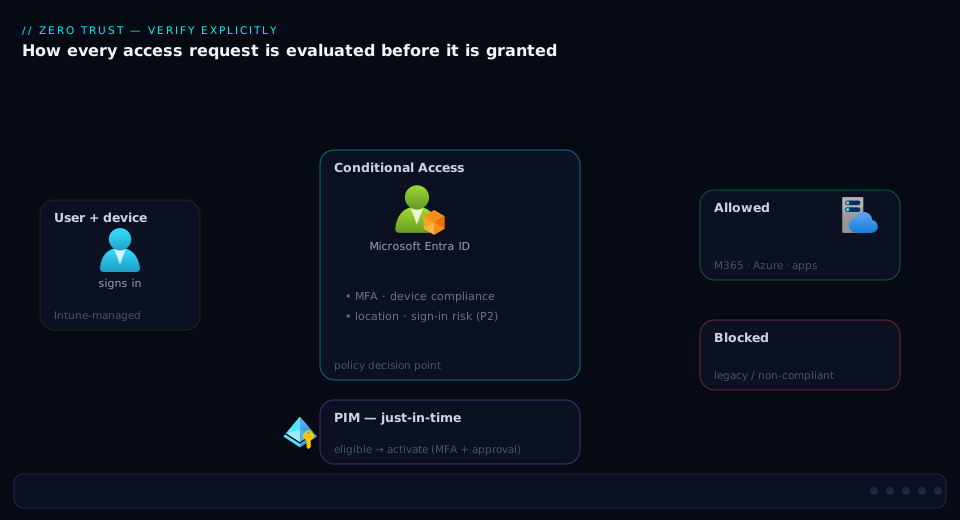
Walk the diagram left to right and it is the life of a single sign-in under this design. A user authenticates to an app; Entra gathers the signals — identity and group (which persona?), device state from Intune (compliant? hybrid-joined?), the named location, the client app type (modern or legacy?), and, with P2, the real-time sign-in and user risk from Identity Protection. Those signals hit the Conditional Access evaluation, where every matching policy in the layered set combines: legacy auth is blocked outright (CA001), the right authentication strength is demanded (MFA for users, phishing-resistant for admins via CA002/CA003), a compliant device is required for privileged work (CA004), and session controls cap the token lifetime and forbid persistence (CA005). High risk short-circuits to Block; medium risk steps up to MFA (CA006/CA007). Only a sign-in that satisfies all matching grant controls receives a token — and even then, a constrained one.
Down the privileged path, the diagram shows the second engine: an admin holds the role only as PIM-eligible, so the token they just earned carries no standing power. To do admin work they activate through PIM — phishing-resistant auth context, justification, ticket, approval, a 2-hour clock — and the activation is logged. Access Reviews loop back on the eligible assignments quarterly, removing what is no longer needed. Off to the side, break-glass accounts sit outside every policy, holding the role as permanent active, wired to a Sentinel alert. Sign-in and audit logs stream to Log Analytics/Sentinel, closing the loop with detection on the events that matter: break-glass sign-in, risky activation, CA-policy modification. That is the whole identity pillar — verify explicitly at the gate, least privilege through PIM, assume breach via session limits, risk, and monitored break-glass.
Real-world scenario
Northwind Logistics, a 4,200-employee freight company, ran the textbook “we have Zero Trust” tenant: MFA was on, a dozen organically grown CA policies existed, and the platform team had “enabled PIM”. An external assessment found the reality. Of fourteen people who could become Global Administrator, eleven held it as standing active — PIM was enabled but the old permanent assignments had never been removed. Legacy authentication was unblocked, so a finance mailbox had been silently accessed over IMAP three weeks earlier with a password from a breach dump; MFA never entered the picture because IMAP cannot present it. And one of the twelve CA policies — a well-meaning “require compliant device for all users” someone added after a laptop-theft scare — was set to enabled with no break-glass exclusion. It had not bitten yet only because most users happened to be on compliant devices.
The remediation ran as a six-week, report-only-first program. Week 1: stand up two cloud-only break-glass accounts, hold Global Admin as permanent active, exclude from every policy, wire a Sentinel sign-in alert, and test them. Week 2: rebuild the estate as a persona-based layered set (CA001–CA012), every policy in report-only, every policy excluding the break-glass group. The report-only data immediately showed the latent landmine: the existing “compliant device for all users” policy would have blocked 38% of the workforce on BYOD — exactly the lockout that had been one fat-fingered condition away. They scoped device-compliance to the admin persona (CA004) instead. Weeks 3–4: enforce in waves — legacy-auth block first (and the IMAP intrusion’s path closed instantly), then user MFA, then admin phishing-resistant strength once every admin had a FIDO2 key. Weeks 5–6: drive standing admins to zero by converting all eleven permanent assignments to PIM-eligible with a 2-hour activation, phishing-resistant auth context, and approval; stand up quarterly access reviews on the eligible Global Admins with auto-remove on no-response.
Then the design met reality. A Sev1 hit at 02:00 in week 7: Exchange Online mail-flow broke, the on-call SRE needed Global Admin, activated through PIM — and the request sat in PendingApproval for 40 minutes because every named approver was asleep. The post-incident finding was blunt: they had traded standing access for an availability dependency on a human. The fix was not to weaken PIM but to separate the paths. Day-to-day elevation kept the approval gate. Emergency recovery moved to the break-glass accounts — which, holding the role as permanent active, bypass the activation gate entirely (no approval, no waiting), are excluded from CA, and fire a Sentinel alert the moment they sign in. The on-call runbook was updated: “for a tenant-down or activation-blocked emergency, break the glass.” The principle held — zero standing admins for humans doing normal work — without making 02:00 recovery depend on someone answering their phone. A year on, the leaked-credential detection that started it all now triggers CA007’s forced password reset automatically, and the same intrusion would die at the first sign-in.
Advantages and disadvantages
The CA + PIM model is the right default for Entra Zero Trust, but it is not free of cost. The honest trade-off:
| Advantages | Disadvantages |
|---|---|
| Every sign-in verified against device, location, risk — not just password | Misconfiguration can lock out the whole tenant in seconds |
| Standing privileged access driven to zero (smallest possible attack surface) | Adds friction: activation, MFA prompts, approval waits |
| Real-time risk response (block/step-up the instant a sign-in looks fraudulent) | Risk and PIM require Entra ID P2 (per-user cost) |
| Phishing-resistant strength removes the phishable-factor class entirely | Phishing-resistant rollout (FIDO2/WHfB) is a project in itself |
| Layered, single-purpose policies are auditable and individually tunable | A large estate needs discipline (naming, personas, IaC) or it sprawls |
| Full audit trail: who elevated, why, when, approved by whom | Approval gates create an availability dependency without break-glass |
| Access reviews recertify automatically; eligibility can’t rot | Reviews generate work for owners; ignored reviews auto-remove (good, but surprising) |
| Session controls cap the breach window (token lifetime, CAE revocation) | Aggressive sign-in frequency annoys users; needs persona tuning |
When each matters: the verification and least-privilege gains are non-negotiable for any tenant holding real data — the breach math (phished credential → instant lateral movement) is decisively in their favour. The friction and licensing costs are real but bounded, and the lockout risk is fully mitigated by the report-only → What-If → break-glass discipline this article insists on. The one trade you must consciously make is approval-gate-vs-availability: solve it with break-glass, not by removing the gate.
Hands-on lab
This lab builds the load-bearing slice of the design — break-glass, a layered policy in report-only, validation with What-If, and PIM eligible activation — in a non-production tenant. You need Entra ID P2 (trial is fine), a test tenant where you are Global Administrator, and Microsoft Graph PowerShell. Do not run this against production; report-only policies are safe, but the lab also flips one to enforced.
Step 1 — Connect and create the break-glass exclusion group.
Connect-MgGraph -Scopes "Group.ReadWrite.All","Policy.ReadWrite.ConditionalAccess",`
  "RoleManagement.ReadWrite.Directory","User.ReadWrite.All"

$bgGroup = New-MgGroup -DisplayName "CA-Exclude-BreakGlass" -MailEnabled:$false `
  -MailNickname "ca-exclude-breakglass" -SecurityEnabled:$true
$bgGroup.Id
# Expected: a GUID printed — your break-glass exclusion group object id
Step 2 — Create one break-glass account and add it to the group.
$pw = -join ((48..57)+(65..90)+(97..122)+(33,35,37,64) | Get-Random -Count 40 | % {[char]$_})
$bg = New-MgUser -DisplayName "BreakGlass Emergency 01" `
  -UserPrincipalName "bg-emergency-01@$((Get-MgOrganization).VerifiedDomains | ? IsInitial | % Name)" `
  -AccountEnabled -MailNickname "bg-emergency-01" `
  -PasswordProfile @{ Password = $pw; ForceChangePasswordNextSignIn = $false }
New-MgGroupMember -GroupId $bgGroup.Id -DirectoryObjectId $bg.Id
"Break-glass UPN: $($bg.UserPrincipalName)  (store the password in a vault)"
# Expected: the UPN printed; password is the 40-char random string in $pw
Step 3 — Create CA001 (block legacy auth) in report-only, excluding break-glass.
$ca = New-MgIdentityConditionalAccessPolicy -BodyParameter @{
  displayName = "CA001-AllUsers-BlockLegacyAuth-AllApps"
  state       = "enabledForReportingButNotEnforced"
  conditions  = @{
    users = @{ includeUsers = @("All"); excludeGroups = @($bgGroup.Id) }
    applications = @{ includeApplications = @("All") }
    clientAppTypes = @("exchangeActiveSync","other")
  }
  grantControls = @{ operator = "OR"; builtInControls = @("block") }
}
$ca.Id
# Expected: policy GUID; state is report-only (nothing is enforced yet)
Step 4 — Validate with What-If (portal). Go to Entra admin center → Protection → Conditional Access → What-If. Pick a test user, set Client app = Exchange ActiveSync, and run. Confirm CA001 appears under “Policies that would apply”. Then change Client app = Browser and confirm CA001 does not apply. This proves the policy bites legacy clients only.
Step 5 — Read the report-only impact. Open Conditional Access → Insights and reporting (or Sign-in logs → a sign-in → Report-only tab). For any sign-in, the report-only column shows whether CA001 would have blocked it. Let it run; you want to see only legacy-protocol sign-ins flagged.
Step 6 — Enforce CA001.
Update-MgIdentityConditionalAccessPolicy -ConditionalAccessPolicyId $ca.Id `
  -BodyParameter @{ state = "enabled" }
(Get-MgIdentityConditionalAccessPolicy -ConditionalAccessPolicyId $ca.Id).State
# Expected: "enabled" — legacy auth is now blocked for all but break-glass
Step 7 — PIM: make a test group eligible for a low-risk role and activate it.
# Make yourself eligible for "Reports Reader" (low risk), then self-activate for 1 hour
$me = (Get-MgUser -UserId (Get-MgContext).Account).Id
$roleId = "4a5d8f65-41da-4de4-8968-e035b65339cf"   # Reports Reader

New-MgRoleManagementDirectoryRoleEligibilityScheduleRequest -BodyParameter @{
  action = "adminAssign"; accessId = "member"; principalId = $me
  roleDefinitionId = $roleId; directoryScopeId = "/"
  scheduleInfo = @{ startDateTime = (Get-Date); expiration = @{ type = "afterDuration"; duration = "P30D" } }
}

New-MgRoleManagementDirectoryRoleAssignmentScheduleRequest -BodyParameter @{
  action = "selfActivate"; accessId = "member"; principalId = $me
  roleDefinitionId = $roleId; directoryScopeId = "/"
  justification = "Lab activation test"
  scheduleInfo = @{ startDateTime = (Get-Date); expiration = @{ type = "afterDuration"; duration = "PT1H" } }
}
# Expected: an active assignment that auto-expires in 1 hour (visible in PIM → My roles)
Step 8 — Validate the activation and audit trail.
Get-MgRoleManagementDirectoryRoleAssignmentScheduleInstance `
  -Filter "principalId eq '$me'" | Select RoleDefinitionId, AssignmentType, StartDateTime, EndDateTime
# Expected: a row with AssignmentType=Activated and an EndDateTime ~1h out
Step 9 — Teardown. Remove what you created so the test tenant is clean:
Remove-MgIdentityConditionalAccessPolicy -ConditionalAccessPolicyId $ca.Id
Remove-MgUser -UserId $bg.Id
Remove-MgGroup -GroupId $bgGroup.Id
# Eligible/active PIM assignments for Reports Reader expire on their own;
# to remove immediately, use New-Mg...RoleEligibilityScheduleRequest with action="adminRemove".
You have now exercised the full muscle: an exclusion group, a break-glass account, a layered policy proven safe in report-only and validated by What-If before enforcing, and a PIM eligible-then-activate cycle with an audit trail. Scale this pattern across the CA001–CA012 set and the persona groups and you have the production design.
Common mistakes & troubleshooting
The failure modes below are the ones that actually happen — from “the whole tenant is locked out” to “MFA looks on but is silently bypassed”. Confirm with the exact path, then fix.
| # | Symptom | Root cause | How to confirm | Fix |
|---|---|---|---|---|
| 1 | Everyone (incl. admins) locked out after a policy change | Over-broad policy with no break-glass exclusion | Sign in as break-glass; check Sign-in logs → CA for the blocking policy | Sign in via break-glass; scope or exclude; re-enable; add break-glass to every policy |
| 2 | “We have MFA” but accounts compromised anyway | Legacy auth not blocked; attacker used IMAP/POP/SMTP | Sign-in logs filter Client app = legacy for successful non-MFA sign-ins | Deploy CA001 (block legacy) in report-only, then enforce |
| 3 | Admin can’t activate role — stuck in PendingApproval | Approval required, approvers unavailable (02:00) | PIM → My roles shows PendingApproval; no approver online | Use break-glass for emergencies; widen approver group; keep approval off tier-0 recovery path |
| 4 | “Require compliant device” blocks the whole workforce | Policy scoped to All users, not the admin persona | Report-only Insights shows huge would-block %; sign-in logs cite the policy | Scope device-compliance to the admin persona; OR compliant-with-MFA for internals |
| 5 | Risk detections fire but nothing happens | Risk-based CA policies left in report-only | Identity Protection dashboard red; CA policy state = report-only | Enforce CA006/CA007 after SSPR is fully rolled out |
| 6 | “Require password change” leaves users stuck | SSPR not enabled/registered for affected users | User can’t complete reset flow; SSPR registration incomplete | Roll out SSPR fully before enforcing user-risk policy |
| 7 | Phishing-resistant policy locks out admins | Admins not enrolled in FIDO2/WHfB before enforcement | Sign-in logs: “strength requirement not met”; no registered method | Enroll all admins in a phishing-resistant method first; verify via report-only |
| 8 | Policy “isn’t applying” to a user | Excluded by another group; or condition never matches; or report-only | What-If for that user/app/condition shows applied vs not | Check exclusions; fix the condition; confirm state = enabled |
| 9 | New admin still has standing Global Admin | Old permanent active PIM assignment never removed | PIM → Roles → Global Admin → Active assignments shows permanent | Convert to Eligible; remove the active assignment |
| 10 | CA policy silently changed / disabled | No alerting on CA modification; insider or attacker edit | Audit logs filter Update conditional access policy; compare to IaC |
Manage CA as Terraform; alert on Update/Delete conditional access policy in Sentinel |
| 11 | Token still valid after disabling a compromised user | No CAE; waiting out the ~1 h access-token lifetime | Disabled user still calls APIs for up to an hour | Enable CAE (strict) so revocation propagates in minutes |
| 12 | Guests bypass MFA / over-access | Guest persona policy missing; guests caught only by “All users” loosely | Sign-in logs filtered to guest UPNs; no guest-specific policy | Add CA009 (guest MFA + ToU + block high-risk; scope app access) |
| 13 | Service principal sign-ins ignore all policies | User-scoped CA doesn’t cover workload identities | Sign-in logs → Service principal sign-ins; no matching policy | Add CA for workload identities (P2 add-on): location/risk restrictions |
| 14 | What-If says “applies” but real sign-in isn’t blocked | Policy in report-only, or a grant the user satisfies | Sign-in Report-only tab vs Conditional Access tab | Flip to enabled once report-only data is clean |
The two most expensive of these are #1 (lockout) and #2 (silent legacy bypass). #1 is fully preventable by the universal break-glass exclusion plus report-only/What-If; if it happens, the break-glass account is the fix. #2 is the quiet killer — the tenant looks compliant on the MFA dashboard while an attacker walks in over a protocol that never sees a challenge — and CA001 closes it permanently.
Best practices
- Exclude break-glass from every enforcing policy, always. One dedicated exclusion group, referenced by all policies, never edited casually. This single rule prevents the worst failure.
- Report-only → What-If → enforce, every time. Never set a new policy to
enableddirectly. Run report-only for 1–2 weeks, validate the exact would-apply set with What-If, read Insights and reporting, then flip. - Layer narrow, single-purpose policies. One idea per policy with a structured name (
CAxxx-Persona-Action-Scope). Never a mega-policy. Composition is by AND; Block wins. - Use authentication strength, not bare “require MFA”, for anything privileged. Phishing-resistant for admins and tier-0 PIM activation; attach via authentication context so step-up lands on the resource that matters.
- Block legacy authentication tenant-wide. It is the highest-value single policy; until it is on, MFA is bypassable.
- Drive standing privileged access to zero. Eligible-not-active for humans; convert every permanent assignment; permanent active only for break-glass. Tier roles so friction matches power.
- Gate tier-0 PIM activation with phishing-resistant auth context, justification, ticket, and approval — but keep emergency recovery on break-glass so approval never blocks 02:00 incident response.
- Auto-remove on no-response in access reviews.
defaultDecision = Deny+ auto-apply. Silence must shrink privilege, not preserve it. - Enforce risk policies — don’t leave them in report-only. And roll out SSPR first so user-risk remediation actually works.
- Enable CAE (strict where needed). Near-real-time revocation closes the “valid token after disable/risk” gap the default lifetime leaves open.
- Manage CA and PIM as code (Terraform), review every change, and alert on CA/PIM modification in Sentinel. The policy estate is security-critical configuration; treat it like production infrastructure.
- Stream sign-in and audit logs to Log Analytics/Sentinel and alert on the events that matter: break-glass sign-in, tier-0 PIM activation, CA policy create/update/delete, risky sign-in for privileged users.
Security notes
The CA + PIM estate is a security boundary, so the configuration itself must be defended. Who can edit Conditional Access is a tier-0 concern: only Conditional Access Administrator, Security Administrator, and Global Administrator should hold the Policy.ReadWrite.ConditionalAccess capability, and those roles should themselves be PIM-eligible behind phishing-resistant activation — an attacker who can disable your policies has defeated all of them at once. Alert on every CA create/update/delete in the audit log; a silently weakened policy is a classic post-compromise move.
The MFA-registration flow is a frequently missed attack surface. If an attacker phishes a password and then registers their own MFA method, they have promoted a credential theft into durable account takeover. CA011 (require MFA — or a Temporary Access Pass — to register security information) and locking registration to trusted locations closes this. Pair it with monitoring on “security info registered” audit events.
For least privilege, remember PIM governs Azure resource roles too: a standing subscription Owner is as dangerous as a standing Global Administrator and often forgotten. Scope eligible assignments to the narrowest directory or resource scope that works — a resource-group Contributor, not a subscription Owner — and review them on the same cadence. Workload identities need their own treatment: service principals cannot do interactive MFA, so their Zero Trust controls are location restrictions, risk-based CA for workload identities (P2 add-on), federated credentials instead of secrets, and certificate/managed-identity auth — covered in Locking Down Workload Identities. Finally, session security: short sign-in frequency for privileged sessions, non-persistent browser on shared and admin contexts, and CAE strict enforcement so a revoked token dies in minutes, not an hour — these convert “assume breach” from a slogan into a measurable, bounded exposure window.
Cost & sizing
The dominant cost driver here is licensing tier, not infrastructure — CA and PIM run on Microsoft’s control plane, so you pay per user-licence, not per policy or per evaluation. The decision is which licence each population needs, and you can mix: licence the populations that need P2 (admins, and anyone you want risk-protected) at P2, the rest at P1 — but be deliberate, because risk-based CA and PIM only protect users who are licensed for them.
| Capability | Minimum licence | Indicative cost (per user/mo) | What you lose without it |
|---|---|---|---|
| Conditional Access (signals, grant/session, auth strength) | Entra ID P1 | ~₹500 / ~$6 | No CA at all — back to password-only |
| Named locations, report-only, What-If | Entra ID P1 | (included in P1) | No location signal, no safe rollout |
| Identity Protection (risk-based CA, detections) | Entra ID P2 | ~₹780 / ~$9 | No real-time risk in the grant decision |
| PIM (eligible/JIT, activation, approval) | Entra ID P2 | (included in P2) | Standing admins; no JIT |
| Access Reviews | Entra ID P2 | (included in P2) | No automated recertification |
| Conditional Access for workload identities | P2 + Workload Identities Premium add-on | per-SP add-on | Service principals uncovered by CA |
| Intune (compliant device, app protection) | Intune plan / M365 E3+ | bundled in M365 E3/E5 | No device-compliance or MAM grant controls |
Sizing guidance, not just price: P1 is the floor for any CA — every employee who signs in needs it. P2 is justified for all privileged users without exception (PIM and risk both matter most there) and is strongly advisable for the whole workforce if budget allows, because leaked-credential and risky-sign-in protection is exactly where breaches start. A pragmatic middle path for a cost-sensitive org: P2 for admins and high-value roles, P1 for the general workforce, and revisit as the threat picture and budget evolve. There is no per-policy or per-activation charge — running CA001–CA012 and gating fifty roles in PIM costs the same as running two policies; the spend is purely the user licences. The free-tier reality: the base Entra (formerly “free”) tier gives you security defaults (a fixed, all-or-nothing MFA baseline) but no custom Conditional Access, no risk, no PIM — adequate for a tiny tenant, but you cannot operationalise Zero Trust on it.
Interview & exam questions
These map to SC-300 (Identity and Access Administrator), SC-100 (Cybersecurity Architect), and AZ-500 (Azure Security Engineer).
Q1. What is the difference between a Conditional Access grant control and a session control? Grant controls decide whether and on what terms a sign-in succeeds (Block, or Grant requiring MFA/compliant device/auth strength), combined with AND/OR. Session controls shape the resulting session — sign-in frequency, persistent browser, app-enforced restrictions, CAE. Grant is the gate; session is the leash.
Q2. How do multiple matching Conditional Access policies combine? They apply together with logical AND — the user must satisfy all grant controls from all matching policies. If any matching policy specifies Block, the sign-in is blocked regardless of other grants. This is why layered narrow policies are safe and an unexcluded Block is catastrophic.
Q3. Why is blocking legacy authentication the highest-value CA policy? Legacy protocols (IMAP, POP, SMTP, older ActiveSync, “Other clients”) cannot present an interactive MFA challenge, so a “require MFA” policy is silently bypassed by authenticating over legacy. Blocking legacy closes the largest MFA-bypass hole; without it, MFA is theatre.
Q4. Distinguish “Require MFA” from “Require authentication strength.” “Require MFA” accepts any satisfied second factor, including phishable ones (SMS). Authentication strength demands a specific set of methods — e.g. the built-in phishing-resistant strength accepts only FIDO2, Windows Hello for Business, or certificate-based auth — so you can mandate unphishable factors where they matter.
Q5. What is authentication context and when do you use it? A label (c1…c99) you attach to a CA policy and then reference from a sensitive resource or action (a SharePoint site, a PIM activation, an app requesting acrs). It lets you require a stronger control on the resource/action rather than the whole sign-in — step-up exactly where the value is, not everywhere.
Q6. What is the difference between sign-in risk and user risk in Identity Protection? Sign-in risk scores whether this particular authentication is fraudulent (anonymous IP, impossible travel, token anomaly) and is acted on in real time (block/step-up). User risk scores whether the account is compromised over time (e.g. leaked credentials) and typically triggers a forced secure password change.
Q7. In PIM, what is the difference between eligible and active, and why does it matter for break-glass? Eligible means a principal may activate the role JIT, passing the activation gate (MFA, justification, approval, time limit); active means they currently hold it. Crucially, active assignments bypass the activation gate entirely — so break-glass accounts hold the role as permanent active to avoid depending on approval/MFA-on-activation during an emergency.
Q8. How do you safely roll out a new Conditional Access policy? Create it in report-only so it is evaluated but not enforced; validate the exact would-apply set with the What-If tool; review the Insights and reporting workbook for real impact over 1–2 weeks; ensure prerequisites (e.g. method enrollment, SSPR) are met; then flip the state to enabled — always with break-glass excluded.
Q9. Why must risk-based remediation policies be paired with SSPR, and why must they eventually be enforced? A user-risk policy that requires a secure password change is a dead end if self-service password reset is not rolled out — the user cannot remediate. And a risk policy left in report-only is security theatre: detections fire, the dashboard reddens, but no challenge or block occurs. Enforce after SSPR is ready.
Q10. What is Continuous Access Evaluation (CAE) and which gap does it close? CAE delivers near-real-time revocation/reevaluation signals to supporting clients, so events like a disabled user, password reset, or risk spike force reauthentication within minutes instead of waiting out the ~1-hour access-token lifetime. It closes the “valid token after the user was disabled/flagged” window.
Q11. How does the persona-based design improve a CA estate over organic policy growth? Personas (admins, internals, guests, developers, workload identities, break-glass) map every account to one population via groups and layer single-purpose policies per persona over global baselines. The estate becomes a readable grid — every policy’s purpose is explicit, changes are isolated, and new members inherit the right stack automatically — instead of an unmaintainable pile of overlapping rules.
Q12. What should access reviews on privileged roles be configured to do on no reviewer response, and why? Set the default decision to Deny (remove) with auto-apply. Silence then shrinks privilege rather than preserving it — eligibility that nobody affirmatively confirms is removed, which is the entire point of recertification. The alternative (retain on no response) lets stale access accumulate exactly as it did before reviews.
Quick check
- Two CA policies match a sign-in: one grants with “require MFA”, the other says “Block”. What happens?
- Your tenant shows “MFA enabled” on the dashboard, yet an account was compromised with a leaked password and no MFA prompt. What is the most likely cause?
- You need finance-app access to require a FIDO2 key, but you do not want to force security keys for reading email. Which feature combination achieves this?
- A break-glass account is configured as PIM-eligible for Global Administrator behind an approval gate. Why is this wrong?
- You enabled a user-risk policy that forces a secure password change, but flagged users are now stuck. What prerequisite was missing?
Answers
- The sign-in is blocked. Matching policies combine with AND, and an explicit Block overrides any grant — Block always wins.
- Legacy authentication is not blocked. Protocols like IMAP/POP cannot present an MFA challenge, so the “require MFA” policy was bypassed. Deploy a block-legacy-auth policy (report-only, then enforce).
- Authentication strength (phishing-resistant) + authentication context. Define a context (e.g.
c1), attach a CA policy requiring the phishing-resistant strength to it, and point the finance app atc1— step-up lands only on that resource. - Active assignments bypass the activation gate; eligible ones do not. Behind approval, the break-glass account could sit in PendingApproval during an emergency, recreating the dependency it exists to avoid. Break-glass should be permanent active (and CA-excluded, monitored).
- Self-service password reset (SSPR) was not rolled out. Without SSPR registration, users cannot complete the required reset, so the remediation control is a dead end. Roll out SSPR before enforcing user-risk remediation.
Glossary
- Conditional Access (CA): Entra’s policy engine that evaluates signals on every sign-in and applies grant/session controls — the verify-explicitly enforcement point.
- Assignment: A policy’s if — the users/groups, target resources, and conditions that determine when the policy fires.
- Grant control: A policy’s then for the gate — Block, or Grant requiring MFA, compliant device, authentication strength, etc., combined with AND/OR.
- Session control: A policy’s then for the session — sign-in frequency, persistent browser, app-enforced restrictions, Conditional Access App Control, CAE.
- Authentication strength: A required set of authentication methods (built-in MFA, passwordless MFA, phishing-resistant MFA, or custom) — precise where “require MFA” is coarse.
- Authentication context: A label (
c1…c99) attaching a CA policy (and its strength) to a sensitive resource or action so step-up happens per-resource, not per-sign-in. - Named location: A defined IP range or country used as a CA condition (trusted vs outside known networks); an input to assurance, not a trust anchor.
- Sign-in risk: Identity Protection’s real-time score of whether this authentication is fraudulent (P2).
- User risk: Identity Protection’s score of whether the account is likely compromised over time (P2), typically remediated by a forced password change.
- Report-only: A policy state where the policy is evaluated and logged but not enforced — used to measure impact before turning it on.
- What-If: The CA tool that simulates which policies a hypothetical sign-in would hit, used to validate scope before enforcing.
- PIM (Privileged Identity Management): The service that makes roles eligible (JIT-activatable) instead of active (standing), with activation gates and approval (P2).
- Eligible / Active assignment: Eligible = may activate JIT through the gate; Active = currently holds the role and bypasses the activation gate.
- Activation: The act of an eligible user turning a role on JIT — passing MFA/auth-context, justification, ticket, optional approval, for a bounded window.
- Access review: A scheduled recertification of access (roles, groups, guests) that can auto-remove on no response (P2).
- Break-glass account: A cloud-only emergency account excluded from all CA policies, holding the role as permanent active and tightly monitored, used to recover from a lockout.
- Continuous Access Evaluation (CAE): A mechanism delivering near-real-time token revocation/reevaluation to supporting clients on events like user disable or risk spike.
Next steps
- Read the conceptual foundation this implements: Zero Trust Architecture Blueprint: Identity, Network, and Data Pillars.
- Scale the design to many apps and personas with Designing Conditional Access at Scale: A Persona-Based Policy Framework with Authentication Context and Filters.
- Go deep on the risk engine in Operationalizing Entra ID Protection: Risk-Based Conditional Access, Detection Tuning, and Risk Investigation.
- Master the privileged-access layer with Privileged Identity Management and PAM Architecture: Just-in-Time Access at Scale and harden the safety net via Engineering Break-Glass Emergency Access Accounts in Entra ID.
- Close the phishable-factor gap with Rolling Out Phishing-Resistant Passwordless Auth: FIDO2, Passkeys, and Break-Glass Design, and recertify everything with Building an Access Reviews Program in Entra ID.