You have been told to “turn on MFA for everyone” by Friday. You open Microsoft Entra Conditional Access, build a policy that requires multi-factor authentication for all users, and your thumb hovers over On. Then the cold thought arrives: what if this policy is wrong? What if it locks out the service account that runs the nightly billing job, or the CEO who is mid-flight with no authenticator app, or — worst of all — you, the only admin, leaving nobody who can turn it back off? That fear is the single biggest reason MFA rollouts stall for months. It is also completely avoidable.
Conditional Access is Entra’s policy engine: at every sign-in it evaluates “if these conditions are true (this user, this app, this risk, this device), then enforce these controls (require MFA, require a compliant device, or block).” It is the front door of a Zero Trust estate. And it ships with a third state that most teams never use properly — Report-Only — that evaluates the policy against every real sign-in and records what it would have done without actually enforcing anything. Report-Only is the safety net that lets you deploy a policy to production, watch a week of real traffic flow through it, see exactly who would have been blocked or challenged, fix the gaps, and only then flip to enforced. Nobody gets locked out, because nothing is enforced until the telemetry is clean.
This is the step-by-step guide to that rollout. You will create break-glass emergency-access accounts and exclude them so you can never lock yourself out, build a baseline “require MFA for all users” policy in Report-Only, read the Insights and reporting workbook and the sign-in logs to find the reportOnlyFailure rows, fix the exclusions those rows reveal, and promote to enabled with confidence. You will do every step three ways — in the portal, with az/Microsoft Graph, and as Bicep — with expected output, validation, and a full teardown. By the end, deploying a Conditional Access policy will feel like a controlled change, not a leap of faith.
What problem this solves
Conditional Access is the highest-leverage and highest-blast-radius control in a Microsoft tenant. One policy, scoped to “All users” and “All cloud apps”, touches every sign-in your organisation makes. Get it right and you have killed legacy password-only authentication across the estate in an afternoon. Get it wrong and you have produced a self-inflicted outage where nobody — including the people who could fix it — can sign in.
What breaks without a safe rollout is depressingly common. An admin enables a “block legacy authentication” policy and the IMAP mailbox a finance tool depends on stops working at month-end. Someone requires a compliant device for all apps before the devices are enrolled, and the whole company is locked out on Monday morning. A “require MFA for all users” policy with no exclusions catches the break-glass account and the Entra Connect sync service account, so identity sync silently fails. And the classic: the only Global Administrator enables an MFA policy, has no second factor registered, and now cannot get back in to disable it — a real support-ticket-to-Microsoft scenario that costs hours.
Who hits this: every team facing an MFA mandate, a cyber-insurance questionnaire, or a Zero Trust initiative — essentially everyone. The pain is sharpest for small teams with one or two admins (no margin for a lockout), for organisations with service and legacy accounts that authenticate non-interactively, and for anyone who learned Conditional Access by toggling policies in production and watching what broke. Report-Only exists so you never have to learn that way. The whole method is: deploy to production, observe real traffic, fix what the telemetry shows, then enforce.
Learning objectives
By the end of this article you can:
- Explain the three Conditional Access policy states — Report-Only, On (enabled), and Off (disabled) — and what each does to a real sign-in.
- Create and harden two break-glass emergency-access accounts and exclude them from every policy so a misconfiguration can never lock you out.
- Build a baseline “require MFA for all users” Conditional Access policy in Report-Only in the portal, with
az/Microsoft Graph, and as Bicep. - Read the Insights and reporting workbook and the sign-in logs to find exactly which sign-ins a Report-Only policy would have blocked or challenged.
- Identify and add the right exclusions — break-glass accounts, sync service accounts, and legacy-auth workloads — from what the telemetry reveals.
- Promote a clean Report-Only policy to enabled safely, and roll it back instantly if something unexpected appears.
- Recognise and fix the common rollout failures: locked-out admins, blocked service accounts, the “policy not applying” trap, and the report-only-stuck-forever mistake.
Prerequisites & where this fits
You need an Entra ID P1 or P2 licence (Conditional Access is a premium feature; P1 covers everything here, P2 adds risk-based signals), the Conditional Access Administrator or Security Administrator role to create policies, and Global Administrator to create the break-glass accounts. You should be comfortable running az in Azure Cloud Shell and have Microsoft Graph PowerShell available (pre-installed in Cloud Shell’s PowerShell mode). Basic familiarity with MFA and what a “cloud app” means in Entra is assumed.
This sits at the very start of the Identity & Zero Trust track — the safe-deployment mechanic every later Conditional Access topic depends on. Once you can roll a policy out safely, the next steps are designing a real policy set per user group (Designing Conditional Access at Scale: A Persona-Based Policy Framework with Authentication Context and Filters), layering in risk signals (Operationalizing Entra ID Protection: Risk-Based Conditional Access, Detection Tuning, and Risk Investigation), and pairing Conditional Access with just-in-time admin access (Zero Trust on Microsoft Entra: Conditional Access + PIM, Step by Step). The break-glass accounts you build here are covered in depth in Engineering Break-Glass Emergency Access Accounts in Entra ID: Exclusions, Hardening, and Tamper-Evident Monitoring.
Here is the map of who owns what during a rollout, so you involve the right people before you flip a switch:
| Layer | What lives here | Who usually owns it | What a bad policy here breaks |
|---|---|---|---|
| Break-glass accounts | Two excluded emergency admins | Identity / security lead | Total lockout if not excluded |
| Conditional Access policies | The if/then rules | Identity admin | Every sign-in in the tenant |
| Sign-in logs + Insights workbook | Report-only telemetry | Identity / SOC | Nothing — this is read-only proof |
| Service accounts / sync | Non-interactive auth | Platform team | Silent sync/job failures if blocked |
| Legacy-auth apps | IMAP/POP/SMTP/older clients | App owners | Mail/automation breaks on legacy block |
Core concepts
Four ideas make every step below obvious.
A policy is an if/then rule evaluated at every sign-in. The “if” is assignments: which users/groups (and exclusions), which target resources (cloud apps), and the conditions (sign-in risk, device platform, location, client app). The “then” is access controls: Grant (block, or allow with requirements like require MFA or require a compliant device) and Session (sign-in frequency, persistent browser). Entra evaluates all enabled policies on every sign-in and combines their grant controls — if any policy says block, you are blocked.
There are exactly three states, and Report-Only is the one that matters here. A policy is On (enabled) — evaluated and enforced; Off (disabled) — ignored entirely; or Report-Only (enabledForReportingButNotEnforced) — evaluated against every real sign-in, with the result logged but the grant control not applied. Report-Only is not a simulation against fake users — it runs against your real production traffic, so when the telemetry is clean you know enforcement is safe.
Break-glass accounts are how you survive your own mistakes. A break-glass (emergency-access) account is a cloud-only Global Administrator, with a long random password stored offline, that is excluded from all Conditional Access policies. If a policy locks everyone out, you sign in with break-glass and disable it. Excluding break-glass from every policy is the first thing you do, before any enforcing policy exists — it is the seatbelt you fasten before starting the car.
Report-Only telemetry lives in the sign-in logs as distinct result values: reportOnlySuccess (the user satisfied the control — MFA would have passed), reportOnlyFailure (the user would have been blocked), reportOnlyInterrupted (MFA would have prompted them), or reportOnlyNotApplied (the policy didn’t apply). A wall of reportOnlyFailure on your “require MFA” policy means a population that cannot do MFA — exactly the accounts to exclude before enforcing. (The glossary at the end is the lookup table for every term used here.)
The three policy states, in detail
Everything about a safe rollout flows from understanding what each state does to a live sign-in. Get this table into your head and the rest is mechanics:
| State | Graph state value |
Evaluated? | Enforced? | Appears in sign-in logs as | Use it for |
|---|---|---|---|---|---|
| Off | disabled |
No | No | Not applied | Drafting; parking a retired policy |
| Report-Only | enabledForReportingButNotEnforced |
Yes | No | reportOnlySuccess / reportOnlyFailure / reportOnlyInterrupted / reportOnlyNotApplied |
Validating a new/changed policy against real traffic |
| On | enabled |
Yes | Yes | success / failure |
Live enforcement once telemetry is clean |
The rollout lifecycle for any policy — new or changed — is a one-way street through these states:
| Step | State you set | What you do here | Exit criteria to advance |
|---|---|---|---|
| 1. Draft | Off | Build assignments + controls; exclude break-glass | Policy looks correct on review |
| 2. Stage | Report-Only | Let real traffic flow; collect ≥ a few days | Insights workbook shows expected impact |
| 3. Triage | Report-Only | Read reportOnlyFailure; add exclusions |
Zero unexpected would-block rows |
| 4. Enforce | On | Promote; watch live sign-ins closely | success/failure look as predicted |
| 5. Roll back (if needed) | Report-Only or Off | Flip instantly if something breaks | Incident resolved; re-stage the fix |
The two traps to avoid: treating Report-Only as a draft you forget (the would-block population never gets fixed and you enforce blind months later — set a reminder to triage within the business cycle), and assuming Report-Only is safe to leave on forever (it protects nothing; your MFA mandate is not met until enabled).
Building break-glass accounts first
Before you create a single enforcing or report-only policy, create two break-glass accounts. Two, not one, so a single forgotten password or deleted account does not strand you. These are cloud-only (@yourtenant.onmicrosoft.com, not federated), permanently assigned Global Administrator, with 40+ character random passwords split and stored offline (a safe, a sealed envelope, a vault accessible without SSO). The non-negotiable property: they are excluded from every Conditional Access policy, so no policy can ever block them.
Exclude break-glass via a group, not by listing each account in each policy — add the exclusion group once per policy and manage membership centrally. The hardening checklist:
| Property | Setting | Why |
|---|---|---|
| Account type | Cloud-only (.onmicrosoft.com) |
Survives an on-prem AD / federation outage |
| Role | Global Administrator (permanent) | Must be able to disable any policy |
| Password | 40+ chars, random, offline, split | Not memorable, not phishable, not in a password manager behind SSO |
| Conditional Access | Excluded from all policies | The entire point — never lockable |
| MFA | A FIDO2 key or offline TOTP seed kept with the password | Strong, but recoverable without the user’s personal phone |
| Monitoring | Alert on every sign-in | Any use is an emergency — page someone |
| Naming | Obvious, e.g. bg-admin-01@… |
Easy to spot in logs and exclusions |
Create the exclusion group and a placeholder break-glass account with az / Microsoft Graph:
# Create the exclusion group (security group, assigned membership)
az ad group create \
  --display-name "CA-BreakGlass-Exclude" \
  --mail-nickname "CA-BreakGlass-Exclude"

# Capture its object id for use in policy exclusions
BG_GROUP_ID=$(az ad group show --group "CA-BreakGlass-Exclude" --query id -o tsv)
echo "Break-glass exclusion group: $BG_GROUP_ID"
# Microsoft Graph PowerShell — create a cloud-only break-glass user
Connect-MgGraph -Scopes "User.ReadWrite.All","Group.ReadWrite.All","RoleManagement.ReadWrite.Directory"

$pwd = -join ((33..126) | Get-Random -Count 40 | ForEach-Object {[char]$_})
$user = New-MgUser -DisplayName "Break Glass 01" `
  -UserPrincipalName "bg-admin-01@contoso.onmicrosoft.com" `
  -MailNickname "bg-admin-01" -AccountEnabled `
  -PasswordProfile @{ Password = $pwd; ForceChangePasswordNextSignIn = $false }

# Add it to the exclusion group; assign Global Administrator separately via PIM/role
Add-MgGroupMember -GroupId $BG_GROUP_ID -DirectoryObjectId $user.Id
Store $pwd offline immediately and do not keep it in the shell history. Repeat for bg-admin-02. You now have a seatbelt. Every policy from here on excludes the CA-BreakGlass-Exclude group.
Designing the baseline policy
The first policy almost everyone needs is “require MFA for all users” — the highest-value control (it stops the overwhelming majority of password-spray and credential-stuffing attacks) and the one most likely to be mandated. Design it conservatively and stage it in Report-Only. The assignments and controls, with the safe choice for each:
| Setting | Our baseline value | Why this choice |
|---|---|---|
| Users — include | All users | The mandate is “everyone” |
| Users — exclude | CA-BreakGlass-Exclude group (+ sync service account) |
Never lock out emergency access or identity sync |
| Target resources | All cloud apps | MFA everywhere, not just one app |
| Conditions | (none initially) | Keep the first policy simple; add device/risk later |
| Grant | Require multi-factor authentication | The control the mandate asks for |
| Session | (none initially) | Add sign-in frequency in a later, separate policy |
| State | Report-Only first | Stage against real traffic before enforcing |
Two design rules prevent the most common rollout pain: one policy = one job (don’t bundle MFA, device compliance, and a block into one — a single bad control then takes down the whole policy and complicates rollback), and always exclude break-glass and sync accounts before staging (or you lock out the accounts you need to recover or to sync identities).
The accounts you almost always need to exclude from a tenant-wide MFA policy — each of which shows up as reportOnlyFailure if you forget — and why each cannot do interactive MFA:
| Account / workload | Why it can’t do interactive MFA | Safer handling |
|---|---|---|
| Break-glass admins | They are the recovery path; must never be blocked | Exclude (the seatbelt) |
| Entra Connect / Cloud Sync service account | Non-interactive directory sync | Exclude; protect with trusted-location + monitoring |
| Legacy-auth mailboxes (IMAP/POP/SMTP) | Protocols predate modern auth; no MFA prompt possible | Migrate to modern auth, or block legacy separately |
| Application service principals | Sign in as apps, not users — CA “users” doesn’t target them | Use workload identity policies (separate feature) |
| Azure AD-joined automation / kiosks | No human to answer a prompt | Scope by group; use device-based controls instead |
Hands-on lab: Report-Only rollout to enforcement
This is the centrepiece. You will deploy the baseline “require MFA for all users” policy end to end — in the portal and with az/Microsoft Graph, plus a Bicep version — stage it in Report-Only, read the telemetry, fix exclusions, promote to enforced, validate, and tear down. Everything is reversible. Do this in a test tenant or a maintenance window, and have your break-glass accounts ready before you start.
Prerequisites for the lab
# Confirm you're in the right tenant and have a premium licence
az account show --query "{tenantId:tenantId, user:user.name}" -o table
# Entra ID P1/P2 is required for Conditional Access — confirm in the portal:
#   Entra ID > Overview > Licenses  (look for AAD Premium P1 or P2)
Expected: your tenant id and signed-in user. If az is not logged in, run az login first. You also need the break-glass exclusion group from the section above (CA-BreakGlass-Exclude).
Step 1 — Confirm break-glass exclusions exist
Before anything, verify the exclusion group exists and has your two emergency accounts. A policy you stage without this is a policy that can lock you out the moment you enforce it.
BG_GROUP_ID=$(az ad group show --group "CA-BreakGlass-Exclude" --query id -o tsv)
az ad group member list --group "$BG_GROUP_ID" --query "[].userPrincipalName" -o table
Expected: two rows, bg-admin-01@… and bg-admin-02@…. If empty, go back and create them. Do not proceed without this.
Step 2 — Create the baseline policy in Report-Only (Portal)
- Go to Microsoft Entra admin center > Protection > Conditional Access > Policies.
- Click + New policy. Name it
CA-Baseline-RequireMFA-AllUsers. - Assignments > Users: under Include, select All users. Under Exclude, choose Groups and add CA-BreakGlass-Exclude. (A confirmation warns you about scoping to all users — that warning is why you exclude break-glass.)
- Target resources > Cloud apps: Include > All cloud apps.
- Access controls > Grant: select Grant access, tick Require multifactor authentication, click Select.
- At the bottom, set Enable policy to Report-only.
- Click Create.
Expected: the policy appears in the list with state Report-only. It is now evaluating every sign-in in your tenant and logging the result, enforcing nothing.
Step 3 — Create the same policy with Microsoft Graph (CLI path)
If you prefer code (recommended for repeatability), create the identical policy via Microsoft Graph. Conditional Access policies live under the Graph endpoint /identity/conditionalAccess/policies; az rest calls it directly:
BG_GROUP_ID=$(az ad group show --group "CA-BreakGlass-Exclude" --query id -o tsv)

az rest --method POST \
  --url "https://graph.microsoft.com/v1.0/identity/conditionalAccess/policies" \
  --headers "Content-Type=application/json" \
  --body "{
    \"displayName\": \"CA-Baseline-RequireMFA-AllUsers\",
    \"state\": \"enabledForReportingButNotEnforced\",
    \"conditions\": {
      \"users\": { \"includeUsers\": [\"All\"], \"excludeGroups\": [\"$BG_GROUP_ID\"] },
      \"applications\": { \"includeApplications\": [\"All\"] }
    },
    \"grantControls\": {
      \"operator\": \"OR\",
      \"builtInControls\": [\"mfa\"]
    }
  }"
The Microsoft Graph PowerShell equivalent (note New-MgIdentityConditionalAccessPolicy):
Connect-MgGraph -Scopes "Policy.ReadWrite.ConditionalAccess","Policy.Read.All"

$params = @{
  DisplayName = "CA-Baseline-RequireMFA-AllUsers"
  State       = "enabledForReportingButNotEnforced"   # Report-Only
  Conditions  = @{
    Users        = @{ IncludeUsers = @("All"); ExcludeGroups = @($BG_GROUP_ID) }
    Applications = @{ IncludeApplications = @("All") }
  }
  GrantControls = @{ Operator = "OR"; BuiltInControls = @("mfa") }
}
New-MgIdentityConditionalAccessPolicy -BodyParameter $params
Expected: a JSON object echoing the created policy with an id and "state": "enabledForReportingButNotEnforced". The required delegated scope is Policy.ReadWrite.ConditionalAccess — if you get a 403, you are missing it or the Conditional Access Administrator role. (If you ran both Step 2 and Step 3, delete one duplicate; keep whichever you prefer to manage.)
Step 4 — The Bicep version (policy as code)
For estates that manage identity as code, the same policy is a Bicep resource. This is how you keep policies in Git and deploy them through a pipeline:
// Deploy at tenant scope: az deployment tenant create ...
targetScope = 'tenant'

@description('Object id of the break-glass exclusion group')
param breakGlassGroupId string

resource baselineMfa 'Microsoft.Graph/conditionalAccessPolicies@beta' = {
  displayName: 'CA-Baseline-RequireMFA-AllUsers'
  state: 'enabledForReportingButNotEnforced'   // Report-Only; flip to 'enabled' to enforce
  conditions: {
    users: {
      includeUsers: [ 'All' ]
      excludeGroups: [ breakGlassGroupId ]
    }
    applications: {
      includeApplications: [ 'All' ]
    }
  }
  grantControls: {
    operator: 'OR'
    builtInControls: [ 'mfa' ]
  }
}
# Deploy it (tenant-scoped). The Microsoft.Graph Bicep types require the Graph extension.
az deployment tenant create \
  --location centralindia \
  --template-file ca-baseline.bicep \
  --parameters breakGlassGroupId="$BG_GROUP_ID"
Expected: a successful tenant deployment with the policy provisioned in Report-only. Promoting later is a one-line diff: change state to 'enabled' and redeploy — which is exactly the controlled, reviewable promotion you want.
Step 5 — Generate real sign-in traffic and let it accumulate
Report-Only only tells you something once real users sign in. In a test tenant, sign in as a few test users (including one with no MFA registered, to produce a reportOnlyInterrupted/reportOnlyFailure row) and as the break-glass account (to confirm it is not applied). In production, simply wait — give it at least a few business days so weekend jobs, month-end tools and travelling users all pass through.
# After some sign-ins, confirm the policy is evaluating (not enforcing)
az rest --method GET \
  --url "https://graph.microsoft.com/v1.0/identity/conditionalAccess/policies?\$filter=displayName eq 'CA-Baseline-RequireMFA-AllUsers'" \
  --query "value[].{name:displayName, state:state}" -o table
Expected: one row, state enabledForReportingButNotEnforced.
Step 6 — Read the Insights and reporting workbook
- Go to Conditional Access > Insights and reporting.
- Set the Conditional Access policy filter to
CA-Baseline-RequireMFA-AllUsersand a time range covering your staging window. - Read the tiles: Total, Would be blocked / failure, Would require interaction (MFA), Success, Not applied.
Expected and how to read it:
| Workbook tile | What it counts | What a healthy baseline looks like |
|---|---|---|
| Success | Sign-ins that already satisfied MFA | The bulk of MFA-registered users |
| Would require interaction | Users who would be prompted for MFA | Expected for not-yet-prompted users |
| Failure / would block | Users who could not satisfy MFA | Should trend to only known service/legacy accounts |
| Not applied | Sign-ins the policy didn’t target | Excluded users (break-glass), non-matching apps |
| Total | All evaluated sign-ins | Sanity check against your tenant’s volume |
The single most important number is failure / would-block. If it is anything other than the service and legacy accounts you already expected, you have found a population that enforcement would break — before it broke.
Step 7 — Drill into the sign-in logs for the would-block rows
The workbook shows the shape; the sign-in logs show the exact accounts. Pull the report-only results from the logs:
# Sign-ins where THIS policy would have failed (blocked) the user
az rest --method GET \
  --url "https://graph.microsoft.com/v1.0/auditLogs/signIns?\$top=50&\$filter=createdDateTime ge 2026-06-20T00:00:00Z" \
  --query "value[?appliedConditionalAccessPolicies[?displayName=='CA-Baseline-RequireMFA-AllUsers' && result=='reportOnlyFailure']].{user:userPrincipalName, app:appDisplayName, time:createdDateTime}" \
  -o table
In the portal, the same view: Entra ID > Sign-in logs > [pick a sign-in] > Conditional Access tab shows each policy with its Report-only result chip. Filter the log by Conditional Access (Report-only) to list them. The result values you will see, and what each means for your next move:
| Result in sign-in log | Meaning | Your action |
|---|---|---|
reportOnlySuccess |
User satisfied MFA; enforcement is safe for them | None — this is the goal state |
reportOnlyInterrupted |
User would be prompted for MFA interactively | None — expected; they’ll register MFA on enforce |
reportOnlyFailure |
User would be blocked (can’t do MFA) | Investigate the account; exclude if it’s service/legacy |
reportOnlyNotApplied |
Policy didn’t apply (excluded user / non-matching app) | Confirm it’s an intended exclusion (e.g. break-glass) |
Step 8 — Add the exclusions the telemetry revealed
Suppose Step 7 surfaced your Entra Connect sync service account (sync_…@contoso.onmicrosoft.com) as reportOnlyFailure. Add it to the exclusion group (or as a direct user exclusion) and let Report-Only run again to confirm it drops out of the failure list:
# Add the offending service account to the break-glass/exclusion group
SYNC_ID=$(az ad user show --id "sync_account@contoso.onmicrosoft.com" --query id -o tsv)
az ad group member add --group "CA-BreakGlass-Exclude" --member-id "$SYNC_ID"
For a legacy-auth population (IMAP/POP), the right fix is usually not to exclude them from MFA forever but to migrate them to modern auth or to block legacy authentication in a separate, also-staged policy. Re-check the workbook after each change. Iterate Steps 6–8 until the would-block list contains only accounts you have consciously, knowingly excluded.
Step 9 — Promote to enforced
Only when the failure list is clean do you flip the switch.
Portal: open the policy, set Enable policy to On, Save.
Microsoft Graph (az rest PATCH):
POLICY_ID=$(az rest --method GET \
  --url "https://graph.microsoft.com/v1.0/identity/conditionalAccess/policies?\$filter=displayName eq 'CA-Baseline-RequireMFA-AllUsers'" \
  --query "value[0].id" -o tsv)

az rest --method PATCH \
  --url "https://graph.microsoft.com/v1.0/identity/conditionalAccess/policies/$POLICY_ID" \
  --headers "Content-Type=application/json" \
  --body '{ "state": "enabled" }'
Bicep: change state: 'enabledForReportingButNotEnforced' to state: 'enabled' and redeploy — a one-line, reviewable diff.
Expected: the policy state becomes enabled. Immediately validate: in a separate browser (or InPrivate), sign in as a normal test user — you should now be prompted for MFA. Sign in as break-glass — you should not be prompted (proving the exclusion holds). Watch the live sign-in logs for a few minutes; the report-only result chips become real success/failure.
Step 10 — Roll back instantly if needed
If anything unexpected breaks, you do not panic — you flip back to Report-Only (keeps collecting data) or Off (stops evaluating), in one call:
# Instant rollback to Report-Only while you investigate
az rest --method PATCH \
  --url "https://graph.microsoft.com/v1.0/identity/conditionalAccess/policies/$POLICY_ID" \
  --headers "Content-Type=application/json" \
  --body '{ "state": "enabledForReportingButNotEnforced" }'
This is why staging matters: rollback is a single state change, and because you excluded break-glass, you can always sign in to make it even if you locked everyone else out.
Step 11 — Teardown
Remove the lab policy so it does not affect your tenant:
# Delete the policy
az rest --method DELETE \
  --url "https://graph.microsoft.com/v1.0/identity/conditionalAccess/policies/$POLICY_ID"

# (Optional) remove the test exclusion group if it was lab-only — keep it in real tenants!
# az ad group delete --group "CA-BreakGlass-Exclude"
Expected: the policy disappears from Conditional Access > Policies. In a real tenant you keep the break-glass group and accounts permanently — they are infrastructure, not lab scaffolding.
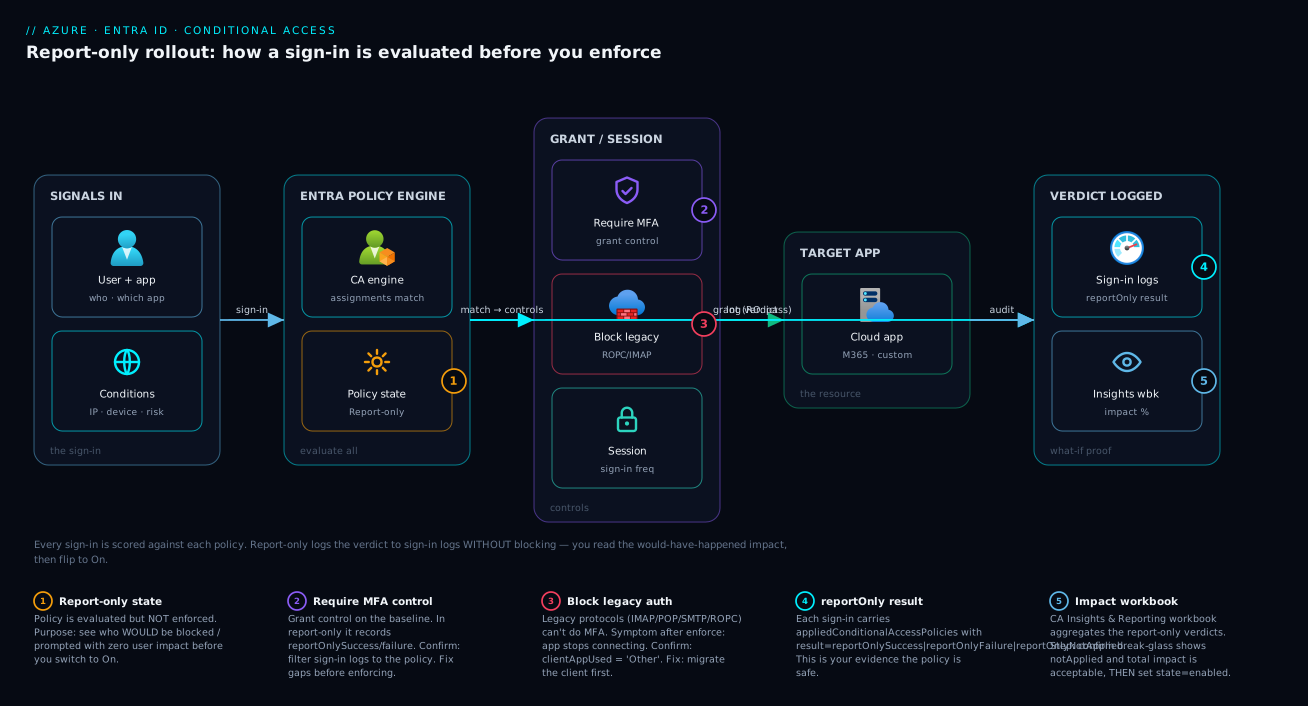
Architecture at a glance
The diagram traces a single sign-in left to right, exactly as Entra evaluates it. A user authenticates to a cloud app; the request reaches the Entra sign-in pipeline, which calls the Conditional Access engine. The engine evaluates all policies. Your baseline policy is in Report-Only, so the engine checks the user against the assignments, decides “this user would need MFA,” and then takes the logging path, not the enforcement path: it writes the verdict (reportOnlySuccess / reportOnlyFailure / reportOnlyInterrupted) into the sign-in logs and lets the sign-in proceed unaffected. The excluded break-glass account produces reportOnlyNotApplied and is never in scope.
Those logged verdicts flow downstream into the Insights and reporting workbook, where you read the would-block numbers and drill into the exact accounts. That read-and-fix loop is the whole safety mechanism — you iterate on exclusions while nothing is enforced. Only when the workbook is clean do you change the state to enabled, at which point the same engine, for the same sign-in, takes the enforcement path: now it actually challenges the user for MFA or blocks them. The numbered badges mark the four places this rollout most commonly goes wrong; the legend gives the symptom, confirm step, and fix for each.
Real-world scenario
Northwind Logistics is a 1,200-employee freight company on Microsoft 365. Their cyber-insurance renewal added a hard requirement: MFA for all users by quarter-end or the premium triples. The IT team is three people; the identity admin, Asha, has done click-ops in the portal but never a tenant-wide policy. Her predecessor had enabled a “require MFA” policy once, locked out a finance batch job, and rolled it back in a panic — so the org’s institutional memory of Conditional Access was “dangerous, avoid.” Asha had four weeks and zero appetite for a repeat outage.
She started with the seatbelt. Day one, before touching any policy, she created bg-admin-01 and bg-admin-02 — cloud-only Global Admins with 40-character passwords locked in the office safe — added them to a CA-BreakGlass-Exclude group, and wired a Log Analytics alert on any break-glass sign-in. Then she built the baseline “require MFA for all users” policy, excluded the break-glass group, and — crucially — set it to Report-Only, not On. “The policy is live but enforcing nothing; we’re watching for a week” bought political cover for a careful rollout.
The Insights workbook over five business days was the whole story. Success and would-require-interaction covered ~1,150 users — fine, they would just get an MFA prompt on enforcement. But would-block showed 31 sign-ins she did not expect. The reportOnlyFailure rows were: the Entra Connect sync account (non-interactive — would have broken directory sync), four shared mailboxes still using IMAP for a legacy scan-to-email workflow, and a billing integration signing in as a user account over basic auth. Every one would have been a Monday-morning outage under blind enforcement.
She fixed them over week two. The sync account went into the exclusion group with a compensating trusted-location restriction. The billing integration was migrated to a proper service principal with a certificate, removing it from user-MFA scope. The IMAP mailboxes moved to a modern-auth connector — and to be safe she staged a separate “block legacy authentication” policy in Report-Only, which caught two more legacy clients. After each change she re-read the workbook; by week’s end the would-block list held only the consciously-excluded sync account.
She flipped the policy to On at 10 a.m. on a Tuesday (not a Friday), break-glass credentials on the desk and the rollback PATCH ready in her terminal. A normal user in an InPrivate window got the MFA prompt; break-glass did not. Live logs showed success and the expected prompts, zero unexpected failure. The legacy-block policy followed a week later, same pattern. No outage, no panicked rollback, no support ticket; the insurance auditor accepted the enforced-policy screenshot plus the Insights report as evidence. Asha’s runbook note: “Report-Only turned a feared, all-or-nothing switch into a boring, observable change.”
Advantages and disadvantages
Report-Only staging changes the risk profile of a Conditional Access rollout entirely. Weigh it honestly:
| Advantages (why staging helps) | Disadvantages / limits (what to watch) |
|---|---|
| You see the real blast radius on real traffic before enforcing — no guessing | It only reveals problems for sign-ins that actually happen; a monthly job that didn’t run in your window won’t show |
| Rollback is a one-line state change; break-glass guarantees you can always make it | A policy left in Report-Only forever protects nothing — your mandate is not met until enabled |
| The would-block list is a precise to-do list of exclusions to add | Reading the telemetry takes a little skill (sign-in logs + workbook) — not a single green tick |
| Works against production, so the data is authoritative — not a synthetic test | Some controls’ true UX (an actual MFA prompt) only manifests on enforcement, not in Report-Only |
| Lets you stage changes to existing policies, not just new ones | Report-Only results add log volume; budget for sign-in log retention/export |
| Pairs with policy-as-code: stage in Git, promote with a one-line diff | Workload identities (service principals) aren’t covered by user-targeted policies — a separate feature |
Staging is the right default for any tenant-wide or high-blast-radius policy: anything scoped to “All users” or “All cloud apps”, anything that blocks, and any device or risk control that could strand a population. For a tiny, narrowly-scoped policy you might enforce directly — but even then, an hour in Report-Only costs nothing. The one real failure mode is human, not technical: staging and then forgetting to promote, leaving you the comfort of a policy that enforces nothing.
Common mistakes & troubleshooting
The failure modes below are the ones that actually bite during rollouts — each with the symptom, how to confirm it, and the fix.
| # | Symptom | Root cause | How to confirm (exact path) | Fix |
|---|---|---|---|---|
| 1 | The only admin is locked out after enabling MFA | No break-glass account; admin had no second factor | You literally cannot sign in | Use break-glass to disable the policy; this is why you create break-glass first |
| 2 | Directory sync stopped after enforcement | Sync service account caught by “all users” MFA | Sign-in logs show failure for sync_… account |
Exclude the sync account; restrict it by trusted location instead |
| 3 | Policy “isn’t doing anything” | It’s still in Report-Only, not On | state = enabledForReportingButNotEnforced |
Promote to enabled once telemetry is clean |
| 4 | Policy not applying to a user you expected | User is in an exclusion group, or licence/app scope excludes them | Sign-in log → Conditional Access tab shows notApplied |
Check exclusions; confirm P1/P2 licence and target apps |
| 5 | Legacy mail/automation breaks on enforce | IMAP/POP/SMTP can’t do interactive MFA | reportOnlyFailure on those mailbox accounts |
Migrate to modern auth, or block legacy in a separate staged policy |
| 6 | Report-Only shows nothing in the workbook | No matching sign-ins yet, or wrong time/policy filter | Insights workbook filters; sign-in volume | Wait for real traffic; widen the time range; verify the policy filter |
| 7 | 403 Forbidden creating a policy via Graph |
Missing scope/role | az rest error body |
Grant Policy.ReadWrite.ConditionalAccess + Conditional Access Admin |
| 8 | Service principal still authenticates after “MFA for all users” | CA “users” doesn’t target app identities | App still signs in fine in logs | Use a workload identity Conditional Access policy (separate feature) |
| 9 | Enforcement prompts users who just passed in Report-Only | Report-Only never prompts; enforcement does | Expected behaviour, not a bug | Communicate the MFA-registration step before promoting |
| 10 | Two near-identical policies, double the confusion | You created one in the portal and one via Graph in the lab | Two rows with the same display name | Delete the duplicate; manage one source of truth (prefer code) |
Triage flow when a rollout goes wrong
| If you see… | It’s probably… | Do this first |
|---|---|---|
| Total lockout, including admins | No/forgotten break-glass exclusion | Sign in with break-glass → set policy to Off |
| One population blocked, rest fine | A missing exclusion (sync/legacy/service) | Flip policy to Report-Only → read reportOnlyFailure → exclude |
| Nothing enforced at all | Policy stuck in Report-Only | Confirm state; promote to enabled |
| Unexpected user not challenged | Exclusion or scope/licence gap | Read the sign-in’s Conditional Access tab for notApplied reason |
Best practices
- Create two break-glass accounts and exclude them from every policy before you build any enforcing policy. This is rule zero; everything else assumes it.
- Stage every new or changed policy in Report-Only first — for at least one business cycle, long enough to capture weekend and month-end traffic.
- Read the Insights workbook and drill into the sign-in logs. The workbook gives the shape; the logs give the exact accounts to exclude.
- One policy, one job. Don’t bundle MFA, device compliance, and a legacy block into a single policy — it complicates rollback and obscures which control broke.
- Exclude service and sync accounts, then compensate with trusted-location or named-location restrictions plus monitoring — don’t just leave them wide open.
- Treat policies as code. Keep them in Git and promote with a reviewable one-line
statechange rather than a portal toggle nobody reviewed. - Promote on a Tuesday morning, not a Friday afternoon, with break-glass credentials and the rollback command ready.
- Never leave a policy in Report-Only as the finish line. It is a phase; the job isn’t done until
enabled. - Alert on any break-glass sign-in and communicate the MFA-registration step to users before you enforce, so the first prompt isn’t a help-desk-flooding surprise.
Security notes
Conditional Access is a security control, so the rollout’s own posture matters. Grant policy authorship narrowly — Conditional Access Administrator or Security Administrator, ideally just-in-time through PIM rather than standing access (see Privileged Identity Management and PAM Architecture: Just-in-Time Access at Scale). The Graph scope to modify policies is Policy.ReadWrite.ConditionalAccess; treat any principal holding it as Tier-0, because it can rewrite the front door of your tenant.
Break-glass accounts are the most sensitive objects here: offline split passwords, an alert on every use, and the only accounts excluded from MFA — which makes monitoring them non-negotiable. The deep treatment is in Engineering Break-Glass Emergency Access Accounts in Entra ID: Exclusions, Hardening, and Tamper-Evident Monitoring.
Two more notes. Excluding a service or legacy account from MFA weakens it — always compensate with a trusted-location or named-location condition plus monitoring, so it can’t be used from anywhere on earth with just a password. And this baseline is a starting point, not the whole estate: real Zero Trust layers device compliance, sign-in risk, and session controls on top, each staged the same way — see Zero Trust Architecture Blueprint: Identity, Network, and Data Pillars.
Cost & sizing
Conditional Access has no per-policy or per-evaluation charge — it is a feature of the Entra ID premium licence, so the cost is a per-user subscription, not a usage meter. What you are sizing is licensing coverage and log retention, not compute.
| Item | What it costs | Notes |
|---|---|---|
| Entra ID P1 | ~₹520 / user / month (≈ $6) | Required for Conditional Access (all of this guide) |
| Entra ID P2 | ~₹780 / user / month (≈ $9) | Adds risk-based CA (Identity Protection); included in some M365 E5 bundles |
| Report-Only evaluation | Free | No charge to evaluate or log report-only verdicts |
| Sign-in log retention | Included short-term; export costs | Default retention is limited; export to Log Analytics/storage for longer |
| Log Analytics (if exporting) | Per-GB ingestion + retention | Budget if you keep months of sign-in logs for audit |
Sizing notes: every user you scope into a policy must be licensed P1/P2 or you risk a non-compliant configuration — count licences against the protected population, not the admins. Report-Only adds one result row per evaluated policy per sign-in; if you export logs, factor that into Log Analytics ingestion. There is no free-tier Conditional Access — the entire feature lives behind P1 — so the practical floor is at least P1 on the users you intend to protect.
Interview & exam questions
1. What does Report-Only mode do, and how is it different from disabling a policy? Report-Only (enabledForReportingButNotEnforced) evaluates the policy against every real sign-in and logs the verdict, but does not enforce the grant control. A disabled policy isn’t evaluated at all. Report-Only lets you see real-world impact before enforcing.
2. Why create break-glass accounts, and how many? Break-glass (emergency-access) accounts are cloud-only Global Admins excluded from all Conditional Access policies, so a misconfigured policy can never lock you out of recovery. You create two, so a single forgotten password or deleted account doesn’t strand you.
3. A “require MFA for all users” policy is about to be enforced. Which accounts must you check first? The break-glass accounts (must be excluded), the directory sync service account (non-interactive — would break sync), legacy-auth mailboxes (IMAP/POP can’t do MFA), and any user-account-based integrations. In Report-Only these show as reportOnlyFailure.
4. Where do you see what a Report-Only policy would have done? Two places: the Insights and reporting workbook (aggregate “would block / would grant / would interact” per policy) and the sign-in logs Conditional Access tab (per sign-in, with reportOnlySuccess / reportOnlyFailure / reportOnlyInterrupted / reportOnlyNotApplied).
5. What is the Graph state value for Report-Only, and what scope creates a policy? The value is enabledForReportingButNotEnforced. Creating or modifying policies requires the delegated scope Policy.ReadWrite.ConditionalAccess (plus the Conditional Access Administrator or Security Administrator role).
6. A service principal still signs in after you enforce “MFA for all users.” Why? Conditional Access “users” assignments target user identities, not application/service-principal identities. App identities are governed by a separate workload identity Conditional Access feature.
7. What’s the risk of leaving a policy in Report-Only indefinitely? It enforces nothing, so it provides no protection — your MFA mandate is unmet until the state is enabled. Report-Only is a staging phase, not a destination.
8. How do you roll back a Conditional Access policy quickly? Change its state to Report-Only (keeps logging) or Off (stops evaluating) — a single portal toggle or one Graph PATCH. Because break-glass is excluded, you can always sign in to do it.
9. Which licence do you need for Conditional Access, and which adds risk-based policies? Conditional Access requires Entra ID P1. Risk-based Conditional Access (sign-in and user risk from Identity Protection) requires Entra ID P2.
10. You enforce MFA and the help desk is flooded with “I’m being asked for a code.” Bug or expected? Expected — Report-Only never prompts; enforcement does. The fix is process, not policy: communicate and drive MFA registration before promotion. (Maps to SC-300 Conditional Access objectives.)
Quick check
- What are the three Conditional Access policy states, and which one evaluates but doesn’t enforce?
- How many break-glass accounts should you create, and what’s the one rule that applies to all your policies regarding them?
- In the sign-in logs, which report-only result tells you a user would have been blocked?
- What’s the Microsoft Graph
statevalue for Report-Only mode? - Name two accounts you almost always need to exclude from a tenant-wide “require MFA” policy and say why.
Answers
- Off (
disabled), Report-Only (enabledForReportingButNotEnforced), and On (enabled). Report-Only evaluates every real sign-in and logs the verdict but does not enforce the control. - Two, and the rule is that every Conditional Access policy must exclude them (best done via an exclusion group) so no policy can ever lock you out.
reportOnlyFailure— the user could not satisfy the control and would have been blocked under enforcement.enabledForReportingButNotEnforced.- The break-glass accounts (they are your recovery path and must never be blocked) and the directory sync service account (non-interactive, so it can’t answer an MFA prompt and would break identity sync). Legacy-auth mailboxes are a third common one.
Glossary
- Conditional Access — Entra’s policy engine that evaluates if/then rules at every sign-in to grant, challenge, or block access.
- Report-Only — A policy state (
enabledForReportingButNotEnforced) that evaluates a policy against real sign-ins and logs the verdict without enforcing it. - Grant control — The “then” of a policy: block access, or allow it with requirements such as require MFA or require a compliant device.
- Assignment — The “if” of a policy: the users/groups, target resources (cloud apps), and conditions it applies to.
- Break-glass account — A cloud-only emergency Global Admin, excluded from all policies, used to recover from a lockout.
reportOnlySuccess/reportOnlyFailure/reportOnlyInterrupted/reportOnlyNotApplied— Sign-in log results showing, respectively, that a report-only policy would have granted, blocked, prompted, or not applied.- Insights and reporting — The Conditional Access workbook that aggregates report-only impact (“would block / would grant / would interact”) per policy.
- Multi-factor authentication (MFA) — Requiring a second factor (app, key, code) beyond a password.
- Legacy authentication — Older protocols (IMAP, POP, SMTP, basic auth) that can’t perform interactive MFA.
- Sync service account — The non-interactive account Entra Connect / Cloud Sync uses to synchronise on-prem identities.
- Workload identity — An application or service-principal identity (not a user); governed by a separate Conditional Access feature.
- Sign-in frequency — A session control that forces re-authentication after a set period.
Policy.ReadWrite.ConditionalAccess— The Microsoft Graph delegated scope required to create or modify Conditional Access policies.- Named location — A defined IP range or country used as a condition (e.g. trusted office IPs) or a compensating control for excluded accounts.
Next steps
- Design a full, multi-group policy set: Designing Conditional Access at Scale: A Persona-Based Policy Framework with Authentication Context and Filters
- Add risk-based signals to your policies: Operationalizing Entra ID Protection: Risk-Based Conditional Access, Detection Tuning, and Risk Investigation
- Pair Conditional Access with just-in-time admin access: Zero Trust on Microsoft Entra: Conditional Access + PIM, Step by Step
- Harden the emergency accounts this guide relies on: Engineering Break-Glass Emergency Access Accounts in Entra ID: Exclusions, Hardening, and Tamper-Evident Monitoring
- Gate device access from endpoints: Gating Microsoft 365 with Endpoint Conditional Access: Compliance Policies, Device Filters, and Require-Compliant Enforcement