There are five ways to talk to AWS, and on your first day it pays to learn all of them properly rather than stumbling into one and treating the rest as a mystery. You can click in the Management Console, type in the AWS CLI, use the browser-based CloudShell, call AWS from code with an SDK, or describe what you want as infrastructure as code and let AWS build it. Every one of them does the same thing underneath — sends a signed HTTPS request to an AWS service API — so the skill is not memorising buttons, it is understanding the one request/response model and the handful of ways you authenticate to it. Get that right and you can move between the console and the command line without friction, automate confidently, and — most importantly — never leak a credential or run up a surprise bill.
This is an early lesson in the AWS Zero-to-Hero course and it assumes you have already created an account and secured the root user (covered in the Cloud Fundamentals lesson). We go deeper than a typical “getting started” page: by the end you will be able to install and configure the CLI with named profiles and IAM Identity Center (SSO), read a ~/.aws/config file fluently, slice JSON with --query and JMESPath, explain the credential provider chain that decides which credentials a tool actually uses, articulate exactly why long-lived access keys are discouraged, and know when to stop clicking and start writing CloudFormation. Everything here maps to the AWS Certified Cloud Practitioner (CLF-C02) and is assumed knowledge for the Solutions Architect Associate (SAA-C03).
The reason to invest a full lesson here, rather than skimming a quickstart, is that almost every painful “first month on AWS” story traces back to one of three gaps this page closes: you operated in the wrong Region and couldn’t find your resources; you stashed a long-lived access key somewhere it leaked; or you built production by clicking and could never reproduce or roll it back. None of those are exotic — they are the default outcome of not learning the five surfaces and the credential model on purpose. So read the prose once for the model, then keep the tables open as your reference: there is one for every install path, every config key, every credential-chain step, every error string, and every command you will reach for in your first weeks.
What problem this solves
AWS exposes a few thousand API actions across 200-plus services, and on day one that surface is overwhelming. The deeper problem is not the number of actions — it is that newcomers don’t have a mental model for what is actually happening when they “do something on AWS”, so every interface feels like a separate product to learn. They learn the console by rote, treat the CLI as a black box, copy an access key into three places, and have no idea why a command “uses the wrong account.” Each of those is a small mystery, and mysteries compound into a fear of touching anything.
What breaks without this knowledge is concrete and common. People create a bucket in us-east-1, switch the Region selector to ap-south-1, and file a panicked “my data is gone” ticket. They paste AKIA… keys into a .env that lands in a public GitHub repo, and within minutes an attacker is mining crypto on their account — long-lived AWS keys are the most-scanned secret on the internet. They build a fragile production environment by clicking through wizards, and six months later nobody can explain why a setting is the way it is, or recreate the environment after a mistake. None of these are advanced failures; they are the predictable result of not understanding the request model, the credential chain, and the case for infrastructure as code.
This lesson closes those gaps in order. It gives you the one model (everything is a signed API call to a Regional endpoint), the five interfaces over it and when to reach for each, the credential model that keeps you safe (temporary credentials over long-lived keys, and how a tool decides which to use), and the discipline that makes the whole estate maintainable (tags, profiles, and IaC). Master this and the rest of the course is “learn the services,” not “fight the tooling.”
Learning objectives
By the end of this lesson you can:
- Navigate the Management Console with intent — the Region selector, the services search, Resource Groups, and a consistent tagging scheme.
- Install the AWS CLI v2, run
aws configure, and manage multiple named profiles in~/.aws/configand~/.aws/credentials. - Configure and use IAM Identity Center (SSO) for short-lived credentials with
aws configure ssoandaws sso login. - Control CLI output with
--outputformats and extract exactly the fields you want with--query(JMESPath) and handle pagination. - Use CloudShell for a zero-install, already-authenticated shell, and understand what an SDK (e.g. boto3) gives you over the CLI.
- Explain the default credential provider chain, the difference between access keys, IAM Identity Center/SSO and IAM roles, the role of MFA, and why long-lived keys are a liability.
- Recognise when to abandon click-ops in favour of CloudFormation / IaC for anything you intend to keep.
Prerequisites & where this fits
You should have an AWS account with the root user secured by MFA and a non-root IAM (or Identity Center) user for daily work, plus a basic grasp of Regions and Availability Zones — all from the AWS Cloud Fundamentals: Global Infrastructure & Pricing lesson. You do not need any programming experience; the SDK section is conceptual. This lesson sits in the Foundations module of the AWS Zero-to-Hero course, immediately after fundamentals and IAM Fundamentals: Users, Roles, Policies & Evaluation, and it is the practical on-ramp the entire rest of the course relies on: every later lab gives you both console steps and aws CLI commands, so the fluency you build here pays off in every lesson that follows.
A quick map of the five surfaces, so you know where each fits before the deep dive — this is the table to come back to when you ask “which tool should I reach for?”:
| Surface | What it is | Reach for it when | Avoid it when | Auth source |
|---|---|---|---|---|
| Management Console | The web UI at console.aws.amazon.com |
Learning a service, eyeballing state, a genuine one-off | Doing the same thing more than twice; anything you must reproduce | Browser sign-in (IAM user or Identity Center) |
| AWS CLI v2 | aws <service> <op> on your machine |
Operating by hand, shell scripts, scriptable automation | Long-lived production infra (use IaC) | The credential provider chain |
| CloudShell | Browser shell, pre-authed, pre-installed CLI | Quick CLI tasks from any machine, break-glass, no local setup | Long-running jobs; heavy local file work (1 GiB cap) | Inherited console session |
| SDK (boto3 etc.) | Language library over the same APIs | Calling AWS from your application code | One-off admin you’d do faster in the CLI | The same credential provider chain |
| CloudFormation / IaC | Declarative templates → tracked stacks | Anything you intend to keep; repeatable environments | Throwaway exploration where a click is faster | A role or your credentials at deploy time |
Core concepts
Before the tools, fix four mental models. They explain why everything else is shaped the way it is.
Everything is an API call. There is no “the console” doing something special. When you click Launch instance, the console sends ec2:RunInstances to the EC2 API in your selected Region. The CLI sends the same request when you type aws ec2 run-instances. An SDK sends it from your code. CloudFormation sends a sequence of them on your behalf. So the console, CLI, SDK and IaC are four interfaces over one API surface, and anything you can do in one you can (almost always) do in the others. This is why an architect treats the console as a place to explore and the CLI/IaC as the place to operate.
Every request is signed and authenticated. AWS does not accept anonymous calls to your resources. Each request is cryptographically signed (with Signature Version 4) using a set of credentials, and AWS checks both who you are (authentication) and whether you may do it (authorisation, via IAM). The credentials can be long-lived access keys or short-lived temporary credentials from a role or SSO — and the entire credentials section below is about getting AWS to use the right ones automatically.
Most things are Regional; a few are global. When you make a request you (implicitly or explicitly) target a Region — ap-south-1 (Mumbai), us-east-1 (N. Virginia), and so on. Create a bucket or an instance in one Region and it is not visible from another. A handful of services are global — IAM, Route 53, CloudFront, Organizations — and a handful of operations are pinned to us-east-1 even when “global” (notably some billing and ACM-for-CloudFront tasks). The console shows your current Region in the top-right; the CLI gets it from your profile or the --region flag.
Identity comes from a principal, not a person. AWS authorises a principal — an IAM user, an IAM role (assumed by a person, a service or a federated identity), or the root user. A best-practice setup has no IAM users with long-lived keys at all: humans sign in through IAM Identity Center (SSO) and receive temporary credentials, and workloads use roles. Keep this target in mind even as we cover access keys, because access keys are the thing you are trying to avoid depending on.
The vocabulary in one table
The glossary at the end repeats these for lookup; this table puts the moving parts side by side so the rest of the lesson reads cleanly:
| Term | One-line definition | Looks like / lives in | Why it matters here |
|---|---|---|---|
| Principal | The identity making a request | IAM user / role / root | What IAM authorises; the “who” |
| Credentials | What proves the principal | Key pair or temporary set | The thing you must protect |
| Access key | Long-lived ID + secret on an IAM user | AKIA… + secret |
The liability you design away |
| Temporary credentials | Short-lived set from STS | ASIA… + secret + session token |
The safe default (roles, SSO) |
| Profile | A named bundle of CLI settings | ~/.aws/config + credentials |
How you switch accounts/roles |
| STS | Security Token Service | Regional + global endpoint | Mints all temporary credentials |
| ARN | Amazon Resource Name | arn:aws:svc:region:acct:resource |
The canonical ID of anything |
| Region | An isolated geographic deployment | ap-south-1, us-east-1 |
Scopes most resources |
| Endpoint | The HTTPS host an API lives on | ec2.ap-south-1.amazonaws.com |
Where the signed request goes |
| SigV4 | Signature Version 4 | The signing algorithm | How every request is authenticated |
And the request model itself, broken into the stages every call passes through regardless of surface — this is the spine the whole lesson hangs on:
| Stage | What happens | Where it’s decided | Failure if it goes wrong |
|---|---|---|---|
| Resolve credentials | Tool walks the provider chain, picks the first source | Chain order (below) | Unable to locate credentials |
| Resolve Region | --region → AWS_REGION → profile region |
Flag/env/profile | Resource created in the wrong Region |
| Build endpoint | Service + Region → HTTPS host | Service model | Could not connect to the endpoint URL |
| Sign (SigV4) | Request signed with the credentials | Client library | SignatureDoesNotMatch (clock skew, wrong secret) |
| Authenticate | AWS verifies who you are | IAM / STS | InvalidClientTokenId, expired token |
| Authorise | IAM checks whether you may | Identity + resource policies, SCPs | AccessDenied / not authorized to perform |
| Execute & return | Service runs the action, returns JSON | The service | Service-specific errors (...LimitExceeded) |
Key terms used throughout: principal (the identity making a request), credentials (what proves the principal), access key (a long-lived AKIA... ID + secret pair), temporary credentials (short-lived ASIA... ID + secret + session token from STS), profile (a named set of CLI settings), STS (Security Token Service, the service that mints temporary credentials), and ARN (Amazon Resource Name, the canonical ID of any resource or principal).
The AWS Management Console
The Console (console.aws.amazon.com) is the web UI: the best place to learn a service, eyeball state, and do one-off tasks. Treat it as your map, not your factory floor.
The Region selector (top-right). This is the single most consequential control in the console and the cause of more “where did my resource go?” confusion than anything else. It sets the Region for the service you are viewing. Create a resource with the selector on Ireland and you will not see it when the selector is on Mumbai. Always glance at it before you create anything. Note the exceptions: global services (IAM, Route 53, CloudFront, Organizations) ignore it, and a few consoles (billing, support) are pinned to us-east-1.
The services search and navigation. The search bar at the top jumps to any of AWS’s 200-plus services by name (type ec2, s3, iam). The star beside a service pins it to the favourites bar. The account menu (top-right, your account/alias) holds Security credentials, Account, and the Region selector. CloudShell has its own icon in the top bar (covered below). The notifications and Cost widgets surface alerts and spend.
Here is what each console control does and the gotcha that bites newcomers — keep this open the first time you sign in:
| Console control | Where | What it does | Gotcha |
|---|---|---|---|
| Region selector | Top-right | Sets the Region for the service you’re viewing | Global services ignore it; some consoles pin us-east-1 |
| Services search | Top bar | Jumps to any service by name | Searches services, not your resources |
| Account menu | Top-right (alias) | Security credentials, account, billing | “My Security Credentials” is where access keys hide |
| Favourites (star) | Beside a service | Pins it to the nav bar | Per-user, not per-account |
| CloudShell icon | Top bar | Opens a pre-authed shell | Runs in the current Region |
| Notifications | Top bar (bell) | Health events, alerts | Easy to miss billing alarms here |
| Resource Groups | Services → Resource Groups | Saved tag/stack queries + Tag Editor | Only as good as your tagging |
| Settings (gear) | Top-right | Default Region, language, visual mode | Default-Region setting ≠ the live selector |
Resource Groups. A Resource Group is a saved, dynamic collection of resources defined by a query — usually a tag query (e.g. everything tagged Project=checkout) or a CloudFormation stack. Once grouped, you can view, operate on and apply automation (via Systems Manager) to the whole set at once. Groups are how you impose order on an account that would otherwise be a flat list of hundreds of resources. The Tag Editor (part of Resource Groups) lets you find and bulk-edit tags across services and Regions in one place — invaluable for retrofitting a tag scheme.
Tags — the discipline that makes everything else work. A tag is a key/value label (e.g. Environment=prod, Owner=payments, CostCentre=1234) you attach to almost any resource. Tags are free, but they are the backbone of three things you will care about constantly: cost allocation (Cost Explorer can break the bill down by tag — but only after you activate the tag as a cost-allocation tag in the Billing console), access control (IAM policies can allow or deny based on tags — “attribute-based access control”, ABAC), and automation/grouping (Resource Groups, backup plans, and Systems Manager all target by tag). Decide a small, mandatory tag scheme on day one — Project, Environment, Owner at minimum — and apply it everywhere.
The hard limits and rules for tags — the ones that silently break cost reports and policies if you ignore them:
| Tag rule / limit | Value | Why it matters | Failure if ignored |
|---|---|---|---|
| Max tags per resource | 50 | Caps how many dimensions you can label | Tag creation rejected past 50 |
| Key length | up to 128 chars | Keys are identifiers, keep them short | — |
| Value length | up to 256 chars | Values can hold IDs/notes | — |
| Case sensitivity | Keys & values are case-sensitive | Env ≠ env |
Broken cost reports, missed policy matches |
| Reserved prefix | aws: is AWS-managed |
You can’t set aws:-prefixed keys |
InvalidParameterValue on create |
| Cost-allocation activation | Off by default | Tag must be activated in Billing | Tag never appears in Cost Explorer |
| Propagation | Not automatic across related resources | e.g. ASG → instances needs a flag | Child resources untagged |
| Allowed characters | Letters, numbers, spaces, + - = . _ : / @ |
Constrains key/value content | Rejected on create |
A sensible minimum tag scheme to standardise on day one, and what each tag unlocks downstream:
| Tag key | Example value | Used for | Enforced by |
|---|---|---|---|
Project |
checkout |
Grouping, cost split per product | Tag policy / SCP |
Environment |
prod / staging / dev |
Access scoping (ABAC), cost split | Tag policy + IAM condition |
Owner |
payments-team |
Accountability, on-call routing | Convention + audit |
CostCentre |
1234 |
Chargeback to finance | Cost-allocation tag |
ManagedBy |
cloudformation / terraform |
Telling IaC-owned apart from manual | Convention |
The console is excellent for learning and for the genuinely one-off. But repeating a console click ten times is a smell: that is what the CLI, and ultimately IaC, are for.
The AWS CLI
The AWS CLI is the command-line interface: the workhorse for operating AWS by hand and the foundation of shell automation. Use version 2 — v1 is legacy and v2 adds SSO support, the aws configure import/sso flows, auto-prompt, and a built-in pager. The command grammar is consistent: aws <service> <operation> [parameters], e.g. aws s3 ls, aws ec2 describe-instances, aws sts get-caller-identity.
Why v2 and not v1 — the differences that actually matter on day one:
| Capability | CLI v1 | CLI v2 | Why it matters |
|---|---|---|---|
| IAM Identity Center (SSO) | Not supported | aws configure sso, aws sso login |
The modern, key-free auth flow |
| Built-in pager | No | Yes (less) |
Long output is paged (and can “hang”) |
| Auto-prompt | No | --cli-auto-prompt |
Guided parameter entry while learning |
aws configure import |
No | Yes (from .csv) |
Bulk profile setup |
| Install method | pip (mixes with Python) |
Self-contained bundled installer | Clean upgrades, no Python conflicts |
yaml output |
No | Yes | Human-readable structured output |
| Server-side encryption auto for S3 | varies | sensible defaults | Fewer footguns |
Installing
| Platform | Recommended install | Verify | Upgrade |
|---|---|---|---|
| macOS | Official .pkg from AWS, or brew install awscli |
aws --version |
Re-run .pkg, or brew upgrade awscli |
| Linux (x86_64) | curl the official zip, unzip, sudo ./aws/install |
aws --version |
sudo ./aws/install --update |
| Linux (ARM64) | Same flow, …-linux-aarch64.zip |
aws --version |
--update flag |
| Windows | Official .msi installer |
aws --version |
Re-run the latest .msi |
| Docker / CI | amazon/aws-cli official image |
docker run amazon/aws-cli --version |
Pin a tag; pull newer |
aws --version should report aws-cli/2.x. Avoid installing v1 via pip system-wide; the official bundled installers keep the CLI self-contained and easy to upgrade.
aws configure and the two files
The quickest start is aws configure, which interactively writes your settings:
aws configure
# AWS Access Key ID [None]: AKIA...                (from your IAM user — but read the credentials section first)
# AWS Secret Access Key [None]: ....
# Default region name [None]: ap-south-1
# Default output format [None]: json
This populates the default profile across two files in ~/.aws/ (on Windows, %USERPROFILE%\.aws\):
~/.aws/credentials— holds secrets:aws_access_key_idandaws_secret_access_key(and, for temporary creds,aws_session_token).~/.aws/config— holds non-secret settings:region,output,--querydefaults, retry behaviour, SSO configuration, role-assumption settings, etc.
The split exists so you can share or commit a config (settings) without ever exposing the credentials. Never commit ~/.aws/credentials to git — it is the single most common way real AWS keys leak. Validate any setup with:
aws sts get-caller-identity
# { "UserId": "...", "Account": "123456789012", "Arn": "arn:aws:iam::123456789012:user/you" }
That call returns who AWS thinks you are — the fastest way to confirm the right credentials and account are in play before you run anything destructive.
Which file holds what, and what header style each uses — the distinction the exam tests and that breaks profiles when you get it wrong:
| Aspect | ~/.aws/config |
~/.aws/credentials |
|---|---|---|
| Holds | Non-secret settings | Secrets only |
| Typical keys | region, output, cli_pager, sso_*, role_arn, source_profile |
aws_access_key_id, aws_secret_access_key, aws_session_token |
| Header for default | [default] |
[default] |
| Header for named profile | [profile dev] (with profile prefix) |
[dev] (no profile prefix) |
| Safe to commit/share | Yes (it’s settings) | Never |
| Created by | aws configure, aws configure sso, hand-editing |
aws configure, role/SSO caches |
| Overridden by | Env vars / flags | Env vars / flags |
The settings you can put in config and what each does — the ones worth knowing beyond region/output:
| Config key | What it controls | Example value | When to set |
|---|---|---|---|
region |
Default Region for the profile | ap-south-1 |
Always |
output |
Default output format | json / table / text / yaml |
Per taste/profile |
cli_pager |
The pager for long output | empty to disable | Set empty in CI/scripts |
cli_auto_prompt |
Interactive parameter prompting | on-partial |
While learning |
max_attempts |
Retry attempts on throttling | 5 |
Flaky/throttled calls |
retry_mode |
Retry strategy | standard / adaptive |
Heavy automation |
role_arn + source_profile |
Assume a role using another profile | (ARN + profile) | Cross-account ops |
mfa_serial |
Require MFA to assume the role | (MFA ARN) | Sensitive roles |
sso_session |
Links a profile to an SSO session | my-org |
Identity Center |
duration_seconds |
Assumed-role session length | 3600 |
Longer/shorter sessions |
Named profiles
A profile is a named bundle of settings/credentials so you can switch between accounts and roles. Create one with aws configure --profile dev, then target it with --profile dev on any command or by exporting AWS_PROFILE=dev for a whole shell session. The files look like this (note the profile prefix in config but not in credentials — a notorious gotcha):
# ~/.aws/config
[default]
region = ap-south-1
output = json

[profile dev]
region = ap-south-1
output = table

[profile prod-admin]
role_arn = arn:aws:iam::222222222222:role/AdminRole
source_profile = dev          # assume the role using dev's credentials
mfa_serial = arn:aws:iam::111111111111:mfa/you   # require MFA to assume it
# ~/.aws/credentials
[default]
aws_access_key_id = AKIA...
aws_secret_access_key = ...

[dev]
aws_access_key_id = AKIA...
aws_secret_access_key = ...
The prod-admin profile above shows role assumption: it has no keys of its own — it uses source_profile = dev to call sts:AssumeRole for a role in another account, optionally forcing MFA. The CLI caches the resulting temporary credentials and refreshes them automatically. This is how you operate across many accounts safely from one set of base credentials (and even that base set is better replaced by SSO, next). Profiles compose a few distinct patterns — know which one you’re writing:
| Profile pattern | What it contains | Credentials it uses | Best for |
|---|---|---|---|
| Static-key profile | Keys in credentials + region in config |
Long-lived AKIA… |
Legacy/off-AWS scripts (last resort) |
| Role-assumption profile | role_arn + source_profile (+ mfa_serial) |
Temporary, via STS from a base profile | Cross-account admin from one base identity |
| SSO profile | sso_session + sso_account_id + sso_role_name |
Temporary, from aws sso login |
Humans across many accounts (preferred) |
| Process-credential profile | credential_process = <cmd> |
Whatever the command emits | Custom credential brokers / vaults |
| Web-identity profile | web_identity_token_file + role_arn |
Temporary, OIDC-assumed | CI/CD (e.g. GitHub OIDC) |
How to select a profile, in precedence order — higher rows win:
| Selection method | Scope | Example | Precedence |
|---|---|---|---|
--profile <name> flag |
Single command | aws s3 ls --profile dev |
Highest |
AWS_PROFILE env var |
The shell session | export AWS_PROFILE=dev |
High |
[default] profile |
Anything with no profile specified | (implicit) | Fallback |
| Raw env-var credentials | Overrides profile credentials entirely | export AWS_ACCESS_KEY_ID=… |
See chain |
IAM Identity Center (SSO) — the modern way
IAM Identity Center (formerly AWS SSO) is the recommended way for humans to get CLI credentials: you authenticate once in the browser and the CLI receives short-lived credentials that auto-refresh, so there are no long-lived keys on your laptop at all. Configure it with aws configure sso:
aws configure sso
# SSO session name: my-org
# SSO start URL: https://my-org.awsapps.com/start
# SSO region: ap-south-1
# (browser opens; you pick an account and a permission set)
# CLI profile name: prod-admin-sso
This writes an sso-session block and a profile to ~/.aws/config:
[sso-session my-org]
sso_start_url = https://my-org.awsapps.com/start
sso_region = ap-south-1
sso_registration_scopes = sso:account:access

[profile prod-admin-sso]
sso_session = my-org
sso_account_id = 222222222222
sso_role_name = AdministratorAccess
region = ap-south-1
Thereafter you simply run aws sso login --sso-session my-org once per session (it opens the browser), and every command with --profile prod-admin-sso uses fresh temporary credentials. aws sso logout clears the cached token. For day-to-day work across multiple accounts, this is strictly better than access keys — nothing long-lived ever touches disk. The SSO command set you actually use:
| Command | What it does | When |
|---|---|---|
aws configure sso |
Interactive: create an SSO session + profile | First-time setup per account/role |
aws configure sso-session |
Create just the shared sso-session block |
Reuse one login across many profiles |
aws sso login --sso-session <name> |
Open the browser, cache a session token | Start of your working session |
aws sso logout |
Clear the cached SSO token | End of session / switching orgs |
aws <cmd> --profile <sso-profile> |
Use the short-lived creds for a call | Every operational command |
When the token expires you simply re-run aws sso login; you never rotate a secret. For the multi-account setup behind this, see IAM Identity Center: Permission Sets, ABAC & Multi-Account.
Output formats
The --output flag (or output in a profile) controls how results are rendered:
| Format | Best for | Machine-parseable | Notes |
|---|---|---|---|
json |
Scripting, piping to jq, exact structure |
Yes | The default; full fidelity |
yaml |
Human-readable structured output | Yes | Same data, less punctuation (v2) |
text |
grep/awk pipelines, tab-separated |
Yes (tab-delimited) | Compact; stable column order |
table |
Reading at a glance in a terminal | No | Pretty borders; never script against it |
yaml-stream |
Streaming large paginated output | Yes | Emits docs as pages arrive |
You can set a default per profile and override per command, e.g. aws ec2 describe-instances --output table.
--query and JMESPath
Most AWS responses are large nested JSON; you rarely want all of it. The --query flag applies a JMESPath expression client-side (the CLI filters after receiving the data) so you extract exactly the fields you need:
# Just the instance IDs and their state, as a table:
aws ec2 describe-instances \
  --query 'Reservations[].Instances[].{ID:InstanceId, State:State.Name, Type:InstanceType}' \
  --output table

# All bucket names, one per line:
aws s3api list-buckets --query 'Buckets[].Name' --output text

# Filter: only running instances' IDs
aws ec2 describe-instances \
  --query "Reservations[].Instances[?State.Name=='running'].InstanceId" --output text
JMESPath basics worth knowing: [] flattens a list, [?expr] filters, {Alias:field} reshapes into a new object, and | [0] pipes to pick the first element. --query is client-side and different from the server-side --filters that some services offer (e.g. aws ec2 describe-instances --filters Name=instance-state-name,Values=running) — use --filters to reduce what the API returns (faster, cheaper) and --query to shape what you display.
The JMESPath operators you’ll use 90% of the time, with a concrete example of each:
| Operator | Meaning | Example | Result |
|---|---|---|---|
. |
Sub-field access | State.Name |
The nested Name value |
[] |
Flatten / project a list | Reservations[].Instances[] |
Flat list of instances |
[0] / [-1] |
Index (first / last) | Buckets[0].Name |
First bucket’s name |
[?expr] |
Filter by predicate | [?State.Name=='running'] |
Only running ones |
{A:x, B:y} |
Reshape into a new object | {ID:InstanceId, T:InstanceType} |
Renamed columns |
| [0] |
Pipe sub-expression | …[].Name | [0] |
First name after projection |
length(@) |
Count elements | length(Reservations[].Instances[]) |
Number of instances |
sort_by(@, &k) |
Sort by a key | sort_by(Instances, &LaunchTime) |
Sorted list |
contains(x, 'y') |
Substring/element test | [?contains(Tags[?Key=='Env'].Value, 'prod')] |
Matching items |
--query vs --filters — they look similar and are constantly confused; this is the distinction:
| Aspect | --query (JMESPath) |
--filters |
|---|---|---|
| Runs | Client-side, after the response | Server-side, before the response |
| Reduces data over the wire | No | Yes (faster, cheaper, fewer throttles) |
| Available on | Every command | Only services/ops that define filters |
| Syntax | JMESPath expression | Name=…,Values=… pairs |
| Use it to | Shape/extract what you display | Reduce what the API returns |
| Combine? | Yes — filter server-side, then shape | Yes |
Pagination
Many “list/describe” APIs return results in pages. By default the CLI v2 auto-paginates — it follows NextToken for you and shows everything — and pipes long output through a pager (less). Useful controls:
| Pagination control | What it does | Use when |
|---|---|---|
| (default) | Auto-follows NextToken, shows everything |
Normal interactive use |
--no-cli-pager |
Stops piping output through less |
Scripts, CI, redirecting to a file |
--max-items N |
Caps total items returned | You only need the first N |
--page-size N |
Items fetched per underlying API call | Huge accounts (avoid throttling) |
--starting-token <t> |
Resume from a NextToken |
Manual paging |
AWS_PAGER="" (env) |
Globally disable the pager | CI environments |
A common first surprise is a command that “hangs” — it is actually sitting in the pager; press q, then add --no-cli-pager.
Other quality-of-life features
aws help (and aws <service> help, aws <service> <op> help) opens full docs offline. Auto-prompt (aws --cli-auto-prompt, or cli_auto_prompt = on-partial in config) gives interactive parameter completion — superb while learning. Command completion can be enabled for bash/zsh. And --dry-run (supported by many EC2 mutating calls) checks permissions without making the change — a safe way to test a command. The handful of global flags worth memorising:
| Global flag | What it does | Example |
|---|---|---|
--profile <name> |
Use a named profile | --profile prod-admin-sso |
--region <r> |
Override the Region for this call | --region us-east-1 |
--output <fmt> |
Override output format | --output table |
--query <expr> |
Shape output with JMESPath | --query 'Buckets[].Name' |
--no-cli-pager |
Don’t page output | (in scripts) |
--dry-run |
Permission check, no change (where supported) | aws ec2 run-instances … --dry-run |
--debug |
Full wire-level trace | Diagnosing auth/signing errors |
--cli-auto-prompt |
Interactive parameter prompts | While learning a new command |
--no-sign-request |
Skip signing (public resources) | aws s3 ls s3://public-bucket --no-sign-request |
CloudShell
AWS CloudShell is a browser-based shell, launched from the icon in the console’s top bar, that comes pre-authenticated as your current console identity and pre-installed with the AWS CLI, Python (and boto3), Node.js, git, jq and more. There is nothing to install and no credentials to configure — it inherits your console session’s permissions, so aws sts get-caller-identity just works. Each user gets 1 GiB of persistent storage in $HOME per Region (it survives between sessions; the rest of the environment is ephemeral and resets after about 20 minutes idle). CloudShell itself is free (you pay only for any AWS resources your commands create). It runs in the Region shown in the console and can reach the public service endpoints; with CloudShell VPC environments you can also launch it inside a VPC to reach private resources. Use it for quick CLI tasks, learning, and break-glass administration from any machine without setting up local credentials — it is the fastest way to run an aws command safely.
The facts that decide when CloudShell is the right tool versus the local CLI:
| Property | CloudShell | Local CLI |
|---|---|---|
| Setup | None — opens authenticated | Install + configure credentials |
| Credentials | Inherited from console session (temporary) | The provider chain (yours to manage) |
| Pre-installed | CLI v2, Python+boto3, Node, git, jq |
Whatever you install |
| Persistent storage | 1 GiB in $HOME per Region |
Your whole disk |
| Idle behaviour | Environment resets after ~20 min idle | Persists |
| Network reach | Public endpoints; private via VPC environment | Whatever your machine can reach |
| Cost | Free (pay only for resources you create) | Free |
| Best for | Quick tasks, break-glass, any machine | Day-to-day operating, scripting, big local files |
CloudShell’s limits, so you don’t fight them:
| Limit | Value | Implication |
|---|---|---|
| Persistent home storage | 1 GiB per Region | Don’t stage large artifacts here |
| Idle timeout | ~20 min | Long jobs get killed; use EC2/automation |
| Max session | ~12 hours | Re-launch for longer work |
| Concurrent shells | Small fixed number per Region | Don’t rely on many parallel shells |
| Region scope | Runs in the current console Region | Switch Region → separate $HOME |
The SDKs (boto3 and friends)
When you want AWS to do something from your own program rather than a shell, you use an SDK — a language library that wraps the same APIs with native types, automatic request signing, retries with back-off, and pagination helpers. AWS publishes SDKs for Python (boto3), JavaScript/TypeScript, Java, .NET, Go, Rust, PHP, Ruby, C++ and more; the CLI itself is built on the Python SDK. Conceptually, the CLI command aws s3api list-buckets is the boto3 call:
import boto3
s3 = boto3.client("s3")
buckets = s3.list_buckets()["Buckets"]   # same API, same response shape
The crucial point for this lesson: an SDK uses the same credential provider chain as the CLI (next section), so the way you authenticate the CLI is the way you authenticate your code — and the right answer for code running on AWS is almost never an access key but an IAM role attached to the compute (an EC2 instance profile, an ECS task role, or a Lambda execution role). The SDK picks those role credentials up automatically with zero configuration. You will use SDKs in depth later in the course; for now, know that the CLI is “the SDK as a command”, and the credential rules are identical.
How the four surfaces map onto the same API call, so the equivalence is concrete:
| Surface | “List my S3 buckets” | Signs the request | Credentials from |
|---|---|---|---|
| Console | Click S3 → Buckets | Browser session | Console sign-in |
| CLI | aws s3api list-buckets |
CLI (SigV4) | Provider chain |
| SDK (boto3) | boto3.client("s3").list_buckets() |
SDK (SigV4) | Provider chain |
| IaC (CloudFormation) | AWS::S3::Bucket in a template (manages, not lists) |
Service on your behalf | Deploy role / your creds |
What the SDK gives you over shelling out to the CLI from code — why you reach for boto3, not subprocess:
| SDK feature | What it does | Why it beats calling the CLI |
|---|---|---|
| Native types | Returns dicts/objects, not text | No parsing of CLI output |
| Auto-signing | SigV4 handled for you | No manual signature code |
| Retries + back-off | Configurable retry on throttling | Resilient under load |
| Paginators | Iterate all pages cleanly | No manual NextToken loop |
| Waiters | Block until a resource reaches a state | No poll-and-sleep code |
| Same credential chain | Picks up role creds automatically | Identical auth to the CLI |
Credentials and authentication — the part that matters most
This is the section to understand cold, for the exam and for safety. Three things to internalise: what kinds of credentials exist, how a tool decides which to use (the provider chain), and why long-lived keys are discouraged.
The three ways to authenticate
| Mechanism | What it is | Lifetime | Best for | The catch |
|---|---|---|---|---|
| IAM access keys | A long-lived AKIA... ID + secret on an IAM user |
Until you rotate/delete them | Legacy tools, some CI without OIDC | Long-lived secret on disk — a standing liability if leaked |
| IAM Identity Center (SSO) | Browser sign-in that issues temporary credentials per session | Minutes–hours, auto-refresh | Humans at the CLI/console across accounts | Needs Identity Center set up (org/admin task) |
| IAM roles (via STS) | An identity assumed to get temporary credentials | Typically 1 hour, auto-refresh | Workloads (EC2/ECS/Lambda), cross-account, federation | Requires a trust policy; you assume, not “log in” |
The throughline: prefer temporary credentials (SSO for people, roles for machines) and use access keys only when nothing else is possible — and even then, scope them tightly and rotate them.
Temporary credentials come from STS (Security Token Service). They look like access keys but the ID starts with ASIA and they include a third part, a session token, plus an expiry. Roles and SSO both deliver STS credentials behind the scenes; the CLI/SDK cache and refresh them for you. How to tell the two credential types apart at a glance — useful when debugging “what am I actually using?”:
| Property | Long-lived access key | Temporary credentials |
|---|---|---|
| ID prefix | AKIA… |
ASIA… |
| Parts | ID + secret | ID + secret + session token |
| Expiry | None (until rotated) | Minutes to hours |
| Issued by | Created on an IAM user | STS (AssumeRole, SSO, GetSessionToken) |
| Stored in | ~/.aws/credentials |
Cache (~/.aws/cli/cache, ~/.aws/sso/cache), env, IMDS |
| Leak blast radius | Until someone notices and rotates | Bounded by short TTL |
| Right for | Last-resort legacy use | The default for humans and workloads |
The STS operations that mint temporary credentials, and who calls them:
| STS operation | Mints creds for | Triggered by | Typical TTL |
|---|---|---|---|
AssumeRole |
Cross-account / elevated role | role_arn profile, app assuming a role |
1 h (up to 12 h if role allows) |
AssumeRoleWithWebIdentity |
OIDC-federated identity | CI/CD (GitHub OIDC), web/mobile | 1 h |
AssumeRoleWithSAML |
SAML-federated identity | Enterprise IdP federation | 1 h |
GetSessionToken |
MFA-protected session for an IAM user | mfa_serial on a static profile |
up to 36 h |
GetFederationToken |
Federated user (legacy) | Custom broker | up to 36 h |
(Identity Center) GetRoleCredentials |
An SSO permission set | aws sso login + profile |
session-bound |
The default credential provider chain
When the CLI or an SDK needs credentials, it searches a fixed, ordered list of sources and uses the first one it finds. Knowing this order is how you debug “it’s using the wrong account!” — almost always something earlier in the chain is winning. The order (CLI v2 / SDKs, simplified) is:
- Explicit command-line/parameters — e.g.
--profile, or credentials passed directly in code. - Environment variables —
AWS_ACCESS_KEY_ID,AWS_SECRET_ACCESS_KEY,AWS_SESSION_TOKEN, andAWS_PROFILE/AWS_REGION. - The shared files —
~/.aws/credentialsand~/.aws/configfor the selected profile (includingrole_arn/source_profileassumption andsso-sessionblocks). - SSO token cache — credentials from a current
aws sso login. - Container credentials — for ECS/EKS, fetched from the task/pod role endpoint.
- Instance profile (IMDS) — for EC2, the role attached to the instance, retrieved from the Instance Metadata Service.
So if you export AWS_ACCESS_KEY_ID in your shell, it overrides your ~/.aws profile (step 2 beats step 3) — a frequent cause of confusion. Two debugging habits: run aws sts get-caller-identity to see who you actually are, and remember that a stale exported env var is the usual culprit when a profile “isn’t working”. On AWS compute, leave the chain to find the role at steps 5–6 — do not put keys on the box. The chain as a reference table — source, what it reads, and when it wins:
| Order | Source | What it reads | Wins when | Where it’s used |
|---|---|---|---|---|
| 1 | Explicit params / --profile |
Flag or in-code credentials | You pass it directly | Any |
| 2 | Environment variables | AWS_ACCESS_KEY_ID/_SECRET_/_SESSION_TOKEN, AWS_PROFILE |
The vars are set | Shells, CI |
| 3 | Shared config/credentials files | ~/.aws/credentials, ~/.aws/config (profile) |
A profile resolves | Laptops |
| 4 | SSO token cache | ~/.aws/sso/cache after aws sso login |
Profile is SSO-backed | Humans |
| 5 | Container credentials | ECS/EKS task-role endpoint (AWS_CONTAINER_CREDENTIALS_*) |
Running in a container with a task/pod role | ECS, EKS |
| 6 | Instance profile (IMDS) | EC2 metadata at 169.254.169.254 |
Running on EC2 with a role | EC2 |
The relevant environment variables, since they sit at step 2 and override your files — the ones that “mysteriously” change your identity:
| Env var | Sets | Note |
|---|---|---|
AWS_ACCESS_KEY_ID |
Access key ID (creds) | Overrides profile creds (step 2 > 3) |
AWS_SECRET_ACCESS_KEY |
Secret (creds) | Pair with the ID |
AWS_SESSION_TOKEN |
Session token (temp creds) | Required for ASIA… creds |
AWS_PROFILE |
Which profile to use | Selects, doesn’t bypass the chain |
AWS_REGION / AWS_DEFAULT_REGION |
Default Region | AWS_REGION wins in v2 |
AWS_PAGER |
Output pager | Set empty to disable |
AWS_ENDPOINT_URL |
Override the endpoint | LocalStack / testing |
AWS_EC2_METADATA_DISABLED |
Disable IMDS lookups | Stops step 6 |
MFA
Multi-Factor Authentication adds a second factor (an authenticator app, passkey, or hardware key) on top of the password/keys. Enforce it on the root user (always), on console sign-in for IAM/Identity Center users, and on sensitive role assumption via the mfa_serial setting shown earlier (the CLI then prompts for a code and calls sts:AssumeRole/GetSessionToken with it). IAM policies can also require MFA for sensitive actions with an aws:MultiFactorAuthPresent condition. MFA is the cheapest, highest-leverage control you can apply — a leaked password or key is far less dangerous when a second factor is required. Where to enforce MFA and how:
| Where | How to enforce | Mechanism |
|---|---|---|
| Root user | Always — register an MFA device | Account security settings |
| IAM user console sign-in | Require MFA per user | IAM + policy with aws:MultiFactorAuthPresent |
| Identity Center sign-in | Require MFA org-wide | Identity Center MFA settings |
| Sensitive role assumption | mfa_serial in the profile |
CLI prompts → sts:AssumeRole with MFA |
| Sensitive API actions | Deny without MFA in policy | Condition: aws:MultiFactorAuthPresent = true |
Why long-lived access keys are discouraged
This is exam-favourite and real-world critical. Long-lived AKIA keys are a liability because:
- They don’t expire. A key leaked in a git commit, a log, a screenshot or a laptop backup stays valid until someone notices and rotates it — attackers scan public repos for
AKIAstrings within minutes. - They’re easy to sprawl. Keys get copied into
.envfiles, CI variables, Postman, and teammates’ machines; you lose track of where they live and what they can do. - They resist rotation. Rotating means updating every place the key is used, so in practice they rarely get rotated.
- There is almost always a better option. Humans should use Identity Center (SSO) for temporary credentials; workloads on AWS should use roles (instance profiles, task roles, Lambda execution roles); CI/CD should use OIDC federation to assume a role with no stored secret at all. Each replaces a standing secret with short-lived, automatically-rotated credentials.
For each place you might be tempted to use a long-lived key, the credential-free alternative you should use instead:
| Scenario | Tempting (long-lived key) | Use instead | Why it’s better |
|---|---|---|---|
| You at the CLI across accounts | aws configure with AKIA… |
IAM Identity Center (SSO) | No key on disk; auto-refresh |
| App on EC2 | Key in ~/.aws/credentials on the box |
EC2 instance profile (role) | SDK picks up role creds; nothing to leak |
| Container on ECS/EKS | Key baked into the image | ECS task role / EKS Pod Identity | Per-task creds, no secret in image |
| Lambda function | Key in an env var | Lambda execution role | Auto-injected, scoped, rotated |
| GitHub Actions deploy | AKIA… in repo secrets |
GitHub OIDC → AssumeRoleWithWebIdentity |
Zero stored secret |
| Cross-account access | Keys for the other account | sts:AssumeRole with a trust policy |
Temporary, auditable, revocable |
| Third-party SaaS access | Keys handed to the vendor | Cross-account role + ExternalId |
Revoke without rotation; see below |
If you must use access keys (a legacy tool, an off-AWS script with no federation), then: grant least privilege, never put them in code or git, store them only in the encrypted ~/.aws/credentials or a secrets manager, enable MFA on the user, and rotate on a schedule. But treat that as the exception you are trying to design away — the whole direction of modern AWS auth is away from long-lived keys. For the safe cross-account pattern (and the confused-deputy problem the ExternalId solves), see IAM Cross-Account Roles, ExternalId & the Confused Deputy.
Infrastructure as code: stop click-ops in production
Everything above is for interacting with AWS. For anything you intend to keep — production environments, anything more than a throwaway test — do not build it by clicking. Manual console changes (“click-ops”) are unrepeatable, undocumented, untestable and impossible to review or roll back; six months later nobody knows why a setting is the way it is, and recreating the environment is archaeology.
The professional answer is infrastructure as code (IaC): you declare the resources you want in a template, and a service provisions and tracks them. On AWS the native service is CloudFormation — you describe resources in a YAML/JSON template, deploy it as a stack, and CloudFormation creates/updates/deletes the resources to match, in dependency order, with automatic rollback on failure. The benefits are exactly the things click-ops lacks: the template is version-controlled (peer-reviewed in git, with history), repeatable (spin up identical dev/stage/prod), self-documenting (the template is the spec), and safe to change (a change set previews what a deployment will alter before you apply it). The AWS CDK lets you author CloudFormation in a real programming language, and Terraform is the popular multi-cloud alternative — but the principle is the same: describe infrastructure as reviewable code, and let a tool reconcile reality to it.
Click-ops versus IaC, on the dimensions that decide whether an environment survives contact with reality:
| Dimension | Click-ops (console) | Infrastructure as code |
|---|---|---|
| Repeatable | No — manual, error-prone | Yes — same template, identical result |
| Reviewable | No — nothing to diff | Yes — pull request on the template |
| Version history | None | Full git history of every change |
| Rollback | Manual undo (often impossible) | Automatic on failure; redeploy old version |
| Documentation | Tribal knowledge | The template is the documentation |
| Drift detection | None | CloudFormation drift detection |
| Blast-radius preview | None | Change sets show what will change |
| Right for | One-off exploration | Anything you intend to keep |
The native IaC choices on AWS and when each fits:
| Tool | What it is | Reach for it when |
|---|---|---|
| CloudFormation | Native declarative YAML/JSON → stacks | AWS-only, want the managed native service |
| AWS CDK | CloudFormation authored in TypeScript/Python/etc. | You want loops, types, and abstractions |
| AWS SAM | CloudFormation macro for serverless | Lambda/API Gateway/DynamoDB apps |
| Terraform | Multi-cloud declarative (HCL) | Multi-cloud, or a team standard on Terraform |
| Pulumi | IaC in general-purpose languages | Programmable IaC, multi-cloud |
The mental rule for the rest of this course: console to learn and explore, CLI/CloudShell to operate and automate by hand, IaC for anything that lives. You will see a lot of aws CLI in the labs because it makes each step explicit and reproducible — but as your estate grows, those steps graduate into CloudFormation.
Architecture at a glance
The diagram makes the central idea visual: four very different-looking surfaces are really one path. Read it left to right. On the far left sits the principal — you at a browser, you at a terminal, or a workload on AWS compute. Whatever you do, the credential provider chain (the control plane running underneath every tool) resolves which credentials to use, walking its fixed order from explicit flags down to the EC2 instance profile. Those credentials are used to SigV4-sign the request. The four interfaces — Console, CLI, CloudShell, and SDK — are just different front ends emitting that same signed HTTPS request; CloudFormation sits alongside them, emitting many such requests in dependency order from a single template.
The signed request lands on a Regional service endpoint (for example ec2.ap-south-1.amazonaws.com), where AWS runs the two checks that gate everything: authentication (is this a valid principal?) via IAM/STS, then authorisation (may this principal do this action on this resource?) via IAM policies. Only then does the service execute and return JSON. The numbered badges mark the five places a first-day request actually fails — wrong Region, no credentials resolved, an exported env var hijacking the chain, an AccessDenied from missing permissions, and a leaked long-lived key — and the legend tells you how to confirm and fix each. Trace any failure to a badge, and you know which of the seven request stages broke.
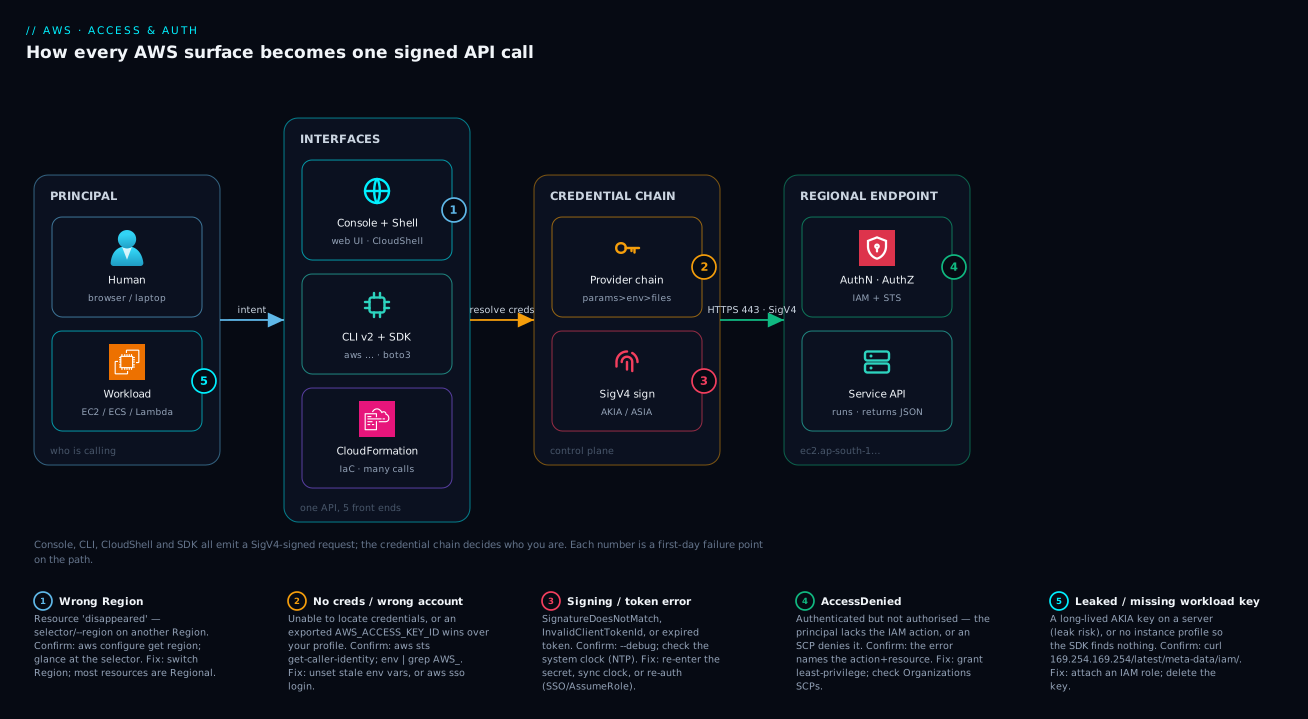
Real-world scenario
Saral Logistics, a 40-person freight-tech startup in Pune, hired its first two cloud engineers — Aditi and Rohan — to take over an AWS account that the founding CTO had been running solo. The account had grown organically: everything built by clicking, a single IAM user named admin whose access key was shared over Slack, and resources scattered across us-east-1 (where the CTO first clicked) and ap-south-1 (added later for latency). The monthly bill was about ₹3,40,000 and nobody could explain a third of it. Their brief: “make this safe and reproducible without breaking the running platform.”
Week one surfaced every anti-pattern this lesson warns about. Aditi ran aws sts get-caller-identity and discovered the shared admin key was AKIA… with AdministratorAccess — a single long-lived secret, in Slack history, with god rights. Rohan tried to find the production RDS database and couldn’t — because his console Region selector was on Mumbai while the database lived in N. Virginia. And a routine aws s3 ls “used the wrong account” because a teammate’s onboarding doc had them export AWS_ACCESS_KEY_ID=… for a sandbox account, and that env var was quietly winning over the profile they thought they were using. Three separate incidents, three concepts from this page.
They fixed it in the right order. First, identity: they stood up IAM Identity Center, created permission sets (AdministratorAccess for the two of them, ReadOnly for the CTO), and switched everyone to aws configure sso + aws sso login. The shared AKIA… key was deactivated, then deleted a week later once nothing broke — no long-lived secret on any laptop anymore. Second, navigation discipline: they set everyone’s default Region to ap-south-1, documented the two-Region reality, and used the Tag Editor to apply a mandatory Project/Environment/Owner/CostCentre scheme across both Regions — then activated those as cost-allocation tags. Within a billing cycle Cost Explorer could finally attribute that mystery third of the bill (it was an idle us-east-1 dev environment nobody remembered — ₹47,000/month, deleted).
Third, reproducibility: they stopped touching production by hand. New infrastructure went into CloudFormation templates in git, reviewed by pull request, deployed via change sets so every change was previewed before it landed. The existing click-built resources were imported into stacks over the following quarter. Six weeks in, a junior accidentally ran a destructive command — but it was scoped by their SSO permission set, hit an AccessDenied, and harmlessly failed; the same command with the old shared admin key would have been catastrophic.
The numbers told the story. The account went from one shared god key to zero long-lived keys; from unattributable spend to a tag-split bill that immediately found ₹47,000/month of waste; and from click-built and unrepeatable to version-controlled and reviewable. The lesson the CTO wrote in the runbook: “Know who you are, know what Region you’re in, and never let a human hold a permanent key.” The incident timeline, because the order of the fixes is the lesson:
| Phase | What they found | Action | Outcome |
|---|---|---|---|
| Day 1 | Shared AKIA… admin key in Slack |
get-caller-identity revealed god rights |
Decided: kill long-lived keys first |
| Day 2 | “DB is gone” (wrong Region selector) | Documented the two-Region reality | Stopped Region confusion |
| Day 3 | “Wrong account” (AWS_PROFILE/env var) |
unset stale env vars; standardise on SSO |
Predictable identity |
| Week 1 | No least privilege | IAM Identity Center + permission sets | Zero long-lived keys; scoped access |
| Week 2 | Unattributable bill | Tag Editor + cost-allocation tags | Found ₹47k/mo idle us-east-1 env |
| Quarter | Click-built infra | CloudFormation + change sets, import existing | Reviewable, reproducible, safe |
Advantages and disadvantages
Having five surfaces over one API is both the strength and the trap of AWS access. Weigh it honestly:
| Advantages (why the model helps you) | Disadvantages (why it bites) |
|---|---|
| One mental model (signed API call) covers every tool — learn it once | Five surfaces feel like five products to a newcomer; easy to learn one and fear the rest |
| The console is a superb place to explore and learn a service visually | The console invites click-ops, which is unrepeatable and unreviewable in production |
| The CLI/SDK make everything scriptable and reproducible | The credential provider chain is invisible until it “uses the wrong account” |
| Temporary credentials (SSO/roles) remove standing secrets entirely | Long-lived access keys are available and tempting — and leak constantly |
| CloudShell needs zero setup and never stashes keys on disk | CloudShell’s 1 GiB / 20-min-idle limits make it wrong for heavy or long work |
--query/--filters/pagination give precise, automatable output |
JMESPath and the config/credentials split have a real learning curve |
| IaC (CloudFormation) makes infrastructure version-controlled and safe | Adopting IaC is upfront effort vs the instant gratification of a click |
| Regions give isolation and data-residency control | The Region selector silently hides resources and causes “it’s gone” panics |
The model is right for almost everyone: you get a gentle on-ramp (console) and a production-grade path (CLI → IaC) without changing platforms. It bites hardest on people who never graduate — who stay in the console, keep a long-lived key, and ignore Regions and tags. Every disadvantage here is avoidable with the habits in this lesson, which is precisely why the lesson exists.
Hands-on lab
In this lab you will install and configure the AWS CLI with a named profile, prove your identity, explore output shaping with --query, and run the same idea in CloudShell — all within the Free Tier at no cost. (If your organisation uses IAM Identity Center, do the SSO variant noted at each step; otherwise use an IAM user’s access key created for this purpose.)
Step 1 — Install the CLI v2. Install via the official installer for your OS, then confirm:
aws --version
# aws-cli/2.x.x Python/3.x ...
Step 2 — Configure a named profile. Create a profile called kv-lab. If you have access keys from an IAM user:
aws configure --profile kv-lab
# paste Access Key ID / Secret, set region (e.g. ap-south-1), output json
If your org uses Identity Center, instead run aws configure sso (profile name kv-lab) and then aws sso login --profile kv-lab.
Step 3 — Prove who you are. Confirm the profile resolves to the expected identity and account:
aws sts get-caller-identity --profile kv-lab
Expected output is a small JSON object with UserId, Account and an Arn — verify the Account is the one you intend before doing anything else.
Step 4 — Shape some output with --query. List your S3 buckets (you may have none — that is fine) and your current Region’s AZs, two ways:
# Bucket names only, one per line:
aws s3api list-buckets --query 'Buckets[].Name' --output text --profile kv-lab

# Availability Zones in your region as a table:
aws ec2 describe-availability-zones \
  --query 'AvailabilityZones[].{AZ:ZoneName, State:State}' \
  --output table --profile kv-lab
Step 5 — Inspect your files. Open ~/.aws/config and ~/.aws/credentials and confirm the kv-lab profile is present, that config uses the [profile kv-lab] header while credentials (if used) uses [kv-lab], and that no secrets live in config.
Step 6 — Prove the credential chain. Demonstrate that an env var beats your profile (the day-one “wrong account” trap), then undo it:
export AWS_ACCESS_KEY_ID=AKIAEXAMPLE_WRONG
aws sts get-caller-identity --profile kv-lab   # likely errors / wrong identity — env var won
unset AWS_ACCESS_KEY_ID AWS_SECRET_ACCESS_KEY AWS_SESSION_TOKEN
aws sts get-caller-identity --profile kv-lab   # back to the expected identity
Step 7 — Do it in CloudShell. In the console, click the CloudShell icon (top bar). When the prompt appears, run aws sts get-caller-identity — note you did not configure anything; CloudShell inherited your console identity. Run the same describe-availability-zones query to see identical results.
Validation. You have succeeded when: aws --version reports v2; aws sts get-caller-identity --profile kv-lab returns your expected account/ARN; the two --query commands return shaped output (text list and a table); the env-var step demonstrably changed (then restored) your identity; your ~/.aws files show the profile with secrets confined to credentials; and CloudShell ran the same calls with no setup. The full checklist:
| Check | Command / action | Expected result |
|---|---|---|
| CLI v2 installed | aws --version |
aws-cli/2.x |
| Profile resolves | aws sts get-caller-identity --profile kv-lab |
Your expected Account + Arn |
--query text |
aws s3api list-buckets --query 'Buckets[].Name' --output text |
Bucket names (or empty) |
--query table |
describe-availability-zones … --output table |
A bordered AZ table |
| Chain proven | export then unset AWS_ACCESS_KEY_ID |
Identity changed, then restored |
| File hygiene | open ~/.aws/config |
No secrets in config |
| CloudShell | get-caller-identity in CloudShell |
Works with zero setup |
Cleanup. Nothing here creates billable resources, so there is nothing to delete. If you created an IAM access key solely for this lab, deactivate or delete it now (IAM → your user → Security credentials) — practising the “remove keys you no longer need” habit. The kv-lab profile entries can stay (they are harmless settings) or be removed from ~/.aws/config/credentials.
Cost note. This lab is entirely Free Tier and costs ₹0 / $0. CloudShell is free; describe/list API calls are free; sts:GetCallerIdentity is free. The valuable habit it builds — using a named profile and verifying identity before acting, and reaching for CloudShell or SSO instead of stashing keys — is exactly what keeps you safe and cheap as your usage grows.
Common mistakes & troubleshooting
This is the part you will come back to. Each row is a real first-weeks failure: the symptom, why it happens, the exact command or path to confirm it, and the fix.
| # | Symptom | Root cause | Confirm with | Fix |
|---|---|---|---|---|
| 1 | “My resource has disappeared” | Region selector / --region on a different Region |
Glance at the selector; aws configure get region --profile X |
Switch Region; remember most resources are Regional |
| 2 | CLI “uses the wrong account” | An earlier chain source wins (usually exported AWS_ACCESS_KEY_ID or AWS_PROFILE) |
aws sts get-caller-identity; env | grep AWS_ |
unset stale env vars; pass --profile explicitly |
| 3 | [profile dev] works in config but fails in credentials |
credentials must not use the profile prefix |
Open both files; compare headers | [dev] in credentials, [profile dev] in config |
| 4 | Command seems to “hang” | Output is sitting in the less pager |
Press q and it returns |
Add --no-cli-pager (or AWS_PAGER="") in scripts |
| 5 | --query returns nothing |
JMESPath path wrong (missing Reservations[].Instances[] nesting) |
Inspect raw --output json first |
Build the path incrementally |
| 6 | Unable to locate credentials |
No profile/keys/SSO session, or expired SSO token | aws sts get-caller-identity errors |
aws sso login, or configure a profile |
| 7 | The security token included in the request is expired |
Temporary creds (ASIA…) lapsed |
Token TTL passed | Re-run aws sso login / re-assume the role |
| 8 | InvalidClientTokenId / SignatureDoesNotMatch |
Wrong/typo’d secret, or large clock skew | --debug; check system clock (NTP) |
Re-enter the secret; sync the clock |
| 9 | Keys committed to git | Secrets put in code/.env instead of ~/.aws/credentials |
Repo scan finds AKIA… |
Rotate immediately, purge history, switch to SSO/roles |
| 10 | Cost report not split by tag | Tag not activated as cost-allocation, or key case mismatch | Cost Explorer shows no tag dimension | Activate in Billing; standardise casing (Environment) |
| 11 | AccessDenied / not authorized to perform |
The principal lacks the IAM permission (or an SCP denies it) | The error names the action + resource | Grant least-privilege permission; check SCPs |
| 12 | Could not connect to the endpoint URL |
Bad/empty Region, typo’d service, or no network | aws configure get region; check the endpoint |
Set a valid Region; fix connectivity |
| 13 | aws: command not found after install |
Installer dir not on PATH, or shell not reloaded |
which aws; open a new shell |
Re-source profile / fix PATH |
| 14 | SSO call fails: token cache stale | ~/.aws/sso/cache token expired or corrupt |
aws sso login re-prompts |
Re-login; aws sso logout then login |
| 15 | EC2 app can’t get credentials | No instance profile attached, or IMDS disabled | curl 169.254.169.254/latest/meta-data/iam/ |
Attach an instance role; allow IMDS |
The fastest decision table for “which credentials are actually in play?” — start here when anything auth-related misbehaves:
| If you see… | It’s probably… | Do this |
|---|---|---|
Wrong Account in get-caller-identity |
An env var or wrong profile is winning | env | grep AWS_; unset; pass --profile |
ASIA… you didn’t expect |
Temporary creds from a role/SSO/IMDS | Check which chain source (env? SSO cache? IMDS?) |
AKIA… on a server |
A long-lived key where a role should be | Replace with an instance/task role; delete the key |
Unable to locate credentials on EC2 |
No instance profile | Attach a role to the instance |
expired token mid-session |
SSO/role session lapsed | aws sso login / re-assume |
Best practices
- Use Identity Center (SSO) for humans and roles for workloads; treat long-lived access keys as a last resort to be designed away.
- Always verify with
aws sts get-caller-identitybefore any consequential command — confirm the account and identity. - Glance at the Region (selector or
--region) before creating anything, and standardise a default Region per profile. - Keep secrets out of
~/.aws/configand out of git; secrets belong only in~/.aws/credentials(or a secrets manager), never in code. - Use named profiles per account/role and switch with
--profileorAWS_PROFILE; never juggle accounts by editing the default profile. - Set a deliberate tag scheme (
Project,Environment,Owner) on day one and activate the cost-allocation tags you care about. - Use the console to explore, the CLI/CloudShell to operate, and CloudFormation/CDK for anything you intend to keep.
- Prefer CloudShell or short-lived SSO on machines you don’t control rather than copying keys around.
- Enable MFA on root, on console sign-in, and on sensitive role assumption (
mfa_serial). - Disable the pager in scripts (
--no-cli-pager/AWS_PAGER="") so automation never blocks onless. - Reduce with
--filters, shape with--query— fetch less over the wire, then display exactly what you need. - Rotate any key you must keep on a schedule, and delete keys the moment they’re no longer used.
Security notes
The security of your entire AWS estate begins at the credential. Three habits flow directly from this lesson. First, eliminate standing secrets: humans should authenticate through IAM Identity Center for temporary credentials, and every workload on AWS should run with an IAM role (instance profile, task role, Lambda execution role) so the SDK/CLI picks up short-lived credentials automatically — there is then simply no AKIA key to leak. Second, assume any long-lived key will eventually leak and design accordingly: scope it to least privilege, never place it in code/git/logs, store it only encrypted, pair it with MFA, and rotate it — but better, replace it with SSO or OIDC federation. Third, always know who you are: aws sts get-caller-identity and an understanding of the credential provider chain are your defence against accidentally operating in the wrong account or with over-broad permissions. Finally, remember the console’s Region selector and the global-vs-Regional distinction are security-relevant too: resources created in an unexpected Region escape the monitoring and guardrails you set up elsewhere.
The credential-hygiene checklist, mapped to the risk each item removes:
| Control | What it does | Risk it removes |
|---|---|---|
| Identity Center for humans | Temporary creds via browser sign-in | No long-lived key on any laptop |
| Roles for all AWS workloads | Auto-injected short-lived creds | No key in images/instances/functions |
| OIDC for CI/CD | AssumeRoleWithWebIdentity, no stored secret |
No CI key to leak |
| MFA everywhere it matters | Second factor on root/sign-in/assume | Stolen password/key alone is useless |
| Least-privilege policies | Grant only needed actions | Limits blast radius of any compromise |
git-secrets / push protection |
Blocks AKIA… from commits |
Stops the #1 leak vector |
| Rotate + delete unused keys | Short-lived even when keys exist | Shrinks the window a leak is valid |
aws sts get-caller-identity habit |
Confirms identity before acting | Wrong-account / over-broad mistakes |
This lesson is the on-ramp to least-privilege design; the depth lives in IAM Least Privilege & Permission Boundaries and account-wide guardrails in AWS Organizations: SCPs, Guardrails & Delegated Admin.
Cost & sizing
The good news on day one: the tooling itself is free. The console, the CLI, CloudShell, the SDKs and CloudFormation cost nothing to use — you pay only for the AWS resources your commands create, and a great many describe/list/get-caller-identity calls are free. What actually drives a beginner’s bill is leaving resources running (an idle EC2 instance, an unattached EBS volume, a NAT Gateway), not the act of calling the API. The cost facts worth pinning:
| Item | Cost | Note |
|---|---|---|
| AWS Management Console | Free | You pay for what you create |
| AWS CLI v2 | Free | Open-source tool |
| CloudShell | Free | 1 GiB storage + compute included |
| SDKs (boto3 etc.) | Free | Libraries |
| CloudFormation | Free for AWS-resource types | Pay for the resources it creates |
describe / list / get-caller-identity |
Free | Read calls on most services |
| Data transfer out | Per-GB after free tier | The sneaky line item |
STS AssumeRole / SSO |
Free | Temporary creds cost nothing |
Where a first-month bill actually comes from, and the cheap habit that prevents each surprise:
| Bill driver | Why it surprises beginners | Cheap habit |
|---|---|---|
| Idle EC2 instance | “Stopped” ≠ deleted for EBS; running = billed hourly | Stop/terminate after use; tag Environment=dev |
| Unattached EBS volume | Survives instance termination | Delete volumes; lifecycle clean-up |
| NAT Gateway | Hourly + per-GB even when idle | Use only when needed; one per VPC |
| Wrong-Region duplicate | Built twice (Region confusion) | Standardise a default Region; tag + audit |
| Data transfer out | Egress isn’t free past the tier | Watch cross-Region/internet egress |
| Forgotten dev stacks | Click-built, untracked | IaC + tags → find and delete easily |
| Logs/metrics retention | CloudWatch storage adds up | Set retention; see observability lesson |
Set a budget and a billing alarm on day one, activate cost-allocation tags, and use Cost Explorer split by your Project/Environment tags so spend is always attributable. Free-tier numbers and pricing change, so treat the figures above as the mechanism (what’s billable vs free), and check current pricing for exact rates — the lesson is the tooling is free; running resources are not, and tags make the bill legible.
Interview & exam questions
1. What is the difference between the AWS Console, CLI, an SDK and CloudFormation? They are four interfaces over the same service APIs: the Console is the web UI for exploring and one-off tasks; the CLI is the command line for operating and scripting by hand; an SDK calls the same APIs from your code; CloudFormation declares many resources as code and provisions them as a tracked stack. Anything you can do in one you can essentially do in the others, because all send signed requests to the same APIs.
2. Explain the default credential provider chain. Why does it matter?
It is the fixed order in which the CLI/SDK look for credentials, using the first found: command-line/explicit params, then environment variables, then the shared ~/.aws files (profiles, role assumption, SSO), then the SSO token cache, then container credentials (ECS), then the EC2 instance profile via IMDS. It matters because “the CLI is using the wrong account” is almost always something earlier in the chain (often an exported env var) winning over your profile.
3. Why are long-lived IAM access keys discouraged, and what should you use instead? Because they don’t expire, sprawl across machines and files, resist rotation, and are scanned for by attackers — a single leak is a standing compromise. Use temporary credentials instead: IAM Identity Center (SSO) for humans, IAM roles (instance/task/execution roles) for workloads, and OIDC federation for CI/CD — all short-lived and auto-rotated.
4. What is the difference between ~/.aws/config and ~/.aws/credentials?
config holds non-secret settings (region, output, query defaults, SSO config, role-assumption settings) and uses [profile name] headers; credentials holds the secret access key/secret (and session token) and uses [name] headers with no profile prefix. The split lets you share settings without exposing secrets — and you should never commit credentials.
5. How do temporary credentials differ from access keys, and where do they come from?
Temporary credentials are short-lived (often one hour, auto-refreshed) and consist of an ASIA... ID, a secret, and a session token, whereas access keys are long-lived AKIA... ID/secret pairs. Temporary credentials are issued by STS when you assume a role or sign in via Identity Center.
6. What does CloudShell give you, and how is it authenticated? A browser-based shell, pre-installed with the CLI/boto3/jq/git and pre-authenticated as your current console identity, with 1 GiB of persistent home storage per Region. You configure nothing — it inherits your console session’s permissions — and it is free except for resources you create.
7. What is --query and how does it differ from --filters?
--query applies a JMESPath expression on the client side to shape/extract fields from the response. --filters (on services that support it) is applied server-side to reduce what the API returns. Use --filters to fetch less (faster/cheaper) and --query to display exactly what you want.
8. How do you operate across multiple AWS accounts from the CLI safely?
Use named profiles: a base profile (ideally SSO) plus profiles that assume roles in other accounts via role_arn + source_profile, optionally with mfa_serial to require MFA. The CLI mints and caches temporary credentials per role, so you never copy keys between accounts.
9. Your aws command “hangs” with no output. What is happening?
It is almost certainly sitting in the less pager that CLI v2 uses for long output. Press q to exit, and add --no-cli-pager (or set AWS_PAGER="") — important in scripts and CI where there is no interactive terminal.
10. Why is click-ops discouraged for production, and what replaces it? Manual console changes are unrepeatable, undocumented, unreviewable and hard to roll back. Replace them with infrastructure as code — CloudFormation (or CDK/Terraform) — so infrastructure is version-controlled, repeatable across environments, self-documenting, and previewable via change sets with automatic rollback.
11. Where should an application running on EC2 get its AWS credentials? From an IAM role attached to the instance (an instance profile), retrieved automatically by the SDK/CLI from the Instance Metadata Service via the credential provider chain. You should never place access keys on the instance.
12. What is the role of tags, and what must you do for tag-based cost reporting to work?
Tags are key/value labels used for cost allocation, attribute-based access control, and grouping/automation. For cost reporting you must activate the relevant tag as a cost-allocation tag in the Billing console, and keep key casing consistent (tags are case-sensitive, so Env ≠ env).
13. A teammate exported AWS_ACCESS_KEY_ID and now --profile dev “isn’t working.” Why, and how do you fix it?
Environment variables sit at step 2 of the credential chain, above the shared files at step 3, so the exported key overrides the profile’s credentials. Confirm with aws sts get-caller-identity and env | grep AWS_, then unset the stale variables (or open a clean shell) so the profile resolves.
14. What is SigV4 and what three failures point at signing problems?
SigV4 (Signature Version 4) is the algorithm that cryptographically signs every request with your credentials. SignatureDoesNotMatch (wrong secret or clock skew), InvalidClientTokenId (bad/disabled key), and expired token (lapsed temporary credentials) are the three classic signing/auth errors — fix by re-entering the secret, syncing the clock (NTP), or re-authenticating.
Quick check
- Which file should never be committed to git, and why?
- You exported
AWS_ACCESS_KEY_IDearlier and now--profile dev“isn’t working”. What is the likely cause? - Name the service that issues temporary credentials when you assume a role.
- Which CLI flag shapes/extracts fields from a response using JMESPath, and does it run client- or server-side?
- For a human who needs CLI access across several accounts, which auth mechanism is recommended over access keys?
Answers
~/.aws/credentials— it holds the secret access key/secret; leaking it exposes live AWS credentials. (~/.aws/configis settings-only and safer to share.)- The environment variable wins over the profile — env vars come before the shared files in the credential provider chain.
unset AWS_ACCESS_KEY_ID(and friends) or pass credentials explicitly. - STS (Security Token Service).
--query(a JMESPath expression), and it runs client-side (after the response arrives).--filters, where supported, reduces results server-side.- IAM Identity Center (SSO) — it issues short-lived, auto-refreshing credentials so no long-lived keys live on disk.
Exercise
On a machine you control, set up a clean, professional CLI configuration and document it. Specifically: (a) install CLI v2 and create at least two named profiles — if possible one using IAM Identity Center (SSO) and one that assumes a role via role_arn/source_profile (you can target a role in the same account for practice); (b) write down, for each profile, the exact ~/.aws/config and ~/.aws/credentials entries, noting which header style each file uses and confirming no secret appears in config; © run aws sts get-caller-identity under each profile and record the differing ARNs; (d) demonstrate one --query and one --filters command and explain which runs client-side vs server-side; and (e) in two or three sentences, explain how you would re-architect a hypothetical script that currently hard-codes an access key so that it uses no long-lived secret at all. This mirrors exactly the setup an architect is expected to stand up on a new machine.
Certification mapping
This lesson maps to the AWS Certified Cloud Practitioner (CLF-C02) exam, chiefly the Cloud Technology and Services domain (the ways to access and interact with AWS — Console, CLI, SDKs, CloudShell, and infrastructure as code via CloudFormation) and the Security and Compliance domain (the difference between the root user, IAM users, IAM Identity Center and roles; access keys vs temporary credentials; MFA; and why least privilege and avoiding long-lived keys matter). The credential provider chain, named profiles, role assumption and --query/pagination fluency are then assumed knowledge for the Solutions Architect Associate (SAA-C03), SysOps Administrator Associate (SOA-C02) and Developer Associate (DVA-C02) exams, all of which expect you to operate AWS confidently from the CLI and to reason about how applications obtain credentials securely.
The exam-relevant facts in one scannable grid:
| Exam fact | The answer they test | Cert |
|---|---|---|
| Ways to access AWS | Console, CLI, SDK, CloudShell, IaC — all signed API calls | CLF-C02 |
config vs credentials |
Settings vs secrets; [profile x] vs [x] |
CLF / DVA |
| Credential chain order | params → env → files → SSO → container → IMDS | SAA / DVA / SOA |
| Access key vs temporary | AKIA… long-lived vs ASIA… + session token |
CLF / SAA |
| Where temporary creds come from | STS (AssumeRole, SSO) |
SAA / DVA |
| EC2 app credentials | Instance profile (role) via IMDS, never keys | SAA / DVA / SOA |
| Why avoid long-lived keys | Don’t expire, sprawl, leak; use SSO/roles/OIDC | CLF / SAA |
--query vs --filters |
Client-side shape vs server-side reduce | SOA / DVA |
| Click-ops vs IaC | CloudFormation for repeatable, reviewable infra | CLF / SAA |
Glossary
- Management Console — The AWS web UI for exploring services and performing one-off tasks; its Region selector sets the Region for Regional services.
- AWS CLI — The command-line interface (use v2) for operating AWS by hand and in scripts; grammar is
aws <service> <operation> [params]. - CloudShell — A browser-based, pre-authenticated shell with the CLI and tools pre-installed and 1 GiB of persistent home storage per Region.
- SDK — A language library (e.g. boto3 for Python) that calls AWS APIs from code, using the same credential provider chain as the CLI.
- Profile — A named bundle of CLI settings/credentials, stored across
~/.aws/config(settings) and~/.aws/credentials(secrets). - Access key — A long-lived credential pair (
AKIA...ID + secret) belonging to an IAM user; discouraged in favour of temporary credentials. - Temporary credentials — Short-lived credentials (
ASIA...ID + secret + session token) issued by STS for roles and SSO; auto-refreshed. - IAM Identity Center (SSO) — The recommended way for humans to obtain temporary credentials via browser sign-in (
aws configure sso/aws sso login). - IAM role — An assumable identity that yields temporary credentials; used by workloads (instance/task/execution roles), cross-account access and federation.
- STS — Security Token Service; the service that mints temporary credentials.
- Credential provider chain — The fixed order in which the CLI/SDK search for credentials, using the first found (params → env vars → files → SSO cache → container → instance profile).
- SigV4 — Signature Version 4, the algorithm that signs every AWS request with your credentials.
- MFA — Multi-Factor Authentication; a second sign-in factor enforced on root, console sign-in, and sensitive role assumption (
mfa_serial). - JMESPath /
--query— A query language and the CLI flag that uses it to shape/extract fields from a response (client-side). - Pagination — How list/describe APIs return results in pages; CLI v2 auto-paginates and pipes long output through a pager (
--no-cli-pagerto disable). - Tag — A key/value label on a resource, used for cost allocation, ABAC access control, and grouping/automation.
- Resource Group — A saved, dynamic collection of resources (usually by tag query) for viewing and operating on many resources at once.
- CloudFormation / IaC — Infrastructure as code; declare resources in a template and provision them as a tracked stack instead of clicking (“click-ops”).
- ARN — Amazon Resource Name; the canonical, globally-unique identifier of any AWS resource or principal.
- IMDS — Instance Metadata Service; the
169.254.169.254endpoint on EC2 from which the SDK/CLI fetch the instance role’s credentials.
Next steps
You can now talk to AWS the way a professional does — exploring in the Console, operating with named CLI profiles, reaching for CloudShell or SSO instead of stashing keys, and understanding exactly how a tool decides which credentials to use. From here:
- Go deep on the most fundamental compute service in Amazon EC2 In Depth: Instances, AMIs, EBS, User Data & IMDS — where the very
IMDSendpoint your instance-role credentials come from is covered in full. - Build the least-privilege muscle in IAM Least Privilege & Permission Boundaries, the natural sequel to the credential model here.
- Stand up key-free human access at scale in IAM Identity Center: Permission Sets, ABAC & Multi-Account.
- Learn where your
describe/listcalls and metrics are recorded in CloudWatch & CloudTrail Observability Deep Dive. - Put real data behind your first commands with Amazon S3 Deep Dive: Storage Classes, Versioning, Lifecycle & Encryption.