In a nutshell
Imagine the difference between owning a DVD and streaming a film. With the DVD, the movie lives on a disc in your house — lose the disc and you have lost the movie, and anyone who finds it can watch it. With streaming, the movie never leaves the provider’s datacenter; your TV just receives a live picture and sends back your play and pause clicks. A virtual desktop works the same way. The Windows PC an agent uses does not run on the plastic box on their desk — it runs on a server inside AWS, and the device in front of the agent receives a live, encrypted video of that desktop and sends back mouse moves and keystrokes. The real computer, and every file on it, stays in the cloud.
That idea has a name — VDI, virtual desktop infrastructure — and Amazon WorkSpaces is AWS’s managed service for it. AWS runs the desktops, the streaming, the patching of the host, and the identity plumbing; you rent desktops by the hour or the month instead of buying, imaging, and shipping laptops. The rest of this article is a production reference architecture that uses WorkSpaces to solve a hard, specific problem: a health-insurance contact center that must let 2,200 agents touch protected health information without any of it ever landing on a device that could walk out the door.
If you are new to this, hold onto one sentence, because everything else hangs off it: the desktop and its data live inside your AWS network, and the endpoint only ever sees pixels. Lose the laptop, and you have lost a screen, not the data behind it.
What you need first. You will get the most from this if you already understand a VPC and its subnets, security groups, and NAT (AWS VPC deep dive), plus the basics of encryption keys (AWS KMS deep dive). A first brush with Active Directory and single sign-on helps but is not required — the terms are defined in the glossary at the end.
After this lesson you will be able to:
- Explain what a WorkSpace, a bundle, an image, and a running mode are, and pick each for a given user.
- Choose between the persistent (Personal) and non-persistent (Pools) models, and between WorkSpaces and AppStream 2.0.
- Wire identity through a directory and an identity provider with MFA, and lock the session so data cannot leave it.
- Estimate the bill, know where AutoStop saves money and where it costs more, and design for an Availability Zone or Region failure.
Level: Intermediate · Time: ~45 min
A health-insurance payer runs a 2,200-seat contact center across three time zones, and its VP of operations has run out of patience with the laptop model. Agents handle protected health information all day — claim status, prior-authorization details, a member’s diagnosis codes — on company laptops that go home in backpacks. Two of those laptops were lost last quarter; both were encrypted, but the breach-notification lawyers still spent a week reconstructing exactly what each agent had open. Meanwhile the payer is hiring 400 seasonal agents for open enrollment, and the desktop team cannot image, ship, and recover 400 machines in six weeks and then claw them back in February. The ask from the VP is blunt: “Agents should log into a desktop that lives in our cloud, touch PHI that never lands on local disk, and disappear cleanly when the season ends — and it has to pass a HIPAA audit.” This article is the reference architecture for that, built on AWS WorkSpaces.
The pressures here are the ones that make VDI worth the trouble. Regulation means every PHI access needs an audit trail and the data physically cannot rest on an endpoint that walks out the door. Elasticity means scaling from 1,800 to 2,200 seats for ten weeks and back, without a procurement cycle. Cost means a seasonal agent who works 40 hours a week should not cost the same as a full-time one who lives in the desktop. And security means a contact-center floor — high turnover, bring-anything devices, the single most phished population in any company — is treated as hostile by default. Persistent virtual desktops in AWS solve all four at once: the desktop and its data stay inside your VPC, the endpoint becomes a dumb pixel-and-keystroke terminal, and you pay per running desktop instead of per shipped laptop.
Why not the obvious shortcuts
Three cheaper-sounding options get proposed on every project like this, and each fails in a way that matters.
Encrypted laptops with MDM is where most payers start, and it is exactly what this payer is fleeing. Full-disk encryption protects data at rest, but the data still is at rest on the device, so a lost laptop is a forensic event and a possible breach notification every single time. MDM can wipe a device — eventually, if it checks in. The contact-center reality of 80% annual turnover means you are perpetually shipping, recovering, and re-imaging hardware.
A self-managed VDI stack — your own connection brokers, gateway servers, image-management tooling, and a fleet of GPU and CPU hosts — gives you control and hands you a second full-time platform to operate. For a contact center whose differentiator is answering member calls, not running a desktop-virtualization product, that is undifferentiated heavy lifting. AWS WorkSpaces is the managed alternative: AWS runs the brokers, the streaming protocol, the patching of the underlying host, and the directory plumbing.
Streaming a single application (just the claims app) instead of a full desktop sounds leaner, but agents live in a dozen tools at once — the claims system, a soft phone, a knowledge base, email, the scheduling portal — and stitching all of those into per-app streams is more work and a worse experience than giving them one governed desktop. The full WorkSpace is the honest unit here.
The building blocks: what a WorkSpace actually is
The architecture below moves fast, and it assumes a vocabulary. Before we walk the topology, here are the pieces every WorkSpaces design is assembled from. If you learn these six ideas — bundle, image, running mode, protocol, directory, and the persistent-versus-not choice — the rest of the article reads like plain English.
A WorkSpace is a bundle running inside a directory
A single WorkSpace is one virtual desktop belonging to one person. Two things define it. The bundle is the desktop’s hardware-and-software recipe: a compute type (how many vCPUs and how much memory) married to an image (the operating system plus everything pre-installed). The directory is the identity layer that decides who is allowed to log in and who they are once inside — their username, their group memberships, the policies that apply to them.
Because this is WorkSpaces Personal — the persistent flavour — each agent keeps their own WorkSpace between sessions. Their documents, their browser bookmarks, their app settings all sit on a user volume (the D: drive) that survives logoff, reboot, and even a rebuild. That persistence is exactly what makes a WorkSpace feel like “my computer” rather than a kiosk, and it is the first fork in the road we will come back to.
Bundles and images: the desktop’s DNA
AWS publishes public bundles you can launch immediately, sized along a ladder of compute types:
| Compute type | vCPU / RAM (guide) | Typical fit |
|---|---|---|
| Value | 1 / 2 GB | Kiosk, single web app |
| Standard | 2 / 4 GB | Phone agent: soft phone + browser + one line-of-business app |
| Performance | 2 / 8 GB | Power user juggling many tools |
| Power | 4 / 16 GB | Heavy multitasking, light development |
| PowerPro | 8 / 32 GB | Engineering, large datasets |
| Graphics.g4dn / GraphicsPro.g4dn | GPU-backed | Medical imaging, CAD, GPU workloads |
A custom bundle is how real fleets are built. You launch one WorkSpace, install the agent toolset, the EDR sensor, and your baseline policy, then create an image from it — a frozen snapshot of that configured desktop. Wrap the image with a compute type and you have a custom bundle that stamps out identical desktops. This is the “golden image” the article’s provisioning path refers to. The one rule that saves teams from chaos: version your images and pin bundles to a specific version. An unpinned image means two agents provisioned a week apart get subtly different desktops and your change control quietly evaporates.
By default a Windows WorkSpace runs Windows Server with the Desktop Experience, licensed by AWS and dressed up to look like Windows 10 or 11 — no license of your own required. If you need a genuine Windows 10/11 client OS (some software or compliance regimes insist on it), BYOL — Bring Your Own License — runs your own Microsoft licenses on dedicated hardware. BYOL has a floor: AWS requires a commitment of roughly 100+ WorkSpaces per month in a Region to allocate the dedicated hosts, and you must hold qualifying Microsoft licensing. At 2,200 seats our payer clears that floor easily, which puts genuine Windows 11 on the menu.
Running modes: AlwaysOn vs AutoStop — this is the bill
Every WorkSpace runs in one of two modes, and the choice is the invoice:
- AlwaysOn bills a flat monthly rate. The desktop is always running and instantly available. Simple, predictable, and the right call for someone at their desk most of the day.
- AutoStop bills hourly: a small fixed monthly fee (it covers the storage that must persist even while the desktop sleeps) plus an hourly charge only for the hours the desktop is actually running. After a configurable idle timeout the WorkSpace stops; the next login resumes it in a minute or two — the “cold start.”
The whole game is the break-even point. With representative Standard-bundle numbers — AlwaysOn at $35/month, AutoStop at $16/month plus $0.30 per running hour (illustrative; check the current WorkSpaces pricing page for your Region and bundle) — the two cost the same at:
break-even hours = (AlwaysOn monthly - AutoStop monthly fee) / AutoStop hourly rate
                 = ($35 - $16) / $0.30
                 ~= 63 running hours per month
Below roughly 63 running hours a month, AutoStop is cheaper; above it, AlwaysOn is. That is why running mode is a per-persona, per-usage decision, not a matter of taste. A seasonal agent who only ever powers the desktop during scheduled shifts — ramped onboarding, part weeks, no nights or weekends — stays under the line and saves. One who settles into steady full-time hours crosses it, and the WorkSpaces Cost Optimizer (an AWS solution you deploy, not a checkbox) watches real usage and flips those seats to monthly automatically so no human has to. There is also a Manual running mode for cases where you start and stop desktops on your own schedule through the API.
The streaming protocol: PCoIP vs WSP/DCV
The “live video of the desktop” travels over a streaming protocol, and WorkSpaces offers two:
| PCoIP | WSP / DCV | |
|---|---|---|
| Origin | Teradici, the original protocol | Amazon’s own (WorkSpaces Streaming Protocol, now branded Amazon DCV) |
| Best on | Stable, low-latency networks | High-latency or lossy links (home broadband, distant Regions) |
| Feature set | Mature but essentially frozen | Webcam, two-way audio, smart-card/CAC sign-in, higher resolutions, FIPS; new features land here first |
| Ports | TCP/UDP 4172 + TCP 443 | TCP/UDP 4195 + TCP 443 |
| Recommendation | Legacy fleets | Default for anything new |
WSP leans on UDP so a few dropped packets soften the picture for a moment instead of freezing it — which is exactly what you want for remote agents on imperfect home networks. New builds should choose WSP/DCV unless a specific dependency pins them to PCoIP.
The directory: Simple AD vs AD Connector vs Managed Microsoft AD
WorkSpaces cannot exist without a directory, and AWS Directory Service gives three:
| Directory | What it is | MFA / GPO | Choose it when |
|---|---|---|---|
| Simple AD | Small Samba-based directory, AWS-run | No RADIUS MFA | Cheapest, standalone, no on-prem AD, modest needs |
| AD Connector | A proxy to your existing on-prem AD; stores no directory data in AWS | MFA via your on-prem RADIUS | You already run AD and want to keep it authoritative |
| AWS Managed Microsoft AD | Real Microsoft AD (actual Windows domain controllers) run by AWS | Full GPO, RADIUS MFA, trusts, multi-Region | You need Group Policy, trusts to on-prem, or multi-Region — the enterprise default |
This architecture uses AWS Managed Microsoft AD for one decisive reason: Group Policy. The no-local-storage lockdown — clipboard off, drive-mapping off, USB and printer redirect off — is enforced as GPO on the domain, so it applies to every desktop uniformly and no agent can toggle it. Simple AD cannot do that; AD Connector could lean on on-prem GPO but makes the on-prem link a hard dependency. Managed Microsoft AD also unlocks the multi-Region directory the resilience section needs.
Persistent or disposable: Personal vs Pools vs Core
WorkSpaces is a family, and the split that matters most is whether the desktop remembers you:
| Model | Persistence | Good for |
|---|---|---|
| WorkSpaces Personal | Persistent — one desktop per user, state survives | Knowledge workers, regulated agents, anyone with per-user setup (this article) |
| WorkSpaces Pools | Non-persistent — a fresh desktop from a shared pool each session; user data offloaded to a home folder and application-settings persistence | High-turnover task work, training rooms, shift pools where any desktop will do |
| WorkSpaces Core | AWS-managed WorkSpaces desktops driven by a partner control plane (Citrix, Omnissa Horizon, Workspot, Leostream) | Shops standardised on a third-party VDI broker who want AWS to run the desktops underneath |
Why did this design pick Personal when a contact center is the poster child for the shift work Pools targets? Because agents accumulate genuine per-user state — a configured soft phone, browser sessions into a dozen tools, saved knowledge-base tabs, accessibility settings — and re-establishing all of that on a fresh pool desktop every login is friction the floor would revolt against. Pools would win if the agent state were truly disposable (pure call-taking on a single hardened web app, no personalisation); then the running fleet could be smaller than the headcount because desktops float. It is the right question to ask on every VDI project; here the answer is Personal, but say why, not “because.”
WorkSpaces vs AppStream 2.0
The article’s “just stream the claims app” shortcut has a real product behind it — Amazon AppStream 2.0, which streams individual applications (or a session desktop) from an auto-scaling fleet rather than giving each user a durable machine:
| WorkSpaces (Personal) | AppStream 2.0 | |
|---|---|---|
| Unit | A full, persistent desktop per user | An application (or session desktop), non-persistent |
| State | Kept per user | Ephemeral (optional home folder) |
| Fits | Someone’s primary computer all day | Deliver one app to many; occasional or temporary users; unmanaged devices |
For agents who live in a dozen tools at once, the full desktop is the honest unit — which is why the article rejects the single-app path. AppStream shines for the opposite shape: hand a contractor one internal app for a week without provisioning them a desktop. (Note that WorkSpaces Pools now overlaps AppStream for non-persistent desktops, so the modern choice is usually Personal versus Pools, with AppStream reserved for true single-app delivery.)
Who gets in: MFA and IP access control groups
There are two independent places to demand a second factor, and mixing them up is a classic stumble:
- IdP-federated MFA (SAML 2.0). WorkSpaces supports SAML sign-in, so the login is brokered to an identity provider — here Okta — which enforces the password and a phishing-resistant factor (FIDO2, or Okta Verify with number challenge) before it ever hands a token to WorkSpaces. The agent never types a Windows password. This is the front door in this design.
- Directory RADIUS MFA. Independently, the directory itself can require a one-time code through a RADIUS server (Duo, a token appliance). Useful when you are not federating, or as belt-and-braces.
Layer on IP access control groups: allow-lists of CIDR ranges permitted to open a session at all. Attach the corporate egress /24 and the VPN /24, and a stolen Okta session from a coffee-shop IP still cannot connect. Combined with device access control (permit Windows and Web clients, deny Android/iOS/personal macOS), a valid credential is necessary but no longer sufficient — you also have to be on an approved network and an approved client.
# Allow-list the source networks that may open a WorkSpaces session
resource "aws_workspaces_ip_group" "corp" {
  name        = "corp-and-vpn-egress"
  description = "Only HQ egress and the VPN may connect"
  rules { source = "203.0.113.0/24"  description = "HQ egress" }
  rules { source = "198.51.100.0/24" description = "VPN pool"  }
}

# Register the directory with WorkSpaces and clamp access
resource "aws_workspaces_directory" "corp" {
  directory_id = aws_directory_service_directory.corp.id
  subnet_ids   = [aws_subnet.ws_az_a.id, aws_subnet.ws_az_b.id]
  ip_group_ids = [aws_workspaces_ip_group.corp.id]

  workspace_access_properties {
    device_type_windows    = "ALLOW"
    device_type_web        = "ALLOW"
    device_type_osx        = "DENY"
    device_type_ios        = "DENY"
    device_type_android    = "DENY"
    device_type_linux      = "DENY"
    device_type_chromeos   = "DENY"
    device_type_zeroclient = "DENY"
  }

  self_service_permissions {
    change_compute_type  = false
    increase_volume_size = false
    rebuild_workspace    = false
    restart_workspace    = true
    switch_running_mode  = false
  }

  workspace_creation_properties {
    enable_internet_access              = false # reach the internet via NAT, not a public IP
    user_enabled_as_local_administrator = false
    custom_security_group_id            = aws_security_group.workspaces.id
  }
}
Talking to the phones: Amazon Connect inside the desktop
A contact center needs telephony, and the modern AWS answer is Amazon Connect — a cloud contact center whose agent softphone, the Contact Control Panel (CCP), runs right in the browser. Put the CCP inside the WorkSpace and the agent’s whole world — calls, claims app, knowledge base — lives on the governed desktop, nothing on the endpoint. The one nuance to design for: audio then travels PSTN → Connect → the browser in the WorkSpace → streamed to the endpoint, so you watch end-to-end voice latency and give the WorkSpace enough headroom (a Standard bundle is fine for one softphone; stacking heavy apps on a Value bundle is not). The companion lesson Cloud-native contact center on AWS covers Connect itself in depth.
How a WorkSpace touches the network
Each WorkSpace places a network interface (an ENI) in your VPC’s private subnet — that is the desktop’s own address on your network, and the security group you attach governs its traffic. To browse the public internet the desktop routes out through a NAT gateway in a public subnet (never a public IP on the desktop itself); to reach PHI backends it stays entirely private over VPC routing, PrivateLink, or a Direct Connect / Transit Gateway path to on-prem. There is a second, AWS-managed interface that carries the streaming and health-check traffic — you do not see it and your security group does not govern it — but that distinction is an internals point we return to in Going deeper.
A worked example: the seasonal 400
Put the pieces together for the article’s open-enrollment surge. Four hundred seasonal phone agents, each on a Standard bundle in AutoStop because they work scheduled shifts:
- Sizing: Standard (2 vCPU / 4 GB) comfortably runs a soft phone, a browser, and the claims app — no need to pay for Power.
- Mode: AutoStop, so a desktop idle overnight and on weekends bills nothing for compute.
- Rough monthly cost (representative): an agent running ~55 hours/month sits just under the ~63-hour break-even, so about
$16 + 55 x $0.30 ~= $32/desktop, versus$35flat on AlwaysOn. Times 400 that is a modest saving and, far more importantly, when enrollment ends you terminate all 400 and the bill drops to zero the same day — no laptops to image, ship, chase, or write off. - The real comparison is never WorkSpaces versus nothing; it is WorkSpaces versus the fully loaded cost of 400 laptops: hardware, imaging, two-way shipping, asset recovery, help-desk load, and the un-budgetable cost of one lost-laptop breach notice. That is the slide finance signs.
Architecture overview
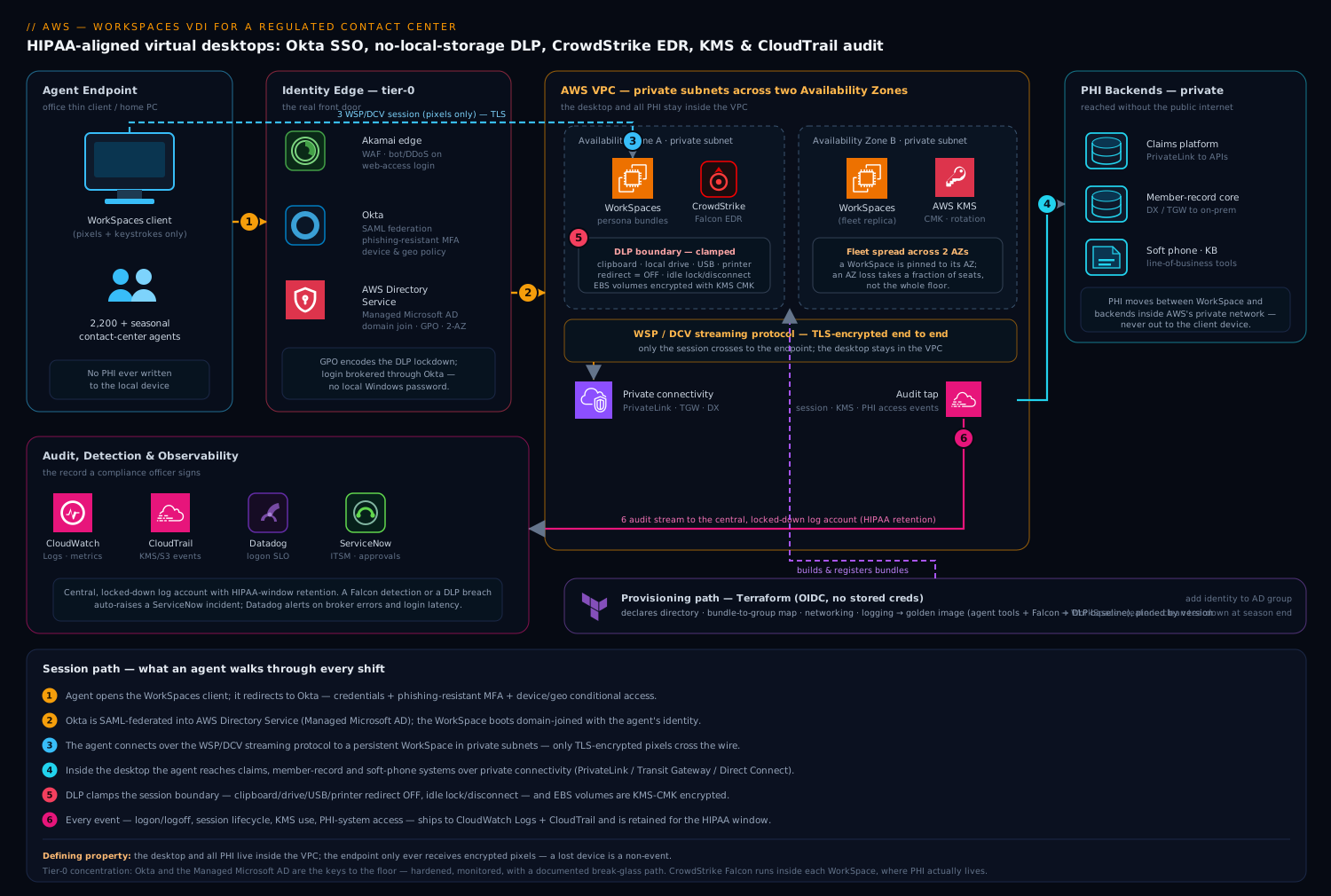
The platform has two paths that share infrastructure but run on different clocks: the session path an agent walks through every shift, and the provisioning path the platform team runs to create, patch, and retire desktops. Keeping them mentally separate is the first step to operating this cleanly.
The defining property of the whole topology — the one the security and compliance teams care about most — is that the desktop and all PHI live inside your VPC, and the endpoint device only ever receives encrypted pixels. Nothing of substance crosses to the client. No claim detail, no member record, no document is written to the agent’s local laptop, tablet, or thin client. That single property is what turns a lost endpoint from a breach into a shrug.
Session path, following the control flow:
- An agent opens the WorkSpaces client (or the web access page) on whatever endpoint they have — a locked-down thin client on the office floor, or a home PC for remote agents. Authentication does not happen against a local password. The client redirects to Okta, the payer’s workforce identity provider, which enforces the real front door: the agent’s credentials, a phishing-resistant MFA factor (FIDO2 or Okta Verify push with number challenge), and a device-and-network conditional-access policy.
- Okta is federated into the desktops’ directory via AWS Directory Service — specifically AWS Managed Microsoft AD — so the WorkSpace boots as a domain-joined machine with the agent’s own identity, group memberships, and Group Policy applied. SAML federation means the WorkSpaces login itself is brokered through Okta; the agent never types a Windows password.
- The agent connects over the WSP/DCV streaming protocol to their persistent WorkSpace, which lives in private subnets across two Availability Zones in the payer’s VPC. The session is the only thing that traverses the network to the endpoint, and it is TLS-encrypted end to end.
- Inside the desktop the agent reaches the line-of-business systems — the claims platform, the soft phone, the member-record system — over private connectivity (VPC routing, PrivateLink endpoints, or a Direct Connect/Transit Gateway path to on-prem cores). PHI moves between the WorkSpace and those backends inside AWS’s private network, never out to the client.
- Data-loss-prevention controls clamp the session boundary: clipboard redirection, local-drive mapping, USB redirect, and printer redirect are all disabled by policy, so an agent cannot copy a member’s record to their home machine, save a PDF to a USB stick, or paste claim data into a personal email. The WorkSpace’s own volumes are EBS-encrypted with a customer-managed KMS key.
- Every meaningful event — logon, logoff, session start, the WorkSpace’s OS and application audit logs, and PHI-system access — is shipped to CloudWatch Logs and CloudTrail, aggregated centrally, and retained for the HIPAA-mandated window. This is the audit trail the compliance officer signs.
Provisioning path, run by the platform team and largely automated: desktops are defined as persona-tuned bundles (the compute/memory/storage profile each role needs), built from a golden custom image that already contains the agent toolset, the CrowdStrike Falcon sensor, and the DLP baseline. New agents are provisioned by group membership — adding an identity to the right Okta/AD group creates their WorkSpace from the matching bundle. Terraform declares the directory, the bundles-to-groups mapping, the networking, and the logging; an automation runbook (Lambda or a scheduled job) handles seasonal scale-up and the clean teardown when enrollment season ends.
Component breakdown
| Component | Service / tool | Role in the platform | Key configuration choices |
|---|---|---|---|
| Virtual desktop | AWS WorkSpaces | Persistent, domain-joined desktop per agent inside the VPC | Persona bundles; AutoStop/AlwaysOn per persona; WSP protocol; cross-AZ subnets |
| Directory | AWS Directory Service (Managed Microsoft AD) | Domain join, Group Policy, group-based provisioning | Two-AZ deployment; GPO for DLP lockdown; conditional forwarder to on-prem AD |
| Identity / SSO | Okta | Workforce SSO + phishing-resistant MFA + conditional access | SAML federation to WorkSpaces; FIDO2/number-challenge MFA; device & geo policy |
| Endpoint security | CrowdStrike Falcon | EDR on every WorkSpace; runtime detection piped to the SOC | Sensor baked into the golden image; sensor tags by persona; detections to SIEM |
| DLP boundary | WorkSpaces policy + GPO | No local storage, no clipboard/USB/printer exfil | Clipboard/drive/USB/printer redirect = off; idle lock + disconnect timers |
| Encryption | AWS KMS | Customer-managed keys for WorkSpace volumes | CMK with rotation; key policy scoped to the WorkSpaces service role |
| Private connectivity | VPC / PrivateLink / Transit Gateway | PHI backends reached without traversing the public internet | Private subnets; PrivateLink to claims APIs; DX/TGW to on-prem member core |
| Audit & logging | CloudWatch Logs + CloudTrail | HIPAA-aligned access trail and session telemetry | Central log account; long-retention log groups; CloudTrail data events on KMS/S3 |
| Network edge | Akamai | Protects public web-access endpoint; bot/DDoS at the perimeter | WAF on the WorkSpaces web-access origin; geo controls on the login page |
| Observability | Datadog | Session health, login latency, capacity & cost dashboards | WorkSpaces metrics + custom logon-time metric; alerting on broker errors |
| ITSM / approvals | ServiceNow | Onboarding, access requests, incident records | Access request triggers group add; auto-ticket on Falcon detection or DLP breach |
| Provisioning / IaC | Terraform | Directory, bundles, networking, logging as code | OIDC to AWS (no stored creds); bundle-to-group map; image pinned by version |
A few of these choices deserve the why, because they are where teams on this exact project go wrong.
Why persona bundles, not one-size-fits-all. A contact center is not uniform. A tier-1 phone agent runs a soft phone, a browser, and the claims app — a Standard bundle (2 vCPU, 4 GB) is plenty, and at scale that frugality is the difference between a defensible and an absurd bill. A clinical-review nurse cross-references imaging and runs heavier tools and wants a Performance or Power bundle. A workforce-management lead lives in spreadsheets and dashboards across multiple monitors. Mapping each role to a right-sized bundle, and binding that bundle to an AD group, means provisioning is a membership change and cost tracks actual need rather than a worst-case spec applied to everyone.
| Persona | WorkSpaces bundle (guide) | Running mode | Why |
|---|---|---|---|
| Tier-1 phone agent | Standard (2 vCPU / 4 GB) | AutoStop, hourly | Soft phone + browser + claims app; idle gaps between shifts |
| Senior / escalation agent | Performance (2 vCPU / 8 GB) | AutoStop, hourly | Heavier multitasking, more concurrent tools |
| Clinical review nurse | Power (4 vCPU / 16 GB) | AlwaysOn, monthly | Imaging cross-reference, near-full-time utilization |
| WFM / team lead | Performance, multi-monitor | AlwaysOn, monthly | Dashboards across screens, steady all-day use |
| Seasonal enrollment agent | Standard (2 vCPU / 4 GB) | AutoStop, hourly | Short tenure, predictable shift hours, ruthless cost control |
Why AutoStop is the cost lever — and where it bites. WorkSpaces bills either monthly (a flat rate for an always-running desktop) or hourly (a small fixed fee plus an hourly charge only while the desktop is in use, via AutoStop). For a seasonal agent working 40 hours a week, AutoStop hourly is dramatically cheaper than a monthly seat that sits idle 75% of the time. The tradeoff is a cold-start delay: a stopped WorkSpace takes a minute or two to resume on first login. For shift-based agents that is invisible — they log in once and stay — but for a persona that logs in and out all day it is friction. The rule of thumb: AutoStop for shift workers and seasonal staff, AlwaysOn (monthly) for high-utilization, near-full-time roles. AWS publishes a built-in cost-optimizer that flips bundles between modes based on observed usage; let it, and watch the savings in Datadog.
Why DLP lives in policy, not in training. “Don’t copy PHI to your personal machine” as a written policy is a control that depends on every one of 2,200 high-turnover agents choosing to comply. That is not a control a HIPAA auditor respects. Instead, the session boundary is clamped technically: clipboard redirection off (no copy-out to the local OS), local drive mapping off (the WorkSpace cannot see the endpoint’s disk and vice versa), USB and printer redirect off, and an idle timer that locks and then disconnects an unattended session. These are enforced through the WorkSpaces directory settings and Group Policy on the Managed Microsoft AD, so they apply to every desktop uniformly and cannot be toggled by the agent.
# WorkSpaces directory DLP posture (enforced, not advisory)
Clipboard redirection:        DISABLED   # no copy from WorkSpace to local
Local drive (storage) access: DISABLED   # endpoint disk invisible to session
USB redirection:              DISABLED   # no USB exfil
Printer redirection:          DISABLED   # no print-to-local
Idle disconnect:              15 min lock / 30 min disconnect
Volume encryption:            KMS CMK (root + user volumes)
Implementation guidance
Provision with Terraform, and treat the directory and network as the first deliverables. The order matters: WorkSpaces cannot launch until the directory exists, is registered with the WorkSpaces service, and lives in subnets across two Availability Zones for resilience.
- The VPC with private subnets in two AZs for the WorkSpaces, plus the routing/PrivateLink/Transit Gateway paths to the PHI backends.
- AWS Managed Microsoft AD spanning both AZs, with a conditional forwarder to on-prem AD if hybrid identity is in play, and Group Policy objects encoding the DLP lockdown.
- The Okta SAML federation to WorkSpaces, so the login is brokered through Okta with MFA and conditional access — agents never authenticate against a local credential.
- A golden custom image built from a base WorkSpace: agent tools installed, the CrowdStrike Falcon sensor embedded and verified, the DLP baseline applied, then captured as a custom bundle per persona.
- The bundle-to-group mapping and the logging pipeline (CloudWatch Logs + CloudTrail to a central, locked-down log account).
A minimal Terraform shape for the directory and a persona bundle communicates the intent — two AZs, encryption on, identity-driven:
resource "aws_directory_service_directory" "corp" {
  name     = "agents.payer.internal"
  type     = "MicrosoftAD"
  edition  = "Standard"
  vpc_settings {
    vpc_id     = aws_vpc.workspaces.id
    subnet_ids = [aws_subnet.ws_az_a.id, aws_subnet.ws_az_b.id]
  }
}

resource "aws_workspaces_workspace" "tier1_agent" {
  directory_id = aws_directory_service_directory.corp.id
  bundle_id    = var.tier1_standard_bundle_id   # persona-tuned image
  user_name    = var.agent_username             # resolved from AD group

  root_volume_encryption_enabled = true
  user_volume_encryption_enabled = true
  volume_encryption_key          = aws_kms_key.workspaces.arn

  workspace_properties {
    running_mode                              = "AUTO_STOP"   # seasonal/shift
    running_mode_auto_stop_timeout_in_minutes = 60
  }
}
Pin the bundle to an explicit image version. An unpinned “latest” image means two agents provisioned a week apart get different desktops, and your golden-image change control evaporates.
Failure modes and resilience
The honest failure analysis for VDI is about availability of the desktop itself, because when the desktop is the workplace, an outage is the whole floor going dark.
- AZ loss. WorkSpaces are pinned to the AZ of the subnet they launch in; a single WorkSpace does not float between AZs. Resilience comes from spreading the fleet across two AZs so an AZ failure takes out a fraction of agents, not all of them, and from a documented recovery path. For the highest-tier roles, AWS offers cross-Region WorkSpaces with a multi-Region directory so a Region-level event can fail desktops over — expensive, so reserve it for the seats whose downtime is intolerable.
- Directory outage. If the Managed Microsoft AD is unhealthy, no one can authenticate and no WorkSpace can launch. Two-AZ directory deployment is non-negotiable, and the conditional forwarder to on-prem must not become a single dependency that a WAN blip can sever.
- Identity-provider outage. Because login is federated through Okta, an Okta outage means agents cannot reach their desktops. This is the price of centralizing identity, and it is worth it for the security posture — but it must be on the risk register, with Okta’s own HA and a documented break-glass path for a defined set of supervisors.
- Streaming-gateway degradation. A network path problem between agents and the WorkSpaces service shows up as frozen sessions and rising logon latency. This is exactly what Datadog dashboards exist to catch — alert on broker connection errors and a logon-time SLO before the floor floods the help desk.
- Endpoint compromise. A home agent’s personal PC gets malware. Because no PHI lands locally and the session is pixels-only, the blast radius is contained to the endpoint; the WorkSpace and its data are untouched. CrowdStrike Falcon runs inside the WorkSpace, so the protected surface is the desktop where PHI actually lives, not the disposable endpoint.
Scaling and cost
Scaling a contact center is bursty and seasonal, which is precisely the shape WorkSpaces fits. For open enrollment, the platform team adds the seasonal agents’ identities to the enrollment AD group, and the automation provisions their Standard AutoStop WorkSpaces in batches. When the season ends, the same automation deregisters the identities and terminates the WorkSpaces, and the cost stops the same day — no laptops to chase down, no asset-recovery backlog.
Cost discipline comes from three levers stacked together:
- Right-sized bundles so a phone agent does not pay for a Power desktop.
- AutoStop for everyone who isn’t near-full-time, so idle hours are not billed.
- The cost-optimizer flipping bundles between hourly and monthly based on real usage — an agent who unexpectedly runs 200+ hours in a month is cheaper on monthly, and the optimizer moves them automatically.
The comparison that justifies the whole program to finance is rarely WorkSpaces versus nothing — it is WorkSpaces versus the fully loaded cost of laptops: hardware refresh, imaging, shipping both ways, asset recovery, the help-desk load of physical machines, and the un-budgetable cost of a single lost-laptop breach notification. Against that baseline, a per-agent monthly desktop charge with no device logistics and no PHI-on-endpoint risk is an easy story.
Security and compliance
This is where the architecture earns its keep, because HIPAA is the reason it exists.
A signed AWS Business Associate Addendum (BAA) is the legal foundation, and WorkSpaces, Directory Service, KMS, CloudWatch, and CloudTrail are all HIPAA-eligible services operated within that BAA’s scope. The architecture then implements the controls the BAA presumes:
- Access control. Every session is a federated Okta login with phishing-resistant MFA and conditional access; there are no local desktop passwords to phish. Provisioning and de-provisioning are driven by group membership, so an agent who leaves loses their desktop when HR removes them from the directory group — and ServiceNow records the request and the approval.
- Encryption. PHI is encrypted at rest on KMS-CMK-protected WorkSpace volumes and in transit over the TLS-encrypted streaming protocol and private backend paths.
- Data minimization on the endpoint. The DLP boundary guarantees PHI never rests on a device outside the VPC — the single most consequential HIPAA control in a remote-agent model.
- Audit controls. CloudWatch Logs and CloudTrail capture logon/logoff, session lifecycle, KMS key usage, and PHI-system access, aggregated into a central log account with retention set to the required window and the log store itself locked down so it cannot be tampered with.
- Threat detection. CrowdStrike Falcon on every WorkSpace feeds the SOC, and a detection auto-raises a ServiceNow incident; Akamai shields the public web-access login from bots and volumetric attacks before they reach AWS.
The explicit tradeoff to put on the table: this architecture concentrates risk in identity and in the directory. When login is federated through Okta and desktops are domain-joined to Managed Microsoft AD, those two systems become the keys to the contact-center floor. That concentration is a feature — one place to enforce MFA, one place to revoke access, one audit trail — but it demands that Okta and the directory are treated as tier-0 systems with their own hardening, monitoring, and break-glass procedures. Centralized identity is the right call here; pretending it isn’t also a single point of failure is not.
Going deeper
Everything above gets a fleet running. This section is for the engineer who has to operate it at 2,200 seats and answer the hard questions in the audit and the incident review.
The two-interface network model
A running WorkSpace has two network interfaces, and confusing them is the most common networking mistake on this service. The primary interface lives in your VPC subnet, carries the desktop’s own traffic to your apps and out through NAT, and is governed by the security group you assign. A second, AWS-managed interface carries the streaming protocol and health checks to the WorkSpaces service; its address comes from an AWS-owned range, and your security group does not apply to it. Practical consequences: locking down the primary interface’s security group controls what the desktop can reach, but it never blocks the streaming plane; and the client’s connection to the streaming gateway rides public AWS endpoints on TCP/UDP 4195 (WSP) or 4172 (PCoIP) plus 443, which is why the WorkSpaces client works from a home network with no VPN. The VPN, when present, is for the desktop’s reach into private backends, while who may connect at all is enforced by IP access control groups at the front.
Encryption is a launch-time, immutable decision
WorkSpaces volume encryption uses KMS envelope encryption on the root and user EBS volumes, and the fact that trips teams up is that you choose it when the WorkSpace is created and cannot change it afterward. There is no “encrypt this existing WorkSpace” button — an unencrypted desktop has to be rebuilt as a new, encrypted one. So encryption belongs in the golden pipeline and the Terraform defaults from day one, never as a later remediation. The KMS key policy must grant the WorkSpaces service and the directory’s role permission to use the CMK (kms:CreateGrant, Encrypt, Decrypt, GenerateDataKey); miss that and provisioning fails with an opaque error. Rotate the CMK on a schedule and keep it in the same Region as the fleet — keys do not cross Regions, which matters for the cross-Region story below.
Restore, rebuild, migrate, reboot — and your real RPO
Four recovery verbs, each doing something different, and the on-call needs them cold:
| Action | Root volume | User volume | Use when |
|---|---|---|---|
| Reboot | Kept | Kept | Hung session, routine restart |
| Restore | Rolled back to last snapshot | Rolled back to last snapshot | Corruption; you accept losing recent changes |
| Rebuild | Rebuilt from the bundle image | Restored from last snapshot | OS broken, keep the user’s data |
| Migrate | Recreated from a new bundle | Preserved (old profile moved aside) | Change bundle/OS, e.g. Windows 10 → 11 |
The number that surprises people: WorkSpaces takes automatic snapshots roughly every 12 hours, and restore/rebuild use the most recent one. So your worst-case data-loss window (RPO) for anything living only on the WorkSpace is up to ~12 hours. The design answer in a regulated shop is that important data should not live only on the desktop at all — it belongs in the backend systems of record over the private path, with the WorkSpace as a view onto it, not the vault.
Cross-Region resilience: connection aliases and DNS redirect
A single WorkSpace is pinned to the AZ of its subnet and does not float — fleet resilience comes from spreading across two AZs so an AZ event costs a fraction of the floor. For a Region-level event you need cross-Region redirection, which has four moving parts: (1) standby WorkSpaces provisioned in Region B, (2) a multi-Region Managed Microsoft AD (or an AD trust) so identities exist in both, (3) a connection alias — a fully-qualified domain name — associated with the directory in both Regions, and (4) Route 53 health-checked failover on that FQDN. Clients connect to the alias, not a Region; when the primary’s health check fails, DNS points them at Region B. It is genuinely expensive — you are paying for standby desktops — so it is reserved for the seats whose downtime is intolerable, not the whole fleet.
The metrics that actually tell you the floor is fine
CloudWatch publishes WorkSpaces metrics under the AWS/WorkSpaces namespace, and four earn a dashboard and an alarm:
Available/Unhealthy— the count of desktops passing or failing the service health check. A risingUnhealthyis the fleet degrading before tickets arrive.SessionLaunchTime— how long login takes. This is your leading indicator of a bad day; alarm on the p90 crossing your SLO.InSessionLatency— round-trip responsiveness during a session; the number behind “my desktop feels laggy.”ConnectionAttempt/ConnectionSuccess/ConnectionFailure— the login funnel; a spike in failures with flat attempts usually means directory or IdP trouble, not the desktops.
Wire WorkSpaces access events through EventBridge and management API calls through CloudTrail into the central log account, and you have both the security trail and the operational one. The CloudWatch and CloudTrail deep dive covers the alarming patterns.
Quotas, throttling, and the surge
Provisioning 400 desktops in a batch runs into real limits. There is a default cap on WorkSpaces per Region (a soft limit — raise it through a Service Quotas request well before enrollment week, not during), IP access control groups cap at 25 groups per directory and 10 rules each, and the provisioning APIs throttle, so batch creation should be paced and retried with backoff rather than fired in one burst. The lesson learned the expensive way: file the quota increase and load-test the provisioning runbook a month ahead, because a quota denial at 8 a.m. on day one of open enrollment is a very public failure.
Non-persistent at scale: when Pools changes the math
If a subset of the floor really is disposable — single hardened web app, zero personalisation — WorkSpaces Pools can undercut Personal because the running fleet can be smaller than the headcount: desktops float, so 300 concurrent agents might need 320 pooled desktops, not 400 assigned ones. Pools offloads the little per-user state it keeps (a home folder, application settings) to managed storage, autoscales on a schedule or on utilisation, and bills for capacity in use. The trade is the persistence you give up. Many mature contact centers run a hybrid: Personal for tenured, personalised agents; Pools for high-turnover seasonal call-takers on a locked single app.
GPU, smart cards, and the stricter regimes
Two capabilities matter for the harder personas and the harder audits. GPU bundles (Graphics.g4dn / GraphicsPro.g4dn) give the clinical-review nurse smooth imaging cross-reference that a CPU desktop stutters on — reserve them for the seats that need it, because they are the priciest tier. Smart-card / CAC sign-in and certificate-based auth are supported over WSP/DCV (not PCoIP), which is decisive for government and defense-adjacent regimes. For those regimes, WorkSpaces also runs in AWS GovCloud with FedRAMP authorisation and FIPS 140-2 validated endpoints — the same architecture, a stricter compliance boundary.
Compliance scope and data residency
WorkSpaces is a HIPAA-eligible service under the AWS BAA, in scope for PCI DSS, and covered by SOC 1/2/3 and ISO reports — but “eligible” means you still have to configure it right; the BAA does not encrypt your volumes or lock your clipboard for you. Data residency is a Region choice: a WorkSpace’s compute, its EBS volumes, and its snapshots stay in the Region you launch it in, which is how you satisfy a “PHI must remain in-country” clause — you simply do not launch the fleet outside the permitted Region, and you keep the KMS keys, the logs, and any cross-Region standby inside the compliant geography too.
Practice challenges
Work these in order; each collapsible Solution holds a worked answer and a one-line reason. No live account is needed — reason them through or sketch the Terraform.
1. Pick the running mode (beginner). A workforce-management lead is signed in about 9 hours a day, 5 days a week. AutoStop or AlwaysOn? Use the representative break-even of ~63 running hours per month.
<details><summary>Solution</summary>
AlwaysOn (monthly). ~9 h × 5 days × ~4.3 weeks ≈ 193 running hours/month, far above the ~63-hour break-even, so the flat monthly rate is cheaper and avoids cold starts. Why: above break-even, hourly billing costs more than the flat monthly, and a near-full-time user gets no benefit from AutoStop’s idle savings. </details>
2. Choose the directory (beginner). You already run Active Directory on-prem and your security team forbids storing directory data in AWS. Which Directory Service option backs WorkSpaces?
<details><summary>Solution</summary>
AD Connector. It proxies authentication to your existing on-prem AD and stores no directory data in AWS. Why: Simple AD is a separate cloud directory and Managed Microsoft AD stores data in AWS; only AD Connector keeps on-prem AD authoritative with nothing persisted in the cloud. </details>
3. Restrict where sessions can start (intermediate). Only the HQ egress 203.0.113.0/24 and VPN 198.51.100.0/24 should be able to open a WorkSpaces session. Sketch it.
<details><summary>Solution</summary>
Create an aws_workspaces_ip_group with a rules entry per CIDR, then attach it via ip_group_ids on aws_workspaces_directory (see the code in the building-blocks section).
Why: IP access control groups gate session establishment by source IP, so a valid credential from an unlisted network is still refused.
</details>
4. Block personal devices (intermediate). Compliance says agents may connect only from the Windows client or Web access — never Android, iOS, personal macOS, Linux, ChromeOS, or zero clients. Where do you set this?
<details><summary>Solution</summary>
In workspace_access_properties on aws_workspaces_directory: set device_type_windows = "ALLOW" and device_type_web = "ALLOW", and every other device_type_* to "DENY".
Why: device access control is enforced by the service at connection time, independent of identity, so an approved user on an unapproved device is blocked.
</details>
5. Do the break-even math (advanced). With AlwaysOn at $35/mo and AutoStop at $16/mo + $0.30/hr (representative), at how many running hours do they cost the same, and which is cheaper for a seasonal agent running 160 hours a month?
<details><summary>Solution</summary>
Break-even = ($35 − $16) / $0.30 ≈ 63 hours/month. At 160 hours, AutoStop ≈ $16 + 160 × $0.30 = $64 versus $35 on AlwaysOn → AlwaysOn is far cheaper.
Why: 160 h is well above break-even; a full-month worker belongs on monthly, and the Cost Optimizer would move them there automatically.
</details>
6. Design Region failover for the top 50 seats (advanced). Executives and escalation leads cannot tolerate a Region outage. List the four things that must exist for cross-Region redirection.
<details><summary>Solution</summary>
(1) Standby WorkSpaces provisioned in Region B; (2) a multi-Region Managed Microsoft AD (or AD trust) so identities exist in both; (3) a connection alias (FQDN) associated with the directory in both Regions; (4) Route 53 health-checked failover on that FQDN. Why: a WorkSpace is AZ-pinned and cannot float across Regions, so failover is DNS redirecting users to pre-provisioned standby desktops backed by a directory that spans both Regions. </details>
Common beginner mistakes
These are misconceptions, not symptom-fix tickets — the wrong mental model, and the right one.
- “I’ll turn on volume encryption later.” You cannot. Encryption is chosen at launch and is immutable; an unencrypted WorkSpace must be rebuilt as a new encrypted one. Right model: encryption is a golden-pipeline default from the first desktop, never a later remediation.
- “AutoStop is always cheaper.” Only below the break-even (~63 running hours a month in our example). A full-time agent on AutoStop can cost more than AlwaysOn. Right model: match mode to measured usage per persona and let the Cost Optimizer move seats across the line.
- “Federating through Okta means there’s no other way in.” Identity alone is not the perimeter. Without IP access control groups and device access control, a valid session connects from any network and any device. Right model: credential and approved network and approved client — layered, not a single point of trust.
- “A WorkSpace fails over between AZs like an Auto Scaling group.” It does not; a WorkSpace is pinned to its subnet’s AZ. Right model: resilience is fleet spread across two AZs plus rebuild or standby, not live float of one desktop.
- “My security group protects the streaming connection.” Your security group governs the desktop’s primary interface in your VPC. The streaming and management traffic rides a separate AWS-managed interface your SG never sees. Right model: the SG controls what the desktop reaches; IP access control groups and the IdP control who reaches the desktop.
- “Custom image? I’ll just track latest.” Unpinned images mean desktops provisioned days apart differ, and change control evaporates. Right model: version images and pin bundles explicitly; promote a new version deliberately.
- “Personal and non-persistent are interchangeable.” Personal keeps per-user state and bills per assigned seat; Pools and AppStream discard state and can run fewer desktops than users. Picking wrong means paying for idle persistence or wiping agents’ setup every login. Right model: choose on whether per-user state is load-bearing.
Glossary
- VDI (Virtual Desktop Infrastructure): desktops that run on servers in a datacenter and are streamed to the user’s device; the device shows pixels and sends input.
- DaaS (Desktop-as-a-Service): VDI delivered as a managed cloud service — what WorkSpaces is.
- Amazon WorkSpaces: AWS’s managed VDI/DaaS service for persistent and pooled virtual desktops.
- WorkSpaces Personal: the persistent model — one durable desktop per user, state kept between sessions.
- WorkSpaces Pools: the non-persistent model — floating desktops from a shared pool, minimal per-user state.
- WorkSpaces Core: AWS-managed WorkSpaces desktops driven by a third-party VDI broker (Citrix, Omnissa, and others).
- Bundle: a WorkSpace’s recipe — a compute type (hardware) plus an image (OS + software).
- Image: a frozen snapshot of a configured WorkSpace used to stamp out identical desktops (the “golden image”).
- Compute type: the hardware tier of a bundle (Value, Standard, Performance, Power, PowerPro, Graphics).
- Running mode: how a WorkSpace bills — AlwaysOn (flat monthly, always running) or AutoStop (hourly plus a small monthly storage fee, stops when idle).
- Cold start: the minute-or-two resume delay when an AutoStopped desktop is first opened.
- Break-even hours: the monthly running-hours point where AutoStop and AlwaysOn cost the same.
- WSP / Amazon DCV: the WorkSpaces Streaming Protocol (now branded Amazon DCV) — the modern, feature-rich streaming protocol.
- PCoIP: the older Teradici streaming protocol; still supported, but WSP is the default for new fleets.
- AWS Directory Service: the managed directory layer; provides Simple AD, AD Connector, and Managed Microsoft AD.
- Simple AD: a small, standalone Samba-based directory (no RADIUS MFA, no trusts).
- AD Connector: a proxy to on-prem Active Directory that stores no directory data in AWS.
- AWS Managed Microsoft AD: real Microsoft AD run by AWS; supports GPO, trusts, RADIUS MFA, and multi-Region.
- GPO (Group Policy Object): domain-enforced Windows policy — here, the switch that disables clipboard/USB/drive/printer redirect on every desktop.
- SAML federation: brokering login to an external identity provider so the app never sees a local password.
- IdP (Identity Provider): the system that authenticates users and asserts identity — Okta in this design.
- MFA (Multi-Factor Authentication): requiring a second factor; phishing-resistant forms are FIDO2 or number-matching push.
- IP access control group: a WorkSpaces allow-list of source CIDRs permitted to open a session.
- Device access control: WorkSpaces policy permitting or denying specific client types (Windows, Web, iOS, and so on).
- DLP (Data-Loss Prevention): controls that stop data leaving the session — clipboard, USB, drive, and printer redirect disabled.
- KMS CMK (Customer-Managed Key): a KMS key you own and control, used to encrypt the WorkSpace’s EBS volumes.
- Envelope encryption: encrypting data with a data key that is itself encrypted by a KMS key.
- ENI (Elastic Network Interface): a virtual NIC; a WorkSpace has one in your VPC plus a separate AWS-managed one for streaming.
- NAT gateway: a managed device that lets private-subnet resources reach the internet without a public IP.
- PrivateLink: private, VPC-to-service connectivity that never traverses the public internet.
- Transit Gateway / Direct Connect: the hub router / dedicated line for private connectivity to other VPCs and on-prem.
- Amazon Connect: AWS’s cloud contact center; its browser softphone is the CCP (Contact Control Panel).
- AppStream 2.0: AWS application-streaming service — streams individual apps rather than a persistent desktop.
- BYOL (Bring Your Own License): running your own Windows 10/11 licenses on dedicated WorkSpaces hardware.
- BAA (Business Associate Addendum): the HIPAA contract that puts AWS services in scope for handling PHI.
- PHI (Protected Health Information): individually identifiable health data that HIPAA protects.
- HIPAA / PCI DSS: US health-data regulation / payment-card security standard the architecture is built to satisfy.
- EDR (Endpoint Detection and Response): runtime threat detection on the desktop — CrowdStrike Falcon here.
- AZ (Availability Zone): an isolated datacenter group in a Region; a WorkSpace is pinned to one AZ’s subnet.
- Cross-Region redirection / connection alias: a DNS-based failover that sends users to standby WorkSpaces in another Region.
- RPO (Recovery Point Objective): the worst-case data-loss window; WorkSpaces auto-snapshots roughly every 12 hours.
- WorkSpaces Cost Optimizer: an AWS solution that switches seats between hourly and monthly based on real usage.
Wrapping up
The payer’s VP wanted three things: PHI that never lands on a device that can be lost, a fleet that scales for enrollment season and shrinks cleanly afterward, and an audit trail that passes a HIPAA review. AWS WorkSpaces delivers all three by inverting the laptop model — the desktop and its data stay in the VPC, the endpoint becomes a disposable terminal, and identity, encryption, DLP, EDR, and logging are enforced uniformly from the cloud side rather than hoped for on 2,200 endpoints. Persona bundles keep the bill honest, AutoStop matches spend to shift reality, Okta federation puts a phishing-resistant front door on the floor, no-local-storage policy makes a lost endpoint a non-event, CrowdStrike Falcon watches the desktops where PHI actually lives, and CloudWatch/CloudTrail produce the record a compliance officer signs. It is not the cheapest desktop you can buy — it is the one a regulated contact center can defend.