In a nutshell
Picture your on-premises directory as a busy warehouse and Entra ID as the storefront in the cloud. For a decade, one heavy machine on the warehouse floor — Entra Connect Sync — did all the sorting, kept its own database, and shipped every change up to the storefront. Cloud Sync throws that one big machine out and replaces it with a few small courier agents. The couriers are deliberately dumb: all the sorting logic — which objects to send, how to map their fields, what to skip — now lives in the cloud, run and patched by Microsoft. You keep a couple of couriers running for redundancy; Microsoft keeps the brains.
That swap buys three things a beginner should care about: no SQL Server or LocalDB to babysit, real high availability by simply installing a second agent (no fragile active/staging pair to promote by hand), and configuration you click through in the portal instead of a thick on-prem rules editor. The trade is that the lightweight engine can’t yet do everything the heavy one does — notably device sync for Hybrid Entra Join and Exchange hybrid writeback — so the very first skill is knowing whether your forest is even a candidate.
The one idea that governs the whole migration: an object belongs to exactly one sync engine at a time, and pulling an object out of an engine’s scope deletes its cloud copy (users are recoverable for 30 days, groups are gone for good). So you never “switch” from Connect Sync to Cloud Sync — you run both side by side and hand objects over in small, scoped batches, teaching Connect Sync to stop shipping the ones Cloud Sync is about to own. Get that handshake right and nobody notices; get it wrong and you hard-delete groups.
Level: Advanced · Time: ~34 min
Before you start, you should know:
- How hybrid identity fits together — a tenant, an on-prem AD, and a sync engine bridging them (Entra ID fundamentals, Hybrid identity architecture).
- Connect Sync basics: the source anchor, the metaverse, and what an inbound/outbound sync rule does.
- Comfort with PowerShell, a domain-joined Windows Server to host the agent, and the Hybrid Identity Administrator role.
After this lesson you’ll be able to:
- Decide whether a forest is a clean Cloud Sync candidate or must stay on Connect Sync.
- Stand up two or more provisioning agents and register them for automatic HA.
- Build the
cloudNoFlowcoexistence rules so objects hand over without being deleted. - Scope Cloud Sync per-OU or per-group and prove a hard match (not a Create) with on-demand provisioning.
- Set an accidental-deletion threshold, cut over in waves, and decommission Connect Sync with a safe rollback soak.
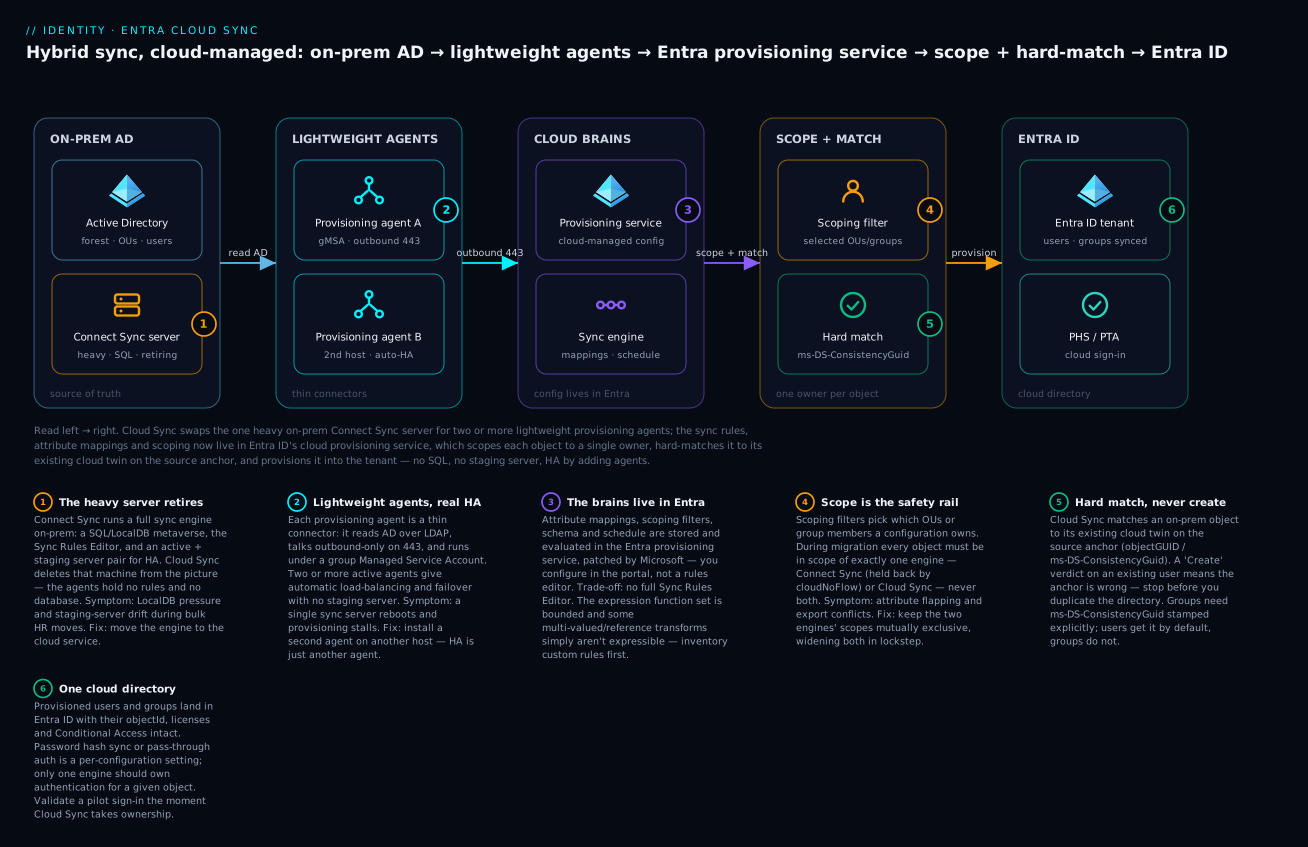
Left to right: the on-prem AD forest is read by two lightweight provisioning agents, which stream changes over an outbound 443 connection to Entra ID’s cloud provisioning service — where the mappings, scoping and schedule now live — and that service scopes each object to one owner, hard-matches it to its existing cloud twin on the source anchor, and provisions it into the tenant, with no SQL or staging server anywhere in the path.
Entra Connect Sync (formerly Azure AD Connect) has carried hybrid identity for a decade, but Microsoft has made the direction clear: Cloud Sync is the strategic agent, and from July 2026 tenants whose use cases are fully covered will start receiving migration notices via the M365 Message Center and Connect Health. This guide is the cutover I run for production forests — a side-by-side coexistence model where you hand objects over in scoped batches rather than flipping one switch and praying.
The most important fact to internalize before you touch anything: moving an object out of Connect Sync scope deletes its cloud representation. Users are soft-deleted (recoverable for 30 days), but groups are hard-deleted. The entire coexistence design below exists to prevent that deletion during the handoff.
1. Connect Sync vs Cloud Sync: know the gaps before you commit
Cloud Sync is not “Connect Sync, but lighter.” It is a different engine: the provisioning logic lives in Entra ID and the on-prem agent is a thin connector. That buys multi-agent HA, no SQL/LocalDB to babysit, and portal-driven config — but it drops features. Confirm none of these are load-bearing before you start.
| Capability | Connect Sync | Cloud Sync |
|---|---|---|
| Multi-forest / disconnected forests | Single agent, requires connectivity to all | Per-forest agents, no inter-forest trust needed |
| High availability | Active + staging server | Multiple active agents, automatic failover |
| Sync engine location | On-prem (SQL/LocalDB) | Entra ID cloud service |
| Device sync / Hybrid Entra Join | Supported | Not supported |
| Pass-through Authentication (PTA) | Supported | Supported |
| Password hash sync (PHS) | Supported | Supported |
| Password writeback / group writeback | Supported | Supported (writeback enabled separately) |
| Exchange hybrid writeback | Supported | Not supported |
| Large object volume | 100k+ tested heavily | Scales, but validate against your object count |
| Filtering on attribute values / custom expressions | Full Sync Rules Editor | Attribute mapping + scoping filters (more limited) |
Use the official Connect to Cloud Sync decision guide to confirm coverage. If you rely on Hybrid Entra Join via sync, Exchange hybrid attribute writeback, or heavy custom sync-rule transformations, you are not a clean migration candidate yet — stay on Connect Sync or run a permanent hybrid of both engines.
Supported coexistence topologies
The migration leans on a supported topology: Connect Sync and Cloud Sync running against the same forest with mutually exclusive scopes. The golden rule: any object must be in scope of exactly one engine at a time. Overlap means two agents writing the same target object — export errors and attribute thrash.
2. Prerequisites and a configuration backup
Lock these down first. Skipping the source-anchor check is the classic way to turn a migration into a duplicate-object incident.
- Connect Sync version 1.4.32.0 or later. Earlier builds lack the
cloudNoFlowlink behavior that makes coexistence safe. Upgrade first. - Source anchor must be
objectGUIDorms-DS-ConsistencyGuid. Cloud Sync uses this to hard match existing cloud objects instead of creating new ones. ms-DS-ConsistencyGuidmust be populated on in-scope objects. Connect Sync populates it for users by default but not for groups — verify groups explicitly or Cloud Sync will soft-match by proxy/UPN at best.- A domain-joined Windows Server 2016/2019/2022 host for the agent. (Server 2025 is not a supported agent host as of this writing — check current docs before standardizing on it.)
- Hybrid Identity Administrator role for portal config and agent registration.
Back up the Connect Sync config so you can roll back the rule changes cleanly:
# Run on the active Connect Sync server (elevated)
# Exports server config, including all custom sync rules, to a timestamped folder
$stamp = Get-Date -Format 'yyyyMMdd-HHmmss'
Import-Module 'C:\Program Files\Microsoft Azure AD Connect\AdSync\AdSync.psd1'
$out = "C:\ConnectSync-Backups\$stamp"
New-Item -ItemType Directory -Path $out -Force | Out-Null

# Built-in export wizard switch produces an Exported-ServerConfiguration-*.json bundle
Start-Process 'C:\Program Files\Microsoft Azure AD Connect\AzureADConnect.exe' `
  -ArgumentList "/exportConfig `"$out`""
Also record your current connector source anchor in the Connect Sync wizard (Synchronization Service Manager -> Connectors). If it is anything other than
objectGUID/mS-DS-ConsistencyGuid, stop and fix that before continuing — Cloud Sync cannot reliably hard-match otherwise.
3. Install and register provisioning agents for HA
Cloud Sync supports multiple active agents. For production, install at least two on separate hosts per forest so that a server reboot does not stall provisioning. The first agent creates the group Managed Service Account (gMSA); subsequent agents reuse it.
- In the Entra admin center: Entra Connect -> Cloud Sync -> Agents -> Download on-premises agent.
- Run
AADConnectProvisioningAgentSetup.exeon each host. - In the wizard, sign in as Hybrid Identity Administrator, then Configure Service Account:
- First agent: choose Create gMSA (creates
provAgentgMSA$) — needs Domain Admin once to create the account. - Additional agents: also choose Create gMSA; the wizard detects the existing
provAgentgMSA$and grants the new host permission to use it.
- First agent: choose Create gMSA (creates
- Add your AD domain under Connect Active Directory, authenticate, Confirm to register and start the agent.
Verify the agent locally on each host:
# Both services must be present and Running
Get-Service 'Microsoft Azure AD Connect Provisioning Agent',
            'Microsoft Azure AD Connect Agent Updater' |
  Format-Table Name, Status, StartType
Then confirm registration in Entra Connect -> Cloud Sync -> Agents — each agent should show status active. Two active agents against the same domain is the HA posture you want.
4. Build the coexistence sync rules in Connect Sync
This is the heart of safe coexistence. Before Cloud Sync touches an object, you teach Connect Sync to stop exporting the objects you are about to migrate — without removing them from scope (which would delete them). The mechanism is the cloudNoFlow attribute and the JoinNoFlow link type.
The flow: an inbound rule stamps cloudNoFlow=True on in-scope metaverse objects; an outbound rule with link type JoinNoFlow sees that flag and suppresses the export to Entra ID. The connector link stays intact (no delete), but attribute flow stops, leaving Cloud Sync free to own those attributes.
First, freeze the scheduler so no sync runs while you edit rules:
# On the Connect Sync server (elevated)
Stop-ADSyncSyncCycle
Set-ADSyncScheduler -SyncCycleEnabled $false
# If you run a custom scheduler, disable that instead.
Inbound rule (stamp the flag)
Open the Synchronization Rules Editor, set Direction to Inbound, Add new rule:
| Field | Value |
|---|---|
| Connected System | Your on-prem AD connector |
| Connected System Object Type | user |
| Metaverse Object Type | person |
| Link Type | Join |
| Precedence | A unique unused number (e.g. 50) |
- Scoping filter — limit to the pilot OU: attribute
DN, operatorENDSWITH, valueOU=CloudSyncPilot,DC=contoso,DC=com. (For a group-based scope, use operatorISMEMBEROFwith the group DN.) - Transformations — add a Constant transformation: target attribute
cloudNoFlow, source valueTrue.
Outbound rule (suppress the export)
Set Direction to Outbound, Add rule:
| Field | Value |
|---|---|
| Connected System | Your Entra ID connector |
| Connected System Object Type | user |
| Metaverse Object Type | person |
| Link Type | JoinNoFlow |
| Precedence | A unique unused number |
- Scoping filter — attribute
cloudNoFlow, operatorEQUAL, valueTrue. - Leave Transformations empty.
Repeat both rules for every object type you are migrating —
user,group, andcontact— and for each AD connector if you have multiple forests. A missing group outbound rule is exactly how groups get hard-deleted on cutover.
5. Configure the Cloud Sync side with matching scope
In Entra Connect -> Cloud Sync -> New configuration:
- Select the AD domain and decide on password hash sync (enable it here if PHS is your auth method — see Section 7).
- Create, then open Scoping filters.
- Choose Selected organizational units and enter the same OU you scoped in the Connect Sync inbound rule:
OU=CloudSyncPilot,DC=contoso,DC=com. Mutually exclusive scope alignment is what prevents double-provisioning. - Review Attribute mappings. Cloud Sync ships sensible defaults; add directory extension attributes or expression mappings here if your tenant depends on them. Keep the matching/anchor attribute aligned with your Connect Sync source anchor.
- Leave the configuration disabled (do not enable provisioning yet) so you can validate with on-demand provisioning first.
Restart the Connect Sync scheduler so the cloudNoFlow rules take effect:
Set-ADSyncScheduler -SyncCycleEnabled $true
Start-ADSyncSyncCycle
After the next cycle, Connect Sync stops exporting changes for objects where
cloudNoFlow=true— with one caveat: if a reference attribute such asmanagerchanges, Connect Sync ignorescloudNoFlowand exports the full object. Plan your cutover window to avoid bulk org-chart/manager changes mid-migration.
6. Pilot: on-demand provisioning before you enable
Never enable a fresh configuration blind. Use Provision on demand to push a single known user through end to end:
- In the Cloud Sync configuration, open Provision on demand, supply a test user’s distinguished name, and run it.
- Inspect the four-step result (import -> determine match -> determine actions -> apply). The decisive line is the match: it must show the user matched an existing Entra object, not “create.” A “create” verdict means your source anchor /
ms-DS-ConsistencyGuidis wrong and you are about to duplicate the directory — stop and fix matching.
Once on-demand shows a clean hard match with the expected attribute updates, enable the configuration. Cloud Sync now owns the pilot OU; Connect Sync holds the link but flows nothing.
Verify
Confirm the handoff worked before widening scope.
# 1) Connect Sync is no longer exporting the migrated objects.
#    Spot-check a pilot user: cloudNoFlow should be True in the metaverse.
Import-Module 'C:\Program Files\Microsoft Azure AD Connect\AdSync\AdSync.psd1'
$mv = Get-ADSyncCSObject -DistinguishedName 'CN=Pilot User,OU=CloudSyncPilot,DC=contoso,DC=com' `
  -ConnectorName '<your AD connector name>'
$mv | Select-Object DistinguishedName, ConnectorName
# Then trace its metaverse object in the Sync Service Manager and confirm cloudNoFlow = True.
Then verify in Entra:
- Provisioning logs (Entra Connect -> Cloud Sync -> configuration -> Logs, or Monitoring -> Provisioning logs): every pilot object shows action Update with status Success — not Create, not Skipped (out of scope).
- Object identity is preserved. Pick a pilot user in Entra ID and confirm the
objectIdis unchanged from before migration (no new account was minted) and group memberships, licenses, and Conditional Access assignments are intact. - No duplicate objects. Search the migrated UPNs/displayNames — exactly one cloud object each.
- Connect Sync export is clean. A manual
Start-ADSyncSyncCyclerun produces no deletes or unexpected exports for the pilot OU in the Synchronization Service Manager. - Both agents healthy. Cloud Sync Agents blade shows two active agents; Connect Health (or the portal) shows no agent errors.
7. Password hash sync, groups, and deletion protection
Password hash sync. PHS is a per-engine setting; enable it on the Cloud Sync configuration (Section 5). For a clean handoff you want only one engine performing PHS for a given object — once Cloud Sync owns the pilot, it owns hash sync for those users. Validate sign-in for a pilot account immediately after enabling.
Group provisioning. The highest-risk surface. Groups are hard-deleted if they fall out of scope unprotected, and Connect Sync does not populate ms-DS-ConsistencyGuid for groups by default. Confirm the group cloudNoFlow rules exist (Section 4), confirm ms-DS-ConsistencyGuid is populated on in-scope groups, and validate group membership in the provisioning logs before trusting the handoff.
Accidental-deletion protection. Cloud Sync enforces a deletion threshold — if a cycle would delete more objects than the configured limit, it halts and quarantines instead of cascading deletes. Set it deliberately for your scope size:
# Requires the Microsoft.Graph PowerShell module and a Hybrid Identity Admin sign-in.
# Reads, then sets, the Cloud Sync accidental-deletion threshold (objects per cycle).
Connect-MgGraph -Scopes 'Synchronization.ReadWrite.All'

# Inspect current setting
Get-MgServicePrincipalSynchronizationJobSchema `
  -ServicePrincipalId '<provisioning-SP-id>' -SynchronizationJobId '<job-id>'

# Tune the threshold under Cloud Sync -> configuration -> Accidental deletions in the portal,
# or via the synchronization job settings. Keep it just above expected churn, not wide open.
If a cycle trips the threshold, Cloud Sync pauses the job and surfaces it in the portal for you to review and either allow or reject. Treat a tripped threshold as a signal that scope changed unexpectedly — investigate before clicking “allow deletions.”
8. Cutover: widen scope and decommission Connect Sync
With the pilot validated, expand in controlled waves rather than one big bang:
- Widen scope in lockstep. For each new wave, add the OU/group to both the Connect Sync
cloudNoFlowrules (inbound + outbound, all object types) and the Cloud Sync scoping filter. Always keep the two engines’ scopes mutually exclusive. - Validate each wave with provisioning logs (Update/Success, no Create) before starting the next. Resist the urge to dump the whole directory in at once.
- Migrate auxiliary features last: password/group writeback and PTA, if used, should be reconfigured on Cloud Sync and validated per wave.
- Final wave brings the remainder of the directory under Cloud Sync.
Once every object is owned by Cloud Sync and provisioning logs are clean for a full business cycle (at least a week, to catch joiners/movers/leavers), retire Connect Sync:
# On the Connect Sync server, after ALL objects are confirmed owned by Cloud Sync.
# Stop and disable the scheduler so it can never export again.
Stop-ADSyncSyncCycle
Set-ADSyncScheduler -SyncCycleEnabled $false
Do not uninstall Connect Sync immediately. Leave the server in place (powered on, sync disabled) as a rollback path for a defined soak period — two to four weeks is typical. Only after the soak, with zero Cloud Sync issues, uninstall via Programs and Features and decommission the host (and its staging server, if any). Disabling the scheduler before uninstalling guarantees the dying server never exports a stray delete on its way out.
Enterprise scenario
A retail group with two acquired forests (a corp.contoso.com parent and a freshly bought eu.fabrikam.local with no trust) ran a single Connect Sync server straining LocalDB during HR-driven bulk moves. We migrated to Cloud Sync forest-by-forest. The pilot OU handed over cleanly, then the first production wave tripped Cloud Sync’s accidental-deletion quarantine: ~400 objects flagged for delete. The cause was not scope overlap — it was that Connect Sync had never populated ms-DS-ConsistencyGuid on groups, so Cloud Sync soft-matched on mailNickname, missed the renamed distribution groups from a prior Exchange migration, and proposed deleting the unmatched cloud copies.
The fix was to stop trusting the default anchor for groups and stamp ms-DS-ConsistencyGuid from objectGUID before re-running, so Cloud Sync hard-matched instead of guessing:
# Backfill ConsistencyGuid on in-scope groups so Cloud Sync hard-matches.
Get-ADGroup -SearchBase 'OU=Wave1,DC=corp,DC=contoso,DC=com' -Filter * -Properties objectGUID, 'mS-DS-ConsistencyGuid' |
  Where-Object { -not $_.'mS-DS-ConsistencyGuid' } |
  ForEach-Object {
    Set-ADObject -Identity $_.DistinguishedName -Replace @{ 'mS-DS-ConsistencyGuid' = $_.objectGUID.ToByteArray() }
  }
We left the quarantine rejected, ran a delta sync so Connect Sync re-stamped the guids into the metaverse, then re-ran provision-on-demand on three known groups and confirmed an Update verdict before releasing the wave. The lesson the team standardized: never widen a wave until on-demand shows a hard match for the group object type specifically — users matching cleanly tells you nothing about groups.
Migration checklist
Pitfalls
- Forgetting the group rules. Missing the
groupcloudNoFlow/JoinNoFlowpair is the number-one cause of hard-deleted groups. There is no undo for a hard-deleted security group. - Scope overlap. If the same object is in scope of both engines, you get export conflicts and attribute flapping. Mutually exclusive scope is non-negotiable.
- Trusting a “Create” verdict. Any on-demand or log entry that shows Create for an existing object means matching is broken. Fix the source anchor /
ms-DS-ConsistencyGuidbefore enabling — do not let it run. - Manager/reference churn mid-migration. A
managerupdate overridescloudNoFlowand makes Connect Sync re-export the whole object. Freeze bulk org-chart changes during the cutover window. - Uninstalling Connect Sync too early. Keep it installed-but-disabled as your rollback path through the soak period.
Next steps
After decommissioning, fold Cloud Sync into operational monitoring: alert on provisioning-log failures and quarantine events, periodically review the accidental-deletion threshold against directory growth, and document the multi-agent topology so the next on-call knows which hosts run the agent. Adding a second forest later is now just another agent plus configuration — no staging server, no SQL, no forklift.
Going deeper
Two engines, two philosophies
Connect Sync is a full declarative sync engine that runs on your server: the connector space and metaverse are held in SQL (LocalDB / SQL Express by default, full SQL Server beyond roughly 100k objects), transformation lives in the Synchronization Rules Editor with inbound and outbound rules, precedence, and custom expression functions, and everything is driven by the ADSync PowerShell module. High availability is an active server plus a warm staging server you promote by hand. All the logic, all the state, and all the compute are yours to run, patch, and back up.
Cloud Sync inverts that. The provisioning agent is the same lightweight connector technology behind Entra’s application / SCIM provisioning: it reads AD over LDAP, holds no database, and talks outbound-only on 443 under a gMSA. The mappings, scoping, schema, and schedule live in the Entra provisioning service and are versioned and patched by Microsoft. HA is emergent — register two or more agents and the service load-balances and fails over automatically. There is no metaverse to corrupt, no SQL disk to fill, no staging server to keep warm. The cost is expressiveness: you trade the full Sync Rules Editor for attribute mappings, an expression builder with a bounded function set, and OU/attribute scoping filters.
| Dimension | Connect Sync | Cloud Sync |
|---|---|---|
| State store | SQL/LocalDB metaverse on-prem | None on-prem; config held in Entra |
| Transform engine | Full Sync Rules Editor + expressions | Attribute mappings + bounded expressions |
| HA model | Active + manual staging server | 2+ active agents, auto load-balance/failover |
| Config surface | On-prem wizard + rules editor + ADSync |
Entra portal + Graph provisioning API |
| Who patches the engine | You (upgrade the server) | Microsoft (cloud service) |
| Scale ceiling | Very large, SQL-bound | Large; validate object/group counts vs current limits |
The practical upshot: most hybrid-identity incidents trace to the on-prem parts of Connect Sync — a full LocalDB, a stale staging server, a missed upgrade, a corrupted metaverse. Cloud Sync deletes those failure modes by moving the engine out of your data center. What it hands back to you is the responsibility to confirm your feature set is covered before you rely on it.
What Cloud Sync still can’t do (and the nuances)
- Device synchronization / Hybrid Microsoft Entra Join via sync — not supported. If you sync computer objects so devices register for Hybrid Join, you need Connect Sync. The cloud-native alternative is Entra Join + Autopilot, but that is a device-strategy change, not a sync toggle.
- Exchange hybrid writeback — not supported. The
msExch*attribute writeback a live Exchange hybrid depends on isn’t available; keep Connect Sync while you run Exchange hybrid. - Pass-through Authentication nuances. PTA is supported, but the PTA authentication agent is a separate role from the provisioning agent. Your sign-in path still depends on on-prem PTA agents being reachable, so pair PTA with PHS as a fallback and enable seamless SSO explicitly.
- Group writeback. Cloud Sync can provision cloud security groups to on-prem AD (group provisioning to AD), which is a different feature from Connect Sync’s group writeback v2 (Microsoft 365 groups written back as mail-enabled groups). Confirm the exact writeback scenario you need is GA before committing — this surface has moved more than once.
- Attribute / expression limits. Directory extension attributes are supported, but the expression function set is narrower than the Sync Rules Editor, there’s a practical cap on the number of custom mappings, and some multi-valued and reference transforms and conditional joins simply aren’t expressible. If your Connect Sync deployment leans on heavy custom rules, inventory them against the Cloud Sync expression reference first.
The unsupported list shrinks over time, so treat any “not supported” as “not supported as of the current decision guide,” and re-check before you write off a forest as ineligible.
Running both engines side by side — the per-OU scoping model
The invariant is worth repeating because everything else is scaffolding around it: exactly one engine owns any object. During coexistence, Connect Sync keeps the connector link (so no delete) but stops flowing attributes for handed-over objects via cloudNoFlow / JoinNoFlow, while Cloud Sync scopes the same OU or group and takes ownership. The two scopes must be mutually exclusive at every moment in the migration, not just at the end.
Per-OU scoping is the unit of migration. You migrate an OU — or a security group’s members — at a time by adding it to both the Connect Sync cloudNoFlow rules and the Cloud Sync scoping filter in lockstep, validating, then moving to the next. This is why the design is a series of small reversible steps rather than a cutover: at any point you can stop, and every object still has exactly one owner. Watch the reference-attribute caveat throughout — a manager change overrides cloudNoFlow and forces Connect Sync to re-export the whole object, so freeze bulk org-chart edits during each window.
The migration wizard and precheck
Connect Sync’s own configuration / manage experience includes a guided migration to Cloud Sync that can generate the cloudNoFlow rules and matching scoping for you, plus a precheck that inspects your Connect Sync configuration and flags unsupported features (device sync, Exchange writeback, non-default custom rules) before you begin. Treat the wizard as an accelerator, not a substitute for understanding the mechanics: when a wave misbehaves, you will debug the inbound/outbound rules and the match verdict by hand, and the wizard won’t teach you the JoinNoFlow behavior. The exact menu path moves between releases — verify the current location in the Microsoft Entra admin center rather than trusting a screenshot.
PHS vs PTA vs federation
Authentication method is independent of the sync engine — Cloud Sync changes how objects get to the cloud, not how users sign in — but a sync migration is the natural moment to standardize sign-in, so know the three options:
- Password hash sync (PHS). A non-reversible hash of the on-prem password hash is synced to Entra ID and authentication happens entirely in the cloud. Most resilient (sign-in survives an on-prem outage), and it enables leaked-credential reporting in Entra ID Protection. The recommended default. Cloud Sync supports it as a per-configuration toggle.
- Pass-through Authentication (PTA). Passwords are validated in real time against on-prem AD by PTA agents; no password hashes are stored in the cloud. It requires on-prem availability at sign-in, so always enable PHS alongside as a break-glass fallback. Cloud Sync supports PTA (separate agent role) plus seamless SSO.
- Federation (AD FS). Sign-in is redirected to an on-prem AD FS farm — the most infrastructure and the most attack surface. Microsoft steers new deployments away from it toward cloud authentication. Federation is independent of the sync engine (Cloud Sync doesn’t do federation), and moving off AD FS is its own project — see Migrate AD FS to Entra ID. For a broader tour of sign-in methods, see Authentication, SSO, MFA & passwordless.
If you are still on PTA-only or federation, migrating the sync engine is a good excuse to move the resilient default — PHS plus seamless SSO — into place at the same time.
Group provisioning to Entra — the sharp edge
Cloud Sync provisions on-prem security groups to Entra ID, and you can scope by OU or by group membership (sync only the members of a named group). Two group-specific risks dominate:
- Matching. Connect Sync doesn’t stamp
ms-DS-ConsistencyGuidon groups by default, so Cloud Sync soft-matches byproxyAddresses/mailNicknameand can mis-match renamed groups — proposing deletes for the “unmatched” cloud copies. This is the root cause behind the Enterprise scenario above. Backfillms-DS-ConsistencyGuidfromobjectGUIDon in-scope groups before the wave so Cloud Sync hard-matches. - Size and nesting. Very large groups and deep nesting hit practical provisioning limits (historically in the tens of thousands of members); validate large groups explicitly and check the current membership ceiling in the docs rather than assuming.
The discipline that prevents group incidents: always prove a group-type hard match with on-demand provisioning before widening a wave. A clean user match tells you nothing about groups, because the default-anchor behavior differs between the two object types.
Deprecation timeline and why Microsoft steers you to Cloud Sync
Microsoft’s public direction is unambiguous: Cloud Sync is the strategic, default sync engine, and new hybrid tenants are guided to start there unless they need a Connect-only feature. As of this writing Microsoft has not published an end-of-support date for Connect Sync — it remains fully supported for scenarios Cloud Sync doesn’t cover — but two forces push you forward anyway:
- Rolling build deprecation. Connect Sync builds are deprecated on roughly an 18-month cadence and auto-upgrade is on by default, so you are already obligated to keep the server current — the maintenance you’re trying to escape.
- Migration nudges. From July 2026, tenants fully covered by Cloud Sync begin receiving migration notices via the M365 Message Center and Connect Health, so the timing may be chosen for you if you wait.
The strategic reason is architectural. A cloud-managed engine lets Microsoft ship features and fixes without you upgrading a server, and it removes the SQL and staging-server failure modes that generate most hybrid-identity incidents. Plan the move on your own schedule, before it lands on someone else’s — and keep tracking the Message Center and the decision guide, because the supported-feature list is the one thing in this lesson most likely to have changed since you read it.
Practice challenges
Work these top to bottom — they escalate from a candidacy check to a full target design. Each has a graded solution and the reasoning behind it.
1. (Beginner) Candidate check. A forest syncs users and security groups and does Hybrid Entra Join for laptops via device sync. Is it a clean Cloud Sync candidate? Why or why not?
<details> <summary>Show solution</summary>
No. Device synchronization for Hybrid Entra Join is not supported by Cloud Sync. You’d stay on Connect Sync (or run both engines permanently), or move devices to Entra Join + Autopilot as a separate project. Why: Cloud Sync’s unsupported list still includes device sync and Exchange hybrid writeback — always confirm coverage in the decision guide before committing a forest. </details>
2. (Beginner) Source-anchor check. Which source anchor lets Cloud Sync hard-match instead of creating duplicates, and where do you confirm it on the Connect Sync side?
<details> <summary>Show solution</summary>
objectGUID or ms-DS-ConsistencyGuid. Confirm it in the Synchronization Service Manager → Connectors (the source-anchor property), and confirm your Connect Sync build is ≥ 1.4.32.0. Why: Cloud Sync uses the source anchor to tie an on-prem object to its existing cloud twin; a wrong or missing anchor yields a Create verdict and duplicates the directory.
</details>
3. (Intermediate) Coexistence rules. You’re migrating OU=Sales. List the Connect Sync rules you must create so Sales objects hand over without deletion, and for which object types.
<details> <summary>Show solution</summary>
An inbound rule stamping cloudNoFlow=True scoped to OU=Sales, and an outbound rule with link type JoinNoFlow that suppresses export when cloudNoFlow=True — for user, group, and contact (and once per AD connector if multi-forest). Why: the inbound flag plus the JoinNoFlow outbound keeps the connector link (no delete) but stops attribute flow so Cloud Sync can own the object; a missing group pair is the number-one cause of hard-deleted groups.
</details>
4. (Intermediate) On-demand verdict. On-demand provisioning of a pilot user returns Create. What does that mean, and what do you do?
<details> <summary>Show solution</summary>
Matching is broken — the source anchor / ms-DS-ConsistencyGuid isn’t lining up, so Cloud Sync would mint a duplicate instead of updating the existing object. Stop; do not enable. Fix the anchor (and for groups, backfill ms-DS-ConsistencyGuid from objectGUID), then re-run until it shows Update / hard match. Why: a Create on an object that already exists in the cloud is always a matching failure, never a normal outcome.
</details>
5. (Advanced) Accidental-deletion quarantine. A production wave trips Cloud Sync’s accidental-deletion quarantine with ~400 groups flagged for delete. Walk the diagnosis and the safe fix.
<details> <summary>Show solution</summary>
Don’t click “allow deletions.” The usual cause is groups soft-matching on mailNickname / proxyAddresses because ms-DS-ConsistencyGuid was never stamped on groups, so renamed groups miss their cloud twin and Cloud Sync proposes deleting the “unmatched” copies. Reject the quarantine, backfill ms-DS-ConsistencyGuid from objectGUID on in-scope groups, run a delta so Connect Sync re-stamps the metaverse, re-run provision-on-demand on a few known groups to confirm Update, then release the wave. Why: the threshold is a safety rail signalling an unexpected scope/match change — treat a trip as a matching bug to diagnose, not noise to wave through.
</details>
6. (Advanced) HA + auth design. Design the target for a two-forest estate (a parent forest plus an untrusted acquired forest) that today runs one Connect Sync server with PTA-only auth. Cover agents, scoping, and authentication.
<details> <summary>Show solution</summary>
Agents: per-forest provisioning agents — at least two active agents per forest on separate hosts (no inter-forest trust needed; each forest’s agents read only their own forest), giving automatic failover with no staging server. Scoping: a separate Cloud Sync configuration per forest/domain, each scoped to mutually exclusive OUs, migrated OU-by-OU in lockstep with the cloudNoFlow rules. Auth: enable PHS as the resilient default (plus seamless SSO); keep PTA only if a policy demands real-time on-prem validation, and even then enable PHS as the PTA fallback. Why: Cloud Sync’s per-forest agents remove the single-server + LocalDB bottleneck that was straining the old design, and the sync-engine migration is the natural moment to standardize on cloud-resilient PHS.
</details>
Common beginner mistakes
These are conceptual traps — the wrong mental model and the right one — distinct from the symptom-oriented Pitfalls table above.
- “Cloud Sync is just a lighter Connect Sync, so I can lift-and-shift my custom rules.” It’s a different engine with a bounded expression set and no Sync Rules Editor. Right model: inventory your custom rules against the Cloud Sync expression reference first; if they don’t translate, you’re not a clean candidate yet.
- “I’ll just switch the tenant from Connect Sync to Cloud Sync.” There is no switch — flipping scope deletes cloud objects. Right model: run both engines side by side and hand objects over in scoped batches with
cloudNoFlow, one engine per object at all times. - “Users hard-matched fine, so the groups are fine.” Connect Sync stamps
ms-DS-ConsistencyGuidon users but not on groups by default, so groups soft-match and can be mis-matched. Right model: prove a group-type hard match separately and backfillms-DS-ConsistencyGuidon groups first. - “More agents means more load or duplicate provisioning.” Extra agents don’t double-provision — they’re active/active HA behind one configuration and the service coordinates them. Right model: two or more agents per forest is the recommended posture, not a risk.
- “Cloud Sync will handle my Hybrid Entra Join devices.” Device sync isn’t supported. Right model: check the decision guide; keep Connect Sync for device sync, or move devices to Entra Join as a separate initiative.
- “Once Cloud Sync works I’ll uninstall Connect Sync immediately.” You’d throw away your rollback path. Right model: stop-and-disable the scheduler, soak two to four weeks, then uninstall.
- “PHS and PTA are set once, for the whole tenant, forever.” During coexistence, authentication ownership follows the object — only one engine should own PHS for a given user. Right model: validate sign-in for pilot accounts the moment Cloud Sync takes ownership.
Glossary
- Entra Connect Sync — the on-prem, full-featured directory sync engine (formerly Azure AD Connect / DirSync); runs a SQL-backed sync engine and the Synchronization Rules Editor on a server you own and patch.
- Entra Cloud Sync — Microsoft’s lightweight, cloud-managed hybrid sync: thin on-prem provisioning agents plus a provisioning service in Entra ID that holds the configuration.
- Provisioning agent — the lightweight on-prem connector Cloud Sync installs; reads AD over LDAP, talks outbound-only on 443 under a gMSA, and holds no database. Two or more give HA.
- gMSA (group Managed Service Account) — the AD-managed service account (
provAgentgMSA$) the agents run under; its password is rotated by AD, so there’s no manual secret to store. - Source anchor — the immutable attribute (
objectGUIDorms-DS-ConsistencyGuid) that ties an on-prem object to its cloud object so re-syncs update rather than duplicate. - ms-DS-ConsistencyGuid — the recommended source-anchor attribute in AD; populated for users by Connect Sync by default but not for groups — the cause of most group mis-matches.
- Hard match — Cloud Sync finding and updating an existing cloud object via the source anchor (verdict: Update). The opposite — Create on an existing object — means matching is broken.
- Soft match — fallback matching by
proxyAddresses/ UPN /mailNicknamewhen no source-anchor match exists; acceptable for users, risky for renamed groups. - cloudNoFlow — a metaverse flag Connect Sync stamps (via an inbound rule) on objects being handed over; combined with a
JoinNoFlowoutbound rule it suppresses export while keeping the connector link (no delete). - JoinNoFlow — the outbound sync-rule link type that honors
cloudNoFlow: it keeps the join to the cloud object but flows no attributes, freeing Cloud Sync to own them. - Scoping filter — the Cloud Sync setting that selects which OUs or group members a configuration owns; the tool that keeps the two engines’ scopes mutually exclusive.
- Coexistence — running Connect Sync and Cloud Sync against the same forest with mutually exclusive scopes during a migration.
- PHS (Password Hash Sync) — syncing a non-reversible hash of the password hash to Entra ID so authentication happens in the cloud; the resilient default.
- PTA (Pass-Through Authentication) — validating passwords in real time against on-prem AD via PTA agents; no hashes in the cloud; pair with PHS as a fallback.
- Seamless SSO — silent sign-in for domain-joined devices on the corporate network; configured alongside PHS or PTA.
- Accidental-deletion threshold — the Cloud Sync safety limit that quarantines a cycle deleting more objects than allowed, instead of cascading the deletes.
- On-demand provisioning — pushing a single object through Cloud Sync end-to-end (import → match → actions → apply) to validate matching before enabling a configuration.
- Provisioning logs — the Entra logs showing each object’s action (Update / Create / Skip) and status; where you confirm Update / Success per wave.