In a nutshell
HCP Terraform (the platform formerly called Terraform Cloud, and still widely called that) is a managed control room for your Terraform runs — remote state, a run pipeline, and a shared module shelf — so that laptops stop being the source of truth. Think of an airport control tower: pilots don’t each keep a private copy of the schedule, pick their own runway, and take off whenever they like — that’s how planes collide. One tower holds the authoritative schedule, queues every departure, and clears each one through the same rules. HCP Terraform is that tower for infrastructure: it holds the state (one source of truth), runs every plan and apply on its own workers in a serialised queue (so two changes can’t collide), and serves a private registry of modules everyone builds from. Your laptop becomes a remote control, not the place where infrastructure “really” happens.
The point is that the four problems that appear the instant a second person joins a Terraform project — where does state live, where do the cloud keys live, who reviewed the plan, who stops two applies at once — get one managed answer instead of four bolted-together tools. On top of that base sits the governance a growing team eventually needs: cost estimates on every change, policy-as-code gates between plan and apply, and a permission model that gives developers self-service without handing them the cloud keys.
Level: Intermediate · Time: ~39 min
You should already know the core Terraform loop (init / plan / apply / destroy), what state is, and what a backend does. After this lesson you’ll be able to stand up a workspace and drive it VCS-, CLI- or API-first, store variables and secrets centrally, read every stage of a run, publish to the private registry, and lock it all down with teams and RBAC. Fuller objectives and prerequisites follow just below.
Run Terraform on your laptop and four problems appear the moment a second person joins: where does the state live so you don’t both edit it at once, where do the AWS credentials live so they aren’t on everyone’s disk, who reviewed the plan before it touched production, and how do you stop two people applying at the same time? You can solve each one piecemeal — a remote backend for state, a secrets manager for credentials, a CI pipeline for review, a lock table for concurrency — and many teams do. HCP Terraform (the cloud platform formerly called Terraform Cloud, and still widely called that) bundles all four solutions into one managed product, then adds the things a piecemeal stack rarely gets right: a private registry for your modules, policy-as-code gates between plan and apply, cost estimates on every change, and a permission model that lets a platform team hand self-service infrastructure to developers without handing over the cloud keys.
This lesson is the complete tour of that platform from the ground up. It is written to be beginner-accessible — every term is defined the first time it appears — but it is deliberately exhaustive, because the whole reason to learn a managed platform is to know which of its many knobs to turn. We will build the mental model (organisations → projects → workspaces), work through the three workspace workflows (VCS-driven, CLI-driven and API-driven) and exactly when each fits, dig into remote operations and the three execution modes, see how state is hosted, versioned, locked and shared, master variables and variable sets, walk the full run lifecycle from plan through cost estimation and policy checks to apply (with run triggers and run tasks), publish to the private module and provider registry, ship no-code modules, and lock the whole thing down with teams and RBAC. Throughout I flag where the free tier stops and a paid tier begins, because that boundary shapes a lot of real decisions. Where OpenTofu differs (it has no equivalent SaaS — the model is the open-source backend plus your own tooling), I say so.
Learning objectives
After working through this lesson you will be able to:
- Explain the organisation → project → workspace hierarchy in HCP Terraform and what each level owns.
- Choose between the VCS-driven, CLI-driven and API-driven workspace workflows and configure each.
- Describe remote operations and the three execution modes (remote, local, agent), and when to reach for a self-hosted agent.
- Use HCP-hosted state — versions, locking, the state UI, and cross-workspace sharing via
terraform_remote_stateand outputs. - Define workspace variables, environment variables, sensitive values and reusable variable sets, and predict their precedence.
- Read and drive the full run lifecycle: plan → cost estimation → policy check (Sentinel/OPA) → apply, plus run triggers and run tasks.
- Publish and consume modules and providers from the private registry, and offer no-code modules for self-service.
- Design teams and project/workspace RBAC so developers get self-service without holding cloud credentials.
- Connect a VCS provider, and decide between the
cloud {}block, aremotebackend, HCP Terraform and self-managed Terraform Enterprise — with the pricing tiers in mind.
Prerequisites & where this fits
You should already be comfortable with the core Terraform loop — init, plan, apply, destroy — and with the idea of state (Terraform’s record of what it has built) and a backend (where that state is stored). If those are fuzzy, read Terraform Fundamentals: HCL, Providers, State & the Core Workflow first, and Terraform Backends, In Depth: Local vs Remote, Every Backend Type, Locking & Migration for how state storage works in general — this lesson is the managed-platform counterpart to that one. This is an Intermediate lesson in the Terraform Zero-to-Hero ladder: it sits after you can drive the CLI and write modules, and it underpins the later governance lessons (Sentinel/OPA policy, multi-environment delivery). A free HCP Terraform account is all you need for the hands-on lab; no credit card and no cloud spend are required.
A quick note on names. HashiCorp renamed Terraform Cloud to HCP Terraform in 2024 (HCP = HashiCorp Cloud Platform). They are the same product; documentation, blog posts and the CLI still use both names interchangeably, and the self-hosted, customer-installed edition is called Terraform Enterprise. I use HCP Terraform throughout and treat “Terraform Cloud” as a synonym.
Core concepts: the platform mental model
Five ideas carry the whole platform. Fix them and everything else slots into place.
A workspace is a unit of everything, not a folder. This is the single biggest source of confusion for newcomers, especially anyone who has used CLI workspaces (the terraform workspace command). An HCP Terraform workspace is a completely different thing: it is a managed container that bundles one state file, its own set of variables, a run history, a configuration source (a VCS branch, or uploaded local config) and its own permissions. One workspace typically maps to one environment of one component — for example “production networking” or “staging payments-api”. Where a local project keeps environments apart with directories or CLI workspaces, HCP Terraform keeps them apart with separate workspaces. (The CLI-workspaces-versus-HCP-workspaces distinction is so important it gets its own lesson next; see Next steps.)
Runs are remote and serialised. When you trigger a change, HCP Terraform performs the plan and apply on its own infrastructure (or on an agent you host), streams the logs to the UI, and — crucially — serialises runs per workspace: a workspace processes one run at a time and queues the rest. That single fact removes the entire class of “two applies corrupted the state” incidents, with no lock table to manage. This is called a remote operation.
The hierarchy is organisation → project → workspace. An organisation is your top-level tenant (your company, or a team within it) — it owns billing, membership, teams, the VCS connections, the private registry and policies. A project is a folder that groups related workspaces and is the main unit for permissions and organisation at scale. A workspace lives inside exactly one project. New organisations get a “Default Project” so you needn’t think about projects until you have enough workspaces to want grouping.
Variables are data and credentials, stored centrally. Instead of .tfvars files on disk and cloud keys in your shell, HCP Terraform stores Terraform variables (inputs to your config) and environment variables (like AWS_ACCESS_KEY_ID) in the workspace, with the option to mark any of them sensitive (write-only, never shown again). Reusable bundles called variable sets let you define a credential or a tag once and attach it to many workspaces or whole projects.
Governance lives between plan and apply. The platform’s reason for being, beyond convenience, is the gate it puts in the middle of every run: after plan and before apply it can run a cost estimate, evaluate policies (Sentinel or OPA) that can warn or block, and fire run tasks that call external systems (security scanners, CMDBs). A change isn’t just “does it apply cleanly?” but “does it comply, and what will it cost?”.
Key terms used throughout: organisation (top-level tenant), project (workspace group + permission boundary), workspace (state + vars + runs + source + permissions), run (one plan/apply cycle), remote operation (a run executed by HCP, not your laptop), VCS (version control system — GitHub, GitLab, etc.), variable set (reusable bundle of variables), run task (external integration hook), policy set (a bundle of Sentinel/OPA policies), and agent (a self-hosted worker that runs operations inside your network).
The hierarchy: organisations, projects and workspaces
Everything you create lives inside an organisation. You sign up at app.terraform.io, create or join an organisation, and from then on that org is the tenant boundary: members, teams, billing, VCS connections, the private registry, run tasks and policies all belong to it. You can belong to several organisations (e.g. a personal one and your employer’s) and switch between them in the UI.
Inside an org, projects group workspaces. A project does three jobs:
- Organisation — it’s a folder, so “all the payments-team workspaces” or “all of prod” are easy to find.
- Permissions — you grant a team access to a project, and that access applies to every workspace in it. This is how you scale RBAC without setting permissions workspace-by-workspace.
- Project-scoped settings — variable sets and some policy attachments can be scoped to a whole project, so every workspace in it inherits them.
A workspace is the working unit. The table below is the mental anchor — what each level owns:
| Level | Owns | Typical mapping | Permissions granted at this level |
|---|---|---|---|
| Organisation | Members, teams, billing, VCS connections, private registry, run tasks, policy sets, org-wide variable sets | Your company or a business unit | Org owners; org-level permissions (manage policies, manage VCS, etc.) |
| Project | A group of workspaces; project-scoped variable sets/policies | A team, an application, or an environment tier | Team access to all workspaces in the project (read/plan/write/admin/custom) |
| Workspace | One state file, its variables, run history, configuration source, run triggers, notifications | One environment of one component (e.g. prod-network) |
Team access to this workspace (when finer than project-level) |
A widely used naming convention is <component>-<environment> (e.g. networking-prod, api-staging) so workspaces sort sensibly, but HCP Terraform doesn’t enforce one. The free tier allows a generous number of workspaces; the limits that bite earlier are concurrency (how many runs execute at once) and the paid-only features, both covered below.
Workspace settings you will actually touch
Each workspace has a settings area. The fields you set most often:
| Setting | What it controls | Notes / default |
|---|---|---|
| Execution mode | Where runs execute: Remote, Local, or Agent | Default Remote. Covered in detail below. |
| Apply method | Manual apply (a human confirms each apply) or Auto-apply | Default manual. Auto-apply suits low-risk/dev workspaces and fully-gated pipelines. |
| Terraform version | Which Terraform (or OpenTofu) version runs here | Pin it; “latest” can surprise you when a new release lands. |
| Working directory | Subdirectory of the repo that is the root module | For monorepos where one repo holds many roots. |
| VCS branch / tags | Which branch triggers runs, or trigger on tags instead | Default the repo’s default branch. |
| Trigger patterns / paths | Only run when files under these paths change (monorepo) | Avoids running every workspace on every commit. |
| Run triggers | Start a run here when another workspace applies | Cross-workspace pipelines (see Run lifecycle). |
| Notifications | Slack/email/webhook on run events | Per-workspace. |
| Auto-destroy | Schedule or inactivity-based automatic destroy |
Great for ephemeral/dev workspaces to control cost. |
| Global remote state sharing | Whether other workspaces in the org may read this state | Default off (you allowlist specific workspaces). |
The three workspace workflows
A workspace gets its configuration and starts runs through one of three workflows. This choice is the most important decision when you create a workspace, because it shapes the whole day-to-day experience.
| VCS-driven | CLI-driven | API-driven | |
|---|---|---|---|
| Config source | A connected VCS repo + branch | Uploaded from your machine by terraform |
Uploaded as a “configuration version” via the API |
| What triggers a run | A push/merge to the tracked branch (apply); a pull request (speculative plan) | You run terraform plan/apply locally; execution happens remotely |
Your script/system POSTs a config and starts a run |
| Where plan/apply execute | On HCP Terraform (remote) | On HCP Terraform (remote) — your CLI is just the trigger and log viewer | On HCP Terraform (remote) |
| Best for | The default for teams — GitOps, PR review, audit trail | Individual dev loops, debugging, machines without VCS hooks | Custom platforms, CI systems, building your own automation |
| How you set it up | Connect a VCS provider, point the workspace at a repo | Add a cloud {} block (or remote backend) to your config, terraform login |
Use the API / tfe Terraform provider / a tool like the TFE provider or tfci |
| Speculative plans on PRs | Yes — automatic | Yes — terraform plan is speculative by default here |
Yes — create a “speculative” configuration version |
VCS-driven (the team default)
You connect HCP Terraform to your VCS provider once (GitHub, GitHub Enterprise, GitLab, Bitbucket, Azure DevOps — see “Connecting a VCS provider”), then point a workspace at a specific repository and branch. From then on the workflow is GitOps:
- A pull request against the tracked branch triggers a speculative plan — a plan that runs and reports back on the PR (as a status check) but cannot apply. Reviewers see exactly what the merge would change before approving.
- A merge/push to the tracked branch triggers a real run: plan → (cost/policy gates) → apply. With manual apply a human clicks “Confirm & Apply”; with auto-apply it applies automatically.
This is the recommended pattern because the repository is the single source of truth, every change is reviewed and audited, and nobody applies from a laptop. You never run terraform apply by hand; you merge a PR. Trigger paths/patterns keep monorepos sane — a workspace only runs when files under its directory change.
CLI-driven
Here your local terraform is the trigger, but the heavy lifting still happens remotely. You add a cloud {} block to your configuration naming the org and workspace(s), run terraform login once to authenticate, and then terraform plan / terraform apply behave almost exactly as locally — except the operation runs on HCP Terraform, uses the workspace’s stored variables and state, and streams logs back to your terminal and the UI. terraform plan in this mode is speculative (plan-only) by default; terraform apply performs a real, confirmable apply. This is ideal for the inner-loop dev experience, for debugging a workspace, and for environments where wiring up VCS webhooks is awkward.
# main.tf — the cloud block makes this a CLI-driven HCP Terraform workspace
terraform {
  cloud {
    organization = "kloudvin"

    workspaces {
      name = "playground"   # a single named workspace
      # or, to map many CLI workspaces to a set of HCP workspaces:
      # tags = ["app:web", "team:platform"]
      # project = "web-platform"
    }
  }
}
terraform login stores an API token in ~/.terraform.d/credentials.tfrc.json; thereafter the CLI talks to HCP Terraform on your behalf.
API-driven
The most flexible and the most work. You drive everything over the HCP Terraform API: create a configuration version, upload a tarball of your config to it, then create a run against a workspace. This is how you build your own platform on top of HCP Terraform, or integrate it into a CI system that isn’t a supported VCS. Most people don’t call the raw API by hand — they use the tfe Terraform provider (to manage orgs/workspaces/variables/teams as code), the official Go client, or helper tooling. The API-driven workflow still gives you remote execution, stored state and the full run pipeline; you simply control when and what programmatically.
A subtle but important point: the three workflows describe how config arrives and how runs start, not where execution happens. In all three, plan/apply run remotely by default (that’s execution mode, covered next). You can mix them across workspaces in one org.
Remote operations and execution modes
A remote operation is a plan or apply that HCP Terraform performs on a worker rather than on your machine. The benefits are why people adopt the platform: credentials and state never leave the platform, runs are serialised so they can’t collide, logs are centralised and audited, and your laptop can be closed mid-apply without consequence.
Each workspace has an execution mode that decides where the operation actually runs:
| Execution mode | Where plan/apply run | State stored in HCP? | When to use | Notes |
|---|---|---|---|---|
| Remote (default) | On HCP Terraform’s managed compute | Yes | Almost always — the standard, fully-managed experience | Streams logs to UI + CLI; your machine just triggers/watches. |
| Local | On your machine (or your CI runner) | Yes (HCP still hosts and locks state) | When you need full local control of the runtime, or special tooling not on the remote runners | You get HCP’s state + locking + variables, but execution and any required network access are yours. |
| Agent | On a self-hosted agent inside your network | Yes | Private/air-gapped infrastructure HCP can’t reach (on-prem, private VPC, VMware) | Requires the agents feature (paid tiers). The agent dials out to HCP, so no inbound firewall holes. |
Local execution mode deserves a clarification because the name is confusing: it does not mean “use a local backend”. State is still hosted and locked in HCP Terraform; only the execution happens locally. You’d choose it when the remote runners lack something your run needs (a custom provider binary, a license daemon, a specific OS), while still wanting HCP’s state, variables and locking.
Agents (self-hosted runners)
When the resources you manage live somewhere HCP Terraform’s cloud cannot reach — an on-prem vCenter, a private database with no public endpoint, a VPC with no inbound access — you deploy a HCP Terraform agent. An agent is a lightweight process you run inside that network; it makes an outbound connection to HCP Terraform and pulls jobs to execute locally, then streams results back. Because the connection is outbound-only, you open no inbound firewall ports. Agents are organised into agent pools, and a workspace in Agent execution mode is assigned a pool. This feature is part of the paid tiers (it was historically a Business/Plus-tier capability), so on the free tier you’ll use Remote (or Local) execution.
State management in HCP Terraform
When a workspace uses HCP Terraform, state is hosted by the platform — you do not configure an S3 bucket or an Azure storage account. This is the managed equivalent of a remote backend, and it brings several things for free:
- Automatic locking. Because runs are serialised per workspace, state is locked for the duration of a run; you cannot trigger two conflicting applies. You can also lock a workspace manually (UI or API) to freeze it during maintenance.
- State versions. Every apply that changes state stores a new version. The UI shows the history, lets you download any past version, diff consecutive versions, and roll back to an earlier one (which uploads it as the new current state — a recovery tool, used carefully).
- A state viewer. You can browse resources in the current state and see outputs without pulling the file.
- Encryption at rest and in transit, managed by HCP.
- Outputs surfaced as first-class data — a workspace’s
outputvalues are stored and can be read by other workspaces.
Sharing state between workspaces
Real systems span workspaces — the network workspace produces a VPC ID the application workspace needs. HCP Terraform supports two patterns:
1. terraform_remote_state (read another workspace’s outputs). A consumer workspace declares a data source pointing at the producer workspace; it reads that workspace’s published outputs (only outputs — never arbitrary resources). The producer must allow the consumer to read its state.
# In the consumer (e.g. the app workspace), read the network workspace's outputs
data "terraform_remote_state" "network" {
  backend = "remote"
  config = {
    organization = "kloudvin"
    workspaces = {
      name = "networking-prod"
    }
  }
}

resource "aws_instance" "app" {
  subnet_id = data.terraform_remote_state.network.outputs.private_subnet_id
  # ...
}
Remote state sharing must be authorised. In the producer workspace’s settings you either turn on global remote state sharing (any workspace in the org may read it — convenient but broad) or, better, allowlist specific workspaces. Without this, the consumer’s read is denied. This allowlist is itself a governance control: it makes cross-workspace dependencies explicit and auditable.
2. The tfe_outputs data source. The tfe provider offers a tfe_outputs data source that reads a workspace’s outputs directly via the API. It’s an alternative to terraform_remote_state that doesn’t require the consumer to use the remote backend, and it can read non-sensitive outputs from workspaces you have API access to. Use terraform_remote_state for the classic in-config dependency; reach for tfe_outputs when you’re orchestrating from the tfe provider side.
Cross-stack composition at scale — when to split state, how to structure producers and consumers, and the trade-offs — is covered in depth in Terraform Remote State at Scale. Here the point is simply how HCP Terraform exposes the mechanism.
Variables and variable sets
HCP Terraform replaces on-disk .tfvars and shell-exported credentials with stored variables on the workspace. There are two kinds, and the distinction matters:
| Variable category | What it is | Example | How your config sees it |
|---|---|---|---|
| Terraform variable | An input to your configuration — exactly a variable "x" {} |
instance_count = 3, region = "ap-south-1" |
As var.x in HCL |
| Environment variable | An OS environment variable set in the run’s shell | AWS_ACCESS_KEY_ID, TF_LOG=DEBUG |
As an env var to the provider/CLI (e.g. the AWS provider reads AWS_*) |
Either kind can be marked:
- Sensitive — the value is write-only: once saved it’s never displayed in the UI, API responses or logs again. Use this for every secret. (You can overwrite it, but not read it back.)
- HCL (Terraform variables only) — tells HCP Terraform the value is an HCL expression, so you can store lists/maps/objects (e.g.
["a","b"]or{ env = "prod" }) rather than plain strings.
So the standard pattern is: Terraform variables carry your inputs (sizes, names, counts, toggles), and environment variables carry your cloud credentials (AWS_ACCESS_KEY_ID/AWS_SECRET_ACCESS_KEY, ARM_CLIENT_ID/ARM_CLIENT_SECRET, GOOGLE_CREDENTIALS), marked sensitive. This keeps secrets off every laptop. Better still, use dynamic provider credentials (workload identity / OIDC) so HCP Terraform exchanges a short-lived token with AWS/Azure/GCP per run and you store no long-lived cloud secret at all.
Variable sets — define once, attach widely
A variable set is a named, reusable bundle of variables you attach to many workspaces. This is how you avoid copy-pasting the same credential or the same standard tags into fifty workspaces. A variable set can be:
- Applied to all current and future workspaces in the organisation (global) — handy for org-wide standards like a default tag set.
- Scoped to one or more projects — every workspace in those projects inherits it.
- Scoped to specific workspaces — the most targeted.
Typical uses: a “prod-aws-creds” set attached to all prod workspaces; a “standard-tags” set applied globally; a “datadog-api-key” set on the workspaces that need it.
Variable precedence (the gotcha)
When the same variable is defined in more than one place, HCP Terraform resolves it by precedence. From lowest to highest (later wins):
- Environment variables on the host (for local execution) / defaults.
- Variable sets applied to the workspace (and among overlapping sets, more specific scope — workspace-specific — wins over global).
- Workspace-level variables (set directly on the workspace) — these override variable sets.
- Run-specific variables supplied via the CLI (
-var/-var-file) or the API for that run — highest.
The practical rule to memorise: a value set directly on the workspace beats the same key coming from a variable set, and a -var on a CLI-driven run beats both. This lets a variable set provide a sane default that any single workspace can override locally. Auto-loaded *.auto.tfvars files committed to the repo are also read in VCS/remote runs and behave like config-provided defaults — keep secrets out of them.
The run lifecycle, in full
A run is one plan/apply cycle for a workspace, and understanding its stages is the heart of operating the platform. The default path is plan → cost estimation → policy check → apply, with optional run tasks hooked in at defined points. Runs are queued and serialised per workspace — one at a time.
The stages, in order:
| Stage | What happens | Can it block the run? | Tier |
|---|---|---|---|
| Pending / Queued | The run waits its turn (workspace processes one run at a time) | — | All |
| Plan | Terraform computes the diff remotely; logs stream live | Yes — a plan error stops the run | All |
| Cost estimation | HCP estimates the monthly cost delta of the planned change (supported AWS/Azure/GCP resources) | No — informational; policies can act on it | Paid (and free for some accounts; informational) |
| Run tasks (post-plan) | External integrations are called with the plan data; they return pass/fail/advisory | Yes if a task is mandatory and fails | Paid |
| Policy check | Sentinel or OPA policies evaluate the plan | Yes — depends on enforcement level (see below) | Paid (governance) |
| Apply (awaiting confirmation) | With manual apply, a human reviews and clicks Confirm & Apply | Human gate | All |
| Run tasks (pre-apply) | Optional tasks run just before apply | Yes if mandatory and failing | Paid |
| Apply | Terraform executes the diff remotely; state is written and a new state version stored | — | All |
| Run tasks (post-apply) | Optional notifications/integrations after apply | No (post-hoc) | Paid |
| Completed / Errored / Discarded | Terminal states | — | All |
You can also discard a planned run instead of applying it, and cancel a running operation. A run can be a speculative plan (plan-only, never applies — what PRs produce) or a destroy run (plans the destruction of everything in the workspace, gated like any other).
Cost estimation
For supported resources across the big clouds, HCP Terraform shows the estimated monthly cost of the resources in the plan and the delta versus the current state (what this change adds or removes per month). It’s an estimate based on public pricing, not a billing guarantee, but it turns “this PR changes some infra” into “this PR adds ≈ ₹X/month” — and a policy can read the cost estimate and block a run that would, say, breach a budget. Cost estimation is an informational feature; acting on it with policy is a governance (paid) capability.
Policy checks: Sentinel and OPA
Between plan and apply, HCP Terraform can evaluate policy as code against the plan, the prior state and the run metadata. Two engines are supported: Sentinel (HashiCorp’s own language) and OPA/Rego (the Open Policy Agent standard). Policies are grouped into policy sets and attached to workspaces or projects. Each policy carries an enforcement level:
| Enforcement level | Effect when the policy fails |
|---|---|
| advisory | Logs a warning; the run continues. |
| soft-mandatory | Blocks the run, but an org owner / authorised user can override and proceed. |
| hard-mandatory | Blocks the run; no override — the change cannot apply until the config complies. |
This is how you enforce “no public S3 buckets”, “every resource carries a cost-centre tag”, “only approved regions”, or “monthly cost delta under ₹Y” — automatically, on every run, before anything is created. Policy as code is a paid/governance capability.
Authoring, testing offline with mocks, and shipping Sentinel policy sets is covered hands-on in Enforcing Governance with HashiCorp Sentinel Policy Sets and Mocks. Here we only place policy in the run pipeline.
Run tasks
A run task is an integration point that calls an external HTTP service at a defined stage of the run (post-plan, pre-apply, or post-apply), passing run/plan data; the service responds and can pass or fail the run. Run tasks are how third parties plug in: infra security scanners (Snyk, Wiz, Bridgecrew/Prisma), drift/FinOps tools, ServiceNow change tickets, custom webhooks. A run task can be advisory (informational) or mandatory (a failure blocks the run). Run tasks are a paid feature.
Run triggers (chaining workspaces)
A run trigger wires workspaces into a pipeline: configure workspace B to be triggered by workspace A, and every time A completes a successful apply, B automatically starts a run. The canonical use is layered infrastructure — when networking-prod applies, kick off app-prod so it picks up the new outputs. A workspace can be triggered by several source workspaces. This is HCP Terraform’s built-in way to model dependencies between state stacks without an external orchestrator.
Notifications
Each workspace can send notifications on run events (needs approval, applied, errored, etc.) to Slack, Microsoft Teams, email, or a generic webhook — so the team learns a prod apply needs a click without watching the UI.
The private registry
A core reason to adopt HCP Terraform is the private registry — your organisation’s own version of registry.terraform.io, holding modules and providers only your org can see. It has three parts:
Private modules. Publish a module from a connected VCS repository (the repo must follow the terraform-<PROVIDER>-<NAME> naming convention and use semver Git tags like v1.2.0). The registry tracks versions automatically as you push new tags, renders the module’s docs/inputs/outputs, and gives consumers a clean source address:
module "vpc" {
  source  = "app.terraform.io/kloudvin/vpc/aws"
  version = "~> 2.1"
  # ...inputs...
}
Versioning is real semver, so version = "~> 2.1" pins consumers safely and terraform init resolves from your registry. This gives you a governed, discoverable, versioned module catalogue instead of git:: URLs scattered through your code. (How module sources and versioning work in general — registry vs Git vs local — is its own topic; here the point is the private registry.)
Private providers. The registry can also host private/internal providers (and mirror public ones), so teams that write custom providers distribute them internally with version constraints, just like modules.
Public module/provider curation. Org admins can mark which public registry modules/providers are approved, presenting a curated catalogue to developers.
No-code modules (self-service without writing HCL)
A standout feature for platform teams is no-code provisioning. You take a private-registry module, mark a specific version as no-code ready, and define which of its variables are user-editable (with defaults for the rest). Developers can then, from the UI, click “Provision workspace”, fill in a small form, and HCP Terraform creates a new workspace and applies that module for them — without writing or even seeing any Terraform. This is how a platform team offers “give me a standard S3 bucket” or “spin me a sandbox VPC” as a self-service button while retaining full control of the underlying module, its guardrails and its version. No-code modules turn the registry from a code catalogue into a self-service portal. (No-code provisioning is a paid-tier capability.)
Teams and RBAC
HCP Terraform’s permission model is what lets a platform team safely delegate. The unit of permission is the team (a named group of users), and you grant teams access at the organisation, project and workspace levels.
Organisation-level permissions are coarse, org-wide capabilities granted to a team — for example “manage policies”, “manage VCS settings”, “manage the private registry”, “manage run tasks”, or full owners (who can do everything, including billing and membership). The built-in owners team is created with the org.
Project-level access grants a team a permission over a project (and thus all workspaces in it). Workspace-level access does the same for a single workspace when you need it finer than the project. Both use the same set of access levels:
| Access level | What the team can do | Typical recipient |
|---|---|---|
| Read | View runs, state, variables (non-sensitive), outputs | Auditors, read-only stakeholders |
| Plan | Read + queue speculative plans (but not apply) | Developers proposing changes for review |
| Write | Plan + apply runs, lock/unlock, edit variables | Engineers who operate the workspace |
| Admin | Write + manage workspace/project settings, permissions, delete | Workspace/project owners |
| Custom | Pick exactly which permissions (e.g. apply but not manage state, manage variables but not runs) | Fine-grained least-privilege needs |
The pattern that makes self-service safe: developers get Write on their own project’s workspaces (so they apply their app) but the cloud credentials live in variable sets they cannot read (sensitive) and the guardrails live in policy they cannot bypass. They ship infrastructure; they never hold the AWS keys and they can’t breach the rules. That separation — self-service for developers, control for the platform team — is the entire value proposition.
Teams and SSO. On paid tiers you can drive team membership from your identity provider via SSO (SAML/OIDC), so joining a team in your IdP grants the matching HCP Terraform access. Multiple teams and SSO are paid-tier features; the free tier includes the owners team and a limited number of additional teams/users.
Connecting a VCS provider
To use the VCS-driven workflow or to publish modules from repos, you connect HCP Terraform to your VCS provider once, at the organisation level. Supported providers include GitHub (and GitHub Enterprise), GitLab (SaaS and self-managed), Bitbucket (Cloud and Data Center) and Azure DevOps. The connection is an OAuth app / GitHub App authorisation that lets HCP Terraform:
- list your repositories when you create a VCS-driven workspace or publish a module,
- register webhooks on those repos so a push or PR notifies HCP Terraform,
- read the repository contents to run plans, and
- post commit statuses / PR checks back (so the speculative-plan result shows on the PR).
You authorise it in Settings → Version Control / Providers, complete the OAuth handshake, and thereafter workspaces can pick any accessible repo. For GitHub, the GitHub App integration is preferred over the older OAuth app (finer-grained repo access, easier management). Once connected, the VCS-driven loop described earlier “just works”: PR → speculative plan as a status check; merge → real run.
cloud {} block vs remote backend vs HCP vs Enterprise
A point of frequent confusion: how does your configuration opt in to HCP Terraform, and how do the product editions relate?
Two ways to connect config to HCP Terraform:
| Mechanism | Syntax | Use it when |
|---|---|---|
cloud {} block (modern) |
A cloud {} block inside terraform {} with organization + workspaces (by name or tags) |
The current, recommended way. Supports mapping CLI workspaces to many HCP workspaces by tag, and is what HashiCorp documents going forward. |
remote backend (legacy) |
backend "remote" { ... } with organization + workspaces |
Older configs; still works. The cloud {} block superseded it — prefer cloud {} for new work. |
Both make the workspace use HCP Terraform for state and remote runs; the cloud {} block is simply the newer, more capable surface (notably the tags-based mapping). You cannot use both at once.
The product editions:
| Edition | What it is | Where it runs | Who operates it |
|---|---|---|---|
| HCP Terraform (SaaS) | The hosted multi-tenant platform at app.terraform.io |
HashiCorp’s cloud | HashiCorp |
| Terraform Enterprise | The same product, self-installed | Your infrastructure (on-prem / your cloud) | You — for data-residency, air-gap, or compliance needs |
| OpenTofu | The open-source CLI/engine fork | Anywhere | You — there is no OpenTofu SaaS equivalent |
This last row matters for OpenTofu users: OpenTofu is a drop-in for the CLI and language, but it has no managed platform. If you adopt OpenTofu, you assemble the equivalent of HCP Terraform yourself — a remote backend (S3/GCS/Azure/Postgres) for state, your own CI for runs and PR plans, OPA/Conftest for policy, and your own module sources. HCP Terraform’s value is precisely that it pre-integrates all of that. (OpenTofu can use HCP Terraform as a state backend in some configurations, but it does not get HCP’s remote run/governance pipeline.)
Pricing tiers
The tier boundary shapes real decisions, so know roughly where it falls. HashiCorp’s plans have evolved; the durable shape is:
| Tier | Cost model | What you get | What you don’t |
|---|---|---|---|
| Free | Free, capped on resources under management (RUM) and limited concurrency | Orgs, projects, unlimited workspaces (within RUM), VCS/CLI/API workflows, remote runs, hosted state with versions/locking, the private module/provider registry, a limited number of users/teams | Self-hosted agents, policy as code (Sentinel/OPA), run tasks, no-code provisioning, SSO, audit logging, concurrency add-ons |
| Standard | Paid per resource under management | Everything in Free plus team management & SSO, more concurrency | The full governance suite of higher tiers |
| Plus / Premium (and Enterprise self-hosted) | Paid, contract | The governance suite: policy as code, run tasks, agents, no-code modules, audit logging, drift detection, advanced concurrency | — |
The practical reading for a learner or a small team: the free tier is genuinely useful — you get remote runs, hosted/locked state, all three workflows and the private registry at no cost, enough to run real projects and do everything in this lesson’s lab. The features you “graduate” into paying for are the governance ones — policy, run tasks, agents, no-code, SSO — exactly the controls a larger org needs. (Plan names and the precise RUM thresholds change over time; check current pricing before committing.)
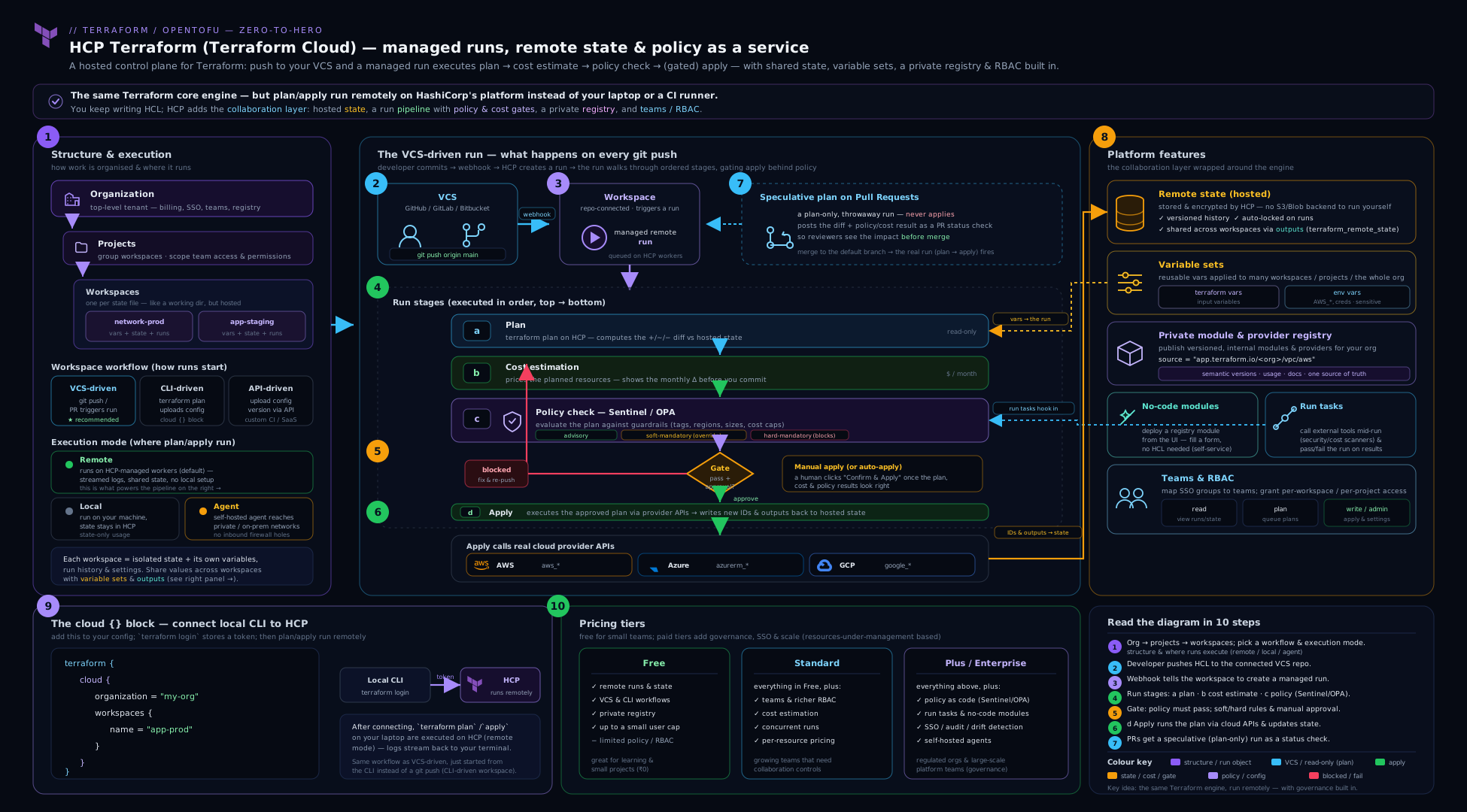
The diagram traces a change from a Git push through the organisation → project → workspace hierarchy and along the full run pipeline, showing where variable sets, policy checks, run triggers and the private registry plug in.
Going deeper
The tour above is the “what”. This section is the “how it actually works” — the internals and newer surfaces you reach for once the basics are second nature.
Anatomy of a remote run
When a remote run starts, HCP Terraform first assembles a configuration version: for CLI-driven runs your CLI uploads a tarball of the working directory; for VCS-driven runs the platform fetches the exact commit from the connected repo. That immutable snapshot is what the run executes against — which is why a run stays perfectly reproducible and auditable long after the branch has moved on. The plan executes on a fresh, ephemeral worker and produces two artefacts: the human log you watch, and a machine-readable JSON plan (the same shape as terraform show -json). Cost estimation, Sentinel/OPA and post-plan run tasks all consume that JSON — that’s how a policy reasons about the plan without re-parsing HCL. If you confirm, apply runs against the saved plan from that same run rather than re-planning, so what you approved is exactly what executes.
The cloud {} block beyond the basics
namevstags.workspaces { name = "..." }pins the config to exactly one HCP workspace.workspaces { tags = ["app:web"] }instead binds to every workspace carrying those tags, and the localterraform workspace selectcommand chooses among them — this is how one root module drives many per-environment HCP workspaces from the CLI. An optionalproject = "..."scopes and can auto-create the tagged workspaces inside a project.- It is not a backend. You cannot combine a
cloud {}block with abackendblock, and-backend-configdoes not apply to it — thecloud {}block is a distinct integration. Runningterraform initon a config that previously used alocalors3backend will offer to migrate that state into HCP for you. - CI authentication without
terraform login. In automation, set the environment variableTF_TOKEN_app_terraform_ioto a team or user API token and the CLI uses it instead of the~/.terraform.d/credentials.tfrc.jsonfile.TF_CLOUD_ORGANIZATIONandTF_WORKSPACEcan supply the org and workspace without hardcoding them in the block.
Dynamic provider credentials, mechanically
“Store no long-lived cloud key” works through OIDC. On each run HCP Terraform mints a short-lived, signed OIDC token describing the run (organisation, workspace, run phase). You configure a trust relationship on the cloud side — an IAM OIDC identity provider plus role on AWS, workload-identity federation on GCP, or a federated credential on an Azure app registration — that accepts tokens issued by app.terraform.io for a specific workspace. The provider (enabled with env vars such as TFC_AWS_PROVIDER_AUTH = true and TFC_AWS_RUN_ROLE_ARN) exchanges that token for temporary cloud credentials scoped to the run. Nothing static is ever stored, so there is no secret to leak or rotate — the reason it is the recommended pattern for production.
Agents, pools and tokens
An agent pool is a named group of self-hosted agents; a workspace in Agent mode targets a pool, and any free agent in it picks up the job. Agents authenticate with an agent token (issued per pool) and connect outbound only. You can run agents ephemerally (one job, then exit — ideal in Kubernetes or CI where a controller scales them) or as long-lived daemons. Because assignment is pool-based, you scale by adding agents and you isolate blast radius by giving a sensitive network its own pool.
HCP Terraform Stacks (the emerging model)
Beyond single workspaces, HashiCorp has introduced Stacks — a higher-level construct that groups components (modules) and fans them out across deployments (for example one per region or environment) from a single configuration, with the platform ordering the dependencies for you. It targets exactly the pain that run triggers and copy-pasted workspaces solve awkwardly today. Stacks are newer and still evolving, so treat specifics as version-dependent — but it is the direction the platform is heading for multi-environment delivery, and worth watching if you are designing a large estate now.
Scale, concurrency and cost drivers
At scale two numbers dominate. Run concurrency — how many runs execute across the org at once — is tier-limited and is the usual bottleneck on a busy day; you either buy more or keep runs short. And billing is increasingly by resources under management (RUM) — the count of resources in state across all workspaces — so sprawling state costs money as well as slowing plans. The levers are the same ones good Terraform hygiene already rewards: trigger paths so a monorepo commit only wakes the affected workspaces, splitting large state into component workspaces so each plan stays small and fast, and retiring dead workspaces so they stop counting toward RUM.
Hands-on lab: a CLI-driven workspace on the free tier
This lab uses the free tier and the local/random providers, so it touches no cloud and costs nothing — yet it exercises real HCP Terraform: a remote workspace, remote runs, hosted/locked state, a stored variable, and the state UI. (You can swap in a real cloud provider with sensitive credential variables later; the mechanics are identical.)
Prerequisites: the Terraform (or OpenTofu) CLI installed, and a free account at app.terraform.io.
1. Create an organisation and authenticate
Sign in at app.terraform.io, create an organisation (e.g. kloudvin-lab). Then log the CLI in:
terraform login
# Opens a browser to generate a token; paste it back. Stored in
# ~/.terraform.d/credentials.tfrc.json
(OpenTofu: tofu login works the same way against HCP Terraform.)
2. Write a tiny config wired to HCP Terraform
# main.tf
terraform {
  cloud {
    organization = "kloudvin-lab"
    workspaces {
      name = "hello-hcp"   # created on first init if it doesn't exist
    }
  }
  required_providers {
    random = { source = "hashicorp/random", version = "~> 3.6" }
  }
}

variable "greeting" {
  type    = string
  default = "hello"
}

resource "random_pet" "name" {
  prefix = var.greeting
  length = 2
}

output "pet" {
  value = random_pet.name.id
}
3. Init — this creates the remote workspace
terraform init
# Initialises the cloud backend and creates the "hello-hcp" workspace
# in your org if it doesn't already exist.
Open the HCP Terraform UI — you’ll see the new workspace under your default project, in Remote execution mode.
4. Set a variable in the UI, then plan and apply remotely
In the workspace, go to Variables and add a Terraform variable greeting = "kloudvin" (category: Terraform). Now run:
terraform plan
# Runs REMOTELY on HCP Terraform; logs stream to your terminal AND the UI.
# Plan shows random_pet.name will be created with prefix from var.greeting.

terraform apply
# Remote apply; with manual apply you confirm here (or in the UI).
Expected: the apply creates random_pet.name and prints an output like pet = "kloudvin-clever-otter". Note that the greeting you set in the UI (kloudvin) overrode the config default (hello) — that’s variable precedence in action.
5. Validation — confirm state and runs are remote
terraform output -raw pet
# Reads the output from HCP-hosted state, not a local file.

terraform state list
# random_pet.name — pulled from remote state
In the UI: open the workspace’s States tab — you’ll see a state version from the apply (download/diff available). Open Runs — you’ll see the plan and apply with full logs. There is no terraform.tfstate file on your disk — state lives in HCP Terraform.
6. (Optional) See locking/serialisation
Trigger a terraform apply and, while it waits or runs, start a second terraform plan from another terminal — the second run queues behind the first. That’s per-workspace serialisation: no two runs collide.
Cleanup
terraform destroy
# Remote destroy run; removes random_pet from state.
Then, in the UI, delete the workspace (Settings → Destruction and Deletion → Delete workspace) — for a workspace with no real cloud resources this is safe. Since you used only the random provider, nothing was created in any cloud and there is no bill.
Cost note
This entire lab runs on the free tier with the random provider, so it incurs ₹0. The only “resource under management” was a random_pet, which is trivial. When you later point a workspace at AWS/Azure/GCP, costs come from the real resources you create — not from HCP Terraform’s free tier itself.
Common beginner mistakes
These are conceptual traps — the misconception, why it is wrong, and the mental model that fixes it. (For symptom→fix operational issues, see the troubleshooting table below.)
-
“An HCP workspace is like a
terraform workspace.” The single most common confusion. A CLI workspace (terraform workspace new) is just multiple named state instances behind one local config and backend — a lightweight switch. An HCP workspace is a whole managed container: its own state, variables, run history, config source and permissions, usually mapping to one environment of one component. They share a word and nothing else. Right model: treat an HCP workspace as a small project/environment, not a state alias. Reaching for CLI workspaces to separate prod from staging inside one HCP workspace is the classic mistake — use separate HCP workspaces instead. -
“The
cloud {}block is a backend.” It sits where abackendblock would go, so people assume it is one — then try-backend-config, or keep abackend "s3"block alongside it. Right model: thecloud {}block is a distinct integration, mutually exclusive with anybackendblock; configure it with its own arguments and environment variables (TF_CLOUD_ORGANIZATION,TF_WORKSPACE,TF_TOKEN_app_terraform_io), not-backend-config. -
“Remote execution means my state is remote but the run is local.” Newcomers conflate where state lives with where the run executes. Right model: those are two independent settings. In Remote mode both are on HCP; in Local mode state is still hosted and locked in HCP while only the
plan/applyprocess runs on your machine. “Local execution” never means “local backend”. -
“I’ll paste the AWS keys into Terraform variables.” Credentials pasted as ordinary (non-sensitive) Terraform variables can surface in the UI and in plan output. Right model: cloud credentials belong in environment variables marked sensitive (or better, dynamic OIDC credentials with nothing stored at all); Terraform variables are for inputs like sizes, names and counts.
-
“Merging my PR is safe — the speculative plan already ran.” A speculative plan on a PR shows what would change; it does not apply, and the real run after merge re-plans against the latest state, which may have drifted since. Right model: treat the PR plan as review evidence, not a guarantee; the authoritative plan is the one in the post-merge run you actually confirm.
-
“The free tier can’t do anything real.” People assume the governance-gated features define the product. Right model: the free tier gives you remote runs, hosted/locked/versioned state, all three workflows and the private registry — enough to run real projects. What you pay for is governance (policy, run tasks, agents, no-code, SSO), not the basics.
Common mistakes & troubleshooting
| Symptom | Likely cause | Fix |
|---|---|---|
terraform apply runs locally and writes terraform.tfstate on disk, ignoring HCP |
No cloud {} block (or remote backend) in the config, or you forgot to init after adding it |
Add the cloud {} block, run terraform init (migrate state if prompted), confirm the workspace appears in the UI. |
Error: Required token could not be found |
Not logged in to HCP Terraform from the CLI | Run terraform login; it stores a token in ~/.terraform.d/credentials.tfrc.json. |
Cross-workspace terraform_remote_state read is denied |
The producer workspace hasn’t authorised the consumer | In the producer’s settings, enable remote state sharing for the consumer (allowlist it) or turn on global sharing. |
| Provider auth fails on remote runs but works locally | Credentials are in your shell, not in the workspace | Add cloud creds as sensitive environment variables on the workspace (or via a variable set), or use dynamic provider credentials (OIDC). |
| A monorepo pushes one commit but every workspace runs | No trigger paths/patterns configured | Set VCS trigger patterns (paths) per workspace so only relevant changes start a run. |
| A variable set value is “ignored” by a workspace | The workspace defines the same variable directly — workspace-level overrides variable sets | Remove the workspace-level variable, or accept the override (it’s the documented precedence). |
| PR shows no plan / no status check | VCS connection or webhook misconfigured, or the workspace tracks a different branch | Re-check the VCS provider connection, the workspace’s branch/working directory, and that the repo’s webhook is healthy. |
| “Latest” Terraform version broke a run after an upgrade | Workspace set to “latest” instead of a pinned version | Pin the workspace’s Terraform version (and your config’s required_version) so upgrades are deliberate. |
Best practices
- One workspace per environment per component. Don’t pile prod and staging into one workspace; separate workspaces give separate state, separate variables and separate blast radii. Use a consistent
<component>-<env>naming convention. - Prefer the VCS-driven workflow for shared environments. PR-based speculative plans + reviewed merges give you GitOps, audit and least-surprise. Reserve CLI-driven for the inner dev loop and debugging.
- Put credentials in variable sets, marked sensitive — or use dynamic/OIDC credentials. Never store long-lived cloud keys in plain variables, and never on laptops. Dynamic provider credentials (no stored secret at all) are the gold standard.
- Pin the Terraform version per workspace. Match it to your config’s
required_version. Avoid “latest”. - Use projects to scope permissions and variable sets. Grant teams access at the project level; attach shared credentials/tags as project-scoped variable sets.
- Make cross-workspace dependencies explicit. Allowlist specific consumers for remote state sharing (not global), and use run triggers to chain layered stacks.
- Gate prod with policy and manual apply. Hard-mandatory policies for non-negotiables (no public buckets, required tags), manual apply on production, auto-apply only on low-risk/dev.
- Use trigger paths in monorepos so a workspace only runs when its files change.
- Schedule auto-destroy on ephemeral workspaces to control cost on sandboxes/feature environments.
Security notes
- Secrets are write-only when marked sensitive — there is no read-back, only overwrite. Mark every credential and token sensitive so it never appears in the UI, API or logs.
- Least privilege via teams and custom permissions. Developers should typically get Write on their own workspaces, Read elsewhere, and no ability to read sensitive variable sets or override hard-mandatory policy. Reserve owners for a tiny group.
- Prefer dynamic provider credentials (OIDC/workload identity) over stored static cloud keys: HCP Terraform exchanges a short-lived token per run, so there is no standing secret to leak or rotate.
- Drive teams from SSO (paid) so access follows your identity provider and deprovisioning is automatic.
- Remote state sharing is an attack surface — global sharing lets any workspace read a producer’s outputs (which may include sensitive data). Allowlist specific consumers instead.
- Audit through the run history and (paid) audit logs. Every run records who triggered it, the plan, the policy results and who confirmed the apply — keep that trail and, on higher tiers, export audit logs to your SIEM.
- Lock down the VCS connection. Use the GitHub App (scoped repo access) over a broad OAuth app, and limit which repos HCP Terraform can read.
Interview & exam questions
1. What is an HCP Terraform workspace, and how is it different from a CLI workspace? An HCP Terraform workspace is a managed container bundling one state file, its own variables, run history, a configuration source and its own permissions — typically one environment of one component. A CLI workspace (the terraform workspace command) is just multiple named state instances behind one local configuration and backend. They share a word but are unrelated concepts; HCP workspaces are the unit of isolation in the platform.
2. Name the three workspace workflows and when you’d use each. VCS-driven (config from a connected repo; PR → speculative plan, merge → run) — the team default for GitOps and review. CLI-driven (cloud {} block; terraform plan/apply triggers remote runs) — the inner dev loop and debugging. API-driven (upload config versions and create runs via the API) — building your own platform/CI integration.
3. Explain the three execution modes. Remote (default) runs plan/apply on HCP’s compute. Local runs them on your machine/CI while HCP still hosts and locks state and supplies variables. Agent runs them on a self-hosted agent inside your network (outbound-only connection) for private/air-gapped infrastructure — a paid feature.
4. Why don’t two simultaneous applies corrupt state in HCP Terraform? Runs are serialised per workspace — a workspace processes one run at a time and queues the rest, and state is locked for the duration of a run. There’s no lock table to manage; concurrency control is built in.
5. What’s the difference between a Terraform variable and an environment variable in a workspace? A Terraform variable is an input to your config, seen as var.x. An environment variable is set in the run’s shell (e.g. AWS_ACCESS_KEY_ID, TF_LOG) and read by providers/the CLI. Credentials usually go in (sensitive) environment variables; inputs go in Terraform variables.
6. Describe variable precedence when a variable set and a workspace both define the same key. Workspace-level variables override variable sets. Overall, lowest-to-highest: defaults/host env → variable sets (more-specific scope beats global) → workspace variables → run-specific -var/API values (highest). A -var on a CLI-driven run wins over everything.
7. Walk through the run lifecycle. Queued → plan → cost estimation → (post-plan run tasks) → policy check (Sentinel/OPA) → awaiting confirmation (manual apply) → (pre-apply run tasks) → apply (writes a new state version) → (post-apply run tasks) → completed. Speculative plans stop after plan and never apply.
8. What are the three policy enforcement levels and what does each do? advisory (warn, continue), soft-mandatory (block, but an authorised user can override), hard-mandatory (block with no override). They let you tune how strictly a policy gates a run.
9. How does one workspace consume another’s outputs, and what authorisation is needed? With the terraform_remote_state data source (or tfe_outputs) reading the producer’s outputs. The producer must share its state with the consumer — either global remote state sharing or, preferably, an allowlist of specific consumer workspaces.
10. What is a no-code module and why does it matter? A private-registry module marked no-code ready with user-editable variables defined; developers provision a new workspace running that module from a UI form without writing any HCL. It gives platform teams self-service for developers while keeping control of the underlying module, guardrails and version (paid feature).
11. cloud {} block vs remote backend — which and why? Both connect a config to HCP Terraform for state and remote runs. The cloud {} block is the modern, recommended surface — it supports mapping CLI workspaces to many HCP workspaces by tags and is what HashiCorp documents going forward. The remote backend is the legacy form; prefer cloud {} for new work. You can’t use both.
12. A developer needs to ship infrastructure but must never hold the AWS keys. How do you set that up in HCP Terraform? Give their team Write on their project’s workspaces; store the cloud credentials in a sensitive variable set (which they can’t read) or use dynamic OIDC credentials; and enforce guardrails with hard-mandatory policy they can’t bypass. They apply via reviewed runs without ever seeing the secret or breaking the rules.
13. What does a run trigger do? It chains workspaces: when a source workspace completes a successful apply, a triggered workspace automatically starts a run — used to model layered stacks (e.g. network → app) without an external orchestrator.
14. HCP Terraform vs OpenTofu — what’s the relationship? OpenTofu is the open-source fork of the CLI/engine (drop-in for HCL and commands) but has no managed SaaS. HCP Terraform is the hosted platform (remote runs, hosted state, registry, governance). With OpenTofu you assemble those capabilities yourself (remote backend + your own CI + OPA + your own module sources).
Quick check
- In the hierarchy, which level owns permissions for a group of workspaces — organisation, project, or workspace?
- You add a
cloud {}block, runterraform plan, and it executes remotely without applying. Which workflow and which kind of plan is this? - A variable set says
region = "ap-south-1"but the workspace itself setsregion = "us-east-1". Which value does the run use, and why? - You want a developer to propose changes for review but never apply. Which team access level do you grant?
- True or false: with the
randomprovider only, running this lesson’s lab on the free tier will incur cloud charges.
Answers
- The project. You grant a team access to a project and it applies to every workspace in it — the main unit for scaling RBAC. (Workspace-level access exists for finer control; the organisation owns org-wide capabilities and billing.)
- CLI-driven workflow, and a speculative plan —
terraform planunder acloud {}block runs remotely and is plan-only by default;terraform applywould be the real, confirmable apply. us-east-1— the workspace-level variable overrides the variable set with the same key. Variable sets provide defaults that any single workspace can override.- Plan access — it allows queuing speculative plans but not applying. (Read is view-only; Write would let them apply.)
- False. The lab uses only the
randomprovider, which creates nothing in any cloud, and HCP Terraform’s free tier itself is free — so it costs ₹0.
Exercise
Using a free HCP Terraform account and only the random/local providers (no cloud spend), do the following: (a) create an organisation and a second project beside the default; (b) create a CLI-driven workspace in that project with a cloud {} block and confirm in the UI it’s in Remote execution mode with no local terraform.tfstate; © add one Terraform variable in the UI and prove (via the plan output) that it overrides the config default — that’s precedence; (d) make the same variable come from a variable set instead and observe that the workspace-level value still wins; (e) open the States tab and download a state version, then open the Runs tab and read the plan/apply logs; (f) add a second workspace and configure a run trigger so it starts when the first applies, then apply the first and watch the second queue; (g) clean up by destroying and deleting both workspaces. Bonus: read the first workspace’s output from the second using a terraform_remote_state data source — and notice it fails until you allowlist the consumer in the producer’s remote-state-sharing settings.
Practice challenges
Six graded challenges, beginner → advanced. Try each before opening the solution. (All are doable on a free account with the random/local providers — no cloud spend.)
1 (Beginner) — Name the workflow. You add a cloud {} block, run terraform login, then run terraform apply from your laptop and confirm it in the terminal. Which of the three workspace workflows is this, and where did the apply actually execute?
<details><summary>Solution</summary>
CLI-driven, and the apply executed remotely on HCP Terraform (your CLI was only the trigger and log viewer). Why: the cloud {} block plus terraform login is the definition of the CLI-driven workflow, and Remote is the default execution mode.
</details>
2 (Beginner) — Put the secret in the right place. Your remote plan fails with an AWS authentication error even though the same config works on your laptop. Where must AWS_ACCESS_KEY_ID / AWS_SECRET_ACCESS_KEY live, and how should they be marked?
<details><summary>Solution</summary>
As environment variables on the workspace (or in a variable set), each marked sensitive. Why: remote runs never see your shell; providers read AWS_* from the run’s environment, and sensitive keeps the values write-only.
</details>
3 (Intermediate) — Predict precedence. A variable set attached to the workspace sets region = "ap-south-1"; the workspace itself defines region = "us-east-1"; and someone runs a CLI-driven terraform plan -var 'region=eu-west-1'. Which value wins?
<details><summary>Solution</summary>
eu-west-1. Why: run-specific -var beats workspace variables, which beat variable sets — the highest precedence wins.
</details>
4 (Intermediate) — Chain two stacks. networking-prod outputs a subnet_id that app-prod consumes. You want app-prod to re-run automatically whenever networking-prod applies, and to read that output. What two things do you configure?
<details><summary>Solution</summary>
(a) A run trigger on app-prod with networking-prod as the source workspace; (b) a terraform_remote_state (or tfe_outputs) data source in app-prod, and you must allowlist app-prod in networking-prod’s remote-state-sharing settings. Why: run triggers chain applies, but a remote-state read stays denied until the producer authorises the consumer.
</details>
5 (Advanced) — One root, many environments. You have a single root module and want one HCP workspace per environment, selectable from the CLI, without hardcoding a workspace name. How do you wire the cloud {} block?
<details><summary>Solution</summary>
Use the tags form, not name:
terraform {
  cloud {
    organization = "YOUR_ORG"
    workspaces { tags = ["app:web"] }   # optionally: project = "web-platform"
  }
}
Then terraform workspace select prod (etc.) chooses among the tagged HCP workspaces. Why: name pins exactly one workspace, whereas tags binds to all matching ones and lets CLI workspace selection switch between them.
</details>
6 (Advanced) — Zero stored cloud secrets. Production policy forbids any long-lived cloud key anywhere in HCP Terraform. How do you authenticate the AWS provider on every run?
<details><summary>Solution</summary>
Dynamic provider credentials via OIDC. Configure an IAM OIDC provider + role trusting app.terraform.io for the workspace, then set TFC_AWS_PROVIDER_AUTH = true and TFC_AWS_RUN_ROLE_ARN as workspace environment variables. HCP Terraform mints a per-run OIDC token that the provider exchanges for short-lived credentials. Why: nothing static is stored, so there is no secret to leak or rotate.
</details>
Certification mapping
- HashiCorp Certified: Terraform Associate (003) — this lesson maps to several objectives:
- Understand HCP Terraform capabilities: workspaces, the difference from CLI workspaces, VCS/CLI/API workflows, remote operations and execution modes, the private registry, and where governance (cost estimation, Sentinel/OPA policy, run tasks) fits.
- Manage state: HCP-hosted state with versions and locking, and cross-workspace sharing via
terraform_remote_state/outputs. - Use the core workflow with HCP Terraform: the
cloud {}block vs theremotebackend,terraform login, and howplan/applybehave as remote operations. - Read/generate/modify configuration: workspace Terraform vs environment variables, sensitive values, and variable sets with their precedence.
- For deeper governance, pair this with the Sentinel lesson; for the state-storage fundamentals it builds on, the Backends lesson. OpenTofu users should note the platform itself is HCP-specific — the CLI/state concepts transfer, the SaaS does not.
Glossary
- HCP Terraform — HashiCorp’s managed Terraform platform (formerly Terraform Cloud) at
app.terraform.io. - Terraform Enterprise — the same product, self-installed on your own infrastructure.
- Organisation — the top-level tenant: members, teams, billing, VCS connections, registry, policies.
- Project — a group of workspaces and the main unit for permissions and project-scoped settings.
- Workspace (HCP) — a managed container bundling one state file, its variables, run history, config source and permissions.
- CLI workspace — the unrelated
terraform workspaceconcept: multiple named states behind one local config (covered in the next lesson). - Run — one plan/apply cycle for a workspace; runs are serialised per workspace.
- Remote operation — a plan/apply executed by HCP Terraform (or an agent) rather than on your machine.
- Execution mode — where a run executes: Remote (HCP), Local (your machine), or Agent (self-hosted worker).
- Agent / agent pool — a self-hosted worker (and its group) that runs operations inside your network via an outbound connection (paid).
- VCS-driven / CLI-driven / API-driven — the three workflows for getting config in and starting runs.
cloud {}block — the modern config block (insideterraform {}) that connects to HCP Terraform; supersedes theremotebackend.remotebackend — the legacy backend that connects config to HCP Terraform; prefercloud {}.- Speculative plan — a plan-only run (no apply), produced by PRs and by
terraform planin CLI-driven mode. - State version — a stored snapshot of state from an apply; viewable, downloadable, diffable, restorable.
- Terraform variable — an input to your config (
var.x); can be HCL-typed. - Environment variable — an OS env var in the run shell (e.g.
AWS_ACCESS_KEY_ID); often sensitive. - Sensitive variable — a write-only value, never displayed again after saving.
- Variable set — a reusable bundle of variables attached to workspaces, projects, or the whole org.
- Cost estimation — the platform’s estimated monthly cost delta for a planned change.
- Policy set — a bundle of Sentinel or OPA policies attached to workspaces/projects.
- Enforcement level — how strictly a policy gates a run: advisory, soft-mandatory, hard-mandatory.
- Run task — an external HTTP integration called at a run stage (post-plan/pre-apply/post-apply); can pass/fail the run (paid).
- Run trigger — a link that starts a run in one workspace when another workspace applies.
- Private registry — your org’s own registry for private modules and providers.
- No-code module — a registry module developers can provision into a new workspace from a UI form, without writing HCL (paid).
- Team — a named group of users; the unit of permission at org/project/workspace level.
- Remote state sharing — authorising other workspaces to read a workspace’s outputs (global or allowlisted).
- Dynamic provider credentials — short-lived OIDC/workload-identity credentials exchanged per run, replacing stored cloud keys.
- Configuration version — an immutable snapshot (an uploaded tarball or a fetched commit) that a run executes against, keeping runs reproducible and auditable.
- JSON plan — the machine-readable form of a plan (as from
terraform show -json) that cost estimation, policy engines and run tasks read. - Saved plan — the plan artefact from a run that its
applyconsumes, so the applied change is exactly the reviewed one (no silent re-plan). - Agent token — the per-pool credential a self-hosted agent uses to connect outbound to HCP Terraform.
- HCP Terraform Stacks — a newer higher-level construct grouping components and fanning them across deployments (e.g. per environment) from one configuration; still evolving.
- Resources under management (RUM) — the count of resources tracked in state across the org; the basis of usage-based pricing and a driver of plan speed.
- Run concurrency — how many runs the org can execute simultaneously; tier-limited and the usual bottleneck at scale.
Next steps
You now understand HCP Terraform end to end: the organisation → project → workspace hierarchy, the three workflows, remote runs and execution modes, hosted/locked/versioned state and how to share it, variables and variable sets with their precedence, the full plan → cost → policy → apply pipeline with run triggers and run tasks, the private registry, no-code self-service, and teams/RBAC. The very next thing to nail down is the word that trips up almost everyone — workspace — because HCP workspaces and CLI workspaces are completely different beasts and choosing the wrong one for environment isolation is a classic mistake: