You open the Azure ML Studio for the first time, click Create workspace, wait two minutes, and land on a dashboard with a left rail full of words: Compute, Datastores, Environments, Jobs, Models, Endpoints, Components, Data. Each is a noun you half-recognise, and none of them tells you how the pieces connect. So you do the thing everyone does — spin up a compute instance, paste a training script into a notebook, and run it. It works. And then a teammate asks “where did the data come from, which environment did it run in, and can you reproduce that exact run?” and you realise you have no idea, because the Studio made it too easy to skip the model in your head.
This article builds that model. Azure Machine Learning (Azure ML) is a managed service for the full machine-learning lifecycle — preparing data, training and tracking models, and deploying them as endpoints — and its central object is the workspace: a single Azure resource that acts as the top-level container and control plane for everything you do. The workspace is not a server. It is a coordinator that holds references — to compute you rent, to storage where data and artifacts live, to environments (container images) your code runs in, and to a history of every job, model and metric. Understand the workspace as “the thing that knows where everything is and what happened,” and the left rail stops being a word salad and becomes a map.
By the end you will be able to draw the workspace and its four backing resources from memory, explain the difference between a compute instance and a compute cluster (and when to use each), describe what a datastore actually stores versus what it merely points at, define an environment precisely enough to reproduce a run, and narrate the job lifecycle end to end — from az ml job create to a finished run with logged metrics and a registered model. This is the foundation the deployment, tuning and MLOps articles build on, and it maps directly to the early objectives of DP-100 (Azure Data Scientist Associate) and the AI portions of AZ-204.
What problem this solves
Doing machine learning on a laptop works until it doesn’t. The model that trained on your 16 GB machine needs a GPU you don’t have; the notebook that ran today won’t run next month because a library quietly upgraded; the “final” model is a .pkl file in someone’s Downloads folder; and when the auditor asks which data trained the model in production, the honest answer is “we think it was the March extract, probably.” Every one of those is a reproducibility, scale, or governance failure, and they are exactly the failures the workspace is designed to remove.
The workspace solves four concrete pains. Compute on demand: instead of buying a GPU box, you attach a cluster that scales from zero to N nodes for the minutes a training job runs, then scales back to zero so you pay nothing idle. Stable, versioned environments: instead of “it worked on my machine,” your code runs inside a named, versioned container image, so the same job produces the same result on any node, today or next year. Data by reference, tracked: instead of copying datasets around, a datastore registers where data lives (a Storage account) and how to authenticate, and a data asset versions a specific snapshot, so a run records exactly which data it consumed. A system of record: every job logs its parameters, metrics, code snapshot, environment and outputs into the workspace, so any run is reproducible and any model is traceable to the run that produced it.
Who hits the problem this solves: any team past the single-notebook stage. The moment two people share work, or a model goes to production, or someone needs a GPU, the laptop model breaks and you need a coordinator. The workspace is that coordinator. It does not do the math — your code and the compute do — but it makes the math repeatable, scalable and accountable, which is the difference between a demo and a system.
Before the deep dive, here is the whole field on one screen — every top-level object in the workspace, what it is in one line, and which left-rail menu it lives under:
| Object | One-line definition | Where in Studio | What it points at / holds |
|---|---|---|---|
| Workspace | Top-level container and control plane | (the whole studio) | References to all of the below |
| Compute target | Where code runs (instance / cluster / endpoint) | Compute | Rented VMs you attach |
| Datastore | A registered connection to Azure storage | Data → Datastores | A Storage account / container + auth |
| Data asset | A versioned reference to specific data | Data → Data assets | A path inside a datastore |
| Environment | A versioned container image + dependencies | Environments | A base image + conda/pip packages |
| Job (run) | One execution of code on a compute target | Jobs | Inputs, code, env, metrics, outputs |
| Model | A registered, versioned model artifact | Models | Files in storage + lineage to a job |
| Component | A reusable, parameterised pipeline step | Components | A command + interface (inputs/outputs) |
| Endpoint | A deployed model serving predictions | Endpoints | A model + environment + compute |
Learning objectives
By the end of this article you can:
- Explain what an Azure ML workspace is and is not, and name the four backing Azure resources it provisions and why each exists.
- Distinguish a compute instance from a compute cluster from an inference/managed endpoint, and choose the right one for development, training and serving.
- Define a datastore versus a data asset, describe the credential-based vs identity-based access modes, and explain “data by reference.”
- Define an environment precisely — base image, conda/pip dependencies, and version — and explain why it is the unit of reproducibility.
- Narrate the job lifecycle end to end: submit → queue → provision/scale → image build → run → log metrics → register model → release compute.
- Read and write the core
az mlcommands and a minimal Bicep/YAML definition for a workspace, datastore, environment and command job. - Map the workspace’s pieces to DP-100 / AZ-204 exam objectives and recognise the common first-week failure modes.
Prerequisites & where this fits
You should be comfortable with the basics of Azure: a resource group holds related resources, a subscription is the billing/management boundary, and you log in with the Azure CLI (az login). You should know roughly what a Storage account and a Key Vault are, and have a working mental picture of a Docker container as “a packaged filesystem your code runs inside.” A passing familiarity with machine-learning terms — training, model, dataset, hyperparameter — helps, but you do not need to be a data scientist; this article is about the platform, not the math.
This sits at the foundation of the AI/ML on Azure track. It is upstream of model deployment, hyperparameter tuning and full MLOps pipelines — you cannot reason about those until you can draw the workspace. It sits beside Azure’s other AI services: where Azure OpenAI: Deploy Your First Chat Model gives you a hosted model you call over an API, Azure ML is where you train and operate your own models. The workspace also leans on services you may already know: it provisions a Storage account for data and artifacts, a Key Vault for secrets, and — for a locked-down deployment — private endpoints. Where it sits in the broader resource picture is covered in Azure Resource Hierarchy Explained.
A quick map of who owns and reasons about each layer, so you know where a problem lives:
| Layer | What lives here | Who usually owns it | Typical concern |
|---|---|---|---|
| Subscription / RG | Quotas, policy, billing | Platform / cloud team | GPU quota, cost, governance |
| Workspace (control plane) | Jobs, assets, lineage | ML platform / lead | Reproducibility, access, structure |
| Backing resources | Storage, Key Vault, ACR, App Insights | Platform + ML | Data security, secrets, image registry |
| Compute targets | Instances, clusters, endpoints | Data scientists + platform | Right-sizing, idle cost, scale |
| Code / environments | Scripts, conda/pip, images | Data scientists | Dependencies, determinism |
| Data | Datastores, data assets | Data eng + scientists | Where data lives, versioning, access |
Core concepts
Five mental models make the rest of this article obvious. Internalise these and the Studio’s menus become self-explanatory.
The workspace is a control plane, not a compute box. When you create a workspace, nothing trains anything — you have created a coordinator. The workspace knows what compute is attached, what datastores are registered, what environments exist, and what jobs have run. The actual work happens on compute targets you attach separately. The single most common beginner misconception is “the workspace is the machine my model trains on.” It is not. It is the thing that dispatches training to a machine and remembers what happened. Think of it as the project’s brain and logbook, with the muscles rented elsewhere.
A workspace is backed by four Azure resources, created with it. Spin up a workspace and Azure provisions (or you bring) four companions: a Storage account (default place for data, code snapshots, model artifacts, job outputs), a Key Vault (secrets — datastore credentials, connection strings), an Application Insights instance (telemetry and metrics from jobs and endpoints), and a Container Registry / ACR (where environment images are built and stored, created lazily on first image build). The workspace is the thin coordinating layer; these four are where the bytes actually live. Lose sight of this and “where is my model stored?” becomes a mystery; remember it and the answer is always “in the workspace’s Storage account, with a pointer in the workspace.”
Compute is rented, ephemeral and separate from your data. You attach compute targets — a long-lived compute instance for interactive development, an autoscaling compute cluster for training jobs, or a managed endpoint for serving. Crucially, compute is stateless with respect to your data: a cluster node spins up, mounts data from a datastore, runs your job, writes outputs back to storage, and is torn down. Nothing important lives on the node. This is why a job is reproducible — the inputs (data, code, environment) and outputs (model, metrics) all live in durable storage, and the compute is a disposable worker.
Data is referenced, not owned. A datastore is a saved connection to an Azure storage service (Blob, ADLS Gen2, File) — it stores the account name, container and how to authenticate, but not the data itself. A data asset is a versioned pointer to specific data inside a datastore (a file, a folder, a table). When a job consumes a data asset, the workspace records exactly which version it used. So “the data” stays in your Storage account where it belongs; the workspace just holds a tracked reference to it. This separation is what lets you answer “which data trained this model?” precisely.
An environment is the unit of reproducibility. An environment is a versioned definition of the runtime your code executes in: a base container image plus a set of conda/pip dependencies (or a custom Dockerfile). Pin an environment and the same job runs identically on any node, now or in a year — the same NumPy, the same CUDA, the same everything. Don’t pin it (run “whatever’s on the box”) and you get the laptop problem at cloud scale. The environment is why a job is deterministic; it is the most under-appreciated object in the workspace and the one beginners skip first.
The vocabulary in one table
Pin down every moving part before the deep sections. The glossary repeats these for lookup; this table is the mental model side by side:
| Concept | One-line definition | Where it lives | Why it matters |
|---|---|---|---|
| Workspace | Control plane / top-level container | An Azure resource in an RG | Knows where everything is, remembers every run |
| Backing Storage | Default data + artifact store | A Storage account | Where models, outputs, code snapshots actually live |
| Backing Key Vault | Secret store | A Key Vault | Holds datastore credentials safely |
| Backing App Insights | Telemetry sink | An App Insights resource | Job + endpoint metrics, logs |
| Backing ACR | Image registry | A Container Registry | Where environment images are built/stored |
| Compute instance | Single-user dev box | Attached compute | Notebooks, interactive work |
| Compute cluster | Autoscaling job fleet | Attached compute | Training, batch — scales to zero |
| Datastore | Saved connection to storage | Workspace metadata + Key Vault | Where data lives + how to auth |
| Data asset | Versioned pointer to data | Workspace metadata | Tracks exactly which data a job used |
| Environment | Versioned image + deps | Workspace + ACR | The unit of reproducibility |
| Job (run) | One execution of code | Recorded in the workspace | The atomic unit of work + its history |
| Model | Registered, versioned artifact | Storage + workspace registry | The deliverable, traceable to its job |
The workspace and its four backing resources
A workspace on its own is almost empty — it is the coordination layer. The substance lives in four backing Azure resources that get created alongside it (or that you supply). Knowing which resource holds what is the fastest way to answer “where is X?” during real work.
When you run a create command, here is what is provisioned and why each exists:
| Backing resource | Purpose in the workspace | What goes here | Can you bring your own? |
|---|---|---|---|
| Storage account | Default datastore + artifact store | Uploaded data, code snapshots, job outputs, registered models, notebooks | Yes — supply an existing one |
| Key Vault | Secret management | Datastore connection strings, access keys, secrets your jobs read | Yes |
| Application Insights | Observability | Metrics, traces and logs from jobs and online endpoints | Yes |
| Container Registry (ACR) | Environment images | Built environment images, ready to pull onto compute | Yes (created lazily on first build) |
Two of these are created immediately with the workspace (Storage, Key Vault) and one (App Insights) typically is too; the ACR is created lazily the first time an environment image actually needs building, which is why a brand-new workspace may not show a registry yet. The default Storage account is special: it becomes the workspace’s default datastores — workspaceblobstore (Blob, for general artifacts and outputs) and workspacefilestore (Files, for notebooks). You will see these two datastores in every workspace without creating anything.
The minimal az ml to create a workspace (the CLI auto-creates the backing resources if you don’t name them):
# Install the ML extension once
az extension add -n ml -y

# Create the workspace; Storage, Key Vault, App Insights are auto-provisioned
az ml workspace create \
  --name mlw-demo \
  --resource-group rg-ml-demo \
  --location centralindia
The same in Bicep, bringing your own Storage and Key Vault (the production-real pattern — you want to control encryption, networking and naming on those):
resource mlw 'Microsoft.MachineLearningServices/workspaces@2024-04-01' = {
  name: 'mlw-demo'
  location: location
  identity: { type: 'SystemAssigned' }   // workspace managed identity for data access
  properties: {
    friendlyName: 'Demo ML Workspace'
    storageAccount: storage.id            // bring-your-own Storage
    keyVault: keyVault.id                 // bring-your-own Key Vault
    applicationInsights: appInsights.id   // bring-your-own telemetry
    // containerRegistry: acr.id          // optional; created lazily if omitted
  }
}
A note that saves confusion later: the workspace has its own managed identity (system- or user-assigned). That identity is how the workspace reads from your Storage and Key Vault on your behalf when you choose identity-based data access — no keys stored anywhere. We come back to this under datastores and security.
Workspace vs project vs hub (where AI Foundry fits)
You will hear “hub” and “project” alongside “workspace,” and the distinction trips people up. A classic workspace is the standalone unit this article describes. Azure AI Foundry introduces a hub (a shareable parent that centralises security, connections and compute) and projects (lightweight child workspaces that inherit from the hub). For pure model-training work, a standalone workspace is all you need; the hub/project model matters when you are building generative-AI apps and want shared governance. The full breakdown is in Azure AI Foundry: Hub & Project Resource Model Explained. In short: a classic workspace is the standalone training/MLOps container most ML work needs; an AI Foundry hub is a shareable parent that centralises security, connections and compute; and a project is a lightweight child of a hub for per-app generative-AI work. For this article, “workspace” means the classic, standalone object.
Compute targets: where your code actually runs
Compute is the muscle. The workspace dispatches work to a compute target, and there are three you meet first — and they are not interchangeable. Picking the wrong one is the most common (and most expensive) early mistake: people develop on a cluster (slow, no notebooks) or train on an always-on instance (a GPU burning money 24/7).
Here is the full comparison — read your use case down the left:
| Property | Compute instance | Compute cluster | Managed online endpoint |
|---|---|---|---|
| Purpose | Interactive dev (notebooks, VS Code) | Training / batch jobs | Real-time serving (inference) |
| Users | Single user (yours) | Shared, job-driven | Serves many callers |
| Scaling | One node, fixed | 0 → N nodes, autoscale | Instances behind an endpoint |
| Scales to zero? | No (stop it manually) | Yes (min nodes = 0) | No (keeps warm instances) |
| Lifetime | Long-lived, you stop/start | Per-job (nodes spin up/down) | Long-lived (always ready) |
| Cost shape | Pay while running | Pay only while a job runs | Pay for warm instances |
| GPU? | Optional (NC/ND SKUs) |
Optional, common for training | Optional |
| Biggest gotcha | Forgetting to stop it (idle bill) | Min-nodes > 0 (idle bill) | Sized too small → throttling |
Compute instance — your cloud dev box
A compute instance is a single-user managed VM with notebooks, JupyterLab, VS Code and the ML SDK pre-installed. It is your development machine in the cloud — great for writing and debugging code interactively. The catch: it does not scale to zero. If you leave it running, you pay for every hour. Configure an idle shutdown (auto-stop after N minutes of inactivity) and you remove the single biggest source of surprise ML bills.
# Create a small CPU dev box with auto-shutdown after 30 idle minutes
az ml compute create \
  --name ci-vinod \
  --type ComputeInstance \
  --size Standard_DS3_v2 \
  --idle-time-before-shutdown-minutes 30 \
  --resource-group rg-ml-demo --workspace-name mlw-demo
Compute cluster — the autoscaling workhorse
A compute cluster is a managed, autoscaling pool of identical VMs that exists to run jobs. Set min_instances: 0 and the cluster sits at zero nodes (zero cost) until a job arrives, then scales up to run it, then scales back to zero. This is the workhorse for training and batch — you get GPUs by the minute without owning them. The two numbers that matter are min_instances (keep at 0 unless you need warm nodes) and max_instances (the ceiling, bounded by your subscription’s vCPU quota for that VM family).
# An autoscaling GPU cluster that costs nothing idle (min 0), up to 4 nodes
az ml compute create \
  --name gpu-cluster \
  --type AmlCompute \
  --size Standard_NC6s_v3 \
  --min-instances 0 --max-instances 4 \
  --idle-time-before-scale-down 120 \
  --resource-group rg-ml-demo --workspace-name mlw-demo
resource cluster 'Microsoft.MachineLearningServices/workspaces/computes@2024-04-01' = {
  parent: mlw
  name: 'gpu-cluster'
  location: location
  properties: {
    computeType: 'AmlCompute'
    properties: {
      vmSize: 'Standard_NC6s_v3'
      scaleSettings: {
        minNodeCount: 0          // scale to zero — pay nothing idle
        maxNodeCount: 4          // ceiling, limited by vCPU quota
        nodeIdleTimeBeforeScaleDown: 'PT120S'
      }
    }
  }
}
Managed endpoints — serving, not training
A managed online endpoint hosts a registered model behind a stable HTTPS URL for low-latency, real-time predictions; a batch endpoint scores large datasets asynchronously. These are serving compute — covered fully in the deployment article — but it is worth knowing they exist as a third compute category so you don’t try to “serve” a model from a training cluster.
The rule of thumb from the comparison above: develop on an instance, train on a cluster, serve from an endpoint. Use a cluster (with a high max_instances) for parallel hyperparameter sweeps, an online endpoint for real-time predictions, and a batch endpoint to score large files or tables asynchronously on a schedule.
A right-sizing reference for the common VM families (CPU vs GPU), so you don’t reach for an expensive GPU when CPU will do:
| VM family | Type | Typical use | Watch-out |
|---|---|---|---|
Dsv3 (e.g. Standard_DS3_v2) |
CPU, general | Dev instance, light training | Cheap, no GPU |
Fsv2 |
CPU, compute-optimised | CPU-bound training | No GPU; good per-core value |
NCv3 (e.g. Standard_NC6s_v3) |
GPU (V100) | Deep-learning training | Requires GPU quota; pricey idle |
NDv2 |
GPU (multi-V100) | Large distributed training | High quota + cost |
NCasT4_v3 |
GPU (T4) | Inference, lighter training | Cost-effective GPU for serving |
Datastores and data assets: data by reference
This is where “the workspace doesn’t own your data” becomes concrete. There are two distinct objects and people conflate them constantly.
A datastore is a saved connection to an Azure storage service. It records the storage account, the container/filesystem, and how to authenticate — but it does not copy or hold any data. Think of it as a bookmark with credentials. Every workspace ships with two built-in datastores pointing at its own Storage account: workspaceblobstore and workspacefilestore.
A data asset is a versioned reference to specific data living inside a datastore — a single file (uri_file), a folder (uri_folder), or a tabular dataset (mltable). Registering a data asset doesn’t move bytes either; it bookmarks a path and stamps it with a version. When a job consumes data asset customers:3, the workspace records that exact version, so the run is reproducible and auditable.
The relationship in one table:
| Datastore | Data asset | |
|---|---|---|
| What it is | Connection to a storage service | Pointer to specific data in a datastore |
| Holds data? | No — connection only | No — reference + version only |
| Versioned? | No | Yes (v1, v2, …) |
| Granularity | Account + container + auth | A file / folder / table path |
| Example | Blob acct sashop → container raw |
customers:3 → /2026/q1/customers.csv |
| Why it exists | Reuse a connection + secure creds | Track exactly which data a job used |
Supported storage and access modes
Datastores support the common Azure storage services — Azure Blob (the default workspaceblobstore, for general artifacts), Azure Data Lake Gen2 (hierarchical namespace, for analytics-scale data), and Azure Files (the workspacefilestore, for notebooks and small shared files). More important than the backing service is the choice between two authentication models:
| Access mode | How it authenticates | Pros | Cons / when to avoid |
|---|---|---|---|
| Credential-based | Stored account key or SAS token (kept in the workspace Key Vault) | Simple to set up; works everywhere | A long-lived secret exists; rotation burden; broader blast radius |
| Identity-based | The workspace / user managed identity is granted RBAC on the storage (no stored secret) | No secret to leak or rotate; least-privilege via RBAC | Requires correct role assignments (Storage Blob Data Reader/Contributor) |
The production default is identity-based: grant the workspace’s managed identity Storage Blob Data Reader (or Contributor for writes) on the account, and no key is ever stored. Registering a Blob datastore with identity-based auth via the CLI uses a small YAML file:
# blob-datastore.yml — identity-based (no stored key)
$schema: https://azuremlschemas.azureedge.net/latest/azureBlob.schema.json
name: ds_raw
type: azure_blob
account_name: sashopprod
container_name: raw
# no 'credentials:' block → identity-based access (workspace MI must have RBAC)
az ml datastore create --file blob-datastore.yml \
  --resource-group rg-ml-demo --workspace-name mlw-demo
Registering a versioned data asset that points at a folder inside that datastore:
# Register a folder as a versioned data asset
az ml data create \
  --name customers --version 3 \
  --type uri_folder \
  --path azureml://datastores/ds_raw/paths/2026/q1/ \
  --resource-group rg-ml-demo --workspace-name mlw-demo
How a job reads data: mount vs download
When a job consumes data, the platform makes it available on the compute node one of two ways. Mount streams the data on demand (fast to start, good for large data you read partially); download copies it to local disk first (good for small data read repeatedly, or when the framework needs real files). You pick per input.
| Mode | What happens | Best for | Trade-off |
|---|---|---|---|
Mount (ro_mount) |
Data streamed on demand, read-only | Large datasets, partial reads | First access has latency; needs network |
| Download | Full copy to node’s local disk first | Small data, repeated full reads | Slower start; needs disk space for the whole set |
Direct (direct) |
Pass the URI to your code as-is | You handle IO yourself (e.g. Spark) | You own the read logic |
Environments: the unit of reproducibility
An environment captures exactly what your code runs inside: a base container image plus dependencies (conda and/or pip), or a fully custom Dockerfile. It is versioned — sklearn-env:4 is a frozen artifact — and that version is recorded on every job that uses it. This is the object that makes a run deterministic. Skip it (let the job run against “whatever happens to be installed”) and you have rebuilt the laptop problem in the cloud; pin it and the same job produces the same result forever.
There are three flavours, in increasing order of control and effort:
| Environment type | What it is | Effort | When to use |
|---|---|---|---|
| Curated | Microsoft-maintained, pre-built images (e.g. AzureML-sklearn-1.x) |
None — just reference it | Common frameworks, fastest start |
| User-managed (conda/pip) | Curated/base image + your conda or pip dependencies | Low — list packages | Most real projects |
| Custom (Dockerfile) | Your own Dockerfile / image | High — full control | System deps, exotic stacks |
A curated environment is referenced by name and version with no build step — the image already exists. A user-managed environment is a base image plus a conda file; the first job that uses it triggers an image build into your workspace’s ACR (subsequent jobs reuse the cached image, which is why the first run is slower).
# sklearn-env.yml — base image + conda dependencies (user-managed)
$schema: https://azuremlschemas.azureedge.net/latest/environment.schema.json
name: sklearn-env
version: 1
image: mcr.microsoft.com/azureml/openmpi4.1.0-ubuntu22.04:latest
conda_file:
  name: sklearn
  channels: [conda-forge]
  dependencies:
    - python=3.11
    - pip
    - pip:
        - scikit-learn==1.5.1
        - pandas==2.2.2
        - mlflow            # so the job can log metrics/models
az ml environment create --file sklearn-env.yml \
  --resource-group rg-ml-demo --workspace-name mlw-demo
The golden rule for reproducibility is one word — pin everything. Reference a versioned environment (sklearn-env:1, not a moving tag) and pin every package to an exact version (scikit-learn==1.5.1), so the image and dependencies are frozen and the same job produces the same result every run. The three habits that quietly destroy reproducibility are the inverse: a latest tag on the base image (the base can change under you), unpinned dependencies (a silent upgrade breaks tomorrow’s run), and installing packages ad-hoc inside the script (nothing captures them).
The job lifecycle: from submit to registered model
A job is one execution of your code on a compute target, with its inputs, environment, metrics and outputs recorded in the workspace. The simplest kind is a command job — “run this command, in this environment, on this compute, with these inputs.” Understanding what happens between az ml job create and a finished run is the single most clarifying thing in this article, because it ties every previous section together: the job pulls data from a datastore, runs in an environment, on a compute target, and logs back into the workspace.
Here is the lifecycle, step by step, with what is happening underneath each stage:
| # | Stage | What happens | Which object is involved | Common failure here |
|---|---|---|---|---|
| 1 | Submit | You run az ml job create; the workspace validates the spec |
Workspace | Bad YAML / missing reference |
| 2 | Queue | Job waits for a node on the target compute | Compute cluster | No capacity / quota hit |
| 3 | Provision / scale | Cluster scales up (0 → 1+); a node is allocated | Compute cluster | vCPU quota exceeded → stuck queued |
| 4 | Image build / pull | The environment image is built (first time) or pulled onto the node | Environment + ACR | Bad conda deps → build fails |
| 5 | Data prep | Inputs are mounted/downloaded onto the node | Datastore + data asset | Auth/RBAC denied → can’t read data |
| 6 | Execute | Your command runs; the script trains/processes | Compute + your code | Code throws → job Failed |
| 7 | Log | Metrics/params/artifacts are written (MLflow) | App Insights + Storage | Forgot to log → no metrics recorded |
| 8 | Output / register | Outputs persist to storage; a model is registered | Storage + model registry | Output path mismatch |
| 9 | Release | The node is released; cluster scales back toward zero | Compute cluster | Min-nodes > 0 → keeps paying |
The job statuses you will see in the Studio and CLI, in order:
| Status | Meaning | Your move |
|---|---|---|
| Queued | Waiting for compute | Check cluster max-nodes / quota |
| Preparing | Building/pulling the image, prepping data | First-run image build is slow — normal |
| Running | Your code is executing | Stream logs |
| Finalizing | Persisting outputs, logs | Wait |
| Completed | Success | Inspect metrics/model |
| Failed | Errored | Read the error in job logs |
| Canceled | You/the system stopped it | Re-submit if needed |
A minimal command job that trains a script on the GPU cluster, in the pinned environment, reading a data asset:
# train-job.yml — a command job tying every object together
$schema: https://azuremlschemas.azureedge.net/latest/commandJob.schema.json
command: python train.py --data ${{inputs.training_data}} --reg 0.01
code: ./src                       # your training script lives here
environment: azureml:sklearn-env@latest   # the pinned environment
compute: azureml:gpu-cluster              # the autoscaling cluster
inputs:
  training_data:
    type: uri_folder
    path: azureml:customers@latest        # the versioned data asset
    mode: ro_mount                        # stream it, read-only
experiment_name: churn-training
# Submit it; --stream tails the logs until the job finishes
az ml job create --file train-job.yml --stream \
  --resource-group rg-ml-demo --workspace-name mlw-demo
Inside train.py, logging with MLflow (which Azure ML implements natively) is what populates the metrics view and registers the model — this is stage 7–8 in code:
import mlflow
mlflow.sklearn.autolog()        # auto-logs params, metrics, and the model
# ... train your model ...
mlflow.log_metric("auc", 0.91)  # or log specific metrics yourself
The result of all this: a run in the workspace that records the exact code snapshot, the environment version, the data asset version, every metric, and a registered model traceable straight back to it. That lineage — this model came from this run, which used this data and this environment — is the entire point of putting jobs in a workspace instead of running scripts on a laptop.
Architecture at a glance
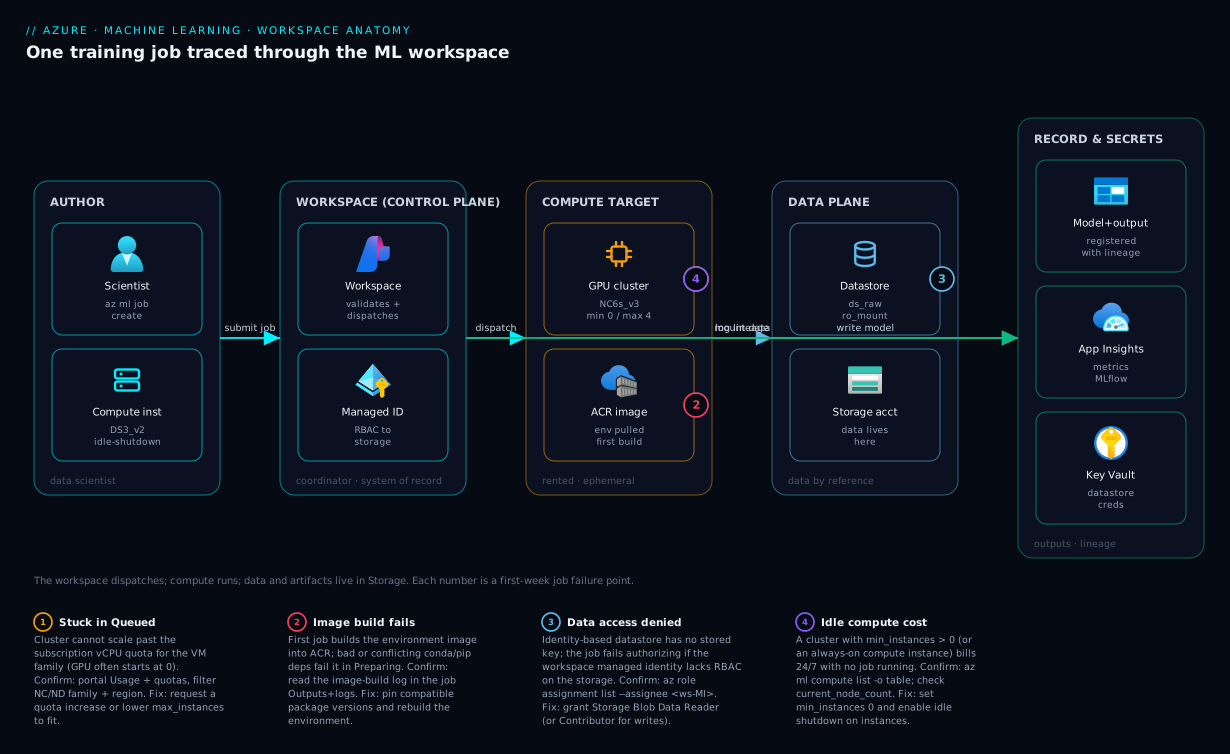
The diagram traces a single training job through the workspace as it actually flows, left to right, and shows where each piece lives. Start at the left: a data scientist authors a job — either interactively from a compute instance (a cloud dev box) or by submitting a YAML spec with az ml job create. That request hits the workspace control plane, the coordinator that validates the spec and holds the system of record (every job, asset and metric) plus the workspace managed identity it uses to reach storage. The control plane does no training itself — it dispatches.
From there the job fans into the resources that do the work. The compute cluster scales from zero to a node and becomes the muscle. To run, that node needs three things, each from a different backing resource: it pulls its environment image from the Container Registry (ACR), mounts its data from a datastore (which points at a Storage account — note the data never lived in the workspace), and on finish writes outputs, metrics and the registered model back into that same Storage, with telemetry flowing to Application Insights and any secrets read from Key Vault. The numbered badges mark the four places a first-week job most often breaks — quota, image build, data access, and idle cost — so the diagram doubles as a triage map. Follow the arrows once and the whole “where does everything live?” question answers itself: compute is rented and ephemeral, data and artifacts live in Storage, images live in ACR, secrets in Key Vault, and the workspace just remembers how it all fit together.
Real-world scenario
Meridian Logistics, a mid-size freight company, wants to predict which shipments will be delayed so dispatchers can intervene early. Their data team is two people — one data scientist (Priya) and one platform engineer (Sam) — with a monthly Azure budget around ₹40,000 for the whole ML footprint. The training data is six months of shipment records (about 30 GB) already sitting in an existing ADLS Gen2 account that the data-engineering team owns.
Priya’s first instinct was the laptop path: she pulled a sample to her machine, trained a scikit-learn model in a notebook, and got a promising AUC. Then reality hit. The full 30 GB didn’t fit comfortably in memory; the “good” model was a .pkl on her desktop; and when she retrained a week later with an updated library, the numbers shifted and she couldn’t tell whether the model or the data had changed. Sam recognised every one of these as a workspace-shaped problem and stood up the foundation.
He created a workspace (mlw-meridian) with a bring-your-own Storage account and Key Vault so the platform team kept control of encryption and naming, and granted the workspace’s managed identity Storage Blob Data Reader on the data-engineering ADLS account — so Priya could read the real data with no keys stored anywhere. He registered that account as an identity-based datastore (ds_shipments) and the six-month extract as a versioned data asset (shipments:1). For compute he created one small compute instance for Priya’s interactive work (with 30-minute idle shutdown) and one GPU compute cluster at min_instances: 0, max_instances: 3 — zero cost when no job runs.
Priya rewrote her notebook as a command job: a train.py reading shipments@latest, running in a pinned environment (shipments-env:1, scikit-learn 1.5.1 + pandas, with MLflow), on gpu-cluster. The first submission sat in Queued for several minutes, then Preparing for eight more — Sam explained that was the first image build into ACR, a one-time cost; later runs reused the cached image and started in under a minute. The run completed, MLflow autolog captured the parameters and AUC, and a model was registered with full lineage: this model came from this run, which used shipments:1 in shipments-env:1.
Two incidents taught the team the lessons this article front-loads. First, a sweep of twelve hyperparameter combinations sat stuck in Queued — they’d asked for more nodes than their subscription’s NC-family vCPU quota allowed, so the cluster couldn’t scale past two. Sam raised a quota request and capped max_instances to match. Second, the month’s bill came in higher than expected: someone had set the cluster’s min_instances to 1 “to make jobs start faster,” quietly paying for a GPU node around the clock. Resetting it to 0 dropped the compute line back under budget. By month two the whole footprint — workspace, instance (idle-shutdown on), scale-to-zero cluster, and storage — ran at about ₹22,000, comfortably inside budget, and every model in the registry traced cleanly to the data and environment that produced it. The line Priya pinned above her desk: “The workspace doesn’t train the model — it remembers exactly how the model was trained.”
Advantages and disadvantages
The “managed control plane with rented compute and referenced data” model is powerful, but it has real costs and a learning curve. Weigh it honestly:
| Advantages | Disadvantages |
|---|---|
| Reproducibility by default — versioned environments + data assets + logged jobs make any run repeatable | More moving parts than a notebook; four backing resources and several object types to learn |
Scale-to-zero compute — GPUs by the minute, no idle cost when min_instances: 0 |
Easy to misconfigure cost — an always-on instance or min_instances > 0 quietly bills 24/7 |
| Data stays put, tracked — datastores reference your storage; assets version exactly what a job used | RBAC complexity — identity-based access needs correct role assignments or jobs can’t read data |
| Full lineage — every model traces to the run, data and environment that made it | Quota friction — GPU vCPU quota can block scaling until you request more |
| Built-in MLflow — metrics, params and model registry without extra tooling | First-run latency — the initial environment image build is slow (minutes) |
| Governance — one place for access control, audit, and structure across a team | Overkill for a one-off — for a single throwaway experiment, a notebook is faster |
The model is right the moment you need reproducibility, scale, or collaboration — which is essentially any work that outlives a single afternoon or involves more than one person. It is overkill for a genuine one-off exploration on small data, where a local notebook ships faster. The disadvantages are all learnable and mostly cost-shaped: nearly every “Azure ML is expensive” story traces to an idle instance or a non-zero min-nodes cluster, both of which a checklist prevents.
Hands-on lab
Stand up a workspace, register a data asset, define an environment, and run a real command job that logs a metric — all on cheap CPU compute, with teardown at the end. Run in Cloud Shell (Bash) or locally with the Azure CLI.
Step 1 — Variables, resource group, and the ML extension.
az extension add -n ml -y
RG=rg-ml-lab
WS=mlw-lab-$RANDOM
LOC=centralindia
az group create -n $RG -l $LOC -o table
Step 2 — Create the workspace (backing resources auto-provision).
az ml workspace create -n $WS -g $RG -l $LOC
# Watch it create a Storage account, Key Vault and App Insights for you.
Expected: a JSON block describing the workspace; in the portal you’ll see the three backing resources appear in the resource group.
Step 3 — Create a tiny, scale-to-zero CPU cluster.
az ml compute create -n cpu-cluster --type AmlCompute \
  --size Standard_DS3_v2 --min-instances 0 --max-instances 2 \
  --idle-time-before-scale-down 120 -g $RG -w $WS
Expected: a cluster at 0 nodes — zero cost until a job runs.
Step 4 — Define and create a pinned environment.
cat > env.yml <<'EOF'
$schema: https://azuremlschemas.azureedge.net/latest/environment.schema.json
name: lab-env
version: 1
image: mcr.microsoft.com/azureml/openmpi4.1.0-ubuntu22.04:latest
conda_file:
  name: lab
  channels: [conda-forge]
  dependencies:
    - python=3.11
    - pip
    - pip:
        - scikit-learn==1.5.1
        - mlflow
EOF
az ml environment create --file env.yml -g $RG -w $WS
Step 5 — Write a trivial training script and a job spec.
mkdir -p src
cat > src/train.py <<'EOF'
import mlflow
from sklearn.datasets import load_iris
from sklearn.linear_model import LogisticRegression
X, y = load_iris(return_X_y=True)
acc = LogisticRegression(max_iter=200).fit(X, y).score(X, y)
mlflow.log_metric("train_accuracy", acc)
print("train_accuracy:", acc)
EOF

cat > job.yml <<'EOF'
$schema: https://azuremlschemas.azureedge.net/latest/commandJob.schema.json
command: python train.py
code: ./src
environment: azureml:lab-env@latest
compute: azureml:cpu-cluster
experiment_name: lab-iris
EOF
Step 6 — Submit the job and watch the lifecycle.
az ml job create --file job.yml --stream -g $RG -w $WS
# Status marches: Queued → Preparing (first image build, slow) → Running → Completed
Expected: the logs print train_accuracy: ~0.97, and the job ends Completed. The first run is slow because it builds the environment image into ACR; a second submission starts far faster.
Step 7 — Confirm the cluster scaled back to zero.
az ml compute show -n cpu-cluster -g $RG -w $WS \
  --query "{state:provisioning_state, current:current_node_count}" -o table
# After idle timeout, current node count returns to 0 — no idle bill.
Validation checklist. You created a workspace (step 2) and saw its four backing resources appear, proving the control plane provisions them for you. You created a min_instances 0 cluster (step 3) — compute that is rented and scales to zero. You pinned an environment (step 4) — reproducibility as a versioned image plus deps. You submitted a command job (step 6) that tied data, environment, compute and MLflow logging into one run. And you watched the cluster return to zero nodes (step 7) — idle cost controllable by design. That is the full loop in miniature.
Cleanup (stop all charges).
az group delete -n $RG --yes --no-wait
Cost note. Everything here is CPU and scale-to-zero; an hour of this lab is a few rupees at most, and deleting the resource group removes the workspace and all four backing resources.
Common mistakes & troubleshooting
The first-week failure modes are predictable, and almost all of them are configuration, not code. Symptom → root cause → how to confirm → fix:
| # | Symptom | Root cause | Confirm (exact cmd / path) | Fix |
|---|---|---|---|---|
| 1 | Job stuck in Queued forever | Asked for more nodes than vCPU quota allows | az ml compute show -n <cluster> --query maxNodeCount; quota in portal → Usage + quotas |
Raise quota or lower max_instances |
| 2 | Job fails in Preparing with build errors | Bad/conflicting conda/pip deps in the environment | Read the image build log in the job’s Outputs+logs | Pin compatible versions; rebuild env |
| 3 | Job fails reading data: Access denied | Workspace managed identity lacks RBAC on the storage | az role assignment list --assignee <ws-mi> --scope <storage> |
Grant Storage Blob Data Reader/Contributor |
| 4 | Surprise bill on a quiet week | Compute instance left running or cluster min_instances > 0 |
az ml compute list -o table; check current_node_count |
Idle-shutdown on instance; set min_instances 0 |
| 5 | “It worked yesterday” — different result | Unpinned environment / latest tag drifted |
Diff the env version on the two jobs | Pin every package; reference env:<version> |
| 6 | No metrics show up for a run | Script didn’t log via MLflow | Check job Outputs+logs for any log_metric call |
Add mlflow.log_metric(...) / autolog() |
| 7 | Can’t create a GPU cluster at all | GPU quota is zero in that region/subscription | Portal → Usage + quotas → filter the NC/ND family | Request GPU quota, or pick a region that has it |
| 8 | Data asset path points at nothing | Wrong datastore path or version | az ml data show -n <asset> --version <v> |
Fix the azureml://datastores/... path |
| 9 | Workspace create fails on networking | Public access blocked but private endpoints not set up | Workspace networking blade | Configure PE + private DNS, or allow public for dev |
| 10 | Job can’t pull image | ACR access or the image build never completed | Check ACR exists; re-run to trigger build | Ensure workspace MI can pull from ACR |
The two that bite hardest, expanded:
Job stuck in Queued (quota). A cluster cannot scale past your subscription’s vCPU quota for that VM family, especially GPU families which often start at zero. The job isn’t broken — there’s simply no node to give it. Confirm in the portal under Usage + quotas (filter to the NC/ND family and your region); fix by submitting a quota-increase request or by lowering max_instances to fit what you have.
Data access denied (RBAC). With identity-based datastores there is no stored key — access depends entirely on the workspace’s managed identity holding the right role on the storage account. If the role was never granted, every job that reads data fails with an authorization error that looks like a code bug. Confirm with az role assignment list --assignee <workspace-managed-identity-objectId> and fix by granting Storage Blob Data Reader (read) or Storage Blob Data Contributor (read+write) at the storage-account scope.
Best practices
- Set idle shutdown on every compute instance. It is the single biggest source of surprise ML bills. Default it to 30–60 minutes.
- Keep training clusters at
min_instances: 0. Pay only while jobs run. A non-zero minimum is a 24/7 charge you rarely need. - Prefer identity-based datastores. Grant the workspace managed identity RBAC on storage instead of storing keys — no secret to leak or rotate.
- Pin everything in environments. Exact package versions and a versioned environment reference (
env:3, notenv@latestin production) — reproducibility lives here. - Version your data assets. Register each meaningful snapshot as a new version so every run records exactly which data it used.
- Log with MLflow from day one.
autolog()plus a few explicitlog_metriccalls give you metrics, params and a registered model with lineage, for free. - Submit jobs from YAML, kept in git. A command-job spec in source control is reproducible and reviewable; ad-hoc notebook runs are not.
- Bring your own Storage/Key Vault for production workspaces. Control encryption, networking and naming on the resources that hold your data and secrets.
- Right-size compute to the work. CPU for data prep and light models; GPU only when the model needs it. Don’t reach for an
NCSKU by reflex. - Match
max_instancesto your real quota. Asking for more nodes than quota allows just leaves jobs stuck in Queued. - Separate dev, test and prod with distinct workspaces (or AI Foundry projects), so an experiment can’t touch production data or models.
Security notes
- Use the workspace managed identity, not keys. Identity-based datastores plus RBAC mean no storage keys or connection strings sit in config — grant least privilege (
Storage Blob Data Readerfor read-only training data,Contributoronly where the job must write). - Lock down the network for sensitive data. A managed VNet workspace plus private endpoints keeps the workspace, storage and compute off the public internet; pair with Private Link and private DNS so names resolve internally.
- Keep secrets in Key Vault. The workspace’s Key Vault is where datastore credentials and job secrets belong — never hard-code them in scripts or environment variables baked into images.
- Scope RBAC roles on the workspace itself. Use built-in roles — AzureML Data Scientist for people who run jobs, Reader for viewers, Contributor/Owner sparingly — so not everyone can change compute or delete assets.
- Secure the image supply chain. Environment images live in your Container Registry; use private registry access via managed identity and scan images, especially custom Dockerfiles.
- Don’t put data in code snapshots. The job captures your
code:folder into storage — keep datasets out of it (reference them as data assets) so sensitive data isn’t copied into the snapshot.
Cost & sizing
What actually drives the Azure ML bill, and how to keep it small:
- Compute dominates — and idle compute is the usual culprit. You pay per VM-hour for whatever is running. A scale-to-zero cluster costs nothing between jobs; an always-on instance or
min_instances > 0cluster bills around the clock. Almost every “Azure ML is expensive” story is one of those two. - GPU vs CPU is the biggest lever. GPU SKUs (
NC,ND) cost many times a comparable CPU SKU. Use CPU for data prep and light models; reserve GPU for genuine deep-learning training, by the minute, on a scale-to-zero cluster. - The backing resources are cheap by comparison. Storage (per-GB), Key Vault (per-operation), App Insights (per-GB ingested) and ACR (per-GB stored) are minor next to compute — though high-volume telemetry can add up, so sample on busy endpoints.
- First-run image build is a one-time cost, not recurring. The slow first job builds the environment image into ACR; later runs reuse it.
A rough monthly picture for a small team doing real but modest training:
| Cost driver | What you pay for | Rough INR / month | How to keep it down |
|---|---|---|---|
| Compute instance (dev) | One CPU box while running | ~₹3,000–6,000 | Idle shutdown (biggest win) |
| CPU cluster (training) | Per-minute, scale-to-zero | ~₹1,000–4,000 | min_instances 0; right-size SKU |
| GPU cluster (training) | Per-minute GPU, scale-to-zero | ~₹5,000–20,000 | min_instances 0; GPU only when needed |
| Storage account | Data + artifacts (per-GB) | ~₹500–2,000 | Lifecycle-tier cold data |
| App Insights | Telemetry (per-GB) | ~₹500–2,000 | Sample high-volume jobs/endpoints |
| ACR | Environment images (per-GB) | ~₹300–1,000 | Prune unused images |
Meridian’s footprint landed around ₹22,000/month once they fixed the idle cluster — proof that the controllable cost is mostly discipline, not SKU choice. There is no permanent free tier for compute, but scale-to-zero clusters mean you pay only for the minutes you actually train.
Interview & exam questions
1. What is an Azure ML workspace — is it where your model trains? No. The workspace is a control plane and top-level container — a coordinator that holds references to compute, datastores, environments, jobs and models, and records the history of every run. Training happens on compute targets you attach separately; the workspace dispatches the work and remembers what happened.
2. Name the four backing resources a workspace provisions and why each exists. A Storage account (default datastore + artifact/model/output store), a Key Vault (secrets, including datastore credentials), an Application Insights instance (job/endpoint telemetry and metrics), and a Container Registry/ACR (environment images, created lazily on first build). The workspace is the thin coordinating layer; these hold the actual bytes.
3. Compute instance vs compute cluster — when do you use each? A compute instance is a single-user, long-lived dev box (notebooks/IDE) that does not scale to zero — for interactive work. A compute cluster is an autoscaling job fleet that scales from min_instances (ideally 0) to max_instances — for training and batch, paying only while a job runs. Develop on the instance; train on the cluster.
4. What is the difference between a datastore and a data asset? A datastore is a saved connection to an Azure storage service (account + container + how to authenticate) — it holds no data. A data asset is a versioned pointer to specific data inside a datastore (a file/folder/table). The datastore is reusable plumbing; the data asset records exactly which data version a job consumed.
5. Credential-based vs identity-based datastore access — which is preferred and why? Identity-based is preferred: the workspace’s managed identity is granted RBAC on the storage, so no secret is stored anywhere — nothing to leak or rotate, and least-privilege via roles. Credential-based stores an account key or SAS in Key Vault — simpler but a long-lived secret with a wider blast radius.
6. Why is an environment described as “the unit of reproducibility”? Because it is a versioned definition of the runtime — a base image plus pinned conda/pip dependencies — recorded on every job that uses it. Pin it and the same job runs identically on any node, today or in a year. Skip it and you reintroduce the “works on my machine” problem at cloud scale.
7. Walk through the job lifecycle from submit to a registered model. Submit (az ml job create) → queue for a node → cluster provisions/scales up → environment image is built (first time) or pulled → input data is mounted/downloaded → your code executes → metrics/params are logged (MLflow) → outputs persist and a model is registered → the node is released and the cluster scales back toward zero. Data from a datastore, runtime from an environment, compute from a cluster, history into the workspace.
8. A training job is stuck in Queued indefinitely. Most likely cause and how to confirm? The cluster cannot scale because you’ve hit the subscription’s vCPU quota for that VM family (often zero for GPUs). Confirm under Usage + quotas in the portal (filter the NC/ND family and region) or by checking the cluster’s max_instances against quota. Fix by requesting a quota increase or lowering max_instances.
9. A job fails reading data with an authorization error, but the code is fine. What’s wrong? With an identity-based datastore, the workspace’s managed identity hasn’t been granted RBAC on the storage account. Confirm with az role assignment list --assignee <workspace-MI>; fix by assigning Storage Blob Data Reader (read) or Storage Blob Data Contributor (read+write) at the storage scope.
10. How does the workspace help answer “which data trained this model?” Through lineage: a job records the exact data asset version, environment version and code snapshot it used, and the registered model points back to that job. So any model in the registry traces cleanly to the data and runtime that produced it — the core governance win over running scripts on a laptop.
11. Why might the first run of a new environment be slow, and is that recurring? The first job using a user-managed or custom environment must build the image into the workspace’s ACR (minutes). It is a one-time cost; subsequent jobs pull the cached image and start far faster.
12. What single setting most often causes a surprise Azure ML bill? A compute instance left running (no idle shutdown) or a cluster with min_instances > 0 — both bill 24/7 regardless of work. Idle shutdown on instances and min_instances: 0 on clusters remove almost all unexpected cost.
These map primarily to DP-100 (Azure Data Scientist Associate) — set up an Azure ML workspace, manage compute, datastores and environments, run and track jobs — and to the AI/ML portions of AZ-204. The networking and RBAC angles touch AZ-104/AZ-500. A compact cert mapping:
| Question theme | Primary cert | Objective area |
|---|---|---|
| Workspace + backing resources | DP-100 | Set up an Azure ML workspace |
| Compute instance vs cluster | DP-100 | Manage compute resources |
| Datastores, data assets, access | DP-100 | Manage data in Azure ML |
| Environments, reproducibility | DP-100 | Manage environments |
| Job lifecycle, MLflow, lineage | DP-100 | Run and track ML experiments |
| Managed identity, RBAC, networking | AZ-500 / AZ-104 | Secure and configure resources |
Quick check
- In one sentence, what is the difference between the workspace and the compute it dispatches work to?
- Name the four backing Azure resources a workspace provisions, and what each holds.
- You want GPUs for training but pay nothing when idle. Which compute target and which one setting?
- True or false: registering a data asset copies the data into the workspace.
- A teammate says “the model gives a different result than last week and nothing changed.” What’s the most likely cause, and the fix?
Answers
- The workspace is a control plane that coordinates and remembers (references to compute, data, environments, jobs); the compute is the rented, ephemeral muscle that actually runs the code. The workspace dispatches; the compute executes.
- Storage account (data, code snapshots, outputs, models), Key Vault (secrets/datastore credentials), Application Insights (telemetry/metrics), Container Registry/ACR (environment images). The workspace coordinates; these hold the bytes.
- A compute cluster with
min_instances: 0— it scales from zero to run a job and back to zero after, so GPU time is billed only while training. - False. A data asset is a versioned pointer to data inside a datastore; no bytes are copied. The data stays in your Storage account.
- Almost certainly an unpinned environment (or a
latestbase-image tag) that drifted — a dependency upgraded under the run. Fix by pinning exact package versions and referencing a versioned environment (env:<version>), so the runtime is frozen.
Glossary
- Workspace — the top-level Azure ML resource and control plane; a coordinator holding references to compute, datastores, environments, jobs and models, and the history of every run. It does not run training itself.
- Backing resources — the four Azure resources a workspace uses: a Storage account (data + artifacts), a Key Vault (secrets), an Application Insights instance (telemetry), and a Container Registry/ACR (environment images).
- Compute target — any place code runs: a compute instance, a compute cluster, or an inference endpoint.
- Compute instance — a single-user, managed dev VM with notebooks/IDE pre-installed; long-lived, does not scale to zero (use idle shutdown).
- Compute cluster (AmlCompute) — a managed, autoscaling pool of identical VMs for jobs; set
min_instances: 0to pay nothing idle. - Managed online endpoint — a deployed model behind a stable HTTPS URL for real-time predictions (serving, not training).
- Datastore — a saved connection to an Azure storage service (account + container + auth); holds no data itself. Every workspace has
workspaceblobstoreandworkspacefilestore. - Data asset — a versioned reference to specific data (a file/folder/table) inside a datastore; records exactly which data a job used.
- Credential-based access — datastore auth via a stored account key or SAS token (kept in Key Vault).
- Identity-based access — datastore auth via the workspace managed identity holding RBAC on the storage; no secret stored. The preferred model.
- Environment — a versioned definition of the runtime (base image + conda/pip deps, or a custom Dockerfile); the unit of reproducibility.
- Curated environment — a Microsoft-maintained, pre-built environment image you reference without building.
- Job (run) — one execution of code on a compute target, with inputs, environment, metrics and outputs recorded in the workspace. A command job is the simplest kind.
- MLflow — the open tracking standard Azure ML implements natively for logging parameters, metrics and models, and for the model registry.
- Model registry — the workspace’s versioned store of registered models, each with lineage back to the job that produced it.
- Lineage — the recorded chain “this model came from this run, which used this data version and this environment” — the workspace’s core reproducibility guarantee.
- vCPU quota — the subscription limit on cores per VM family; a cluster cannot scale past it, and GPU quotas often start at zero.
Next steps
You can now draw the workspace, its four backing resources, the three compute targets, the datastore/data-asset split, the environment, and the job lifecycle from memory. Build outward:
- Next: Azure OpenAI: Deploy Your First Chat Model — the other side of Azure AI: calling a hosted model instead of training your own.
- Related: Azure AI Foundry: Hub & Project Resource Model Explained — how hubs and projects extend the workspace for generative-AI apps.
- Related: Azure Storage Account Fundamentals — the service behind every datastore and the workspace’s artifact store.
- Related: Azure Key Vault: Secrets, Keys & Certificates — where datastore credentials and job secrets belong.
- Related: Azure Private Endpoint vs Service Endpoint — lock a sensitive workspace and its storage off the public internet.