You ran terraform apply for the first time, it created your resources, and a file called terraform.tfstate appeared next to your .tf files. That file is the single most important — and most dangerous — thing in your whole setup. It is Terraform’s map of which real Azure resources belong to which lines of your code. Lose it and Terraform forgets everything it built; corrupt it and the next apply may try to delete a production database. And right now it sits on your laptop, in plaintext (secrets and all), with no backup and no way for a teammate to use it. The moment a second person runs Terraform — or you wire it into a CI/CD pipeline — that local file becomes a liability.
The fix is remote state: store terraform.tfstate in a shared, durable, access-controlled location instead of on disk. On Azure the standard home for it is a blob in an Azure Storage account, configured through Terraform’s built-in azurerm backend. This gives you three things a local file can never have: a single source of truth everyone reads from, durable storage you can’t accidentally delete, and — the one that saves careers — state locking, so two people (or two pipeline runs) can’t write to the same state at once and shred it. Azure gets locking for free because every state blob is protected by a blob lease: before Terraform writes, it grabs an exclusive lease on the blob; anyone else who tries gets a clear “state is locked” error instead of a silent collision.
This is a hands-on guide for someone who has run terraform apply a handful of times and is now setting up state “properly” for the first time. By the end you will have bootstrapped the storage account, written the backend block, migrated your existing local state into the cloud, watched the lock work, and used workspaces to keep dev, test and prod state in one backend without them ever touching — using the portal, the az CLI, and Bicep, with the exact commands and expected output at each step.
What problem this solves
A local terraform.tfstate works fine for one person on one machine, only until something goes wrong. The failure modes aren’t hypothetical — every team that skips remote state hits at least one in the first month: a teammate re-creating resources because they have no state, two applys colliding and corrupting it, a dead laptop losing it, secrets sitting in cleartext on disk, or a pipeline that can’t reach a file on your machine.
Remote state in a blob fixes all five at once: state lives in durable, encrypted, access-controlled Azure Storage; every read/write goes through the same blob; the blob lease serialises writes so a collision becomes a polite error; and a pipeline reads the same state you do. Every team beyond a solo developer needs it — and so does the solo developer the day they add a pipeline or a second machine.
| Problem with local state | What it looks like in practice | How the blob backend fixes it |
|---|---|---|
| Single-machine | Only one person can apply; teammates re-create resources |
One shared blob everyone reads/writes |
| No locking | Two applys collide and corrupt state |
Blob lease serialises writes; second caller gets “state locked” |
| No durability | Laptop dies → state lost → manual re-import | Storage durability (LRS/ZRS/GRS) + soft delete |
| Secrets in plaintext | tfstate on disk holds keys/passwords |
Encryption at rest; RBAC-gated access |
| No CI/CD | Pipeline can’t reach a local file | Pipeline authenticates and reads the same backend |
Learning objectives
By the end of this article you can:
- Explain what Terraform state is, why it is the source of truth, and why remote state matters the moment a second person or a pipeline appears.
- Bootstrap the backend storage account and container correctly — in the portal, with
azCLI, and with Bicep — and explain why bootstrapping is a chicken-and-egg problem you solve outside Terraform. - Write a correct
azurermbackend block and choose between hard-coding values and supplying them with-backend-config/ partial configuration. - Run
terraform initto migrate existing local state into the blob safely, and confirm the state blob exists. - Demonstrate state locking via the blob lease — trigger a real “state blob is already locked” error and resolve it the right way (and know when
force-unlockis and isn’t safe). - Use workspaces to keep dev/test/prod state isolated in one backend, and know when workspaces are the right tool versus a separate state file per environment.
- Apply least-privilege RBAC to the state container (Storage Blob Data Contributor, not account keys) and pick the right redundancy and cost settings for a state backend.
Prerequisites & where this fits
You should have Terraform installed (terraform -version ≥ 1.5), the Azure CLI logged in (az login), and a subscription you can create resources in. You should have run terraform init, plan and apply once with the azurerm provider, so you have a small .tf config and a local terraform.tfstate to migrate. Knowing that a storage account holds containers which hold blobs helps — if that’s fuzzy, skim Azure Storage Account Fundamentals: Blobs, Files, Queues and Tables first.
This sits at the foundation of any real Infrastructure-as-Code practice on Azure — the very first thing you set up after the Terraform basics, before any production modules, because collaboration, CI/CD and environment promotion all depend on shared, locked state. It pairs with a pipeline (the backend is what lets CI/CD Pipelines Explained: From Code Commit to Production run apply for you) and with secret management, since state can hold secrets (CI/CD Secrets and Credential Management: Secure Your Pipelines). Within the bigger picture of your Azure Resource Hierarchy, the backend account usually lives in a dedicated, locked-down resource group.
Core concepts
Five ideas make every step below obvious (each bolded term is also in the Glossary).
State is Terraform’s memory. Terraform is declarative: your .tf files describe the desired world, and to make reality match it must know what reality currently is — which resources it created and how their attributes map to your blocks. That record is the state. On every plan, Terraform reads state, refreshes it against Azure, and diffs it against your code; without it, it can’t tell “create this” from “this already exists.” The state — not your .tf files — is the source of truth.
A backend is where state lives and how it locks. The backend decides where state is stored and whether writes are locked. The default is local (the file on disk); the azurerm backend stores state as a blob and uses the blob’s lease for locking. Switching backends is a config change applied with terraform init, which offers to copy your existing state across.
Locking serialises writes. Any operation that modifies state (apply, destroy, state mv, plan when it refreshes) acquires a lock first. With the azurerm backend the lock is a blob lease — an exclusive, time-bounded claim on the state blob; anyone else running Terraform against it gets an immediate error naming who holds the lock, and the lease releases when your command finishes. No separate lock table is needed — Azure’s lock lives in the blob itself.
The backend must already exist — the bootstrap problem. Terraform stores state in a storage account, but it’s also the tool you’d use to create one, and you can’t store state in an account that doesn’t exist. So the backend account is bootstrapped once, outside the main configuration — portal, CLI, or a tiny separate stack.
Workspaces give you many states in one backend. A workspace is a named, isolated copy of state in the same backend, stored under a separate blob key (your key with the workspace name appended). The same code run in dev versus prod reads and writes separate state. It’s one of two ways to separate environments; the other is a separate backend/key per environment, weighed later.
How the azurerm backend stores and locks state
The azurerm backend needs four coordinates — resource group, storage account name, container name, and key (the blob’s name, conventionally prod.terraform.tfstate). The container holds one blob per workspace: the default workspace uses your key verbatim, any other appends env:<workspace>, so one container safely holds every environment as a distinct, independently-leased blob.
The backend settings, and others worth knowing:
| Backend setting | What it is | Required? | Typical value | Note |
|---|---|---|---|---|
resource_group_name |
RG of the storage account | Yes | rg-tfstate |
The bootstrapped backend RG |
storage_account_name |
The storage account | Yes | sttfstateacme01 |
Globally unique, 3–24 lowercase chars |
container_name |
Blob container for state | Yes | tfstate |
One container can hold many keys/workspaces |
key |
Blob name for this state | Yes | prod.terraform.tfstate |
Per project/component; workspaces append env:<name> |
use_azuread_auth |
Authenticate with Entra ID (RBAC) | No (recommended true) |
true |
Avoids using the storage account key |
subscription_id |
Sub of the storage account | Sometimes | a GUID | Needed if state account is in another sub |
snapshot |
Snapshot the blob before each write | No | true |
Cheap point-in-time rollback safety |
By default the backend uses the storage account access key (full control of the account); the least-privilege approach is use_azuread_auth = true — your Entra ID identity plus an RBAC role on the container. The three auth modes:
| Auth mode | How you enable it | What it grants | When to use |
|---|---|---|---|
| Account key | Default, or ARM_ACCESS_KEY env var |
Full control of the whole storage account | Quick start only; avoid in teams |
| SAS token | ARM_SAS_TOKEN env var |
Scoped, time-bounded access to the container | CI without RBAC; needs rotation |
| Entra ID + RBAC | use_azuread_auth = true + a data role |
Exactly what your role allows on the container | Recommended — least privilege, no shared secret |
The minimum role for the Entra ID path is Storage Blob Data Contributor (account or container scope) — read, write and lease blobs, but not manage the account. We assign it in the lab.
Setting up the backend storage account
Because state is precious and sometimes holds secrets, the backend account should be locked down, durable, versioned and soft-delete-protected from the start:
| Setting | Recommended value | Why for a state backend |
|---|---|---|
| Redundancy / SKU | Standard_ZRS (or GRS for cross-region) |
Survive a datacentre/zone loss without losing state |
| Kind | StorageV2 |
Standard general-purpose account; required for blob features |
| Access tier | Hot | State is read/written constantly; not archival |
| Blob soft delete | Enabled, 7–30 days | Recover an accidentally deleted state blob |
| Blob versioning | Enabled | Keep prior state versions for rollback |
| Public / blob public access | Disabled (firewall to your IPs) | State should never be world-reachable or anonymous |
| Minimum TLS | TLS 1.2 | No cleartext transport |
| Shared key access | Disabled if you use only Entra ID auth | Forces the least-privilege RBAC path |
Naming: account names are globally unique, 3–24 characters, lowercase alphanumerics (pick sttfstate<org><nn>); the container name (e.g. tfstate) is local to the account. The az CLI path is walked step by step in the Hands-on lab (Part B); the Bicep and portal variants follow here.
Bootstrap with Bicep
For the account as code, a tiny Bicep file does it — deploy once with az deployment group create:
param storageAccountName string   // globally unique, 3-24 lowercase alphanumerics
param location string = resourceGroup().location

resource sa 'Microsoft.Storage/storageAccounts@2023-05-01' = {
  name: storageAccountName
  location: location
  sku: { name: 'Standard_ZRS' }
  kind: 'StorageV2'
  properties: {
    minimumTlsVersion: 'TLS1_2'
    allowBlobPublicAccess: false
    supportsHttpsTrafficOnly: true
  }
}

// Blob service with versioning + soft delete (the safety net for state)
resource blobsvc 'Microsoft.Storage/storageAccounts/blobServices@2023-05-01' = {
  parent: sa
  name: 'default'
  properties: {
    isVersioningEnabled: true
    deleteRetentionPolicy: { enabled: true, days: 14 }
  }
}

resource container 'Microsoft.Storage/storageAccounts/blobServices/containers@2023-05-01' = {
  parent: blobsvc
  name: 'tfstate'
  properties: { publicAccess: 'None' }
}
az deployment group create -g rg-tfstate \
  --template-file backend.bicep \
  --parameters storageAccountName=sttfstateacme01 -o table
Bootstrap in the portal
The clickable path, when you want to see the settings:
- Portal → Storage accounts → Create. Basics: the
rg-tfstateresource group, a globally unique name, a nearby region, Standard performance, Zone-redundant storage (ZRS). - Advanced: Minimum TLS version = 1.2, Allow blob public access = Disabled (and storage account key access = Disabled for Entra-ID-only).
- Data protection: tick Enable versioning and Enable soft delete for blobs (14 days).
- Review + create → Create, then open the account → Containers → + Container → name
tfstate→ Private → Create.
You now have a tfstate container ready to hold state.
Configuring the backend block in Terraform
The backend is declared inside the terraform {} block in one of two styles. Full configuration hard-codes all four coordinates (fine for one environment). Partial configuration leaves them out and supplies them at init time, so the same code targets different backends without edits — better for anything that varies between environments:
# main.tf — values supplied at init, not committed here
terraform {
  required_version = ">= 1.5.0"
  required_providers {
    azurerm = { source = "hashicorp/azurerm", version = "~> 4.0" }
  }
  backend "azurerm" {
    use_azuread_auth = true   # Entra ID + RBAC, not the account key
  }
}
terraform init \
  -backend-config="resource_group_name=rg-tfstate" \
  -backend-config="storage_account_name=sttfstateacme01" \
  -backend-config="container_name=tfstate" \
  -backend-config="key=prod.terraform.tfstate"
Or put those four lines in a prod.backend.hcl file and run terraform init -backend-config=prod.backend.hcl — one file per environment. (A full block moves those four lines inside backend "azurerm" {}.) Choosing between the styles:
| Style | You commit | You pass at init | Best for |
|---|---|---|---|
| Full / hard-coded | All four values in the block | Nothing | A single environment, simple repos |
| Partial config | Just backend "azurerm" {} (+ use_azuread_auth) |
The four coordinates via -backend-config |
Multiple environments; CI; keeping values out of code |
One rule that trips up beginners: the backend block cannot use variables. storage_account_name = var.sa_name is invalid — the backend is configured before variables are evaluated, which is why partial configuration exists.
Migrating local state to the blob
You already have a terraform.tfstate on disk from earlier applys; moving it into the blob is a one-command operation Terraform makes safe by asking first. After az login and az account set --subscription <id>, re-run init with the backend block added — Terraform detects the switch from local to azurerm and asks “Do you want to copy existing state to the new backend?” Type yes; it uploads your state and prints “Successfully configured the backend ‘azurerm’!” (your local file is renamed .backup).
terraform init                                   # answer: yes
az storage blob list --account-name $SA --container-name $CONTAINER \
  --auth-mode login --query "[].name" -o tsv     # Expect: prod.terraform.tfstate
terraform plan                                   # Expect: "No changes."
A clean “No changes.” proves Terraform read the same state from the blob it had on disk; from here on, every plan/apply reads and writes the blob, and the lease protects every write. (The Hands-on lab walks this end to end.)
Architecture at a glance
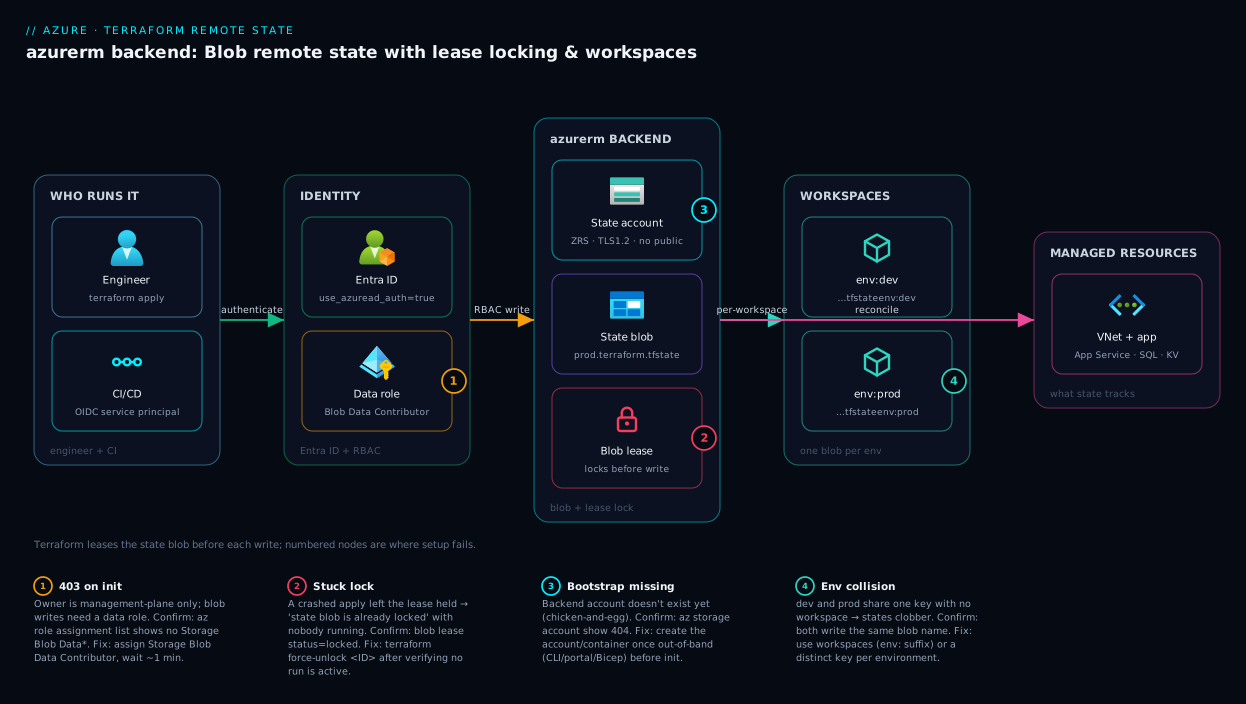
Read the diagram left to right. An engineer and a CI/CD pipeline both run terraform apply, authenticate to Microsoft Entra ID, and are granted Storage Blob Data Contributor — that single role lets them read, write and lease the state blob without touching the account key. Their Terraform process talks to the azurerm backend, which resolves the four coordinates to one blob in the state container. The crucial hop is in the middle: before writing, the backend acquires a blob lease on the state blob, so while the engineer’s apply reconciles your .tf code against the real target Azure resources (VNet, App Service, SQL DB), a pipeline running at the same moment is refused with a clean “state blob is already locked” rather than corrupting state. The container holds one blob per workspace — prod.terraform.tfstate plus …tfstateenv:dev — so environments coexist, each locked independently. The numbered badges mark where setup goes wrong: a missing data-plane RBAC role (403, not “locked”), a stuck lease after a crashed run, and the bootstrap account not existing yet.
Real-world scenario
Northwind Cargo, a logistics startup, runs its Azure platform with Terraform — a VNet, App Service, SQL Database and Key Vault in one repo. For three months one engineer, Priya, owned all of it with terraform.tfstate on her laptop. It worked until the team grew to three and they wired Terraform into a GitHub Actions pipeline — and within a week they hit the two incidents that are the canonical argument for remote state.
The first was a near-miss: a new hire, Arjun, cloned the repo, ran terraform apply, and — with no state on his laptop — Terraform planned to create the VNet, App Service, SQL DB and Key Vault, all of which already existed. He caught it at the plan (“4 to add” when he expected “1 to change”) and stopped. The second was real corruption: Priya ran apply to push a hotfix at the same moment the pipeline ran apply on a merged PR. Both read the same starting state and wrote back; the pipeline’s write landed last and overwrote the SQL firewall rule Priya’s run had just created. That rule now existed in Azure but not in state — an afternoon of terraform import to stitch it back in.
The fix was the setup in this article, done in an afternoon. They bootstrapped a dedicated rg-tfstate with a ZRS account, versioning and 14-day soft delete on, public access off, and Storage Blob Data Contributor granted to the three engineers and the pipeline’s service principal — no account keys. They added a partial backend block, ran terraform init, and migrated. The collision problem vanished: the next time Priya and the pipeline raced, the pipeline got a clean “Error: state blob is already locked … Lease ID …” and simply waited. They then split dev and prod with workspaces. Backend cost: under ₹200 a month. Priya’s runbook lesson: “State is the source of truth. Put it somewhere shared, durable and locked — before you add the second person, not after.”
Advantages and disadvantages
Remote state in a blob is the right default for any team, but weigh the trade-offs honestly:
| Advantages | Disadvantages / costs |
|---|---|
| Shared single source of truth — everyone and every pipeline reads the same state | One more thing to bootstrap and secure before you can init |
| State locking for free via the blob lease — collisions become clean errors | A crashed run can leave a stuck lease you must force-unlock |
| Durable and recoverable (ZRS/GRS + soft delete + versioning) | Misconfigured RBAC gives confusing 403s that look like “wrong account” |
| Encrypted at rest; access controlled by RBAC, no secrets on laptops | State still contains secrets in the blob — the account must be locked down |
Enables CI/CD apply — a pipeline can authenticate and use the same backend |
Backend block can’t use variables — partial config has a learning curve |
| Workspaces (or per-key files) cleanly separate dev/test/prod | Workspaces are easy to misuse for things that should be separate states |
The advantages dominate any time more than one human or pipeline touches the infrastructure — almost always. The disadvantages only bite if you skip the hardening (public access left on, account keys) or misuse workspaces. None argue for going back to a local file; they argue for doing the setup carefully.
Hands-on lab
The centerpiece. You go end to end: bootstrap the backend, grant least-privilege access, wire up the backend block, migrate state, prove the lock works, use workspaces, and tear it down. It’s free-tier-light — a tiny storage account and one resource group, deleted at the end. Run it in Cloud Shell (Bash) or a local shell with Terraform and the Azure CLI.
Part A — A starting Terraform config with local state
First create a trivial config so you have real local state to migrate — one resource group:
Step 1 — Make a working folder and a main.tf.
mkdir tf-state-lab && cd tf-state-lab
cat > main.tf <<'EOF'
terraform {
  required_providers {
    azurerm = { source = "hashicorp/azurerm", version = "~> 4.0" }
  }
}
provider "azurerm" { features {} }

resource "azurerm_resource_group" "demo" {
  name     = "rg-tfstate-demo"
  location = "centralindia"
}
EOF
Step 2 — Init, plan, apply with the default (local) backend.
terraform init
terraform apply -auto-approve
Expected: Apply complete! Resources: 1 added, 0 changed, 0 destroyed. and a terraform.tfstate file (a few KB of JSON — your local state) now sits in the folder.
Part B — Bootstrap the backend
Step 3 — Create the backend RG, storage account and container.
RG=rg-tfstate
LOC=centralindia
SA=sttfstate$RANDOM
CONTAINER=tfstate

az group create -n $RG -l $LOC -o table
az storage account create -n $SA -g $RG -l $LOC \
  --sku Standard_ZRS --kind StorageV2 \
  --min-tls-version TLS1_2 --allow-blob-public-access false -o table
az storage account blob-service-properties update -n $SA -g $RG \
  --enable-versioning true --enable-delete-retention true --delete-retention-days 14 -o table
az storage container create -n $CONTAINER --account-name $SA --auth-mode login -o table
echo "Backend account: $SA"   # note this name — the backend block needs it
Expected: account "provisioningState": "Succeeded", container "created": true.
Step 4 — Grant yourself the data role (so Terraform uses Entra ID auth, not the key):
ME=$(az ad signed-in-user show --query id -o tsv)
SA_ID=$(az storage account show -n $SA -g $RG --query id -o tsv)
az role assignment create --assignee $ME \
  --role "Storage Blob Data Contributor" --scope $SA_ID -o table
Expected: a role-assignment row. RBAC can take a minute to propagate — if the next step 403s, wait and retry.
Part C — Wire up the backend and migrate state
Step 5 — Add the backend block (its own backend.tf is fine):
cat > backend.tf <<EOF
terraform {
  backend "azurerm" {
    resource_group_name  = "$RG"
    storage_account_name = "$SA"
    container_name       = "$CONTAINER"
    key                  = "demo.terraform.tfstate"
    use_azuread_auth     = true
  }
}
EOF
(Terraform merges all .tf files; just don’t declare two backend blocks.)
Step 6 — Re-init and migrate. Run terraform init and answer yes at the “copy existing state to the new backend?” prompt — it prints “Successfully configured the backend ‘azurerm’!”
terraform init # answer: yes
Step 7 — Validate the state is now in the blob.
az storage blob list --account-name $SA --container-name $CONTAINER \
  --auth-mode login --query "[].name" -o tsv
# Expect: demo.terraform.tfstate

terraform plan
# Expect: "No changes." — proves Terraform read the migrated state from the blob
Part D — Prove that locking works
The payoff — hold a lock and watch a second command bounce off it. A real terraform apply holds the lease only briefly, so to see a collision, Step 8 places a manual 60-second lease on the blob:
KEY=$(az storage account keys list -n $SA -g $RG --query "[0].value" -o tsv)
LEASE=$(az storage blob lease acquire --account-name $SA --account-key "$KEY" \
  --container-name $CONTAINER --blob-name demo.terraform.tfstate \
  --lease-duration 60 -o tsv)
echo "Held lease: $LEASE"
Step 9 — Try to apply — Terraform refuses. Immediately run terraform apply -auto-approve. Expected error — this is success, the lock worked:
Error: Error acquiring the state lock
  Error message: state blob is already locked
  Lock Info: ID: ...  Operation: OperationTypeApply  Created: ...
That is exactly the message a colleague gets if you’re mid-apply; Terraform did not touch the blob.
Step 10 — Release the lease (you placed it, so it’s safe):
az storage blob lease release --account-name $SA --account-key "$KEY" \
  --container-name $CONTAINER --blob-name demo.terraform.tfstate --lease-id "$LEASE" -o table
Now terraform apply succeeds again. (If a real run had crashed and orphaned the lock, you’d use terraform force-unlock <LOCK_ID> instead — see the troubleshooting table.)
Part E — Workspaces for dev/test/prod
Step 11 — Create and switch workspaces. Each gets its own state blob in the same container:
terraform workspace new dev        # creates and switches to 'dev'
terraform workspace new prod       # creates and switches to 'prod'
terraform workspace list           # default, dev, * prod
Step 12 — See the per-workspace state blobs. Run apply in each so its blob materialises:
terraform workspace select dev && terraform apply -auto-approve
terraform workspace select prod && terraform apply -auto-approve

az storage blob list --account-name $SA --container-name $CONTAINER \
  --auth-mode login --query "[].name" -o tsv
# Expect:
#   demo.terraform.tfstate                (default workspace)
#   demo.terraform.tfstateenv:dev         (dev workspace)
#   demo.terraform.tfstateenv:prod        (prod workspace)
The env:<name> suffix is the whole mechanism — three isolated states, one container, each locked independently (reference the active one in code via terraform.workspace). Workspaces aren’t the only option — versus a separate backend per environment:
| Aspect | Workspaces | Separate backend / key per env |
|---|---|---|
| State storage | One container, env:<name>-suffixed blobs |
A distinct key (often distinct account/RG) per env |
| Switching | terraform workspace select <env> |
terraform init -backend-config=<env>.hcl |
| Isolation | Same backend, RBAC and account | Can be different accounts/subscriptions/RBAC |
| Best for | Same-shape, low-risk envs; quick branches | Strong prod isolation; different access per env |
| Risk | Easy to forget which workspace → wrong env | More config files to manage |
The rule: workspaces suit transient or same-shape environments; for hard prod separation (different RBAC, possibly a different subscription) prefer a separate backend or key. Either way, the cardinal sin is forgetting which workspace you’re in — always echo terraform workspace show in scripts and CI.
Part F — Teardown
Step 13 — Destroy resources in every workspace, then the backend.
for ws in prod dev default; do
  terraform workspace select $ws
  terraform destroy -auto-approve
done
terraform workspace select default

# Delete the demo RG and the backend RG (the state account)
az group delete -n rg-tfstate-demo --yes --no-wait
az group delete -n $RG --yes --no-wait
Expected: each destroy reports resources removed; the RG deletes return immediately (--no-wait).
Validation checklist. You migrated local state to a blob, triggered and resolved a real lock error, and created three workspace-scoped blobs in one container — what each part proves:
| Part | What you did | What it proves |
|---|---|---|
| A | Local apply → terraform.tfstate on disk |
The thing you’re moving exists and is fragile |
| B | Bootstrap account + RBAC role | The backend must exist first; least-privilege auth |
| C | Backend block + init migrate |
One command moves state to the cloud safely |
| D | Lease the blob → apply refused |
The lock is real and stops collisions |
| E | Workspaces → env:-suffixed blobs |
One backend cleanly isolates environments |
| F | Destroy + delete RGs | Clean teardown, no lingering cost |
Cost note. The backend holds a few-KB blob and a handful of transactions — well under ₹50 for the whole lab; deleting both RGs stops everything.
Common mistakes & troubleshooting
The failures everyone hits setting up the backend, with how to confirm and fix each:
| # | Symptom | Root cause | How to confirm | Fix |
|---|---|---|---|---|
| 1 | init fails: Failed to get existing workspaces: ... 403 / AuthorizationPermissionMismatch |
You have a management role (Owner/Contributor) but no data-plane role on the container | az role assignment list --assignee <you> --scope <sa-id> shows no “Storage Blob Data *” |
Assign Storage Blob Data Contributor on the account/container; wait ~1 min for RBAC |
| 2 | Error acquiring the state lock: state blob is already locked and no one is running Terraform |
A previous run crashed and left the lease held | az storage blob show ... --query "properties.lease" shows "status": "locked" |
terraform force-unlock <LOCK_ID> (only when sure no run is active), or break the lease |
| 3 | init doesn’t offer to migrate; starts empty |
You moved/renamed terraform.tfstate or ran from the wrong folder |
ls terraform.tfstate is missing |
Run init from the folder with the local state; or terraform state push the saved file |
| 4 | storage_account_name “is not a valid name” |
Name has uppercase/symbols or wrong length | Account name must be 3–24 lowercase alphanumerics | Rename the account; add randomness for global uniqueness |
| 5 | Backend block with var. interpolation errors at init |
Backend config cannot use variables | Terraform errors before evaluating variables | Use partial config: -backend-config=... or a .hcl file |
| 6 | Two environments overwrite each other’s state | Same key used for dev and prod with no workspace |
Both write the same blob name | Use workspaces (env: suffix) or a distinct key per environment |
| 7 | apply works locally but fails in CI with 403 |
The pipeline’s service principal / OIDC identity lacks the data role | CI logs show AuthorizationPermissionMismatch | Grant the CI identity Storage Blob Data Contributor; ensure use_azuread_auth = true |
| 8 | After enabling the storage firewall, init fails to reach the account |
Your IP / the CI runner isn’t allowed through | az storage account show --query networkRuleSet |
Add your IP / the runner’s range, or allow trusted Azure services |
| 9 | force-unlock then state is corrupted/half-written |
You unlocked a lock that belonged to a live run | Two runs were active at once | Never force-unlock blindly; confirm no run holds it; restore from a blob version if needed |
Two catch nearly everyone. The 403 on init is the classic first-timer trap — Owner is management-plane, but blob data needs the data-plane Storage Blob Data Contributor role (wait a minute for propagation). And the stuck lock (“locked” with nobody running) comes from a killed apply — verify no run is active, then terraform force-unlock <LOCK_ID>, safe only when nothing is mid-write (versioning/soft delete give you rollback if you get it wrong).
Best practices
- Bootstrap the backend in its own locked-down resource group (
rg-tfstate), so a carelessdestroyof an app can never delete your state account. - Use Entra ID auth, not account keys —
use_azuread_auth = true, grant Storage Blob Data Contributor, and disable shared-key access where you can. - Turn on versioning and soft delete on day one — your undo button for a bad
force-unlockor accidental delete, for pennies. - One
keyper project/component — don’t pile unrelated stacks into one giant state blob; split by lifecycle (networking, app, data). - Use partial configuration for per-environment values so the same code targets dev and prod without edits and no values are hard-committed.
- Pick one environment-separation model and stick to it — workspaces, or a separate backend/
keyper environment, never mixed. - Never edit state by hand — use
terraform state mv/rm/import; hand-editing the JSON or blob is how you corrupt it. - Lock down network access — disable public blob access and front the account with the storage firewall or private endpoints.
- Grant the CI/CD identity its own data role — an OIDC service principal with Storage Blob Data Contributor on the state container.
- Choose redundancy to match the cost of losing state — ZRS as a sane default, GRS for cross-region durability.
Security notes
- Treat the state blob as secret material. Terraform writes some attributes — storage keys, SQL passwords, generated credentials — into state in cleartext, so the state itself is sensitive, not just the resources it manages.
- Least privilege over the account key. The account key is god-mode for the whole account and can’t be scoped down. Prefer Entra ID + Storage Blob Data Contributor tightly scoped, and disable shared-key access (
allowSharedKeyAccess = false). - Network-isolate the backend. Disable public access and use the storage firewall or a private endpoint so the account is reachable only from your network and CI — see Azure Private Endpoint vs Service Endpoint: Secure PaaS Access.
- Verify encryption. Azure Storage encrypts at rest by default; for stricter compliance use a customer-managed key in Key Vault — see Azure Key Vault: Secrets, Keys and Certificates Done Right.
- Audit access. Enable diagnostic logging for a record of who read or wrote the state blob and when.
- Don’t print state in CI logs. Avoid dumping
terraform show -jsonor sensitiveterraform outputinto logs; mark outputssensitive = true.
Cost & sizing
A state backend is one of the cheapest things you will run in Azure — the bill is a few kilobytes of blob and a trickle of transactions, not capacity. A realistic monthly figure for a small-to-medium team’s backend account is well under ₹200 (~$2–3), often under ₹100. There is no “sizing” beyond picking redundancy. The cost levers:
| Cost driver | What you pay for | Rough INR / month | Note |
|---|---|---|---|
| Stored state (Hot) | KB–MB of blob data | < ₹10 | Negligible; it’s a tiny file |
| Transactions | Read/write/lease per run | < ₹50 even for active teams | Scales with how often you run Terraform |
| Redundancy (ZRS vs LRS) | Extra durable copies | Small uplift over LRS | Worth it for state; pennies |
| Versioning + soft delete | Retained old/deleted blobs | Rounding error | Keep it on — cheap safety |
There is no permanent free tier for a long-lived state backend, but the cost is so small it’s effectively free. Don’t optimise it — optimise for durability and lockdown, which is what matters for state.
Interview & exam questions
1. What is Terraform state and why does it matter? State is Terraform’s record of which resources it manages and how their attributes map to your configuration — the source of truth it diffs against on every plan. Without it Terraform can’t tell an existing resource from a new one; lose or corrupt it and Terraform forgets what it built.
2. Why move state to a remote backend instead of a local file? A local file is single-machine, has no locking or durability, and holds secrets in plaintext. Remote state in a blob gives a shared source of truth, locking against concurrent corruption, durable encrypted storage, and a backend CI/CD can use.
3. How does state locking work with the azurerm backend? The lock is a blob lease — an exclusive, time-bounded claim Terraform acquires before any write, so a second caller is refused with “state blob is already locked.” No separate lock table is needed; Azure’s lock lives in the blob.
4. What is the bootstrap (chicken-and-egg) problem and how do you solve it? Terraform stores state in a storage account, but you’d normally create that account with Terraform — which needs somewhere to store its state. Break the cycle by creating the backend account once out-of-band (portal, CLI, or a tiny separate stack).
5. Why can’t the backend block use variables, and what do you use instead? Terraform configures the backend before it evaluates variables, so interpolation in the block is invalid. Supply per-environment values via partial configuration — terraform init -backend-config=... or a .hcl file.
6. What does the key setting do, and how do workspaces interact with it? key is the blob name your state is stored as (e.g. prod.terraform.tfstate). The default workspace uses it verbatim; any other appends env:<workspace>, so one container holds many isolated states.
7. You get a 403 / AuthorizationPermissionMismatch on terraform init despite being subscription Owner. Why? Owner is a management-plane role; reading/writing blob data needs a data-plane role. Grant Storage Blob Data Contributor, set use_azuread_auth = true, and wait for RBAC to propagate.
8. A “state blob is already locked” error appears but no one is running Terraform. What happened? A previous run crashed and left the lease held (a stuck lock). After confirming no run is active, run terraform force-unlock <LOCK_ID> to break the lease without changing state.
9. Workspaces vs a separate state file per environment — when do you pick which? Workspaces (one backend, env:-suffixed blobs) suit same-shape or transient environments. A separate backend/key per environment gives stronger isolation (different RBAC, possibly different subscription) for hard prod separation.
10. How should the backend authenticate, and why avoid the account key? Prefer Entra ID + Storage Blob Data Contributor (use_azuread_auth = true) — least privilege, no shared secret. The account key grants full control of the entire account and can’t be scoped down; pair it with ZRS/GRS redundancy, versioning, soft delete, no public access, and TLS 1.2.
These map to the HashiCorp Terraform Associate (state, backends, workspaces, locking) and Azure’s IaC-adjacent objectives in AZ-104 / AZ-400 (IaC, storage security, RBAC).
Quick check
- Where does the
azurermbackend physically store your Terraform state, and what four coordinates identify it? - What Azure mechanism provides the state lock, and what happens when a second
applyruns while the first holds it? - You’re an Owner on the subscription but
terraform initreturns a 403 on the state container. What role are you missing? - Two engineers manage
devandprodfrom the same repo with the samekeyand no workspaces. What goes wrong, and what are the two fixes? - A “state blob is already locked” error persists and you’ve confirmed nobody is running Terraform. What’s the cause and the correct command to resolve it?
Answers
- As a blob in an Azure Storage account, addressed by resource group, storage account name, container name, and
key(the blob name) — i.e.https://<account>.blob.core.windows.net/<container>/<key>. - The blob lease — Terraform takes an exclusive lease before writing, so a second
applygets an immediate “state blob is already locked” error and never touches the state. - A data-plane role — Storage Blob Data Contributor on the account or container. Owner is management-plane and doesn’t grant blob data access; set
use_azuread_auth = true. - Both environments write the same state blob, so dev and prod state become one file and clobber each other. Fix it with workspaces (Terraform appends
env:<name>) or by giving each environment a distinctkey. - A stuck lock from a crashed/interrupted run that left the lease held. After confirming no run is active, run
terraform force-unlock <LOCK_ID>(the ID is shown in the error) to break the lease without altering state.
Glossary
- State — Terraform’s record of the resources it manages and how their attributes map to your config; the source of truth for every
plan/apply. - Backend — where state is stored and how writes are locked;
local(file) by default,azurermfor Azure Blob. azurermbackend — Terraform’s Azure Blob Storage backend; stores state as a blob, uses the blob lease for locking.- Blob lease — an exclusive, time-bounded claim on a blob; the
azurermbackend uses it as the state lock, serialising writes. key— the backend setting naming the state blob (e.g.prod.terraform.tfstate); workspaces appendenv:<name>.- Workspace — a named, isolated copy of state in the same backend, stored under an
env:-suffixed blob key. - Partial configuration — supplying backend values at
inittime via-backend-config/ a.hclfile (the backend block can’t use variables). use_azuread_auth— backend option to authenticate with Entra ID + RBAC instead of the account key.- Storage Blob Data Contributor — the least-privilege data-plane RBAC role that lets Terraform read, write and lease state blobs.
terraform force-unlock— breaks a stuck state lock (lease) after confirming no run is active; doesn’t modify state.
Next steps
You now have shared, locked, durable Terraform state on Azure. Build outward:
- Next: CI/CD Pipelines Explained: From Code Commit to Production — let a pipeline run
terraform plan/applyagainst this very backend. - Related: CI/CD Secrets and Credential Management: Secure Your Pipelines — give the pipeline its own least-privilege identity for the state container.
- Related: Azure Storage Account Fundamentals: Blobs, Files, Queues and Tables — the storage primitives the backend is built on.
- Related: Azure Private Endpoint vs Service Endpoint: Secure PaaS Access — network-isolate the backend account so state is never internet-reachable.
- Related: Azure Key Vault: Secrets, Keys and Certificates Done Right — manage the secrets that would otherwise sit in plaintext in state.