In a nutshell
Think of end-user computing on Azure like the shift from owning a car to hailing a ride. The old way, everyone owns a laptop — you buy it, service it, and carry the keys (and all the data) everywhere; if it’s stolen, your files go with it. The Azure way, the “car” — a Windows desktop — stays parked in Microsoft’s data centre, and you’re simply handed a live view of it on whatever screen you have: your phone, an old laptop, a browser tab. When you’re done, the desktop stays behind. Nothing sensitive rides home in your pocket.
Azure gives you two ways to hail that ride. Azure Virtual Desktop (AVD) is like running your own fleet: you pick the cars, decide how many are on the road at rush hour, and pay only for what’s moving — cheapest at scale, but you’re the operator. Windows 365 is a fixed monthly lease on one dedicated car that’s always in your driveway — no fleet to run, one predictable bill. Underneath both, three quiet helpers do the work: FSLogix carries your seat settings from car to car, MSIX app attach hands you the right tools without bolting them in, and RDP Shortpath finds the smoothest road so the drive feels local.
Level: Intermediate (AZ-140 foundation) · Time: ~28–30 min read + ~20 min optional lab
Before you start, be comfortable with Azure VMs, VNets/NSGs, Azure Files, and Microsoft Entra ID — the full checklist is in Prerequisites just below. By the end you’ll be able to picture the AVD control-plane/data-plane split, choose AVD vs Windows 365 for a given team, and explain how a profile, an app, and a snappy session all reach a machine that resets every night. Everything after this opener just adds the “why” and the knobs.
For thirty years the unit of corporate computing was the laptop: a physical machine you bought, imaged, shipped, patched, and eventually lost in the back of a taxi with a quarter’s worth of customer data on its disk. End-user computing (EUC) on Azure inverts that model. Instead of pushing Windows out to the edge, you run it in the cloud and stream the pixels to whatever device the user happens to be holding — a thin client, an iPad, a personal MacBook, a browser tab. The desktop lives in your tenant, the data never lands on the endpoint, and a leaving contractor’s “device” is a session you delete in one click.
Azure gives you two front doors to this model. Azure Virtual Desktop (AVD) is the flexible, IaaS-flavoured platform engineers configure: you own the session-host VMs, the scaling, the images, and every knob. Windows 365 is the appliance: a fixed-price, per-user Cloud PC that Microsoft provisions and runs for you, managed entirely from Intune. Underneath both sit the same hard problems — where does a roaming user’s profile live? how do you deliver an app to a non-persistent machine? how do you keep a 4K design tool feeling local over the public internet? — solved by FSLogix, MSIX app attach, and RDP Shortpath respectively. This lesson is the foundation of the AZ-140 (Configuring and Operating Microsoft Azure Virtual Desktop) certification, and the mental model every cloud architect needs before they design virtual desktops for anyone.
Learning objectives
By the end of this lesson you will be able to:
- Describe the AVD control-plane / data-plane split and lay out the object hierarchy — host pools, session hosts, workspaces, and application groups — and how they bind to users.
- Choose between pooled vs personal host pools and between AVD vs Windows 365 for a given workload, and justify the call.
- Explain how FSLogix profile containers make a roaming user feel “at home” on any non-persistent session host, and where the container lives.
- Deploy applications to non-persistent hosts with MSIX app attach, and contrast it with classic app installs and layering.
- Configure autoscale scaling plans to ramp capacity up for the morning login storm and shut it down overnight to control cost.
- Improve session interactivity with RDP Shortpath (managed and public networks) and understand the UDP/TCP fallback.
- Manage golden images at scale with the Azure Compute Gallery, and pick the right Microsoft Entra identity model (Entra join vs hybrid join).
Prerequisites
You should already understand core Azure IaaS — virtual machines, VNets and subnets, NSGs, and managed disks — and have a working grasp of Microsoft Entra ID (tenants, users, groups) and role-based access control. Familiarity with Azure Files or Azure NetApp Files helps for the FSLogix section, and a passing knowledge of Microsoft Intune is useful for Windows 365. This lesson sits in the End-User Computing module of the Azure Zero-to-Hero course; it builds on the VM, networking, and identity lessons and feeds the advanced AVD reference architecture. You need an Azure subscription and, for the lab, the rights to create resources and assign roles in a test resource group.
Core concepts: the desktop-virtualisation mental model
Three terms get used loosely and you should pin them down before going further.
| Term | What it means | Azure example |
|---|---|---|
| VDI (Virtual Desktop Infrastructure) | Each user gets a full desktop running on a server-class host, accessed remotely | AVD desktop app group; Windows 365 Cloud PC |
| RDSH / session-based | Many users share one Windows host (multi-session), each in their own session | AVD pooled host pool on Windows 11 Enterprise multi-session |
| Published apps (RemoteApp) | Users get individual application windows, not a whole desktop, streamed from a shared host | AVD RemoteApp application group |
Two architectural ideas underpin everything:
- Persistent vs non-persistent. A persistent desktop is yours forever — your changes survive reboots, like a normal laptop (this is a personal host pool, or a Windows 365 Cloud PC). A non-persistent desktop is reset/recycled between sessions; you might land on a different VM tomorrow (a pooled host pool). Non-persistent is cheaper and easier to patch but creates the profile problem (your settings would vanish) and the app-delivery problem (you can’t just install software on a machine that resets) — which FSLogix and MSIX app attach exist to solve.
- Single-session vs multi-session. A single-session host serves one user (Windows 11 Enterprise). A multi-session host (Windows 11 Enterprise multi-session, a SKU available only on Azure) packs many users onto one VM, which is the economic engine of pooled AVD — you amortise one D-series VM across a dozen knowledge workers.
Keep this frame in mind: AVD gives you the dials; Windows 365 hides them.
Azure Virtual Desktop architecture: control plane vs data plane
The single most important AVD concept — and a guaranteed exam question — is the separation of the control plane from the data plane.
- Control plane (Microsoft-managed). Microsoft runs the AVD service: the broker (which routes a user to an available session host), the gateway (which establishes the secure reverse connection), web access, diagnostics, and the REST API. You do not deploy, patch, or pay for these components, and they are covered by a 99.9% service-level agreement. This is what makes AVD a PaaS control plane over IaaS compute.
- Data plane (customer-managed). You own and pay for the session-host VMs, their disks, the VNet, the FSLogix storage, and the images. The actual desktop pixels and the user’s data live entirely in your subscription and your network. Microsoft’s control plane never sees the session traffic — the reverse connection means session hosts need no inbound ports open to the internet.
A session host establishes an outbound persistent connection to the gateway; when a user connects, the broker pairs the two over that reverse channel. That is why AVD VMs sit happily behind an NSG that blocks all inbound 3389.
The AVD object hierarchy
AVD is organised into a small set of objects that bind compute to people:
| Object | What it is | Key facts |
|---|---|---|
| Host pool | A collection of identical session-host VMs | The unit of scaling and the boundary between pooled and personal; one RDP property set per pool |
| Session host | A single VM that runs sessions | Joined to the pool via the AVD agent + boot-loader; reports health |
| Application group | A logical grouping of what’s published | Type is Desktop (full desktop) or RemoteApp (individual apps); users are assigned here |
| Workspace | The container users subscribe to | Aggregates one or more app groups into a single feed in the Remote Desktop client |
| Scaling plan | Schedule-driven autoscale rules | Attached to one or more host pools |
The binding rule that trips people up: users are assigned to application groups, not to host pools. A host pool has a default desktop app group; you can also create RemoteApp groups on the same pool. A single user cannot be assigned to both a Desktop and a RemoteApp app group in the same host pool — Microsoft blocks the mixed assignment because the client would not know which to present. Use separate host pools if a user needs both experiences.
One workspace surfaces many app groups; one app group belongs to exactly one host pool; one host pool contains many session hosts. Draw that chain and the model clicks.
Pooled vs personal host pools
This is the first design decision and it cascades into everything else.
| Dimension | Pooled | Personal |
|---|---|---|
| Assignment | Many users share the pool; broker picks any available host | One user is dedicated to one host (1:1) |
| OS | Windows 11/10 Enterprise multi-session (or Server) | Windows 11/10 Enterprise single-session (or Server) |
| Persistence | Non-persistent — needs FSLogix for profiles | Persistent — changes survive |
| Load balancing | Breadth-first (spread users for responsiveness) or Depth-first (fill a host before using the next, to save cost) | Not applicable (fixed assignment) |
| Cost | Low — density amortises VM cost | High — one VM per user, often idle |
| Best for | Task/knowledge workers with standard apps | Developers, admins, GPU users, anyone who installs software or needs a stable machine |
| Max session limit | Set per pool (MaxSessionLimit) |
1 |
Assignment type on a personal pool can be Automatic (the broker assigns the next free host on first sign-in) or Direct (an admin pins a specific user to a specific host) — choose Direct when you must guarantee a named user lands on a named, perhaps GPU-equipped, machine.
Windows 365 Cloud PC: the appliance alternative
Windows 365 takes the same streamed-Windows idea and removes the engineering. A Cloud PC is a persistent, single-user, personal Windows 11 desktop that Microsoft provisions and runs; you manage it from Microsoft Intune exactly like a physical device — the same compliance policies, app deployments, and Autopilot-style enrolment. There is no host pool, no broker to configure, no scaling plan, no image pipeline you must build.
Windows 365 comes in editions:
| Edition | Provisioning & management | Billing | Networking | Best for |
|---|---|---|---|---|
| Business | Self-service, up to 300 seats, no Intune required | Fixed per-user/month | Microsoft-hosted only | Small teams, no IT estate |
| Enterprise | Intune-managed, unlimited scale, Entra/Hybrid join | Fixed per-user/month | Microsoft-hosted or Azure Network Connection (your VNet) | Enterprises that want their own network + policy |
| Frontline | Shared, non-concurrent — N Cloud PCs serve a larger pool of shift workers | Fixed per-user/month | As Enterprise | Shift/frontline staff who never overlap |
Cloud PCs are sized by a fixed vCPU/RAM/storage bundle (for example 2 vCPU / 8 GB / 128 GB, up to 8 vCPU / 32 GB / 512 GB) rather than by Azure VM SKU, and you can resize a user up or down. Azure Network Connection (ANC) is the bridge for Enterprise: it joins Cloud PCs to your VNet so they can reach on-prem line-of-business systems and use your DNS — the equivalent of putting AVD session hosts in your subnet.
When AVD vs when Windows 365?
| Choose AVD when… | Choose Windows 365 when… |
|---|---|
| You need multi-session density to drive cost down | You want predictable per-user pricing with no capacity planning |
| You want full control of scaling, images, and the network | You want a fixed, persistent desktop with zero infrastructure to run |
| Usage is variable/seasonal (autoscale shines) | Usage is steady and per-user (a Cloud PC is always-on) |
| You publish RemoteApps or need GPU pools | Management should be identical to physical PCs via Intune |
| You have an AVD/IT team to operate it | You have a lean team and want an appliance |
The honest one-liner: AVD is the most flexible and cheapest at scale if you can operate it; Windows 365 is the simplest and most predictable if you would rather not. Many enterprises run both — AVD for dense pooled workers and seasonal spikes, Windows 365 for executives and developers who want a permanent, no-surprises machine.
FSLogix profile containers: solving the roaming-profile problem
On a pooled, non-persistent host the user could land on a different VM each morning. Without help, their profile — Outlook cache, OneDrive sync state, browser settings, desktop — would be empty every time. The old Windows roaming-profile mechanism was notoriously slow and corruption-prone. FSLogix fixes this elegantly.
FSLogix Profile Containers store the entire user profile inside a VHD(X) virtual disk on an SMB file share. At sign-in, FSLogix mounts that VHDX into the session at native speed and redirects the local profile path into it; the user’s whole world appears in seconds, indistinguishable from a local profile. At sign-out it unmounts and the host is left clean for the next person. The profile roams as a disk, not as a slow file copy.
| FSLogix component | Purpose |
|---|---|
| Profile Container | The whole user profile in a VHDX — the headline feature |
| Office Container (ODFC) | Splits out just the Office/Outlook (OST), Teams, and OneDrive caches into a separate VHDX — useful for sizing/backup separation |
| Cloud Cache | Replicates the container across multiple storage providers for resilience and active/active across regions |
| App Masking / Rules | Hide files, folders, registry, fonts, or apps from specific users on a shared host |
Where the container lives is an architecture decision:
| Storage back-end | Identity for SMB auth | When to choose |
|---|---|---|
| Azure Files (Premium tier) | Entra Domain Services, on-prem AD DS, or Entra Kerberos | The default for most deployments — managed PaaS SMB, simple |
| Azure NetApp Files | AD DS | Large/IO-heavy estates needing high IOPS and low latency at scale |
| Storage on a VM (file server) | AD DS | Legacy/edge cases; you operate the file server |
The golden rule: FSLogix needs low-latency SMB, so the profile share must be in the same region as the session hosts — never put profiles in another region behind the WAN, or every login crawls. Use Premium Azure Files (provisioned IOPS), set NTFS and share permissions correctly (users need modify on their own folder, not list on others’), and exclude the FSLogix VHDX paths from antivirus scanning, which is the single most common cause of slow logins and “profile failed to attach” errors.
MSIX app attach: delivering apps to non-persistent hosts
If a host resets between sessions, you cannot just install software on it the normal way — and baking every app into the golden image makes the image bloated and slow to update. MSIX app attach solves app delivery for non-persistent desktops by attaching applications at runtime from a shared package, without installing them.
The mechanics: you take an MSIX package (Microsoft’s modern app-packaging format) and expand it onto a VHDX/CIM image on an SMB share. At sign-in (or app-group assignment), AVD mounts that image and registers the app into the user’s session dynamically. The application looks installed — Start-menu entry, file associations, the lot — but it lives on the share, separated from the OS. Update the package once on the share and every host serves the new version on next attach.
| Approach | How apps reach the host | Update story | Image bloat |
|---|---|---|---|
| App in the golden image | Pre-installed before deployment | Rebuild + redeploy the whole image | High |
| App installed per-host (scripts) | Installed at provisioning | Re-run scripts everywhere | Medium |
| MSIX app attach | Mounted/attached at runtime from a share | Replace one package on the share | None — apps are decoupled from the OS |
Use MSIX app attach to keep your golden image thin (just the OS + agents + truly universal apps) and deliver the variable, department-specific apps as attachable packages assigned to the right app groups. Caveats worth knowing for the exam: the app must be MSIX-packageable (some legacy installers with drivers/services are not), the package needs a trusted code-signing certificate present on the hosts, and the share again wants low-latency SMB in-region. Modern AVD uses the portal-integrated app-attach experience (with optional CIM format) rather than the old PowerShell-only staging scripts.
Autoscale: scaling plans for cost and capacity
Running every session host 24/7 is the fastest way to set fire to your budget — knowledge workers log off at 6 pm. AVD autoscale uses scaling plans to start, stop, and deallocate hosts on a schedule so you pay for capacity only when people are working. Because a deallocated VM incurs no compute charge (you still pay for the disk), shutting hosts off overnight is the biggest single cost lever in pooled AVD.
A scaling plan is built from schedules, each split into named phases of the day:
| Phase | What autoscale does | Typical setting |
|---|---|---|
| Ramp-up | Spin hosts up ahead of the morning login storm | Breadth-first, capacity threshold ~60% |
| Peak | Steady-state during the working day | Keep enough hosts for the load factor |
| Ramp-down | Drain users and shut hosts off as the day winds down | Force/notify sign-out of idle sessions, then deallocate |
| Off-peak | Overnight minimum | Keep a tiny baseline (or zero) |
Key levers: load-balancing algorithm per phase (breadth-first for responsiveness during ramp-up/peak; depth-first to pack users during ramp-down), minimum percentage of hosts to keep on, capacity threshold (the utilisation % that triggers adding a host), and the ramp-down sign-out behaviour (notify users vs force log-off after a grace period). Scaling plan types cover pooled (the rich schedule above) and personal (start-on-connect, deallocate when a user disconnects/logs off — so a personal desktop wakes when its owner connects and sleeps when they leave).
Crucially, autoscale requires you to grant the Azure Virtual Desktop service principal an RBAC role (Power On Off Contributor, or a custom role) so it can start/stop your VMs; forgetting this is why a freshly configured scaling plan “does nothing”.
RDP Shortpath: a faster, more reliable session
By default an AVD session is brokered over the gateway using TCP over TLS (reverse connect). That is robust and needs no inbound ports, but TCP’s congestion behaviour can make a session feel laggy on a poor link. RDP Shortpath establishes a direct UDP-based transport for the session, which is markedly better for interactive, latency-sensitive work — typing, scrolling, video, CAD — and it falls back to the TCP reverse-connect path automatically if UDP can’t be established, so it is safe to enable.
There are two flavours:
| Shortpath mode | Path | When it applies | Notes |
|---|---|---|---|
| Managed networks | Direct UDP between client and host over a private link (VPN/ExpressRoute) | Client has line-of-sight to the host on the corporate/private network | Lowest latency; needs UDP 3390 (default) reachable to the host |
| Public networks | UDP via STUN/TURN (ICE) NAT traversal across the internet | Remote users with no private link | Still UDP, still better than TCP; uses Microsoft’s TURN relays as needed |
Shortpath uses RDP’s multi-transport (UDP + TCP); the protocol negotiates the best available and degrades gracefully. Enable it via host-pool RDP properties / Intune and ensure your firewall/NSG permits the UDP flow. For any user doing graphics-heavy or real-time work, Shortpath is the difference between “usable” and “feels local”.
Image management with the Azure Compute Gallery
A handful of session hosts can be built by hand; a fleet cannot. The Azure Compute Gallery (formerly Shared Image Gallery) is the service for managing golden images at scale, and it is the backbone of repeatable AVD deployments.
The gallery has a three-level hierarchy:
| Level | What it is |
|---|---|
| Gallery | The top-level container for image definitions |
| Image definition | The logical “product” — OS type, generation (Gen2), publisher/offer/SKU, features (e.g., Trusted Launch) |
| Image version | An immutable, dated build (e.g., 1.0.0, 1.0.1) you actually deploy from |
Why it matters for AVD:
- Replication. A gallery replicates image versions to multiple regions and stores multiple replicas per region, so when 200 session hosts deploy simultaneously they pull from local replicas instead of throttling one source — fast, parallel rollouts.
- Versioning & rollback. Versions are immutable; you can pin a host pool to a known-good version and roll forward (or back) deliberately.
- Build pipeline. Pair the gallery with Azure VM Image Builder (a managed, HashiCorp Packer-based service) to build images as code — start from a marketplace base, run customisation scripts (install agents, apply config, run sysprep), and publish a new version automatically.
The lifecycle: build/customise a VM → generalise (sysprep) it → capture to a gallery image version → deploy session hosts from that version → when patched/updated, build the next version and roll the pool. Keep the image thin (OS, FSLogix, the AVD agents, antivirus, universal apps) and push everything variable through MSIX app attach and Intune, so the image rarely needs rebuilding.
Identity: Microsoft Entra join vs hybrid join
Session hosts and Cloud PCs must have an identity, and the choice shapes what corporate resources they can reach.
| Join type | What it is | Sees on-prem AD resources? | When to choose |
|---|---|---|---|
| Microsoft Entra joined | Host is joined only to Entra ID (cloud-only) | Only via extra config (Entra Kerberos for Azure Files; Entra DS for legacy auth) | Cloud-first estates with no/minimal on-prem dependency |
| Microsoft Entra hybrid joined | Host is joined to on-prem AD DS and registered to Entra ID (synced via Entra Connect) | Yes — native Kerberos to on-prem file servers, apps, GPOs | You still depend on on-prem AD/Group Policy/file shares |
Two practical points the exam loves:
- FSLogix on Azure Files needs an identity source it trusts for SMB Kerberos. With Entra-joined hosts you use Microsoft Entra Kerberos (the host gets a Kerberos ticket from Entra to mount the share). With hybrid/AD estates you use on-prem AD DS or Microsoft Entra Domain Services. Getting this pairing right is what makes profiles attach.
- Single sign-on. Modern AVD supports Entra-based SSO to the session host, so the user authenticates once (with MFA/Conditional Access enforced at the AVD app) rather than typing credentials at the desktop again. Apply Conditional Access to the Azure Virtual Desktop and Microsoft Remote Desktop cloud apps to require MFA and compliant devices for desktop access.
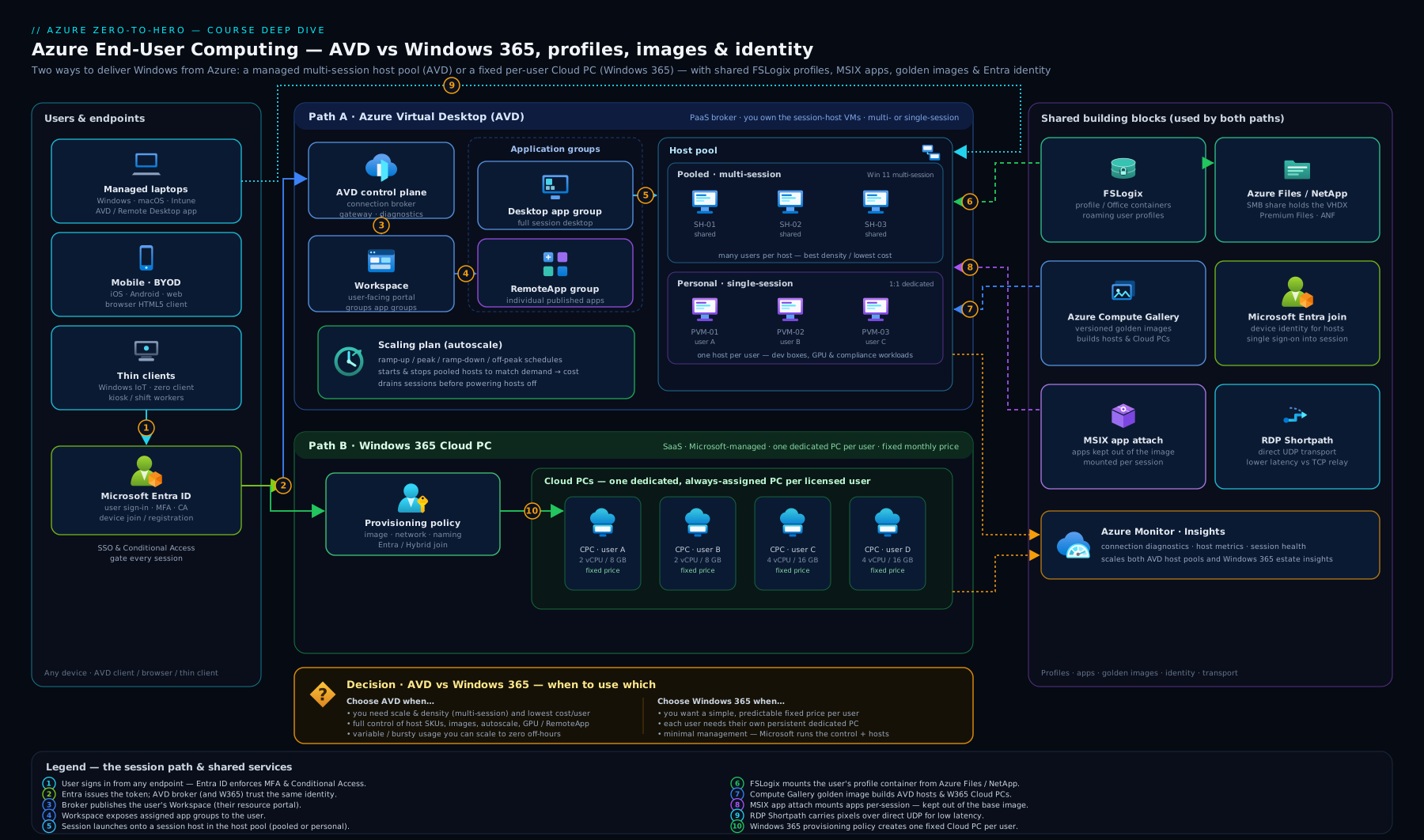
The diagram traces the full path: a user on any device authenticates through Microsoft Entra and the Microsoft-managed AVD control plane (broker, gateway), is brokered over a reverse connection into a session host in your data plane, where FSLogix attaches their profile from Azure Files and MSIX app attach mounts their apps — with the Windows 365 Cloud PC shown as the managed alternative front door.
Going deeper
The sections above give you the working model; production AVD and Windows 365 live in the details below. None of this replaces what you already read — it is the layer underneath.
The agent stack and the reverse-connect handshake
A session host isn’t “AVD-aware” from the image alone. Three pieces make it join: the RDAgent (the brain that registers the host, receives the broker’s orchestration, and hands off sessions), the RDAgentBootLoader (a watchdog that starts and restarts the agent), and the side-by-side (SxS) network stack that terminates the reverse connection; a Geneva monitoring agent ships health and diagnostics. At boot the agent uses a registration token (the one the lab generates) to enrol into the pool, then opens a persistent outbound 443 channel to the AVD gateway. When a user connects, the broker matches them to a host and stitches both ends over that pre-established channel — which is exactly why no inbound port is ever opened. When logons fail with a host showing “Unavailable”, suspect the agent, the boot-loader, or an expired token long before you suspect the network.
Metadata location vs session-host region
A subtle trap: creating a host pool, workspace, or app group asks for a location, but that location is only where the service metadata lives (a limited set of metadata regions). Your session hosts can run in any Azure region. Teams routinely keep metadata in, say, East US while running hosts in Central India next to their users and data — that is correct and expected. Don’t drag hosts into a metadata region “to match”; co-locate hosts with the FSLogix share and the users, never with the control objects.
FSLogix internals that decide login speed
The Profile Container is a VHDX (prefer it over the older VHD — more robust, larger, resilient to corruption) and is dynamically expanding by default, so it grows toward its size limit as the profile fills. Two facts shape every design:
- It’s a single-writer disk. One host mounts the VHDX read-write at a time. If a stale session keeps the lock, the next login gets a temporary profile — which is why full sign-out and session-cleanup hygiene matter. Cloud Cache is the escape hatch: it keeps the profile across two or more storage providers and enables active/active resilience across regions.
- Logins are IOPS-bound, not capacity-bound. Premium Azure Files bills on provisioned GiB and scales IOPS/throughput with that size (roughly one baseline IOPS per provisioned GiB, plus bursting). During a 9 a.m. login storm each user briefly needs tens of IOPS, so teams sometimes provision more capacity than they need purely to buy IOPS. Trim the container with a redirections.xml (exclude re-downloadable caches) and split heavy Outlook/OneDrive data into the Office Container so the two disks size and back up independently.
MSIX app attach: the four-stage lifecycle
App attach isn’t “install lite” — nothing is installed. A package moves through stage → register → deregister → destage: the OS stages the image (mounts the VHDX/CIMFS), registers the app into a specific user’s session at logon, then deregisters and destages at logoff. CIMFS (Composite Image File System) is the modern, lighter alternative to VHDX for these images and is preferred for new deployments. Hard limits to remember: the app must be MSIX-packageable (installers carrying drivers, services, or out-of-process COM often are not), every host must trust the package’s code-signing certificate, and the image share wants the same low-latency, in-region SMB as FSLogix. App attach is Microsoft’s successor to App-V; if you still run App-V sequences, plan the migration.
Autoscale native vs Nerdio — and the other power levers
Native Autoscale scaling plans are free, first-party, and driven by schedules plus a capacity threshold; they are the right default. They are not the same as Nerdio Manager for Enterprise (NME) — a third-party product you deploy into your own subscription that layers on more granular, message-based auto-scaling (scale on real session load, aggressive off-hours scale-in), image management, and cost analytics. Reach for Nerdio when native scheduling is too coarse for spiky, cost-sensitive fleets; stay native when schedules suffice. Two complementary levers pair with either: Start VM on Connect (SVOC) powers on a deallocated host when a user arrives and none is free (essential for personal pools and thin off-peak pools), and drain mode (AllowNewSession=false) quietly stops new sessions on a host so you can patch it without evicting anyone. And remember the golden rule from the core lesson — the AVD service principal needs a power-management role — but where policy demands minimal blast radius, grant it as a least-privilege custom role (start, deallocate, and read on the VMs) rather than the broad built-in.
Sizing, GPUs, and cheaper disks
Density is the whole economic case for pooled AVD, and it comes from right-sizing vCPU:RAM per user, not from buying the biggest VM. Microsoft’s sizing guidance uses rough per-vCPU multipliers by workload — representative figures: ~6 light / ~4 medium / ~2 heavy users per vCPU, with a minimum of 4 vCPU per multi-session host and an eye on NUMA boundaries. Graphics or CAD users belong on NV-series GPU VMs with the GPU driver extension and GPU-accelerated encoding. For non-persistent pooled hosts, switch the OS disk to an ephemeral OS disk — it lives on the VM’s local storage, costs nothing as a managed disk, and reimages fast, which suits a machine you rebuild from a gallery image anyway.
Identity, RBAC, and the roles you actually assign
Beyond “Entra join vs hybrid,” AVD ships a family of built-in Desktop Virtualization roles — Contributor, Reader, User, Host Pool Contributor, Application Group Contributor, Workspace Contributor, Session Host Operator, Power On Contributor, and Power On Off Contributor. Assign narrowly: helpdesk gets Session Host Operator, app owners get Application Group Contributor, and only the AVD service principal gets power management. For end users, Desktop Virtualization User on the app group is the assignment that surfaces the desktop. Layer Conditional Access on the Azure Virtual Desktop cloud app to force MFA and compliant devices, and prefer Entra Kerberos for Azure Files so Entra-joined hosts mount the profile share without any domain controller in the path.
Resilience and Windows 365 nuances
Spread pooled hosts across availability zones and let the Microsoft-managed control plane (multi-region, 99.9% SLA) handle broker resilience; use Cloud Cache when the profile itself must survive a region loss. On the Windows 365 side, a provisioning policy binds an image + network (ANC or Microsoft-hosted) + join type; removing a user’s license opens a grace period (about seven days) before the Cloud PC is deprovisioned, and restore points let you roll a Cloud PC back in time. Frontline enforces non-concurrency — a small pool of Cloud PCs shared by more named users, e.g. 3:1 — powerful for shift work, but it will deny a login once every seat is busy, so size the concurrency honestly. VM hibernation (personal pools and Windows 365; regional GA varies) saves session state to disk for a fast resume with no compute charge while asleep.
For the enterprise-scale build of all this — 5,000 users, compliance, a third-party IdP — see Azure Virtual Desktop for 5,000 Knowledge Workers; for the image pipeline that feeds host pools, VMSS, Image Builder & Compute Gallery; and to harden the front door, Conditional Access & token protection.
Hands-on lab: build a pooled AVD host pool with FSLogix storage
This lab stands up a minimal pooled host pool with one small session host, a workspace, a desktop app group, and an Azure Files share ready for FSLogix — all on a budget you can tear down in minutes. Run it in Azure Cloud Shell (Bash) or a local shell with the Azure CLI signed in.
Install the AVD CLI extension and set variables:
# AVD lives in the desktopvirtualization extension
az extension add --name desktopvirtualization 2>/dev/null

RG=rg-euc-lab
LOC=eastus
POOL=hp-euc-lab
WS=ws-euc-lab
APPGRP=dag-euc-lab
SA=steuclab$RANDOM            # storage account names must be globally unique + lowercase
SHARE=profiles

az group create --name $RG --location $LOC
Create the host pool (pooled, breadth-first), a workspace, and a desktop application group, then wire them together:
# 1) Pooled host pool, breadth-first load balancing, 8 sessions per host max
az desktopvirtualization hostpool create \
  --resource-group $RG --name $POOL --location $LOC \
  --host-pool-type Pooled \
  --load-balancer-type BreadthFirst \
  --max-session-limit 8 \
  --preferred-app-group-type Desktop

# 2) A desktop application group bound to the pool
HP_ID=$(az desktopvirtualization hostpool show -g $RG -n $POOL --query id -o tsv)
az desktopvirtualization applicationgroup create \
  --resource-group $RG --name $APPGRP --location $LOC \
  --application-group-type Desktop \
  --host-pool-arm-path "$HP_ID"

# 3) A workspace, with the app group registered into it
AG_ID=$(az desktopvirtualization applicationgroup show -g $RG -n $APPGRP --query id -o tsv)
az desktopvirtualization workspace create \
  --resource-group $RG --name $WS --location $LOC \
  --application-group-references "$AG_ID"
Create a Premium Azure Files share to hold FSLogix profile containers (in-region, low-latency):
az storage account create \
  --resource-group $RG --name $SA --location $LOC \
  --sku Premium_LRS --kind FileStorage \
  --https-only true --min-tls-version TLS1_2

KEY=$(az storage account keys list -g $RG -n $SA --query "[0].value" -o tsv)
az storage share-rm create \
  --resource-group $RG --storage-account $SA \
  --name $SHARE --quota 100
Assign a user to the desktop so they would see it in the Remote Desktop client (replace the UPN). Users are assigned to the application group, never the host pool:
USER_OID=$(az ad user show --id someone@yourtenant.com --query id -o tsv)
az role assignment create \
  --assignee "$USER_OID" \
  --role "Desktop Virtualization User" \
  --scope "$AG_ID"
Validation — confirm the objects exist and are linked:
az desktopvirtualization hostpool show -g $RG -n $POOL \
  --query "{name:name, type:hostPoolType, lb:loadBalancerType, max:maxSessionLimit}" -o table
az desktopvirtualization workspace show -g $RG -n $WS \
  --query "applicationGroupReferences" -o tsv
az storage share-rm show -g $RG --storage-account $SA -n $SHARE \
  --query "{share:name, quotaGiB:shareQuota}" -o table
You should see a Pooled / BreadthFirst host pool, the workspace referencing your app group’s resource ID, and a 100 GiB profile share. (Adding an actual session-host VM and joining it to the pool requires a registration token and the AVD agents — out of scope for a free teardown lab, but this is exactly the skeleton those hosts attach to.)
Generate a host registration token (this is how a real session host would join — note the value, then we tear down):
az desktopvirtualization hostpool update -g $RG -n $POOL \
  --registration-info expiration-time="$(date -u -d '+2 hours' +%Y-%m-%dT%H:%M:%SZ)" registration-token-operation=Update \
  --query "registrationInfo.token" -o tsv 2>/dev/null || echo "Token op submitted"
Cleanup — delete the whole resource group so nothing lingers on the bill:
az group delete --name $RG --yes --no-wait
Cost note (INR). The control-plane objects you created — host pool, workspace, app group — are free; AVD bills only for the session-host VMs and their disks, which this lab does not create. The Premium Azure Files share is the only charge: Premium Files is provisioned, so a 100 GiB share costs roughly ₹1,300–1,600 per month if left running — but deleted within the hour as above it costs a few rupees. A real one-host pool would add a B2ms/D2s VM at roughly ₹0.9–1.5/hour (deallocate it overnight with a scaling plan and the monthly cost drops by half or more). Always delete the resource group when you finish a lab.
Common mistakes & troubleshooting
| Symptom | Likely cause | Fix |
|---|---|---|
| User signs in but profile is empty / “failed to attach” | FSLogix can’t reach or authenticate to the SMB share; or AV is locking the VHDX | Verify the storage identity (Entra Kerberos / AD DS), NTFS + share permissions, and exclude FSLogix VHDX paths from antivirus |
| Logins are painfully slow on a pooled pool | Profile share is in a different region or on Standard (not Premium) Files | Co-locate the share in-region; use Premium Azure Files or ANF for IOPS |
| Scaling plan is created but hosts never start/stop | The AVD service principal lacks rights on the VMs | Assign Power On Off Contributor (or custom role) to the AVD object on the subscription/RG |
| “You can’t assign a user to both Desktop and RemoteApp” error | Mixed app-group types in one host pool | Use separate host pools for the desktop and the RemoteApp experiences |
| Session feels laggy despite a fast link | Falling back to TCP reverse-connect | Enable RDP Shortpath; open the UDP flow (3390 managed / STUN-TURN public) on NSG/firewall |
| New session hosts deploy from an old image | Host pool pinned to a stale image version | Build the next gallery version with VM Image Builder and roll the pool |
| MSIX app doesn’t appear in the session | Package not signed/trusted, or share unreachable | Install the code-signing cert on hosts; verify the app-attach image path and SMB latency |
| Cloud PC can’t reach on-prem app | Windows 365 using Microsoft-hosted network instead of your VNet | Configure an Azure Network Connection (ANC) and reprovision into it |
Common beginner mistakes
These are model errors, not symptoms — fix the mental model and the symptoms never appear. (For symptom → cause → fix, use the troubleshooting table above.)
- “I need to open RDP (3389) and give hosts a public IP.” No. AVD uses reverse connect: the host dials out to the gateway on 443 and the broker stitches the session over that channel. Session hosts should have no public IP and no inbound 3389 — that’s a security feature, not a gap.
- “Users get assigned to the host pool.” Users are assigned to an application group (via Desktop Virtualization User). The host pool is the pool of machines; the app group is what a person can see. Assigning at the pool level does nothing.
- “FSLogix is just roaming profiles rebranded.” Roaming profiles copy files at logon/logoff and corrupt easily. FSLogix mounts a VHDX disk into the session, so the profile roams as a block device at near-local speed — a different mechanism with different failure modes.
- “A scaling plan will start my hosts by itself.” Only after you grant the AVD service principal a power role and, for the first host or personal pools, enable Start VM on Connect. A plan with no permission “does nothing” — the number-one autoscale support ticket.
- “AVD vs Windows 365 — I must choose one.” They’re complementary. Dense, variable, cost-driven fleets → AVD; steady, persistent, low-ops per-user desktops → Windows 365. Plenty of shops run both from one tenant.
- “Multi-session Windows 11 is just regular Windows 11 (or old RDS).” It’s a special Azure-only SKU letting many users share one VM, licensed through Microsoft 365 / Windows E3+ — no RDS CALs, and you can’t run it outside Azure.
- “Personal pools are persistent, so I can ignore profiles and backup.” Persistent ≠ protected. A personal host still needs an image/patch strategy and a backup plan — lose the VM and you lose the user’s world unless you designed for it.
- “Deallocated is the same as stopped, and both are free.” Stopped (not deallocated) still bills compute; only deallocated releases it — and you still pay for the disk either way. Autoscale deallocates for exactly this reason.
Best practices
- Keep the golden image thin. OS + AVD agents + FSLogix + antivirus + truly universal apps only; deliver everything else via MSIX app attach and Intune. Thin images rebuild and patch fast.
- Always FSLogix for pooled. Never run a pooled, non-persistent host pool without profile containers — and always on Premium, in-region SMB.
- Right-size with depth-first + autoscale. Pack users with depth-first during ramp-down and let scaling plans deallocate overnight; this is the dominant cost lever.
- Separate experiences with separate pools. Desktop users and RemoteApp users belong in different host pools to avoid the mixed-assignment block and to scale each independently.
- Use the Compute Gallery from day one. Even for a small fleet, build images as versioned gallery artifacts with VM Image Builder so rollouts are repeatable and replicate to where your hosts deploy.
- Enable RDP Shortpath everywhere it is safe (it falls back), especially for graphics/real-time users.
- Tag and group by department. Map app groups and FSLogix App Masking to Entra groups so onboarding/offboarding is a group-membership change, not a ticket.
- Choose the front door deliberately. AVD for dense, variable, controlled fleets; Windows 365 for steady, persistent, low-ops per-user desktops — and don’t be afraid to run both.
Security notes
- No inbound ports. AVD’s reverse-connect transport means session hosts need no public IP and no inbound 3389 — keep NSGs locked to deny inbound from the internet and let only the outbound gateway connection out.
- Enforce Conditional Access + MFA on the Azure Virtual Desktop and Microsoft Remote Desktop cloud apps; require compliant or hybrid-joined devices and block legacy auth. Combine with Entra SSO so users authenticate strongly, once.
- Protect the profile and app shares. Use private endpoints / service endpoints for Azure Files, least-privilege NTFS permissions (a user can touch only their own profile folder), and consider encryption and soft-delete on the storage account.
- Defender for Endpoint on every session host. Treat session hosts as managed endpoints — onboard them to Defender, patch via the image pipeline + scaling-plan-friendly maintenance windows, and use screen capture / clipboard / drive-redirection RDP properties to control data exfiltration.
- Lock down the data plane. FSLogix keeps data in the container in your tenant; reinforce it with redirection controls so users cannot copy PII to a local drive, and audit AVD diagnostics (connections, errors, host health) into Log Analytics.
- Least-privilege the AVD service principal. Give autoscale only the power-management role it needs, not Contributor.
Interview & exam questions
- Explain the AVD control plane vs data plane. Microsoft runs and SLAs the control plane (broker, gateway, web access, diagnostics) at no cost to you; you own and pay for the data plane (session-host VMs, disks, VNet, FSLogix storage, images). Session data never leaves your tenant; hosts use an outbound reverse connection so they need no inbound ports.
- Pooled vs personal host pool — when each? Pooled = many users share multi-session hosts, non-persistent, cheap, needs FSLogix; for task/knowledge workers. Personal = 1:1 dedicated, persistent; for developers, admins, GPU users, or anyone who installs software.
- Where are users assigned, and what’s the mixed-assignment rule? To application groups, not host pools. A user can’t be in both a Desktop and a RemoteApp app group within the same host pool — use separate pools.
- What problem does FSLogix solve and how? The roaming-profile problem on non-persistent hosts. It stores the profile in a VHDX on SMB and mounts it into the session at native speed, so the user feels at home on any host. The share must be low-latency, in-region (Premium Files/ANF).
- What is MSIX app attach and why use it? Runtime delivery of apps to non-persistent hosts by attaching a packaged app from a share without installing it, decoupling apps from the OS so the golden image stays thin and apps update by replacing one package.
- How does AVD autoscale save money? Scaling plans start/deallocate hosts on a schedule (ramp-up/peak/ramp-down/off-peak); a deallocated VM incurs no compute charge, so shutting hosts off overnight is the biggest cost lever. It requires granting the AVD service principal a power-management RBAC role.
- What is RDP Shortpath and its two modes? A direct UDP transport for the session (vs default TCP reverse-connect), better for interactivity, with automatic TCP fallback. Managed networks = direct UDP over private link; public networks = UDP via STUN/TURN NAT traversal.
- AVD vs Windows 365 — give the decision. AVD for multi-session density, full control, variable usage, RemoteApps/GPU. Windows 365 for fixed per-user pricing, a persistent appliance desktop, steady usage, and Intune-identical management.
- Entra joined vs Entra hybrid joined for session hosts? Entra-joined = cloud-only (reach on-prem via Entra Kerberos/Entra DS); hybrid-joined = on-prem AD DS + Entra (native Kerberos to on-prem resources/GPO). Choose hybrid when you still depend on on-prem AD.
- What does the Azure Compute Gallery give an AVD fleet? Versioned, immutable images that replicate to multiple regions with multiple replicas, enabling fast parallel host deployment and controlled roll-forward/rollback; pair with VM Image Builder for images-as-code.
- Why do AVD session hosts not need a public IP? The reverse-connect model: hosts make an outbound connection to the gateway, and the broker pairs the user over that channel — no inbound listener is exposed.
- What is Windows 365 Frontline for? Shared, non-concurrent Cloud PCs: a smaller number of Cloud PCs serve a larger pool of shift workers who never use them at the same time, cutting per-seat cost.
Quick check
- To which AVD object are users assigned so a desktop appears in their client?
- Which host-pool type requires FSLogix, and why?
- Name the storage requirement (location + tier) for an FSLogix profile share.
- Which RBAC role must the AVD service principal hold for autoscale to work?
- What transport does RDP Shortpath add, and what does it fall back to?
Answers
- The application group (specifically a Desktop app group), via a role like Desktop Virtualization User — never the host pool directly.
- Pooled (non-persistent, multi-session). Users may land on a different host each time, so profiles must roam via FSLogix or they would be empty.
- In-region with the session hosts, on Premium Azure Files (or Azure NetApp Files) for low-latency, high-IOPS SMB.
- Power On Off Contributor (or an equivalent custom role) so it can start/stop/deallocate the session-host VMs.
- A direct UDP transport; it falls back automatically to TCP over the gateway reverse connection if UDP can’t be established.
Exercise
Design (on paper or in a test subscription) an AVD environment for a 120-person customer-service team that works 8 am–8 pm in one region, plus 15 developers who need persistent machines and admin rights. Decide: (a) how many host pools and of which type; (b) the OS SKU for each; © where FSLogix profiles live and on what tier/identity; (d) a scaling-plan outline (phases + behaviours) for the pooled pool and the personal pool; (e) which apps go in the golden image vs MSIX app attach; (f) the identity/join model and the Conditional Access policy you would apply. Then estimate the rough monthly compute saving from deallocating the pooled pool outside the 8 am–8 pm window versus running it 24/7. Finally, write one sentence justifying whether the 15 developers should be on AVD personal or on Windows 365 instead.
Practice challenges
Work these in order — each escalates. Commands are illustrative (schema-correct AVD/az CLI and PowerShell); all names and IDs are placeholders, and nothing here has been live-run. Reuse the lab’s $RG / $POOL / $HP_ID / $LOC variables.
Challenge 1 (Beginner) — Assign a user so a desktop appears in their client. Which object do you target, and with which role?
<details><summary>Solution</summary>
AG_ID=$(az desktopvirtualization applicationgroup show -g $RG -n dag-euc-lab --query id -o tsv)
az role assignment create --assignee someone@yourtenant.com \
  --role "Desktop Virtualization User" --scope "$AG_ID"
The application group (not the host pool) is the assignment boundary — why: the client feed is built from the app groups a user can see. </details>
Challenge 2 (Beginner) — Flip a pooled pool to depth-first and cap sessions. Pack users onto fewer hosts to save cost.
<details><summary>Solution</summary>
az desktopvirtualization hostpool update -g $RG -n $POOL \
  --load-balancer-type DepthFirst --max-session-limit 12
Why: depth-first fills one host before waking the next, so autoscale can keep more hosts deallocated off-peak. </details>
Challenge 3 (Intermediate) — Turn FSLogix on for a session host via the registry. Name the two keys that must be set.
<details><summary>Solution</summary>
$k = "HKLM:\SOFTWARE\FSLogix\Profiles"
New-Item $k -Force | Out-Null
Set-ItemProperty $k Enabled 1 -Type DWord
Set-ItemProperty $k VHDLocations "\\st…privatelink.file.core.windows.net\profiles" -Type MultiString
Why: Enabled=1 activates the container and VHDLocations points FSLogix at the in-region SMB share that holds the VHDX.
</details>
Challenge 4 (Intermediate) — Create a pooled scaling plan, then name the one RBAC step without which it’s inert.
<details><summary>Solution</summary>
az desktopvirtualization scaling-plan create -g $RG -n sp-euc-lab \
  --location $LOC --time-zone "India Standard Time" --host-pool-type Pooled
# then associate it with $POOL and define ramp-up / peak / ramp-down / off-peak schedules
Assign Desktop Virtualization Power On Off Contributor to the Azure Virtual Desktop service principal on the RG. Why: the plan can only start/stop VMs it holds power rights over. </details>
Challenge 5 (Advanced) — Size a pooled fleet. 240 medium users on D-series multi-session. Using ~4 medium users per vCPU and 8-vCPU hosts, how many hosts at peak, and how do you cut the overnight bill?
<details><summary>Solution</summary>
8 vCPU × 4 medium users ≈ 32 users/host → 240 ÷ 32 ≈ 8 hosts at peak (add one for headroom/HA → 9). Overnight, a scaling plan deallocates down to a 1-host baseline. Why: density comes from the vCPU:user ratio, and deallocated VMs incur no compute charge — the dominant cost lever. </details>
Challenge 6 (Advanced) — Least-privilege the autoscale principal. Write the custom-role actions instead of using the broad built-in.
<details><summary>Solution</summary>
{
  "Name": "AVD Autoscale (least-priv)",
  "IsCustom": true,
  "Actions": [
    "Microsoft.Compute/virtualMachines/start/action",
    "Microsoft.Compute/virtualMachines/deallocate/action",
    "Microsoft.Compute/virtualMachines/read",
    "Microsoft.DesktopVirtualization/hostpools/read",
    "Microsoft.DesktopVirtualization/hostpools/sessionhosts/read"
  ],
  "AssignableScopes": ["/subscriptions/<SUBSCRIPTION_ID>/resourceGroups/rg-euc-lab"]
}
Why: autoscale needs only start / deallocate / read — handing a service principal Contributor is needless blast radius. </details>
Certification mapping
- AZ-140 — Configuring and Operating Microsoft Azure Virtual Desktop (primary): this lesson maps to every domain — Plan an AVD architecture (host pools, workspaces, app groups, network, identity), Implement an AVD infrastructure (host pools, session hosts, FSLogix, MSIX app attach, scaling plans, Compute Gallery images), Manage access and security (Entra join, Conditional Access, RBAC, reverse-connect security), and Manage user environments and apps (profiles, app delivery).
- AZ-104 — Azure Administrator: reinforces VM, VNet/NSG, Azure Files, and RBAC fundamentals that AVD builds on.
- AZ-305 — Azure Solutions Architect: the AVD-vs-Windows-365 decision and the EUC reference design feed design for identity, security, and infrastructure.
- Microsoft 365 / Intune (MD-102 awareness): Windows 365 Cloud PC management and Conditional Access overlap with endpoint administration.
Glossary
- AVD (Azure Virtual Desktop) — Microsoft’s PaaS desktop/app virtualisation service; you own the session hosts, Microsoft runs the brokering control plane.
- Windows 365 / Cloud PC — a fixed-price, per-user persistent Windows 11 desktop Microsoft provisions and you manage via Intune.
- Host pool — a collection of identical session-host VMs; the unit of scaling, either pooled or personal.
- Session host — a single VM running user sessions, joined to a host pool via the AVD agents.
- Application group — a Desktop or RemoteApp grouping that users are assigned to.
- Workspace — the container that aggregates app groups into the user’s client feed.
- Multi-session — Windows 11 Enterprise multi-session, an Azure-only SKU letting many users share one VM.
- Reverse connect — the outbound-only transport that lets session hosts run with no inbound ports/public IP.
- FSLogix Profile Container — the user profile stored as a VHDX on SMB and mounted into the session at sign-in.
- Office Container (ODFC) — an FSLogix container holding just Office/Outlook/Teams/OneDrive caches.
- Cloud Cache — FSLogix replication of containers across multiple storage providers for resilience.
- MSIX app attach — runtime delivery of MSIX-packaged apps from a share without installing them on the host.
- Scaling plan — schedule-driven autoscale rules (ramp-up/peak/ramp-down/off-peak) attached to host pools.
- RDP Shortpath — a direct UDP transport for the session with automatic TCP fallback.
- Azure Compute Gallery — versioned, multi-region-replicated image management (gallery → definition → version).
- Azure VM Image Builder — managed, Packer-based service to build golden images as code.
- Azure Network Connection (ANC) — the bridge joining Windows 365 Enterprise Cloud PCs to your own VNet.
- Microsoft Entra Kerberos — lets Entra-joined hosts get Kerberos tickets to mount Azure Files SMB shares.
- RDAgent / RDAgentBootLoader — the session-host agent that registers the VM and brokers sessions, plus the boot-loader watchdog that keeps it running.
- AVD gateway (reverse connect) — the Microsoft-managed endpoint the host dials outbound on 443; the broker stitches user sessions over it, so no inbound port is opened.
- Metadata location — the region that stores AVD service objects (host pool / workspace / app group); session hosts may run in any region, independent of it.
- Start VM on Connect (SVOC) — a host-pool setting that powers on a deallocated host when a user connects and none is available.
- Drain mode —
AllowNewSession=falseon a host: existing sessions continue, new ones are blocked, for safe patching. - Breadth-first / Depth-first — load-balancing algorithms: spread users across hosts for responsiveness, or fill one host before the next to save cost.
- CIMFS — Composite Image File System; the lighter, modern image format for MSIX app attach (and FSLogix), preferred over VHDX for new deployments.
- redirections.xml — an FSLogix rules file that includes/excludes paths from the profile container to keep it small.
- Ephemeral OS disk — an OS disk stored on the VM’s local storage (no managed-disk cost, fast reimage), ideal for non-persistent pooled hosts.
- Trusted Launch — a Gen2 VM security feature (Secure Boot + vTPM) set on the Compute Gallery image definition; required for Windows 11.
- Nerdio Manager for Enterprise (NME) — a third-party layer over AVD adding granular auto-scaling, image management, and cost analytics, distinct from native Autoscale.
- Provisioning policy (Windows 365) — the template binding a Cloud PC’s image, network (ANC or Microsoft-hosted), naming, and join type.
- Frontline (non-concurrency) — a Windows 365 model where a small pool of Cloud PCs serves more named users who never sign in at once.
- Power On Off Contributor — the built-in Desktop Virtualization role the AVD service principal needs so scaling plans can start/stop hosts.
- VM hibernation — saving a personal host’s or Cloud PC’s RAM to disk so it resumes fast with no compute charge while asleep.
Next steps
- Go deep on the production blueprint: Azure Virtual Desktop for 5,000 Knowledge Workers with FSLogix and Okta — the same building blocks at enterprise scale and under compliance.
- Strengthen the storage layer: Azure Files & NetApp: SMB Identity, AD/Kerberos & Data Protection — exactly where FSLogix profiles live.
- Harden access: Azure Authentication: SSO, MFA & Passwordless and Azure Bastion Deep Dive for securing administrative paths to your hosts.
- Continue the course: Azure IoT: IoT Hub, Device Provisioning, IoT Edge & Digital Twins.