In a nutshell
Picture the file room your company has kept for fifteen years: rows of locked cabinets and a badge reader on the door. Two separate things have to be true before you can pull a folder. The building’s badge system has to recognise your existing employee badge and buzz you through the door – and then the individual cabinet’s lock has to be one your badge is cut for. Nobody hands out a master key, because a master key opens every cabinet and leaves no record of who took what.
Moving that file room to Azure is exactly this picture with cloud names. The cabinets become an Azure Files share or an Azure NetApp Files volume. The badge system is identity-based authentication: your Windows domain account (via Kerberos) is your badge, so you are never re-prompted for a password. The master key you refuse to hand out is the storage account key – a 64-character root password that bypasses every lock and every audit log. The two checks are the two-gate model: share-level RBAC is the door (“can you mount this share at all?”) and NTFS ACLs are the cabinet locks (“what can you open once inside?”). And the building directory that tells your badge which room to walk to is DNS – get it wrong and your badge tries the wrong building (a public IP) and the mount silently fails.
The last piece is the photocopies. Some copies sit in the same room (snapshots and soft delete – perfect for “oops, I shredded the wrong folder”, useless if a thief torches the room). One copy lives in an off-site, tamper-proof vault (immutable backup – your ransomware insurance). And a duplicate room in another city (cross-region replication) is what you fall back to if the whole building burns down. Three copies for three different disasters; keep that straight and half the design is done.
Level: Advanced (with a beginner on-ramp) · Time: ~71 min read
Before you start, be comfortable with storage-account basics – redundancy (LRS/ZRS/GRS), keys, and SAS from the Azure Storage Accounts Deep Dive – and know what Active Directory, a SID, and a Kerberos ticket are. The fuller prerequisite list is in Prerequisites & where this fits just below.
You’ll walk away able to choose Azure Files vs ANF on a real latency SLO (not a marketing slide), stand up identity-based SMB without ever leaking a key, force the data plane private with a private endpoint, and layer snapshots + immutable backup + replication so every failure – oops, ransomware, region loss – has its own answer.
New here? Read the analogy above, then skim the table in each section before the prose. The prose explains the tables, but the tables are what you keep open on a second monitor during an actual cutover.
Every “lift the file server to Azure” project stalls at the same place: somebody opens the share, gets prompted for credentials that do not match their domain account, and the migration is suddenly “blocked on storage.” The fix is almost never more storage – it is wiring identity correctly so that the NTFS ACLs the business has maintained for fifteen years keep working, and that the wire protocol stays Kerberos rather than falling back to a storage account key everyone can extract. Azure gives you two managed SMB platforms for this: Azure Files (a feature of the storage account) and Azure NetApp Files (a bare-metal NetApp service fronted by an Azure resource provider). They overlap on the marketing slide and diverge sharply in operation.
This is how to choose between them, stand up identity-based SMB without leaking a key, lock the data plane to private endpoints, and protect the data with snapshots and replication that survive a region loss. We treat the whole thing as one two-gate access path (share-level RBAC for can you mount, NTFS ACLs for what you can do) running over a Kerberos handshake that only behaves when DNS resolves the account to a private IP. Get those three – identity source, two gates, private DNS – right, and the rest is sizing.
By the end you will stop guessing which platform to pick, you will know exactly which klist ticket proves Kerberos won, you will be able to read the directoryServiceOptions field that tells you whether you achieved identity-based access at all, and you will have a snapshot-plus-replication posture that distinguishes “oops, I deleted a file” from “ransomware encrypted the share.” Because this is a reference you will return to mid-migration, the platform comparison, the identity matrix, the RBAC roles, the error strings and the sizing levers are all laid out as scannable tables – read the prose once, then keep the tables open during the cutover.
What problem this solves
A domain file server is fifteen years of accreted NTFS ACLs, mapped drives in logon scripts, DFS namespaces, and muscle memory. “Move it to the cloud” sounds like a storage task and is actually an identity task: unless the storage account can mint a Kerberos ticket your domain users trust, every mount prompts for credentials, falls back to NTLM (which Azure Files rejects for AD identities), or – worst – gets wired up with the storage account key, which is a 64-byte root password to the entire account that anyone with the connection string can extract and which bypasses every ACL you ever set.
What breaks without getting this right: FSLogix profile containers fail to attach during the morning login storm; a “temporary” key-based mount in a logon script becomes permanent and un-auditable; on-prem clients resolve the account to a public IP and either get blocked at port 445 or quietly egress file traffic over the internet; and the team discovers during an incident that their only “backup” was a snapshot living in the same account the attacker just encrypted.
Who hits this: anyone migrating a Windows file server, anyone running Azure Virtual Desktop with FSLogix profiles, SAP/HPC/EDA teams who need sub-millisecond NFS or SMB, and every hybrid shop that has both on-prem AD DS and Entra-joined endpoints and has to decide which identity source the storage account joins. The fix is rarely “buy a bigger tier” – it is “wire identity, DNS, and the two access gates so the protocol does what you think it does.”
To frame the field before the deep dive, here is every decision this article forces, the question behind it, and the section that settles it:
| Decision | The question it forces | Where it is settled |
|---|---|---|
| Azure Files vs ANF | Does the SLO mention milliseconds or microseconds? | Platform selection |
| Identity source | On-prem AD DS, Entra Kerberos, or Entra Domain Services? | Identity-based access |
| Access model | Who can mount (RBAC) vs what they can do (NTFS)? | The two-gate model |
| Network exposure | Public IP, service endpoint, or private endpoint? | Private endpoints & DNS |
| Data protection depth | Oops-recovery, ransomware-recovery, or region-loss? | Snapshots, backup, replication |
| Branch caching | Sync the whole dataset or tier the cold tail? | Azure File Sync |
| Throughput model | Provision capacity for IOPS, or decouple them? | Performance tuning |
Learning objectives
By the end of this article you can:
- Choose Azure Files vs Azure NetApp Files on a latency SLO, throughput ceiling and operational-footprint basis – not the marketing slide – and justify the 1 TiB+ pool floor ANF imposes.
- Stand up identity-based SMB against on-prem AD DS, Microsoft Entra Kerberos, or Entra Domain Services, and explain why NTFS permissions still resolve against AD SIDs even with cloud-only auth.
- Configure the two-gate access model correctly: share-level Azure RBAC for mount rights, NTFS ACLs (
icacls) for in-share rights, and never confuse the two in a support ticket. - Force the SMB data plane private with a Private Endpoint on the
filesub-resource, wireprivatelink.file.core.windows.netso on-prem resolves the account to the private IP, and disable public network access. - Build a layered data-protection posture – share snapshots, soft delete, vaulted backup, and ANF cross-region replication – and articulate which layer covers oops, which covers ransomware, and which covers a region loss.
- Deploy Azure File Sync with cloud tiering and multi-site replication, and avoid the antivirus/backup recall trap that rehydrates an entire tiered dataset.
- Right-size throughput with Premium SSD v2 (decoupled IOPS/throughput) or the right ANF service level, and confirm Kerberos actually won with
klistanddirectoryServiceOptions.
Prerequisites & where this fits
You should be comfortable with the storage-account fundamentals – redundancy (LRS/ZRS/GRS), the resource model, and SAS/keys – from the Azure Storage Accounts Deep Dive and Azure Storage Account Fundamentals. You should understand basic Active Directory (computer objects, SPNs, SIDs, OUs) and that Entra Connect syncs on-prem AD to Entra ID – the Entra Connect Sync deep dive is the upstream of every “synced identity” claim here. Private DNS and private endpoints from Private Endpoints & Private DNS at scale are assumed; the Private DNS Resolver hybrid forwarding article is how on-prem clients resolve the private zone.
This sits in the storage + identity seam. It assumes the identity fundamentals from Entra ID Fundamentals and pairs tightly with Azure Virtual Desktop at 5,000 users with FSLogix, because FSLogix profile storage is the single most common reason teams care about identity-based SMB. When mounts fail with 403/access-denied, Troubleshooting Azure Storage: 403s, firewall, private endpoint, RBAC & SAS is the sibling playbook.
A quick map of who owns what during a file-server migration, so you escalate to the right person fast:
| Layer | What lives here | Who usually owns it | Failure classes it can cause |
|---|---|---|---|
| Identity source | AD object, SPN, Kerberos key | Identity / AD team | Mount prompts, NTLM fallback, key-based mounts |
| DNS | privatelink.file zone, forwarders |
Network team | FQDN → public IP, 445 blocked, internet egress |
| Network | Private endpoint, NSG, delegated subnet | Network team | 445 unreachable, ANF subnet collisions |
| Storage platform | Files account / ANF volume, tiers | Storage / platform team | Throttling (429), throughput limits, pool floor cost |
| Access control | Share RBAC + NTFS ACLs | App + identity team | “Can mount but can’t write”, over-broad access |
| Data protection | Snapshots, soft delete, backup, CRR | Backup / DR team | No ransomware recovery, failover not rehearsed |
Core concepts
Five mental models make every later decision obvious.
There are two managed SMB platforms, and they are different resources. Azure Files is a feature of a storage account (Microsoft.Storage/storageAccounts); you get a share inside the same account that holds blobs and queues. Azure NetApp Files is a separate, bare-metal NetApp service (Microsoft.NetApp/netAppAccounts) with its own hierarchy – account → capacity pool → volume – injected into a delegated subnet. They both speak SMB 3.x and both do snapshots and AD integration, but they bill, scale, and operate differently.
Identity-based access means the storage account has its own AD object. A computer (or service-logon) object representing the storage account is created in your chosen identity source. That object holds a Kerberos key. When a client mounts \\<account>.file.core.windows.net\<share>, it asks a domain controller for a service ticket for the SPN cifs/<account>.file.core.windows.net, the account decrypts that ticket with its Kerberos key, Azure maps the user’s SID, and only then are NTFS ACLs evaluated. No key, no password, no prompt – Kerberos single sign-on against the signed-in domain user.
Access is a two-gate model and confusing the gates is the #1 ticket. Gate one is share-level RBAC: Azure role assignments decide who can mount the share at all. Gate two is directory/file-level NTFS: standard Windows ACLs decide what you can do once mounted. A user can have the RBAC role to mount and still be denied a write by the NTFS ACL – or have generous NTFS but no RBAC and never get in the door. Both gates must say yes.
DNS decides whether Kerberos and the private data plane work at all. By default *.file.core.windows.net resolves to a public IP. For Kerberos to behave and for SMB (TCP 445) to stay off the internet, you front the account with a Private Endpoint and wire the privatelink.file.core.windows.net private DNS zone so the FQDN resolves to the endpoint’s private IP. On-prem clients must be able to resolve that private zone (via forwarders to a Private Resolver) or they will resolve the public IP and mounts fail or egress over the internet.
Snapshots, backup, and replication protect against different things. Share snapshots and soft delete live in the same account as the data – they cover accidental deletion (“oops”) but an attacker with account rights can purge them. Vaulted backup stores an immutable copy off the account – that is your ransomware defense. Cross-region replication (ANF) or GRS mirrors the data to another region – that is your region-loss defense. They are defense in depth, not substitutes.
The vocabulary in one table
Pin down every moving part before the deep sections; the glossary repeats these for lookup.
| Concept | One-line definition | Where it lives | Why it matters |
|---|---|---|---|
| Azure Files | SMB/NFS share inside a storage account | Microsoft.Storage |
General-purpose, one resource to manage |
| Azure NetApp Files (ANF) | Bare-metal NetApp service | Microsoft.NetApp |
Sub-ms latency; SAP/HPC/EDA |
| Capacity pool | ANF container that sets service level | Under a NetApp account | Sets throughput; 1 TiB minimum |
| Volume | The actual ANF share | Carved from a pool | Lives in a delegated subnet |
| Identity source | Where SMB identities resolve | AD DS / Entra / AAD DS | Mints the Kerberos ticket |
| Kerberos key | Secret for the account’s AD object | The AD object | Decrypts the cifs service ticket |
| Share-level RBAC | Who can mount the share | Azure role assignment | Gate one |
| NTFS ACL | What you can do in the share | The file/folder | Gate two |
| Private endpoint | Private IP for the account | A subnet NIC | Forces SMB off the internet |
privatelink.file |
The private DNS zone | Private DNS | Resolves FQDN → private IP |
| Share snapshot | Read-only point-in-time copy | In the account | Previous Versions; oops recovery |
| Cross-region replication | ANF volume mirror | Paired region | Region-loss recovery |
| Cloud tiering | Cold files become Azure pointers | Azure File Sync agent | Branch cache of a big dataset |
Azure Files vs Azure NetApp Files: tiers, performance, and cost
Both speak SMB 3.x and NFS, both do snapshots, both integrate with AD. The decision usually comes down to latency floor, throughput ceiling, and how much operational surface you want to own.
| Dimension | Azure Files | Azure NetApp Files (ANF) |
|---|---|---|
| Resource model | Feature of Microsoft.Storage/storageAccounts |
Microsoft.NetApp/netAppAccounts → capacity pool → volume |
| SMB tiers | Standard (HDD, GPv2) and Premium (SSD, FileStorage account) |
Standard / Premium / Ultra service levels (set on the pool) |
| Latency | Premium low-single-digit ms; Standard higher and burstier | Sub-millisecond typical on Premium/Ultra |
| Throughput scaling | Premium scales with provisioned size (or v2 provisioned IOPS/throughput) | Throughput follows pool service level and volume quota |
| Min footprint | A 100 GiB Premium share | 1 TiB capacity pool; 2 TiB volume floor on manual pools |
| Protocols | SMB, NFSv4.1, REST | SMB, NFSv3, NFSv4.1, dual-protocol |
| Data protection | Share snapshots, soft delete, Backup vault (vaulted) | Volume snapshots, snapshot policies, backup, cross-region replication |
| Network injection | Standard endpoint or private endpoint | Delegated subnet (Microsoft.NetApp/volumes) |
| AD integration | Per storage account (one directory service) | Per NetApp account (AD connection) |
| Encryption keys | Platform-managed or CMK | Platform-managed (CMK in preview/regions) |
| Largest single share/volume | 100 TiB (large file shares) | 100 TiB (large volumes) |
| Backup model | Vaulted Backup vault | ANF backup + snapshot policy |
| Best fit | General-purpose shares, app config, FSLogix, File Sync hub | SAP, HPC scratch, EDA/render, NFS databases |
Rule of thumb I use on reviews: if the workload tolerates a few milliseconds and you want one resource to manage, Azure Files Premium. If the workload’s SLO mentions microseconds, or it is SAP/HPC/EDA, ANF – and budget for the 1 TiB+ pool floor whether you use it or not.
The same choice as a decision table – match the workload signal to the platform and the reason:
| If you see… | It’s probably… | Do this |
|---|---|---|
| SLO in microseconds / SAP HANA / HPC scratch | A latency-floor workload | ANF (Premium/Ultra), accept the pool floor |
| General file shares, app config, departmental data | A few-ms-tolerant workload | Azure Files Premium (one resource) |
| FSLogix profiles with morning login storms | IOPS-spiky, capacity-modest | Azure Files Premium SSD v2, provision IOPS |
| 40 TB on a branch server, 2 TB hot | A caching problem, not a storage one | Azure File Sync with cloud tiering |
| Dual-protocol (SMB + NFS) on the same data | A mixed-client workload | ANF dual-protocol (needs LDAP) |
| Cheapest bulk archive, rare access | A cost-first, infrequent workload | Azure Files Standard (Cool) |
| Need cross-region DR with tight RPO | A region-loss requirement | ANF cross-region replication (10-min) |
Azure Files tiers, option by option
The Azure Files side alone has three billing/performance models, and picking the wrong one is the single biggest line item I see on file-storage bills.
| Tier / model | Media | Billing basis | Latency | When to pick | Gotcha |
|---|---|---|---|---|---|
| Standard (Transaction Optimized) | HDD (GPv2) | Used GiB + per-transaction | Higher, burstier | Cheap bulk, infrequent access | Transaction costs add up on chatty apps |
| Standard (Hot) | HDD (GPv2) | Used GiB + lower transactions | Higher | General file shares | Still HDD latency floor |
| Standard (Cool) | HDD (GPv2) | Lowest GiB, highest transactions | Higher | Archive-ish shares | Transaction-heavy access is expensive |
| Premium v1 | SSD (FileStorage) |
Provisioned GiB (IOPS scale with size) | Low single-digit ms | Latency-sensitive, predictable | Over-provision capacity to buy IOPS = waste |
| Premium SSD v2 | SSD (FileStorage) |
Provisioned GiB + IOPS + throughput, independently | Low single-digit ms | Bursty IOPS on a small footprint | Newer; verify region availability |
A subtle cost trap: Premium v1 bills on provisioned size, not used size, and throughput is a function of that provisioned size. The newer Premium SSD v2 model decouples capacity from IOPS and throughput so you provision each independently, which usually lowers spend on bursty shares like FSLogix.
The same models read as a capability grid against the features you actually pick on:
| Capability | Standard | Premium v1 | Premium SSD v2 | ANF |
|---|---|---|---|---|
| Media | HDD | SSD | SSD | SSD (NetApp) |
| Latency floor | High/bursty | Low single-digit ms | Low single-digit ms | Sub-millisecond |
| IOPS decoupled from size | n/a | No | Yes | Per quota × level |
| Per-transaction charge | Yes | No | No | No |
| Identity-based SMB | Yes | Yes | Yes | Yes (AD) |
| Snapshots | Yes | Yes | Yes | Yes (255/vol) |
| Cross-region replication | GRS (account) | GRS (account) | LRS/ZRS | CRR (volume) |
| Min footprint | 1 GiB | 100 GiB | 100 GiB | 1 TiB pool |
ANF service levels and the pool floor
ANF throughput is set by the service level on the capacity pool, not by the volume. On a manual-QoS pool the volume throughput is quota_TiB × service_level_MiBps.
| Service level | Throughput per TiB (manual QoS) | Typical workloads | Cost posture |
|---|---|---|---|
| Standard | ~16 MiB/s per TiB | General SMB/NFS, dev | Lowest ANF tier |
| Premium | ~64 MiB/s per TiB | SAP data, busy NFS | Mid |
| Ultra | ~128 MiB/s per TiB | HPC scratch, EDA, hot DB | Highest |
| Pool/volume constraint | Value | Why it bites |
|---|---|---|
| Minimum capacity pool | 1 TiB | You pay for 1 TiB even at 200 GiB used |
| Minimum volume (manual pool) | Effectively 2 TiB to get useful throughput | Tiny volumes are throughput-starved |
| Subnet delegation | Microsoft.NetApp/volumes |
The subnet cannot host other resources |
| QoS type | Auto (per-volume) or Manual (carve throughput) | Manual lets you over/under-provision per volume |
| Service-level change | Online (no outage) | You can move Premium → Ultra live |
Limits and quotas you will actually hit
Real numbers, because “it’s slow” is usually “you hit a documented ceiling”:
| Limit | Azure Files | Azure NetApp Files | Why it bites |
|---|---|---|---|
| Max share / volume size | 100 TiB (large file shares) | 100 TiB (large volumes) | Plan large-share enablement up front |
| Max IOPS (Premium) | Scales with size (v1) / provisioned (v2) | Per service level × quota | The throttling ceiling |
| Max throughput | Up to ~10+ GiB/s (v2, large) | Per service level × quota | Bandwidth-bound jobs |
| Snapshots per share / volume | 200 | 255 per volume | Oldest must be pruned beyond limit |
| Min provisioned (Premium) | 100 GiB | 1 TiB pool / 2 TiB useful volume | The cost floor |
| Open handles per share | ~10,000 (varies) | High | Handle leaks exhaust it |
| SMB Multichannel | Supported (Premium) | Supported | Off by default in some cases |
| Soft-delete retention | 1–365 days | Snapshot-based | Default off on old accounts |
Identity-based access: on-prem AD DS vs Entra Kerberos vs Entra Domain Services
Azure Files supports three SMB identity sources. Pick exactly one per storage account.
| Source | Where identities live | Best for | NTFS ACLs resolve against | On-prem AD required |
|---|---|---|---|---|
| On-prem AD DS | Your existing AD, synced to Entra via Connect | Domain-joined servers/clients, lift-and-shift | Your AD SIDs | Yes |
| Microsoft Entra Kerberos | Entra ID (cloud-only) | Entra/hybrid-joined endpoints, FSLogix in AVD | Still AD DS SIDs (synced) | No DC, but synced AD for ACLs |
| Entra Domain Services (AAD DS) | A managed domain | Managed DC, no on-prem AD to run | The managed domain SIDs | No (managed) |
The mechanics are the same in spirit: a computer object representing the storage account is created in the identity source, the account holds a Kerberos key for that object, and clients get a Kerberos ticket for cifs/<account>.file.core.windows.net. The user’s NTFS-level access is then evaluated against the file/folder ACLs.
Joining the account to on-prem AD DS
For on-prem AD DS, the AzFilesHybrid PowerShell module does the domain join. Run it from a domain-joined machine that can reach a DC, signed in as someone who can create the AD object:
# Import the AzFilesHybrid module (from the AzureFilesHybrid GitHub release)
Import-Module .\AzFilesHybrid.psd1
Connect-AzAccount -Subscription "<sub-id>"

# Creates an AD object (computer or service-logon account) for the storage account
# and configures it to use AD DS Kerberos for SMB.
Join-AzStorageAccount `
  -ResourceGroupName "rg-files-prod" `
  -StorageAccountName "stfilesprod01" `
  -SamAccountName "stfilesprod01" `
  -DomainAccountType "ComputerAccount" `
  -OrganizationalUnitDistinguishedName "OU=AzureFiles,OU=Servers,DC=corp,DC=contoso,DC=com"

# Verify the account now advertises AD DS as its directory service
$acct = Get-AzStorageAccount -ResourceGroupName "rg-files-prod" -StorageAccountName "stfilesprod01"
$acct.AzureFilesIdentityBasedAuth.DirectoryServiceOptions   # expect: AD
The Join-AzStorageAccount parameters carry consequences worth enumerating:
| Parameter | Values | Default | Effect | Gotcha |
|---|---|---|---|---|
DomainAccountType |
ComputerAccount, ServiceLogonAccount |
ComputerAccount |
Object class for the account | ServiceLogonAccount needs a password policy that won’t expire the key |
OrganizationalUnitDistinguishedName |
Any writable OU | Default Computers container | Where the object lands | Wrong OU → GPO/cleanup scripts may delete it |
SamAccountName |
≤ account name | Storage account name | The object’s sAMAccountName | Long names get truncated; SPN must still match |
EncryptionType |
RC4, AES256, both |
Both | Kerberos enc on the object | Disable RC4 for security; ensure clients support AES |
Hard constraint worth internalizing for Entra Kerberos: it authenticates the user, but NTFS-level permissions are still enforced against AD DS SIDs. For pure cloud-only file servers without any on-prem AD, you configure share-level RBAC for access and rely on default file ACLs – you cannot set fine-grained per-user NTFS ACLs by cloud identity unless those identities are synced from AD DS. Plan FSLogix/AVD deployments accordingly.
Enabling Entra Kerberos
For Entra Kerberos (cloud identities, no on-prem AD object), enable it on the account and grant admin consent to the auto-created app registration:
az storage account update \
  --resource-group rg-files-prod \
  --name stfilesprod01 \
  --enable-files-aadkerb true
# Then in Entra ID → App registrations, grant admin consent to the
# "[Storage Account] <name>.file.core.windows.net" app (openid/profile/User.Read).
The three identity sources, compared on the operational surface you actually own:
| Concern | On-prem AD DS | Entra Kerberos | Entra Domain Services |
|---|---|---|---|
| DCs to run/patch | Yours | None | Managed by Azure |
| Fine-grained NTFS by identity | Yes | Only via synced AD SIDs | Yes (managed domain) |
| Works for Entra-joined endpoints | Needs line-of-sight to DC | Native | Needs domain join to AAD DS |
| Setup module/tool | AzFilesHybrid |
az ... --enable-files-aadkerb |
AAD DS deployment + join |
| Best fit | Hybrid file servers | AVD/FSLogix on cloud endpoints | “Managed AD, no on-prem” |
The two-gate access model: share-level RBAC, NTFS ACLs, and the Kerberos flow
Access in Azure Files is a two-gate model, and confusing the two is the most common support ticket I triage.
- Share-level (RBAC) decides who can mount the share at all. You assign Azure roles scoped to the file share.
- Directory/file-level (NTFS) decides what you can do once mounted. Standard Windows ACLs, set with
icacls, enforced against AD SIDs.
Gate one: the share-level RBAC roles
There are three built-in SMB share roles, plus the account-key path you are explicitly avoiding:
| Role | Mount | Read | Write/Modify | Modify NTFS ACLs | When to use |
|---|---|---|---|---|---|
Storage File Data SMB Share Reader |
Yes | Yes | No | No | Read-only consumers |
Storage File Data SMB Share Contributor |
Yes | Yes | Yes | No | Standard users |
Storage File Data SMB Share Elevated Contributor |
Yes | Yes | Yes | Yes | Admins setting ACLs |
| (Storage account key) | Yes | Yes | Yes | Yes (as superuser) | Avoid – bypasses identity entirely |
Assign share-level access to an AD group that is synced to Entra ID, scoped to the share, not the whole account:
# Scope the role to the specific file share, not the whole account
scope=$(az storage account show -g rg-files-prod -n stfilesprod01 --query id -o tsv)/fileServices/default/fileshares/projects

az role assignment create \
  --assignee "<entra-group-object-id>" \
  --role "Storage File Data SMB Share Contributor" \
  --scope "$scope"
Gate two: NTFS ACLs and mounting with Kerberos
Mount the share on a domain-joined client. Do not pass a storage account key – that defeats identity-based auth and is exactly what we are avoiding. With AD DS configured, the client transparently gets a Kerberos ticket:
# No key, no /user, no password -- Kerberos SSO against the signed-in domain user
net use Z: \\stfilesprod01.file.core.windows.net\projects

# Confirm you actually got Kerberos (not NTLM) and a ticket for the storage account
klist | Select-String "cifs/stfilesprod01.file.core.windows.net"
Set the actual NTFS ACLs once, from an Elevated Contributor session, then let the directory tree inherit. The icacls inheritance flags trip people up, so enumerate them:
icacls Z:\engineering /grant "CORP\eng-team:(OI)(CI)M"   # Modify, inherited to children
icacls Z:\engineering /remove "CORP\Everyone"
icacls token |
Meaning | Use it for |
|---|---|---|
(OI) |
Object Inherit – applies to files in the folder | Most data folders |
(CI) |
Container Inherit – applies to subfolders | Most data folders |
(IO) |
Inherit Only – not on this object, only children | Templates that shouldn’t grant on the root |
M |
Modify (read/write/delete) | Standard user grant |
RX |
Read & execute | Read-only shares |
F |
Full control | Admins only – avoid broad use |
/remove |
Strip an ACE | Remove Everyone/Authenticated Users |
The Kerberos flow, and the three usual failure culprits
The Kerberos flow underneath: the client requests a service ticket (TGS) for the SPN cifs/stfilesprod01.file.core.windows.net from a DC, the storage account decrypts it with the Kerberos key minted during Join-AzStorageAccount, Azure maps the user SID, and then the NTFS ACL is evaluated. If clients fall back to NTLM, the SMB mount fails by design – Azure Files does not accept NTLM for AD identities.
| Symptom | Root cause | Confirm | Fix |
|---|---|---|---|
| Mount prompts for credentials | SPN missing on the AD object | setspn -L stfilesprod01 |
Re-run Join-AzStorageAccount; add the cifs SPN |
| Mount fails, no ticket issued | Client can’t reach a DC for the TGS | nltest /dsgetdc:corp.contoso.com |
Fix routing/firewall to a DC; check site/subnet |
| Mount fell back to NTLM | DNS resolves account to a public IP | Resolve-DnsName ... shows public IP |
Wire private DNS to the PE private IP |
| Access denied after mount | NTFS ACL doesn’t grant the user | icacls Z:\path |
Grant the synced AD group at NTFS level |
| Can mount but write denied | RBAC ok, NTFS denies | Check both gates | Grant Modify on the directory |
Private endpoints, DNS, and eliminating public access
By default *.file.core.windows.net resolves to a public IP. For Kerberos to behave and for the data plane to stay off the internet, front the account with a Private Endpoint and shut public access.
# 1) Create the private endpoint targeting the 'file' sub-resource
az network private-endpoint create \
  --resource-group rg-files-prod \
  --name pe-stfilesprod01-file \
  --vnet-name vnet-hub --subnet snet-privatelink \
  --private-connection-resource-id "$(az storage account show -g rg-files-prod -n stfilesprod01 --query id -o tsv)" \
  --group-id file \
  --connection-name plsc-stfilesprod01-file

# 2) Wire it to the Private DNS zone so the FQDN resolves to the private IP
az network private-endpoint dns-zone-group create \
  --resource-group rg-files-prod \
  --endpoint-name pe-stfilesprod01-file \
  --name pdnszg-file \
  --private-dns-zone "privatelink.file.core.windows.net" \
  --zone-name file

# 3) Disable public network access entirely
az storage account update -g rg-files-prod -n stfilesprod01 --public-network-access Disabled
The same in Bicep, which is how I keep the endpoint and zone-group from drifting:
resource pe 'Microsoft.Network/privateEndpoints@2023-09-01' = {
  name: 'pe-stfilesprod01-file'
  location: location
  properties: {
    subnet: { id: privateLinkSubnetId }
    privateLinkServiceConnections: [ {
      name: 'plsc-stfilesprod01-file'
      properties: {
        privateLinkServiceId: storageAccountId
        groupIds: [ 'file' ]   // the 'file' sub-resource, NOT 'blob'
      }
    } ]
  }
}
The network-exposure options, end to end
You have three ways to expose the file data plane, and only one is appropriate for identity-based SMB at rest:
| Exposure model | How traffic reaches it | Kerberos behaves? | When to use | Limit / gotcha |
|---|---|---|---|---|
| Public endpoint (default) | Public IP, port 445 | Often blocked by ISPs on 445 | Never for prod identity-based | 445 frequently firewalled outbound |
| Service endpoint | VNet-optimized route to public IP | Yes, from the VNet | VNet-only, simple | Still a public IP; on-prem can’t use it |
| Private endpoint | Private IP on a subnet NIC | Yes, account-wide | Production hybrid | Needs private DNS wired everywhere |
The difference between service and private endpoints matters enough that it has its own write-up: Private Endpoint vs Service Endpoint. For files specifically, the private endpoint is the only model that on-prem clients can use over ExpressRoute/VPN without going to the public internet.
The ports and protocols you must allow end to end – get one NSG/firewall rule wrong and the mount or the Kerberos handshake fails:
| Port / protocol | Direction | Used for | If blocked |
|---|---|---|---|
| TCP 445 (SMB) | Client → file endpoint | The SMB data plane itself | No mount at all |
| TCP/UDP 88 (Kerberos) | Client → DC | TGS for the cifs SPN | No ticket → NTLM fallback → fail |
| TCP/UDP 53 (DNS) | Client → resolver | Resolve privatelink.file |
FQDN → public IP |
| TCP 389 / 636 (LDAP/S) | Client/ANF → DC | SID/group lookups, ANF dual-protocol | Group resolution fails |
| TCP 2049 (NFS) | Client → volume | NFSv3/4.1 data plane | No NFS mount |
| TCP 443 (HTTPS) | Mgmt/REST | Control plane, REST data ops | Portal/CLI ops fail (not SMB) |
The DNS detail that bites everyone
The storage account FQDN is stfilesprod01.file.core.windows.net, but the private DNS zone is privatelink.file.core.windows.net. Azure’s public DNS returns a CNAME from the former to the latter; your private zone resolves privatelink.file.core.windows.net to the PE’s private IP.
| Question | Where it resolves | What it returns | Failure if wrong |
|---|---|---|---|
stfilesprod01.file.core.windows.net |
Public DNS | CNAME → privatelink.file... |
– |
privatelink.file.core.windows.net |
Your private DNS zone | The PE private IP (e.g. 10.20.1.7) | Resolves public → 445 blocked / NTLM |
| Same, from on-prem | On-prem DNS forwarder | Must chain to the private zone | On-prem mounts fail or egress public |
On-prem clients must be able to resolve that private zone – via DNS forwarders pointing at an Azure DNS Private Resolver inbound endpoint, or conditional forwarders to a DNS VM in the hub. The full pattern is in Private DNS Resolver hybrid conditional forwarding. If on-prem still resolves the account to a public IP, mounts fail or quietly egress over the internet.
Snapshots, soft delete, and layered data protection
Azure Files gives you three independent layers. Use all three for anything that matters.
| Layer | What it protects against | Lives where | Attacker with account rights can purge? | Recovery surface |
|---|---|---|---|---|
| Share snapshot | Accidental change/delete (“oops”) | In the account | Yes | Previous Versions tab |
| Soft delete | Accidental share deletion | In the account | Yes (after retention) | Undelete within window |
| Vaulted backup | Ransomware, malicious purge | Off the account (Backup vault) | No (immutable) | Restore from vault |
Share snapshots are read-only, incremental, point-in-time copies surfaced to users through the Previous Versions tab on Windows:
az storage share snapshot \
  --account-name stfilesprod01 \
  --name projects \
  --auth-mode login
Soft delete keeps deleted shares (and snapshots) recoverable for a retention window – your safety net against a fat-fingered az storage share delete:
az storage account file-service-properties update \
  --resource-group rg-files-prod \
  --account-name stfilesprod01 \
  --enable-delete-retention true \
  --delete-retention-days 14
Vaulted backup via a Backup vault adds scheduled snapshot management with offsite retention and, critically, an immutable copy that an attacker with storage-account rights cannot purge. Snapshots and soft delete live in the same account as the data; backup does not. Treat them as defense in depth, not substitutes – snapshots cover oops, backup covers ransomware. The deeper immutability story is in Backup vault immutability & cross-region restore.
The protection knobs and their sane defaults:
| Setting | Values | Default | When to change | Gotcha |
|---|---|---|---|---|
| Share soft-delete retention | 1–365 days | Often off | Always enable; 14–30d typical | Off by default on older accounts |
| Snapshot frequency | Manual or via Backup policy | Manual | Automate via Backup vault | Manual snapshots get forgotten |
| Max snapshots per share | 200 | – | – | Beyond 200, oldest must be pruned |
| Backup policy schedule | Hourly–daily | – | Match RPO | Vaulted tier needed for immutability |
| Backup vault immutability | Disabled/locked | Disabled | Lock for ransomware posture | Locked is irreversible – test first |
Azure File Sync: cloud tiering and multi-site replication
Azure File Sync turns one or more Windows file servers into cached endpoints of an Azure file share. The hot working set stays on local NTFS; cold files become tiered pointers (reparse points) whose data lives only in Azure. This is the answer to “we have 40 TB on a branch file server but only touch 2 TB a month.”
# On each Windows Server file server, after installing the Azure File Sync agent:
Register-AzStorageSyncServer -ResourceGroupName "rg-filesync" -StorageSyncServiceName "sss-corp"

# Create a server endpoint with cloud tiering: keep ~20% free space locally,
# and tier anything not touched in 30 days.
New-AzStorageSyncServerEndpoint `
  -ResourceGroupName "rg-filesync" `
  -StorageSyncServiceName "sss-corp" `
  -SyncGroupName "sg-projects" `
  -ServerLocalPath "F:\Projects" `
  -CloudTiering $true `
  -VolumeFreeSpacePercent 20 `
  -TierFilesOlderThanDays 30
Add multiple server endpoints to the same sync group and you get multi-site replication: a server endpoint in each office, all converging on the same cloud share.
The File Sync settings that matter
| Setting | What it does | Default / range | When to change | Gotcha |
|---|---|---|---|---|
CloudTiering |
Enables tiering of cold files | Off | On for branch caches | Off = full local copy of everything |
VolumeFreeSpacePercent |
Keep this % of volume free | 20% typical | Raise if volume is small | Tiers aggressively when low |
TierFilesOlderThanDays |
Date policy for tiering | 0 (disabled) | 30–90d common | Combine with free-space policy |
| Initial sync direction | Authoritative source | Cloud or server | First onboarding | Wrong direction can hide files |
| Recall on read | Rehydrates a tiered file on access | Implicit | – | AV/backup reads recall everything |
Two operational rules I enforce, as a checklist:
| Rule | Why | Failure if ignored |
|---|---|---|
| Exclude tiered volumes from AV full scans (or use recall-on-read exclusions) | A scan reads every file → recalls the whole dataset | Egress bill spike + volume fills |
| Back up the cloud share, not the cached servers | The cloud share is the source of truth | Backing up tiered pointers backs up nothing |
| Don’t run server-side backup that recalls | Same recall trap as AV | Surprise rehydration |
| Keep agent versions current | Old agents have tiering bugs | Sync stalls, churn |
ANF volumes, capacity pools, snapshots, and cross-region replication
Azure NetApp Files has its own hierarchy: a NetApp account, then one or more capacity pools (which set the service level and therefore throughput), then volumes carved from the pool.
resource "azurerm_netapp_account" "this" {
  name                = "anf-prod"
  resource_group_name = azurerm_resource_group.anf.name
  location            = "westeurope"

  # Bind ANF to AD so SMB volumes can do Kerberos against your domain
  active_directory {
    username            = var.ad_join_username
    password            = var.ad_join_password
    smb_server_name     = "ANFSMB"
    dns_servers         = ["10.10.0.4", "10.10.0.5"]
    domain              = "corp.contoso.com"
    organizational_unit = "OU=AzureNetApp,DC=corp,DC=contoso,DC=com"
  }
}

resource "azurerm_netapp_pool" "premium" {
  name                = "pool-premium-01"
  account_name        = azurerm_netapp_account.this.name
  resource_group_name = azurerm_resource_group.anf.name
  location            = azurerm_netapp_account.this.location
  service_level       = "Premium"
  size_in_tb          = 4
}

resource "azurerm_netapp_volume" "sap" {
  name                = "vol-sap-data"
  account_name        = azurerm_netapp_account.this.name
  pool_name           = azurerm_netapp_pool.premium.name
  resource_group_name = azurerm_resource_group.anf.name
  location            = azurerm_netapp_account.this.location

  volume_path        = "sap-data"
  service_level      = "Premium"
  subnet_id          = azurerm_subnet.anf_delegated.id   # MUST be delegated to Microsoft.NetApp/volumes
  storage_quota_in_gb = 2048
  protocols          = ["CIFS"]                          # SMB; use ["NFSv4.1"] or both for dual-protocol

  snapshot_directory_visible = true
}
The reusable module form is terraform-module-azure-netapp-files if you want this as a versioned building block.
The ANF gotchas, enumerated
| Concern | Requirement | Why it bites |
|---|---|---|
| Delegated subnet | Subnet delegated to Microsoft.NetApp/volumes |
Cannot host VMs/PEs; size it ahead |
| Protocol choice | CIFS (SMB), NFSv3, NFSv4.1, or dual |
Dual-protocol needs LDAP + AD mapping |
| Snapshot cost | Near-instant, storage-efficient | But still consumes pool capacity over time |
| AD connection | Per NetApp account | One AD config shared by volumes in the account |
| Throughput | quota_TiB × level_MiBps (manual) |
Small volume = throttled even on Ultra |
ANF snapshots are near-instant and storage-efficient (no copy on create). For DR, cross-region replication mirrors a volume to a paired region on a schedule:
# Create the destination as a data-protection volume that replicates from the source,
# then authorize the source to replicate to it.
az netapp volume replication approve \
  --resource-group rg-anf-dr \
  --account-name anf-dr \
  --pool-name pool-premium-dr \
  --name vol-sap-data-dr \
  --remote-volume-resource-id "$SRC_VOL_ID"

az netapp volume replication status \
  --resource-group rg-anf-dr --account-name anf-dr \
  --pool-name pool-premium-dr --name vol-sap-data-dr \
  --query "mirrorState"   # expect: mirrored
Replication is one-directional until you break the peering to fail over, at which point the destination becomes writable.
| Replication knob | Values | RPO impact | Note |
|---|---|---|---|
| Replication schedule | 10 min / hourly / daily | Sets RPO | 10-min is the tightest ANF offers |
mirrorState |
mirrored, uninitialized, broken |
– | mirrored = healthy |
| Break peering | Manual | Destination becomes RW | This is the failover action |
| Resync after failback | Reverse + resync | Re-establishes mirror | Rehearse the full sequence |
Rehearse the break-and-resync; do not discover the sequence during an incident.
Performance tuning, throughput provisioning, and monitoring
On Azure Files Premium v1, baseline IOPS and throughput scale linearly with provisioned size, plus a burst-credit pool. If you are throttled, the lever is provisioned GiB – or move to Premium SSD v2 and provision IOPS/throughput independently. On ANF, the levers are service level (Standard/Premium/Ultra) and volume quota.
| Platform | Throughput lever | Online change? | Extra knob |
|---|---|---|---|
| Files Premium v1 | Provisioned GiB | Yes | Burst credits |
| Files Premium SSD v2 | Provisioned IOPS + throughput (independent) | Yes | Decoupled from capacity |
| Files Standard | Tier + transaction model | Yes | Burstable, IOPS not guaranteed |
| ANF | Service level + volume quota | Yes (level change online) | SMB Multichannel / NFS nconnect |
Two extra knobs for throughput-bound SMB and NFS workloads are SMB Multichannel and NFS nconnect, which fan a single mount across multiple TCP connections:
| Knob | Protocol | What it does | When to use |
|---|---|---|---|
| SMB Multichannel | SMB 3.x | Multiple TCP channels per mount | Single-client high-throughput |
| NFS nconnect | NFSv3/4.1 | N TCP connections per mount | Parallel NFS read/write |
| Larger client RSS queues | Both | More receive-side scaling | Many-core clients |
| SMB 3.1.1 dialect | SMB | Best perf + AES-256 encryption | Force latest; disable SMB1/2 |
| Burst credits | Files Premium v1 | Short spikes above baseline | Bursty workloads between peaks |
Mount option cache= |
SMB (Linux) | Client-side caching mode | Tune for read-heavy mounts |
Watch the right metrics in Azure Monitor. For Azure Files, throttling shows up as 429 responses, not slowness:
// Azure Files: catch throttling on the file share (server-side success vs throttle)
StorageFileLogs
| where TimeGenerated > ago(1h)
| where StatusCode == 429 or StatusText has "ThrottlingError"
| summarize Throttled = count() by bin(TimeGenerated, 5m), OperationName
| order by TimeGenerated desc
The metrics that actually tell you whether to provision more:
| Platform | Metric | What it signals | Action when high |
|---|---|---|---|
| Files | Transactions (429s) |
Throttling | Provision IOPS (v2) or GiB (v1) |
| Files | SuccessE2ELatency |
Server-side latency | Move to Premium / v2 |
| Files | FileCapacity |
Used vs provisioned | Resize before full |
| ANF | VolumeConsumedSizePercentage |
Quota pressure | Grow the volume |
| ANF | ReadLatency / WriteLatency |
Latency floor | Raise service level |
| ANF | ThroughputLimitReached |
Quota/level bound | Grow quota or bump level |
Going deeper
Everything above gets you a working, hardened share. This section is for the reader who owns the platform and gets paged when it drifts: the moving parts under the Kerberos handshake, the billing model most people meet only on the invoice, and the ANF capabilities that never fit in the introductory tables.
The Kerberos key is two keys, and it rotates
The storage account’s AD object holds two Kerberos keys, kerb1 and kerb2 – the exact same two-slot design as the account’s key1/key2. That is deliberate: you rotate one slot while the other stays valid, so tickets already issued keep decrypting and active mounts do not drop. The AzFilesHybrid module drives it:
# Rotate the storage account's AD-object password (its Kerberos key) to the kerb2 slot.
# Run again later targeting kerb1 to complete a full two-slot rotation.
Update-AzStorageAccountADObjectPassword `
  -RotateToKerbKey kerb2 `
  -ResourceGroupName "rg-files-prod" `
  -StorageAccountName "stfilesprod01"
Rotate on whatever cadence your security team mandates for computer objects (90 days is common). The trap: if the AD object’s password is allowed to expire un-rotated, every new Kerberos handshake fails and fresh mounts fall back and break – and the symptom looks identical to a DNS problem. So when mounts suddenly fail across the board, check the object’s pwdLastSet/whenChanged before you go chasing private DNS. A ServiceLogonAccount can carry a non-expiring password (which is why the join dialog warns about it), but a non-expiring secret is its own audit finding.
What Entra Kerberos actually issues
With Entra Kerberos the client gets a Kerberos TGT from Entra ID itself, not from an on-prem domain controller – which is precisely why an Entra-joined laptop with no line-of-sight to a DC can still mount the share. But the authorization data inside that ticket, the PAC (Privilege Attribute Certificate) carrying the user’s group and SID membership, still references AD DS SIDs synced through Entra Connect. NTFS evaluation is unchanged. A cloud-only user who was never synced from AD DS can authenticate and yet cannot be granted a fine-grained NTFS ACL, because there is no AD SID to name in the ACE. This is the single fact behind most FSLogix “authenticated but can’t attach” incidents.
Protocol decides the trust model – SMB, NFS, and REST are not the same
“Can I just use NFS with my AD accounts?” is the most common wrong assumption in this whole area. On Azure Files, NFS carries no user identity at all. Line the protocols up:
| Protocol | Version(s) | Auth / identity model | Where it’s offered | Typical use |
|---|---|---|---|---|
| SMB | 3.1.1 (2.1 legacy) | Kerberos (AD DS / Entra / AADDS) or account key | Files Standard + Premium | Windows shares, FSLogix |
| NFS | 4.1 | Host/network-based – no user identity; secured by private endpoint + export policy; root-squash options | Files Premium only (FileStorage) |
Linux app data, no AD needed |
| REST | – | Account key, SAS, or Entra RBAC on the data plane | All Files tiers | Tooling, azcopy, automation |
| ANF SMB | 3.x | AD Kerberos via the per-NetApp-account AD connection | ANF | Enterprise SMB, SAP |
| ANF NFS | 3 / 4.1 | Host-based; 4.1 can add Kerberos (krb5/krb5i/krb5p) + LDAP identity | ANF | HPC, NFS databases |
| ANF dual | SMB + NFS | LDAP + AD name mapping reconciles the two | ANF | Mixed Windows/Linux on one dataset |
The line that matters: NFS 4.1 on Azure Files is network-trust only (no Kerberos, no per-user identity), whereas NFS 4.1 on ANF can be Kerberised with LDAP-backed identity. That single difference is what pushes an identity-sensitive NFS workload off Azure Files and onto ANF – it is a platform decision, not a mount option.
The provisioned v2 billing model, precisely
The lesson notes that Premium SSD v2 “decouples IOPS from capacity.” Under the hood that is the provisioned v2 model, and it is worth understanding meter by meter. You provision three independent meters – storage (GiB), IOPS, and throughput (MiB/s) – and each carries an included baseline that scales with the provisioned storage, plus burst above the provisioned IOPS for short spikes drawn from a credit pool. You pay per meter for what you provision, not for a coupled bundle. Contrast that with provisioned v1 (the classic Premium FileStorage), where IOPS and throughput are a fixed function of provisioned GiB – which is exactly why buying IOPS there means over-buying capacity you will never fill.
Two caveats that move faster than any article: provisioned v2 exists for SSD, and a newer HDD provisioned v2 variant targets large standard shares – but GA status, region coverage, and the exact meter names shift, so verify the SKU in the portal for your region before you design a bill around it. Flag anything you read (here included) as “confirm current GA” when it touches v2.
ANF beyond the intro tables
ANF’s throughput story has more levers than “pick a service level,” and the DR story has more than one axis:
| Capability | What it actually is | When it earns its place |
|---|---|---|
| Auto QoS | Pool throughput split across volumes in proportion to each volume’s quota (quota_TiB × level_MiBps) |
Simple sizing – you tune one number, the quota |
| Manual QoS | You assign a throughput figure per volume, independent of its quota (bounded by pool aggregate) | Give a small volume big throughput, or cap a large one |
| Large volumes | A single volume from 50 TiB up to ~1 PiB with higher throughput ceilings and parallelism | One namespace for HPC/EDA that a regular 100 TiB volume can’t feed |
| Cool access | Transparently tiers cold volume blocks to a cheaper backing store, recalled on read | Big datasets with a cold tail – cuts pool cost |
| Cross-zone replication | Volume mirror to another availability zone in the same region | Zone-loss protection, tighter RPO/latency than cross-region |
| Cross-region replication | Volume mirror to a paired region (10-min / hourly / daily) | Region-loss DR |
| Application volume groups | Provisions a coordinated set of volumes (data / log / shared) sized and placed correctly for SAP HANA | Removes the error-prone hand-sizing of HANA volumes |
| ANF datastores | ANF volumes attached as datastores to Azure VMware Solution | Grow AVS storage without buying more vSphere hosts |
The QoS distinction is the one people trip on. The lesson’s quota_TiB × level_MiBps is precisely the auto-QoS result (and the manual-QoS default). The point of manual QoS is that you can then override a single volume’s throughput up or down independent of its quota – so a 2 TiB volume can be handed far more than 2 × level MiB/s, as long as the pool has the aggregate headroom to give. Size the pool for the sum, then carve throughput per volume.
Version and provider caveats
- Terraform
azurermv4: v4 tightened provider defaults and made several storage/NetApp fields required or relocated (for examplenetwork_featuresonazurerm_netapp_volume, and provider-levelresource_provider_registrations). Pin~> 4.xand read the v3→v4 upgrade guide before bumping – a silent major-version jump is a classic “plan shows destroy/recreate on my ANF volume” incident. - Preview vs GA: CMK for ANF, HDD provisioned v2, cool access, and some large-volume ceilings vary by region and GA date. Confirm in the portal (or
az feature) before you commit an architecture to them; “it worked in the docs” and “it’s GA in your region” are different claims. - SMB dialect: require SMB 3.1.1 and disable SMB 1/2 on both the account (
smbProtocolSettings) and clients – 3.1.1 is the only dialect with pre-auth integrity and AES-256 encryption, and older dialects are a downgrade path.
Architecture at a glance
The diagram traces the real data-and-identity path of an identity-based SMB mount, left to right, and marks the five steps that are either the key mechanism or the failure point. Read it as a pipeline. On the far left a domain-joined endpoint issues net use Z: with no account key; alongside it the identity source (on-prem AD DS or Entra Kerberos) mints a Kerberos service ticket for the cifs/<account> SPN – badge 1 is where a client falls back to NTLM or a key and the mount fails by design. That request then has to resolve a name: the Private DNS zone privatelink.file.core.windows.net must point at the private endpoint NIC so SMB rides TCP 445 over the private network – badge 2 is the classic “FQDN resolved to a public IP” failure. The ticket and the private route land on the SMB platforms zone: an Azure Files Premium v2 share or an ANF volume in its delegated subnet, both gated twice (share-RBAC to mount, then NTFS ACLs via icacls) – badge 3 is the two-gate denial where one gate says yes and the other says no.
From there the path turns into protection. The data-protection zone layers snapshots + soft delete (in-account, Previous Versions, oops-recovery) and a vaulted, immutable backup that lives off the account – badge 4 is the “snapshot is not a backup” trap, because in-account copies are purgeable by an attacker who owns the account. Finally the path extends to a paired region via ANF cross-region replication, mirrored one-way until you break the peering to make the destination writable – badge 5 is the replication that was never rehearsed as a failover. The whole picture is the method: authenticate with Kerberos, resolve private, pass both gates, protect in three layers, and replicate for the region loss.
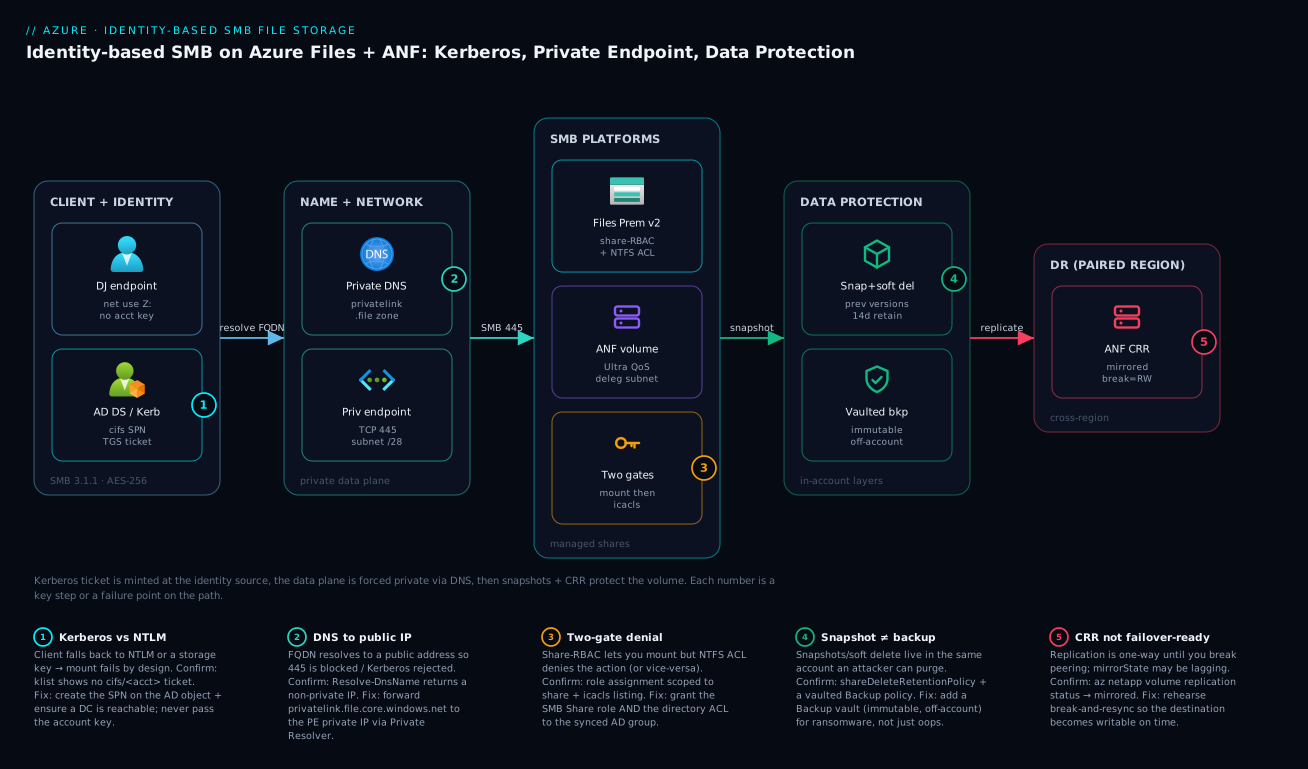
Real-world scenario
A pharma client ran Azure Virtual Desktop for 9,000 users with FSLogix profile containers on a single Azure Files Premium v1 share in West Europe. Every weekday at 08:30 the login storm hammered the share; users saw 90-second profile loads and intermittent “profile failed to attach.” Azure Monitor showed a wall of 429s during the storm – the share was IOPS-throttled, not latency-bound. The platform team was five engineers; the share was ~6 TiB of actual profile data.
The naive fix was to provision the v1 Premium share up to absorb peak IOPS, but that meant paying for ~30 TiB of provisioned capacity to buy IOPS they did not need on a dataset under 6 TiB. The cost delta was roughly 5x, and the manager balked.
They solved it two ways. First, they migrated profiles to Premium SSD v2, decoupling IOPS from capacity so they could provision peak IOPS against the actual ~6 TiB footprint. Second, they sharded profiles across multiple shares with FSLogix per-share assignment so the login storm fanned across independent IOPS budgets.
Identity was the part that almost derailed it. The endpoints were hybrid-joined, so they used Entra Kerberos – and the hard-won lesson was that NTFS ACLs still resolve against AD DS SIDs, so the AD accounts had to be synced via Entra Connect and the FSLogix container ACLs set to the synced identities, not cloud-only ones. For two days, half the pilot users got “profile failed to attach” purely because the container directory ACLs referenced cloud-only objects that had no matching AD SID. The fix was to re-ACL the FSLogix root to the synced security group.
# Premium SSD v2: provision IOPS and throughput independently of capacity
az storage account create \
  --resource-group rg-avd-profiles \
  --name stavdprofv2 \
  --sku PremiumV2_LRS \
  --kind FileStorage \
  --location westeurope

az storage share-rm create \
  --resource-group rg-avd-profiles \
  --storage-account stavdprofv2 \
  --name fslogix \
  --quota 6144 \
  --provisioned-iops 30000 \
  --provisioned-bandwidth-mibps 2048
Result: 08:30 profile loads dropped from ~90 seconds to under 6, the 429s disappeared, and the monthly storage line fell because they stopped buying capacity to rent IOPS. The deeper AVD/FSLogix architecture is in Azure Virtual Desktop at 5,000 users with FSLogix.
The incident as a timeline, because the order of moves is the lesson:
| Time | Symptom | Action taken | Effect | What it should have been |
|---|---|---|---|---|
| Day 1 08:30 | 90s profile loads, “failed to attach” | (tickets fire) | – | Ask: throttled or latency-bound? |
| Day 1 | Reflex | Plan to provision v1 up to ~30 TiB | 5x cost, manager balks | Don’t buy capacity for IOPS |
| Day 1 | Diagnosis | Read 429 rate in StorageFileLogs |
Confirmed IOPS throttle | The breakthrough |
| Day 2 | Pilot rollout | Move to Premium SSD v2, 30k IOPS | Loads → <6s | Correct fix |
| Day 2 | New failure | Half of pilot “failed to attach” | FSLogix ACLs on cloud-only objects | Entra Kerberos NTFS gotcha |
| Day 3 | Resolved | Re-ACL FSLogix root to synced group | All attach | The identity lesson |
| +1 wk | Steady state | Shard profiles across shares | Login storm fanned out | Spread the IOPS budget |
Advantages and disadvantages
Managed SMB on Azure both removes the file-server toil and introduces new failure modes around identity and DNS. Weigh it honestly:
| Advantages | Disadvantages |
|---|---|
| No file server OS to patch; the platform owns availability | The identity wiring (SPN, Kerberos key, synced SIDs) is fiddly and unfamiliar |
| Kerberos SSO means no credential prompts and no stored passwords | A single DNS mistake silently falls back to NTLM or egresses public |
| Snapshots are near-instant and storage-efficient | In-account snapshots are purgeable by an attacker who owns the account |
| Premium SSD v2 decouples IOPS from capacity, cutting waste | Premium v1 (still common) forces you to buy capacity to rent IOPS |
| ANF gives sub-millisecond latency for SAP/HPC/EDA | ANF’s 1 TiB pool floor + delegated subnet are real cost/network overhead |
| Two-gate model maps cleanly to “who can mount” vs “what they can do” | Confusing the two gates is the #1 support ticket |
| Cross-region replication / GRS survive a region loss | CRR is one-way and useless until you rehearse the break-and-resync |
| Azure File Sync caches a huge dataset on a small branch volume | An AV/backup full scan recalls the whole tiered dataset and blows egress |
Azure Files Premium is right for general-purpose shares, FSLogix, and File Sync hubs where a few milliseconds is fine and you want one resource to manage. ANF is right when the SLO mentions microseconds or it is SAP/HPC/EDA. The disadvantages are all manageable – but only if you know they exist, which is the point of this article.
Hands-on lab
Stand up identity-based SMB on Azure Files against on-prem AD DS, force it private, prove Kerberos won, and add data protection – then tear it down. You need a domain-joined VM in a VNet with line-of-sight to a DC. Run the az parts in Cloud Shell (Bash) and the PowerShell parts on the domain-joined VM.
Step 1 – Variables and resource group.
RG=rg-files-lab
LOC=westeurope
ST=stfileslab$RANDOM   # globally-unique, lowercase
az group create -n $RG -l $LOC -o table
Step 2 – Create a Premium FileStorage account and a share.
az storage account create -g $RG -n $ST \
  --sku Premium_LRS --kind FileStorage --location $LOC -o table
az storage share-rm create -g $RG --storage-account $ST --name projects --quota 100 -o table
Expected: an account with kind = FileStorage, and a 100 GiB share projects.
Step 3 – Join the account to AD DS (on the domain-joined VM, PowerShell).
Import-Module .\AzFilesHybrid.psd1
Connect-AzAccount
Join-AzStorageAccount -ResourceGroupName "rg-files-lab" -StorageAccountName "<ST>" `
  -SamAccountName "<ST>" -DomainAccountType "ComputerAccount"
Step 4 – Confirm the directory service is AD (not None).
az storage account show -g $RG -n $ST \
  --query "azureFilesIdentityBasedAuthentication.directoryServiceOptions" -o tsv
# expect: AD   (None means you are still on key-based auth)
Step 5 – Assign share-level RBAC to your AD group.
scope=$(az storage account show -g $RG -n $ST --query id -o tsv)/fileServices/default/fileshares/projects
az role assignment create --assignee "<entra-group-object-id>" \
  --role "Storage File Data SMB Share Contributor" --scope "$scope"
Step 6 – Force it private and disable public access.
az network private-endpoint create -g $RG -n pe-$ST-file \
  --vnet-name <vnet> --subnet <snet-privatelink> \
  --private-connection-resource-id "$(az storage account show -g $RG -n $ST --query id -o tsv)" \
  --group-id file --connection-name plsc-$ST-file
az storage account update -g $RG -n $ST --public-network-access Disabled
Step 7 – Mount with Kerberos and prove it (on the VM, PowerShell).
net use Z: \\<ST>.file.core.windows.net\projects
klist | Select-String "cifs/<ST>"            # a cifs ticket must appear
Resolve-DnsName <ST>.file.core.windows.net   # must return the PRIVATE IP
Step 8 – Add data protection.
az storage account file-service-properties update -g $RG --account-name $ST \
  --enable-delete-retention true --delete-retention-days 14
az storage share snapshot --account-name $ST --name projects --auth-mode login
Validation checklist. You created identity-based SMB, joined it to AD, scoped RBAC to the share, forced the data plane private, and confirmed Kerberos with an actual cifs/... ticket. Each step mapped to a real-world move:
| Step | What you did | What it proves | Real-world analogue |
|---|---|---|---|
| 3 | Join-AzStorageAccount |
The account has an AD object + Kerberos key | Onboarding any new file share |
| 4 | directoryServiceOptions = AD |
You left key-based auth behind | The “did identity actually take?” check |
| 5 | RBAC scoped to the share | Gate one is set, narrowly | Least-privilege mount rights |
| 6 | Private endpoint + disable public | SMB is off the internet | Hardening every prod account |
| 7 | klist shows cifs/... |
Kerberos won, not NTLM/key | The 90-second proof during cutover |
| 8 | Soft delete + snapshot | Oops-recovery exists | Day-one data protection |
Cleanup.
az group delete -n $RG --yes --no-wait
# Also remove the AD computer object created in step 3 if your OU cleanup doesn't.
Cost note. A 100 GiB Premium share is a few hundred rupees per month prorated; an hour of this lab is well under ₹100, and deleting the resource group stops the storage charges. Remember to delete the stray AD object.
Practice challenges
Six exercises that escalate from “read one field” to “design the DR posture.” Try each before opening the solution – the one-line why under each answer is the part worth remembering. Commands are illustrative; all IDs are placeholders.
Challenge 1 (Beginner) – Is this account identity-based, or still on the key? You inherit a storage account and need to know, in one command, whether SMB is using Kerberos identity or the account key. Write it.
<details> <summary>Show solution</summary>
az storage account show -g <rg> -n <acct> \
  --query "azureFilesIdentityBasedAuthentication.directoryServiceOptions" -o tsv
# AD / AADKERB / AADDS = identity-based;  None = still key-based
Why: directoryServiceOptions is the single field that proves identity actually took – None means every client is authenticating with the storage key, no matter how the mount command looks.
</details>
Challenge 2 (Beginner) – Least-privilege role for a read-only auditor.
An auditor must browse the projects share read-only. Which built-in role, at what scope, assigned to whom?
<details> <summary>Show solution</summary>
Storage File Data SMB Share Reader, scoped to the share (.../fileServices/default/fileshares/projects), assigned to a synced AD group – not an individual, not the whole account.
Why: this is gate one only (mount + read, no write), scoped as narrowly as the model allows; groups keep the assignment stable as auditors rotate. </details>
Challenge 3 (Intermediate) – Split “missing SPN” from “public-IP DNS.” A domain-joined client prompts for credentials. Give the two commands that tell you whether the cause is a missing SPN on the AD object or a DNS answer pointing at a public IP.
<details> <summary>Show solution</summary>
setspn -L <samaccountname>                          # expect: cifs/<acct>.file.core.windows.net
Resolve-DnsName <acct>.file.core.windows.net        # must return the PRIVATE endpoint IP
Why: these two checks isolate the two most common root causes – a broken identity object (no cifs SPN to request a ticket for) versus broken name resolution (public IP -> Kerberos rejected -> NTLM fallback -> fail). </details>
Challenge 4 (Intermediate) – Size an ANF volume for 512 MiB/s. On an auto-QoS Premium ANF pool, what volume quota delivers 512 MiB/s? Show the math – then say how the answer changes on a manual-QoS pool.
<details> <summary>Show solution</summary>
Premium is ~64 MiB/s per TiB, and auto-QoS ties throughput to quota, so 512 ÷ 64 = 8 TiB of quota. On a manual-QoS pool you instead assign 512 MiB/s to the volume directly, independent of its quota (as long as the pool’s aggregate throughput can cover it).
Why: auto-QoS couples throughput to size; manual-QoS decouples them – the distinction that lets a small volume run fast, and the one most people miss on the exam. </details>
Challenge 5 (Advanced) – Rotate the Kerberos key with zero downtime. Rotate the storage account’s Kerberos key without dropping active mounts, and explain why it’s safe.
<details> <summary>Show solution</summary>
Update-AzStorageAccountADObjectPassword -RotateToKerbKey kerb2 `
  -ResourceGroupName "rg-files-prod" -StorageAccountName "stfilesprod01"
# Later, rotate again targeting kerb1 to complete the two-slot cycle.
Why: like key1/key2, the AD object holds two Kerberos keys (kerb1/kerb2); rotating one slot leaves the other valid, so tickets already issued keep decrypting and no mount breaks mid-rotation.
</details>
Challenge 6 (Advanced) – A DR posture that survives all three disasters. An ANF SAP volume must survive an accidental delete, a ransomware purge, and a full region loss. List the protection layers and the one rehearsal you must not skip.
<details> <summary>Show solution</summary>
- Volume snapshots + a snapshot policy – accidental change/delete (“oops”).
- ANF backup (off-volume, immutable-style vault copy) – ransomware / malicious purge that reaches in-volume snapshots.
- Cross-region replication to the paired region – region loss. Add cross-zone replication if you also need zone-loss cover with a tighter RPO.
- The rehearsal: break-and-resync of replication, so the destination is actually writable (and you know the sequence) before the incident – see Backup vault immutability & cross-region restore.
Why: three independent failure domains need three independent layers, and CRR is read-only until you break the peering – an unrehearsed mirror is a false sense of security. </details>
Common beginner mistakes
These are conceptual traps – wrong mental models, not wrong commands. (The symptom -> cause -> fix table is in Common mistakes & troubleshooting below; this list is the misconception behind the ticket.)
-
“Azure Files and Azure NetApp Files are basically the same – pick the cheaper one.” They’re different resource providers with different scaling, latency floors, and cost floors. ANF bills a 1 TiB capacity pool even at 200 GiB used; Azure Files Premium starts at a 100 GiB share. Right model: choose on the latency SLO and operational footprint first – microseconds / SAP / HPC / EDA go to ANF, everything else to Files Premium – and let cost fall out of that, not the other way around.
-
“Entra Kerberos means I don’t need Active Directory at all.” Entra Kerberos authenticates the cloud user, but NTFS authorization still resolves against AD DS SIDs synced through Entra Connect. A cloud-only account can sign in and yet cannot hold a fine-grained ACL, because there is no AD SID to name in the ACE. Right model: Entra Kerberos is the badge reader; AD SIDs are the cabinet locks – you still need the locks, so you still need synced identities.
-
“A quick key-based mount is harmless – it’s just for testing.” The storage account key is a 64-character root password that bypasses every RBAC role and every NTFS ACL and leaves no per-user audit trail. The “temporary” key in a logon script becomes a permanent, un-revocable backdoor. Right model: identity (Kerberos SSO) is the only production path; treat any key in a mount command or script as a security finding, full stop.
-
“Snapshots are my backup.” Share snapshots and soft delete live in the same account as the data – an attacker (or a fat-fingered admin) with account rights purges them along with the files. Right model: snapshots cover oops; only an immutable, off-account backup covers ransomware; only replication covers region loss. Three copies, three disasters.
-
“Throttling means I’m out of space – grow the share.” A 429 storm is almost always an IOPS/throughput ceiling, not a capacity one. On Premium v1, IOPS scale with provisioned GiB, so people buy TiB they will never fill just to rent IOPS. Right model: read the meter – provision IOPS/throughput directly (Premium SSD v2) or shard the load; capacity and IOPS are different dials.
-
“I added a private endpoint, so the network is done.” A private endpoint without the
privatelink.filezone wired (and forwarded from on-prem) still lets the FQDN resolve to a public IP – Kerberos is rejected and the mount silently falls back or egresses over the internet. Right model: private endpoint + private DNS zone + on-prem forwarding are one indivisible unit; two out of three still fails. -
“NFS can use my AD users just like SMB does.” NFS on Azure Files carries no AD/Kerberos identity at all – it’s network/host-trust, secured by the private endpoint and export policy. (Only ANF NFSv4.1 can add Kerberos + LDAP identity.) Right model: on Azure Files, SMB means user identity and NFS means network trust; if you need identity on NFS, that’s an ANF decision, made up front. The heaviest consumer of all this – Azure Virtual Desktop with FSLogix – is where every one of these traps eventually shows up.
Common mistakes & troubleshooting
This is the playbook – the part you bookmark. First as a scannable table you read mid-cutover, then the expanded reasoning for the entries that bite hardest.
| # | Symptom | Root cause | Confirm (exact cmd / portal path) | Fix |
|---|---|---|---|---|
| 1 | Every mount prompts for credentials | Identity source is None – still key-based |
az storage account show --query "...directoryServiceOptions" = None |
Join-AzStorageAccount (AD) or --enable-files-aadkerb |
| 2 | Mount falls back to NTLM / fails | DNS resolves account to a public IP | Resolve-DnsName <acct>.file.core.windows.net shows public IP |
Wire privatelink.file to the PE private IP |
| 3 | Mount prompts even with AD joined | SPN missing on the AD object | setspn -L <samaccountname> – no cifs SPN |
Re-run join; ensure cifs/<acct>.file.core.windows.net exists |
| 4 | No ticket issued at all | Client can’t reach a DC for the TGS | nltest /dsgetdc:<domain> fails |
Fix routing/NSG/firewall to a DC; check AD site/subnet |
| 5 | Can mount but write is denied | RBAC ok, NTFS ACL denies | icacls Z:\path shows no grant |
Grant Modify to the synced AD group at NTFS level |
| 6 | Mount works only with the account key | Someone hard-coded the key in the script | grep scripts for the key/connection string | Remove the key; rely on Kerberos SSO |
| 7 | FSLogix “profile failed to attach” (Entra Kerberos) | Container ACLs on cloud-only objects with no AD SID | Inspect ACL on FSLogix root | Re-ACL to the synced security group |
| 8 | Throttling 429 during login storm | IOPS-bound on Premium v1 (capacity ≠ IOPS) | StorageFileLogs StatusCode == 429 |
Move to Premium SSD v2; provision IOPS |
| 9 | On-prem mounts fail but VNet works | On-prem DNS resolves account to public | Resolve-DnsName on an on-prem host |
Forward privatelink.file to Private Resolver |
| 10 | ANF volume create fails | Subnet not delegated to Microsoft.NetApp/volumes |
Subnet delegation blade empty | Delegate a dedicated subnet (no other resources) |
| 11 | ANF volume throttled despite Ultra | Volume quota too small for the throughput math | ThroughputLimitReached high |
Grow quota (quota_TiB × level_MiBps) |
| 12 | “Recovered” file is gone after restore | Only had in-account snapshots; attacker purged | No vaulted backup policy | Add Backup vault (immutable, off-account) |
| 13 | DR test: destination volume read-only | CRR is one-way; peering not broken | mirrorState = mirrored, never broke |
Break peering to make destination writable |
| 14 | File Sync server filled up / egress spike | AV/backup full scan recalled tiered files | Recall metrics spike | Exclude tiered volume; recall-on-read exclusions |
The exact error strings you see on a Windows client, decoded – because net use and Event Viewer speak in numbers:
| Error string / code | Meaning | Likely cause | Fix |
|---|---|---|---|
System error 1326 (logon failure) |
Bad credentials / no Kerberos | NTLM fallback, key mismatch | Ensure Kerberos path + SPN |
System error 53 (network path not found) |
Name didn’t resolve / 445 blocked | DNS or firewall on 445 | Fix private DNS; allow 445 |
System error 67 (network name not found) |
Share or FQDN wrong | Typo or public-only access | Verify share name + private DNS |
System error 1219 (multiple connections) |
Conflicting creds to same server | An old key-based mount lingers | net use /delete the stale mount |
System error 5 (access denied) |
NTFS or RBAC denies | One of the two gates says no | Grant RBAC + NTFS to the group |
STATUS_ACCESS_DENIED (SMB) |
NTFS evaluation failed | ACL doesn’t include the SID | Re-ACL to the synced AD group |
directoryServiceOptions: None |
Not identity-based | Account never joined | Join-AzStorageAccount / --enable-files-aadkerb |
mirrorState: broken (ANF) |
Replication not healthy | Peering broken / lagging | Resync; check schedule |
The expanded form for the entries that bite hardest:
1. Every mount prompts for credentials.
Root cause: The account’s identity source is None – it is still on storage-key auth, so there is no Kerberos object to authenticate the domain user.
Confirm: az storage account show -g <rg> -n <acct> --query "azureFilesIdentityBasedAuthentication.directoryServiceOptions" -o tsv returns None.
Fix: Join-AzStorageAccount for AD DS, or az storage account update --enable-files-aadkerb true for Entra Kerberos. Re-check the field returns AD or AADKERB.
2. Mount falls back to NTLM or fails outright.
Root cause: DNS resolves the account to a public IP, so Kerberos is rejected and SMB can’t reach the private path.
Confirm: Resolve-DnsName <acct>.file.core.windows.net returns a public address instead of the PE private IP.
Fix: Create the private endpoint on the file sub-resource and wire privatelink.file.core.windows.net to its private IP; on-prem, forward that zone to a Private Resolver inbound endpoint.
7. FSLogix “profile failed to attach” under Entra Kerberos. Root cause: The FSLogix container directory ACLs reference cloud-only objects with no matching AD DS SID, so NTFS evaluation fails even though Kerberos auth succeeded. Confirm: Inspect the ACL on the FSLogix root; the principals are cloud-only, not the synced AD group. Fix: Re-ACL the FSLogix root to the synced security group (an on-prem AD group synced via Entra Connect), and ensure the user accounts are synced.
8. Throttling (429) during the morning login storm.
Root cause: The share is IOPS-bound on Premium v1, where IOPS scale with provisioned capacity – so you’re throttled despite plenty of free space.
Confirm: StorageFileLogs | where StatusCode == 429 lights up during the storm; latency is fine between storms.
Fix: Move to Premium SSD v2 and provision IOPS independently of capacity, or shard across shares; do not over-provision v1 capacity to rent IOPS.
12. The “recovered” file is gone after a restore.
Root cause: You only had in-account snapshots/soft delete, which an attacker (or a malicious admin) with account rights purged along with the data.
Confirm: There is no Backup vault policy; the only protection was shareDeleteRetentionPolicy and manual snapshots.
Fix: Add a Backup vault with an immutable, off-account copy so ransomware can’t reach your last good copy.
Best practices
- Choose Files vs ANF deliberately on the latency SLO and operational footprint, not the marketing slide. ANF only when the SLO mentions microseconds or it’s SAP/HPC/EDA.
- Pick one identity source per account (AD DS, Entra Kerberos, or Entra DS) and join the storage account before anyone tries to mount. Mixing intentions across accounts is fine; mixing within one is not.
- Never pass a storage account key in a mount command or script. A key bypasses every ACL and is un-auditable. Kerberos SSO is the whole point.
- Scope share-level RBAC to the share, not the account, and assign it to synced AD groups – not individual users.
- Set NTFS ACLs from an Elevated Contributor session and remove
Everyone/Authenticated Users. Let inheritance ((OI)(CI)) do the rest. - Force the data plane private: private endpoint on the
filesub-resource, public network access disabled, andprivatelink.fileresolvable from both VNet and on-prem. - Layer data protection: soft delete + snapshots for oops, a vaulted immutable backup for ransomware, and CRR/GRS for region loss. Back up the cloud share, never the cached File Sync servers.
- For Azure File Sync, exclude tiered volumes from AV/backup full scans (recall-on-read exclusions) or you rehydrate the entire dataset.
- For ANF, delegate a dedicated subnet, size the volume quota for the throughput you need (
quota_TiB × level_MiBps), and rehearse the cross-region break-and-resync. - Right-size throughput, don’t over-provision capacity for IOPS – Premium SSD v2 or the correct ANF service level beats buying TiB you don’t use.
- Alert on the leading indicators:
429/throttling on Files,ThroughputLimitReached/latency on ANF, and replicationmirrorStatedrift on CRR. - Confirm Kerberos won after every cutover:
klistshows acifs/...ticket anddirectoryServiceOptionsis notNone.
Security notes
- Identity-based auth over the account key. The 64-byte storage account key is a root password to the whole account; identity-based SMB with Kerberos keeps it out of mounts entirely. Rotate keys regardless and treat any key-based mount as a finding.
- Least-privilege RBAC. Assign
Storage File Data SMB Share Reader/Contributorscoped to the share; reserveElevated Contributorfor the few admins who set NTFS ACLs. Don’t grantStorage Account Contributorto data users – that’s a management-plane role that can read keys. - Network isolation. Private endpoint on the
filesub-resource, public network access disabled, NSGs allowing only TCP 445 from the right subnets. SMB on 445 over the public internet is both blocked by most ISPs and a bad idea. - Encryption. Data is encrypted at rest by default (platform-managed keys); for regulated workloads use customer-managed keys per Encryption at rest with CMK & double encryption. In transit, SMB 3.x uses AES encryption – require SMB 3.1.1 and disable older dialects.
- Disable RC4 Kerberos on the account’s AD object; require AES-256. Ensure clients support it before flipping.
- Immutable backup for ransomware. Snapshots and soft delete live in the account an attacker can reach; a locked, immutable Backup vault is the copy they can’t purge – see Backup vault immutability & MUA.
- Audit the two gates. Periodically review both the RBAC assignments (who can mount) and the NTFS ACLs (what they can do); drift between them is where over-broad access hides. RBAC governance patterns are in Entra RBAC governance deep dive.
The security controls and what each buys you:
| Control | Setting / mechanism | Secures against | Also prevents |
|---|---|---|---|
| Identity-based SMB | directoryServiceOptions = AD/AADKERB |
Key-based, un-auditable access | Credential prompts / NTLM fallback |
| Least-privilege RBAC | SMB Share roles scoped to share | Over-broad mount rights | Accidental account-wide access |
| Private endpoint + no public | --public-network-access Disabled |
Internet-exposed SMB | 445 blocked / public egress |
| AES-256 Kerberos | EncryptionType on the AD object | RC4 downgrade attacks | Weak-cipher handshakes |
| CMK at rest | Customer-managed key | Platform-key compliance gaps | Regulatory findings |
| Immutable vaulted backup | Backup vault (locked) | Ransomware / malicious purge | Loss of last good copy |
Cost & sizing
The bill drivers and how they interact with the fixes:
- Provisioned vs used capacity dominates on Files Premium v1 – you pay for provisioned GiB whether you use it. The classic waste is buying capacity to rent IOPS; Premium SSD v2 fixes this by letting you provision IOPS/throughput independently of a small footprint.
- ANF’s pool floor is real: a 1 TiB capacity pool is billed even at 200 GiB used, and useful throughput on a manual pool needs a multi-TiB volume. Budget the floor before you commit to ANF.
- Transactions matter on Standard tiers – a chatty app on Standard (Cool) can cost more in transactions than the GiB. Premium has no per-transaction charge.
- Egress and recall on Azure File Sync: an AV/backup full scan that recalls a tiered dataset turns a cheap branch cache into a large egress bill. Exclusions are a cost control, not just a performance one.
- Snapshots and backup add storage: snapshots are incremental (cheap) but accumulate; a vaulted immutable backup is a separate, justified line item for ransomware insurance.
A rough monthly picture, INR-leaning:
| Cost driver | What you pay for | Rough INR / month | What it fixes | Watch-out |
|---|---|---|---|---|
| Files Premium v1 (provisioned) | Provisioned GiB (IOPS scale with size) | Capacity-driven; can balloon | Predictable low latency | Buying TiB to rent IOPS = waste |
| Files Premium SSD v2 | GiB + IOPS + throughput independently | Lower for bursty/small footprints | IOPS without capacity waste | Verify region availability |
| Files Standard | Used GiB + transactions | Cheapest GiB | Bulk/infrequent shares | Transaction costs on chatty apps |
| ANF Premium pool (1–4 TiB) | Pool capacity × service level | Premium floor is significant | Sub-ms SAP/HPC/EDA | 1 TiB floor billed even if unused |
| Vaulted backup | Backup storage + ops | Modest, justified | Ransomware recovery | Locked immutability is irreversible |
| Cross-region replication (ANF) | Destination volume + transfer | ~2x the source footprint | Region-loss DR | Pay for the DR copy continuously |
Sizing rule of thumb: start Files Premium SSD v2 at the used footprint plus headroom, provision IOPS to your measured peak (FSLogix login storms are the spiky case), and only reach for ANF when a real microsecond-class SLO justifies the pool floor.
Interview & exam questions
1. When do you choose Azure NetApp Files over Azure Files? When the workload SLO is latency-critical (sub-millisecond), or it is SAP, HPC scratch, or large EDA/render – ANF gives consistent microsecond-class latency via bare-metal NetApp. Otherwise Azure Files Premium is simpler (one resource, no delegated subnet, no 1 TiB pool floor). Don’t pick ANF for general file shares just because it’s “faster on paper.”
2. What are the three SMB identity sources for Azure Files, and the key constraint of Entra Kerberos? On-prem AD DS, Microsoft Entra Kerberos, and Entra Domain Services. The constraint: Entra Kerberos authenticates the user, but NTFS permissions still resolve against AD DS SIDs, so you need those identities synced from AD DS to set fine-grained ACLs – critical for FSLogix/AVD.
3. Explain the two-gate access model. Gate one is share-level RBAC (Azure roles like Storage File Data SMB Share Contributor) deciding who can mount the share. Gate two is NTFS ACLs (icacls) deciding what you can do once mounted. Both must grant access; a user can pass RBAC and still be denied a write by NTFS, or vice-versa.
4. Why do mounts fall back to NTLM and fail, and how do you confirm Kerberos won? Usually DNS resolves the account to a public IP, so Kerberos is rejected. Confirm Kerberos with klist | Select-String "cifs/<account>.file.core.windows.net" – the cifs service ticket must be present – and Resolve-DnsName must return the private endpoint IP.
5. What does directoryServiceOptions tell you? It’s the field on the storage account (azureFilesIdentityBasedAuthentication.directoryServiceOptions) that reports the identity source: AD, AADKERB, AADDS, or None. None means you never achieved identity-based access and clients are using the storage key.
6. Why does the private DNS zone name differ from the account FQDN, and why does it matter? The account FQDN <acct>.file.core.windows.net CNAMEs to privatelink.file.core.windows.net, which your private zone resolves to the PE’s private IP. If on-prem can’t resolve privatelink.file, it gets the public IP – mounts fail or egress over the internet. You forward that zone via a Private Resolver.
7. What’s the difference between a snapshot, soft delete, and a vaulted backup? Snapshots are read-only point-in-time copies in the account (Previous Versions; oops-recovery). Soft delete keeps deleted shares/snapshots recoverable for a window (in-account). Vaulted backup stores an immutable copy off the account – the only one an attacker who owns the account can’t purge, hence your ransomware defense.
8. What is cloud tiering in Azure File Sync and its biggest operational trap? Cloud tiering keeps the hot working set on the local server and turns cold files into reparse-point pointers whose data lives only in Azure. The trap: an antivirus or backup full scan reads every file and recalls the entire tiered dataset, filling the volume and spiking egress – use recall-on-read exclusions and back up the cloud share, not the servers.
9. Why is an ANF volume’s throughput sometimes low even on the Ultra service level? On a manual-QoS pool, throughput is quota_TiB × service_level_MiBps. A small volume (e.g. 500 GiB) on Ultra still gets only a fraction of the per-TiB rate. The fix is to grow the volume quota, not just the service level.
10. Premium v1 vs Premium SSD v2 for Azure Files – what changed and why care? Premium v1 bills on provisioned capacity, with IOPS/throughput scaling with size – so you over-provision TiB to buy IOPS. Premium SSD v2 decouples capacity, IOPS, and throughput, letting you provision each independently. For spiky workloads like FSLogix it’s usually cheaper and faster.
11. ANF cross-region replication is configured and mirrorState is mirrored. Are you failover-ready? Not until you rehearse the break. Replication is one-directional; the destination is read-only until you break the peering, at which point it becomes writable. Rehearse the break-and-resync so you don’t discover the sequence during an incident.
12. A migrated file server mounts fine in Azure but on-prem clients prompt for credentials. Cause? On-prem DNS resolves the account to the public IP (not the private endpoint), so Kerberos is rejected. Fix by forwarding privatelink.file.core.windows.net from on-prem DNS to an Azure DNS Private Resolver inbound endpoint so on-prem resolves the private IP.
These map to AZ-104 (Administrator) – configure Azure Files and Azure File Sync, identity-based access, and storage networking – AZ-700 (Network Engineer) – private endpoints and DNS – and AZ-500 (Security) – identity, encryption, and least privilege. A compact cert-mapping for revision:
| Question theme | Primary cert | Exam objective area |
|---|---|---|
| Files vs ANF, tiers, sizing | AZ-104 | Configure storage; performance |
| Identity sources, AD/Kerberos | AZ-104 / AZ-500 | Identity-based access; secure storage |
| Two-gate RBAC + NTFS | AZ-500 | Authorize access to data |
| Private endpoint + DNS | AZ-700 | Private connectivity & name resolution |
| Snapshots / backup / CRR | AZ-104 / AZ-305 | Data protection & BCDR |
| File Sync cloud tiering | AZ-104 | Manage Azure File Sync |
Quick check
- Your storage account’s
directoryServiceOptionsreturnsNone. What does that mean for how clients are authenticating, and what’s the one-line fix path? - A domain-joined client mounts the share but
klistshows nocifs/...ticket, andResolve-DnsNamereturns a public IP. What’s the root cause and the fix? - Under Entra Kerberos, a user authenticates fine but FSLogix profiles “fail to attach.” What’s the most likely cause given that NTFS resolves against AD SIDs?
- True or false: an ANF volume on the Ultra service level always delivers maximum throughput regardless of its quota.
- You restored a deleted file from a snapshot, but after a ransomware event the snapshots were gone too. Which data-protection layer was missing?
Answers
Nonemeans clients are using the storage account key, not identity-based auth – you never achieved Kerberos. Fix:Join-AzStorageAccount(AD DS) oraz storage account update --enable-files-aadkerb true(Entra Kerberos), then confirm the field returnsAD/AADKERB.- DNS resolves the account to a public IP, so Kerberos is rejected and the mount falls back. Fix: create a private endpoint on the
filesub-resource and wireprivatelink.file.core.windows.netto its private IP (and forward that zone from on-prem via a Private Resolver). - The FSLogix container directory ACLs reference cloud-only identities with no matching AD DS SID. Re-ACL the FSLogix root to the synced AD security group, and ensure the user accounts are synced via Entra Connect.
- False. On a manual-QoS pool, throughput is
quota_TiB × service_level_MiBps; a small volume on Ultra is throughput-starved. Grow the volume quota, not just the service level. - Vaulted (immutable) backup. Snapshots and soft delete live in the same account the attacker reached and were purged; an off-account immutable Backup vault is the copy ransomware can’t touch.
Glossary
- Azure Files – managed SMB/NFS file shares that are a feature of an Azure storage account.
- Azure NetApp Files (ANF) – a bare-metal NetApp service fronted by
Microsoft.NetApp, offering sub-millisecond latency via account → capacity pool → volume. - Capacity pool – the ANF container that sets the service level (Standard/Premium/Ultra) and therefore throughput; 1 TiB minimum.
- Volume (ANF) – the actual ANF share, carved from a pool and injected into a subnet delegated to
Microsoft.NetApp/volumes. - Identity-based access – SMB authentication via Kerberos against an identity source (AD DS, Entra Kerberos, or Entra DS) instead of the storage account key.
directoryServiceOptions– the storage-account field reporting the identity source (AD/AADKERB/AADDS/None);Nonemeans key-based.- Kerberos key – the secret on the storage account’s AD object used to decrypt the
cifs/<account>service ticket. - Share-level RBAC – gate one: Azure roles (
Storage File Data SMB Share Reader/Contributor/Elevated Contributor) deciding who can mount. - NTFS ACL – gate two: Windows file/folder permissions (set with
icacls) deciding what you can do once mounted, enforced against AD SIDs. - Private endpoint – a private IP for the storage account on a subnet NIC, forcing SMB (TCP 445) off the public internet.
privatelink.file.core.windows.net– the private DNS zone that resolves the account FQDN to the private endpoint IP.- Share snapshot – a read-only, incremental, point-in-time copy surfaced via the Previous Versions tab.
- Soft delete – a retention window during which deleted shares/snapshots can be recovered.
- Vaulted backup – an immutable, off-account copy managed by a Backup vault; the ransomware defense.
- Cross-region replication (CRR) – ANF’s one-way volume mirror to a paired region; the destination becomes writable only when you break the peering.
- Cloud tiering – Azure File Sync feature that keeps hot files local and turns cold files into Azure-backed reparse-point pointers.
- Premium SSD v2 – the Azure Files model that provisions capacity, IOPS, and throughput independently, decoupling IOPS from size.
- SPN (Service Principal Name) – the name (
cifs/<account>.file.core.windows.net) a client asks a DC to issue a Kerberos ticket for; a missing SPN is why mounts prompt for credentials. - SID (Security Identifier) – the Active Directory identifier NTFS ACLs are evaluated against; even Entra Kerberos authorizes against synced AD DS SIDs.
- Kerberos ticket (TGS) – the service ticket a client presents to the share; a
cifs/...entry inklistproves Kerberos (not NTLM) won. - PAC (Privilege Attribute Certificate) – the group/SID authorization data carried inside a Kerberos ticket; why AD SIDs still govern NTFS under Entra Kerberos.
kerb1/kerb2– the storage account’s two Kerberos keys (likekey1/key2); rotate one slot while the other stays valid to avoid mount downtime.- AzFilesHybrid – the PowerShell module that creates the storage account’s AD object and configures AD DS Kerberos (
Join-AzStorageAccount,Update-AzStorageAccountADObjectPassword). - Provisioned v2 – the Azure Files billing model that meters storage, IOPS, and throughput independently, each with a baseline that scales with provisioned GiB plus burst.
- Auto QoS vs Manual QoS (ANF) – auto divides pool throughput by volume quota (
quota_TiB × level); manual lets you assign a volume’s throughput independent of its size. - Large volume (ANF) – a single volume from ~50 TiB up to ~1 PiB with higher throughput and parallelism for single-namespace HPC/EDA workloads.
- Cool access (ANF) – transparently tiers cold volume blocks to a cheaper backing store, recalled on read, to cut pool cost on cold-tailed datasets.
- Cross-zone replication (ANF) – a volume mirror to another availability zone in the same region; zone-loss protection distinct from cross-region replication.
- Application volume group (ANF) – provisions a coordinated set of volumes (data/log/shared) sized and placed correctly for SAP HANA.
- Dual-protocol (ANF) – one volume served over both SMB and NFS, using LDAP plus AD name mapping to reconcile the two identity worlds.
- SMB Multichannel / NFS nconnect – fan a single mount across multiple TCP connections to lift single-client throughput.
Next steps
You can now choose a managed SMB platform, wire identity-based access without leaking a key, force the data plane private, and protect the data three ways. Build outward:
- Next: Azure Storage Accounts Deep Dive: Every Option – the account-level redundancy, networking, and security knobs underneath Azure Files.
- Related: Azure Virtual Desktop at 5,000 Users with FSLogix – the single biggest consumer of identity-based SMB, where the Entra Kerberos NTFS gotcha bites.
- Related: Private Endpoints & Private DNS at Scale – the pattern that keeps the SMB data plane private across many accounts.
- Related: Private DNS Resolver: Hybrid Conditional Forwarding – how on-prem clients resolve
privatelink.fileto the private IP. - Related: Backup Vault Immutability & Cross-Region Restore – the immutable, off-account backup that is your ransomware defense.
- Related: Troubleshooting Azure Storage: 403s, Firewall, Private Endpoint, RBAC & SAS – the sibling playbook when mounts fail with access-denied.