Someone deletes the wrong file. A patch corrupts the boot disk. Ransomware encrypts a server overnight. In every one of these moments the question is the same and brutally simple: do you have a good, recent copy you can get back? For an Azure virtual machine, the service that answers “yes” is Azure Backup — a built-in, agent-light platform that takes scheduled point-in-time copies of your VM’s disks, stores them in a hardened Recovery Services vault, and restores the whole machine or just a few files when something goes wrong. No backup software to install, no backup server, no tapes. You point Azure Backup at a VM, attach a policy (how often, how long to keep), and the platform does the rest.
This article is a guided, hands-on walkthrough for someone protecting their first VM. By the end you will have done the real thing end to end: created a vault, defined a backup policy, enabled backup on a running VM, triggered an on-demand backup, restored from a recovery point, and cleaned everything up so it costs you nothing. You will do it three ways — in the Azure portal (to see every screen), with the az CLI (to script and repeat it), and as Bicep (so it lives in source control). Throughout we use real names, defaults, and limits, and call out the gotchas that trip first-timers: the wrong-region trap, the “backup is enabled but there’s no recovery point yet” confusion, and the vault that refuses to delete.
Azure Backup protects more than VMs — Azure Files, SQL and SAP HANA in VMs, on-premises servers via the MARS agent, and blobs all have backup paths. This guide is deliberately narrow: one Azure VM, start to finish. Once the vault → policy → protected item → recovery point loop is second nature, every other workload is the same shape with a different source.
What problem this solves
Disks fail, fingers slip, deployments go wrong, and attackers encrypt — the cloud exempts you from none of it. Azure replicates your managed disk three times for durability, but replication is not backup: if you (or malware, or a bad script) delete or corrupt the data, all three copies faithfully reflect the deletion. Durability protects against hardware loss; it does nothing against logical loss. Backup is the separate, point-in-time copy you can roll back to — without it, recovery means rebuilding from scratch (hours-to-days of downtime, often permanent loss of anything that only lived on that disk); with it, recovery is picking a recovery point and clicking restore.
Who hits this hardest: small teams running a line-of-business app on a single VM, anyone who lifted-and-shifted a server and assumed “the cloud backs it up” (it does not, by default), and developers who put real work on a VM with no protection until the day they need it. The fix is a fifteen-minute setup you do before you need it — the one time you need a backup is the one time you cannot create it retroactively.
| Without VM backup | With Azure Backup |
|---|---|
| Disk corruption or accidental delete = rebuild from nothing | Restore a recovery point in minutes |
| Replication copies the corruption too | Independent point-in-time copies, isolated in a vault |
| Recovery time = hours to days (re-provision + reinstall) | Recovery time = minutes to a couple of hours |
| Data loss = potentially everything | Data loss bounded to time since last backup (your RPO) |
| Protection set up under pressure, mid-incident | Protection set up calmly, in advance |
Learning objectives
By the end of this article you can:
- Explain what Azure Backup protects for a VM, and why disk replication is not a substitute for backup.
- Create a Recovery Services vault in the correct region with the right storage redundancy — portal,
azCLI, and Bicep. - Define a backup policy (schedule + retention) and map each setting to your RPO and your bill.
- Enable backup, trigger an on-demand backup, and confirm the recovery point exists.
- Restore a VM to new resources, and explain why you never restore over the live machine first.
- Diagnose the common first-backup failures — failed extension, no recovery point, wrong region, vault won’t delete — with the exact path or command.
- Right-size the cost and tear everything down cleanly so a lab leaves no spend behind.
Prerequisites & where this fits
You need an Azure subscription where you can create resources, the Azure CLI (az) installed or just Cloud Shell in the portal (it has az ready), and one Azure VM to protect — Windows or Linux, any size; a small Standard_B2s is perfect for a lab. Be comfortable with the Azure resource hierarchy (subscriptions, resource groups, resources) and roughly what a region and availability zone are, because region choice is the single most important decision when you create the vault.
On permissions: you need a role that can create vaults and manage backups. Backup Contributor on the resource group (or the broader Contributor) is enough; Backup Operator can run and restore but not create policies or vaults. You do not need Owner.
Where this sits: VM backup is operational recovery — getting one workload back after corruption or deletion. It is upstream of regional disaster recovery (replicating a whole site with Azure Site Recovery), covered in Azure Backup and Site Recovery: protecting workloads from loss; and it implements the planning concepts RTO and RPO from BCDR foundations on Azure: RTO, RPO, and the resilience spectrum. Read this to do backup; read those to design resilience.
| You need… | Why | How to get it |
|---|---|---|
| An Azure subscription | To create the vault, policy, and VM | Free trial or any paid subscription |
az CLI or Cloud Shell |
To run the commands in this guide | Install az, or click Cloud Shell >_ in the portal |
| One Azure VM (Windows/Linux) | The thing you will protect | Create a small Standard_B2s for a lab |
| Backup Contributor (or Contributor) on the RG | To create vault + policy + enable backup | Ask your subscription owner, or use your own sandbox |
| The VM’s region noted down | The vault MUST be in the same region | VM blade → Overview → Location |
Core concepts
Four objects and one rule explain everything you will do.
The Recovery Services vault (RSV) is the container — it holds backup data, policies, and recovery points, and is where you monitor jobs and trigger restores. Its region and storage redundancy (LRS/ZRS/GRS) are chosen at creation, and redundancy is locked once the first item is protected. A vault in West Europe can only back up VMs in West Europe — get the region right.
A backup policy is the schedule (how often, e.g. daily at 02:00) plus the retention (how long to keep each copy, e.g. 30 days). Azure’s built-in default is daily backups retained 30 days. The schedule sets your RPO (daily → lose up to a day); the retention sets how far back you can travel.
A protected item is one VM bound to one policy. Enabling backup does not create a recovery point immediately — it schedules the first one for the next run or waits for you to trigger it. This is the number-one first-timer confusion: backup is “enabled” but the status reads Initial backup pending and there is nothing to restore yet.
A recovery point is a consistent, restorable image of the VM’s disks at one moment. The first backup is a full copy; later ones are incremental (changed blocks only), which is why the first is slow and large and the rest are quick and cheap.
The rule that ties it together: enable, then trigger, then verify. Enabling arms the schedule; “Backup now” forces the first point; verifying the job succeeded is the only proof you are protected. A backup you never confirmed is a backup you do not have.
| Object | What it is | You set | Locked after first backup? |
|---|---|---|---|
| Recovery Services vault | Container for backup data, policies, jobs | Region + storage redundancy | Redundancy: yes. Region: always fixed |
| Backup policy | Schedule + retention rules | Frequency, time, retention durations | No — editable anytime |
| Protected item | One VM bound to one policy | Which VM, which policy | No — can change policy or stop backup |
| Recovery point | One restorable copy at a moment | (created by jobs, not by you) | Immutable; expires per retention |
How Azure Backup snapshots a VM
Knowing what happens during a backup explains the consistency warnings you may see. When a job runs, Azure Backup invokes the VM backup extension in the guest — VMSnapshot on Windows, VMSnapshotLinux on Linux — which coordinates with the OS to take a consistent snapshot of the managed disks, then copies it into the vault as a recovery point. No software runs on your desktop; the Guest Agent (waagent) on every Azure VM makes this possible.
The consistency level determines whether the restored machine boots cleanly and whether in-flight app data is intact. There are three levels; Azure Backup aims for the best available and falls back if it can’t get it.
| Consistency level | What it guarantees | How it’s achieved | When you get it |
|---|---|---|---|
| Application-consistent | App data flushed and consistent; cleanest restore, no recovery on boot | Windows VSS; Linux pre/post scripts you provide | Windows by default (VSS); Linux only if scripts are configured |
| File-system-consistent | OS file system consistent; pending I/O flushed | Linux fsfreeze when no app scripts |
Default for Linux without pre/post scripts |
| Crash-consistent | Disk state as if the power was pulled; usually boots but app data may need recovery | Snapshot without quiescing the OS | Fallback when the VM is off, or VSS/scripts fail |
The takeaways: Windows gets application-consistent out of the box (VSS). Linux gets file-system-consistent by default, and application-consistent only if you supply pre/post snapshot scripts. A Windows job warning of a crash-consistent point means VSS failed — usually low free disk space or a broken VSS writer — worth fixing, as application-consistent restores more cleanly. A stopped (deallocated) VM can only ever be crash-consistent.
One more thing that affects speed and cost: the instant restore snapshot kept locally before vault transfer (retained 1–5 days, default 2, set in the policy). It makes very recent restores fast but consumes snapshot-tier storage in your resource group — recovery speed versus a few rupees.
Choosing storage redundancy and Cross-Region Restore
At vault creation you pick its storage redundancy — one of the two settings you can’t change later (the other is region). It controls how many copies of your backup data exist and where.
| Redundancy | Copies & placement | Protects against | Relative cost | Default? |
|---|---|---|---|---|
| LRS (Locally redundant) | 3 copies, one datacenter | Disk/rack failure | Lowest | No |
| ZRS (Zone redundant) | 3 copies across availability zones in the region | Zone/datacenter failure | Middle | No |
| GRS (Geo-redundant) | LRS in primary + async copy to the paired region | Whole-region outage | Highest | Yes |
GRS is the default for a reason: it is the only option that survives a regional disaster, and for backups — your last line of defence — paying for the paired-region copy is usually right in production. LRS is cheapest and fine for dev/test or strict data residency; ZRS sits between for zone resilience without crossing regions.
GRS unlocks an opt-in feature: Cross-Region Restore (CRR) — restore from the secondary (paired) region on demand, even when the primary is healthy, useful for DR drills and primary-region outages. CRR is GRS-only and best decided up front; you don’t need it to complete this lab.
One hard rule, because getting it wrong costs a vault rebuild: redundancy and CRR are locked once any item is protected. Create an LRS vault, protect a VM, later want GRS — you can’t flip it; you create a new vault and re-protect. Decide before the first backup.
Architecture at a glance
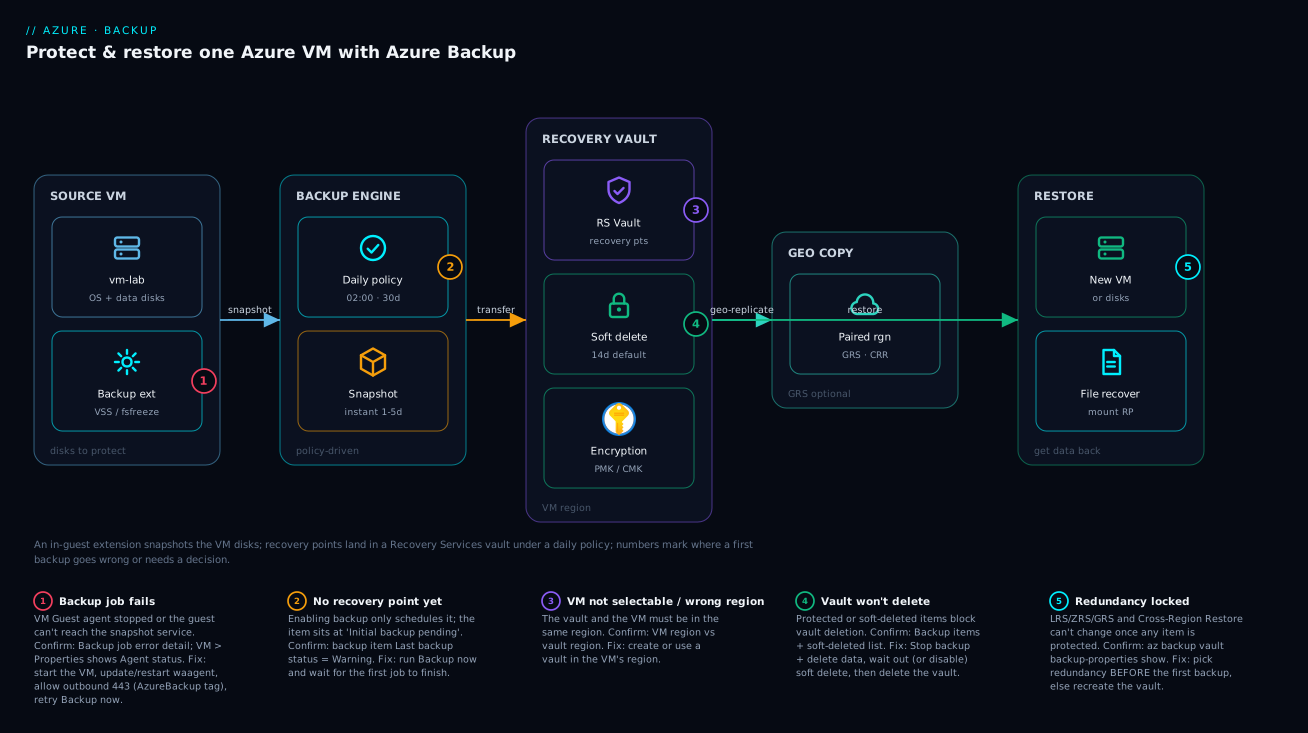
Read the diagram left to right and it is the whole lifecycle on one canvas. On the left, the source VM (OS + data disks) and the backup extension that takes a consistent snapshot in the guest. That snapshot feeds the backup engine, driven by your daily policy (02:00, 30-day retention) and an instant snapshot kept locally 1–5 days. The engine transfers the recovery point into the Recovery Services vault — in the VM’s region, protected by soft delete (recoverable 14 days) and encryption (platform-managed or your own key). If the vault is GRS, a copy is asynchronously geo-replicated to the paired region. On the right, the payoff: restore a new VM or disks, or mount a point and recover individual files.
The numbered badges mark where first backups go wrong or force a decision — failed job, no-recovery-point-yet, wrong region, soft delete blocking a delete, and redundancy locked after the first backup. The legend turns each number into symptom · confirm · fix, the same map as the troubleshooting section.
Real-world scenario
Meridian Tax Advisory, a twelve-person accounting firm in Pune, runs its entire practice on a single Windows Server VM in Azure — a Standard_D2s_v5 hosting a desktop tax app and six years of client returns. A contractor lifted it into Azure, joined it to Entra ID, and left. Nobody configured backup, because everyone assumed “it’s in the cloud, Microsoft backs it up.” Microsoft does not back up your VM’s data unless you tell it to.
On a Tuesday in March — peak filing season — a junior staffer ran a cleanup script that was meant to archive last year’s drafts and instead deleted the current year’s live working folder. Three hundred in-progress returns, gone. The disk’s three durable replicas dutifully reflected the deletion. No backup meant no recovery point. The firm spent four days reconstructing what it could from emailed PDFs, lost two clients, and missed deadlines for several more.
The painful part: preventing it would have cost fifteen minutes and a few hundred rupees a month. Afterward the firm’s new MSP did exactly what this article walks through. They created a GRS Recovery Services vault in Central India (the VM’s region), attached a policy of daily backups at 01:00 retained 30 days, plus weekly retained 12 weeks, and enabled backup. They ran Backup now rather than waiting for 01:00, confirmed the recovery point appeared, and — the step most teams skip — did a test restore to a new VM to prove the backups were restorable, not just present. They also kept soft delete on and added a resource lock on the vault.
Two months later a Windows Update left the VM in a boot loop. The on-call engineer opened the vault, picked the recovery point from the night before, restored the OS disk, and had the firm working again inside ninety minutes — a few hours of lost edits rather than years of lost files. Total cost of the protection that saved them: under ₹900/month for a ~200 GB VM. The lesson the firm now repeats to every new hire: the cloud gives you durability for free and backup only if you ask — and you ask before, never after.
Advantages and disadvantages
| Advantages | Disadvantages |
|---|---|
| Agentless to set up — uses the VM’s built-in Guest Agent; no backup server | Backup is not real-time; you lose everything since the last backup (your RPO) |
| Managed service — no infrastructure, patching, or tapes | Restore is not instant; a full-VM restore can take from minutes to hours by size |
| Application-consistent on Windows (VSS) out of the box | Linux app-consistency needs you to write pre/post scripts |
| Hardened by default — soft delete, encryption, vault isolation | Redundancy and region are locked once the first item is protected |
| Per-VM granularity; restore whole VM, a disk, or individual files | Costs scale with protected size and retention; long retention gets pricey |
Native az CLI and IaC support for repeatable, calendar-style restore |
Cross-Region Restore requires GRS and an explicit opt-in |
Advantages dominate for any VM holding state you can’t trivially recreate — file servers, app servers with local data, domain controllers. The disadvantages bite for near-zero-data-loss workloads (a busy transactional database wants more than daily backups or a database-native solution on top) and for truly stateless VMs (web front ends rebuilt from an image and a pipeline may not need VM backup at all — back up the source, not the cattle).
Hands-on lab
The centerpiece. You will protect one VM end to end, three ways: the portal path first (to see every screen), then the repeatable az path, then Bicep. Each is self-contained. A teardown at the end removes everything so the lab costs nothing.
Throughout, we use these names — change them to suit your subscription:
| Resource | Name | Notes |
|---|---|---|
| Resource group | rg-backup-lab |
Holds everything |
| Region | centralindia |
Must match the VM’s region |
| Virtual machine | vm-lab |
A small Standard_B2s is fine |
| Recovery Services vault | rsv-backup-lab |
GRS by default |
| Backup policy | policy-daily-30 |
Daily 02:00, 30-day retention |
Step 0 — Prerequisites and a VM to protect
If you already have a VM, note its resource group and region and skip to Step 1. Otherwise create a throwaway VM:
# Create a resource group and a small Linux VM to protect
az group create --name rg-backup-lab --location centralindia

az vm create \
  --resource-group rg-backup-lab \
  --name vm-lab \
  --image Ubuntu2204 \
  --size Standard_B2s \
  --admin-username azureuser \
  --generate-ssh-keys
Expected: JSON ending with "provisioningState": "Succeeded". Confirm the region:
az vm get-instance-view -g rg-backup-lab -n vm-lab \
  --query "{loc:location, power:instanceView.statuses[?starts_with(code,'PowerState')].displayStatus|[0]}" -o table
You should see centralindia and VM running. The vault must be created in this region.
Step 1 (Portal) — Create the Recovery Services vault
- In the portal search bar type Recovery Services vaults and open it. Click + Create.
- Subscription: your subscription. Resource group:
rg-backup-lab. - Vault name:
rsv-backup-lab. Region: Central India — the same region asvm-lab. The trap: a vault in another region cannot back up your VM, and the VM won’t even appear later. - Click through to Review + create, then Create. Wait for Deployment succeeded (under a minute).
- Open the vault → Properties → under Backup Configuration click Update. Confirm Geo-redundant (GRS) (default) or pick Locally-redundant (LRS) for a cheaper lab. Do this now — you can’t change it after the first backup. Leave Cross-Region Restore off.
Validation: the vault Overview shows zero backup items and a healthy status. Now give it a policy and an item.
Step 2 (Portal) — Enable backup with a policy
- In the vault, left menu → Backup. Datasource type → Azure Virtual Machine → Continue.
- Under Backup policy, use the built-in daily/30-day policy or Create new: name it
policy-daily-30, Backup schedule Daily at 02:00, Retention of daily backup point 30 days. Add weekly/monthly tiers only for a longer look-back. Click OK. - Under Virtual Machines → Add, tick vm-lab, OK. (If
vm-labis missing, your vault is in the wrong region — see troubleshooting.) - Click Enable backup. When the deployment finishes,
vm-labis a protected item bound topolicy-daily-30.
Validation: Backup items → Azure Virtual Machine shows vm-lab with Last backup status: Warning / Initial backup pending. Expected — backup is enabled but no recovery point exists yet. Fixed next.
Step 3 (Portal) — Run an on-demand backup (“Backup now”)
- Vault → Backup items → Azure Virtual Machine → click vm-lab.
- On the item blade, click Backup now, set the retain until date, OK.
- Watch it run: vault → Backup jobs. A Backup job for
vm-labmoves In progress → Completed. The first backup is a full copy and can take minutes to over an hour by disk size — normal; later backups are incremental and fast.
Validation: when the job shows Completed, the item’s Last backup status is Healthy and Restore points has at least one entry with a timestamp and consistency type (e.g. File-system-consistent for Linux). You are now actually protected — there is a recovery point to restore.
Step 4 (Portal) — Restore from a recovery point
You will restore to new resources, never over the live VM (see the gotcha below).
- On the
vm-labitem blade, click Restore VM. - Restore point: pick the recovery point you just created.
- Restore type: Create new (build a brand-new VM). The alternative, Replace existing, swaps the live VM’s disks — destructive; not for a first restore.
- Set a new VM name (e.g.
vm-lab-restored), a resource group, and a staging storage account (used to assemble the restore). Click Restore. - Track the Restore job in Backup jobs through In progress → Completed.
Validation: when complete, vm-lab-restored exists, built from the recovery point. Start it and confirm it boots and your data is present — you have proven the loop that matters: a backup you can actually restore. Delete vm-lab-restored afterward to avoid charges.
Gotcha — never restore over the live machine first. Replace existing overwrites the running VM’s disks; if the point is bad, you’ve destroyed the only working copy. Always Create new, validate, then cut over.
Step 5 (CLI) — The same lab end to end with az
The repeatable version (assumes the VM from Step 0 exists).
# 1) Create the vault, set GRS redundancy (must be done BEFORE the first backup)
az backup vault create \
  --resource-group rg-backup-lab \
  --name rsv-backup-lab \
  --location centralindia

az backup vault backup-properties set \
  --resource-group rg-backup-lab \
  --name rsv-backup-lab \
  --backup-storage-redundancy GeoRedundant   # or LocallyRedundant for a cheap lab
Expected: the vault is created ("provisioningState": "Succeeded"). Confirm the redundancy:
az backup vault backup-properties show \
  --resource-group rg-backup-lab --name rsv-backup-lab \
  --query "{redundancy:storageModelType, crossRegionRestore:crossRegionRestoreFlag}" -o table
Now enable protection using the built-in DefaultPolicy (daily, 30-day retention):
# 2) Enable backup on the VM using the built-in DefaultPolicy
az backup protection enable-for-vm \
  --resource-group rg-backup-lab \
  --vault-name rsv-backup-lab \
  --vm $(az vm show -g rg-backup-lab -n vm-lab --query id -o tsv) \
  --policy-name DefaultPolicy
Expected: a long-running operation that registers vm-lab (no recovery point yet). Confirm the item:
az backup item list \
  --resource-group rg-backup-lab --vault-name rsv-backup-lab \
  --query "[].{vm:properties.friendlyName, status:properties.protectionStatus, lastBackup:properties.lastBackupStatus}" \
  -o table
lastBackup shows IRPending/Warning — the “no recovery point yet” state. Trigger the first backup:
# 3) Trigger an on-demand backup; retain it ~30 days
az backup protection backup-now \
  --resource-group rg-backup-lab --vault-name rsv-backup-lab \
  --container-name vm-lab --item-name vm-lab \
  --backup-management-type AzureIaasVM \
  --retain-until $(date -u -d "+30 days" +%d-%m-%Y 2>/dev/null || date -u -v+30d +%d-%m-%Y)

# Watch jobs until the backup completes
az backup job list \
  --resource-group rg-backup-lab --vault-name rsv-backup-lab \
  --query "[].{op:properties.operation, status:properties.status, start:properties.startTime}" -o table
Expected: a Backup job that ends Completed. List the recovery points to prove protection:
# 4) List recovery points — non-empty means you are protected
az backup recoverypoint list \
  --resource-group rg-backup-lab --vault-name rsv-backup-lab \
  --container-name vm-lab --item-name vm-lab \
  --backup-management-type AzureIaasVM \
  --query "[].{name:name, time:properties.recoveryPointTime, type:properties.recoveryPointType}" -o table
To restore disks from the latest recovery point into a staging storage account (then build a VM from them), capture the point name and run:
# 5) Restore disks from the latest recovery point to a staging storage account
RP=$(az backup recoverypoint list -g rg-backup-lab -v rsv-backup-lab \
  --container-name vm-lab --item-name vm-lab --backup-management-type AzureIaasVM \
  --query "[0].name" -o tsv)

az backup restore restore-disks \
  --resource-group rg-backup-lab --vault-name rsv-backup-lab \
  --container-name vm-lab --item-name vm-lab \
  --backup-management-type AzureIaasVM \
  --rp-name "$RP" \
  --storage-account <yourstagingstorageacct> \
  --target-resource-group rg-backup-lab
Expected: a Restore job that completes and drops the restored disks (plus a template to build the VM) into the target RG. The CLI restores to disks; the portal’s “Create new” wraps disk-restore and VM-build into one step.
Step 6 (Bicep) — Vault + policy as infrastructure-as-code
Define the vault and a custom daily policy in Bicep for source-controlled setup. Binding an existing VM is best done with az afterward (it isn’t cleanly idempotent in pure ARM), but the vault and policy belong in IaC.
param location string = resourceGroup().location

resource vault 'Microsoft.RecoveryServices/vaults@2024-04-01' = {
  name: 'rsv-backup-lab'
  location: location
  sku: { name: 'RS0', tier: 'Standard' }
  properties: {}
}

// Set storage redundancy BEFORE any item is protected
resource vaultConfig 'Microsoft.RecoveryServices/vaults/backupstorageconfig@2024-04-01' = {
  parent: vault
  name: 'vaultstorageconfig'
  properties: {
    storageModelType: 'GeoRedundant'      // or 'LocallyRedundant'
    crossRegionRestoreFlag: false
  }
}

// Daily backup at 02:00 UTC, retained 30 days
resource policy 'Microsoft.RecoveryServices/vaults/backupPolicies@2024-04-01' = {
  parent: vault
  name: 'policy-daily-30'
  properties: {
    backupManagementType: 'AzureIaasVM'
    instantRpRetentionRangeInDays: 2
    schedulePolicy: {
      schedulePolicyType: 'SimpleSchedulePolicy'
      scheduleRunFrequency: 'Daily'
      scheduleRunTimes: [ '2026-01-01T02:00:00Z' ]
    }
    retentionPolicy: {
      retentionPolicyType: 'LongTermRetentionPolicy'
      dailySchedule: {
        retentionTimes: [ '2026-01-01T02:00:00Z' ]
        retentionDuration: { count: 30, durationType: 'Days' }
      }
    }
    timeZone: 'UTC'
  }
}
Deploy and verify:
az deployment group create \
  --resource-group rg-backup-lab \
  --template-file backup.bicep

# Confirm the vault and policy exist
az backup policy list --resource-group rg-backup-lab --vault-name rsv-backup-lab \
  --query "[].{name:name, type:properties.backupManagementType}" -o table
Expected: the deployment succeeds and the policy list includes policy-daily-30. Then bind your VM with the enable-for-vm ... --policy-name policy-daily-30 command from Step 5.
Step 7 — Teardown (so the lab costs nothing)
Backup data blocks RG deletion until you stop protection and remove the data, and soft delete holds deleted backups 14 days by default. To fully clean up now:
# 1) Stop protection AND delete the backup data for the item
az backup protection disable \
  --resource-group rg-backup-lab --vault-name rsv-backup-lab \
  --container-name vm-lab --item-name vm-lab \
  --backup-management-type AzureIaasVM \
  --delete-backup-data true --yes
To delete the vault immediately (not waiting out soft delete), disable soft delete and undo any soft-deleted items first. Finally:
# 2) Once the vault has no protected or soft-deleted items, delete it
az backup vault delete --resource-group rg-backup-lab --name rsv-backup-lab --yes

# 3) Delete the whole lab resource group (removes the VM, disks, restored VM, etc.)
az group delete --name rg-backup-lab --yes --no-wait
Validation: az group exists -n rg-backup-lab eventually returns false. If the vault delete fails with a message about protected or soft-deleted items, that is the most common teardown snag — see the troubleshooting table.
Common mistakes & troubleshooting
The failures first-timers actually hit — symptom, the exact way to confirm, and the fix.
| # | Symptom | Root cause | Confirm (portal path / command) | Fix |
|---|---|---|---|---|
| 1 | VM not in the list when enabling backup | Vault is in a different region than the VM | Compare VM Overview → Location vs vault Overview → Location | Create/use a vault in the VM’s region; you cannot back up across regions |
| 2 | Item shows Warning / Initial backup pending, nothing to restore | Backup enabled but no on-demand or scheduled run yet | Item Last backup status = Warning; az backup recoverypoint list is empty |
Click Backup now (or backup-now); wait for the job to complete |
| 3 | Backup job fails to install/run the extension | Guest Agent stopped/old, VM off, or no outbound to backup service | VM Properties → Agent status; Backup jobs error detail | Start the VM; update/restart waagent; allow outbound 443 to the AzureBackup service tag; retry |
| 4 | Job warns it produced a crash-consistent point (Windows) | VSS failed — usually low free disk space or a broken VSS writer | Job detail warning mentions VSS; check disk free space | Free disk space; fix the VSS writer; rerun for an application-consistent point |
| 5 | Linux backups are only file-system-consistent | No pre/post scripts configured (this is the default for Linux) | Recovery point type shows File-system-consistent | Acceptable for most; add pre/post snapshot scripts for application consistency |
| 6 | Cannot change vault to GRS after protecting a VM | Redundancy is locked once an item is protected | az backup vault backup-properties show |
Create a new vault with the right redundancy and re-protect; decide up front next time |
| 7 | Vault won’t delete | Protected items and/or soft-deleted items still present | Vault Backup items + soft-deleted list | Stop backup + delete data; undelete/disable soft delete; then delete the vault |
| 8 | First backup is very slow / large | First backup is a full copy; later are incremental | Backup jobs duration and transferred size | Expected — let it finish once; subsequent backups are fast |
| 9 | Access denied creating the vault or policy | Role lacks backup-create rights | Your role on the RG/subscription | Get Backup Contributor or Contributor; Backup Operator can’t create policies/vaults |
| 10 | Restore created a new VM but it won’t start / wrong size | Restore picked an unavailable VM size or networking | New VM Overview errors; activity log | Restore as Create new, then adjust size/NIC; or restore disks and build the VM yourself |
Best practices
- Set up backup before you put real data on a VM — the one time you need it is the one time you can’t create it retroactively.
- Match the vault region to the VM region every time; it’s a hard constraint, not a preference.
- Decide redundancy (and CRR) up front — GRS for production to survive a regional outage; LRS only for dev/test or strict data-residency.
- Always run “Backup now” after enabling and confirm a recovery point appears — never trust an unverified backup.
- Set retention to match your RPO and compliance, not “keep everything”; long retention is the main cost driver.
- Test a restore at least once (to new resources) before you rely on the backups — an untested backup is a hope, not a plan.
- Leave soft delete on (the default) and add a resource lock on the vault so backups can’t be deleted on a whim.
- Name vaults and policies clearly (
rsv-<workload>-<env>) and use IaC for the vault and policy so protection is consistent and reviewable. - Monitor with Backup center (or vault → Backup jobs) and alert on failed jobs across vaults.
Security notes
Backups are a high-value target — a full copy of your data, and exactly what ransomware destroys before encrypting the live system. Treat the vault accordingly.
- Soft delete is on by default (14 days), so an attacker or fat-fingered admin can’t make backups immediately unrecoverable. Keep it on; for stronger protection, immutable vaults and multi-user authorization (MUA) block or gate destructive operations.
- Encryption at rest is automatic — platform-managed keys (PMK) by default, or a customer-managed key (CMK) in Azure Key Vault if you must control the key.
- Network egress for the in-guest extension is outbound 443 to Azure Backup. With locked-down egress, allow the AzureBackup service tag (plus the storage/AAD tags it depends on) rather than opening the internet.
- Audit destructive actions. Backup deletion, policy changes, and stop-protection appear in the Activity log; alert on them so the first sign of tampering isn’t a failed restore mid-incident.
Least privilege via RBAC — use the built-in backup roles rather than handing out Contributor on the subscription just so someone can restore:
| Role | Can do | Cannot do | Give to |
|---|---|---|---|
| Backup Contributor | Create vaults/policies, enable backup, run, restore | Delete the vault if locked; cross-tenant ops | Backup admins / platform team |
| Backup Operator | Run on-demand backups, restore | Create/modify policies, change vault config, delete data | On-call / operators |
| Backup Reader | View vaults, items, jobs (read-only) | Any change or restore | Auditors / monitoring |
Cost & sizing
Billing has two parts: a protected-instance fee (by the VM’s used size) and backup storage for the recovery points (priced by redundancy — LRS cheapest, GRS dearest). Instant-restore snapshots add a little disk. The biggest lever is retention: 30 days of daily points costs far less than years of monthly and yearly points.
Rough orders of magnitude (regional pricing varies; confirm with the Azure pricing calculator):
| Cost driver | What it depends on | Rough monthly figure | How to control it |
|---|---|---|---|
| Protected-instance fee | VM used data size band (e.g. ≤50 GB, ≤500 GB, then per 500 GB) | ~₹400–₹900 (~$5–$10) for a small VM | Fewer protected VMs; consolidate workloads |
| Backup storage | Total recovery-point size × redundancy | ~₹2–₹5 per GB-month (GRS > LRS) | Shorter retention; incremental keeps deltas small |
| Instant-restore snapshots | Snapshot retention 1–5 days × disk churn | A few hundred ₹ | Lower snapshot retention if fast recent restore isn’t needed |
| Cross-Region Restore | GRS + CRR enabled, restore traffic | Mostly on use | Enable only if you need secondary-region restore |
| Restore operations | Egress/compute during a restore | Occasional | Inherent; restores are rare events |
There is no free tier for VM backup, but a lab is cheap: a small VM with one or two recovery points for a day or two is well under ₹100 if you tear it down promptly. The expensive mistakes are leaving labs running and setting multi-year retention on large VMs “just in case.” Across many VMs, fold backup spend into your wider Azure FinOps and cost management practice and watch the storage line.
Interview & exam questions
1. Why isn’t Azure’s disk replication a substitute for backup? The three managed-disk copies protect against hardware loss but faithfully copy logical errors — a delete or corruption is replicated to all of them. Backup is an independent point-in-time copy you can roll back to. Durability ≠ recoverability. (AZ-104, AZ-305)
2. Relate the vault, policy, protected item, and recovery point. The vault is the container (region + redundancy). A policy is schedule plus retention. A protected item is one VM bound to one policy. Each successful job produces a recovery point — a restorable copy at a moment in time. (AZ-104)
3. Why must the vault be in the same region as the VM? Azure Backup for VMs operates within a region; a vault only protects VMs in its own region, and a VM elsewhere won’t even appear when you enable backup. Region is fixed at creation. (AZ-104)
4. You enabled backup but there’s nothing to restore. Why? Enabling only schedules it; the first recovery point comes from the next scheduled run or an on-demand “Backup now.” Until then the item shows Initial backup pending / Warning. Trigger Backup now. (AZ-104)
5. Application- vs file-system- vs crash-consistent — when do you get each?
Application-consistent (cleanest): Windows VSS by default, or Linux pre/post scripts. File-system-consistent: the Linux default without scripts (fsfreeze). Crash-consistent: the fallback when the VM is off or VSS/scripts fail. (AZ-305)
6. What does storage redundancy (LRS/ZRS/GRS) control, and what’s the catch? How many copies of the backup data exist and where: LRS one datacenter, ZRS across zones, GRS to the paired region. The catch: it’s locked once the first item is protected — choose before you back anything up. (AZ-104, AZ-305)
7. What is Cross-Region Restore and what does it require? CRR restores from the secondary (paired) region on demand, even when the primary is healthy. It requires a GRS vault and an explicit opt-in, and is used for DR drills and primary-region outages. (AZ-305)
8. A Windows VM keeps producing crash-consistent points. Fix? Crash-consistent on Windows means VSS failed — commonly low free disk space or a broken VSS writer. Free space, repair the writer, rerun the backup for an application-consistent point. (AZ-104)
9. Which RBAC role restores a VM but can’t delete backups or change policies? Backup Operator runs backups and restores but cannot create/modify policies, change vault config, or delete data. Backup Contributor can; Backup Reader is read-only. (AZ-104)
10. Why does deleting a vault often fail, and how do you force it? It still has protected and/or soft-deleted items (14 days by default). Stop protection and delete the backup data, undelete or disable soft delete, then delete the vault. (AZ-104)
11. What’s the difference between “Create new” and “Replace existing” on restore, and which drives the Azure Backup bill? Create new builds a fresh VM/disks from the recovery point, leaving the original untouched; Replace existing overwrites the live VM’s disks (destructive if the point is wrong) — always Create new first. On cost, the bill is the protected-instance fee (by VM used-size band) plus backup storage (size × redundancy), with retention the biggest lever. (AZ-104, AZ-305)
Quick check
- Your vault is in
westeurope, your VM incentralindia. Why won’t the VM show up when you enable backup? - You enabled backup an hour ago; the item says Initial backup pending. What one action gives you a restorable copy now?
- You protected a VM in an LRS vault and now want GRS. Can you switch it? If not, what do you do?
- First restore: Create new or Replace existing, and why?
- Name the two vault-creation settings you effectively cannot change later.
Answers
- Region mismatch. Azure Backup for VMs is region-bound — a vault only protects VMs in its own region. Use a vault in
centralindia. - Run “Backup now” (or
az backup protection backup-now) and wait for the job. Enabling only schedules backup; the on-demand run creates the first recovery point. - No — create a new GRS vault and re-protect the VM, then retire the LRS one. Decide redundancy before the first backup.
- Create new — it builds a fresh VM without touching the original, so a bad point doesn’t destroy your only working copy. Replace existing is for deliberate cut-overs only.
- Region and storage redundancy (LRS/ZRS/GRS) — region is fixed at creation; redundancy locks once the first item is protected.
Glossary
- Azure Backup — managed service that takes scheduled point-in-time copies (here, VM disks) and stores them in a vault.
- Recovery Services vault (RSV) — container for backup data, policies, recovery points, and jobs; fixed region and lock-after-first-backup redundancy.
- Backup policy — schedule (how often) plus retention (how long to keep each point), applied to protected items.
- Protected item / backup item — one VM bound to one policy; the unit Azure Backup acts on.
- Recovery point — a single restorable, consistent copy of the VM’s disks at a moment, produced by a successful job.
- On-demand backup (“Backup now”) — a manually triggered backup that creates a recovery point immediately.
- RPO (Recovery Point Objective) — max data loss you can tolerate; set by backup frequency (daily → up to a day of loss).
- RTO (Recovery Time Objective) — how quickly you must be back up; influenced by restore size and method.
- Application-consistent — point where app data is flushed and consistent (Windows VSS, or Linux pre/post scripts); cleanest to restore.
- File-system-consistent — OS file system consistent (Linux
fsfreezedefault); I/O flushed but app state may need recovery. - Crash-consistent — disk state as if power was cut; fallback when the VM is off or quiescing fails; usually boots, app may need recovery.
- Instant restore snapshot — local snapshot retained 1–5 days for fast recent restores before/alongside vault transfer.
- Storage redundancy (LRS/ZRS/GRS) — how many copies of backup data exist and where; GRS is the default and the only cross-region option.
- Cross-Region Restore (CRR) — opt-in (GRS only) to restore from the paired secondary region on demand.
- Soft delete — retains deleted backups (14 days default) so they can be recovered from accidental or malicious deletion.
- Guest Agent (waagent) / VM backup extension — the in-VM agent and
VMSnapshot/VMSnapshotLinuxthat take the consistent snapshot during a job.
Next steps
- Layer regional disaster recovery on top of backup with Azure Backup and Site Recovery: protecting workloads from loss.
- Ground schedule and retention decisions in BCDR foundations on Azure: RTO, RPO, and the resilience spectrum.
- For customer-managed backup encryption, set up the key store with Azure Key Vault: secrets, keys and certificates done right.
- Understand the disks you’re protecting in Azure Storage Account Fundamentals: blobs, files, queues and tables.
- Keep backup spend in check as retention grows with Azure FinOps and cost management: controlling cloud spend at scale.