You spin up an Azure VM, the wizard asks “OS disk type,” and a dropdown offers Standard HDD, Standard SSD, Premium SSD, Premium SSD v2 and Ultra Disk. Pick wrong and one of two bad things happens: your app crawls because the disk can’t keep up, or your invoice balloons because you bought a Ferrari to fetch the morning paper. Most teams default to “Premium because it sounds safe” — and that is how you end up paying premium prices for a logging VM that does almost no I/O, or running a busy database on a disk whose IOPS are capped three tiers below what you assumed.
A managed disk is just a durable virtual hard drive that Azure stores, replicates and bills for you — you never see the storage account underneath. The only real decisions are the disk type (the media and performance model: spinning HDD, standard SSD, premium SSD, or the newer dial-it-yourself v2 and Ultra families) and the size, which on the older tiers silently sets your performance. Get those two right and the disk disappears from your problem list; get them wrong and you chase phantom “the app is slow” tickets that are really “the disk is throttled” tickets.
This article gives you the mental model first, then the comparison grids and a decision table you can use at the wizard. You will learn what IOPS and throughput mean, why disk size and VM size both cap performance, how host caching speeds reads for free, how bursting absorbs spikes, and exactly when each disk type is the right call.
What problem this solves
Disk choice is the most common silent mistake in Azure compute — silent because nothing errors. The VM boots, the app runs, the disk just quietly under-performs or over-charges. Three failure modes recur.
Over-provisioning: Premium SSD on every disk “to be safe.” On the legacy tiers you pay for a whole size tier — a disk that needs 200 GB but wants the IOPS of a P30 is provisioned as a 1 TiB P30 purely to unlock the performance, wasting 800 GB. Under-provisioning: a database on a Standard SSD or a too-small Premium disk caps at a few hundred IOPS; the app team reports “the database is slow,” not “the disk is throttled,” and hours vanish. The hidden VM cap: even a fast disk is throttled by the VM’s uncached limits — a 20,000-IOPS disk on a VM whose ceiling is 3,200 delivers 3,200; you get the lower of the two.
This hits everyone running IaaS VMs — single VMs, scale sets, AKS node pools, lift-and-shift databases. The cost is rarely an outage; it is steady wasted spend on one side and mysterious latency on the other. The fix is cheap: learn the four numbers (disk IOPS, disk throughput, VM IOPS cap, VM throughput cap), summarised here with the trap each disk type invites:
| Disk type | Media | Performance is set by | Best for | The trap |
|---|---|---|---|---|
| Standard HDD | Spinning disk | Size tier (Sxx) |
Backups, archives, dev/test, cold data | Using it for any latency-sensitive OS or DB disk |
| Standard SSD | SSD | Size tier (Exx) |
Light web/app servers, low-traffic prod, dev | Assuming it handles steady high IOPS — it does not |
| Premium SSD | SSD | Size tier (Pxx) |
Production OS + data disks, most workloads | Buying a big tier just to unlock IOPS you could dial on v2 |
| Premium SSD v2 | SSD | Dialed independently | Cost-efficient high performance, databases | Forgetting it has no host caching |
| Ultra Disk | SSD | Dialed independently | Top-tier DBs, SAP HANA, sub-ms latency | Paying Ultra rates when Premium v2 would do |
Learning objectives
By the end of this article you can:
- Explain IOPS, throughput and latency and say which one your workload is bound by.
- Tell the five managed disk types apart and name the one job each is best at.
- Read the size-to-performance relationship on the legacy tiers (
Sxx/Exx/Pxx) and why size silently sets IOPS. - Decide when Premium SSD v2 or Ultra — dialing capacity, IOPS and throughput independently — beats a bigger legacy tier.
- Use host caching (
ReadOnly/ReadWrite/None) correctly, and explain why it must beNoneon a database log disk. - Explain disk and VM bursting and why a fast disk can still be throttled by the VM’s uncached limits.
- Create and resize disks with both
azCLI and Bicep, and right-size an over- or under-provisioned disk.
Prerequisites & where this fits
You should already know what an Azure VM is and how to create one, be comfortable running az in Cloud Shell, and understand that a VM has an OS disk plus optional data disks. No storage-internals knowledge is assumed — that is what this article builds.
This sits in the Compute & Storage fundamentals track. Managed disks are block storage attached to a VM — different from the object storage (blobs) and file shares in Azure Storage Account Fundamentals. Disk redundancy (LRS vs ZRS) ties into the availability story in Azure Regions and Availability Zones Explained, since a zone-redundant disk survives a zone failure. Protecting the data is the job of Protect Your First Azure VM with Azure Backup, and counting the rupees at scale is where Azure FinOps and Cost Management at Scale comes in.
Where the disk decision sits relative to the rest of a VM build:
| Decision | What it controls | Where it’s made | Disk impact |
|---|---|---|---|
| VM size (SKU) | CPU, RAM, and disk IOPS/throughput caps | VM create | A fast disk is still capped by the VM |
| Disk type | Media + performance model | Disk create | Standard / Premium / v2 / Ultra |
| Disk size | Capacity, and on legacy tiers the perf tier | Disk create | Size silently sets IOPS on Sxx/Exx/Pxx |
| Host caching | Read/write cache on the VM host | Disk attach | Free read speed-up; wrong for log disks |
| Redundancy (LRS/ZRS) | How the disk is replicated | Disk create | ZRS survives a zone outage |
Core concepts
Five mental models make every later decision obvious.
A managed disk is a billed, replicated drive — you only choose type and size. Azure hides the storage account, replication and placement. You allocate a disk of a given type and size, attach it as the OS or data disk, and Azure keeps three copies (LRS) or spreads them across zones (ZRS). The decision surface is genuinely just type and size (plus caching and redundancy).
Performance is three numbers: IOPS, throughput, latency. IOPS (operations per second) dominates for small, random operations — a database doing thousands of tiny row lookups. Throughput (MB/s) dominates for large sequential operations — streaming a backup. Latency is how long one operation takes to return — HDDs are milliseconds, SSDs sub-millisecond. Your workload is bound by one of these; knowing which tells you what to buy.
On legacy tiers, size buys performance — they are welded together. For Standard HDD (Sxx), Standard SSD (Exx) and Premium SSD (Pxx), each size tier ships a fixed IOPS/throughput allotment — a P10 (128 GiB) gives different numbers from a P30 (1 TiB). You cannot buy a small disk with big IOPS; to get more you climb to a bigger, pricier size. This explains most over-provisioning: people buy a 1 TiB disk for its IOPS and waste the capacity.
On v2 and Ultra, you dial capacity, IOPS and throughput independently. Premium SSD v2 and Ultra Disk break the welding — you set the size and separately the IOPS and throughput, paying per dimension. Need 100 GiB with the IOPS of a 1 TiB legacy disk? On v2 you just dial it. That is why these newer types are often cheaper for high-performance needs than climbing the legacy tiers.
The VM caps the disk — you get the lower of the two. Every VM SKU publishes maximum uncached disk IOPS/throughput (and a separate cached limit). Effective performance is min(disk limit, VM limit): a 20,000-IOPS disk on a VM whose uncached cap is 3,200 delivers 3,200. So sizing a disk means sizing two things — the disk and the VM. This is the most common “I paid for fast and got slow” surprise.
The vocabulary in one table
The moving parts side by side (the glossary repeats these):
| Term | One-line definition | Where it lives | Why it matters |
|---|---|---|---|
| Managed disk | Azure-managed durable virtual drive | Resource group | The thing you size and bill |
| OS disk | Boots the VM; holds the OS | Attached at create | Usually Premium SSD for prod |
| Data disk | Extra disk for app/DB data | Attached as needed | Where you tune IOPS/throughput |
| Temp disk | Local, ephemeral SSD on the host | Comes with many VM SKUs | Fast but wiped on dealloc — never store data |
| IOPS | Operations per second | Disk + VM limit | Bound for small random I/O (databases) |
| Throughput | MB/s of data moved | Disk + VM limit | Bound for large sequential I/O (backups) |
| Size tier | Sxx/Exx/Pxx step that sets perf |
Legacy disks | Size silently sets IOPS/throughput |
| Host caching | Read/write cache on the VM host | Disk attach setting | Free read speed-up; None for logs |
| Bursting | Temporary spike above baseline | Disk + VM | Absorbs short load bursts |
| LRS / ZRS | Local- vs zone-redundant storage | Disk create | ZRS survives a zone outage |
IOPS, throughput and latency — what your workload is actually bound by
Decide what your workload needs — the right disk for a database is the wrong disk for a backup target. A workload is IOPS-bound when it issues many small, scattered operations (an OLTP database, a busy queue) — buy IOPS; throughput-bound when it moves large blocks sequentially (backups, analytics scans) — buy MB/s; latency-bound when each operation must return fast and consistently (a write-ahead log, SAP HANA) — which pushes you to v2 or Ultra. Most systems are a blend, but one dimension dominates and decides the disk:
| If your workload is… | It is bound by… | Symptom when starved | Buy |
|---|---|---|---|
| OLTP database (many small reads/writes) | IOPS | High queue depth, slow queries | Premium SSD / v2 (dial IOPS) |
| Database log / write-ahead log | Latency + write throughput | Commit stalls, transaction lag | Premium v2 / Ultra, caching None |
| Nightly backup / restore | Throughput (MB/s) | Backup window overruns | Standard SSD or Premium (size for MB/s) |
| Analytics / large sequential scans | Throughput | Slow table scans | Premium / v2 (dial throughput) |
| Web/app server (light I/O) | Neither, really | Rare | Standard SSD or small Premium |
| Dev/test, scratch, cold archive | Cost | n/a | Standard HDD / Standard SSD |
One warning that saves real money: do not size purely by capacity — a 200 GB log disk that needs huge write IOPS is a performance decision, not a space decision.
The five disk types, side by side
Exact numbers vary by region and evolve, so treat these as the shape of each tier — confirm the live maximum in the portal or az vm list-skus before committing a production design.
| Disk type | SKU code | Media | Max IOPS (per disk, top of range) | Max throughput | Latency | Perf model |
|---|---|---|---|---|---|---|
| Standard HDD | Standard_LRS (Sxx) |
HDD | ~500 | ~60 MB/s | ms (single-digit to tens) | Set by size tier |
| Standard SSD | StandardSSD_LRS (Exx) |
SSD | ~6,000 (with bursting) | ~750 MB/s (burst) | sub-ms to low ms | Set by size tier |
| Premium SSD | Premium_LRS (Pxx) |
SSD | ~20,000 | ~900 MB/s | sub-ms | Set by size tier |
| Premium SSD v2 | PremiumV2_LRS |
SSD | up to ~80,000 | up to ~1,200 MB/s | sub-ms | Dialed independently |
| Ultra Disk | UltraSSD_LRS |
SSD | up to ~400,000 | up to ~10,000 MB/s | sub-ms, consistent | Dialed independently |
Standard HDD (Sxx) — cheap, slow, for cold data
Spinning disks: lowest cost per GB, highest latency (milliseconds), modest IOPS/throughput, set entirely by the size tier (S4–S80). For data you rarely touch — dev/test scratch, backup staging, archives. Never put a production OS disk or database here; the latency alone makes a responsive app feel sluggish.
Standard SSD (Exx) — the budget SSD
SSD media cheaper than Premium, with lower and less consistent performance (sized by the Exx tiers). Good for web/app servers with light or bursty I/O and dev/test that wants SSD responsiveness without Premium cost. It bursts on smaller sizes for short spikes, but under sustained high IOPS it throttles — do not mistake it for Premium.
Premium SSD (Pxx) — the production default
The workhorse: sub-millisecond latency, predictable IOPS/throughput, and a single-instance VM uptime SLA on a supported VM. The right default for production OS and most data disks. Its one limitation is the welding of size to performance — to get more IOPS you buy a bigger tier. The Pxx ladder runs P1–P80; the commonly-used rows:
| Tier | Size | Provisioned IOPS | Provisioned throughput | Burst IOPS | Burst throughput |
|---|---|---|---|---|---|
| P4 | 32 GiB | 120 | 25 MB/s | 3,500 | 170 MB/s |
| P6 | 64 GiB | 240 | 50 MB/s | 3,500 | 170 MB/s |
| P10 | 128 GiB | 500 | 100 MB/s | 3,500 | 170 MB/s |
| P15 | 256 GiB | 1,100 | 125 MB/s | 3,500 | 170 MB/s |
| P20 | 512 GiB | 2,300 | 150 MB/s | 3,500 | 170 MB/s |
| P30 | 1 TiB | 5,000 | 200 MB/s | — | — |
| P40 | 2 TiB | 7,500 | 250 MB/s | — | — |
| P50 | 4 TiB | 7,500 | 250 MB/s | — | — |
| P60 | 8 TiB | 16,000 | 500 MB/s | — | — |
| P70 | 16 TiB | 18,000 | 750 MB/s | — | — |
| P80 | 32 TiB | 20,000 | 900 MB/s | — | — |
The over-provisioning trap is now obvious: need 3,000 IOPS but only 200 GB? On Premium SSD you must buy a P30 (1 TiB) for its 5,000 IOPS, paying for 800 GB you will never fill. That is the gap Premium SSD v2 closes.
Premium SSD v2 — pay for performance, not for capacity
Premium SSD v2 decouples the three dimensions: you provision size, IOPS and throughput independently and pay per dimension. Every v2 disk ships a free baseline of 3,000 IOPS and 125 MB/s; you pay only above it. So the 200 GB / 3,000 IOPS case above costs a fraction of the P30 — exactly the IOPS you want, no wasted terabyte. The trade-offs: v2 has no host caching, and you must confirm its region/VM availability. For databases that want IOPS and were not relying on caching, it is frequently the best price/performance choice in Azure today.
Ultra Disk — the top tier for the most demanding workloads
Ultra dials all three dimensions at the extreme end: hundreds of thousands of IOPS and multiple GB/s per disk, consistent sub-millisecond latency, and you can adjust IOPS/throughput live without detaching. It is for SAP HANA, top-tier databases and latency-critical systems. The catch: it must be enabled on the VM at create time, has zone and VM-family constraints, has no host caching, and is the most expensive option — reach for it only when Premium SSD v2 cannot hit your target.
The two “dial-it-yourself” tiers against Premium SSD:
| Dimension | Premium SSD | Premium SSD v2 | Ultra Disk |
|---|---|---|---|
| Set IOPS independently of size | No (size tier sets it) | Yes | Yes |
| Set throughput independently | No | Yes | Yes |
| Host caching | Yes (Read/Write) | No | No |
| Adjust perf without downtime | Resize tier (some online) | Yes | Yes (live) |
| Free baseline | n/a (per tier) | 3,000 IOPS + 125 MB/s | n/a (all dialed) |
| Typical use | Default prod OS + data | Cost-efficient high IOPS, DBs | Extreme DBs, SAP HANA, sub-ms |
| Relative cost | Medium | Low-to-medium for high perf | Highest |
Host caching, bursting and the VM cap — three things that change real performance
The disk type and size set the theoretical numbers; three mechanisms change what you actually get.
Host caching — free read speed (used correctly)
When a disk is attached you choose a host cache mode — a cache on the VM host (local SSD + memory) in front of the disk:
| Cache mode | What it caches | Use it for | Never use it for |
|---|---|---|---|
| ReadOnly | Reads only | OS disk, read-heavy data disks | Write-heavy disks (no write benefit) |
| ReadWrite | Reads and writes | OS disk (default), app disks you accept the risk on | Database data/log disks |
| None | Nothing | Database log disks, write-heavy disks | Read-heavy disks (you lose the free reads) |
The critical rule: a database log disk must use None, and a database data disk should use ReadOnly, not ReadWrite. ReadWrite can acknowledge a write before it is durable, risking integrity after a crash, and on the write-heavy log path it often slows things too — one of the most common quiet misconfigurations in lift-and-shift SQL Server. Premium SSD v2 and Ultra have no host caching, so this applies only to Standard/Premium SSD.
Bursting — absorbing short spikes
Two flavours stack. Disk bursting lets a disk temporarily exceed its provisioned IOPS/throughput — credit-based on smaller disks (accrue while idle, spend in a burst) or on-demand on larger disks for a charge. It is why a small P10 can momentarily hit 3,500 IOPS though its baseline is 500: great for boot storms, useless for sustained load. VM-level bursting does the same at the VM’s disk cap. Both layers must allow the spike for you to see it end to end.
| Bursting type | Where | Model | Good for | Not for |
|---|---|---|---|---|
| Disk credit-based burst | Smaller Premium/Standard SSD | Accrue while idle, spend in spike | Spiky, mostly-idle disks | Sustained high I/O |
| Disk on-demand burst | Larger disks (opt-in) | Burst anytime, extra charge | Predictable peaks | Always-on max load (just size up) |
| VM disk burst | Supported VM SKUs | VM-level IOPS/throughput spike | Short aggregate spikes | Sustained aggregate load |
The VM cap — the ceiling people forget
This is the number-one “I bought fast and got slow” cause. Every VM SKU lists a max uncached disk IOPS/throughput and a separate max cached limit. Effective speed is the minimum of the disk’s limit and the VM’s. Put a 20,000-IOPS disk on a VM whose uncached cap is 3,200 and you get 3,200; conversely a powerful VM with an undersized disk is capped at the disk. Check both:
# List a VM size's disk-related caps (uncached IOPS/throughput, max data disks) in your region
az vm list-skus --location eastus --size Standard_D --output table \
  --query "[].{Name:name, MaxDataDisks:capabilities[?name=='MaxDataDiskCount'].value|[0], UncachedIOPS:capabilities[?name=='UncachedDiskIOPS'].value|[0]}"
The shortcut: size the disk and the VM together, roughly matched to the workload — neither far above the other, because the excess is paid-for waste.
Architecture at a glance
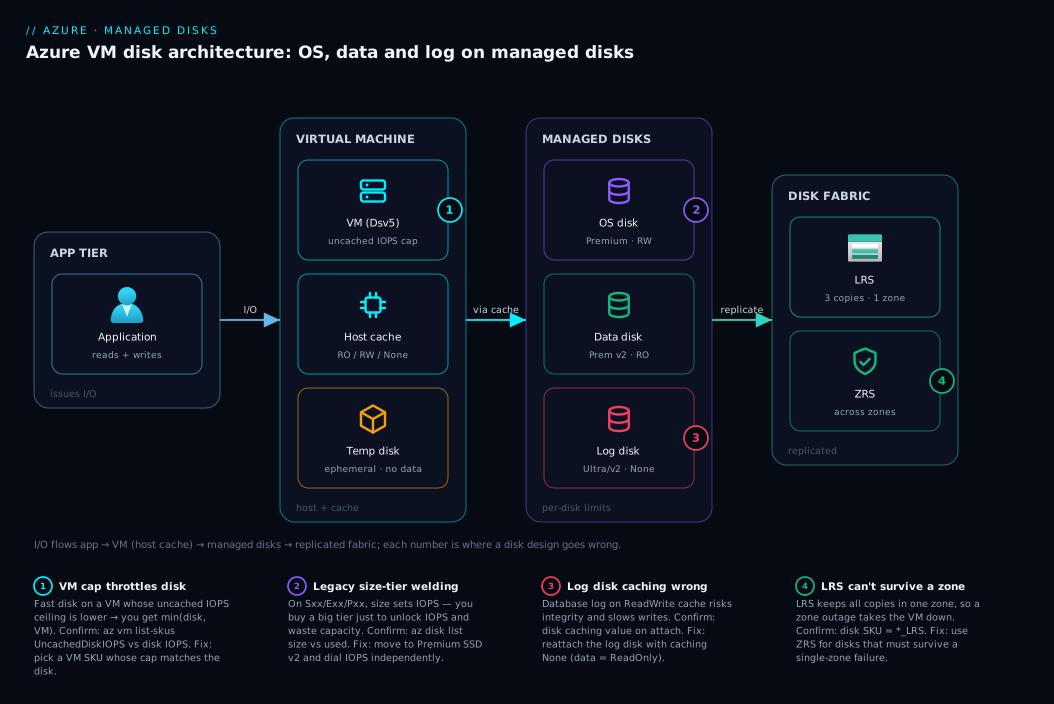
Picture a single production database VM reading and writing block storage. An application request reaches the VM; the CPU issues disk operations through the host cache (if enabled) and into the managed disk in the storage fabric, replicated three ways (LRS) or across zones (ZRS). The slowest of three throttle points wins: the VM’s uncached disk cap, the disk’s own limit, and — for the log disk — the rule that caching must be None.
Walk it left to right. The app tier sends I/O to the VM (whose temp disk you must never store data on). The host cache sits in front of the OS disk (Premium SSD, ReadWrite) and the data disk (Premium SSD or v2, ReadOnly), while the log disk (Premium v2 or Ultra) bypasses the cache with None. All disks land in the managed-disk fabric, replicated LRS or ZRS. The numbered badges mark the four places a disk design goes wrong: the VM cap throttling a fast disk, legacy size-tier welding, the log-disk caching mistake, and the LRS-versus-ZRS choice that decides whether a zone outage takes you down.
Real-world scenario
Northwind Retail runs an order-management database on a single Azure VM — a hurried lift-and-shift of an on-prem SQL Server using one P30 (1 TiB) Premium SSD for everything (OS, data and transaction log) on the default ReadWrite host cache. It “worked,” so nobody touched it for a year.
Then Black Friday traffic tripled and the app team paged: “the database is slow — checkpoints stalling, commit latency spiked.” The instinct was to scale the VM up. Instead the engineer pulled disk metrics and found two things. First, all three workloads shared one disk’s 5,000 IOPS, so log writes, data reads and OS paging fought over the same budget. Second, the transaction log was on ReadWrite caching, which risked integrity after a crash and throttled the write path. The redesign cost almost nothing and went out in a maintenance window:
| Before | After | Why |
|---|---|---|
One P30 for OS+data+log |
OS on P10, data on Premium v2, log on Premium v2 |
Separate budgets; stop the three-way fight |
All disks ReadWrite cache |
OS ReadWrite, data ReadOnly, log None |
Integrity + faster log writes |
| 1 TiB to get 5,000 IOPS | v2 data disk: 500 GB dialed to 8,000 IOPS | Pay for IOPS, not capacity |
| LRS | ZRS on data + log | Survive a single-zone outage |
The Premium SSD v2 data disk delivered more IOPS than the old P30 on a third of the capacity for less money — the free baseline absorbed much of it. Commit latency dropped, checkpoint stalls vanished, and the monthly bill fell. The whole fix was disk design, not a VM scale-up — and that is the lesson: the disk is usually the lever, and “scale the VM” is the expensive guess.
Advantages and disadvantages
The managed-disk model as a whole:
| Advantages | Disadvantages |
|---|---|
| No storage account to manage; Azure handles replication | Less low-level control than unmanaged VHDs (rarely needed) |
| Strong durability (LRS 3 copies, ZRS across zones) | ZRS not available for every type/region |
| Predictable per-tier performance (Premium) | Legacy tiers weld size to performance |
| Snapshots, images, easy backup integration | Some features differ on v2/Ultra (e.g. caching) |
| Per-dimension pricing on v2/Ultra | More knobs to get wrong on v2/Ultra |
When each type’s edge matters: Standard HDD wins only on price-per-GB for cold data; Standard SSD wins on cost for light workloads but its inconsistent sustained performance bites under steady high load; Premium SSD’s predictability and single-instance VM SLA are what production wants, with the size-perf welding hurting only when you need high IOPS on low capacity; Premium SSD v2’s per-dimension pricing is decisive for databases but costs read-heavy workloads the host cache; Ultra’s extreme performance and live tuning are wrong unless you genuinely need them.
Hands-on lab
This lab creates a VM, attaches one of each common data-disk type, inspects the numbers, fixes a caching mistake, and tears down. It uses small disks — still, run the teardown so you are not billed. Everything runs in Cloud Shell.
Step 1 — Variables and resource group.
RG=rg-disk-lab
LOC=eastus
VM=vm-disk-lab
az group create --name $RG --location $LOC
Step 2 — Create a small VM with a Premium SSD OS disk.
az vm create --resource-group $RG --name $VM --location $LOC \
  --image Ubuntu2204 --size Standard_D2s_v5 \
  --os-disk-caching ReadWrite \
  --storage-sku os=Premium_LRS \
  --admin-username azureuser --generate-ssh-keys
Expected: "provisioningState": "Succeeded". The OS disk is Premium SSD with ReadWrite caching — the correct default.
Step 3 — Attach three data disks: Standard SSD, Premium SSD, and Premium SSD v2.
# Standard SSD, 128 GiB
az vm disk attach -g $RG --vmname $VM --name disk-std --new \
  --size-gb 128 --sku StandardSSD_LRS --caching ReadOnly

# Premium SSD, 128 GiB (lands on the P10 tier)
az vm disk attach -g $RG --vmname $VM --name disk-prem --new \
  --size-gb 128 --sku Premium_LRS --caching ReadOnly

# Premium SSD v2, 100 GiB with dialed IOPS/throughput, then attach with caching None (required)
az disk create -g $RG --name disk-premv2 --location $LOC \
  --sku PremiumV2_LRS --size-gb 100 --disk-iops-read-write 5000 --disk-mbps-read-write 200
az vm disk attach -g $RG --vmname $VM --name disk-premv2 --caching None
Expected: each attach succeeds. The v2 disk is created with --disk-iops-read-write/--disk-mbps-read-write (the independent dials) and attached with --caching None, because v2 has no host caching.
Step 4 — Inspect the disks and their performance numbers.
az disk list --resource-group $RG \
  --query "[].{Name:name, SKU:sku.name, GiB:diskSizeGB, IOPS:diskIopsReadWrite, MBps:diskMBpsReadWrite}" \
  --output table
Expected output (numbers vary by region):
Name         SKU              GiB    IOPS    MBps
-----------  ---------------  -----  ------  ------
disk-std     StandardSSD_LRS  128
disk-prem    Premium_LRS      128
disk-premv2  PremiumV2_LRS    100    5000    200
Only the v2 disk shows explicit IOPS/MBps; the Standard and Premium disks derive theirs from the size tier — the welding in action.
Step 5 — Check the VM’s disk caps so you know your real ceiling.
az vm list-skus --location $LOC --size Standard_D2s_v5 \
  --query "[0].capabilities[?name=='UncachedDiskIOPS' || name=='UncachedDiskBytesPerSecond']" \
  --output table
If the VM cap is below a disk’s IOPS, the disk is throttled by the VM.
Step 6 — Fix a caching mistake (simulate a log disk). To see the correct setting for a write-heavy log disk, detach and reattach disk-prem with caching None:
az vm disk detach --resource-group $RG --vmname $VM --name disk-prem
az vm disk attach --resource-group $RG --vmname $VM --name disk-prem --caching None
Expected: the disk reattaches with caching None.
Step 7 — Teardown (do this).
az group delete --name $RG --yes --no-wait
The same in Bicep (a Premium OS disk and a Premium SSD v2 data disk dialed to 5,000 IOPS):
param location string = resourceGroup().location

resource dataDisk 'Microsoft.Compute/disks@2023-10-02' = {
  name: 'disk-premv2'
  location: location
  sku: { name: 'PremiumV2_LRS' }
  properties: {
    creationData: { createOption: 'Empty' }
    diskSizeGB: 100
    diskIOPSReadWrite: 5000      // dialed independently of size
    diskMBpsReadWrite: 200
  }
}

resource vm 'Microsoft.Compute/virtualMachines@2023-09-01' = {
  name: 'vm-disk-lab'
  location: location
  properties: {
    hardwareProfile: { vmSize: 'Standard_D2s_v5' }
    storageProfile: {
      osDisk: {
        createOption: 'FromImage'
        caching: 'ReadWrite'                  // fine for the OS disk
        managedDisk: { storageAccountType: 'Premium_LRS' }
      }
      dataDisks: [
        {
          lun: 0
          createOption: 'Attach'
          caching: 'None'                      // v2 has no caching; None is required
          managedDisk: { id: dataDisk.id, storageAccountType: 'PremiumV2_LRS' }
        }
      ]
      // imageReference, osProfile and networkProfile omitted for brevity
    }
  }
}
Common mistakes & troubleshooting
Disk problems rarely throw a clean error — they show up as latency or cost:
| # | Mistake / symptom | Tell-tale signal | Confirm with | Fix |
|---|---|---|---|---|
| 1 | Fast disk, slow VM (VM cap) | Disk IOPS far above what you observe | az vm list-skus uncached caps vs disk IOPS; “Data Disk IOPS Consumed %” metric |
Use a VM SKU whose cap matches the disk |
| 2 | Over-provisioned to buy IOPS | Big legacy tier mostly empty | az disk list size vs used; low capacity utilisation |
Move to Premium SSD v2, dial IOPS, shrink size |
| 3 | Log disk on ReadWrite cache |
Commit stalls; integrity risk | Disk’s caching value on attach |
Reattach log disk with caching None |
| 4 | Standard SSD under sustained load | Throttling after a burst window | “Data Disk IOPS Consumed %” pinned at 100% | Move to Premium SSD or v2 |
| 5 | Stored data on the temp disk | Data gone after stop/dealloc or host repair | Data lives on /dev/sdb / D: temp drive |
Move data to a managed data disk |
| 6 | Ultra not enabled on VM | Cannot attach Ultra disk | Ultra option greyed out; attach fails | Enable Ultra at VM create; check zone/family |
| 7 | Premium v2 in unsupported region/VM | Disk type not listed | Region/VM support check | Choose a supported region/VM or use Premium |
| 8 | Boot storm on scale-out | Slow boots when many VMs start | Burst credits exhausted on small OS disks | Use larger/Premium OS disks; stagger scale-out |
Two diagnostics you will use constantly. To see whether a disk is throttled, watch the metric:
# Is the data disk pinned at its IOPS ceiling? (look at "Data Disk IOPS Consumed Percentage")
az monitor metrics list --resource <vm-resource-id> \
  --metric "Data Disk IOPS Consumed Percentage" --interval PT1M --output table
Near 100% means the disk (or the VM cap) is the bottleneck — not the CPU. To right-size an over-provisioned legacy disk to a cheaper v2 disk, change the SKU (some changes require a deallocate, and shrinking is restricted — confirm first):
# Change a disk's SKU (e.g. Premium_LRS -> PremiumV2_LRS); VM may need to be deallocated
az disk update --resource-group $RG --name disk-prem --sku PremiumV2_LRS
Best practices
- Default the OS disk to Premium SSD for any production VM — sub-ms latency and the single-instance VM SLA are worth it; reserve Standard SSD/HDD for dev/test and cold data.
- Pick the type by the bound dimension, not by capacity: IOPS-bound → Premium/v2 with dialed IOPS; throughput-bound → size for MB/s; latency-bound → v2 or Ultra.
- Separate OS, data and log onto different disks for any database — never share one disk’s IOPS budget across all three.
- Set host caching deliberately: OS
ReadWrite, dataReadOnly, logNone. - Match the disk to the VM cap — check
az vm list-skusuncached IOPS/throughput; do not pay for performance the VM will throttle. - Prefer Premium SSD v2 over a bigger legacy tier when you need high IOPS on modest capacity.
- Reserve Ultra for workloads that truly need it (SAP HANA, top-tier DBs) and enable it at VM create time — you cannot always add the capability later.
- Use ZRS for disks whose VM must survive a zone outage, and confirm ZRS is available for that type/region.
- Never store anything you care about on the temp disk — it is wiped on deallocation and host maintenance.
- Review utilisation quarterly (capacity used and IOPS consumed %) and right-size both over- and under-provisioned disks.
Security notes
Disk security is mostly encryption and access, and the default is strong.
- Encryption at rest is on by default — every managed disk uses Server-Side Encryption (SSE) with platform-managed keys, no action needed. For control, use customer-managed keys (CMK) in Azure Key Vault via a disk encryption set to rotate and revoke the key; add double encryption at rest for the most stringent compliance, or Azure Disk Encryption (ADE) for in-guest BitLocker/dm-crypt.
- Lock down access — disable managed-disk export/SAS unless needed; prefer private endpoints for import/export so disk data never traverses the public internet.
- Use RBAC, not shared keys. Snapshot and export are the data-exfiltration paths, so scope those permissions tightly — the least-privilege patterns mirror Azure Key Vault: Secrets, Keys and Certificates, which holds the CMK keys.
- Treat snapshots and images as sensitive — a snapshot of an encrypted disk is encrypted but still a full copy of your data; apply the same RBAC and network controls.
Cost & sizing
What drives the bill, and which dimensions each type charges for:
| Cost driver | Standard HDD / SSD | Premium SSD | Premium SSD v2 | Ultra |
|---|---|---|---|---|
| Provisioned capacity (GB) | Yes (per tier) | Yes (per tier) | Yes (per GiB) | Yes (per GiB) |
| Provisioned IOPS | Included in tier | Included in tier | Billed above 3,000 baseline | Billed (all dialed) |
| Provisioned throughput | Included in tier | Included in tier | Billed above 125 MB/s baseline | Billed (all dialed) |
| Transactions (Standard only) | Per-transaction charge | No | No | No |
| On-demand bursting | Standard SSD: no | Opt-in extra charge | n/a (just dial) | n/a (just dial) |
Two non-obvious rules: Standard HDD/SSD also bill per transaction, so a chatty “cheap” disk can cost more than expected; and Premium SSD v2 is often the cheapest path to high IOPS because the 3,000-IOPS/125-MB/s baseline is free and you pay only above it — the scenario’s 200 GB / 8,000 IOPS disk beats the legacy P30 on price. Ultra also bills a per-hour reservation while attached, so justify it only when v2 cannot meet the target.
Rough INR figures (East US-class, indicative — always price your exact region in the Azure Pricing Calculator): a small Standard HDD OS disk runs a few hundred rupees a month; a 128 GiB Premium SSD (P10) is roughly ₹1,500–2,000/month; a comparable Premium SSD v2 disk scales more cheaply with IOPS than climbing Pxx tiers; Ultra runs several times higher. There is no free disk tier, but the lab above costs pennies if torn down promptly. For a fleet, the biggest saving is moving over-provisioned legacy Premium disks to right-sized Premium SSD v2 — see Azure FinOps and Cost Management at Scale to find them.
Interview & exam questions
1. Difference between IOPS and throughput, and which matters for a database? IOPS is operations per second (small random I/O); throughput is MB/s (large sequential I/O). An OLTP database is usually IOPS-bound, so you size for IOPS; a backup or analytics scan is throughput-bound. (AZ-104 / AZ-305.)
2. On Premium SSD, why buy a 1 TiB disk for a 200 GB workload? Premium SSD welds performance to the size tier — to unlock higher IOPS you climb to a bigger tier even if you do not need the space. Premium SSD v2 removes this by dialing IOPS independently of capacity.
3. When would you choose Premium SSD v2 over Premium SSD?
When you need high IOPS/throughput on modest capacity and were not relying on host caching: v2 dials all three dimensions independently, includes a free 3,000-IOPS/125-MB/s baseline, and is often cheaper than a large Pxx tier — but has no host caching.
4. What host caching should a SQL Server transaction log disk use, and why?
None — ReadWrite can acknowledge a write before it is durable (risking integrity after a crash) and slows the write-heavy log path. Data disks use ReadOnly; the OS disk can use ReadWrite.
5. You attached a 20,000-IOPS disk but only see 3,200. Why? The VM SKU’s uncached IOPS cap is 3,200; effective performance is the minimum of the disk and VM limits. Move to a VM size with a higher uncached cap.
6. What is disk bursting and when is it useful? It lets a disk temporarily exceed its provisioned IOPS/throughput — credit-based on smaller disks (accrue while idle, spend in a spike) or on-demand on larger disks. Great for spiky, mostly-idle workloads and boot storms; useless for sustained load.
7. Why never store application data on the temp disk?
It is local, ephemeral SSD on the VM host; contents are lost on deallocation and host maintenance. Use it only for scratch, page/swap, or tempdb-style transient data you can recreate.
8. What is the default disk encryption, and the alternatives? Server-Side Encryption at rest with platform-managed keys. Alternatives: customer-managed keys (CMK) in Key Vault for rotation/revocation control, double encryption at rest for stringent compliance, and Azure Disk Encryption for in-guest BitLocker/dm-crypt.
9. When is Ultra the right choice over Premium SSD v2? Only when v2 cannot meet your IOPS/throughput/latency target — e.g. SAP HANA or extreme databases needing hundreds of thousands of IOPS or consistent sub-ms latency. Ultra is the most expensive, has VM-family/zone constraints, and must be enabled at VM create time.
10. Difference between LRS and ZRS for a managed disk? LRS keeps three copies in one zone; ZRS spreads copies across availability zones, so a ZRS disk survives a single-zone outage. ZRS is not available for every disk type or region. (AZ-305.)
11. How do you reduce the cost of a fleet of over-provisioned Premium disks? Find disks with low capacity utilisation but bought for IOPS, and migrate them to right-sized Premium SSD v2 where you pay per dimension on a free baseline. Review IOPS-consumed-% and capacity-used metrics regularly.
12. Which metric tells you a disk is throttled rather than the CPU? “Data Disk IOPS Consumed Percentage” (and the throughput equivalent). Near 100% while CPU is low means the disk or the VM’s disk cap is the bottleneck, not compute.
Quick check
- Your workload does thousands of tiny random reads per second but moves little total data. Are you IOPS-bound or throughput-bound, and what do you buy?
- You need 250 GB of space but 6,000 IOPS. Which disk type avoids paying for unused capacity, and why?
- What host caching mode must a database transaction log disk use?
- A disk advertises 16,000 IOPS but you only ever see 6,400. What is the most likely cause?
- Name one thing you must never store on the VM’s temp disk and why.
Answers
- IOPS-bound — buy IOPS, e.g. Premium SSD or Premium SSD v2 with dialed IOPS; do not size by capacity.
- Premium SSD v2 — it lets you dial IOPS independently of size, so you provision 250 GB and dial 6,000 IOPS instead of buying a 1 TiB
P30purely for its IOPS. None—ReadWritecaching risks acknowledging a write before it is durable and slows the write-heavy log path.- The VM’s uncached disk IOPS cap is 6,400 — effective performance is the minimum of the disk limit and the VM limit; move to a VM SKU with a higher cap.
- Any persistent application data — the temp disk is ephemeral and is wiped on deallocation and host maintenance, so its contents are not durable.
Glossary
- Managed disk — A durable virtual drive Azure stores, replicates and bills; you choose only type and size.
- OS disk — Boots the VM and holds the OS; usually Premium SSD in production.
- Data disk — An extra disk for app/database data, where you tune IOPS and throughput.
- Temp disk — Local, ephemeral SSD on the host; wiped on deallocation/maintenance — never store durable data on it.
- IOPS — Operations per second; dominant for small random I/O.
- Throughput — Data moved per second (MB/s); dominant for large sequential I/O.
- Latency — Time for one I/O to return; sub-ms on SSD/Premium/Ultra, ms on HDD.
- Size tier — The
Sxx/Exx/Pxxstep on legacy disks that fixes IOPS/throughput; bigger size = more performance. - Premium SSD v2 — Capacity, IOPS and throughput dialed independently; free 3,000-IOPS/125-MB/s baseline; no host caching.
- Ultra Disk — Highest-performance type, dialing all three dimensions to extreme values; sub-ms latency, VM/zone-constrained, most expensive.
- Host caching — A cache on the VM host in front of the disk;
ReadOnly,ReadWriteorNone. - Bursting — Temporarily exceeding provisioned IOPS/throughput; credit-based or on-demand.
- Uncached disk limit — The VM SKU’s max disk IOPS/throughput with caching off; effective speed is the minimum of this and the disk’s limit.
- SSE / CMK — Server-Side Encryption (always on); with customer-managed keys you control the key in Key Vault.
- LRS / ZRS — Locally-redundant (three copies, one zone) vs zone-redundant (across zones; survives a zone outage).
Next steps
- Build the VMs these disks attach to from the ground up — start with Azure Storage Account Fundamentals to contrast block, object and file storage.
- Decide redundancy with confidence in Azure Regions and Availability Zones Explained, then choose LRS vs ZRS for each disk.
- Protect the data on these disks with Protect Your First Azure VM with Azure Backup.
- Hold the encryption keys for customer-managed disk encryption in Azure Key Vault: Secrets, Keys and Certificates.
- Find and right-size over- and under-provisioned disks across a subscription with Azure FinOps and Cost Management at Scale.