You open the Create a virtual machine blade, reach the Size dropdown, and there are over four hundred options with names like Standard_D4s_v5, Standard_E16ds_v5, Standard_F8s_v2, Standard_L8s_v3 and Standard_NC4as_T4_v3, sorted by nothing obvious. Most people pick whatever the tutorial used, or the cheapest one that looks “normal”, and discover three weeks later that the database is starved for RAM or the build agents are paying for memory they never touch. The size name is not random — it is a compact code for the family, the vCPU count, the features, and the generation. Once you can read it, the four hundred options collapse into about six families and a simple decision.
This article teaches you to read that code and choose deliberately. Azure VM series are grouped into families by their CPU-to-memory ratio and special hardware: D is the balanced general-purpose default, E is memory-optimized for databases and caches, F is compute-optimized for CPU-bound work, L is storage-optimized with huge fast local disks, N carries GPUs for AI and graphics, and M is the large-memory monster for SAP HANA. We will decode a size name, compare the families side by side, walk a real sizing decision end to end, and give you a repeatable framework.
By the end you will read Standard_E8ds_v5 instantly as “memory-optimized, 8 vCPUs, ~64 GiB RAM, local temp disk, premium-SSD capable, generation 5” — and know why you would choose it over a same-priced Standard_D16s_v5 for a Postgres workload. You will also know the cheaper levers (B-series burstable, Spot, reservations) around these families, and the traps — like temp disks that vanish on deallocation — that catch people who size by guesswork.
What problem this solves
Choosing the wrong VM family is one of the most common and most expensive Azure mistakes, and it is silent. Nothing errors. The VM boots, the app runs, the bill arrives. Pick a general-purpose D size for a memory-hungry database and you over-provision vCPUs just to reach enough RAM, then watch the buffer cache thrash anyway. Pick a memory-optimized E size for a stateless web tier and you pay a premium for RAM that sits idle. Pick a GPU N size “to be safe” for a workload that never touches a GPU and you can burn a month’s salary in a weekend.
What breaks without this knowledge is not availability — it is cost efficiency and performance fit. The VM is the single largest line item on most Azure bills, and the family sets its price-to-performance baseline before you tune anything else. Right-sizing later is real work — redeploy or resize, often with downtime, and you must justify the change. Choosing the right family up front is free.
Who hits this: anyone provisioning IaaS compute — engineers lifting-and-shifting on-prem servers, teams running databases on VMs instead of PaaS, data scientists spinning up training boxes, architects writing the Bicep a hundred VMs clone from. The lift-and-shift crowd hits it hardest: the on-prem box they are replacing was sized for a five-year refresh cycle and almost always has far more CPU and RAM than the workload uses. Reading the family code lets you size for the workload, not the old tin.
Here is the whole field on one screen — the six families this article decodes, the shape of each, and the workload that calls for it:
| Family | Optimized for | CPU:memory shape | Reach for it when… | Typical example size |
|---|---|---|---|---|
| B (burstable) | Cheap, bursty, idle-most-of-the-time | Low baseline, credits | Dev/test, low-traffic sites, small agents | Standard_B2s |
| D (general purpose) | Balanced default | ~4 GiB RAM per vCPU | Web/app tiers, small DBs, most things | Standard_D4s_v5 |
| E (memory optimized) | RAM-heavy work | ~8 GiB RAM per vCPU | Relational DBs, caches, in-memory apps | Standard_E8ds_v5 |
| F (compute optimized) | CPU-bound work | ~2 GiB RAM per vCPU | Batch, build/CI, gaming, web at scale | Standard_F8s_v2 |
| L (storage optimized) | High local IOPS/throughput | Big NVMe local disk | NoSQL, big-data, log/analytics stores | Standard_L8s_v3 |
| N (GPU) | GPU compute & graphics | GPU + balanced CPU/RAM | AI training/inference, rendering, viz | Standard_NC4as_T4_v3 |
| M (large memory) | Extreme RAM | Up to ~28+ GiB RAM per vCPU | SAP HANA, huge in-memory DBs | Standard_M128ms |
Learning objectives
By the end of this article you can:
- Read any Azure VM size name (
Standard_<family><vCPU><features>_<version>) and state its family, vCPU count, key features and generation. - Match a workload to the right family by reasoning about its CPU-to-memory ratio and any special needs (RAM, GPU, local IOPS).
- Explain the difference between D, E, F, L, N and M families and the B burstable series, and when each saves or wastes money.
- Decode the feature letters —
s,d,a,l,m,t,i,p— and know which ones matter for premium storage, local disks and CPU vendor. - Tell the difference between a local temp disk and a managed data disk, and why putting durable data on the temp disk loses it.
- Pick the right VM generation (
v3/v4/v5/v6) and understand why newer is usually cheaper per unit of work. - List the cost levers around the families — B-series, Spot, reservations and savings plans — and when each applies.
- Right-size a VM with
az vm list-skus, Azure Advisor and metrics, and resize safely withazand Bicep.
Prerequisites & where this fits
You should know what an Azure virtual machine is — a rented server you manage at the OS level (IaaS) — and the basic create flow: you pick an image, a size, networking and disks, and Azure provisions it. You should be comfortable running az commands in Cloud Shell and reading JSON or table output. Familiarity with the concepts of vCPU, RAM and disk IOPS helps; you do not need any deep performance-engineering background.
This sits at the foundation of the Compute track — picking a family is upstream of almost everything else you do with a VM, capping your performance envelope and setting your price. It assumes the regional fundamentals from Azure Regions and Availability Zones: Designing for Resilience (not every family exists in every region — covered below) and pairs with Azure Storage Account Fundamentals: Blobs, Files, Queues and Tables, since the managed disks you attach are a separate sizing decision. When a VM later misbehaves at the network layer, Azure Virtual Network, Subnets and NSGs: Networking Fundamentals is the layer to check.
A quick map of which decision belongs to which layer, so you do not conflate them:
| Layer | The decision | Sets | Covered here? |
|---|---|---|---|
| VM family | D / E / F / L / N / M | CPU:memory shape, special hardware | Yes — the whole article |
| VM size | How many vCPUs (the number) | Absolute capacity & price | Yes |
| VM generation | v3 / v4 / v5 / v6 | Underlying hardware, price/perf | Yes |
| Managed disk | Standard/Premium SSD, Ultra | Durable storage IOPS & price | Briefly — it’s a separate choice |
| Region | Where it runs | Availability & which SKUs exist | Briefly — affects SKU availability |
| Purchase model | Pay-go / Spot / Reserved | The rate you pay per hour | Yes — Cost & sizing |
Core concepts
Five mental models make every later choice obvious.
A VM size is a code, not a name. Read Standard_E8ds_v5 left to right: Standard is the tier (almost always Standard; the legacy Basic tier is retired for new sizes), E is the family, 8 the vCPU count, ds the feature letters (d = local temp disk, s = premium-storage capable), v5 the generation. The same grammar describes every size, so the dropdown becomes a structured menu you can filter in your head.
The family is fundamentally a CPU-to-memory ratio. D gives roughly 4 GiB of RAM per vCPU — balanced. E doubles that to ~8 GiB per vCPU — memory-optimized. F halves it to ~2 GiB per vCPU — compute-optimized. So an 8-vCPU machine is ~32 GiB on D, ~64 GiB on E, ~16 GiB on F. When you add vCPUs only to get more RAM, you’ve picked the wrong family — move up the memory axis (D→E→M) instead of buying CPU you won’t use.
Some families add special hardware, not just a different ratio. L attaches a very large, very fast local NVMe disk for raw local IOPS (NoSQL, big-data scratch). N attaches a GPU (NVIDIA) for AI/ML and graphics. M scales RAM into the terabytes for SAP HANA. These three exist because a class of workload needs specific silicon — only pay for it when the workload truly uses it.
Local temp storage is fast but ephemeral. Many sizes include a temporary disk (the d letter; D: on Windows, /mnt on Linux) — fast local SSD/NVMe, free with the VM, but lost on deallocation, resize, or host maintenance. It’s for scratch: swap files, tempdb, regenerable build artifacts. Durable data goes on managed data disks, which are independent, replicated, and survive the VM. Putting a database’s data files on the temp disk is a classic, painful data-loss mistake.
Newer generations are usually cheaper per unit of work. A v5 runs on newer CPUs than a v3 and typically delivers more performance per vCPU at similar or lower price, so price-to-performance improves each generation. Unless a SKU is only on an older generation in your region, prefer the highest generation available — the cheapest free upgrade in Azure compute.
The vocabulary in one table
Pin down every moving part before the deep sections. The glossary repeats these for lookup; this table is the mental model side by side:
| Term | One-line definition | Where you see it | Why it matters |
|---|---|---|---|
| Family | Letter grouping by CPU:memory + hardware | The letter in the size name | Sets price-to-performance baseline |
| Size (SKU) | One concrete spec (Standard_D4s_v5) |
The Size dropdown | What you actually deploy |
| Generation | Hardware revision (v3–v6) |
The _v# suffix |
Newer = better price/perf |
| Feature letter | Capability flag (s d a l m t i p) |
Letters before _v# |
Premium disk, local disk, vendor… |
| Temp disk | Free, fast, ephemeral local disk | The d letter; D: / /mnt |
Scratch only — lost on dealloc |
| Managed disk | Durable, replicated block storage | Attached separately | Where real data lives |
How to read a VM size name
Master this once and you can decode any of the four hundred options without a lookup. The grammar is:
Standard_<Family><vCPUs><add-ons>[-<constrained>]_<Generation>
Take Standard_E16ds_v5: Standard tier, E family, 16 vCPUs, d (temp disk), s (premium-storage capable), gen v5. Take Standard_NC24ads_A100_v4: N family, C sub-family (compute GPU), 24 vCPUs, a (AMD host), d, s, the A100 GPU, gen v4. The A100/T4/V100 token in N-series names is the actual GPU model — a critical, price-defining detail.
Here is every feature letter you will meet and exactly what it signals:
| Letter | Meaning | Why you care |
|---|---|---|
| s | Premium Storage capable | Can attach Premium SSD / Ultra disks; almost always what you want |
| d | Has a local temp disk | Free fast scratch (D: / /mnt); ephemeral |
| a | AMD-based processor | CPU vendor; often better price/perf, check app compatibility |
| l | Low memory variant | Same vCPUs, less RAM, cheaper — for CPU-bound work on an E/M base |
| m | More memory (or “medium”) variant | Extra RAM on top of the base size (e.g. M128ms) |
| t | Tiny memory variant | Smallest RAM option in a series |
| i | Isolated to a single hardware type | Compliance/isolation; whole-host tenancy |
| p | Arm-based (Ampere) processor | Arm64; strong price/perf, app must support Arm |
-<n> (e.g. -4s) |
Constrained vCPUs | Caps active vCPUs while keeping RAM/IO — saves per-core licensing |
Two of these routinely save real money. The constrained-vCPU sizes (the -4 in Standard_E16-4ds_v5) keep the full RAM and IO of a 16-vCPU machine but expose only 4 active vCPUs — invaluable when you pay per-core software licences (SQL Server, Oracle) and need a big box’s RAM/IO without its full per-core licence bill. The a (AMD) and p (Arm) letters select the CPU vendor; both are frequently cheaper per vCPU than the Intel equivalent, so test them whenever your stack supports them.
A few worked decodings to cement the pattern:
| Size name | Family | vCPUs | Add-ons | Gen | Reads as |
|---|---|---|---|---|---|
Standard_B2s |
B (burstable) | 2 | s | (v1) | Cheap bursty box, premium-storage capable |
Standard_D4s_v5 |
D (general) | 4 | s | v5 | Balanced, ~16 GiB, premium storage |
Standard_D8ds_v5 |
D (general) | 8 | d, s | v5 | Balanced + temp disk + premium storage |
Standard_E8ds_v5 |
E (memory) | 8 | d, s | v5 | Memory-opt, ~64 GiB, temp disk |
Standard_E16-4ds_v5 |
E (memory) | 16→4 | constrained, d, s | v5 | E16 RAM/IO, only 4 active vCPUs (licensing) |
Standard_F8s_v2 |
F (compute) | 8 | s | v2 | Compute-opt, ~16 GiB, premium storage |
Standard_L8s_v3 |
L (storage) | 8 | s | v3 | Big local NVMe, premium storage |
Standard_NC4as_T4_v3 |
N (GPU) | 4 | a, s + T4 GPU | v3 | 1× NVIDIA T4 GPU, AMD host |
Standard_M128ms |
M (large mem) | 128 | m, s | (v1) | ~3.8 TiB RAM, SAP HANA class |
The general-purpose and optimized families (D, E, F)
These three are the families you will use most, and they are best understood as one axis — memory per vCPU — with D in the middle, E above, and F below.
D — general purpose (the default)
The D-series (Dsv5 on Intel, Dasv5 on AMD, newer Dsv6 generations) is the balanced default at roughly 4 GiB of RAM per vCPU. It’s the right first guess for the overwhelming majority of workloads: web front ends, application servers, small-to-medium databases, domain controllers, microservices, CI controllers. If you don’t know what a workload needs, deploy a small D, measure, and move along the axis. D is also where you start a lift-and-shift before profiling — it rarely starves a typical server of CPU or RAM.
E — memory optimized
The E-series (Esv5, Easv5, Ev6) roughly doubles RAM to ~8 GiB per vCPU at the same vCPU counts. Reach for E when the workload is memory-bound: relational databases (SQL Server, PostgreSQL, MySQL) whose performance lives and dies by buffer-cache size; in-memory caches; analytics holding large working sets in RAM. The classic tell — “I keep buying bigger D sizes only to get more RAM” — is E’s exact job, and switching saves the CPU you were over-buying.
F — compute optimized
The F-series (Fsv2, newer Fav6/Falsv6 generations) halves RAM to ~2 GiB per vCPU and pairs it with high-clock CPUs. Choose F when the workload is CPU-bound and not memory-hungry: batch processing, build/CI agents, gaming servers, video encoding, web servers under heavy load, scientific compute that fits in modest RAM. F gives the most CPU per rupee when RAM isn’t the constraint — paying for D’s or E’s extra memory here is pure waste.
The three side by side, at a representative 8-vCPU point (RAM is approximate and varies by exact generation — always confirm with az vm list-skus):
| Aspect | D (general) | E (memory) | F (compute) |
|---|---|---|---|
| RAM per vCPU | ~4 GiB | ~8 GiB | ~2 GiB |
| ~8-vCPU RAM | ~32 GiB | ~64 GiB | ~16 GiB |
| Best for | Web/app tiers, mixed | Databases, caches | Batch, CI, encoding |
| Relative price (per vCPU) | Baseline | Higher (RAM premium) | Lower (less RAM) |
| The tell | “Balanced, don’t know yet” | “Buying CPU just for RAM” | “Pegged CPU, RAM idle” |
| Common mistake | Using it for a big DB | Using it for stateless web | Using it where RAM is the bottleneck |
A simple decision rule sits underneath all three:
| If the workload is… | And RAM is… | Pick |
|---|---|---|
| Mixed / unknown | Roughly proportional to CPU | D |
| A relational DB / cache | The bottleneck | E |
| Batch / CI / encoding | Not the bottleneck | F |
| Per-core licensed (SQL/Oracle) | Needs lots of RAM, few cores | E constrained (-Nds) |
The specialist families (L, N, M)
These three exist for specific hardware needs. Choosing one should always be justified by the workload genuinely using that hardware.
L — storage optimized
The L-series (Lsv3 on Intel, Lasv3 on AMD) pairs balanced CPU/RAM with a very large, very fast local NVMe disk — directly attached, low-latency, high-throughput. It is built for workloads needing massive local IOPS that replicate across nodes: NoSQL databases (Cassandra, MongoDB, Elasticsearch), big-data scratch, high-throughput log/analytics stores. The crucial caveat: the local NVMe is temporary — it survives reboots but is lost on deallocation or host maintenance. L workloads replicate across instances so losing one node’s disk is survivable; never park a single, un-replicated source of truth on L’s local NVMe.
N — GPU
The N-series carries NVIDIA GPUs and splits into sub-families by purpose. The GPU model in the name (T4, V100, A100, H100…) defines both capability and price, and N sizes are by far the most expensive per hour, so matching the sub-family to the task matters:
| Sub-family | Purpose | Typical GPUs | Reach for it when… |
|---|---|---|---|
| NC | Compute / AI training | T4, V100, A100, H100 | Training models, HPC, heavy CUDA compute |
| ND | Large-scale deep learning | A100, H100 (multi-GPU) | Multi-GPU distributed training |
| NV | Visualization / VDI | A10, (legacy M60) | Remote graphics workstations, rendering |
| NG | Cloud gaming / graphics | AMD Radeon | Game streaming, graphics workloads |
The discipline with N-series is to never leave one idle — a GPU box can cost more per hour than a small fleet of D-series, so deallocate (or use Spot, or scale to zero) the moment a job is done. Inference often serves from a single small GPU; training scales GPUs and uses ND for multi-GPU jobs. If your AI work is model-API-based rather than self-hosted, an N-series VM may be the wrong tool entirely — see Anatomy of an Azure ML Workspace: Compute Targets, Datastores, Environments, and the Job Lifecycle.
M — large memory
The M-series (Mv2, Msv2/Msv3, Mdsv-class) scales RAM into the terabytes — far beyond E — for workloads whose entire dataset must live in memory. The flagship use is SAP HANA, whose certified M sizes provide the multi-TiB RAM it requires; M also serves giant in-memory relational databases and large analytics engines. It’s a niche, expensive family — reach for it only when E’s ~8 GiB-per-vCPU ceiling is genuinely insufficient and the workload (usually SAP-certified) demands a specific M size. Many M sizes are constrained-vCPU capable for the same per-core licensing reason as E.
The specialists summarized:
| Family | The special hardware | Survives dealloc? | Anchor workload | Watch out for |
|---|---|---|---|---|
| L | Big local NVMe | Local disk no | Cassandra, Elastic, big-data | Don’t store the only copy locally |
| N | GPU (NVIDIA) | N/A | AI training/inference, render | Idle GPUs burn money — deallocate |
| M | Terabytes of RAM | Yes (managed disks) | SAP HANA, huge in-memory DB | Niche & costly; use only when E is too small |
Generations, regions and availability
Two practical realities shape which size you can actually deploy.
Generations move forward and you should follow. A series carries a version suffix — v2–v6 — marking the underlying hardware. Newer generations run on newer CPUs and almost always give more performance per vCPU at a similar or lower price. The rule: pick the highest generation available for your family in your region, falling back only when the newer isn’t yet offered there. Generations also occasionally change defaults — some newer general-purpose series drop the temp disk by default, which is why the d letter matters (Dsv5 vs Ddsv5).
Not every size exists in every region, and capacity can be constrained. A region might not offer the newest GPU generation, or a particular constrained size, or an availability zone might be temporarily out of a SKU. Two errors you will meet:
| Error / symptom | What it means | How to confirm | Fix |
|---|---|---|---|
SkuNotAvailable |
The size isn’t offered (or is restricted) in that region/zone | az vm list-skus --location <region> --size Standard_<...> |
Choose another region/zone, or request a quota/SKU enablement |
AllocationFailed / ZonalAllocationFailed |
The region/zone is temporarily out of that SKU’s capacity | Retry; try another zone | Use a different zone/region, a flexible scale set, or a nearby size |
OperationNotAllowed (quota) |
You’ve hit your vCPU quota for that family | az vm list-usage --location <region> |
Request a quota increase for that family |
| Resize option greyed out | Target size not available on the current host cluster | Portal → Size shows availability | Stop-deallocate, then resize, or redeploy |
Confirm what is available before you commit. List the sizes in a region, filtered to a family, and read their vCPU/RAM:
# Which E-family v5 sizes exist in Central India, with vCPU + memory?
az vm list-skus --location centralindia --resource-type virtualMachines \
  --query "[?starts_with(name, 'Standard_E') && contains(name, '_v5')].{Size:name, \
    vCPU:capabilities[?name=='vCPUs'].value | [0], \
    MemoryGB:capabilities[?name=='MemoryGB'].value | [0]}" -o table
# Is one specific size offered here, and is it restricted in any zone?
az vm list-skus --location centralindia --size Standard_E8ds_v5 \
  --query "[].{Name:name, Restrictions:restrictions}" -o json
Architecture at a glance
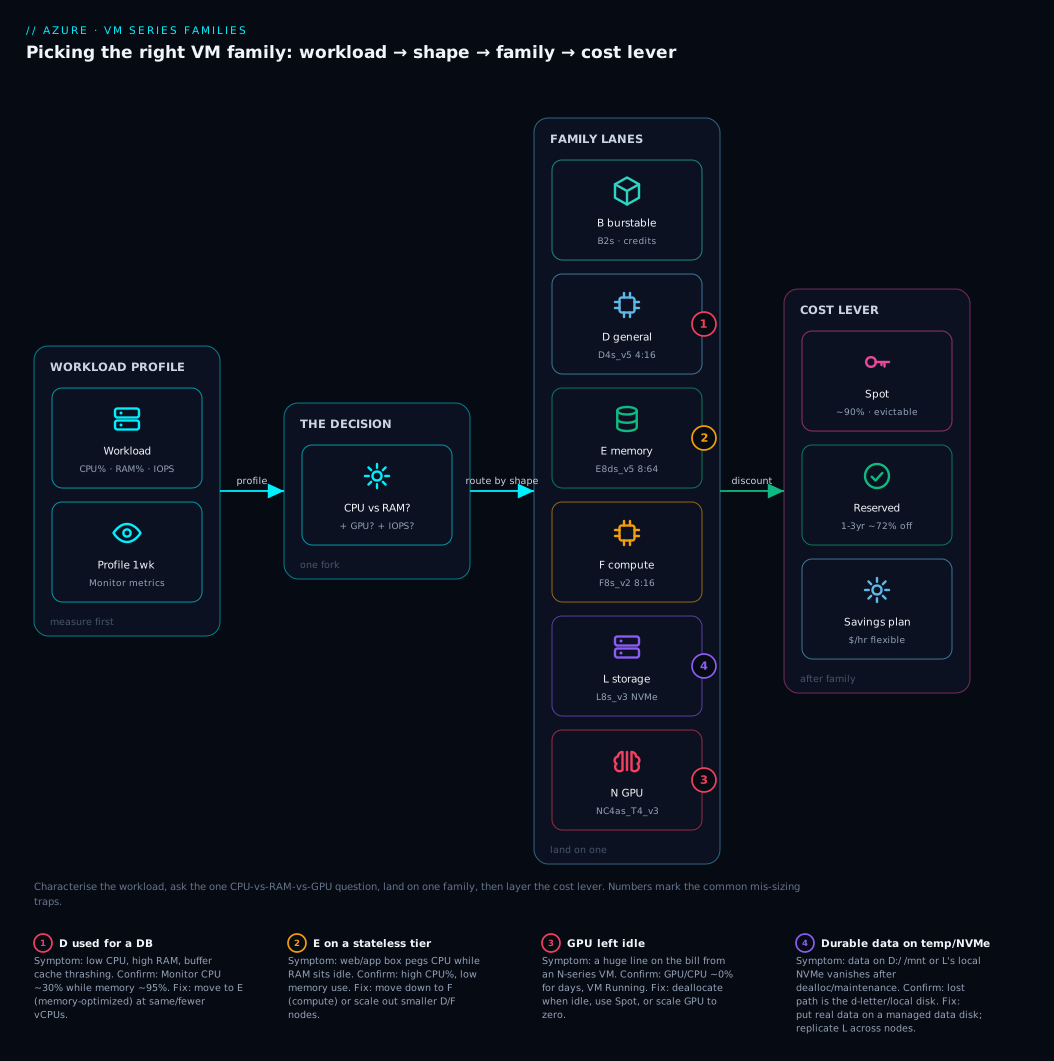
The diagram below is not a network topology — it is a decision flow for picking a family, drawn left to right the way you would actually reason. You start at the workload on the left, ask the one question that matters most (is RAM, CPU, local IOPS or a GPU the constraint?), and that question routes you to exactly one family lane. Each family lane shows a representative size with its real shape (vCPU:RAM ratio, the temp-disk and premium-storage flags), and the lanes converge on the right onto the cost levers — B-series, Spot and reservations — that you layer on after the family is chosen. The numbered badges mark the four places people most often go wrong: defaulting to D for a database, paying for E on a stateless tier, leaving a GPU idle, and trusting the ephemeral temp disk with durable data.
Read it as a pipeline. The workload profile zone forces you to characterise the work before you shop. The decision zone is the single CPU-vs-memory-vs-GPU fork. The family lanes zone is the menu you land on, each lane a real Standard_* size. The cost levers zone is where the same family gets cheaper through purchase model. Follow any one path top to bottom and you have made a defensible sizing decision; the legend turns each badge into a symptom you can recognise and the fix.
Real-world scenario
Meridian Retail, a mid-size Indian e-commerce company, ran their stack on three lift-and-shift VMs sized by an engineer who picked “something that looked safe” during a rushed migration: a Standard_D16s_v5 web/API tier, a second Standard_D16s_v5 for self-managed PostgreSQL, and a Standard_NC6s_v3 (a V100 GPU box) a data scientist had spun up for a recommendation experiment six months earlier and never turned off. The monthly compute bill had crept past ₹2.6 lakh and finance asked why.
The first finding was the GPU. The NC6s_v3 had run 24×7 at near-zero utilisation for five months after the experiment ended — quietly the single most expensive line on the bill. Deallocating it (and agreeing the next experiment would use a Spot N-series, deallocated the moment a job finished) removed roughly a third of the spend in one click. Badge 3 on the diagram, exactly.
The second was the database. The Postgres D16s_v5 showed CPU steady around 25% but memory pinned near 95%, the buffer cache constantly evicting. They had bought 16 vCPUs on a general-purpose D to reach 64 GiB of RAM — and were still RAM-starved. Moving to the memory-optimized family, a Standard_E16ds_v5 gives the same 16 vCPUs but ~128 GiB RAM. Postgres was not per-core licensed so they kept the full E16; for a separate SQL Server instance elsewhere they used a constrained Standard_E16-4ds_v5 to hold the RAM while licensing only 4 cores. The cache stopped thrashing and p95 query latency fell sharply — for a similar hourly price, because they stopped over-buying CPU. Badge 1.
The third was the web tier: the D16s_v5 front end ran CPU-bound under traffic with RAM barely above 30%. They moved down the memory axis to two Standard_F8s_v2 behind the load balancer — more total CPU headroom, far less idle RAM paid for, and better resilience from two nodes.
Finally, the now-right-sized D/E/F production VMs went onto 1-year reservations (these are steady 24×7 workloads), and dev/test boxes onto cheap B-series burstable sizes that idle most of the day. The redesigned fleet — F for web, E for the database, no idle GPU, reservations on the steady tier — landed the bill near ₹1.4 lakh for better performance. Nothing exotic: they read the workload’s CPU-to-memory shape, picked the matching family, and layered the cost levers on top.
Advantages and disadvantages
Choosing the family deliberately is almost all upside, but it is worth being honest about the trade-offs of specialisation.
| Advantages | Disadvantages |
|---|---|
| Right CPU:memory shape → you stop paying for unused CPU or RAM | More choices to reason about than “one size fits all” |
| Specialist hardware (GPU, NVMe, TB RAM) available exactly when needed | Specialist families (N, M, L) carry premiums and availability limits |
| Constrained-vCPU sizes slash per-core licensing costs | Constrained sizes are easy to misread (you still pay for the RAM/IO) |
| Newer generations improve price/perf for free | Not every generation/SKU exists in every region |
| Cost levers (B, Spot, reservations) stack on top of a good family choice | Spot can be evicted; reservations lock you in for 1–3 years |
| Resizable later within a family with minimal disruption | Cross-family resize may need stop-deallocate and can lose the temp disk |
When does each matter? The right-shape advantage matters most for steady, always-on workloads where a few rupees per hour compound over a year. The specialist advantage matters only for the narrow set of workloads (AI on N, SAP HANA on M, NoSQL on L) that genuinely need the hardware; elsewhere, specialising is a cost. The constrained-vCPU lever is decisive only when you carry per-core licences. And the lock-in of reservations only stings if the workload isn’t actually steady — for a 24×7 database it’s free money, but don’t reserve a box you might re-architect next quarter.
Hands-on lab
This lab is read-only and free: you will explore and compare VM families with az (no VM is created, so there is nothing to pay for and nothing to tear down), then see exactly how you would deploy and resize. Run it in Cloud Shell.
Step 1 — set a region variable so every command targets the same place:
LOC=centralindia   # use a region near you that offers the families
az account show -o table   # confirm you're in the right subscription
Step 2 — list the general-purpose D-family sizes with their real shape. This is the single most useful command in the whole article — it turns the dropdown into a table you can read:
az vm list-skus --location $LOC --resource-type virtualMachines \
  --query "[?starts_with(name,'Standard_D') && contains(name,'_v5')].{Size:name, \
    vCPU:capabilities[?name=='vCPUs'].value | [0], \
    MemGB:capabilities[?name=='MemoryGB'].value | [0]}" -o table
Expected output: rows like Standard_D4s_v5 4 16, Standard_D8s_v5 8 32 — confirming D’s ~4 GiB-per-vCPU shape.
Step 3 — compare the three core families at 8 vCPUs side by side. Run the same query for E and F and eyeball the RAM difference:
for fam in Standard_D8s_v5 Standard_E8s_v5 Standard_F8s_v2; do
  az vm list-skus --location $LOC --size "$fam" \
    --query "[0].{Size:name, vCPU:capabilities[?name=='vCPUs'].value|[0], \
      MemGB:capabilities[?name=='MemoryGB'].value|[0]}" -o table
done
Expected: D8 ≈ 32 GiB, E8 ≈ 64 GiB, F8 ≈ 16 GiB — the memory axis, made concrete.
Step 4 — check what a size costs before you commit. Use the retail price API (no auth needed) to compare hourly rates:
curl -s "https://prices.azure.com/api/retail/prices?\$filter=armRegionName eq 'centralindia' and armSkuName eq 'Standard_E8s_v5' and priceType eq 'Consumption'" \
  | python3 -c "import sys,json; [print(p['armSkuName'], p['productName'], p['unitPrice'], p['currencyCode']) for p in json.load(sys.stdin)['Items']][:1]"
Step 5 — see the deploy command (do not run unless you want a real VM). This is how you would create the chosen size:
# az group create -n rg-vm-lab -l $LOC
# az vm create -g rg-vm-lab -n vm-demo --image Ubuntu2204 \
#   --size Standard_D2s_v5 --admin-username azureuser --generate-ssh-keys
Step 6 — see the resize command. Moving across families (e.g. D→E) usually needs a stop-deallocate first, and the temp disk is lost in the process:
# az vm deallocate -g rg-vm-lab -n vm-demo
# az vm resize    -g rg-vm-lab -n vm-demo --size Standard_E2s_v5
# az vm start     -g rg-vm-lab -n vm-demo
Step 7 — the Bicep equivalent, so the size is code you review and reuse:
@allowed([ 'Standard_D2s_v5', 'Standard_E2s_v5', 'Standard_F2s_v2' ])
param vmSize string = 'Standard_D2s_v5'

resource vm 'Microsoft.Compute/virtualMachines@2024-07-01' = {
  name: 'vm-demo'
  location: resourceGroup().location
  properties: {
    hardwareProfile: { vmSize: vmSize }   // the family choice, parameterised
    // osProfile / storageProfile / networkProfile omitted for brevity
  }
}
Teardown: nothing to remove — Steps 5 and 6 are commented out, so no resources were created. If you uncommented them, run az group delete -n rg-vm-lab --yes --no-wait.
Common mistakes & troubleshooting
These are the real ways family sizing goes wrong, with the exact way to confirm and fix each.
1. Adding vCPUs just to get more RAM (using D where E belongs)
Symptom: A database VM shows low CPU but high memory, and you keep stepping up to bigger D sizes. Confirm: In Azure Monitor, Percentage CPU sits low (say 20–40%) while Available Memory Bytes is near zero / the OS shows memory pressure. Fix: Move to the memory-optimized E family at the same (or fewer) vCPUs — Standard_D16s_v5 → Standard_E8ds_v5 or E16ds_v5 — to get the RAM without buying CPU you don’t use.
2. Paying for memory-optimized E on a stateless tier
Symptom: A web/app tier on an E size runs CPU-heavy with most RAM idle. Confirm: High Percentage CPU, low memory utilisation. Fix: Move down the axis to F (compute-optimized) or D (balanced), and consider scaling out with more, smaller instances behind a load balancer.
3. Storing durable data on the temp disk
Symptom: After a resize, host maintenance or stop-deallocate, data on D: / /mnt is gone. Confirm: The lost path is the temp disk (the d-letter disk), not a managed data disk; check lsblk / disk layout. Fix: Put durable data on a managed data disk; reserve the temp disk for swap, tempdb, and regenerable scratch only.
4. Leaving a GPU (N-series) idle
Symptom: A large, surprising line on the bill from an N-series VM. Confirm: GPU/CPU utilisation near zero over days; the VM is Running but doing nothing. Fix: Deallocate when idle (az vm deallocate), use Spot for interruptible training, or scale GPU compute to zero between jobs. Never leave a GPU box running for “later”.
5. Picking an old generation by habit
Symptom: You deploy v3 because a tutorial used it, paying more per unit of work than v5/v6. Confirm: az vm list-skus shows a newer generation of the same family available in your region. Fix: Use the highest generation available for your family/region; resize existing VMs to the newer generation.
6. SkuNotAvailable / AllocationFailed at deploy
Symptom: Create or resize fails with SkuNotAvailable or (Zonal)AllocationFailed. Confirm: az vm list-skus --location <region> --size <size> shows it’s absent/restricted, or capacity is constrained in that zone. Fix: Try another zone or region, request SKU enablement/quota, use a flexible scale set, or pick a nearby size in the same family.
7. Hitting a vCPU quota for a family
Symptom: Deploy fails with OperationNotAllowed citing a quota. Confirm: az vm list-usage --location <region> shows that family’s vCPUs at the limit. Fix: Request a quota increase for that specific family (quotas are per-family, per-region), or use a different family with spare quota.
8. Misreading a constrained-vCPU size as cheaper compute
Symptom: You pick Standard_E16-4ds_v5 expecting to pay for 4 vCPUs and get a big bill. Confirm: Pricing reflects the E16 base (full RAM/IO), not 4 vCPUs. Fix: Understand that constrained sizes save per-core licensing, not VM cost — you still pay for the underlying big box; use them only when licensing is the driver.
A compact decision table for the most common confusions:
| If you see… | It’s probably… | Do this |
|---|---|---|
| Low CPU, high RAM on a DB | Wrong family (D instead of E) | Move to E at same/fewer vCPUs |
| High CPU, idle RAM on web | Over-bought RAM (E/D too big) | Move to F or scale out |
| Data gone after dealloc | Durable data on the temp disk | Move data to a managed disk |
| Big bill from one VM | Idle N-series GPU | Deallocate / Spot / scale to zero |
SkuNotAvailable |
SKU absent/restricted in region | Another region/zone or request enablement |
OperationNotAllowed quota |
Family vCPU quota hit | Request per-family quota increase |
Best practices
- Start at D, then move along the memory axis. Default to a small D; if RAM is the bottleneck go E (then M only if E is too small); if CPU is the bottleneck and RAM is idle go F. Let measurement, not habit, pick the family.
- Size for the workload, not the old on-prem box. Lift-and-shift servers are almost always over-provisioned; profile CPU and memory for a week and size to the real usage.
- Always prefer the highest generation available for your family in your region — it’s free price/performance.
- Use the
s(premium-storage) sizes by default. Premium SSD capability is what you want for almost any production VM; the small premium is worth it. - Keep durable data off the temp disk. Treat the
d-letter local disk as scratch only — swap,tempdb, regenerable artifacts. - Reach for constrained-vCPU sizes when (and only when) you pay per-core licences for SQL Server, Oracle, etc.
- Deallocate or Spot every GPU and other expensive box the moment it’s idle. Never leave an N or M size running “for later”.
- Reserve steady 24×7 workloads (1- or 3-year) after right-sizing; put bursty dev/test on B-series.
- Parameterise the size in Bicep/Terraform with an
@allowedlist so the family choice is reviewed, not ad-hoc. - Check region/zone availability and quota before standardising on a SKU across a fleet — a size that exists in one region may be restricted in another.
- Right-size on a cadence using Azure Advisor’s cost recommendations and Monitor metrics; sizing is not a one-time decision.
Security notes
Family choice is mostly a cost and performance decision, but a few security and isolation considerations attach to it:
- Isolated (
i) sizes for tenancy/compliance. Thei-suffixed sizes run your VM on a host dedicated to a single customer’s hardware type, for controls that forbid multi-tenant hosts. They cost more; use them only when mandated. For full host control, Azure Dedicated Host is the broader mechanism. - The temp disk is not for secrets. The ephemeral local disk is fast but may not be encrypted to the same standard as managed disks, and it’s lost unpredictably. Keep secrets and sensitive data on managed disks with Azure Disk Encryption (platform- or customer-managed keys), never on
D://mnt. - Confidential VMs are a family-level capability. Series like DCasv5/ECasv5 confidential provide hardware-based memory encryption (AMD SEV-SNP) protecting memory even from the host — the security-driven family choice for regulated data.
- Managed identity, not keys. Family has no bearing on identity, but whatever VM you pick, give it a managed identity with least-privilege roles rather than storing credentials on the box.
- GPU drivers widen the attack surface. N-series VMs run vendor GPU drivers and CUDA libraries at high privilege; keep them patched.
Cost & sizing
The family sets the price-to-performance baseline; the size sets the absolute price; the purchase model sets the rate. Get all three right and the same workload can cost a fraction of a naïve deployment.
What drives the bill, in order of impact:
| Cost driver | Effect on price | Lever |
|---|---|---|
| Family | Sets RAM/CPU premium (E > D > F per vCPU) | Match the family to the workload’s shape |
| vCPU count (size) | Roughly linear — more cores, more rupees | Right-size to measured usage |
| Specialist hardware | N (GPU) and M (TB RAM) carry steep premiums | Use only when genuinely needed; deallocate when idle |
| Generation | Newer ≈ better price/perf | Prefer highest generation |
| Purchase model | Biggest lever after family (see table below) | Reserve steady, Spot interruptible |
| OS & licensing | Windows/SQL add per-core cost | Azure Hybrid Benefit; constrained sizes |
| Attached disks | Managed disks billed separately | Right-tier disks (Standard vs Premium) |
The purchase-model levers, side by side:
| Lever | Discount vs pay-go | Commitment | Risk | Best for |
|---|---|---|---|---|
| Pay-as-you-go | Baseline (0%) | None | None | Spiky, short-lived, unknown |
| B-series (burstable) | Cheaper base rate | None | CPU throttled when out of credits | Idle-most-of-the-time, dev/test |
| Spot | Up to ~90% | None | Evicted when Azure needs capacity | Batch, CI, interruptible training |
| Savings plan (compute) | Up to ~65% | 1 or 3 yr ($/hr) | Locked spend | Flexible mix of sizes/regions |
| Reserved Instance | Up to ~72% | 1 or 3 yr (specific size) | Locked to size/region | Steady 24×7, fixed size |
| Azure Hybrid Benefit | Removes Windows/SQL licence cost | Existing licences | Must own Software Assurance | Windows/SQL workloads |
Rough figures (illustrative — confirm with the retail price API in the lab; rates vary by region and change over time): a Standard_D2s_v5 (2 vCPU, 8 GiB) is a small, low-cost app-server box; an E8ds_v5 (8 vCPU, ~64 GiB) is a mid-range database box; an NC-class GPU VM can cost more per hour than a dozen D2s combined — exactly why idle GPUs are so damaging. The discipline: pick the smallest size in the right family that meets measured demand, choose the highest generation, then apply the steepest purchase-model discount the workload’s predictability allows.
Free-tier note: exploring sizes with az vm list-skus and the retail price API is free, and Azure’s free account includes limited hours of a small B-series VM for the first year — enough to practice deploy/resize. The patterns in Azure FinOps and Cost Management: Controlling Cloud Spend at Scale turn a good family choice into a sustained saving.
Interview & exam questions
Q1. What does the family letter in an Azure VM size name signify? It groups VMs primarily by their CPU-to-memory ratio and any special hardware. D is balanced general-purpose, E is memory-optimized, F is compute-optimized, L is storage-optimized (local NVMe), N is GPU, and M is large-memory. The letter sets the price-to-performance baseline.
Q2. Decode Standard_E16ds_v5. E family (memory-optimized), 16 vCPUs, d = has a local temp disk, s = premium-storage capable, v5 = generation 5. It has roughly 128 GiB RAM (~8 GiB per vCPU). Relevant to AZ-104 and AZ-305 sizing questions.
Q3. When would you choose E over D for the same vCPU count? When the workload is memory-bound — relational databases, caches, large in-memory working sets. E gives roughly double the RAM per vCPU, so you get the memory you need without over-buying CPU just to reach it.
Q4. What is the difference between the temp disk and a managed data disk? The temp disk (the d letter) is free, fast local storage that is lost on deallocation, resize or host maintenance — scratch only. A managed data disk is durable, replicated, independent block storage that survives the VM and is where real data lives.
Q5. What does a constrained-vCPU size (e.g. E16-4ds_v5) achieve? It keeps the full RAM and IO of the larger size while exposing fewer active vCPUs, reducing per-core software licensing costs (SQL Server, Oracle). You still pay the VM price of the larger base size — the saving is on licences, not compute.
Q6. Why prefer a newer VM generation (v5 over v3)? Newer generations run on newer physical hardware and typically deliver more performance per vCPU at similar or lower cost, improving price-to-performance. Unless a SKU isn’t available in your region, prefer the highest generation.
Q7. When is the L-series the right choice, and what’s its main caveat? When you need very high local IOPS/throughput — NoSQL, big-data, log stores. The caveat: the large local NVMe is temporary; data on it is lost on deallocation, so L workloads must replicate across nodes rather than store the only copy locally.
Q8. How do you pick the right N-series sub-family? Match the sub-family to the task: NC for compute/AI training, ND for large multi-GPU deep learning, NV for visualization/VDI, NG for cloud gaming. The GPU model in the name (T4/V100/A100/H100) defines capability and price.
Q9. What’s the cheapest way to run a workload that’s idle most of the time? The B-series (burstable), which accrues CPU credits while idle and spends them during bursts at a lower base rate — ideal for dev/test and low-traffic apps. For interruptible batch, Spot is even cheaper but can be evicted.
Q10. Your VM deploy fails with SkuNotAvailable. What does it mean and how do you fix it? The size isn’t offered (or is restricted) in that region/zone. Confirm with az vm list-skus --location <region> --size <size>; fix by choosing another region/zone, requesting SKU enablement/quota, or picking a nearby size in the same family.
Q11. Difference between a Reserved Instance and a Savings Plan? A Reserved Instance commits to a specific VM size in a region for 1 or 3 years for up to ~72% off; a compute Savings Plan commits to an hourly spend amount for 1 or 3 years (up to ~65% off) but flexes across sizes and regions. Reserve fixed steady boxes; use savings plans for a changing mix.
Q12. When does the M-series make sense? Only when E’s ~8 GiB-per-vCPU memory ceiling is genuinely insufficient — primarily SAP HANA and very large in-memory databases needing terabytes of RAM. It’s a costly niche family; don’t reach for it unless the workload (often SAP-certified) demands a specific M size.
Quick check
- In
Standard_F8s_v2, what do theF, the8, and theseach mean? - A Postgres VM shows 30% CPU and 95% memory on a
D16s_v5. Which family should you move to, and why? - True or false: data written to the
D://mnttemp disk survives a stop-deallocate. - You need the RAM of a 32-vCPU box but only want to pay SQL Server licences for 8 cores. What kind of size do you pick?
- Name the cheapest purchase option for an interruptible batch job, and its main risk.
Answers
- F = compute-optimized family (~2 GiB RAM per vCPU); 8 = 8 vCPUs; s = premium-storage capable. Generation is
v2. - Move to the E (memory-optimized) family — e.g.
E8ds_v5orE16ds_v5. CPU is idle while RAM is the bottleneck, so you need more memory per vCPU, not more cores. - False. The temp disk is ephemeral — its contents are lost on deallocation, resize and host maintenance. Durable data belongs on a managed disk.
- A constrained-vCPU size, e.g.
Standard_E32-8ds_v5— full RAM/IO of the 32-vCPU box but only 8 active vCPUs, so you license 8 cores. - Spot VMs (up to ~90% off). The risk is eviction — Azure can reclaim the capacity with short notice, so the job must tolerate interruption.
Glossary
- Family — The letter grouping (D, E, F, L, N, M, B) that classifies a VM by its CPU-to-memory ratio and special hardware.
- Series — A family combined with a generation (e.g. “Ev5-series”); the unit Azure documents and prices.
- Size / SKU — One concrete machine specification, e.g.
Standard_E8ds_v5; what you actually deploy. - vCPU — A virtual CPU presented to the VM; the number in the size name and a primary price driver.
- Generation — The hardware revision marked by the
_v#suffix (v3–v6); newer generally means better price/performance. - Feature letter — A capability flag in the name:
s(premium storage),d(temp disk),a(AMD),l(low memory),m(more memory),t(tiny memory),i(isolated),p(Arm). - Temp disk — Free, fast, ephemeral local storage (the
dletter;D://mnt); lost on deallocation/resize/maintenance; scratch only. - Managed disk — Durable, replicated, independent block storage attached to a VM; where real data lives.
- Constrained vCPU — A size (e.g.
E16-4ds_v5) that exposes fewer active vCPUs than its base while keeping full RAM/IO, to cut per-core licensing costs. - Burstable (B-series) — Credit-based sizes that bank CPU while idle and burst on demand; cheap for low-utilisation workloads.
- Spot VM — Surplus capacity offered at up to ~90% off that Azure can evict when it needs the capacity back.
- Reserved Instance — A 1- or 3-year commitment to a specific size/region for up to ~72% off pay-as-you-go.
- Savings Plan — A 1- or 3-year commitment to an hourly compute spend (up to ~65% off) that flexes across sizes and regions.
- Azure Hybrid Benefit — Use existing Windows Server / SQL Server licences with Software Assurance to remove the licence portion of VM cost.
- Confidential VM — A size (e.g. DCasv5/ECasv5) with hardware-based memory encryption (AMD SEV-SNP) protecting data even from the host.
Next steps
- Pin down where your VMs run before standardising sizes — Azure Regions and Availability Zones: Designing for Resilience, since not every family/generation exists in every region.
- Get the storage half of a VM right — Azure Storage Account Fundamentals: Blobs, Files, Queues and Tables — because managed disks are a separate sizing decision from the VM family.
- Connect your VMs safely — Azure Virtual Network, Subnets and NSGs: Networking Fundamentals — the layer to check when a right-sized VM still can’t be reached.
- Turn a good family choice into a sustained saving with Azure FinOps and Cost Management: Controlling Cloud Spend at Scale.
- If your workload is GPU/AI, decide between a self-hosted N-series VM and managed compute via Anatomy of an Azure ML Workspace: Compute Targets, Datastores, Environments, and the Job Lifecycle.