Someone uploads a file to your Azure Blob Storage account — a customer attaches an invoice, a partner drops a CSV into an ingest container, a user changes their avatar. Your application picks it up and processes it. If that file is malware, you just handed it a ride into your system. Microsoft Defender for Storage closes this gap: it scans blobs as they are uploaded, before your app trusts them, and flags when sensitive data (credit-card numbers, secrets, PII) lands somewhere it can be reached. No agent, no scanning VM, no malware engine to license — you flip a switch and Azure scans on your behalf.
This is a hands-on guide for a beginner; it assumes only that you have a storage account and a subscription. You will learn what the plan does, then turn it on three ways — the Azure portal, the az CLI, and Bicep — on a real account. You will upload a harmless test file, watch the verdict appear as a blob index tag, wire an Event Grid subscription so a malicious verdict actually does something, turn on sensitive-data threat detection, set a monthly GB cap so the bill can’t surprise you, and tear it all down. Every step has the exact command and the expected output.
By the end you’ll understand the difference between the subscription-level plan and the per-account override, why malware scanning is off even when Defender is on, what the scan does and does not cover (existing blobs, files over 2 GB), and how to make the verdict change behaviour instead of sitting in a log. That last part is where teams stop short — they enable scanning, feel safe, and wire nothing to the result, so a flagged blob gets consumed anyway. We won’t make that mistake.
What problem this solves
Blob storage is the front door for untrusted content. Any workflow where an outside party puts a file into your account — user uploads, B2B file drops, form attachments, document ingestion, a data-lake landing zone — is a path for malware. The classic failure is an app that treats “the upload succeeded” as “the file is safe,” then opens, parses, or forwards it: a poisoned image triggers an exploit in an image library; a macro-laden spreadsheet is emailed onward; a web shell lands in a container a function later executes.
Without Defender for Storage you have three bad options: run no scanning and hope (most teams’ posture); build your own — a function shipping each blob to a third-party service or a self-hosted ClamAV VM, which means an engine to license or operate, a VM to patch, and egress to pay for; or scan after the fact on a schedule, leaving malware reachable until the next sweep. None scan at the moment of upload, the only moment that reliably stops the file being trusted.
The quieter problem is sensitive data in the wrong place — a production export with customer PII dumped into a “scratch” container, a log file with secrets in blob storage — which you find out about at an audit or a breach. Sensitive-data threat detection raises the priority of alerts touching containers Defender has identified as holding sensitive information, so anomalous access to a PII-heavy container is treated as the bigger deal it is. This hits anyone whose storage receives content from outside a trust boundary, or who has ever asked “is this file safe to open?” with no automated answer.
Learning objectives
By the end you can:
- Explain what Microsoft Defender for Storage scans, what it ignores, and the difference between the per-storage-account plan and the subscription-level default.
- Turn the plan on three ways — Azure portal,
azCLI, and Bicep — with on-upload malware scanning and sensitive-data threat detection enabled. - Upload a test blob and confirm the scan verdict via the Malware Scanning result blob index tag and the Defender alert.
- Wire an Event Grid subscription so a malicious verdict triggers an action (delete, quarantine, or notify) instead of being ignored.
- Set a monthly malware-scanning GB cap per account so the cost is bounded and predictable.
- Know exactly what the scan does not cover (existing blobs at enablement, files over 2 GB, non-blob services) and how to handle each gap.
- Diagnose the common “I enabled it but nothing scanned” failures and read the right blade/command to confirm root cause.
- Right-size the cost in INR/USD and tear the lab down cleanly so it costs you almost nothing.
Prerequisites & where this fits
You need: an Azure subscription where you can change security settings, a general-purpose v2 or Blob/ADLS Gen2 storage account (we create one in the lab), Cloud Shell (Bash) or a logged-in az CLI, and the Security Admin (or Owner/Contributor) role to enable Defender plans. No malware engine, no agent, no VM. If storage is new to you, read Azure Storage Account Fundamentals first — the container vocabulary here assumes it.
Where this fits: Defender for Storage is one workload plan inside Microsoft Defender for Cloud, the product that also gives you secure score and CSPM. If you’ve turned on the free foundational CSPM in Enable Foundational CSPM in Defender for Cloud (First Week), this is the natural next paid plan for any account taking uploads. It sits in your data-protection layer alongside Azure Key Vault: Secrets, Keys & Certificates and the network controls in Private Endpoint vs Service Endpoint. It is a detection and response control, not prevention — it tells you a blob is bad and lets you react; it doesn’t stop the upload completing.
A quick orientation to who Defender for Storage is, versus what it is often confused with:
| This is… | This is NOT… |
|---|---|
| A detection plan that scans blobs on upload and raises alerts | A network firewall that blocks the upload (that’s storage firewall / private endpoints) |
| Scoped to blob containers in v2 / ADLS Gen2 accounts | Coverage for Files, Queues, or Tables data plane |
| Off by default for malware scanning even when Defender is on | Automatically scanning everything the moment you create an account |
| A control you wire a response to (Event Grid → action) | A quarantine system that moves bad files for you out of the box |
Core concepts
A handful of mental models make every later step obvious.
It’s a plan you enable, not software you install. Azure runs the scanning engine; you turn the plan on for a subscription and/or a specific account. Nothing deploys into your account. The cost is a flat per-account fee plus a per-GB malware-scanning charge, not infrastructure you operate.
There are two layers of “on”: the plan, and malware scanning. Enabling Defender for Storage turns on activity monitoring (anomalous-access alerts) for the accounts in scope. But on-upload malware scanning and sensitive-data threat detection are sub-features off by default — you enable them explicitly. This is the most common surprise: “Defender for Storage is on, why didn’t it scan my upload?” Because the plan is on but the malware-scanning sub-feature is not.
Scanning happens on upload, on new blobs only. When a blob is created or modified, Defender scans it in near-real-time and writes the verdict back. It does not retroactively scan blobs that predate enablement, and it skips files over 2 GB. The plan protects you going forward; old content needs a backfill, large files a different approach.
The verdict lands in two places: an index tag and an event. Defender writes a blob index tag Malware Scanning Result (No threats found / Malicious) onto the blob, and emits a scan-result event via Event Grid. The tag lets your app gate (don’t process until clean); the event lets you react (a Function quarantines a malicious blob). A malicious finding also raises a security alert in Defender for Cloud / Microsoft Defender XDR.
The per-account setting overrides the subscription default. Enable at the subscription level (it applies to every account, including new ones) and override on individual accounts — scan the upload account, skip a backup-only one, set a different GB cap per account. Per-account wins.
The vocabulary in one table
| Term | One-line meaning | Default | Why it matters |
|---|---|---|---|
| Defender for Storage (plan) | The workload plan that monitors storage accounts | Off | Turns on activity/anomaly alerts |
| On-upload malware scanning | Scans new/modified blobs as they land | Off (sub-feature) | The actual file-scanning capability |
| Sensitive-data threat detection | Flags alerts touching sensitive containers | Off (sub-feature) | Raises priority of PII/secret exposure |
| Per-account vs per-subscription | Where you configure the plan | Sub-level applies to all | Per-account overrides for fine control |
| Malware Scanning Result | Blob index tag with the verdict | Written after scan | How your app gates on a clean result |
| Scan-result event | Event Grid event with the verdict | Emitted after scan | How you trigger a response action |
| Monthly cap (GB) | Per-account malware-scanning GB limit | Off (unlimited) | Bounds the scanning bill |
| EICAR | A harmless industry-standard test “virus” string | n/a | Safely triggers a malicious verdict |
What Defender for Storage actually does (and doesn’t)
Get the coverage right — half the mistakes here are thinking something is covered when it isn’t. Only activity monitoring (anomalous-access alerts) is on once the plan is enabled; on-upload malware scanning and sensitive-data threat detection are sub-features you switch on. The limits people trip over:
| Question | Answer | Consequence |
|---|---|---|
| Which storage services? | Blob containers, including ADLS Gen2 (hierarchical namespace) | Files / Queues / Tables data is not malware-scanned |
| Which account kinds? | General-purpose v2, Blob, ADLS Gen2 | Classic / GPv1 not supported |
| Are existing blobs scanned? | No — only blobs created/modified after you enable it | Old content needs backfill (re-upload or on-demand scan) |
| Max file size scanned? | 2 GB per blob | Larger files are skipped — handle separately |
| How fast is the verdict? | Near-real-time (typically seconds, larger files longer) | It’s asynchronous — don’t assume instant on a fast path |
| Does it block the upload? | No — the blob is written, then scanned | You must gate downstream processing on the result |
| Where does the verdict go? | Blob index tag + Event Grid event + alert if malicious | Three integration points; pick the one that fits |
Read the “does it block the upload” row twice. Defender is detect-and-respond, not prevent — the blob exists before the verdict is known, so a function firing on BlobCreated can process a malicious blob before the scan finishes. The pattern: trigger on the scan-result event, or read the Malware Scanning Result tag and refuse until clean. The lab wires this concretely.
Enabling the plan: portal, CLI, Bicep
Know all three: the portal to understand the toggles, the az CLI for repeatable scripts, and Bicep so the config is in source control and applied fleet-wide. They set the same underlying setting; pick per situation.
| Method | Best for | Scope it naturally sets | Repeatable? |
|---|---|---|---|
| Azure portal | Learning, one-off, seeing the toggles | Subscription or single account | No (clicks) |
az CLI |
Scripts, CI, quick changes | Subscription or per-account | Yes |
| Bicep | Source-controlled, fleet-wide, drift-free | Per-account resource (or via policy) | Yes |
The portal path (what you’ll click)
In the Azure portal: Microsoft Defender for Cloud → Environment settings → select your subscription → in the plans list find Storage, toggle it On, then click Settings next to it. There you enable On-upload malware scanning and Sensitive data threat detection, and set the monthly cap (GB) per storage account for malware scanning. Save. To configure a single account differently from the subscription default, open the storage account → Microsoft Defender for Cloud blade → Settings, and override there.
The az CLI path
The plan itself is set with az security pricing. The malware-scanning and sensitive-data sub-features are configured with extra properties. First, enable the plan with both sub-features in one command:
# Enable Defender for Storage at the SUBSCRIPTION level, with malware scanning + sensitive-data detection on,
# and a 5000 GB/month per-account malware-scanning cap.
az security pricing create \
  --name StorageAccounts \
  --tier Standard \
  --subplan DefenderForStorageV2 \
  --extensions name=OnUploadMalwareScanning isEnabled=True \
               additionalExtensionProperties='{"CapGBPerMonthPerStorageAccount":"5000"}' \
  --extensions name=SensitiveDataDiscovery isEnabled=True
Confirm the plan and sub-features are actually on (this is also your troubleshooting command later):
az security pricing show --name StorageAccounts \
  --query "{tier:pricingTier, subplan:subPlan, extensions:extensions[].{name:name, on:isEnabled}}" -o json
Expected: tier is Standard, subplan is DefenderForStorageV2, and both OnUploadMalwareScanning and SensitiveDataDiscovery show on: true.
To override on a single storage account (for example, enable scanning only on the ingest account), use the per-resource Defender settings:
# Per-account override — enable Defender for Storage on ONE account with malware scanning on.
ACCOUNT_ID=$(az storage account show -n stuploadlab -g rg-defstor-lab --query id -o tsv)
az security defender-for-storage create \
  --resource-id "$ACCOUNT_ID" \
  --is-enabled true \
  --malware-scanning-on-upload-is-enabled true \
  --malware-scanning-on-upload-cap-gb-per-month 1000 \
  --sensitive-data-discovery-is-enabled true \
  --override-subscription-level-settings true
The Bicep path
For source-controlled, fleet-consistent configuration, the per-account setting is a child resource of the storage account:
@description('Existing storage account to protect.')
resource sa 'Microsoft.Storage/storageAccounts@2023-05-01' existing = {
  name: 'stuploadlab'
}

@description('Defender for Storage settings on this account.')
resource defenderForStorage 'Microsoft.Security/defenderForStorageSettings@2022-12-01-preview' = {
  name: 'current'              // the only valid name for this resource
  scope: sa
  properties: {
    isEnabled: true
    malwareScanning: {
      onUpload: {
        isEnabled: true
        capGBPerMonth: 1000     // -1 = unlimited; set a real cap in prod
      }
    }
    sensitiveDataDiscovery: {
      isEnabled: true
    }
    overrideSubscriptionLevelSettings: true
  }
}
Deploy with az deployment group create --resource-group rg-defstor-lab --template-file defender-storage.bicep. Being declarative, it applies to every upload account through a pipeline, and a DeployIfNotExists Azure Policy can auto-enable it on new accounts — see Azure Policy Effects: Deny, Audit, Modify, DeployIfNotExists.
The key configuration properties, across all three methods, in one reference:
| Setting | What it controls | Default | Valid values | When to change |
|---|---|---|---|---|
| Plan enabled | Defender for Storage on/off | Off | on / off | Always on for accounts taking uploads |
OnUploadMalwareScanning |
On-upload blob scanning | Off | on / off | On for any account with untrusted input |
CapGBPerMonth(PerStorageAccount) |
Monthly malware-scan GB cap | Unlimited (-1) |
integer GB, or -1 |
Set a real cap to bound cost |
SensitiveDataDiscovery |
Sensitive-data threat detection | Off | on / off | On where PII/secrets may land |
overrideSubscriptionLevelSettings |
Per-account beats sub default | false | true / false | True when an account needs different config |
Reacting to a verdict: the index tag and Event Grid
Enabling scanning is half the job. The other half — the half teams skip — is making the verdict change behaviour. Defender gives you two hooks. The blob index tag (Malware Scanning Result) is written onto each scanned blob; your app reads it (the lab shows the az storage blob tag list command) and refuses to process anything whose tag isn’t No threats found — the simplest gate.
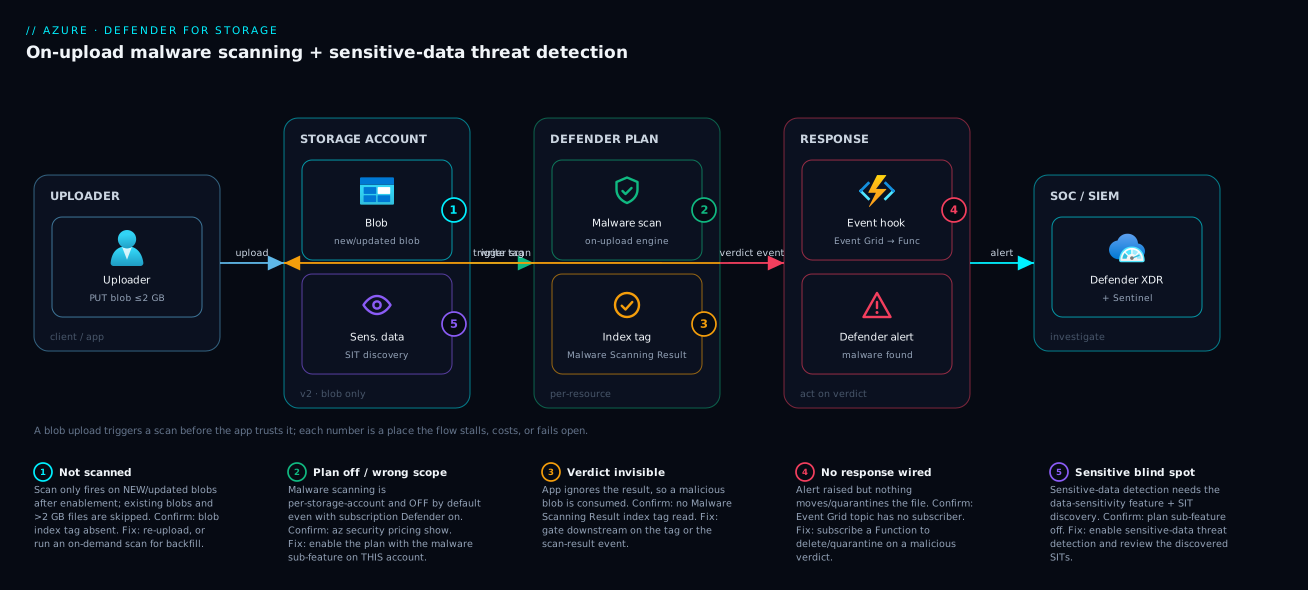
The Event Grid scan-result event lets you act automatically. Defender emits a Microsoft.Security.MalwareScanningResult event per scan; you subscribe a handler (Function, Logic App, webhook) that on a Malicious verdict moves the blob to a locked-down quarantine container and notifies your SOC. This is the response path in the architecture diagram.
The two hooks compared:
| Hook | How you consume it | Best when | Limitation |
|---|---|---|---|
| Blob index tag | App reads the tag before processing | You control the consuming app and can add a check | Pull model; the blob still exists until you act |
| Event Grid event | A Function/Logic App fires on the verdict | You want automatic move/delete/notify | Needs a handler wired and tested |
| Defender alert | Appears in Defender for Cloud / XDR | SOC investigation, not inline gating | Not a real-time inline gate by itself |
The verdict values you will see, and what each means:
Malware Scanning Result value |
Meaning | Typical action |
|---|---|---|
No threats found |
Scan completed, blob is clean | Allow downstream processing |
Malicious |
Known malware detected | Quarantine/delete; raise alert; block processing |
| (tag absent) | Not yet scanned, skipped (>2 GB), or pre-existing | Do not assume clean — wait or backfill |
Architecture at a glance
Trace the path left to right. An uploader — user, app, or partner — issues a PUT to write a blob into a container on your storage account. The write succeeds immediately; the blob now exists. That create/update is the trigger: the Defender for Storage plan, enabled on this account, runs its on-upload malware-scanning engine against the new blob (up to 2 GB). When the scan finishes Defender does two things — it writes the verdict back as a blob index tag (Malware Scanning Result) and emits a scan-result event. Meanwhile sensitive-data threat detection has classified the container by the Sensitive Information Types it found, so an alert touching it carries the right severity.
On the right is the response zone — the part you wire yourself. The scan-result event flows through Event Grid to an Azure Function that reads the verdict and, on Malicious, quarantines or deletes the blob and notifies. A malicious finding also raises a security alert surfacing in Microsoft Defender XDR and, if connected, Microsoft Sentinel. The five numbered badges mark where this flow stalls or fails open — a blob unscanned because it predates enablement (1), the sub-feature off on this account (2), an app that ignores the verdict (3), an alert with no response behind it (4), and sensitive-data detection left off (5) — each with its confirm-and-fix in the legend.
Real-world scenario
Finlytics, a fintech startup in Pune, runs a customer-document portal: borrowers upload bank statements and ID scans as PDFs and images into an Azure Blob Storage ingest container, and a backend service parses them for underwriting. Volume is modest — about 40 GB/month, a few thousand files. The team is three engineers; nobody owns “security” full-time. They had no malware scanning at all — the parser opened every uploaded file directly.
The wake-up call was a near miss. A borrower’s infected machine pushed a malicious PDF into the ingest container. The parser library had a known CVE but happened to be patched the week before, so nothing detonated. The review asked the obvious question — what if it hadn’t been patched? There was no control between “file uploaded” and “file parsed”; the blob sat there, reachable, trusted by default.
They enabled Defender for Storage with on-upload malware scanning on the single ingest account in about ten minutes. But they made the mistake this article warns about: they enabled scanning and stopped. The parser still fired on BlobCreated and processed files immediately, before the verdict existed. Testing with the harmless EICAR file a week later, they watched it get parsed before the Malicious tag was written. Scanning was on, but it changed nothing — the response path was missing.
The fix took an afternoon. They wired an Event Grid subscription to the scan-result event and a small Azure Function: on a Malicious verdict, move the blob to a locked-down quarantine container and post to Teams. The parser was changed to trigger on the scan-result event instead of BlobCreated, processing only blobs whose verdict was No threats found. They set a monthly cap of 200 GB (five times normal volume, so a runaway-upload bug couldn’t run up the bill) and turned on sensitive-data threat detection — which immediately flagged the ingest container’s PII (no surprise) and a forgotten developer export in a “temp” container (a surprise).
Malware scanning at ~40 GB/month cost roughly ₹250–350/month on top of the flat plan fee — trivial against the risk retired. The lesson they wrote down: “Scanning that nothing reacts to is theatre. The verdict has to gate the work.” The EICAR upload is now part of their deploy smoke test.
Advantages and disadvantages
The agentless, Azure-native model is a strong default, but know where it pinches:
| Advantages | Disadvantages |
|---|---|
| Zero infrastructure — no scanning VM, no engine to license or patch | Scans after the blob is written, not before — it detects, it doesn’t block the upload |
| Scans on upload in near-real-time, the moment that matters | Existing blobs and files over 2 GB are not covered — you must backfill / handle separately |
| Flat per-account fee + per-GB cost; a monthly cap bounds it | Per-GB malware-scanning cost can add up on very high-volume accounts |
| Verdict integrates as a blob index tag and an Event Grid event | The response (quarantine/delete) is yours to build — out of the box, nothing moves the file |
| Configurable per account for fine-grained control | Easy to mis-enable: the plan can be on while malware scanning stays off |
| Blob only, which is most upload surfaces | No coverage for Files / Queues / Tables data planes |
| Sensitive-data detection surfaces PII/secret exposure you didn’t know about | Detection raises alert severity; it is not a data-loss-prevention block |
When each matters: the model is ideal for the common case — a v2 account taking uploads under ~2 GB, where you want detection without operating a scanner. It pinches for huge files past the 2 GB limit, when you need to prevent not detect, or when content lands in Azure Files. For those it’s a complement, not the whole answer.
Hands-on lab
This is the centerpiece. You will create a storage account, enable Defender for Storage with malware scanning, upload a clean and a harmless EICAR file, watch the verdicts, wire an Event Grid response, turn on sensitive-data detection, and tear it all down. It’s free-tier-friendly — pennies. Run in Cloud Shell (Bash).
Timing: after enabling the plan, allow a short period before uploads get scanned; the verdict is asynchronous (seconds for tiny files). If a tag isn’t there yet, wait and re-check.
Part A — Set up the storage account
Step 1 — Variables and resource group.
RG=rg-defstor-lab
LOC=centralindia
SA=stdefstor$RANDOM        # storage account names must be globally unique, 3–24 lowercase
az group create -n $RG -l $LOC -o table
Expected: a table row with provisioningState: Succeeded.
Step 2 — Create a general-purpose v2 storage account and a container.
az storage account create -n $SA -g $RG -l $LOC \
  --sku Standard_LRS --kind StorageV2 -o table

az storage container create --account-name $SA --name uploads --auth-mode login -o table
Expected: the account shows kind: StorageV2; the container command returns "created": true. (If --auth-mode login errors on RBAC, give yourself Storage Blob Data Contributor on the account, or fall back to --auth-mode key.)
Part B — Enable Defender for Storage with malware scanning
Step 3 — Enable the plan on this account with malware scanning + sensitive-data detection. We override at the account level so the lab is self-contained and you don’t change your whole subscription:
ACCOUNT_ID=$(az storage account show -n $SA -g $RG --query id -o tsv)

az security defender-for-storage create \
  --resource-id "$ACCOUNT_ID" \
  --is-enabled true \
  --malware-scanning-on-upload-is-enabled true \
  --malware-scanning-on-upload-cap-gb-per-month 50 \
  --sensitive-data-discovery-is-enabled true \
  --override-subscription-level-settings true
Expected: JSON echoing the settings, with isEnabled: true and the malware-scanning block enabled.
Step 4 — Confirm it’s actually on. This is the command you’ll reach for whenever “it didn’t scan”:
az security defender-for-storage show --resource-id "$ACCOUNT_ID" \
  --query "{enabled:properties.isEnabled, malware:properties.malwareScanning.onUpload.isEnabled, capGB:properties.malwareScanning.onUpload.capGBPerMonth, sensitive:properties.sensitiveDataDiscovery.isEnabled}" -o json
Expected: enabled: true, malware: true, capGB: 50, sensitive: true. If malware is false, the plan is on but the sub-feature isn’t — re-run Step 3.
Part C — Upload and watch the verdicts
Step 5 — Upload a clean file.
echo "This is a harmless test document." > clean.txt
az storage blob upload --account-name $SA --container-name uploads \
  --name clean.txt --file clean.txt --auth-mode login -o table
Expected: the upload returns a lastModified timestamp.
Step 6 — Create and upload the EICAR test file — a harmless, industry-standard string every scanner recognises as a test “virus” (not real malware):
# The standard 68-byte EICAR test string. Built in two halves so this file itself isn't flagged by your editor.
printf '%s' 'X5O!P%@AP[4\PZX54(P^)7CC)7}$EICAR-STANDARD-ANTIVIRUS-TEST-FILE!$H+H*' > eicar.com

az storage blob upload --account-name $SA --container-name uploads \
  --name eicar.com --file eicar.com --auth-mode login -o table
Expected: the upload succeeds (remember — Defender does not block the upload; it scans after).
Step 7 — Wait for the scan, then read the verdict tags. Give it a short while (tiny files scan in seconds, but the tag write is asynchronous), then:
# Clean file — expect: No threats found
az storage blob tag list --account-name $SA --container-name uploads \
  --name clean.txt --auth-mode login --query "\"Malware Scanning Result\"" -o tsv

# EICAR file — expect: Malicious
az storage blob tag list --account-name $SA --container-name uploads \
  --name eicar.com --auth-mode login --query "\"Malware Scanning Result\"" -o tsv
Expected: clean.txt → No threats found; eicar.com → Malicious. If both return empty, the scan hasn’t finished writing tags — wait and re-run. The malicious verdict also raises an alert in Defender for Cloud → Security alerts (“Malicious file uploaded to storage account”).
Part D — Wire a response (the part teams skip)
Step 8 — Create a quarantine container (where a flagged blob goes):
az storage container create --account-name $SA --name quarantine --auth-mode login -o table
Step 9 — Subscribe to the scan-result events with Event Grid. Register the provider, then subscribe. (A full handler would be a Function; here we route to a storage-queue endpoint so you can see the events without writing code — the simplest provable wiring.)
az provider register --namespace Microsoft.EventGrid --wait

# Create a queue the events will land in, so you can inspect them
az storage queue create --account-name $SA --name scanresults --auth-mode login -o table

# Subscribe to the malware-scan result event, filtered to that event type
az eventgrid event-subscription create \
  --name malware-verdicts \
  --source-resource-id "$ACCOUNT_ID" \
  --endpoint-type storagequeue \
  --endpoint "$ACCOUNT_ID/queueservices/default/queues/scanresults" \
  --included-event-types Microsoft.Security.MalwareScanningResult
Expected: the subscription shows provisioningState: Succeeded. In production you’d point --endpoint-type at an Azure Function (azurefunction) or a webhook implementing this decision logic:
| Verdict in the event | Function should… | Why |
|---|---|---|
No threats found |
Allow / tag-through; let processing proceed | Blob is clean |
Malicious |
Copy to quarantine, delete original, raise notification |
Prevent any consumer from reading it |
| Error / no verdict | Hold; alert an operator; do not process | Fail closed, never open |
Step 10 — Re-upload EICAR and confirm an event fires. Overwrite triggers a fresh scan; wait, then peek the queue:
az storage blob upload --account-name $SA --container-name uploads \
  --name eicar.com --file eicar.com --overwrite --auth-mode login -o table

# After the scan, peek the queue for the malware-scan-result event
az storage message peek --account-name $SA --queue-name scanresults --auth-mode login -o json
Expected: a message whose body is a Microsoft.Security.MalwareScanningResult event referencing eicar.com with a malicious verdict — exactly what a Function would consume to quarantine the file. You have proven the full loop: upload → scan → verdict event.
Part E — Validate and tear down
Validation checklist. Each step mapped to a real capability:
| Step | What you did | What it proves |
|---|---|---|
| 3 | Enable plan + malware + sensitive on the account | The two-layer “on” is explicit, per-account |
| 4 | defender-for-storage show |
How to confirm the sub-feature, not just the plan |
| 6–7 | Upload EICAR, read Malicious tag |
Scanning works and the verdict lands as a tag |
| 9 | Event Grid subscription to scan-result | The response hook exists and is subscribable |
| 10 | Re-upload, peek the queue | The full upload→scan→event loop is real |
Step 11 — Tear down (avoid lingering charges). Disable the plan on the account, then delete the resource group:
az security defender-for-storage create --resource-id "$ACCOUNT_ID" --is-enabled false
az group delete -n $RG --yes --no-wait
Expected: the disable returns quickly; the delete proceeds in the background. Cost note: an hour of this lab is a few rupees at most, and deleting the resource group stops everything.
Common mistakes & troubleshooting
The failure modes are specific and the confirming command is short. Scan the table, then read the detail for your row.
| # | Symptom | Root cause | Confirm (exact cmd / portal path) | Fix |
|---|---|---|---|---|
| 1 | Defender for Storage “on” but uploads aren’t scanned | Plan is on; malware-scanning sub-feature is off | az security defender-for-storage show ... --query properties.malwareScanning.onUpload.isEnabled → false |
Enable the sub-feature (Step 3) |
| 2 | An old blob has no verdict tag | Scanning only covers blobs created/modified after enablement | Tag absent on pre-existing blobs only | Re-upload to trigger a scan, or run an on-demand scan for backfill |
| 3 | A large file isn’t scanned | File exceeds the 2 GB scan limit | Blob size > 2 GB, no tag written | Handle large files separately (pre-validate, or a custom scanner) |
| 4 | Tag absent right after upload | Scan is asynchronous; tag not written yet | Wait and re-run az storage blob tag list |
Allow time; don’t treat absent as clean |
| 5 | Malicious blob got processed anyway | App fires on BlobCreated, before the verdict exists |
Your trigger is the blob-created event, not scan-result | Trigger on the scan-result event or gate on the tag |
| 6 | No verdict for any new upload | Plan disabled, or scanning hit the monthly GB cap | az security defender-for-storage show (enabled? capGB reached?) |
Re-enable; raise/clear the cap |
| 7 | Files in Azure Files aren’t scanned | Defender for Storage scans blob only | Content is in a file share, not a blob container | Move ingest to blob, or use another control for Files |
| 8 | Can’t enable the plan | Missing role (need Security Admin / Owner/Contributor) | az role assignment list --assignee <you> lacks the role |
Get the role, or have an admin enable it |
| 9 | az security defender-for-storage command not found |
CLI security extension not installed | az extension list lacks recent security |
az extension add --name security (or upgrade the CLI) |
| 10 | Event Grid subscription created but no events arrive | Wrong event-type filter, or wrong endpoint | az eventgrid event-subscription show — check includedEventTypes and destination |
Filter Microsoft.Security.MalwareScanningResult; verify the endpoint resource id |
Two of these carry the whole lesson. Row 1 — “on” but nothing scanned — is the number-one confusion: the plan being on enables activity monitoring, but malware scanning is a separate sub-feature, off by default; always confirm properties.malwareScanning.onUpload.isEnabled is true. Row 5 — a malicious blob processed anyway — is the architecture trap: Defender doesn’t block the upload, so a consumer firing on BlobCreated reads the file before the asynchronous verdict exists; trigger on the scan-result event (or gate on the tag) instead.
Best practices
- Enable malware scanning, not just the plan. The plan alone gives anomaly alerts, not file scanning — always set the
OnUploadMalwareScanningsub-feature. - Wire a response, every time. A verdict nothing reacts to is theatre. Trigger processing on the scan-result event (or gate on the tag) and auto-quarantine
Maliciousblobs. - Trigger downstream work on the scan result, not on
BlobCreated— otherwise you process the blob before it’s known clean. - Set a monthly GB cap on every account to bound the scanning bill, sized to a multiple of normal volume, with an alert before it’s hit.
- Enable per-account where it counts — accounts that take untrusted input, not backup-only or internal-artifact ones.
- Backfill existing content deliberately. Enablement doesn’t scan old blobs — plan an on-demand scan or re-upload for anything you care about.
- Handle the >2 GB gap. Decide up front how very large files are validated, since the scanner skips them.
- Turn on sensitive-data threat detection wherever PII or secrets might land — it surfaces exposure you didn’t know about and raises alert severity correctly.
- Manage the config as code — settings in Bicep, applied via pipeline, with a DeployIfNotExists policy to auto-enable on new accounts so coverage doesn’t drift.
- Make EICAR a smoke test so each release proves malicious files still get caught and quarantined.
- Send alerts to your SOC — connect Defender for Cloud to Microsoft Sentinel so malicious-upload alerts land where they’re investigated.
Security notes
- Least privilege to enable and read. Enabling needs Security Admin (or Owner/Contributor); reading verdict tags needs Storage Blob Data Reader/Contributor — don’t hand out Owner just to check a tag.
- Lock down the quarantine container. Keep it tightly scoped — a separate container (or account) with minimal access, ideally with a legal-hold/immutability policy so a flagged file can’t be tampered with or deleted before investigation.
- Use managed identity for the response handler. The Function/Logic App that moves or deletes blobs should authenticate with a managed identity (see Managed Identity: System- vs User-Assigned Patterns), not an account key.
- Fail closed. If a verdict is missing, errored, or delayed, hold the blob — never assume clean.
- Don’t expose the verdict to untrusted callers. The scan result is internal signal; surfacing “your file was flagged” helps an attacker probe your scanner.
- Combine with prevention. Pair detection with storage firewall + private endpoints (Private Endpoint vs Service Endpoint) so untrusted networks can’t reach the account, plus upload-side type/size validation before the blob is even written.
- Feed sensitive-data findings into governance. When detection flags a container, treat it as a finding to remediate (tighten access, move the data), not just an alert to acknowledge.
Cost & sizing
Two charges make up the bill, and a cap controls one of them:
| Cost driver | What you pay for | Rough scale | How to control it |
|---|---|---|---|
| Per-storage-account plan fee | A flat monthly fee per protected account | A small fixed amount per account/month | Enable only on accounts that need it (per-account scoping) |
| On-upload malware scanning | A per-GB charge on data scanned | Pennies per GB; pennies-to-rupees at low volume | Set a monthly GB cap; scope to upload accounts only |
| Sensitive-data threat detection | Included with the plan (no separate per-GB malware charge) | Flat | On where it adds value |
| Event Grid + Function (response) | Per-event + per-execution (tiny) | Effectively free at low volume | Consumption Function; minimal events |
How to size it: the flat per-account fee is the same at 1 GB or 1 TB, so the first lever is scoping — protect accounts that take untrusted input, not every account you own. The per-GB malware-scanning charge scales with volume, so for a high-throughput data lake, model it (volume × per-GB rate) and set a monthly cap as a guardrail. At ~40 GB/month (the Finlytics case) the scanning charge is a few hundred rupees on top of the flat fee — negligible; for a terabyte-scale media account, do the multiplication first. There’s no permanent free tier, but new Defender for Cloud subscriptions often include a time-limited trial — enough to run this lab and a pilot at no cost.
Interview & exam questions
1. Does Microsoft Defender for Storage block a malicious upload? No — it detects and responds. The blob is written first, then scanned asynchronously, and the verdict comes back as a blob index tag and an event. To stop a malicious blob being used, gate downstream processing on the verdict; the upload itself still completes.
2. You enabled Defender for Storage but uploads aren’t being scanned. Why? Enabling the plan turns on activity monitoring, but on-upload malware scanning is a separate sub-feature, off by default. Enable it explicitly (--malware-scanning-on-upload-is-enabled true or the portal toggle) and confirm with az security defender-for-storage show.
3. Which storage services and account kinds does malware scanning cover? Blob containers, including ADLS Gen2, on general-purpose v2 / Blob / ADLS Gen2 accounts. It does not scan Azure Files, Queues, or Tables data, and classic/GPv1 aren’t supported.
4. Are existing blobs scanned when you turn the feature on? No — only blobs created or modified after enablement. Pre-existing content needs a backfill (re-upload or an on-demand scan); don’t assume the whole account is suddenly covered.
5. What’s the maximum file size that gets scanned? 2 GB per blob. Larger files are skipped, so large-file ingest (video, backups) needs a separate validation strategy.
6. Where does the verdict show up, and how do you act on it? Three places: a blob index tag (Malware Scanning Result) to gate a consuming app, an Event Grid scan-result event for automated response, and a security alert in Defender for Cloud / XDR for the SOC. The tag is a pull-gate; the event is a push-trigger.
7. How do you bound the cost of malware scanning? Set a monthly GB cap per storage account (--malware-scanning-on-upload-cap-gb-per-month). Scanning stops for the month once the cap is hit — which bounds cost but can create a gap, so size it to a multiple of normal volume and alert before it’s reached.
8. What is sensitive-data threat detection and what does it do? It discovers Sensitive Information Types (PII, secrets, financial data) in containers and raises the severity of alerts touching them, so anomalous access to PII-heavy storage is prioritised. It surfaces exposure; it is not a DLP block.
9. Subscription-level vs per-account configuration — how do they interact? Subscription-level applies to all current and new accounts; you override per account (overrideSubscriptionLevelSettings: true) for different sub-features or a different GB cap. The per-account setting wins.
10. What is EICAR and why use it? A harmless, industry-standard string every scanner recognises as a test “virus.” It safely proves scanning works (you get a Malicious verdict) without real malware — ideal for a deploy smoke test.
11. Your app processed a malicious blob despite scanning being on. What went wrong? The consumer triggered on BlobCreated, which fires the instant the blob is written — before the asynchronous verdict exists. Re-architect to trigger on the scan-result event (or read the verdict tag) so processing only happens after a clean verdict.
12. Which roles do you need to enable the plan and read verdicts? Security Admin (or Owner/Contributor) to enable the plan and sub-features; Storage Blob Data Reader/Contributor to read the verdict tags. Least privilege — don’t grant Owner just to read a tag.
These map to AZ-500 (Azure Security Engineer) — configure and manage Microsoft Defender for Cloud workload protections — and SC-200 (Security Operations Analyst) — respond to alerts from Defender for Cloud / Defender XDR. The data-classification angle (sensitive-data detection, Sensitive Information Types) also touches SC-400 (Information Protection). A compact cert map:
| Question theme | Primary cert | Objective area |
|---|---|---|
| Enable Defender for Storage + sub-features | AZ-500 | Configure Defender for Cloud workload protections |
| Malware-scan verdict, alerts, response | SC-200 | Investigate & respond to Defender alerts |
| Sensitive-data detection / SITs | SC-400 / AZ-500 | Information protection; data classification |
| Per-account config, GB cap, Bicep | AZ-500 | Manage security posture as code |
Quick check
- Defender for Storage is enabled on your account but a new upload has no scan verdict. What is the single most likely cause, and the command to confirm it?
- True or false: enabling on-upload malware scanning retroactively scans every blob already in the account.
- A malicious file was processed by your app even though scanning is on. What design change fixes this?
- What is the maximum blob size that gets malware-scanned, and what happens to larger files?
- Name the two hooks Defender writes the verdict to, and when you’d use each.
Answers
- The plan is on but on-upload malware scanning (a sub-feature) is off — it’s off by default. Confirm with
az security defender-for-storage show --resource-id "$ID" --query properties.malwareScanning.onUpload.isEnabled; if it’sfalse, enable the sub-feature. - False. Only blobs created or modified after enablement are scanned on upload; pre-existing content needs a backfill (re-upload or an on-demand scan).
- Trigger downstream processing on the scan-result event (or read the
Malware Scanning Resultindex tag and refuse any blob that isn’tNo threats found) instead of firing onBlobCreated, which runs before the asynchronous verdict exists. - 2 GB. Larger files are skipped (no verdict written), so you handle them with a separate validation strategy.
- A blob index tag (
Malware Scanning Result) — used to gate a consuming app that pulls the result before processing; and an Event Grid scan-result event — used to trigger an automated response (quarantine/delete/notify). A malicious finding also raises a Defender alert for the SOC.
Glossary
- Microsoft Defender for Storage — the Defender for Cloud workload plan that monitors storage accounts and (when enabled) scans blobs for malware on upload.
- On-upload malware scanning — the sub-feature that scans each newly created/modified blob (up to 2 GB) and writes a verdict; off by default.
- Sensitive-data threat detection — the sub-feature that discovers Sensitive Information Types in containers and raises the severity of alerts touching them.
- Activity monitoring — the always-on (with the plan) detection of anomalous/abusive access using data-plane and control-plane signals plus threat intelligence.
- Malware Scanning Result — the blob index tag Defender writes with the verdict (
No threats found/Malicious). - Scan-result event — the
Microsoft.Security.MalwareScanningResultEvent Grid event emitted per scan, used to trigger a response. - Blob index tag — key/value metadata on a blob you can read and filter on; the malware verdict is written as one.
- Event Grid — Azure’s event-routing service; you subscribe a handler (Function/Logic App/webhook) to the scan-result event.
- EICAR test file — a harmless, standard string recognised by all scanners as a test “virus,” used to safely prove scanning works.
- Monthly cap (GB) — a per-account limit on malware-scanning volume that bounds cost; scanning pauses for the month once reached.
- Sensitive Information Type (SIT) — a pattern (e.g. credit-card number, secret) Defender uses to classify a container as holding sensitive data.
- ADLS Gen2 — Azure Data Lake Storage Gen2 — blob storage with a hierarchical namespace; supported by malware scanning.
- Quarantine container — a tightly-scoped container you move malicious blobs into so no consumer can read them.
- DefenderForStorageV2 — the current Defender for Storage subplan (per-storage-account pricing with malware scanning and sensitive-data detection).
Next steps
You can now turn on, prove, and respond to Defender for Storage malware scanning. Build outward:
- Next: Enable Foundational CSPM in Defender for Cloud (First Week) — the free posture layer this paid plan sits on top of.
- Related: Azure Storage Account Fundamentals — the containers, tiers and access model underneath everything here.
- Related: Event Grid System Topics: Event-Driven Storage & Resource Events — go deeper on the events that drive your quarantine response.
- Related: Azure Policy Effects: Deny, Audit, Modify, DeployIfNotExists — auto-enable Defender for Storage on every new account so coverage never drifts.
- Related: Ransomware Resilience: Immutable Backup & Isolated Recovery — the recovery layer for when a bad file does get through.