You have a team that needs Windows desktops reachable from anywhere — a browser, a thin client, a tablet — without shipping laptops or babysitting a rack of VMs. Azure Virtual Desktop (AVD) is Microsoft’s managed desktop-and-app virtualization service: you bring the VMs that run Windows, and Azure runs the brokering, gateway, web client, and load balancing as a platform service you never patch. The catch for a first-timer is that “deploy a desktop” is not one resource — it is four objects wired together in the right order: a host pool, the session host VMs inside it, an application group, and a workspace, plus a user assignment on top. Miss one link and you get a workspace that shows nothing, or a desktop that throws an authentication error the moment a user clicks it.
This article walks you from an empty resource group to a user launching a published desktop and landing on a Windows session — once in the Azure portal, once in the az CLI, with a Bicep version you can commit. We treat AVD as a control plane (the broker, gateway, and metadata objects — free and regional) in front of a data plane (your session-host VMs, where the money is). You will learn what each object does, the rules that connect them, why beginners start with a pooled rather than a personal host pool, and the handful of mistakes — wrong RDP property, host not registered, user not assigned, no FSLogix profile — behind almost every day-one “it doesn’t work.”
By the end you will have a running pooled host pool you can hand to real users, know how to confirm each object is healthy, and know what it costs and how to tear it down so a lab does not quietly bill you for idle VMs.
What problem this solves
Without a virtual-desktop service you are stuck between two bad options: buy, image, ship, and manage physical machines for every user (expensive, slow, a nightmare when a laptop is stolen with company data on it), or hand-build individual VMs and let each user RDP to a public IP (open RDP ports to the internet — a top ransomware entry point — no load balancing, no SSO, no central place to publish apps). Neither scales past a handful of people.
AVD solves the brokering and access problem. The session hosts have no public IP and no inbound ports — users connect outbound through the managed Remote Desktop Gateway, authenticate against Microsoft Entra ID, and the broker load-balances them onto a healthy host. You publish a desktop or RemoteApps to an application group, expose it through a workspace, and grant access by Entra group membership; capacity changes by adding or deleting VMs, never re-imaging.
This helps teams onboarding contractors who need a locked-down environment, companies giving BYOD or overseas staff access to line-of-business apps without data on the endpoint, and anyone tired of “VPN in and RDP to the jump box.” The first deployment is hard only because the object model is unfamiliar.
Learning objectives
By the end of this article you can:
- Explain what a host pool, session host, application group, and workspace each do, and the rules that connect them.
- Choose between pooled and personal host pools, and between Breadth-first and Depth-first load balancing, and justify it.
- Deploy a complete pooled host pool in the Azure portal, from resource group to a published desktop a user can launch.
- Reproduce the deployment with the
az desktopvirtualizationCLI, including the registration token and joining session hosts. - Express the control-plane objects as Bicep so the build is repeatable and reviewable.
- Assign users correctly, distinguish app-group assignment from RBAC, and verify a user can subscribe and launch a session.
- Diagnose the common day-one failures — host not registered, empty workspace, RDP-property errors, missing profile — with the command or blade that confirms each.
- Right-size and tear down a lab so it does not bill you for idle compute.
Prerequisites & where this fits
You need an Azure subscription where you are Owner (the lab assigns a role), at least one Microsoft Entra ID user other than yourself to test with, and the az CLI (or Cloud Shell) signed in. Be comfortable creating a VM and reading JSON output. If subscriptions, resource groups, and regions are fuzzy, read Azure Resource Hierarchy Explained: Subscriptions, Resource Groups and Resources and Azure Regions and Availability Zones: Designing for Resilience first.
This sits at the entry of the End-User Computing track. Your hosts live on a subnet from Azure Virtual Network, Subnets and NSGs: Networking Fundamentals, and it builds on the conceptual model in Azure Virtual Desktop Architecture Explained: Control Plane, Host Pools, Workspaces, and Session Hosts in Plain English. The next steps — FSLogix profiles and securing sign-in — are linked at the end.
Core concepts
AVD is four metadata objects plus the VMs, and the whole service makes sense once you can name each one and the link between them.
- Host pool — a logical collection of identical session host VMs sharing one configuration (image, load-balancing rule, max session limit, RDP properties). What you scale and set policy on; free control-plane metadata.
- Session host — an Azure VM joined to Microsoft Entra ID or Active Directory, running the AVD agent and registered to a host pool with a short-lived registration token. Your data plane and entire bill. In a pooled pool it runs Windows 11/10 Enterprise multi-session so many users share one VM.
- Application group — publishes a full desktop (a
Desktopgroup, one per pool) or RemoteApps (aRemoteAppgroup, many). Users are assigned to it, and that assignment is what makes the desktop appear. - Workspace — the top-level object a user adds in the client; it groups application groups into one feed. Without it there is nothing to subscribe to.
The free managed glue ties them together: when a user launches a desktop, the Remote Connection Broker picks a healthy host (per your load-balancing rule and session limits) and the Remote Desktop Gateway tunnels the RDP session over TLS port 443 outbound — so hosts never need a public IP or inbound RDP. You operate none of it.
The four objects and how they connect
Pin down the object model before you build — most first-deployment failures are a missing link in this table.
| Object | What it is | Relationship | Cost | You set |
|---|---|---|---|---|
| Host pool | Logical group of identical session-host VMs | Has many session hosts; referenced by many app groups | Free (control plane) | Type, load-balancing, max session limit, RDP properties |
| Session host | An Azure VM with the AVD agent, registered to the pool | Belongs to exactly one host pool | VM compute + disk (the whole bill) | Image, size, count, domain join |
| Application group | Publishes a desktop or RemoteApps from a pool | Belongs to one host pool; added to one+ workspaces | Free | Type (Desktop/RemoteApp), assigned users |
| Workspace | The feed a user subscribes to in the client | Contains one+ application groups | Free | Friendly name, which app groups it holds |
The wiring direction matters: a host pool auto-gets one Desktop application group; you register that group with a workspace and assign users to it. Get either wrong and the feed is empty.
Pooled vs personal: why beginners pick pooled
The first decision is host-pool type, and it is fixed at creation (you create a new pool to change it). Pooled shares hosts for density and cost; personal dedicates a host per user for state and predictability.
| Dimension | Pooled | Personal |
|---|---|---|
| Users per host | Many (multi-session) | Exactly one |
| OS | Windows 11/10 Enterprise multi-session or Server | Windows 11/10 Enterprise (single-session) |
| User state | Roams via FSLogix profile container | Lives on the host’s own disk |
| Cost per user | Low (density) | High (one VM each) |
| Best for | Task/knowledge workers, call centres, contractors | Developers, admins, GPU/CAD users, persistent state |
| Assignment | Pool-managed, any free host | Can be Automatic or Direct (sticky host) |
Beginners start pooled because it is the cheaper, denser, more representative AVD pattern, and because it forces you to learn the profile story (FSLogix) every real deployment needs. We build pooled here.
Load balancing and session limits
A pooled pool has a load-balancing algorithm (which host a new session lands on) and a max session limit (how many users one host accepts before the broker skips it).
| Setting | Values | What it does | Pick when |
|---|---|---|---|
| Load-balancing | BreadthFirst / DepthFirst |
Breadth spreads users across all hosts first; Depth fills one host to its limit before using the next | Breadth for best user experience; Depth to pack users and power down idle hosts (cost) |
| Max session limit | Integer (e.g. 8–16 typical) | Sessions per host before the broker skips it | Lower for heavier apps; higher for light task work |
| Validation environment | true / false | Pool receives Azure service updates early | Keep false for production pools; true for a canary pool |
Breadth-first is the safe default: every user gets the most idle host, so no single VM is hammered. Depth-first packs users onto fewer hosts so the rest can power off to save money — but a hot host degrades everyone on it, so use it deliberately with autoscale.
Identity: Entra join vs Active Directory
Session hosts must have an identity, and the choice changes the join command, profile-storage option, and sign-in flow. Two paths are viable for a first deployment.
| Aspect | Microsoft Entra ID joined | AD DS / Entra hybrid joined |
|---|---|---|
| What the VM joins | Microsoft Entra ID directly | On-prem/IaaS Active Directory domain (synced to Entra) |
| Extra infrastructure | None | A domain controller reachable from the subnet |
| Profile storage | Azure Files with Entra Kerberos, or Azure Files/ANF with AD | Azure Files / Azure NetApp Files with AD Kerberos |
| Best for | Cloud-only orgs, simplest labs | Orgs with existing AD, on-prem app dependencies |
| Client flag for cloud-only | RDP property targetisaadjoined:i:1 often required |
Not needed |
For a clean first lab with no domain controller, Entra ID join is by far the simplest — no AD to stand up, no VPN, just the VM and Entra — so we use it.
The RDP properties that bite first-timers
The Entra-join gotcha lives in the host pool’s custom RDP properties — a string the client applies to every brokered session. Most are comfort settings (redirection, multi-monitor), but two are correctness settings on Entra-joined pools: get them wrong and users get an authentication failure no VM fix will solve.
| RDP property | Value | Effect | When you need it |
|---|---|---|---|
targetisaadjoined:i:1 |
1 | Tells the client the host is Entra-joined; enables the right auth path | Entra-joined hosts + clients that are not Entra-joined (most BYOD) |
enablerdsaadauth:i:1 |
1 | Uses Entra auth for the RDP connection | Entra-joined connection scenarios |
audiocapturemode:i:1 |
1 | Redirects the mic into the session | Voice/Teams users |
redirectclipboard:i:1 |
1 | Clipboard sharing | Usually on |
drivestoredirect:s: |
(empty) | Disables local drive redirect | Lock down data exfiltration |
usbdevicestoredirect:s: |
* or empty |
USB redirect on/off | Off by default for security |
Set RDP properties at the host pool level so every host inherits them. We apply the two Entra-auth properties in the lab.
Architecture at a glance
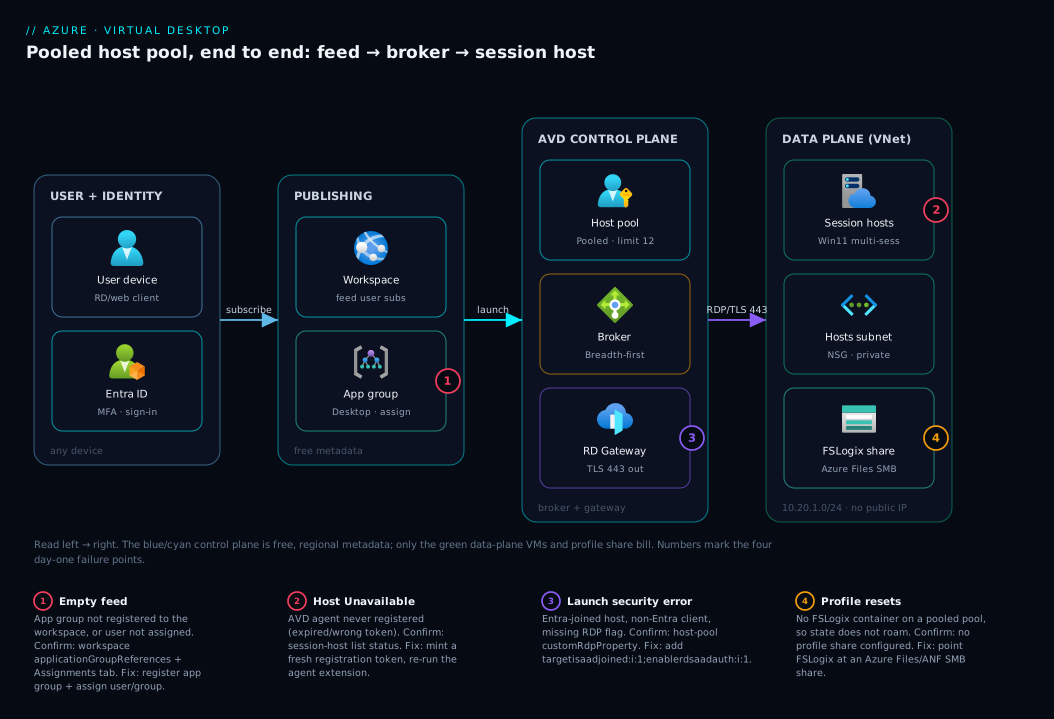
Read the diagram left to right as the exact path a click takes. A user on any device opens the Remote Desktop client, signs in to Microsoft Entra ID, and pulls their workspace feed — the desktops and apps they are assigned. On launch, the request hits the AVD control plane: the broker consults the host pool metadata, applies the load-balancing rule (Breadth-first here) and the per-host session limit, and selects a healthy session host. The gateway then opens a TLS tunnel on port 443 so the user’s RDP traffic reaches that host with no public IP or inbound port on the VM. The session lands on a host in your virtual network subnet, and the profile roams in via an FSLogix container on an Azure Files share — so the user gets the same Documents and settings on whichever host they land on.
The control-plane objects (host pool, application group, workspace, broker, gateway) are free, regional metadata; you pay only for the green data-plane band — the session-host VMs, their disks, and the profile share. The numbered badges mark the four spots a first deployment breaks — the assignment link, host registration, the Entra RDP auth path, and the profile share — each cracked in the troubleshooting section.
Real-world scenario
Northwind Surveys, a 40-person market-research firm in Pune, hires 25 seasonal contractors every quarter to run a survey-coding application that must never leave the company environment — the raw response data is contractually confidential. Shipping laptops to short-term contractors cost roughly ₹45,000 per device in procurement and wipe-and-return overhead, and three went missing the previous year, each one a data-exposure scare.
Their lead engineer, Asha, builds exactly the deployment in this article. She creates one pooled host pool hp-survey-prod in Central India, Breadth-first, max session limit 12, on Windows 11 Enterprise multi-session. She sizes the hosts at Standard_D4s_v5 (4 vCPU, 16 GB) and starts with three — capacity for ~36 concurrent users with headroom, since the coding app is light. The hosts are Entra-joined (Northwind is cloud-only, no on-prem AD), so she sets targetisaadjoined:i:1 and enablerdsaadauth:i:1 on the pool because contractors connect from their own unmanaged laptops. Profiles roam through FSLogix on a Premium Azure Files share, so a contractor gets their half-coded survey back on whichever host the broker picks tomorrow. She publishes the default Desktop application group, registers it with a workspace, and assigns the Entra group grp-survey-contractors — onboarding is now just adding a person to the group and sending the workspace URL.
The first day still broke, in the textbook way. Contractors saw the desktop but every launch threw “We couldn’t connect… because of a security error” — Asha had forgotten targetisaadjoined:i:1, so the unmanaged laptops could not complete Entra auth to the host. The two RDP properties fixed it. The second papercut: one host showed Unavailable because its AVD agent had not registered — she had reused an expired registration token when rebuilding it, and a fresh token brought it to Available. Quarterly contractor cost dropped from ~₹11 lakh in laptops to roughly ₹1.6 lakh/month in VM compute she deallocates outside working hours, and not a byte of survey data ever lands on a contractor’s machine.
Advantages and disadvantages
AVD is the right tool for managed, pooled desktops, but density and central control come at the price of operational pieces (profiles, images, scaling) you now own.
| Advantages | Disadvantages |
|---|---|
| No data on the endpoint; hosts have no public IP or inbound RDP | More moving parts than a single VM (4 objects + profiles + image) |
| Pooled multi-session packs many users per VM — low cost per user | Pooled needs FSLogix or users lose their profile between sessions |
| Add/remove capacity by adding/deleting VMs; no re-imaging | You manage and patch the golden image and the host OS |
| Managed broker, gateway, web client — you patch none of it | Idle hosts still bill unless you autoscale/deallocate |
| Native Entra ID sign-in, Conditional Access, MFA | Entra-joined RDP-property gotchas trip every first deployment |
| Publish full desktops or individual RemoteApps | Per-app licensing and Windows multi-session entitlement to track |
The advantages dominate when you have many users with similar needs and confidential data that must stay off endpoints. They bite for a handful of power users with unique, stateful environments: for five developers who each customise everything, five personal VMs (or just laptops) are simpler than a pooled pool plus FSLogix. Match the pattern to the workload, not the hype.
Hands-on lab
This is the centerpiece. You will build a working pooled host pool three ways: the portal (click-through), the az CLI (scriptable), and Bicep (control-plane objects as code). Each path ends with a user launching a desktop, plus validation and teardown.
The CLI build is eight steps — what each creates and the command that does it:
| Step | Creates | Key az command |
Object type |
|---|---|---|---|
| 0 | Tooling + provider | az extension add · az provider register |
— |
| 1 | RG + network | az group create · az network vnet create |
Plumbing |
| 2 | Host pool + token | az desktopvirtualization hostpool create |
Control plane |
| 3 | Registration token | az desktopvirtualization hostpool retrieve-registration-token |
Secret |
| 4 | Session-host VMs | az vm create · az vm extension set (AADLogin + DSC) |
Data plane |
| 5 | Workspace + link | az desktopvirtualization workspace create / update |
Control plane |
| 6 | User access | az role assignment create (Desktop Virtualization User) |
RBAC |
| 7 | Verify session | az desktopvirtualization session-host list |
Validation |
| 8 | Teardown | az group delete or az vm deallocate |
Cleanup |
Lab prerequisites: a subscription where you are Owner, the az CLI ≥ 2.50 (or Cloud Shell), one extra Entra ID test user, and VM quota for ~2 small VMs. We use Central India; the AVD metadata location is a separate, limited region set.
Cost warning: the two session-host VMs bill while running — deallocate or delete them when you finish (Step 8). The host pool, app group, and workspace are free.
Lab variables
Set these once; every command reuses them.
PREFIX="avdlab"                    # change to keep resources unique
LOCATION="centralindia"            # where the session-host VMs live
MD_LOCATION="centralindia"         # AVD metadata location (limited region set)
RG="rg-${PREFIX}"
VNET="vnet-${PREFIX}"
SUBNET="snet-hosts"
HOSTPOOL="hp-${PREFIX}"
WORKSPACE="ws-${PREFIX}"
DAG="${HOSTPOOL}-DAG"              # the auto-created Desktop application group
VM_PREFIX="${PREFIX}h"
VM_SIZE="Standard_D2s_v5"          # 2 vCPU / 8 GB, fine for a lab
VM_COUNT=2
ADMIN_USER="avdadmin"
TEST_UPN="testuser@yourtenant.onmicrosoft.com"   # <-- your test user UPN
Step 0 — Sign in and prepare tooling
az login
az account set --subscription "<your-subscription-id>"

# The desktop-virtualization commands live in an extension
az extension add --name desktopvirtualization --upgrade

# Register the resource provider (one-time)
az provider register --namespace Microsoft.DesktopVirtualization
az provider show --namespace Microsoft.DesktopVirtualization --query registrationState -o tsv
Expected output: the final command prints Registered. If it prints Registering, wait a minute — host-pool creation fails until then.
Step 1 — Create the resource group and network
az group create --name "$RG" --location "$LOCATION"

az network vnet create \
  --resource-group "$RG" --name "$VNET" \
  --address-prefixes 10.20.0.0/16 \
  --subnet-name "$SUBNET" --subnet-prefixes 10.20.1.0/24
Expected output: two JSON blobs with "provisioningState": "Succeeded". Hosts get private IPs from 10.20.1.0/24 — no public IPs in this build.
Step 2 — Create the host pool (pooled, Breadth-first)
This creates the metadata object and a short-lived registration token in one shot (read back in Step 3).
az desktopvirtualization hostpool create \
  --resource-group "$RG" --name "$HOSTPOOL" \
  --location "$MD_LOCATION" \
  --host-pool-type Pooled \
  --load-balancer-type BreadthFirst \
  --max-session-limit 12 \
  --preferred-app-group-type Desktop \
  --registration-info expiration-time="$(date -u -d '+8 hours' '+%Y-%m-%dT%H:%M:%S.000Z' 2>/dev/null || date -u -v+8H '+%Y-%m-%dT%H:%M:%S.000Z')" registration-token-operation=Update
Expected output: JSON with "hostPoolType": "Pooled", "loadBalancerType": "BreadthFirst", "maxSessionLimit": 12. --registration-info both creates the pool and mints a token valid for 8 hours (max 30 days).
Set the Entra-auth RDP properties now so every host inherits them:
az desktopvirtualization hostpool update \
  --resource-group "$RG" --name "$HOSTPOOL" \
  --custom-rdp-property "targetisaadjoined:i:1;enablerdsaadauth:i:1;audiocapturemode:i:1;redirectclipboard:i:1"
The update echoes customRdpProperty back — confirm both Entra-auth flags are present.
Step 3 — Read the registration token
The session hosts use this token to register their AVD agent.
REG_TOKEN=$(az desktopvirtualization hostpool retrieve-registration-token \
  --resource-group "$RG" --name "$HOSTPOOL" --query token -o tsv)
echo "Token length: ${#REG_TOKEN}"   # non-zero length = valid token
Expected output: a length in the hundreds of characters. If empty, the token expired — re-run Step 2 with a fresh --registration-info block.
Step 4 — Create the session-host VMs
Create the VMs from the Windows 11 multi-session image, then Entra-join them and install the AVD agent via the AADLoginForWindows and DSC extensions. (The portal wizard does all this; here we show the pieces.)
# Create the VM (no public IP; private NIC on the hosts subnet)
az vm create \
  --resource-group "$RG" \
  --name "${VM_PREFIX}0" \
  --image "MicrosoftWindowsDesktop:Windows-11:win11-23h2-avd:latest" \
  --size "$VM_SIZE" \
  --vnet-name "$VNET" --subnet "$SUBNET" \
  --public-ip-address "" \
  --nic-delete-option Delete --os-disk-delete-option Delete \
  --admin-username "$ADMIN_USER" --admin-password '<StrongP@ssw0rd-here>' \
  --assign-identity
The
win11-23h2-avdalias is the multi-session SKU required for a pooled pool; the single-sessionwin11-23h2-entimage serves only one user.
Entra-join the VM and register the AVD agent (repeat per host with ${VM_PREFIX}1):
# 1) Microsoft Entra ID join
az vm extension set \
  --resource-group "$RG" --vm-name "${VM_PREFIX}0" \
  --name AADLoginForWindows --publisher Microsoft.Azure.ActiveDirectory

# 2) Install the AVD agent + bootloader and register with the token
az vm extension set \
  --resource-group "$RG" --vm-name "${VM_PREFIX}0" \
  --name DSC --publisher Microsoft.Powershell \
  --version 2.83 \
  --settings "{\"modulesUrl\":\"https://wvdportalstorageblob.blob.core.windows.net/galleryartifacts/Configuration_1.0.02797.442.zip\",\"configurationFunction\":\"Configuration.ps1\\\\AddSessionHost\",\"properties\":{\"hostPoolName\":\"$HOSTPOOL\",\"registrationInfoToken\":\"$REG_TOKEN\",\"aadJoin\":true}}"
Expected output: each az vm extension set returns "provisioningState": "Succeeded". The DSC extension installs the AVD agent and consumes the token, turning a plain VM into a registered session host.
Validate that the host registered:
az desktopvirtualization session-host list \
  --resource-group "$RG" --host-pool-name "$HOSTPOOL" \
  --query "[].{name:name, status:status, agent:agentVersion}" -o table
Expected output: each host shows Status = Available. Unavailable or NeedsAssistance means the agent did not register — usually an expired token or the VM still booting (give it 5 minutes).
Step 5 — The application group and workspace
The host pool’s --preferred-app-group-type Desktop auto-creates a Desktop application group. Confirm it, create a workspace, and register the app group with it.
# Confirm the auto-created Desktop application group (name ends with -DAG)
az desktopvirtualization applicationgroup list -g "$RG" \
  --query "[?contains(name,'$HOSTPOOL')].{name:name, type:applicationGroupType}" -o table

# Create the workspace
az desktopvirtualization workspace create \
  --resource-group "$RG" --name "$WORKSPACE" --location "$MD_LOCATION" \
  --friendly-name "AVD Lab Apps"

# Register the Desktop app group with the workspace
DAG_ID=$(az desktopvirtualization applicationgroup show -g "$RG" -n "$DAG" --query id -o tsv)
az desktopvirtualization workspace update \
  --resource-group "$RG" --name "$WORKSPACE" \
  --application-group-references "$DAG_ID"
Expected output: the app group lists as Desktop, and the workspace update’s applicationGroupReferences array contains your DAG_ID. This registration is badge #1 — skip it and the feed is empty even though everything else is perfect.
If the auto-created group name is not
${HOSTPOOL}-DAG, copy the real name intoDAG.
Step 6 — Assign the user (two grants, both required)
A user needs two grants: assignment to the application group (so the desktop appears) and the Desktop Virtualization User RBAC role on it (to connect). The portal “Assignments” tab does both; the CLI does them explicitly.
# Resolve the test user's object id
USER_OID=$(az ad user show --id "$TEST_UPN" --query id -o tsv)

# Grant the connect role on the app group (RBAC)
az role assignment create \
  --assignee "$USER_OID" \
  --role "Desktop Virtualization User" \
  --scope "$DAG_ID"
Expected output: a role-assignment with "roleDefinitionName": "Desktop Virtualization User" scoped to your app group. For teams, assign the role to an Entra group instead of granting each user.
Step 7 — Connect as the user and verify
- Open the Windows App / Remote Desktop client, or the web client at
https://client.wvd.microsoft.com/arm/webclient/, and sign in as your test user ($TEST_UPN). - The workspace AVD Lab Apps appears with a SessionDesktop tile — launch it and authenticate (MFA if required). The session connects through the gateway to the broker-picked host.
Expected result: a Windows 11 desktop opens. You are on a multi-session host with no public IP, reached entirely over TLS 443.
Validate from the admin side: re-run session-host list with sessions in the query — one host should now show sessions = 1.
Step 8 — Teardown (do this to stop the bill)
The control-plane objects are free; the VMs are not. Delete the whole resource group in one command:
az group delete --name "$RG" --yes --no-wait
To keep the pool but stop paying, deallocate the hosts instead (az vm deallocate -g "$RG" -n "${VM_PREFIX}0", per host) — compute stops billing while metadata stays. az group exists --name "$RG" returns false once deletion completes.
Portal path (the same build, click-through)
If you prefer the portal for your first build, the wizard mirrors the CLI exactly:
| Step | Portal path | Key inputs |
|---|---|---|
| 1 | Create a resource → Azure Virtual Desktop → Create a host pool | Resource group, host-pool name, Region (metadata), Host pool type = Pooled, Load balancing = Breadth-first, Max session limit = 12 |
| 2 | Same wizard → Virtual Machines tab → Add Azure virtual machines = Yes | Image = Windows 11 Enterprise multi-session, size, count, name prefix, subnet = snet-hosts, Microsoft Entra ID join, no public IP |
| 3 | Same wizard → Workspace tab → Register desktop app group = Yes | Create/select a workspace; the wizard auto-creates the Desktop app group and registers it |
| 4 | Review + create → Create | Wait for deployment; VMs Entra-join and register agents automatically |
| 5 | Host pool → Session hosts | Confirm each host Status = Available |
| 6 | Host pool → Application groups → <pool>-DAG → Assignments → + Add | Add the test user or group (portal grants the role too) |
| 7 | Workspace URL or web client | Test user subscribes and launches the desktop |
| 8 | Resource group → Delete resource group | Type the name to confirm; removes VMs and metadata |
The wizard’s edge: it does Step 4’s Entra-join + agent-registration and grants the RBAC role on assignment automatically. The CLI’s edge is repeatability, made permanent by the Bicep version.
Bicep path (control-plane objects as code)
Express the control-plane objects — host pool, application group, workspace — as Bicep and commit them. (Session-host VMs and agent registration are typically handled by the wizard, a VM module, or the Terraform module linked below; the control plane is what you want declarative.)
@description('AVD metadata location (must be an AVD-supported metadata region)')
param mdLocation string = 'centralindia'
param hostPoolName string = 'hp-avdlab'
param workspaceName string = 'ws-avdlab'

resource hostPool 'Microsoft.DesktopVirtualization/hostPools@2024-04-03' = {
  name: hostPoolName
  location: mdLocation
  properties: {
    hostPoolType: 'Pooled'
    loadBalancerType: 'BreadthFirst'
    maxSessionLimit: 12
    preferredAppGroupType: 'Desktop'
    customRdpProperty: 'targetisaadjoined:i:1;enablerdsaadauth:i:1;audiocapturemode:i:1;redirectclipboard:i:1'
    startVMOnConnect: true
  }
}

resource desktopAppGroup 'Microsoft.DesktopVirtualization/applicationGroups@2024-04-03' = {
  name: '${hostPoolName}-DAG'
  location: mdLocation
  properties: {
    hostPoolArmPath: hostPool.id
    applicationGroupType: 'Desktop'
    friendlyName: 'Lab Desktop'
  }
}

resource workspace 'Microsoft.DesktopVirtualization/workspaces@2024-04-03' = {
  name: workspaceName
  location: mdLocation
  properties: {
    friendlyName: 'AVD Lab Apps'
    applicationGroupReferences: [
      desktopAppGroup.id   // registers the app group with the workspace (diagram badge #1)
    ]
  }
}
az deployment group create --resource-group "$RG" --template-file avd.bicep \
  --parameters mdLocation="$MD_LOCATION" hostPoolName="$HOSTPOOL" workspaceName="$WORKSPACE"
Expected output: a Succeeded deployment. Then generate a registration token (Step 3), join hosts (Step 4), and assign users (Step 6). Note startVMOnConnect: true — it lets the broker power on a deallocated host on connect, pairing perfectly with deallocating idle hosts to save money.
Common mistakes & troubleshooting
Almost every first-deployment failure is one of these eight — symptom, cause, where to confirm, and the fix.
| # | Symptom | Root cause | Confirm with | Fix |
|---|---|---|---|---|
| 1 | Workspace is empty for the user | App group not registered to the workspace, or user not assigned | az desktopvirtualization workspace show ... --query applicationGroupReferences; check Assignments tab |
Register the app group with the workspace; add the user to the app group |
| 2 | Host shows Unavailable / NeedsAssistance | AVD agent never registered (expired/wrong token, VM still booting) | Host pool → Session hosts status; session-host list |
Mint a fresh registration token; re-run the DSC/agent extension; wait for boot |
| 3 | “We couldn’t connect… security error” on launch | Missing targetisaadjoined:i:1 on Entra-joined hosts with non-Entra clients |
Host pool → custom RDP properties | Add targetisaadjoined:i:1;enablerdsaadauth:i:1 to the host pool |
| 4 | User sees desktop but launch says not authorized | Assigned to app group but lacks the Desktop Virtualization User RBAC role | az role assignment list --scope <appgroup-id> |
Grant the role on the app group (portal Assignment does this automatically) |
| 5 | Profile/Documents reset every session | No FSLogix profile container on a pooled pool | Check for FSLogix config / profile share | Configure FSLogix on an Azure Files/ANF share (next-steps topic) |
| 6 | Only one user can log in; others get bumped | Single-session image used in a pooled pool, or max-session-limit = 1 | Image SKU; --query maxSessionLimit |
Rebuild hosts with the multi-session image; set a real session limit |
| 7 | Host pool create fails immediately | Microsoft.DesktopVirtualization provider not registered, or unsupported metadata region |
az provider show ... --query registrationState |
Register the provider; use a supported AVD metadata region |
| 8 | retrieve-registration-token returns empty |
Token expired (default short window) or never created | Token length check in Step 3 | Re-run hostpool update --registration-info to mint a new token |
One habit halves the search space: separate “feed is empty” from “launch fails.” An empty feed is a publishing problem (rows 1, 4 — workspace registration or app-group assignment). A failed launch on a visible tile is an auth or host problem (rows 2, 3 — RDP properties or host health). And always check session-host list status before blaming the client: a host that is not Available is a registration problem.
Best practices
- Set the Entra-auth RDP properties from day one (
targetisaadjoined:i:1;enablerdsaadauth:i:1) for Entra-joined pools — it prevents the single most common launch failure. - Assign users via an Entra group, not individually — grant the Desktop Virtualization User role to the group on the app group, then manage access by membership.
- Use Breadth-first load balancing unless you have a deliberate cost reason to pack hosts.
- Configure FSLogix before you onboard real users on a pooled pool — without it, profiles do not roam and users lose state on every reconnect.
- Give hosts no public IP and no inbound RDP — all access is outbound through the managed gateway.
- Keep a short registration-token lifetime and mint a fresh one per host build; never hard-code a long-lived token in scripts.
- Standardize on a golden image (Azure Compute Gallery) past the lab, so every host is identical and patched.
- Right-size for concurrency, not headcount — plan for peak simultaneous sessions plus headroom, and deallocate or autoscale idle hosts (paired with
startVMOnConnect). - Test with a non-admin user every time — admins often have rights that mask a missing assignment.
Security notes
AVD’s default posture is strong because the session hosts have no public IP and no open inbound ports — users reach them only outbound through the managed gateway over TLS 443, removing the internet-facing RDP attack surface that plagues hand-built jump boxes. Keep it that way: never attach a public IP “to debug,” and put an NSG on the hosts subnet that blocks inbound from the internet.
Identity is the real control plane. Because sign-in goes through Microsoft Entra ID, you get MFA and Conditional Access — require MFA for AVD and add device/location conditions; the persona-based approach in Designing Conditional Access at Scale applies directly. Grant the Desktop Virtualization User role at the group level. Lock down exfiltration with RDP properties: disable drive redirection (drivestoredirect:s:) and clipboard for sensitive data.
Protect the supporting resources: the profile share holds every user’s profile — restrict it with private endpoints and identity-based (Kerberos) access, never a public storage key, and keep real secrets in Azure Key Vault. Finally, patch on a schedule — AVD manages the broker and gateway, but the session-host OS and golden image are yours to keep current.
Cost & sizing
The control plane is free — host pool, application group, workspace, broker, and gateway cost nothing. Your entire AVD bill is the session-host VMs (compute + managed disks), profile storage, egress, and Windows licensing. The biggest lever is how many VMs run and for how long — an idle host bills the same as a busy one, so the win is fewer, denser hosts powered down overnight.
| Cost driver | What it is | Rough figure | How to control it |
|---|---|---|---|
| Session-host compute | VM size × count × hours running | Standard_D4s_v5 ≈ ₹14–16k/mo at 24×7; far less if deallocated off-hours |
Right-size for concurrency; autoscale/deallocate; startVMOnConnect |
| Managed disks | OS disk per host | ₹600–1,500/mo per host (Standard/Premium SSD) | Standard SSD for light pools; delete with VM on teardown |
| Profile storage | FSLogix containers on Azure Files/ANF | Premium Files from ~₹1,200/mo for a small share | Size for active users; standard tier for light use |
| Windows licensing | Multi-session entitlement | Often covered by M365 E3/E5 or Windows E3/E5 | Confirm licensing before adding cost |
| Egress / gateway data | Outbound from sessions | Usually small | Keep app traffic to Azure PaaS via private endpoints |
Sizing rule: plan for peak concurrent sessions, not headcount. If 25 contractors exist but only ~15 work at once, and a light app supports ~12 sessions per D4s_v5, then two hosts cover peak with headroom — not 25 desktops. There is no free tier for AVD session hosts, so treat lab VMs like a running meter and run Step 8.
Interview & exam questions
Q1. What are the four core AVD objects and how do they relate? Host pool (a group of identical session-host VMs), session hosts (the VMs, registered to the pool), application group (publishes a desktop or RemoteApps), and workspace (the feed users subscribe to). A host pool has many hosts; an app group belongs to one pool and is added to a workspace; users are assigned to the app group. Maps to AZ-140.
Q2. Pooled vs personal host pool — when do you use each? Pooled runs multi-session hosts shared by many users for density and low per-user cost (task/knowledge workers, contractors), roaming state via FSLogix. Personal dedicates one single-session host per user for persistent environments (developers, GPU/CAD). Type is fixed at pool creation.
Q3. What does Breadth-first vs Depth-first load balancing do? Breadth-first spreads new sessions across all hosts so each user gets the most idle host (best experience). Depth-first fills one host to its limit before the next, so idle hosts can be powered down to save cost — at the risk of overloading a hot host.
Q4. A user sees the desktop tile but the launch fails with a security error on an Entra-joined pool. Why?
The host pool is missing targetisaadjoined:i:1 (and usually enablerdsaadauth:i:1). Entra-joined hosts reached from non-Entra-joined clients need this RDP property for the auth path to complete. Add it at the host-pool level.
Q5. What two grants does a user need to actually use a published desktop? Assignment to the application group (so the desktop appears) and the Desktop Virtualization User RBAC role on it (to connect). The portal Assignments tab does both; in CLI/IaC you do them separately.
Q6. Why must a pooled host pool have FSLogix configured? Pooled hosts are shared and non-persistent — a user can land on a different host each session. Without FSLogix profile containers on a file share, the profile does not roam, so Documents, settings, and sign-in state reset every reconnect.
Q7. What is a registration token and where is it used? A short-lived token minted on the host pool that the AVD agent uses to register a session host to that pool, installed via the agent/DSC extension at build time. If it expires, registration fails and the host shows Unavailable; mint a fresh one.
Q8. How do users reach session hosts that have no public IP? Through the managed Remote Desktop Gateway: the client connects outbound over TLS 443, the broker selects a healthy host, and the gateway tunnels RDP to it. No inbound ports or public IPs are needed on the VMs.
Q9. What is the difference between a Desktop and a RemoteApp application group? A Desktop app group publishes the full desktop, exactly one per host pool. A RemoteApp group publishes individual applications (just an app window), and a pool can have many.
Q10. How do you control AVD cost, and what does startVMOnConnect do?
Size for peak concurrent sessions not headcount, use Depth-first or autoscale to consolidate users and power down the rest, right-size SKU and disks, and enable startVMOnConnect — which lets the broker power on a deallocated host when a user connects, so you deallocate idle VMs overnight without users hitting a powered-off pool. The control plane is free; VMs are the entire bill.
Quick check
- Which single AVD object do users subscribe to in their client to get a feed of desktops and apps?
- On a pooled host pool, what must be configured so a user’s profile follows them across hosts?
- Name the two grants a user needs before they can launch a published desktop.
- Which RDP property most commonly fixes a “security error” launch failure on Entra-joined hosts?
- Which costs money in an AVD deployment: the host pool, or the session hosts?
Answers
- The workspace — it contains the application groups and is the feed the user adds in the client.
- FSLogix profile containers on a file share (Azure Files or Azure NetApp Files); pooled hosts are non-persistent, so the profile must roam.
- Assignment to the application group (so the desktop appears) and the Desktop Virtualization User RBAC role on it (so they can connect).
targetisaadjoined:i:1(usually withenablerdsaadauth:i:1), set at the host-pool level.- The session hosts (VM compute + disks) and profile storage; the host pool, app group, and workspace are free metadata.
Glossary
- Azure Virtual Desktop (AVD) — Microsoft’s managed desktop/app virtualization service; you supply session-host VMs, Azure runs the broker, gateway, and web client.
- Host pool — A group of identical session-host VMs sharing one configuration (image, load balancing, session limit, RDP properties). Free metadata.
- Session host — An Azure VM joined to Entra ID/AD, running the AVD agent and registered to a host pool; the data plane and the bill.
- Pooled / personal — Pooled runs multi-session Windows shared by many users; personal dedicates one single-session host per user for persistent state.
- Application group — Publishes a full desktop (Desktop type, one per pool) or RemoteApps (RemoteApp type, many); the object users are assigned to.
- Workspace — The top-level feed a user subscribes to in the client; contains one or more application groups.
- Broker — Selects a healthy host for each session per the load-balancing rule and session limits.
- Remote Desktop Gateway — Tunnels RDP over TLS 443 so hosts need no public IP or inbound ports.
- Registration token — A short-lived token the AVD agent uses to register a session host to a pool.
- Load balancing (Breadth/Depth-first) — Spread sessions across all hosts (Breadth) or fill one host to its limit before the next (Depth).
- FSLogix — The profile-container technology that roams a user’s Windows profile to a file share so it follows them across pooled hosts.
- startVMOnConnect — A host-pool setting that powers on a deallocated host when a user connects, enabling cost savings via deallocation.
Next steps
- Add roaming profiles with FSLogix on a file share: Azure Files and Azure NetApp Files: Identity-Based SMB, AD/Kerberos Auth, Snapshots, and Hybrid Sync.
- Secure AVD sign-in with MFA and device/location policy: Designing Conditional Access at Scale.
- Make the build repeatable and reviewable as a module: Terraform Module: Azure Virtual Desktop (AVD).
- Monitor host health, sessions, and connection quality: Azure Monitor and Application Insights: Full-Stack Observability.
- Scale from a lab to thousands of users with autoscale and golden images: Azure Virtual Desktop for 5,000 Knowledge Workers with FSLogix and Okta.