Microsoft Defender for Endpoint (MDE) is the EDR/EPP that backs the Microsoft Defender XDR portal. Buying the license does almost nothing on its own — the value comes from getting devices onboarded, hardening the attack surface, and letting the platform respond automatically. This guide walks the rollout I run on Windows fleets: onboard via Intune, tune ASR in audit-first, then enable EDR in block mode and AIR.
In a nutshell
Think of EDR — Endpoint Detection and Response — as a security camera plus an immune system installed on every laptop and server. The camera never stops recording: every process that launches, every file written, every network connection is logged. The immune system watches that footage in real time, recognises the signature of an intrusion — a Word document spawning PowerShell, a strange process reaching into lsass.exe to steal passwords — and can act on its own: quarantine the malicious file, kill the process, and if things look bad enough, slam the device into isolation so it can’t infect the rest of the fleet. Microsoft Defender for Endpoint (MDE) is Microsoft’s version of that camera-plus-immune-system, and this lesson is about rolling it out across a Windows estate the way a security team actually does it.
The trap beginners fall into is thinking the licence is the protection. It isn’t. Buying Microsoft 365 E5 gives you the right to run MDE, but a device only starts recording once it’s onboarded, only blocks bad behaviour once you’ve turned on the attack-surface controls, and only heals itself once you’ve set an automation level. The whole rollout is three deliberate moves: get the sensor onboarded, harden the surface (in audit mode first, always), then let the platform respond automatically — with a human in the loop until you trust it.
Level: Advanced · Time: ~39 min
Before you start, you should be comfortable with:
- Microsoft Intune / MDM basics — device groups, policy assignment, and how policy reaches an enrolled device. Endpoint security policies are how most of this rollout is delivered.
- Microsoft Entra ID (formerly Azure AD) — tenants, groups, and role assignment. See Entra ID fundamentals: tenants, users, groups, RBAC if that’s new.
- Windows endpoint management — the difference between a cloud-managed, domain-joined, and standalone server, because each onboards differently.
- A little KQL (Kusto Query Language) helps for the hunting sections, but every query here is explained line by line.
After this lesson you’ll be able to:
- Tell Plan 1 from Plan 2 and design only around features you’re actually licensed to enforce.
- Onboard Windows clients and servers through the right mechanism for how each is managed.
- Roll out ASR rules and Controlled Folder Access the safe way — audit, review, exclude, then block.
- Turn on EDR in block mode, cloud-delivered protection, and tamper protection with confidence.
- Configure Automated Investigation & Response and pick a sane automation level per device group.
- Write Advanced Hunting KQL to review audit results and turn a query into a custom detection.
- Isolate a compromised device and run a live-response session for hands-on triage.
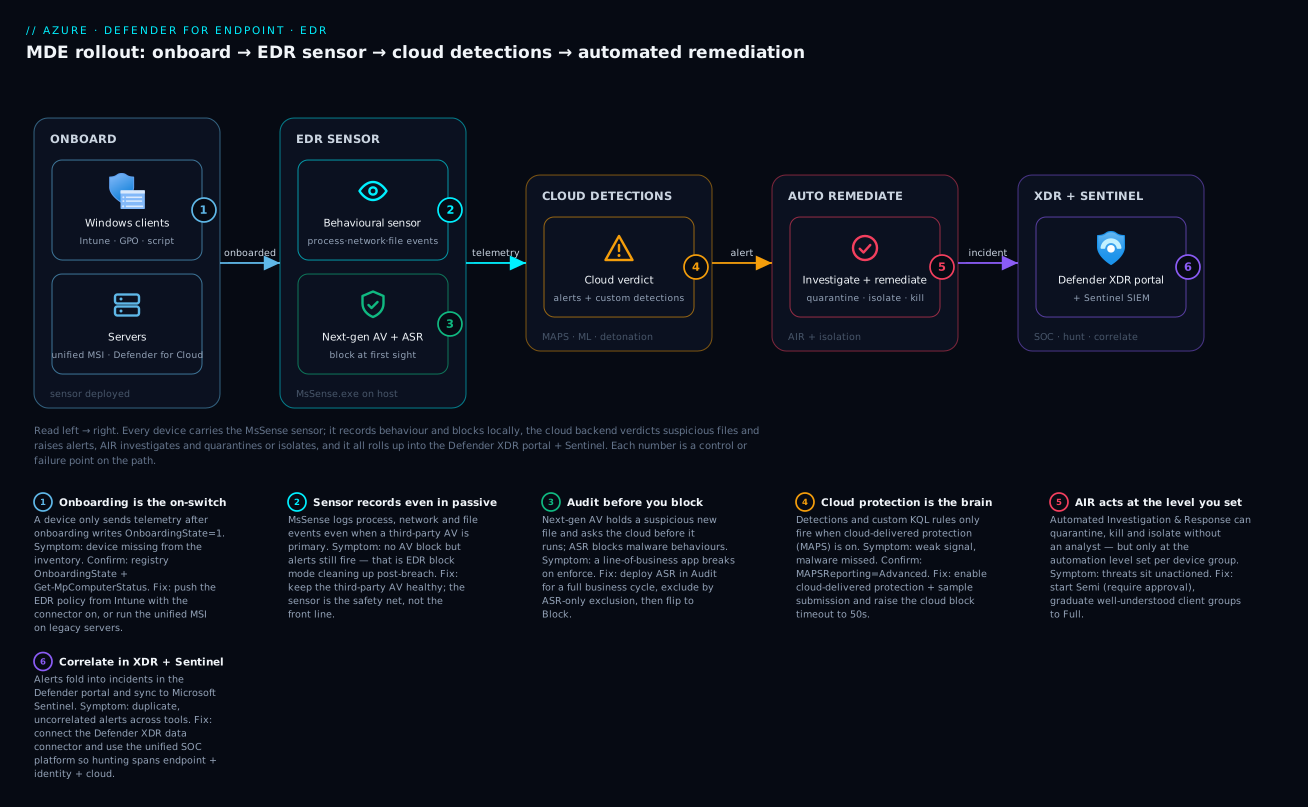
Read left to right: you onboard each Windows client and server so it carries the MsSense sensor; the sensor records behaviour and enforces next-gen AV plus ASR locally; the cloud backend verdicts suspicious files and raises alerts; Automated Investigation & Response quarantines, kills, or isolates; and every signal rolls up into the Defender XDR portal and Microsoft Sentinel for the SOC to hunt across.
1. Licensing and the two plans
MDE ships in two SKUs, and the difference matters for what you can actually configure:
| Capability | Plan 1 | Plan 2 |
|---|---|---|
| Next-gen antivirus, ASR rules, device control | Yes | Yes |
| Manual response (isolate, restrict, AV scan) | Yes | Yes |
| EDR with behavioral detections | Limited | Full |
| Automated Investigation & Response (AIR) | No | Yes |
| Threat & Vulnerability Management (Defender TVM) | No | Yes |
| Advanced hunting, custom detections | No | Yes |
Plan 2 is included in Microsoft 365 E5, E5 Security, and Windows E5. ASR rules and tamper protection work on Plan 1, but EDR in block mode, AIR, TVM, and custom detection rules — most of this article — require Plan 2. Confirm your entitlement before you design around features you can’t enforce.
2. Onboarding paths
Every device sends telemetry only after it’s onboarded. There are three mechanisms; pick by how the device is managed.
| Path | Best for | Mechanism |
|---|---|---|
| Intune / MDM | Cloud-managed Windows clients | Endpoint security policy or auto-onboard via Defender connector |
| Group Policy / Config Mgr | Domain-joined, on-prem servers | Onboarding script + scheduled task or ConfigMgr collection |
| Local script | Pilots, test rings, one-offs | WindowsDefenderATPOnboardingScript.cmd from Settings |
Connect Intune to Defender first
In the Microsoft Defender portal (security.microsoft.com) go to Settings -> Endpoints -> Advanced features and turn on Microsoft Intune connection. Mirror it in Intune at Endpoint security -> Microsoft Defender for Endpoint by setting Allow Microsoft Defender for Endpoint to enforce Endpoint Security Configurations to On. This lets Intune push onboarding without distributing a script.
Onboard Windows clients via Intune
Create an EDR policy under Endpoint security -> Endpoint detection and response:
Intune admin center -> Endpoint security -> Endpoint detection and response -> Create Policy
  Platform: Windows
  Profile:  Endpoint detection and response
  Settings:
    Microsoft Defender for Endpoint client configuration package type: Auto from connector
    Sample sharing for all files: All
    Expedite telemetry reporting frequency: Yes (for high-value devices)
  Assign: your "MDE - Pilot Ring" device group
With the connector live, the onboarding blob is injected automatically — you don’t paste a package. Devices appear in the Defender portal device inventory within minutes of the policy applying.
Onboard servers
Windows Server 2019/2022/2025 onboard like clients through Intune, Defender for Cloud, or the script. For Server 2012 R2 / 2016, use the modern, unified MDE solution (the standalone installer md4ws.msi) rather than the legacy MMA/SCEP agent, which is retired:
# Run elevated on Windows Server 2012 R2 / 2016
msiexec /i md4ws.msi /quiet

# Then onboard with the server-specific local script from
# Defender portal -> Settings -> Endpoints -> Onboarding -> "Windows Server 2012 R2 and 2016"
.\WindowsDefenderATPLocalOnboardingScript.cmd
The cleanest path for Azure VMs is to let Microsoft Defender for Cloud auto-provision the MDE extension when you enable the Servers plan — no per-VM script.
Verify onboarding from the host
# Connectivity + onboarding state (run elevated)
Get-MpComputerStatus | Select-Object AMRunningMode, AMServiceEnabled, RealTimeProtectionEnabled

# Onboarding flag in the registry (1 = onboarded)
Get-ItemPropertyValue 'HKLM:\SOFTWARE\Microsoft\Windows Advanced Threat Protection\Status' -Name OnboardingState
AMRunningMode should read Normal (Defender is the active AV) or EDR Block Mode once that’s enabled. If you see Passive, a third-party AV is primary — that’s fine for EDR but ASR and next-gen protection won’t fully enforce until Defender is in active or block mode.
3. Next-gen protection settings
Before hardening the attack surface, get the antivirus engine configured correctly. Push these through an Antivirus policy in Endpoint security -> Antivirus -> Windows.
The settings that actually move the needle:
- Cloud-delivered protection (MAPS): Enabled — this is the cloud backend behind most modern detections. Without it you lose the bulk of MDE’s signal.
- Cloud block timeout extension: raise to 50 seconds so the cloud has time to verdict a suspicious file before it executes.
- Cloud protection level: High or High plus for high-value rings.
- Submit samples consent: Send safe samples automatically (the common balance) or Send all samples for hardened rings. Avoid Never send — it blinds the cloud.
- Tamper protection: Enabled — prevents malware (and local admins) from disabling Defender. Manage it from Intune or the Defender portal, not local registry edits.
# Equivalent local config (Intune is the source of truth in production)
Set-MpPreference -MAPSReporting Advanced
Set-MpPreference -SubmitSamplesConsent SendSafeSamples
Set-MpPreference -CloudBlockLevel High
Set-MpPreference -CloudExtendedTimeout 50
# Tamper protection is enforced via Intune/portal, not Set-MpPreference
Tamper protection is non-negotiable. Turn it on tenant-wide early. Once on, attackers can’t
Set-MpPreference -DisableRealtimeMonitoring $truetheir way past you, and neither can a curious admin.
4. Attack Surface Reduction rules — audit first
ASR rules block the behaviors malware relies on: Office spawning child processes, credential theft from LSASS, script-launched executables, and more. Each rule has three states — Not configured (0), Block (1), and Audit (2) — plus Warn (6) for a subset.
The cardinal rule: deploy in Audit first. ASR rules can break legitimate line-of-business apps and macros. Run audit for one to two weeks, review what would have been blocked, exclude the false positives, then flip to Block.
Configure ASR via Endpoint security -> Attack surface reduction -> Create Policy -> Attack Surface Reduction Rules. Start with this high-value set, all in Audit:
| Rule | GUID | Notes |
|---|---|---|
| Block credential stealing from LSASS | 9e6c4e1f-7d60-472f-ba1a-a39ef669e4b2 |
High value, low breakage |
| Block Office apps creating child processes | d4f940ab-401b-4efc-aadc-ad5f3c50688a |
Watch macro-heavy apps |
| Block Office from creating executable content | 3b576869-a4ec-4529-8536-b80a7769e899 |
|
| Block executable content from email/webmail | be9ba2d9-53ea-4cdc-84e5-9b1eeee46550 |
|
| Block JS/VBS from launching downloaded content | d3e037e1-3eb8-44c8-a917-57927947596d |
|
| Block process creations from PSExec and WMI | d1e49aac-8f56-4280-b9ba-993a6d77406c |
Can hit ConfigMgr/RMM tooling |
| Block persistence via WMI event subscription | e6db77e5-3df2-4cf1-b95a-636979351e5b |
No audit mode; deploy as Block |
| Block untrusted/unsigned processes from USB | b2b3f03d-6a65-4f7b-a9c7-1c7ef74a9ba4 |
The same rules can go through PowerShell for a pilot box:
# Set the LSASS rule to Audit (2). 1 = Block, 6 = Warn, 0 = Off
Add-MpPreference -AttackSurfaceReductionRules_Ids 9e6c4e1f-7d60-472f-ba1a-a39ef669e4b2 `
                -AttackSurfaceReductionRules_Actions Enabled   # Enabled = Block

# Confirm current rule states
Get-MpPreference | Select-Object -ExpandProperty AttackSurfaceReductionRules_Ids
Get-MpPreference | Select-Object -ExpandProperty AttackSurfaceReductionRules_Actions
A handful of rules (WMI persistence is the classic example) have no audit mode. Validate those on a small pilot ring before broad deployment, since you can’t preview their impact passively.
Reviewing audit results
After a week, query what the rules caught using advanced hunting in the Defender portal:
DeviceEvents
| where Timestamp > ago(7d)
| where ActionType startswith "Asr"
| summarize Count = count() by ActionType, FileName, FolderPath
| order by Count desc
ActionType ending in Audited is what would have been blocked. Add path or certificate exclusions for the legitimate hits, then change those rules to Block.
5. Web content filtering, controlled folder access, network protection
Three more attack-surface controls, all in the Attack surface reduction policy area.
Network protection must be enabled (block mode) for web content filtering and web threat protection to enforce — in audit mode they only log. Set it via the ASR policy or:
Set-MpPreference -EnableNetworkProtection Enabled # Disabled | AuditMode | Enabled
Web content filtering is configured in the portal at Settings -> Endpoints -> Web content filtering: build policies that block categories (gambling, malware, newly registered domains) and scope them to device groups. It rides on Network protection, so enable that first.
Controlled folder access (CFA) is targeted ransomware protection — it blocks untrusted processes from writing to protected folders (Documents, Desktop, and any you add). Like ASR, start in Audit, because CFA frequently blocks legitimate apps that write to user folders:
Set-MpPreference -EnableControlledFolderAccess AuditMode
Add-MpPreference -ControlledFolderAccessAllowedApplications "C:\Apps\lob-tool.exe"
Review CFA audit events, allow the legit apps explicitly, then move to Enabled.
6. EDR in block mode and AIR
EDR in block mode
EDR in block mode lets MDE remediate post-breach artifacts that the primary antivirus missed — even when a third-party AV is your active product and Defender is in passive mode. It is not a replacement for real-time protection; it’s the safety net behind it. Enable it once, tenant-wide:
Defender portal -> Settings -> Endpoints -> Advanced features
  Enable EDR in block mode: On
After it applies, Get-MpComputerStatus reports AMRunningMode: EDR Block Mode on passive-AV machines. On machines where Defender is already the active AV, you get the protection inherently.
Automated Investigation & Response
AIR is the force multiplier: when an alert fires, MDE automatically investigates the device, correlates artifacts, and can remediate (quarantine files, kill processes, remove persistence) without an analyst. Configure the automation level per device group:
Defender portal -> Settings -> Endpoints -> Device groups -> (group) -> Edit
  Automation level: Full - remediate threats automatically
Levels run from No automated response up to Full - remediate threats automatically. Start pilot/server groups at Semi - require approval for any remediation so you can see AIR’s reasoning, then graduate well-understood client groups to Full. Review the work under Incidents & alerts -> Investigations, where each automated investigation shows the entities examined and the verdict.
7. Device discovery and Defender TVM
Device discovery uses your onboarded endpoints as sensors to find unmanaged devices on the same network — the rogue NAS, the unpatched printer, the shadow-IT laptop. Set it to Standard discovery under Settings -> Endpoints -> Device discovery; unmanaged devices then surface in the inventory so you can onboard or isolate them.
Threat & Vulnerability Management (Defender TVM, Plan 2) continuously inventories software and surfaces CVEs and misconfigurations, rolled up into an exposure score (lower is better) and a Microsoft Secure Score for Devices. The actionable view is Vulnerability management -> Recommendations, sorted by exposure impact. From there you can push a remediation request straight into Intune as a task — closing the loop between “you have this CVE” and “here’s the deployment that fixes it.”
8. Custom detection rules and live response
Custom detection rules turn an advanced-hunting KQL query into a scheduled detection that raises alerts and can trigger response actions. Example — flag LSASS access by an unusual process:
DeviceProcessEvents
| where Timestamp > ago(1h)
| where InitiatingProcessFileName !in~ ("lsass.exe", "MsMpEng.exe", "csrss.exe", "wininit.exe")
| where FileName =~ "rundll32.exe" and ProcessCommandLine has "comsvcs.dll"
| project Timestamp, DeviceId, DeviceName, InitiatingProcessFileName, FileName, ProcessCommandLine
Save it via Advanced hunting -> (run query) -> Create detection rule: set frequency, severity, the impacted entities, and an automated action such as Isolate device or Collect investigation package.
Live response gives an analyst a remote shell to the device for hands-on triage. Enable it under Advanced features (and Live response for servers separately). The session is fully audited:
# In a live response session (Defender portal -> device -> Initiate live response)
getfile C:\Users\Public\suspicious.exe     # pull an artifact to the portal
processes                                  # list running processes
analyze file C:\Users\Public\suspicious.exe  # detonate/inspect
remediate file C:\Users\Public\suspicious.exe
Enterprise scenario
A logistics company moved its ASR set from Audit to Block for a 9,000-seat fleet and within an hour the service desk was buried: the warehouse management thick client and a finance VBA add-in both stopped launching. The culprit was d4f940ab-401b-4efc-aadc-ad5f3c50688a (Block Office apps from creating child processes) and 3b576869-a4ec-4529-8536-b80a7769e899 (Block Office from creating executable content). The team had run audit, but only queried the last 7 days — month-end finance macros that triggered the add-in had never executed during the audit window, so the breakage was invisible until enforcement.
The fix was twofold. First, widen the audit lookback and pivot on the rule GUID, not just ActionType, to catch low-frequency offenders before flipping anything:
DeviceEvents
| where Timestamp > ago(45d)
| where ActionType == "AsrOfficeChildProcessAudited"
| summarize Hits = count(), Devices = dcount(DeviceId), Last = max(Timestamp)
    by FolderPath, InitiatingProcessFileName
| order by Hits desc
Second, instead of disabling the rules, they scoped a per-app exception with the dedicated ASR exclusion setting (not the AV exclusion list, which ASR ignores for these rules), keeping the rules in Block everywhere else:
Add-MpPreference -AttackSurfaceReductionOnlyExclusions "C:\Apps\WMS\wms.exe"
The lesson the platform team wrote into their runbook: an ASR audit is only as good as its longest business cycle. For anything finance- or quarter-end-driven, audit through at least one month-end close before enforcing, and review by GUID and folder path rather than eyeballing aggregate counts.
Going deeper
The eight steps above are the rollout. This section is the layer underneath them — what the sensor actually is, how the cloud verdict is reached, how policies collide, and where the platform’s data lives. It’s the difference between running the wizard and being able to debug it at 2 a.m.
What “the sensor” actually is
There is no single “MDE agent” you install on Windows 10/11 or Server 2019+. The EDR sensor is built into the operating system and is switched on by onboarding, which flips registry keys under HKLM\SOFTWARE\Microsoft\Windows Advanced Threat Protection (the OnboardingState and OrgId values). The moving parts you’ll see in Task Manager and services.msc:
| Component | Process / service | Job |
|---|---|---|
| EDR sensor | MsSense.exe (service Sense) |
Records process/file/network/registry events, streams them to the cloud |
| Cloud comms | SenseCnCProxy.exe |
Command-and-control channel to the Defender cloud |
| Auto investigation | SenseIR.exe |
Runs AIR on the endpoint — collects and remediates |
| Network detection | SenseNdr.exe |
Network detection & response sensor |
| Config management | SenseCM |
Applies security settings when MDE (not Intune) manages the device |
| Next-gen AV engine | MsMpEng.exe (service WinDefend) |
Real-time antivirus, cloud lookups, ASR enforcement |
| Network inspection | NisSrv.exe |
Network Inspection Service for exploit/network signatures |
Two consequences follow. First, because the sensor is the OS, “upgrading the agent” mostly means keeping the platform and security-intelligence updates current (MpCmdRun.exe -SignatureUpdate, or just Windows Update); a device on stale platform bits reports as “sensor unhealthy” in the inventory. Second, connectivity is a first-class requirement: the sensor must reach the Defender cloud service URLs. Newer tenants can use streamlined connectivity (a small consolidated URL set) instead of the older, longer allow-list — run the client analyzer (MDEClientAnalyzer) when a device onboards but never turns “Active”, because the usual cause is a proxy or firewall eating the cloud traffic.
Onboarding mechanisms, in depth
The three-row table earlier is the summary; here’s the full menu and when each is right:
- Intune / MDM (endpoint security policy): the default for cloud-managed clients. With the connector on, onboarding is “Auto from connector” — no package to paste. This is where you want to be.
- Group Policy: the onboarding
.cmd/.regdeployed by a GPO plus a scheduled task, for domain-joined machines not yet in Intune. Workable, but you can’t manage ASR and onboarding cleanly across three channels at once. - Microsoft Configuration Manager (formerly SCCM/ConfigMgr): onboard via a Configuration Baseline or the built-in MDE policy, targeting a device collection. Common in estates mid-migration to Intune.
- Local script:
WindowsDefenderATPOnboardingScript.cmdfrom Settings -> Endpoints -> Onboarding. Fine for pilots and one-offs; it does not self-heal or report back like MDM, so don’t run a fleet on it. - Microsoft Defender for Cloud: the cleanest path for servers — enabling the Defender for Servers plan auto-provisions the MDE extension on Azure, AWS, and GCP VMs (via Azure Arc for non-Azure). See Defender for Servers, Containers, and Databases runtime protection for the CWPP side of this.
- Security settings management: lets MDE onboard and configure a device that is not Intune-enrolled — useful for servers and co-managed machines. MDE becomes the management channel for AV/ASR/EDR settings via
SenseCM. - VDI / non-persistent: golden-image VDI has a special flow (
Onboard-NonPersistentMachine.ps1in the VDI onboarding package) so each rebuilt session registers as the same logical device rather than spawning thousands of orphans in the inventory.
On the licensing edges: MDE for Servers capabilities are delivered per-server through Defender for Servers Plan 2 (part of Defender for Cloud), which includes MDE Plan 2 features on that server. Defender for Business is the SMB variant bundled in Microsoft 365 Business Premium (simplified, up to 300 seats). Premium vulnerability-management features (authenticated scans, browser-extension and certificate assessment, hardware/firmware inventory) come from the Defender Vulnerability Management add-on, not base P2.
Cloud-delivered protection and block-at-first-sight
“Cloud-delivered protection” (historically MAPS, the Microsoft Active Protection Service) is why the next-gen AV catches things a local signature never saw. The mechanism worth understanding is block at first sight (BAFS): when the client meets a new or rarely-seen file, it doesn’t just scan it locally — it computes a hash, sends metadata (and, if consent allows, the sample) to the cloud, and holds the file from executing until the cloud returns a verdict or the timeout expires. That’s exactly why the two settings from step 3 matter:
MAPSReporting Advancedturns the cloud channel on. Off = you’ve unplugged the brain and left only local signatures.CloudExtendedTimeout 50gives the cloud up to 50 seconds to verdict before the file is allowed. Too short and a genuinely-malicious-but-slow-to-verdict file slips through; too long hurts user experience on a bad link.CloudBlockLevel High/High plustrades a few more false positives for catching more grey-area files — appropriate for a hardened ring, aggressive for general users.
BAFS needs cloud protection and sample submission set to at least “safe samples” and real-time protection on. Disable any one and block-at-first-sight quietly stops working while the toggle still looks green.
How ASR policies merge (and why exclusions bite)
In a real estate, a device often receives ASR settings from more than one place. The rules to keep in your head:
- Multiple Intune ASR profiles merge per-rule. If profile A sets the LSASS rule to Audit and profile B sets it to Block, the device gets the more secure value. Exclusions from all profiles are combined as a union.
- ASR uses its own exclusion list.
AttackSurfaceReductionOnlyExclusions(Intune: ASR Only Per Rule Exclusions or the global ASR exclusion) is separate from the antivirus exclusion list. Adding a path to AV exclusions does not stop an ASR rule from blocking it — a classic false-positive rabbit hole. - Don’t manage ASR from three channels at once. GP + Intune + local
Set-MpPreferencemixed together produce confusing “last writer” behaviour. Pick one management channel per setting. - Warn mode (action
6) exists for a subset of rules on Entra-joined devices: the user sees a prompt and can unblock for a short window. Useful as a middle step between Audit and Block for user-facing rules; unavailable for server-only or “no audit mode” rules.
Exploit protection — the EMET successor
Beyond ASR, exploit protection applies memory-safety mitigations system-wide and per-app: DEP, ASLR (including mandatory/bottom-up), Control Flow Guard (CFG), SEHOP, validate heap integrity, and Arbitrary Code Guard among them. It replaces the retired EMET. You build a baseline on a reference machine, export it, and push the XML via an Intune Exploit protection profile:
# Inspect current mitigations, then export a baseline to XML
Get-ProcessMitigation -System
Get-ProcessMitigation -RegistryConfigFilePath 'C:\eng\exploit-baseline.xml'  # export

# Apply a per-process mitigation locally (Intune XML is the fleet source of truth)
Set-ProcessMitigation -Name "lob-app.exe" -Enable DEP,ForceRelocateImages
Per-app mitigations break older software far more readily than ASR, so treat exploit protection as its own audit-first project — test each app mitigation before enforcing.
Inside Automated Investigation & Response
When an alert that supports automation fires, SenseIR opens an automated investigation: it walks the alert’s entities (files, processes, services, scheduled tasks, registry keys, drivers), expands to related artifacts, and assigns each a verdict — Malicious, Suspicious, or No threats found. For malicious verdicts it proposes remediation actions (quarantine file, stop and quarantine process, remove a scheduled-task/registry/service persistence).
What happens to those actions depends on the group’s automation level:
| Automation level | Behaviour |
|---|---|
| Full - remediate threats automatically | Malicious verdicts are actioned immediately, no human |
| Semi - require approval for any remediation | Every action waits in the Action center for approval |
| Semi - require approval for core folders | Auto-remediate elsewhere; approve actions in OS/core folders |
| Semi - require approval for non-temp folders | Auto-remediate temp folders; approve the rest |
| No automated response | AIR investigates but takes no action |
Pending and completed actions live in Action center, and remediations are reversible there (release from quarantine, undo) — which is exactly why starting at a Semi level while you learn a group’s software is low-risk: you see AIR’s reasoning and can approve or reject before anything moves. Newly created device groups default to Full; sensitive server and executive groups are the ones to hold at Semi deliberately.
Advanced Hunting — the schema underneath the queries
Advanced hunting is KQL over a fixed set of Device* tables (raw telemetry retained 30 days; alerts/incidents in the portal for 180 days). The ones you’ll live in:
| Table | Holds |
|---|---|
DeviceProcessEvents |
Process creations + command lines, signer, parent process |
DeviceNetworkEvents |
Outbound/inbound connections, remote IP/URL, initiating process |
DeviceFileEvents |
File create / modify / rename / delete |
DeviceRegistryEvents |
Registry key/value changes |
DeviceImageLoadEvents |
DLL / image loads (DLL side-loading, injected modules) |
DeviceLogonEvents |
Interactive / network / remote logons on the device |
DeviceEvents |
Misc security events — ASR, AMSI, tamper, WDAC, exploit-guard |
DeviceInfo / DeviceNetworkInfo |
Device metadata, OS, Entra join state, IPs |
DeviceTvmSoftwareInventory / DeviceTvmSoftwareVulnerabilities |
Installed software and matched CVEs |
AlertInfo / AlertEvidence |
Alerts and the entities behind them |
The power comes from joining them. This query links a suspicious outbound connection back to the process that opened it and the alert that flagged it — a mini investigation in one statement:
// Processes that made a connection to a rare external IP in the last day
DeviceNetworkEvents
| where Timestamp > ago(1d)
| where RemoteIPType == "Public" and ActionType == "ConnectionSuccess"
| summarize Conns = count(), Devices = dcount(DeviceId) by RemoteIP, InitiatingProcessFileName
| where Devices <= 3          // rare across the fleet = more interesting
| order by Conns asc
// LSASS credential-dumping shape, joined to any alert on the same device
DeviceProcessEvents
| where Timestamp > ago(7d)
| where FileName =~ "rundll32.exe" and ProcessCommandLine has "comsvcs.dll" and ProcessCommandLine has "MiniDump"
| join kind=leftouter (
    AlertEvidence | where Timestamp > ago(7d) | project DeviceId, AlertId, Title=EntityType
  ) on DeviceId
| project Timestamp, DeviceName, InitiatingProcessFileName, ProcessCommandLine, AlertId
Any hunting query becomes a custom detection rule (Plan 2) via Advanced hunting -> Create detection rule: it runs on a schedule, raises an alert, and can trigger a response (isolate device, collect investigation package, run AV scan). The companion lesson Defender XDR: advanced hunting, custom detections, attack disruption goes far deeper on building a detection library.
Device isolation and live response
When a device is compromised, two response actions matter most:
- Isolate device cuts the machine off the network except its connection to the Defender cloud, so you keep control while stopping lateral movement. Full isolation blocks everything; Selective isolation still permits Outlook, Teams, and Skype for Business so the user can be contacted. Isolation is reversible from the portal — it does not clean the machine, it only quarantines it on the network.
- Restrict app execution applies a Windows Defender Application Control code-integrity policy so only Microsoft-signed binaries run — a softer containment when full isolation is too disruptive.
Live response is the remote shell. Beyond the commands in step 8, the session supports connections, registry, scheduledtasks, services, fileinfo, findfile, and a library you can upload PowerShell scripts to and run on the endpoint. Running unsigned scripts requires a separate toggle in Advanced features; every keystroke and file transfer is recorded to the device’s Action center. Live response for servers is a distinct switch — enable it deliberately and scope who holds the live response and live response advanced RBAC permissions.
TVM: from “you have a CVE” to a deployed fix
Threat & Vulnerability Management scores your estate two ways that point in opposite directions: the exposure score (0–100, lower is better — how much attackable surface you carry) and Microsoft Secure Score for Devices (a percentage, higher is better — how much recommended hardening you’ve applied). The workflow that makes TVM more than a dashboard is the Request remediation button on a recommendation: it creates a security task in Intune assigned to the endpoint team, so the CVE and its fix travel together instead of dying in a spreadsheet. Premium Defender Vulnerability Management adds authenticated network scans, block-listing of vulnerable app versions, and browser-extension/certificate/firmware assessment.
Defender XDR, Unified RBAC, and Sentinel
MDE alerts don’t live alone. The Microsoft Defender portal (security.microsoft.com) is the unified XDR surface that correlates endpoint alerts with Defender for Identity, Defender for Office 365, Defender for Cloud Apps, and Defender for Cloud into a single incident — often with automatic attack disruption that isolates a device or suspends an account mid-attack.
Two governance points production teams hit:
- Unified RBAC. Microsoft Defender XDR now has a single permission model spanning the workloads, replacing the older per-product MDE roles. You still use device groups to scope which devices an analyst sees and what automation level applies — device groups are both an RBAC and an AIR construct.
- Data residency & retention. MDE stores data in the geography chosen at first onboarding (US, EU, or UK) and it cannot be moved afterward without offboarding the tenant. Advanced-hunting raw data is kept 30 days; if you need longer, you stream it out.
That “stream it out” is the Microsoft Sentinel integration: the Defender XDR data connector pushes incidents, alerts, and the raw Device* tables into a Sentinel Log Analytics workspace with bi-directional incident sync. Microsoft’s unified security operations platform goes further and onboards Sentinel into the Defender portal, giving one incident queue and letting a hunt span endpoint, identity, and long-retention Sentinel data together. Wiring is covered in Microsoft Sentinel: deployment, analytics, SOAR.
Verify
Validate the rollout end to end before declaring it done:
- Onboarding — device shows Active in the Defender portal inventory;
OnboardingState = 1on the host. - EICAR (antivirus) — drop the harmless EICAR test string into a file and save. Defender should quarantine it instantly and raise an alert.
# This WILL be detected/quarantined — that's the point 'X5O!P%@AP[4\PZX54(P^)7CC)7}$EICAR-STANDARD-ANTIVIRUS-TEST-FILE!$H+H*' | Out-File -FilePath "$env:TEMP\eicar.com" -Encoding ascii - WICAR (web protection) — browse to a WICAR test page from a device with Network protection in block mode; the connection should be blocked and logged under web protection.
- ASR — trigger an audited rule (e.g., have Word launch
cmd.exeon a pilot box) and confirm theAsr...Audited/Blockedevent in advanced hunting. - Device timeline — open the device in the portal, go to the Timeline tab, and confirm the test events (EICAR, ASR, web block) appear in chronological order with full process context.
- AIR — confirm an automated investigation kicked off for the EICAR alert under Investigations.
Rollout checklist
Practice challenges
Work these in order — they climb from “confirm the basics” to “design the rollout”. Each solution notes the why, not just the what. Treat every command as representative: this host has no onboarded device, so the point is to know the exact call and expected result, not to run it here.
<details> <summary><strong>1. (Beginner) Prove a single device is actually onboarded.</strong> Which two independent checks confirm it, and what values do you want?</summary>
Run both on the host, elevated:
Get-MpComputerStatus | Select-Object AMRunningMode, AMServiceEnabled, RealTimeProtectionEnabled
Get-ItemPropertyValue 'HKLM:\SOFTWARE\Microsoft\Windows Advanced Threat Protection\Status' -Name OnboardingState
You want OnboardingState = 1 and AMRunningMode = Normal or EDR Block Mode, plus the device showing Active in the Defender portal inventory.
Why: the registry flag proves the sensor was switched on; AMRunningMode proves the AV engine’s role (Normal vs Passive changes what enforces). One check without the other misleads you.
</details>
<details> <summary><strong>2. (Beginner) Confirm cloud-delivered protection and tamper protection.</strong> Which is safe to read locally, and which must you verify in the portal?</summary>
Cloud protection is locally visible:
Get-MpPreference | Select-Object MAPSReporting, SubmitSamplesConsent, CloudBlockLevel, CloudExtendedTimeout
Want MAPSReporting = Advanced (2), a non-Never submission consent, and a raised CloudExtendedTimeout. Tamper protection you confirm in the Defender portal / Intune, not by trusting a local value — the whole point of tamper protection is that local state can’t be relied on.
Why: cloud protection is the detection brain; tamper protection is the lock on the brain. A green local reading for tamper protection can itself be tampered with, so the portal is the source of truth. </details>
<details> <summary><strong>3. (Intermediate) Put the LSASS ASR rule into Audit on a pilot box via PowerShell, then read back its state.</strong></summary>
# 2 = Audit (does NOT block; only logs what it would have blocked)
Add-MpPreference -AttackSurfaceReductionRules_Ids 9e6c4e1f-7d60-472f-ba1a-a39ef669e4b2 `
                -AttackSurfaceReductionRules_Actions AuditMode

Get-MpPreference | Select-Object -ExpandProperty AttackSurfaceReductionRules_Ids
Get-MpPreference | Select-Object -ExpandProperty AttackSurfaceReductionRules_Actions
The two arrays line up by index — GUID i maps to action i. AuditMode here (not Enabled, which means Block).
Why: audit-first is the cardinal ASR rule. Setting Enabled (Block) straight away is exactly the mistake that buries a service desk — you log first, review, exclude, then enforce.
</details>
<details> <summary><strong>4. (Intermediate) Write a hunting query that lists what the “Office child process” ASR rule would have blocked in the last 14 days, by folder and initiating process.</strong></summary>
DeviceEvents
| where Timestamp > ago(14d)
| where ActionType == "AsrOfficeChildProcessAudited"
| summarize Hits = count(), Devices = dcount(DeviceId), Last = max(Timestamp)
    by FolderPath, InitiatingProcessFileName
| order by Hits desc
Why: you review by rule + path + initiating process, not by raw aggregate count. Low-frequency, high-importance offenders (a month-end macro) hide in the tail — summarizing by folder and process surfaces them so you can exclude precisely instead of disabling the whole rule. </details>
<details> <summary><strong>5. (Advanced) Turn a credential-theft hunting query into a custom detection rule that isolates the device. What are the required pieces?</strong></summary>
Start from a precise query that projects the entities the rule needs (at least DeviceId, and ideally ReportId/Timestamp so evidence maps cleanly):
DeviceProcessEvents
| where Timestamp > ago(1h)
| where FileName =~ "rundll32.exe"
      and ProcessCommandLine has "comsvcs.dll" and ProcessCommandLine has "MiniDump"
| project Timestamp, DeviceId, DeviceName, ReportId, InitiatingProcessFileName, ProcessCommandLine
Then Advanced hunting -> Create detection rule and set: frequency (e.g., every hour), severity, impacted entities (map DeviceId/DeviceName), and an automated response action = Isolate device (Full or Selective) and/or Collect investigation package. Requires Plan 2.
Why: a detection rule is only as good as its entity mapping — without a mapped DeviceId the automated isolation has nothing to act on. And the query must be tight, because this one auto-isolates machines; a sloppy where clause becomes a self-inflicted outage.
</details>
<details> <summary><strong>6. (Advanced) Design the AIR automation-level progression across pilot, server, and broad-client rings, and justify each choice.</strong></summary>
A defensible design:
- Pilot ring: Semi — require approval for any remediation. You’re still learning the software mix; watch AIR’s reasoning in the Action center before anything moves.
- Server groups: hold at Semi (any, or core-folders) long-term. Servers run bespoke software and a wrong auto-remediation is a production incident; the human gate is worth the minutes.
- Broad client ring: Full — remediate threats automatically, once the pilot has shown AIR’s verdicts are trustworthy on your image. Malware dwell time on user laptops is the thing you’re trying to crush, and analysts can’t approve fast enough at scale.
Why: automation level is a per-device-group trade of speed against blast radius. Full where mistakes are cheap and speed matters (user laptops); Semi where mistakes are expensive (servers, executives). Remember remediations are reversible from the Action center, which is what makes graduating to Full safe. </details>
Common beginner mistakes
These are conceptual traps — the wrong mental model — distinct from the operational pitfalls listed below.
- “We bought E5, so the fleet is protected.” The licence is permission, not protection. A device with no
OnboardingState = 1sends nothing and is defended by nothing MDE-related. Right model: protection = onboarded sensor + configured controls + an automation level. Buying is step zero. - “Defender is in Passive mode, so we’re exposed.” Passive means a third-party AV is the active real-time engine — but the MsSense sensor still records everything and EDR in block mode still remediates post-breach artifacts. Right model: EDR and real-time AV are different jobs; passive AV + healthy EDR is a valid design, not a gap.
- “ASR rules are safe to just switch on.” They block real malware behaviours and real line-of-business apps that happen to look similar. Enforcing without audit is the fastest way to bury a service desk. Right model: audit through your longest business cycle, review by GUID + folder path, exclude, then Block.
- “I added the app to AV exclusions, so ASR will leave it alone.” ASR ignores the antivirus exclusion list for its rules. Right model: ASR has its own exclusion setting (
AttackSurfaceReductionOnlyExclusions/ ASR-only per-rule exclusions). Wrong list = the block never stops. - “Cloud protection is just optional telemetry we can turn off for privacy.” Cloud-delivered protection (MAPS) is the detection engine behind block-at-first-sight and most modern verdicts. Off = local signatures only. Right model: it’s the brain, not a metrics feed.
- “Isolating the device cleans it.” Isolation only severs the network (except the Defender cloud link). The malware is still on disk. Right model: isolation contains lateral movement to buy time; remediation (quarantine/kill/reimage) is a separate action.
- “Advanced hunting has all our history.” Raw
Device*telemetry is retained 30 days (alerts/incidents 180). Right model: if you need long look-backs or compliance retention, stream to Sentinel — the portal is not your archive.
Pitfalls and next steps
- Skipping audit mode for ASR/CFA is the fastest way to break production and lose stakeholder trust. Audit, review, exclude, then block — every time.
- Forgetting tamper protection leaves every other control one
Set-MpPreferenceaway from being disabled. It’s the foundation, not an extra. - Network protection left in audit silently no-ops web content filtering. It must be in block mode to enforce.
- EDR block mode is not real-time AV. If a third-party product is primary, keep it healthy; block mode only cleans up what slips past.
- Legacy server agents (MMA/SCEP) are retired — always onboard older servers with the unified MDE solution.
Once the baseline is stable, wire MDE alerts and the device timeline into Microsoft Sentinel, then expand the ring rollout from pilot to broad. From there, graduate AIR to full automation on well-understood client groups and let TVM drive your patch priorities — that’s when MDE stops being an agent on a box and starts being an operating model.
Glossary
- MDE (Microsoft Defender for Endpoint) — Microsoft’s endpoint EDR + EPP platform; the sensor plus cloud service this lesson deploys.
- EDR (Endpoint Detection and Response) — the “camera”: records endpoint behaviour, detects intrusions, and enables response (isolate, kill, quarantine). Post-breach focused.
- EPP (Endpoint Protection Platform) — the “front door”: preventive antivirus and hardening that stops threats before they run. MDE is both EPP and EDR.
- Defender XDR — the unified portal (
security.microsoft.com) that correlates MDE with identity, email, cloud-app, and cloud alerts into single incidents. - MsSense.exe (service “Sense”) — the EDR sensor process baked into Windows; switched on by onboarding, it streams telemetry to the cloud.
- Onboarding — the act of turning the built-in sensor on (sets
OnboardingState = 1). A device does nothing until onboarded. - Plan 1 / Plan 2 — MDE SKUs. P1 = next-gen AV, ASR, manual response. P2 = EDR, AIR, TVM, advanced hunting, custom detections. Most of this lesson needs P2.
- ASR (Attack Surface Reduction) — rules that block malware behaviours (Office spawning children, LSASS theft, script-launched executables). States: Off/Block/Audit/Warn.
- CFA (Controlled Folder Access) — targeted ransomware protection; blocks untrusted processes from writing to protected folders.
- Network protection — blocks connections to malicious/filtered domains and IPs; must be in block mode (not audit) for web content filtering to enforce.
- Exploit protection — memory-safety mitigations (DEP, ASLR, CFG, SEHOP…) applied system-wide and per app; the successor to EMET.
- Cloud-delivered protection (MAPS) — the cloud detection backend behind most modern verdicts; without it, only local signatures work.
- Block at first sight (BAFS) — holds a new/unknown file from executing while the cloud verdicts it; needs cloud protection + sample submission + real-time protection.
- Tamper protection — prevents malware or admins from disabling Defender’s settings locally; managed from Intune/portal, not the registry.
- EDR in block mode — lets MDE remediate post-breach artifacts even when a third-party AV is the active engine (Defender in passive mode).
- Passive mode — Defender is present and the sensor records, but a third-party AV is the active real-time engine.
- AIR (Automated Investigation & Response) — auto-investigates alerts, reaches verdicts, and remediates (quarantine/kill/remove persistence) per the group’s automation level.
- Automation level — per-device-group setting from No automated response → Semi (require approval) → Full (remediate automatically).
- Action center — where AIR’s pending and completed remediations live; actions are reversible (undo/release) here.
- Advanced hunting — KQL query interface over the raw
Device*telemetry tables (30-day retention). - KQL (Kusto Query Language) — the query language for advanced hunting and Sentinel.
- Custom detection rule — a saved hunting query run on a schedule that raises alerts and can trigger response actions (Plan 2).
- Live response — an audited remote shell to a device for hands-on triage (
getfile,processes,run,remediate…). - Device isolation — network-severs a device (except the Defender cloud link) to stop lateral movement; Full or Selective; reversible.
- TVM / Defender Vulnerability Management — continuous software/CVE/misconfig inventory feeding the exposure score and Secure Score for Devices.
- Exposure score — 0–100, lower is better; how much attackable surface the estate carries.
- Secure Score for Devices — a percentage, higher is better; how much recommended hardening is applied.
- Device discovery — uses onboarded endpoints as sensors to find unmanaged devices on the same network.
- Device group — a scoping construct that controls both RBAC visibility and the AIR automation level for its members.
- Unified RBAC — Defender XDR’s single permission model across the security workloads, replacing per-product roles.
- Microsoft Sentinel — Microsoft’s cloud SIEM/SOAR; the Defender XDR connector streams MDE incidents, alerts, and raw tables to it with bi-directional sync.
- EICAR / WICAR — harmless industry-standard test artifacts for validating antivirus (EICAR file) and web protection (WICAR page).
- Indicator (IoC) — a file hash, IP, URL, or certificate you tell MDE to allow, block, or alert on.